
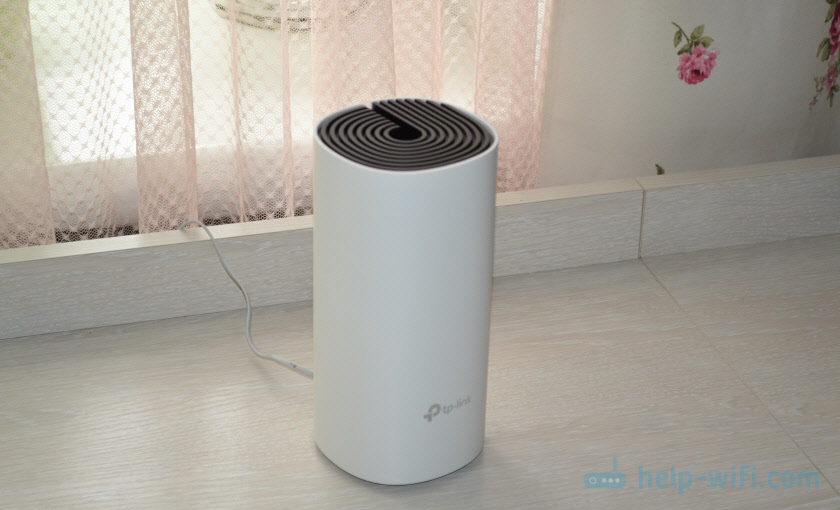
TP-Link Deco M4 – одна из самых доступных Mesh Wi-Fi систем на рынке. А если рассматривать к покупке комплект из одного модуля, то он получиться даже дешевле, чем маршрутизатор примерно с такими же характеристиками. Но в случае с Deco M4, у нас всегда будет возможность в случае необходимости докупить еще один модуль и расширить Wi-Fi сеть. Ну и получить все фишки и преимущества технологии Mesh Wi-Fi. Если вы только выбираете себе систему для создания бесшовной Wi-Fi сети, то рекомендую для начала почитать обзор на TP-Link Deco M4. В этой статье я продемонстрирую весь процесс установки, подключения и настройки этой системы.
Deco M4, как и другие Mesh-системы от TP-Link настраивается очень просто. Весь процесс настройки и управления осуществляется через приложение «Deco». Установить его можно как на iPhone, или iPad, так и на любое Android-устройство. В магазине приложений, в поиске наберите «TP-Link Deco» и установите приложение.
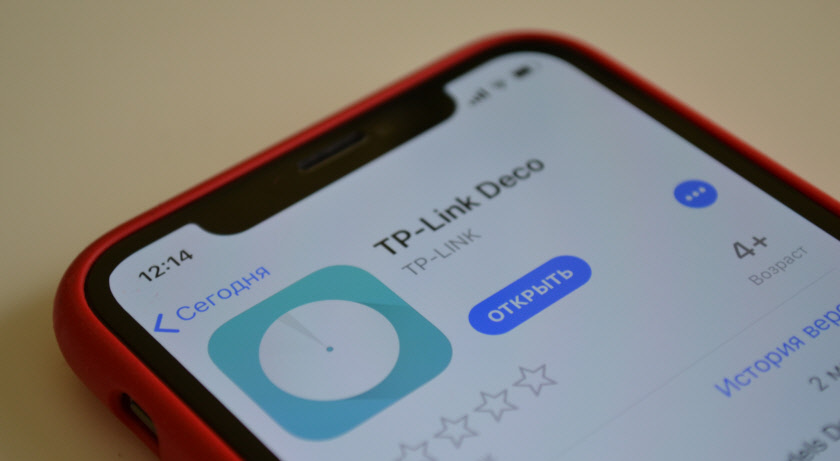 В небольшой инструкции, которая есть в комплекте, есть QR-код. Отсканировав его со своего телефона или планшета, можно сразу перейти к загрузке приложения. Приложение установите, но пока что не запускайте. Сначала выполним подключение модуля Deco M4.
Настройка TP-Link Deco M4
Для начала нужно распаковать и подключить первый модуль (возможно, он у вас один). Подключите адаптер питания и включите его в розетку. В один из LAN-портов подключите интернет (напрямую от провайдера, или от модема).

Когда модуль загружается, индикатор горит желтым цветом. Нужно немного подождать. Когда индикатор будет мигать синим цветом – модуль Deco готов к настройке. Возможно, он уже был настроен и индикатор не мигает синим цветом. В таком случае, нужно сбросить настройки. Для этого нажмите кнопку Reset (снизу модуля) и подержите 10-15 секунд.
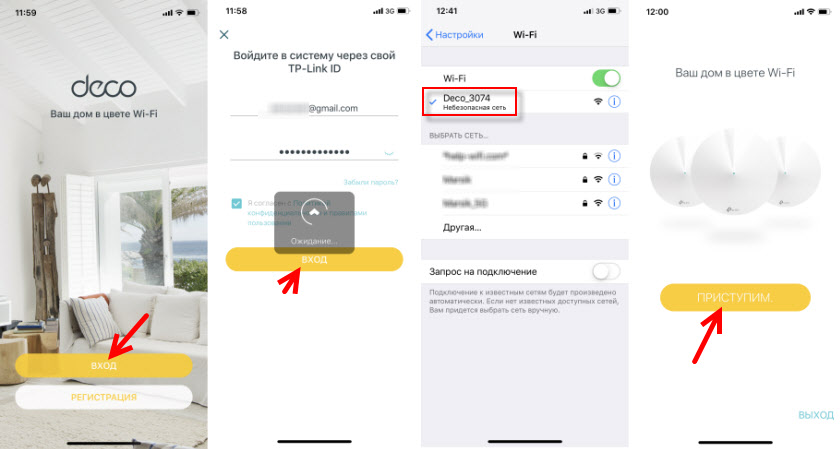
Запускам приложение Deco. Если у вас уже есть аккаунт TP-Link ID, то нажмите на кнопку «Вход» и войдите в него. Если нет, то нажмите на кнопку «Регистрация» и создайте аккаунт. После чего выполните вход в приложении.
Не закрывая приложение перейдите в настройки своего мобильного устройства и подключите его к открытой Wi-Fi сети, которую транслирует модуль Deco M4. Имя сети (SSID) указано снизу модуля. После подключения вернитесь в приложение Deco и нажмите на кнопку «Приступим».
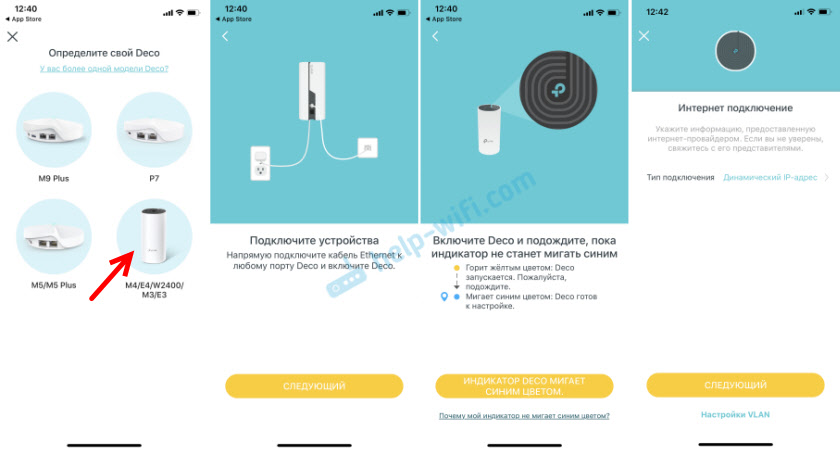
Выбираем свою систему (M4) и следуем инструкциям по подключению модуля. В окне с инструкцией по подключению к модему вы можете нажать «У меня нет модема», если интернет в вашем случае подключен напрямую к самому модулю.
В настройках интернет подключения нужно правильно выбрать тип подключения и задать необходимые параметры. Если у вас подключение PPPoE, то нужно будет указать имя пользователя и пароль, который выдает интернет-провайдер. А если L2TP, или PPTP, то кроме имени пользователя и пароль нужно указать еще адрес сервера. У меня Динамический IP, там вручную вводить настройки не нужно.
Следующий шаг – настройка Wi-Fi сети. Нужно придумать имя сети и пароль, указать их в соответствующих полях и продолжить настройку. Когда появится сообщение: «Для продолжения настройки подключите смартфон/планшет к Wi-Fi сети Deco», то зайдите в настройки Wi-Fi на своем устройстве и выполните подключение к сети, которую только что создали. Используя установленный пароль.
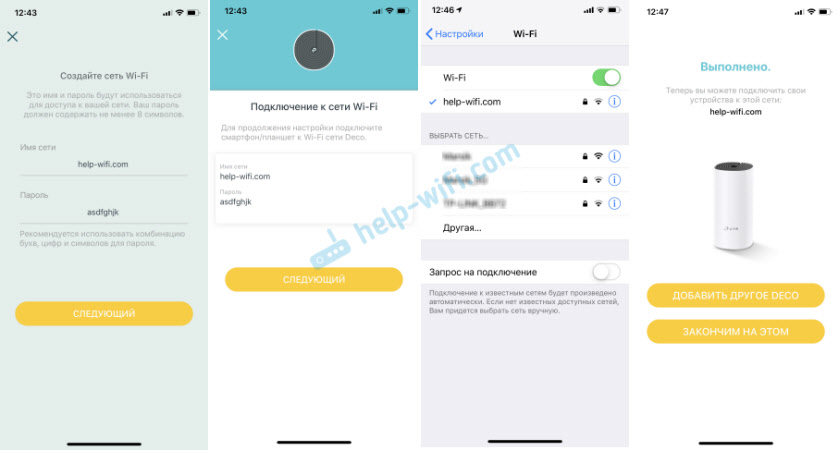
Дальше система TP-Link Deco M4 протестирует подключение к интернету. И если вы правильно задали параметры для подключения и нет никаких ограничений со стороны провайдера – выдаст сообщение, что подключение установлено. После чего предложит завершить настройку, или настроить второй модуль Deco M4. Запустить настройку второго модуля можно сразу, или в меню программы (см. ниже).
Первый модуль Mesh Wi-Fi системы полностью настроен и готов к работе.
Подключение второго модуля Deco M4
Если у вас набор из дух модулей, то установите второй модуль в другой комнате, или на другом этаже и подключите к нему питание. Он должен быть установлен в зоне стабильного покрытия Wi-Fi сети от основного модуля.
В приложении нажимаем на кнопку «+». Выбираем свой модуль, затем выбираем этаж на котором он размещен и комнату. Проверяем, мигает ли индикатор синим цветом и нажимаем на кнопку «Индикатор Deco мигает синим цветом».
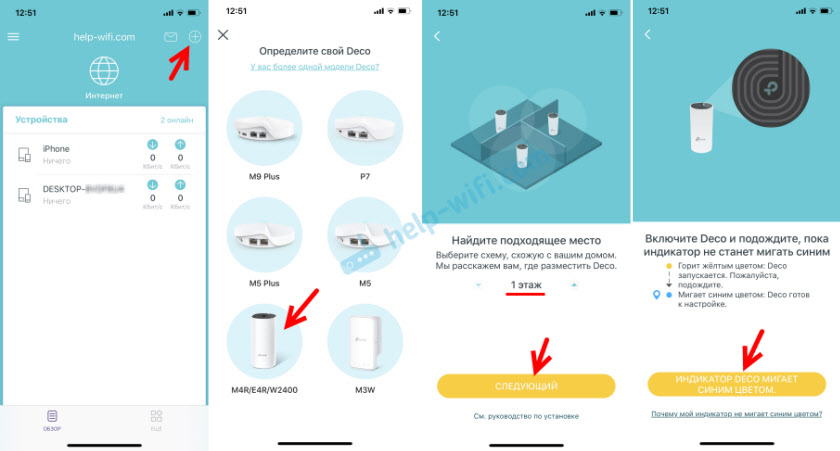
Дальше начнется процесс создания и оптимизации сети. Оба модуля будут объеденные в одну Wi-Fi сеть. После завершения настройки нажмите на кнопку «Закончим на этом». Откроется главное окно приложения Deco.
Управление Wi-Fi Mesh-системой TP-Link
На главной странице приложения отображаются подключенные устройства. Если нажать на устройство, то можно включить для него «Высокий приоритет», или добавить в черный список (нажав на меню из трех точек).
А если на главной странице нажать на «Интернет», то мы увидим все модули Deco, которые находятся в нашей сети. Выбрав определенный модуль, можно посмотреть его статус в сети, сменит расположение, перезагрузит, или удалить.
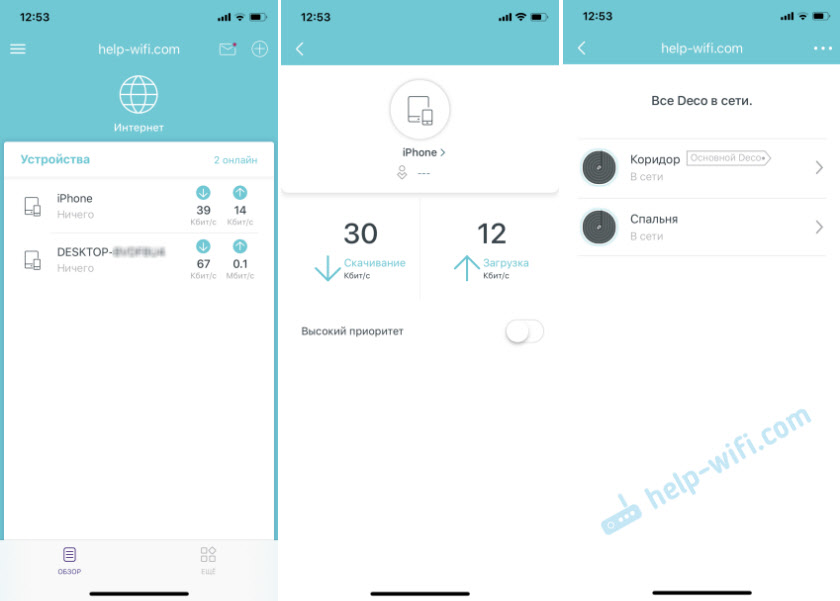
Если снизу нажать на вкладку «Еще», то откроются расширенные настройки. Там можно сменить настройки Wi-Fi сети, посмотреть черный список устройств, обновить прошивку модулей Deco, или изменить дополнительные настройки (среди которых настройки подключения к интернет-провайдеру).
В дополнительных настройках я рекомендую только включить функцию «Быстрый роуминг». Если после включения этой функции появляться проблемы с подключением старых устройств к Wi-Fi сети, то отключите ее.

Настройка Mesh Wi-Fi системы TP-Link Deco M4 из двух модулей завершена. Если необходимо подключить какое-то устройство к интернету по кабелю, то просто соедините его с модулем с помощью сетевого кабеля, который идет в комплекте.
Вы можете отключить модуль Deco M4, перенести его в другою комнату, включить питание и он продолжит работу. Заново настраивать его не нужно. Главное, чтобы он находился в радиусе действия Wi-Fi сети основного модуля.
Через приложение Deco можно управлять Mesh-системой удаленно. Через интернет. Не обязательно, чтобы ваше устройство было подключено к домашней Wi-Fi сети.
Если вы захотите контролировать Mesh Wi-Fi систему с компьютера, и даже менять некоторые настройки, то вам для этого нужно просто открыть веб-интерфейс по адресу 192.168.68.1 или tplinkdeco.net. По сравнению с приложением Deco набор настроек там ограничен, но есть и такие возможности, которых нет в приложении. Например, системный журнал, или информация о загруженности процессора и оперативной памяти.
Видео по настройке
-
How to Configure a Deco System with Starlink
-
How to Resolve Double NAT using Starlink
-
How to Set up the TP-Link Deco M4 Mesh Wi-Fi System
This video guides you step by step to set up your Deco M4. With advanced Deco Mesh Technology, units work together to form one unified whole-home network with the same network name. Devices automatically switch between Decos as you move through your home for the fastest possible speeds.
For more information about TP-Link Deco M4, visit: https://bit.ly/33IRwWc
Больше
Меньше -
What to do if I fail to configure the main Deco and get stuck on “Testing Internet Connection”?
This video provides you with solutions when you fail to configure the main Deco and get stuck on the step ” Testing Internet Connection”.
Больше
Меньше -
What to do if I fail to configure the satellite Deco and get stuck on “We couldn’t find another Deco”?
This video provides you with solutions when you fail to configure the slave Deco and get stuck on the step ” We couldn’t find another Deco”.
Больше
Меньше -
What to do if I fail to configure the main Deco and get stuck on “We couldn’t find Deco”?
This video provides you with solutions when you fail to configure the main Deco and get stuck on the step ” We couldn’t find Deco”.
Больше
Меньше
Как обновить прошивку
Обновление программного обеспечения (прошивки) способно решить проблемы предыдущих версий прошивки и улучшить работу устройства. Во избежание возникновения проблем при обновлении ознакомьтесь со следующей информацией.
Проверьте соответствие аппаратной версии и версии прошивки — установка неверной версии может привести к неисправности устройства и аннулировать гарантию (обычно версия 1.x = версия 1). Как узнать аппаратную версию устройства?
Не рекомендуется устанавливать прошивку, предназначенную для другого региона. Нажмите здесь для выбора региона и загрузите последнюю версию прошивки.
Отключение питания во время обновления прошивки может привести к неисправности устройства.
Обновляйте прошивку роутера по Wi-Fi только тогда, когда это является единственно возможным способом.
Перед обновлением рекомендуется закрыть на компьютере все программы, для работы которых требуется интернет-подключение, или просто отсоединить сетевой кабель от устройства.
Перед выполнением обновления файл с прошивкой необходимо извлечь из архива с помощью архиватора (например, WinRAR или WinZIP).
Рекомендации по обновлению прошивки: Wi-Fi роутер, Wi-Fi роутер с модемом ADSL2+, усилитель Wi-Fi сигнала.
Больше
Меньше
|
Deco M4(EU)_V4_1.1.1 Build 20230201 |
Загрузить | |
|---|---|---|
| Дата публикации: 2023-03-03 | Язык: Многоязычный | Размер файла: 13.42 MB |
|
Повышена безопасность WPS. |
|
Deco M4(EU)_V4_1.1.0 Build 20230112 |
Загрузить | |
|---|---|---|
| Дата публикации: 2023-02-09 | Язык: Многоязычный | Размер файла: 13.42 MB |
|
Изменения Примечания |
|
Deco M4(EU)_V4_1.0.2_220401 |
Загрузить | |
|---|---|---|
| Дата публикации: 2022-04-26 | Язык: Многоязычный | Размер файла: 12.82 MB |
|
Повышена стабильность работы устройства и исправлены незначительные ошибки. |
Использование стороннего ПО на устройствах TP-Link
Официальное программное обеспечение устройств TP-Link может быть заменено на стороннее, например, на DD-WRT. Компания TP-Link не обязана предоставлять сервисную или техническую поддержку для устройств со сторонним ПО и не гарантирует стабильность его работы. Ущерб, нанесённый устройству в результате использования стороннего ПО, приведёт к аннулированию гарантии.
Открытый исходный код для программистов (GPL)
Следующая информация предназначена для программистов и не представляет особой значимости для большинства конечных пользователей продукции TP-Link.
Продукция TP-Link содержит код, разработанный третьими лицами, включая код, разработанный в соответствии с универсальной общественной лицензией GNU (GPL) версий 1–3 или в соответствии со универсальной общественной лицензией ограниченного применения GNU (LGPL). Вы можете использовать соответствующее программное обеспечение на условиях лицензии GPL.
Ознакомиться, распечатать и загрузить соответствующие условия лицензии GPL можно здесь. В центре исходных кодов GPL можно скачать исходный код GPL соответствующего ПО, используемого в продукции TP-Link, а также прочую информацию, включая список ПО TP-Link, содержащего исходный код GPL.
Приложение

- TP-Link Deco
-
Приложение Deco компании TP‑Link обеспечивает удобное управление Mesh‑устройствами Deco.

Summary of Content for tp-link Deco M4R V1 User’s Guide PDF
Whole Home Mesh Wi-Fi System Seamless Roaming | Parental Controls | Easy Setup
User Guide AC1200 Whole Home Mesh Wi-Fi System
Deco M4/M4R/E4/E4R/W2400 1910012675 REV1.0.2
Contents About This Guide 1 Appearance 2 Set Up Your Deco 3 Dashboard 5 Wi-Fi Settings 6 Parental Controls 7 Advanced Features 8 Update Decos 12 Managers 13 Authentication 14
1
About This Guide This guide provides a brief introduction to Deco Whole Home Mesh Wi-Fi System and the Deco app, as well as regulatory information. Please note that features of Deco may vary slightly depending on the model and software version you have, and on your location, language and internet service provider. All images, parameters and descriptions documented in this guide are used for demonstration only.
Conventions In this guide, the following conventions are used:
Convention Description
Deco Stands for Deco Whole Home Mesh Wi-Fi System/Unit.
Underline Hyperlinks are in teal and underlined. You can click to redirect to a website or a specific section.
Teal Key information appears in teal, including management page text such as menus, items, buttons and so on.
Note: Ignoring this type of note might result in a malfunction or damage to the device.
Tips: Indicates important information that helps you make better use of your device.
More Info Specific product information can be found on the product page at
https://www.tp-link.com. A Technical Community is provided for you to discuss our products at
https://community.tp-link.com. Our Technical Support contact information can be found at the Help
center of the Deco app and the Contact Technical Support page at https://www.tp-link.com/support.
Speed/Coverage/Device Quantity Disclaimer Maximum wireless transmission rates are the physical rates derived from IEEE Standard 802.11 specifications. Range, coverage, and maximum quantity of connected devices are based on test results under normal usage conditions. Actual wireless data throughput. wireless coverage, and quantity of connected devices are not guaranteed and will vary as a result of 1) environmental factors, including building materials, physical objects, and obstacles, 2) network conditions, including local interference, volume and density of traffic, product location, network complexity, and network overhead, and 3) client limitations, including rated performance, location, connection quality, and client condition.
MU-MIMO Disclaimer Use of MU-MIMO requires clients to also support MU-MIMO.
2
Appearance Each Deco has an LED that changes color according to its status, two RJ-45 Ethernet ports, a power slot, and a Reset button. See the explanation below:
Yellow pulse: Deco is resetting.
Yellow solid: Deco is starting up.
Blue pulse: Deco is ready for setup.
Blue solid: Deco is setting up.
White pulse:
White solid: Deco is registered and all is well.
Red pulse: Deco is disconnected from main Deco.
Red solid: Deco has an issue.
Ethernet Ports: For connecting Deco to your modem, the Ethernet outlet or other internet devices.
Reset Button: Press to reset Deco to factory default settings.
Power Slot: For connecting Deco to the power socket via the provided power adapter.
3
Set Up Your Deco Follow the steps below to set up your Deco Whole Home Mesh Wi-Fi System.
1. Download and install the Deco app Scan the QR code below or go to Google Play or the Apple App Store to download the Deco app. Instal l the app on your Android or iOS smartphone or tablet.
or
2. Log in or sign up with TP-Link ID Open the app. Use your TP-Link ID to log in. If you dont have a TP-Link ID, tap Sign Up. The Deco app will guide you through the rest.
3. Connect Deco to your modem Find and power off your modem. Connect your Deco to the modem and power them both on. If you don’t have a modem, connect the Ethernet outlet directly to your Deco.
4
4. Select a location Select a location for this Deco. If its location is not listed, you can create a new one by choosing Custom.
5. Create your Wi-Fi network Set a network name and a password. These will be the name and password you use to connect your devices to Wi-Fi.
6. Add more Decos You can add more Decos to expand Wi-Fi coverage. The app will guide you through the process of adding more Decos one by one.
5
Dashboard After you successfully set up your Deco network, you will see the dashboard of the Deco app. Here you can view the connected devices and their internet speeds, tap the (Internet) icon to check the working status of all Decos, and tap the icon to display more features.
View connected devices Check the working status of all Decos Display more features
6
Wi-Fi Settings You can change the network name and password of your main network, create a separate network for guests, and shake your device to share the network details easily with family and friends.
Change main network settings Create a guest network Shake to share Wi-Fi
7
Parental Controls Create profiles for family members and specify the devices that belong to them. Set individualized parental controls including when and for how long each person can access the internet. Block inappropriate content and pause the internet if necessary.
Parental Controls Select filter level Set time controls
8
Advanced Features Additional features are available under the Advanced menu. You can configure and change settings according to your needs.
Advanced features Change IPv4 settings Change IPv6 settings
9
Register a TP-Link DDNS domain nameSet up port forwarding rulesReserve IP addresses for specific devices
10
Control the LED on DecoEnable fast roaming for wireless devicesChange VLAN settings
11
Turn on/off notifications Change the operating mode
12
Update Decos TP-Link is dedicated to improving product features and providing a better customer experience. Update Deco when prompted in the Deco app.
Update Available Updating Deco Up-to-date
13
Managers Add friends and family members to help manage your Deco network. Each manager should have their own TP-Link ID.
Managers Add a manager Manager list
14
Authentication COPYRIGHT & TRADEMARKS Specifications are subject to change without notice. is a registered trademark of TP-Link Technologies Co., Ltd. Other brands and product names are trademarks or registered trademarks of their respective holders.
No part of the specifications may be reproduced in any form or by any means or used to make any derivative such as translation, transformation, or adaptation without permission from TP-Link Technologies Co., Ltd. Copyright 2019 TP-Link Technologies Co., Ltd. All rights reserved.
15
FCC Compliance Information Statement
Product Name: AC1200 Whole Home Mesh Wi-Fi System
Model Number: Deco M4/M4R/E4/E4R/W2400 Component Name Model
I.T.E POWER SUPPLY T120120-2B4 (for Deco M4/M4R) T120100-2B1 (for Deco E4/E4R/W2400)
Responsible party:
TP-Link USA Corporation, d/b/a TP-Link North America, Inc.
Address: 145 South State College Blvd. Suite 400, Brea, CA 92821
Website: http://www.tp-link.com/us/
Tel: +1 626 333 0234
Fax: +1 909 527 6803
E-mail: sales.usa@tp-link.com
This equipment has been tested and found to comply with the limits for a Class B digital device, pursuant to part 15 of the FCC Rules. These limits are designed to provide reasonable protection against harmful interference in a residential installation. This equipment generates, uses and can radiate radio frequency energy and, if not installed and used in accordance with the instructions, may cause harmful interference to radio communications. However, there is no guarantee that interference will not occur in a particular installation. If this equipment does cause harmful interference to radio or television reception, which can be determined by turning the equipment off and on, the user is encouraged to try to correct the interference by one or more of the following measures:
Reorient or relocate the receiving antenna.
Increase the separation between the equipment and receiver.
Connect the equipment into an outlet on a circuit different from that to which the receiver is connected.
Consult the dealer or an experienced radio/ TV technician for help.
This device complies with part 15 of the FCC Rules. Operation is subject to the following two conditions:
16
1. This device may not cause harmful interference.
2. This device must accept any interference received, including interference that may cause undesired operation.
Any changes or modifications not expressly approved by the party responsible for compliance could void the users authority to operate the equipment.
Note: The manufacturer is not responsible for any radio or TV interference caused by unauthorized modifications to this equipment. Such modifications could void the users authority to operate the equipment.
FCC RF Radiation Exposure Statement This equipment complies with FCC RF radiation exposure limits set forth for an uncontrolled environment. This device and its antenna must not be co-located or operating in conjunction with any other antenna or transmitter.
To comply with FCC RF exposure compliance requirements, this grant is applicable to only Mobile Configurations. The antennas used for this transmitter must be installed to provide a separation distance of at least 20 cm from all persons and must not be co-located or operating in conjunction with any other antenna or transmitter.
FCC Compliance Information Statement
Product Name: I.T.E POWER SUPPLY
Model Number: T120120-2B4 (for Deco M4/M4R) T120100-2B1 (for Deco E4/E4R/W2400)
Responsible party:
TP-Link USA Corporation, d/b/a TP-Link North America, Inc.
Address: 145 South State College Blvd. Suite 400, Brea, CA 92821
Website: http://www.tp-link.com/us/
Tel: +1 626 333 0234
17
Fax: +1 909 527 6803
E-mail: sales.usa@tp-link.com
This equipment has been tested and found to comply with the limits for a Class B digital device, pursuant to part 15 of the FCC Rules. These limits are designed to provide reasonable protection against harmful interference in a residential installation. This equipment generates, uses and can radiate radio frequency energy and, if not installed and used in accordance with the instructions, may cause harmful interference to radio communications. However, there is no guarantee that interference will not occur in a particular installation. If this equipment does cause harmful interference to radio or television reception, which can be determined by turning the equipment off and on, the user is encouraged to try to correct the interference by one or more of the following measures:
Reorient or relocate the receiving antenna.
Increase the separation between the equipment and receiver.
Connect the equipment into an outlet on a circuit different from that to which the receiver is connected.
Consult the dealer or an experienced radio/ TV technician for help.
This device complies with part 15 of the FCC Rules. Operation is subject to the following two conditions:
1) This device may not cause harmful interference.
2) This device must accept any interference received, including interference that may cause undesired operation.
Any changes or modifications not expressly approved by the party responsible for compliance could void the users authority to operate the equipment.
We, TP-Link USA Corporation, has determined that the equipment shown as above has been shown to comply with the applicable technical standards, FCC part 15. There is no unauthorized change is made in the equipment and the equipment is properly maintained and operated.
Issue Date: 2019-10-21
18
CE Mark Warning
This is a class B product. In a domestic environment, this product may cause radio interference, in which case the user may be required to take adequate measures.
OPERATING FREQUENCY(the maximum transmitted power) 2412MHz2483.5MHz (20dBm)
5150MHz5250MHz (23dBm)
EU declaration of conformity TP-Link hereby declares that the device is in compliance with the essential requirements and other relevant provisions of directives 2014/53/EU, 2009/125/EC and 2011/65/EU. The original EU declaration of conformity may be found at http://www.tp-link.com/en/ce
RF Exposure Information This device meets the EU requirements (2014/53/EU Article 3.1a) on the limitation of exposure of the general public to electromagnetic fields by way of health protection.
The device complies with RF specifications when the device used at 20 cm from your body.
Attention: This device may only be used indoors in all EU member states and EFTA countries.
Canadian Compliance Statement This device complies with Industry Canada license-exempt RSS standard(s). Operation is subject to the following two conditions:
19
1. This device may not cause interference, and
2. This device must accept any interference, including interference that may cause undesired operation of the device.
Le prsent appareil est conforme aux CNR dIndustrie Canada applicables aux appareils radio exempts de licence. Lexploitation est autorise aux deux conditions suivantes :
1. lappareil ne doit pas produire de brouillage;
2. lutilisateur de lappareil doit accepter tout brouillage radiolectrique subi, meme si le brouillage est susceptible den compromettre le fonctionnement.
Antenna 2* 5GHz 1dBi internal antennas 2* 2.4GHz 1.5dBi internal antennas
Caution: 1. The device for operation in the band 51505250 MHz is only for indoor use to reduce the potential for harmful interference to co-channel mobile
satellite systems;
2. For devices with detachable antenna(s), the maximum antenna gain permitted for devices in the band 5725-5850 MHz shall be such that the equipment still complies with the e.i.r.p. limits specified for point-to-point and non-point-to-point operation as appropriate; and
The high-power radars are allocated as primary users (i.e. priority users) of the bands 5250-5350 MHz and 5650-5850 MHz and that these radars could cause interference and/or damage to LE-LAN devices.
Avertissement: 1. Le dispositif fonctionnant dans la bande 5150-5250 MHz est rserv uniquement pour une utilisation lintrieur afin de rduire les risques de
brouillage prjudiciable aux systmes de satellites mobiles utilisant les mmes canaux;
2. Le gain maximal dantenne permis pour les dispositifs avec antenne(s) amovible(s) utilisant la bande 5725-5850 MHz doit se conformer la limitation P.I.R.E spcifie pour lexploitation point point et non point point, selon le cas.
En outre, les utilisateurs devraient aussi tre aviss que les utilisateurs de radars de haute puissance sont dsigns utilisateurs principaux (c.—d., quils ont la priorit) pour les bandes 5745-5850 MHz et que ces radars pourraient causer du brouillage et/ou des dommages aux dispositifs LAN-EL.
20
Radiation Exposure Statement: This equipment complies with IC radiation exposure limits set forth for an uncontrolled environment. This equipment should be installed and operated with minimum distance 20cm between the radiator & your body.
Dclaration dexposition aux radiations: Cet quipement est conforme aux limites dexposition aux rayonnements IC tablies pour un environnement non contrl. Cet quipement doit tre install et utilis avec un minimum de 20 cm de distance entre la source de rayonnement et votre corps.
Industry Canada Statement CAN ICES-3 (B)/NMB-3(B)
Korea Warning Statements: .
NCC Notice & BSMI Notice:
4.7.9.1 4.7.9.2
21
Pb
Cd
Hg
CrVI
PBB
PBDE
PCB 1. 0.1 wt % 0.01 wt % 2. 3.
, .
Safety Information Keep the device away from water, fire, humidity or hot environments. Do not attempt to disassemble, repair, or modify the device. Do not use damaged charger or USB cable to charge the device. Do not use any other chargers than those recommended Do not use the device where wireless devices are not allowed. Adapter shall be installed near the equipment and shall be easily accessible.
22
Use only power supplies which are provided by manufacturer and in the original packing of this product. If you have any questions, please don’t hesitate to contact us.
Please read and follow the above safety information when operating the device. We cannot guarantee that no accidents or damage will occur due to improper use of the device. Please use this product with care and operate at your own risk.
Explanation of the symbols on the product label Symbol Explanation
DC voltage
Indoor use only
RECYCLING This product bears the selective sorting symbol for Waste electrical and electronic equipment (WEEE). This means that this product must be handled pursuant to European directive 2012/19/EU in order to be recy
Manualsnet FAQs
If you want to find out how the Deco M4R V1 TP-Link works, you can view and download the tp-link Deco M4R V1 User’s Guide on the Manualsnet website.
Yes, we have the User’s Guide for TP-Link Deco M4R V1 as well as other TP-Link manuals. All you need to do is to use our search bar and find the user manual that you are looking for.
The User’s Guide should include all the details that are needed to use a TP-Link Deco M4R V1. Full manuals and user guide PDFs can be downloaded from Manualsnet.com.
The best way to navigate the tp-link Deco M4R V1 User’s Guide is by checking the Table of Contents at the top of the page where available. This allows you to navigate a manual by jumping to the section you are looking for.
This tp-link Deco M4R V1 User’s Guide consists of sections like Table of Contents, to name a few. For easier navigation, use the Table of Contents in the upper left corner.
You can download tp-link Deco M4R V1 User’s Guide free of charge simply by clicking the “download” button in the upper right corner of any manuals page. This feature allows you to download any manual in a couple of seconds and is generally in PDF format. You can also save a manual for later by adding it to your saved documents in the user profile.
To be able to print tp-link Deco M4R V1 User’s Guide, simply download the document to your computer. Once downloaded, open the PDF file and print the tp-link Deco M4R V1 User’s Guide as you would any other document. This can usually be achieved by clicking on “File” and then “Print” from the menu bar.
| Language | Type | Pages | |
|---|---|---|---|
| English | User Manual | 24 | > Go to the manual |
| All languages | Installation Guide | 67 | > Go to the manual |
727835
Report abuse
Libble takes abuse of its services very seriously. We’re committed to dealing with such abuse according to the laws in your country of residence. When you submit a report, we’ll investigate it and take the appropriate action. We’ll get back to you only if we require additional details or have more information to share.
Product: TP-LINK Deco M4R
Forumrules
To achieve meaningful questions, we apply the following rules:
- First, read the manual;
- Check if your question has been asked previously;
- Try to ask your question as clearly as possible;
- Did you already try to solve the problem? Please mention this;
- Is your problem solved by a visitor then let him/her know in this forum;
- To give a response to a question or answer, do not use this form but click on the button ‘reply to this question’;
- Your question will be posted here and emailed to our subscribers. Therefore, avoid filling in personal details.
Your question has been posted on this page
Would you like to receive an email when new answers and questions are posted? Please enter your email address.
Роутер TP-Link Deco M4R — это мощное устройство, которое обеспечивает стабильное и быстрое подключение к интернету. Если вы хотите настроить этот роутер, следуйте нашей подробной инструкции. В этой статье мы рассмотрим все этапы настройки, начиная с подключения роутера и заканчивая настройкой безопасности Wi-Fi.
Первым шагом является подключение роутера к вашему провайдеру интернета. Для этого вам понадобятся Ethernet-кабель и сетевой адаптер. Подключите один конец Ethernet-кабеля к порту WAN на задней панели роутера, а другой конец — к выходу вашего провайдера. Затем вставьте адаптер в розетку и подключите его к роутеру.
Когда роутер подключен, подождите несколько минут, чтобы он загрузился и установил соединение с вашим провайдером. Затем откройте веб-браузер и введите IP-адрес роутера в адресную строку. Обычно это 192.168.0.1, но вы можете найти его на задней панели роутера или в документации. Нажмите Enter, чтобы перейти к веб-интерфейсу роутера.
Во вкладке настройки Wi-Fi вы сможете задать имя сети (SSID) и пароль для доступа. Рекомендуется использовать уникальное имя сети и надежный пароль, чтобы предотвратить несанкционированный доступ к вашей Wi-Fi сети. Вы также можете настроить другие параметры, такие как шифрование и частотный диапазон. Сохраните изменения и перезапустите роутер для применения новых настроек.
Важно помнить, что настройка безопасности Wi-Fi является очень важной частью настройки роутера. Убедитесь, что вы установили сложный пароль для доступа к административному интерфейсу роутера и для подключения к Wi-Fi сети. Регулярно обновляйте пароли для повышения безопасности.
После настройки Wi-Fi можно подключать к роутеру другие устройства через сетевые кабели или Wi-Fi. Убедитесь, что все устройства подключены к правильной Wi-Fi сети, используя заданное имя сети и пароль. Если у вас возникли проблемы с подключением или настройкой роутера, вы можете обратиться к документации или связаться с технической поддержкой TP-Link для получения дополнительной помощи.
Содержание
- Инструкция по настройке роутера TP-Link Deco M4R
- Подключение роутера TP-Link Deco M4R
- Настройка Wi-Fi на роутере TP-Link Deco M4R
- Настройка безопасности на роутере TP-Link Deco M4R
Инструкция по настройке роутера TP-Link Deco M4R
Шаг 1: Распакуйте роутер TP-Link Deco M4R из упаковки и подключите его к источнику питания.
Шаг 2: Подключите одну из сетевых кабелей к порту WAN роутера, а другой конец подключите к модему или сетевому розетке.
Шаг 3: С помощью мобильного устройства скачайте и установите приложение «TP-Link Deco» из App Store или Google Play.
Шаг 4: После установки откройте приложение и создайте аккаунт TP-Link, если у вас его еще нет.
Шаг 5: Войдите в аккаунт и нажмите на кнопку «Добавить устройство» в приложении.
Шаг 6: Введите имя и пароль для новой Wi-Fi сети, которую вы хотите создать.
Шаг 7: Подключите ваше мобильное устройство к Wi-Fi сети, созданной роутером TP-Link Deco M4R.
Шаг 8: Приложение автоматически найдет и подключит роутер к вашей сети.
Шаг 9: После успешного подключения и настройки роутера, можно подключить другие устройства к Wi-Fi сети.
Шаг 10: Для повышения безопасности сети, рекомендуется изменить пароль администратора роутера и включить функцию шифрования WPA2.
Теперь вы успешно настроили роутер TP-Link Deco M4R и можете наслаждаться доступом в Интернет через Wi-Fi сеть.
Подключение роутера TP-Link Deco M4R
Перед началом настройки роутера TP-Link Deco M4R необходимо подключить его к сетевому источнику питания и интернет-кабелю. Для этого выполните следующие действия:
- Разместите роутер вблизи источника питания и подключите его с помощью адаптера.
- Подключите один конец интернет-кабеля к модему или розетке стены и вставьте другой конец в порт WAN роутера.
- Включите роутер, нажав кнопку питания.
После того, как роутер будет подключен к сетевому источнику питания и интернет-кабелю, можно приступить к его настройке.
Настройка Wi-Fi на роутере TP-Link Deco M4R
Для настройки Wi-Fi на роутере TP-Link Deco M4R выполните следующие шаги:
- Подключите роутер к источнику питания и дождитесь, пока индикатор питания не загорится зеленым цветом.
- Скачайте и установите мобильное приложение TP-Link на свой смартфон.
- Откройте приложение и создайте аккаунт TP-Link, если у вас его еще нет.
- Нажмите на кнопку «Добавить устройство» или аналогичную, в зависимости от версии приложения.
- Выберите роутер TP-Link Deco M4R в списке доступных устройств и подтвердите выбор.
- Подключитесь к Wi-Fi сети роутера TP-Link Deco M4R на своем смартфоне.
- Вернитесь в приложение TP-Link и следуйте указаниям мастера установки.
- Выберите желаемое имя сети Wi-Fi и пароль для вашего роутера.
- Дождитесь завершения процесса настройки.
После завершения всех шагов настройка Wi-Fi на роутере TP-Link Deco M4R будет завершена. Теперь вы можете подключаться к вашей новой Wi-Fi сети с любого устройства.
Настройка безопасности на роутере TP-Link Deco M4R
1. Защита паролем:
Создайте уникальный и сложный пароль для доступа к административной панели роутера. Используйте комбинацию букв, цифр и специальных символов, чтобы сделать пароль максимально надежным.
2. Обновление прошивки:
Регулярно проверяйте наличие обновлений прошивки для вашего роутера и устанавливайте их, чтобы исправить возможные уязвимости и обеспечить безопасность вашей сети.
3. Ограничение доступа:
Настройте список доступа (Access Control) для ограничения подключения к вашей сети только определенных устройств. Вы можете добавить MAC-адреса устройств, которым разрешен доступ, и заблокировать все остальные.
4. Фильтрация содержимого:
Используйте функцию фильтрации содержимого, чтобы блокировать нежелательные веб-сайты и контент. Вы можете настроить доступ только к определенным категориям или вручную добавить конкретные сайты в список блокировки.
5. Гостевая сеть:
Настройте отдельную гостевую сеть для посетителей и ограничьте им доступ к вашей основной сети. Гостевая сеть должна иметь свой пароль для обеспечения дополнительной защиты.
6. VPN:
Если вы собираетесь использовать удаленный доступ или подключаться к общественным Wi-Fi сетям, рекомендуется настроить VPN (виртуальную частную сеть) для защиты вашего интернет-соединения и персональных данных.
Следуя этим рекомендациям, вы сможете значительно повысить безопасность вашего роутера TP-Link Deco M4R и защитить свою личную информацию от нежелательных доступов.