
About This Guide
This guide is a complement to Quick Installation Guide. The Quick Installation Guide provides instructions for quick internet setup, while this guide contains details of each function and demonstrates how to configure them.
Features available in this range extender may vary by model and software version. Range extender availability may also vary by region or ISP. All images, steps, and descriptions in this guide are only examples and may not reflect your actual range extender experience.
Conventions
In this guide the following conventions are used:
|
Convention |
Description |
|
Underlined |
Underlined words or phrases are hyperlinks. You can click to redirect to a website or a specific section. |
|
Teal |
Contents to be emphasized and texts on the web page are in teal, including the menus, items, buttons, and so on. |
|
> |
The menu structures to show the path to load the corresponding page. For example, Advanced > Wireless > MAC Filtering means the MAC Filtering function page is under the Wireless menu that is located in the Advanced tab. |
|
|
Ignoring this type of note might result in a malfunction or damage to the device. |
|
|
Indicates important information that helps you make better use of your device. |
More Info
The latest software, management app and utility are available from Download Center at https://www.tp-link.com/support/.
The Quick Installation Guide can be found where you find this guide or inside the package of the extender.
Specifications can be found on the product page at https://www.tp-link.com.
TP-Link Community is provided for you to discuss our products and share knowledge at https://community.tp-link.com.
Our Technical Support contact information can be found at the Contact Technical Support page at https://www.tp-link.com/support/.
Speed/Coverage Disclaimer
Maximum wireless signal rates are the physical rates derived from IEEE Standard 802.11 specifications. Actual wireless data throughput and wireless coverage are not guaranteed and will vary as a result of 1) environmental factors, including building materials, physical objects, and obstacles, 2) network conditions, including local interference, volume and density of traffic, product location, network complexity, and network overhead, and 3) client limitations, including rated performance, location, connection quality, and client condition.
TP-Link RE220 — это мощное и удобное устройство, которое позволяет улучшить качество Wi-Fi сигнала в вашем доме или офисе. Он может использоваться в качестве репитера, что позволяет увеличить покрытие сети и убрать «мертвые зоны». В этой статье мы расскажем вам о том, как правильно настроить репитер TP-Link RE220, чтобы достичь максимальной производительности.
Прежде чем мы начнем, вам потребуется следующее: роутер с рабочим Wi-Fi сигналом, доступ к его настройкам, а также компьютер или мобильное устройство для проведения настройки репитера. Без этих компонентов вы не сможете приступить к настройке устройства.
Для начала подключите репитер TP-Link RE220 к блоку питания и вставьте его в розетку. После того, как устройство включится, найдите кнопку «WPS» на вашем роутере и нажмите ее. Затем нажмите кнопку со вспышкой репитера TP-Link RE220. Они автоматически соединятся через защищенное соединение без ввода пароля.
Обратите внимание, что если ваш роутер не поддерживает WPS, вы можете установить соединение между роутером и репитером через веб-интерфейс.
После успешного соединения репитер начнет свою работу и увеличит покрытие вашей сети Wi-Fi. Однако, для достижения максимальной производительности рекомендуется провести более детальную настройку. Вы можете войти в веб-интерфейс репитера, используя его IP-адрес или доменное имя. После входа вы сможете настроить различные параметры, такие как имя сети (SSID), пароль, каналы, режим работы и многое другое.
Настройка репитера TP-Link RE220 не сложная задача, если следовать инструкциям и иметь все необходимое оборудование. После завершения настройки вы сможете наслаждаться стабильным и быстрым Wi-Fi сигналом во всех уголках вашего дома или офиса. Не забудьте также разместить репитер в оптимальном месте для получения максимального покрытия сигналом. Удачной настройки!
Содержание
- Шаг 1: Подготовка к настройке репитера
- Шаг 2: Подключение и установка репитера
- Шаг 3: Настройка и улучшение Wi-Fi сигнала
Шаг 1: Подготовка к настройке репитера
Перед началом настройки репитера TP-Link RE220 необходимо выполнить несколько подготовительных шагов:
- Убедитесь, что у вас есть настроенный роутер с доступом к Интернету.
- Разместите репитер вблизи роутера и в зоне плохого Wi-Fi сигнала, чтобы получить наилучшее покрытие.
- Включите репитер, вставив его в розетку.
- Подождите, пока индикатор RE (репитер) на репитере перестанет мигать и станет постоянно гореть, что означает успешное подключение к роутеру.
- Подключите компьютер или ноутбук к репитеру с помощью Ethernet-кабеля или через Wi-Fi, используя стандартное имя Wi-Fi сети репитера (SSID).
После выполнения этих простых шагов, вы будете готовы к настройке репитера TP-Link RE220 и улучшению Wi-Fi сигнала в своей сети.
Шаг 2: Подключение и установка репитера
1. Подключите репитер к электрической розетке вблизи вашего роутера. Удостоверьтесь, что репитер находится в пределах действия вашей Wi-Fi сети.
2. Дождитесь, пока индикатор светится зеленым. Это означает, что репитер готов к настройке.
3. На вашем компьютере или мобильном устройстве откройте диалоговое окно Wi-Fi и выберите сеть с именем «TP-Link_Extender_XXXXXX» (где «XXXXXX» является серийным номером репитера).
4. Введите пароль для подключения к сети. Пароль по умолчанию указан на этикетке репитера. Нажмите кнопку «Подключиться», чтобы установить соединение.
5. Откройте веб-браузер и введите в адресной строке IP-адрес репитера (обычно 192.168.0.1 или 192.168.1.1). Нажмите клавишу «Ввод», чтобы открыть страницу настройки репитера.
6. Введите имя пользователя и пароль. Эти данные по умолчанию указаны на этикетке репитера. Нажмите кнопку «Войти», чтобы получить доступ к панели управления.
7. Для начала настройки репитера выберите режим «Репитер» в меню настройки. Затем нажмите кнопку «Сканировать», чтобы найти доступные Wi-Fi сети.
8. Выберите вашу основную Wi-Fi сеть и введите пароль для подключения к ней. Нажмите кнопку «Подключиться», чтобы завершить настройку.
9. Подождите, пока репитер подключится к вашей Wi-Fi сети. Индикатор должен перестать мигать и загореться зеленым или синим цветом.
10. Проверьте качество Wi-Fi сигнала и убедитесь, что он усилился. Если необходимо, переместите репитер ближе к роутеру или в другое место для лучшего покрытия.
11. Поздравляю! Теперь ваш репитер TP-Link RE220 настроен и готов к использованию. Вы можете подключать к нему устройства и наслаждаться усиленным Wi-Fi сигналом.
Шаг 3: Настройка и улучшение Wi-Fi сигнала
После успешной установки и подключения репитера TP-Link RE220, следует приступить к его настройке и улучшению Wi-Fi сигнала. В этом разделе представлена инструкция по основным настройкам и оптимизации работы репитера.
- Войдите в веб-интерфейс репитера, введя IP-адрес репитера в адресную строку браузера.
- Введите имя пользователя и пароль для аутентификации настройки репитера.
- Проверьте настройки подключения репитера к основной Wi-Fi сети. Установите правильное имя сети (SSID) и пароль (PSK).
- Выберите оптимальное расположение репитера для получения наилучшего сигнала Wi-Fi. Рекомендуется выбрать место, находящееся на грани сигнала основного маршрутизатора.
- Проведите настройку силы сигнала репитера. Увеличьте или уменьшите мощность сигнала в зависимости от требуемого покрытия.
- Проверьте канал Wi-Fi сети и установите его вручную или выберите автоматическую настройку. Рекомендуется использовать автоматический выбор канала для минимизации взаимных помех.
- Настройте функцию роуминга, чтобы устройства автоматически переключались между репитером и основным маршрутизатором при перемещении по домашней зоне.
- Настройте защиту паролем для доступа к веб-интерфейсу репитера, чтобы предотвратить несанкционированный доступ к его настройкам.
- Перезагрузите репитер и проверьте его работу в новых настройках. Убедитесь, что Wi-Fi сигнал улучшился и все устройства успешно подключаются к интернету.
Следуя этой инструкции, вы сможете корректно настроить и улучшить Wi-Fi сигнал репитера TP-Link RE220, что позволит вам наслаждаться стабильным и высокоскоростным интернет-соединением в любой точке вашего дома или офиса.

REV3.1.0 1910012621
AC750 Wi-Fi Range Extender
User Guide

Contents
About This Guide . . . . . . . . . . . . . . . . . . . . . . . . . . . . . . . . . . . . . . . . . . . . . . . . . . . . .1
Chapter 1. Get to Know About Your Extender . . . . . . . . . . . . . . . . . . . . . . . . .2
1. 1. Product Overview. . . . . . . . . . . . . . . . . . . . . . . . . . . . . . . . . . . . . . . . . . . . . . . . . . . . . . . . . . . . 3
1. 2. Appearance . . . . . . . . . . . . . . . . . . . . . . . . . . . . . . . . . . . . . . . . . . . . . . . . . . . . . . . . . . . . . . . . . 3
1. 2. 1. LED Explanation. . . . . . . . . . . . . . . . . . . . . . . . . . . . . . . . . . . . . . . . . . . . . . . . . . . . . . . 4
1. 2. 2. Port and Button Description . . . . . . . . . . . . . . . . . . . . . . . . . . . . . . . . . . . . . . . . . . . 4
Chapter 2. Set Up Internet Connection . . . . . . . . . . . . . . . . . . . . . . . . . . . . . . .5
2. 1. Power On the Extender . . . . . . . . . . . . . . . . . . . . . . . . . . . . . . . . . . . . . . . . . . . . . . . . . . . . . . 6
2. 2. Set Up the Extender . . . . . . . . . . . . . . . . . . . . . . . . . . . . . . . . . . . . . . . . . . . . . . . . . . . . . . . . . 6
2. 2. 1. Method 1: Via the WPS Button . . . . . . . . . . . . . . . . . . . . . . . . . . . . . . . . . . . . . . . . . 6
2. 2. 2. Method 2: Via the TP-Link Tether App. . . . . . . . . . . . . . . . . . . . . . . . . . . . . . . . . . 8
2. 2. 3. Method 3: Via a Web Browser. . . . . . . . . . . . . . . . . . . . . . . . . . . . . . . . . . . . . . . . . . 9
Chapter 3. OneMesh with Seamless Roaming . . . . . . . . . . . . . . . . . . . . . . 14
3. 1. What‘s a OneMesh Network. . . . . . . . . . . . . . . . . . . . . . . . . . . . . . . . . . . . . . . . . . . . . . . . . 15
3. 2. How to Set Up a OneMesh Network . . . . . . . . . . . . . . . . . . . . . . . . . . . . . . . . . . . . . . . . . 16
3. 2. 1. Method 1: Via the TP-Link Tether App. . . . . . . . . . . . . . . . . . . . . . . . . . . . . . . . . 16
3. 2. 2. Method 2: Via a Web Browser. . . . . . . . . . . . . . . . . . . . . . . . . . . . . . . . . . . . . . . . . 16
3. 3. Remove Extender from OneMesh Network . . . . . . . . . . . . . . . . . . . . . . . . . . . . . . . . . . 17
3. 3. 1. Method 1: Via the TP-Link Tether App. . . . . . . . . . . . . . . . . . . . . . . . . . . . . . . . . 17
3. 3. 2. Method 2: Via a Web Browser. . . . . . . . . . . . . . . . . . . . . . . . . . . . . . . . . . . . . . . . . 19
Chapter 4. TP-Link Cloud Service . . . . . . . . . . . . . . . . . . . . . . . . . . . . . . . . . . 20
4. 1. Register a TP-Link ID. . . . . . . . . . . . . . . . . . . . . . . . . . . . . . . . . . . . . . . . . . . . . . . . . . . . . . . . 21
4. 2. Change Your TP-Link ID Information. . . . . . . . . . . . . . . . . . . . . . . . . . . . . . . . . . . . . . . . . 21
4. 3. Manage the User TP-Link IDs . . . . . . . . . . . . . . . . . . . . . . . . . . . . . . . . . . . . . . . . . . . . . . . 22
4. 3. 1. Add TP-Link ID to Manage the Extender . . . . . . . . . . . . . . . . . . . . . . . . . . . . . . 23
4. 3. 2. Remove TP-Link ID(s) from Managing the Extender . . . . . . . . . . . . . . . . . . . 23
4. 4. Manage the Extender via the TP-Link Tether App . . . . . . . . . . . . . . . . . . . . . . . . . . . . 24
Chapter 5. Customize Your Network . . . . . . . . . . . . . . . . . . . . . . . . . . . . . . . . 25
5. 1. Check Internet Status. . . . . . . . . . . . . . . . . . . . . . . . . . . . . . . . . . . . . . . . . . . . . . . . . . . . . . . 26
5. 2. Configure Wireless Network . . . . . . . . . . . . . . . . . . . . . . . . . . . . . . . . . . . . . . . . . . . . . . . . 27
5. 3. Change LAN Settings . . . . . . . . . . . . . . . . . . . . . . . . . . . . . . . . . . . . . . . . . . . . . . . . . . . . . . . 28
5. 4. Adjust Wi-Fi Coverage . . . . . . . . . . . . . . . . . . . . . . . . . . . . . . . . . . . . . . . . . . . . . . . . . . . . . . 29
5. 5. Set Access Control . . . . . . . . . . . . . . . . . . . . . . . . . . . . . . . . . . . . . . . . . . . . . . . . . . . . . . . . . 30
5. 6. Set High Speed Mode. . . . . . . . . . . . . . . . . . . . . . . . . . . . . . . . . . . . . . . . . . . . . . . . . . . . . . . 32

Chapter 6. More Features of Your Extender. . . . . . . . . . . . . . . . . . . . . . . . . 34
6. 1. Use Your Extender as a Wireless Adapter. . . . . . . . . . . . . . . . . . . . . . . . . . . . . . . . . . . . 35
6. 2. Transform Your Existing Wired Network to a Wireless One . . . . . . . . . . . . . . . . . . . 35
6. 2. 1. To Set Up the Extender as an Access Point . . . . . . . . . . . . . . . . . . . . . . . . . . . 35
6. 2. 2. To Connect Your Wireless Devices to the Extender via WPS. . . . . . . . . . . 37
Chapter 7. Manage Your Extender . . . . . . . . . . . . . . . . . . . . . . . . . . . . . . . . . . 38
7. 1. Set System Time . . . . . . . . . . . . . . . . . . . . . . . . . . . . . . . . . . . . . . . . . . . . . . . . . . . . . . . . . . . 39
7. 2. Control LEDs . . . . . . . . . . . . . . . . . . . . . . . . . . . . . . . . . . . . . . . . . . . . . . . . . . . . . . . . . . . . . . . 39
7. 3. Set Power Schedule . . . . . . . . . . . . . . . . . . . . . . . . . . . . . . . . . . . . . . . . . . . . . . . . . . . . . . . . 40
7. 4. Upgrade the Firmware . . . . . . . . . . . . . . . . . . . . . . . . . . . . . . . . . . . . . . . . . . . . . . . . . . . . . . 41
7. 5. Backup and Restore Configuration Settings . . . . . . . . . . . . . . . . . . . . . . . . . . . . . . . . . 42
7. 6. Change Login Password . . . . . . . . . . . . . . . . . . . . . . . . . . . . . . . . . . . . . . . . . . . . . . . . . . . . 43
7. 7. Check System Log . . . . . . . . . . . . . . . . . . . . . . . . . . . . . . . . . . . . . . . . . . . . . . . . . . . . . . . . . 44
FAQ . . . . . . . . . . . . . . . . . . . . . . . . . . . . . . . . . . . . . . . . . . . . . . . . . . . . . . . . . . . . . . . . . 45
1
About This Guide
This guide is a complement to Quick Installation Guide. The Quick Installation Guide
provides instructions for quick internet setup, while this guide contains details of each
function and demonstrates how to configure them.
Note: Features available in Range Extender may vary by model and software version. Range Extender availability may
also vary by region or ISP. All images, steps, and descriptions in this guide are only examples and may not reflect your
actual Range Extender experience.
Conventions
In this guide the following conventions are used:
Convention Description
Underline Underlined words or phrases are hyperlinks. You can click to redirect to a
website or a specific section.
Teal Contents to be emphasized and texts on the web page are in teal, including the
menus, items, buttons and so on.
>
The menu structures to show the path to load the corresponding page.
For example, Advanced > Wireless > MAC Filtering means the MAC Filtering
function page is under the Wireless menu that is located in the Advanced tab.
Note: Ignoring this type of note might result in a malfunction or damage to the device.
Tips: Indicates important information that helps you make better use of your device.
More Info
The latest software, management app and utility are available from Download Center at
https://www.tp-link.com/support/.
The Quick Installation Guide can be found where you find this guide or inside the
package of the extender.
Specifications can be found on the product page at https://www.tp-link.com.
A community is provided for you to discuss our products at https://community.tp-link.com.
Our Technical Support contact information can be found at the Contact Technical
Support page at https://www.tp-link.com/support/.
Speed/Coverage Disclaimer
Maximum wireless signal rates are the physical rates derived from IEEE Standard
802.11 specifications. Actual wireless data throughput and wireless coverage per
ft2 are not guaranteed and will vary as a result of 1) environmental factors, including
building materials, physical objects, and obstacles, 2) network conditions, including
local interference, volume and density of traffic, product location, network complexity,
and network overhead, and 3) client limitations, including rated performance, location,
connection quality, and client condition.

Chapter 1
Get to Know About Your
Extender
This chapter introduces what the extender can do and its appearance.
It contains the following sections:
• Product Overview
• Appearance

3
Chapter 1 Get to Know About Your Extender
1. 1. Product Overview
Bring Dead Zones Back to Life
Tired of Wi-Fi “dead zones”? The TP-Link extender is connected to your router
wirelessly, strengthening its signal and expanding its coverage into areas that could not
otherwise be reached. The device also reduces signal interference to ensure reliable
Wi-Fi coverage throughout your home or office.
Easy Installation & Quick Position
The extender works with any standard wireless router. Instantly connect the extender
to a router by pressing the router’s WPS button (if available) followed by the extender’s
WPS button. Alternatively, follow the Quick Setup instructions on the extender’s web
management page.
Once the extender is connected to a router, you can relocate it to your preferred location
with no further configuration required. The intelligent signal light can help to find the
best location.
Easy Management with the TP-Link Tether App
Tether provides a simple, intuitive way to access and manage your extender with your
smart devices.
1. 2. Appearance
4
Chapter 1 Get to Know About Your Extender
1. 2. 1. LED Explanation
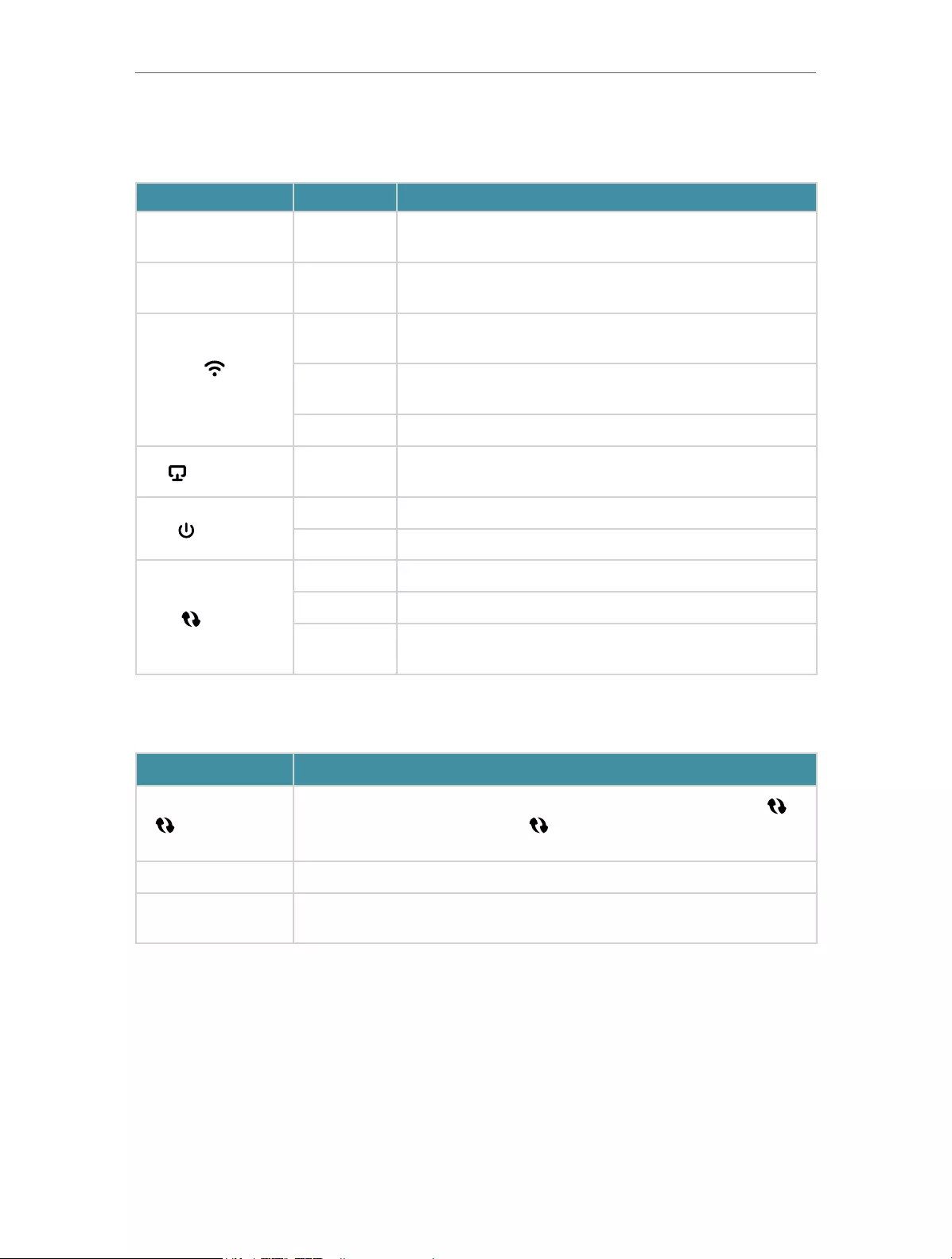
You can check the extender’s working status by following the LED Explanation table.
Name Status Indication
5GHz On/Off The extender is connected or not connected to the 5GHz
wireless network of your host router.
2.4GHz On/Off The extender is connected or not connected to the
2.4GHz wireless network of your host router.
(Signal)
Solid green The extender is connected to your router’s wireless
network and is in a suitable location.
Solid red The extender is experiencing poor signal strength. Try
relocating it closer to your host router.
Off No wireless connection is established.
(Ethernet) On/Off The Ethernet port is connected or not connected to a
powered-on device.
(Power)
On/Off The extender is on or off.
Blinking The system is starting up or firmware is being upgraded.
(WPS)
On WPS connection is established.
Blinking WPS connection is in progress.
Off WPS connection has been established for more than 5
minutes or WPS connection failed.
1. 2. 2. Port and Button Description
Ports or Buttons Description
(WPS Button)
Press the WPS button on your host router, and immediately press on
the extender for 1 second. The LED of the extender should change
to solid on, indicating successful WPS connection.
RESET (Hole) Use a pin to press the button for 1 second to reset the extender.
Ethernet Port Connect your device to the Ethernet port of the extender via an
Ethernet cable to join the Wi-Fi network.

Chapter 2
Set Up Internet Connection
This chapter introduces how to boost your host wireless coverage. Please follow the
step-by-step instructions to set up the internet connection.
It contains the following sections:
• Power On the Extender
• Set Up the Extender
6
Chapter 2 Set Up Internet Connection
2. 1. Power On the Extender
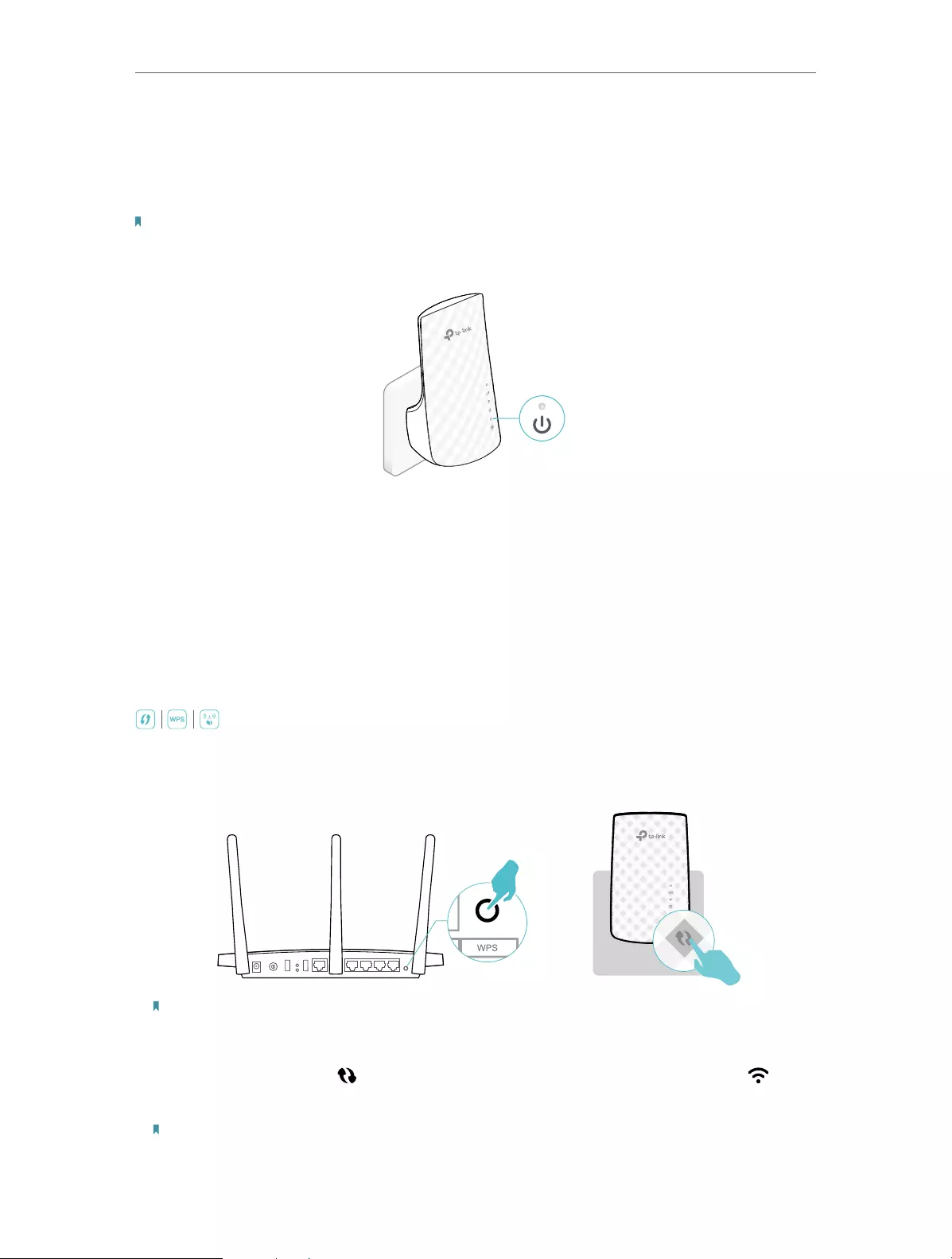
Plug the extender into an electrical outlet next to your router, and then wait until the
Power LED turns solid on.
Note:
1. For safety, only plug the extender in upright direction as shown below.
2. The operating temperature should be between 0°C and 40°C.
On
2. 2. Set Up the Extender
There are three ways to set up the extender: via the WPS button, via the TP-Link Tether
app, or via a web browser.
2. 2. 1. Method 1: Via the WPS Button
Use this way if your router has a WPS button. The button might look like one of these:
.
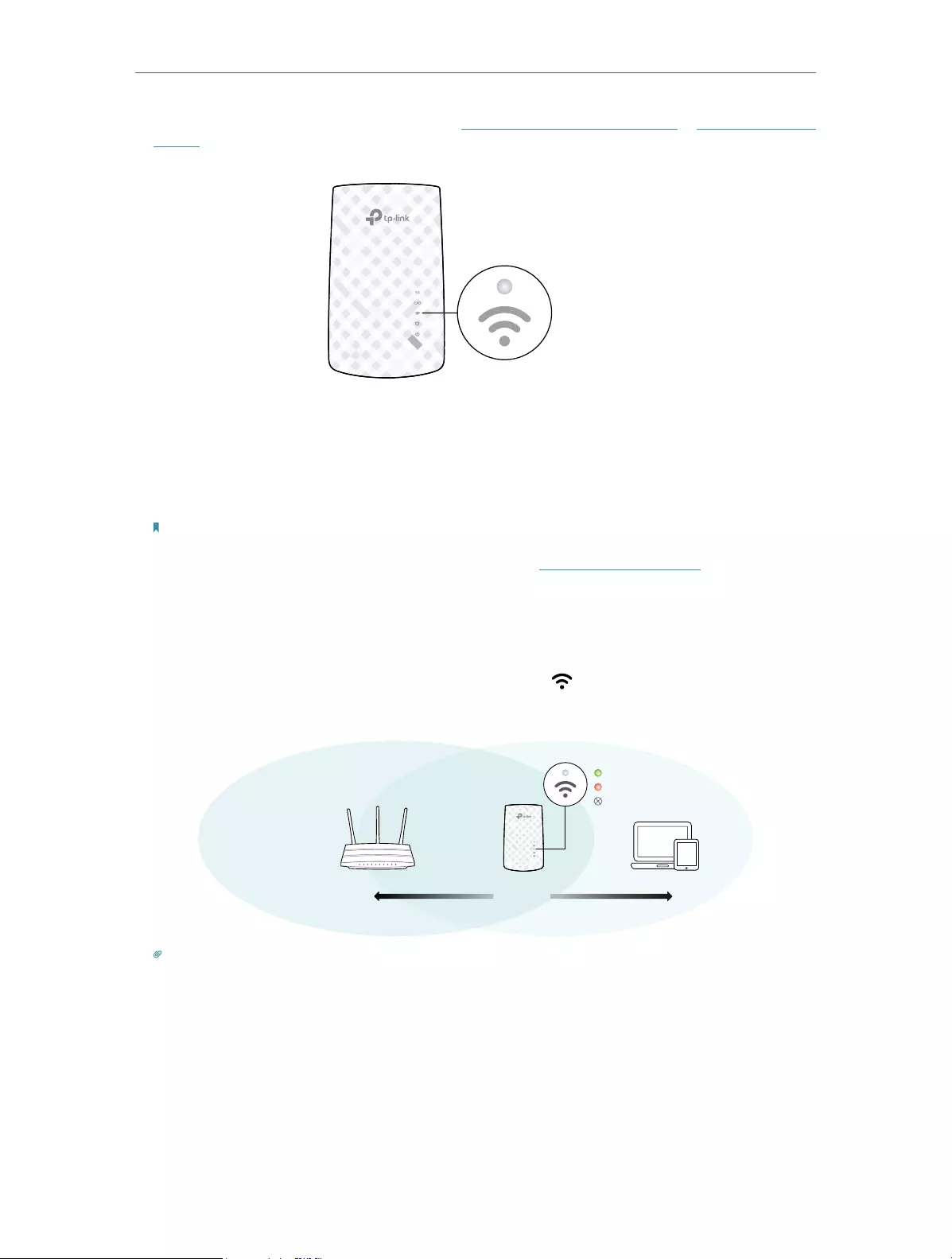
1. Press the WPS button on your host router, and then press the WPS button on the
extender for 1 second within 2 minutes.
Note:
For more information about using WPS button on your host router, please refer to the router manufacturer’s user
guide.
2. Wait until the WPS LED changes to solid on, and wait until the signal LED turns
solid on, which indicates that the WPS connection is successful.
Note:
7
Chapter 2 Set Up Internet Connection
If the LED does not turn solid on, try again or refer to Method 2: Via the TP-Link Tether App or Method 3: Via a Web
Browser.
Solid On
3. (Optional) If the extender connects to a dual band router, repeat steps 1 and 2 above
to connect to the other band.
Note:
1. For some early firmware versions, the extender share the same network name as your router.
2. If you want to customize the extended network name, refer to Configure Wireless Network.
4. Relocate your extender for optimal Wi-Fi coverage and performance.
1 ) Plug in the extender about halfway between your router and the Wi-Fi dead zone.
The location you choose must be within the range of your router.
2 ) Wait for about 2 minutes until the Signal LED turns solid green. If it doesn’t,
relocate the extender closer to the router to achieve better signal quality.
Router Devices
Halfway
Suitable location
Too far from router
No connection
Tips:
To minimize signal interference, please choose a location which is far away from Bluetooth devices and other
household electronic devices, such as cordless phones, microwave ovens and baby monitors.
5. Enjoy! Connect to the extended network and enjoy the internet.
8
Chapter 2 Set Up Internet Connection
Extended Network Names:
Router’s network name with
_EXT
at the end
Passwords:
Same as your router
Tips:
1. If you cannot find the network names with _EXT in your Wi-Fi network list, this means that the extender has
been connected to a OneMesh router and automatically copied its wireless settings. For more information,
refer to OneMesh with Seamless Roaming.
2. If you want to customize the extended network name, refer to Customize Your Network.
2. 2. 2. Method 2: Via the TP-Link Tether App
1. Launch the Apple App Store or Google Play Store and search TP-Link Tether or simply
scan the QR code to download and install the app.
OR
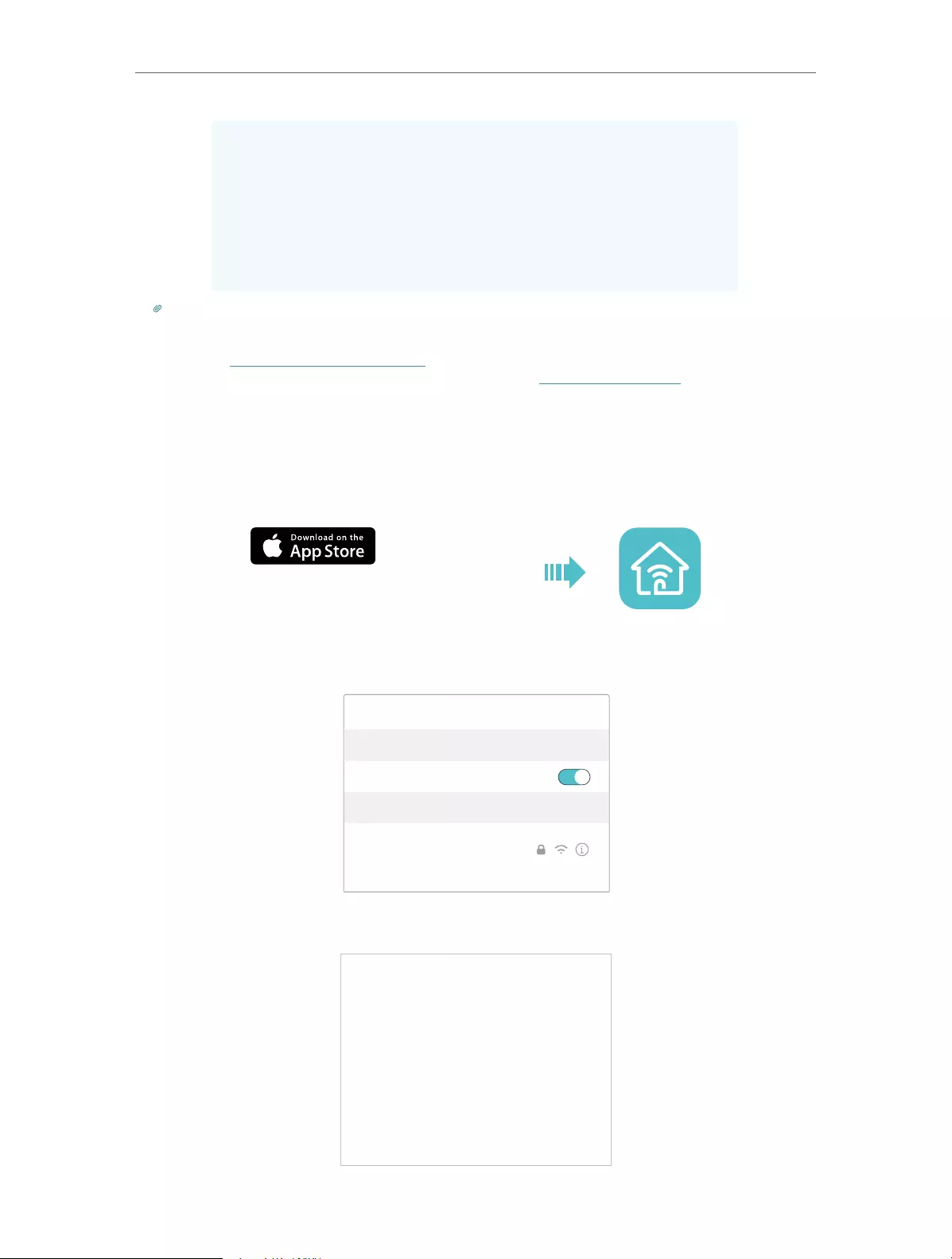
2. Go to Wi-Fi Settings and connect your device to the extender’s wireless network:
TP-Link_Extender.
Wi-Fi
Wi-Fi
TP-Link_Extender
CHOOSE A NETWORK…
Other…
< Settings
3. Launch Tether and select your extender from the Local Device list.

9
Chapter 2 Set Up Internet Connection
4. Create a password to log in.
5. Follow app instructions to set up and relocate your extender.
6. (Optional) Enable Join OneMesh to copy the router’s wireless settings for seamless
roaming. For more information about OneMesh, refer to OneMesh with Seamless
Roaming.
Tips:
It is recommended to enable Smart Connect on your host router to enjoy a seamless connection between dual-band
networks. With Smart Connect enabled, your host router’s 2.4GHz and 5GHz share the same SSID (network name) and
password. Refer to your host router’s user guide to enable Smart Connect.
7. Relocate your extender and follow app instructions to enjoy the extended network.
Tips:
For more intuitive location assistant, access extender settings via Tether and go to Tools > Location Assistant. You
can also manage your extender via Tether, such as controlling LEDs, sharing passwords of your networks and blocking
devices.
2. 2. 3. Method 3: Via a Web Browser
Note:
Features of the extender may vary slightly depending on the firmware version you have.
10
Chapter 2 Set Up Internet Connection
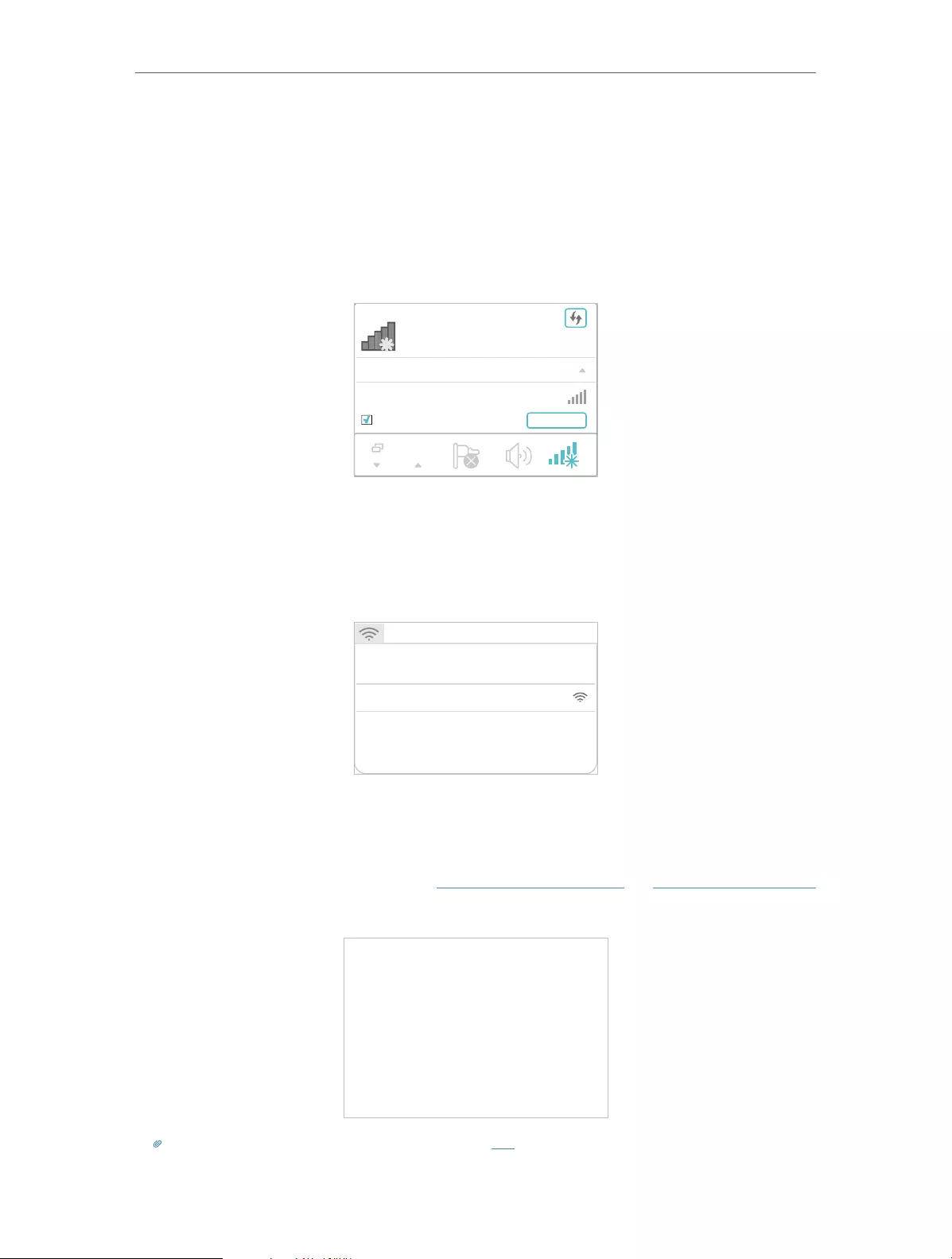
1. Connect your computer to the extender via your Ethernet cable, or connect wirelessly
as follows:
• For Windows Users
3 ) Unplug the Ethernet cable from your computer (if any).
4 ) Click the Wi-Fi icon on the taskbar and connect to the extender’s wireless
network: TP-Link_Extender.
onnections are available
Wireless Network
onnection
TP-Link_Extender
Connect automatically Connect
√
• For Mac OS X Users
1 ) Unplug the Ethernet cable from your computer (if any).
2 ) Click the Wi-Fi icon in the top right corner of the screen, and connect to the
extender’s network: TP-Link_Extender.
Wi-Fi: On
Tu rn Wi-Fi O
Join Other Network...
Create Network...
Open Network Preferences…
TP-Link_Extender
2. Follow the instructions of the Quick Setup Wizard to connect the extender to your
host router.
1 ) Launch a web browser, enter http://tplinkrepeater.net or http://192.168.0.254
in the address bar, and then create a password to log in.
Tips: If the login window does not appear, please refer to FAQ.

11
Chapter 2 Set Up Internet Connection
2 ) Select your host router’s 2.4GHz SSID (network name), enter its password (NOT
the password you just created for management), and click Next.
3 ) Select your host router’s 5GHz SSID (network name), enter its password (NOT
the password you just created for management), and click Next.
Tips: If your host router does not support 5GHz wireless network, please click Skip to continue.
4 ) Confirm your host network password.
5 ) Either keep the default SSIDs (network names) or customize them for the
extended networks, and then click Next.

12
Chapter 2 Set Up Internet Connection
Tips:
If you connect the extender to a TP-Link OneMesh router, the extender will automatically join the router’s OneMesh
network and copy the router’s wireless settings. For more information, refer to OneMesh with Seamless Roaming.
6 ) Follow web instructions to relocate your extender for optimal Wi-Fi coverage
and performance, and then click Done.
7 ) Enjoy! Connect to the extended network and enjoy the internet.
13
Chapter 2 Set Up Internet Connection
Tips:
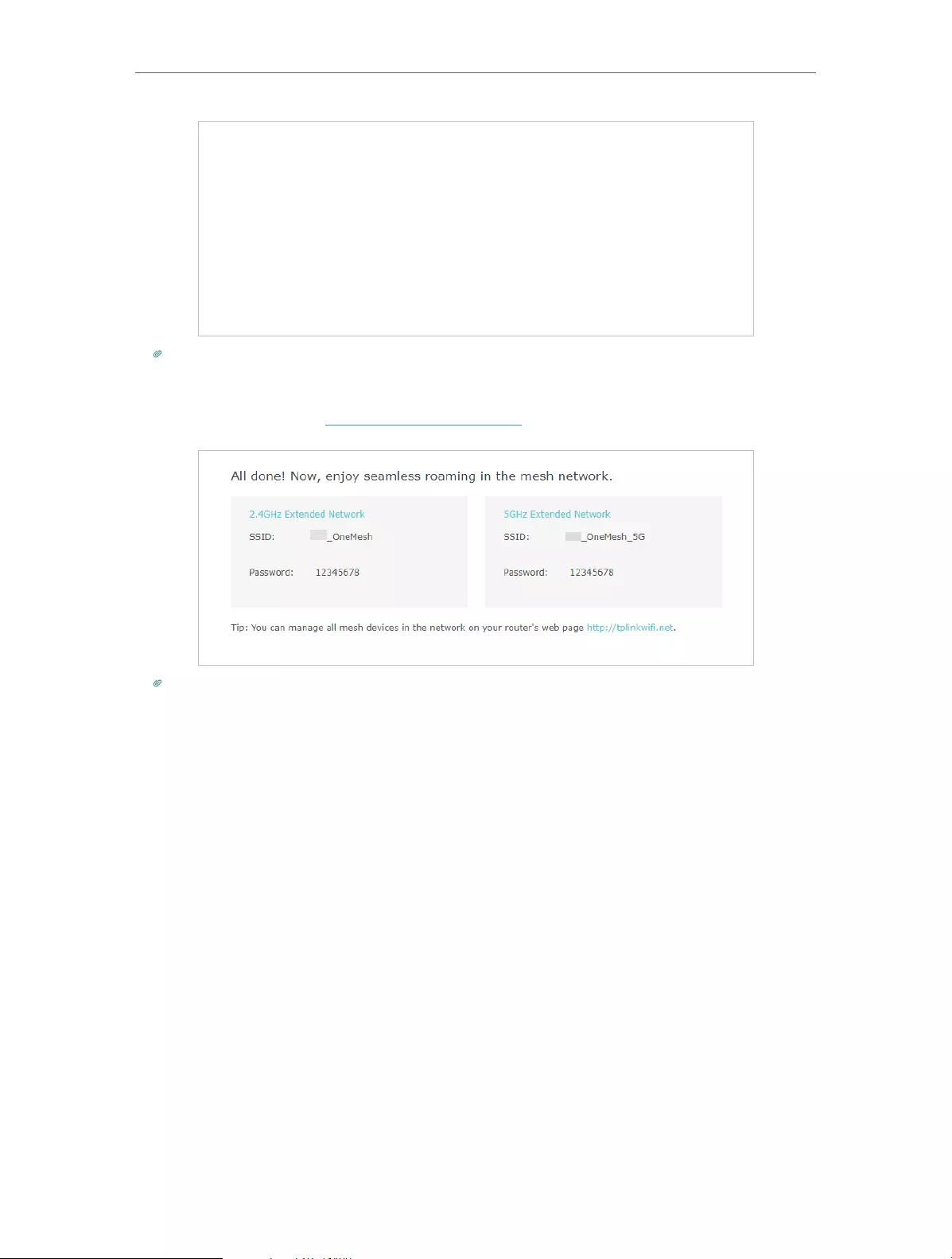
If you connect the extender to a TP-Link OneMesh router and a success screen as below appears at the end of the
setup, the extender has successfully joined the router’s OneMesh network and copied the router’s wireless settings.
For more information, refer to OneMesh with Seamless Roaming.
Tips:
It is recommended to enable Smart Connect on your host router to enjoy a seamless connection between dual-band
networks. With Smart Connect enabled, your host router’s 2.4GHz and 5GHz share the same SSID (network name)
and password. Refer to your host router’s user guide to enable Smart Connect.

Chapter 3
OneMesh with Seamless
Roaming
This chapter introduces the TP-Link OneMeshTM feature.
It contains the following sections:
• What‘s a OneMesh Network
• How to Set Up a OneMesh Network
• Remove Extender from OneMesh Network
15
Chapter 3 OneMesh with Seamless Roaming
3. 1. What‘s a OneMesh Network
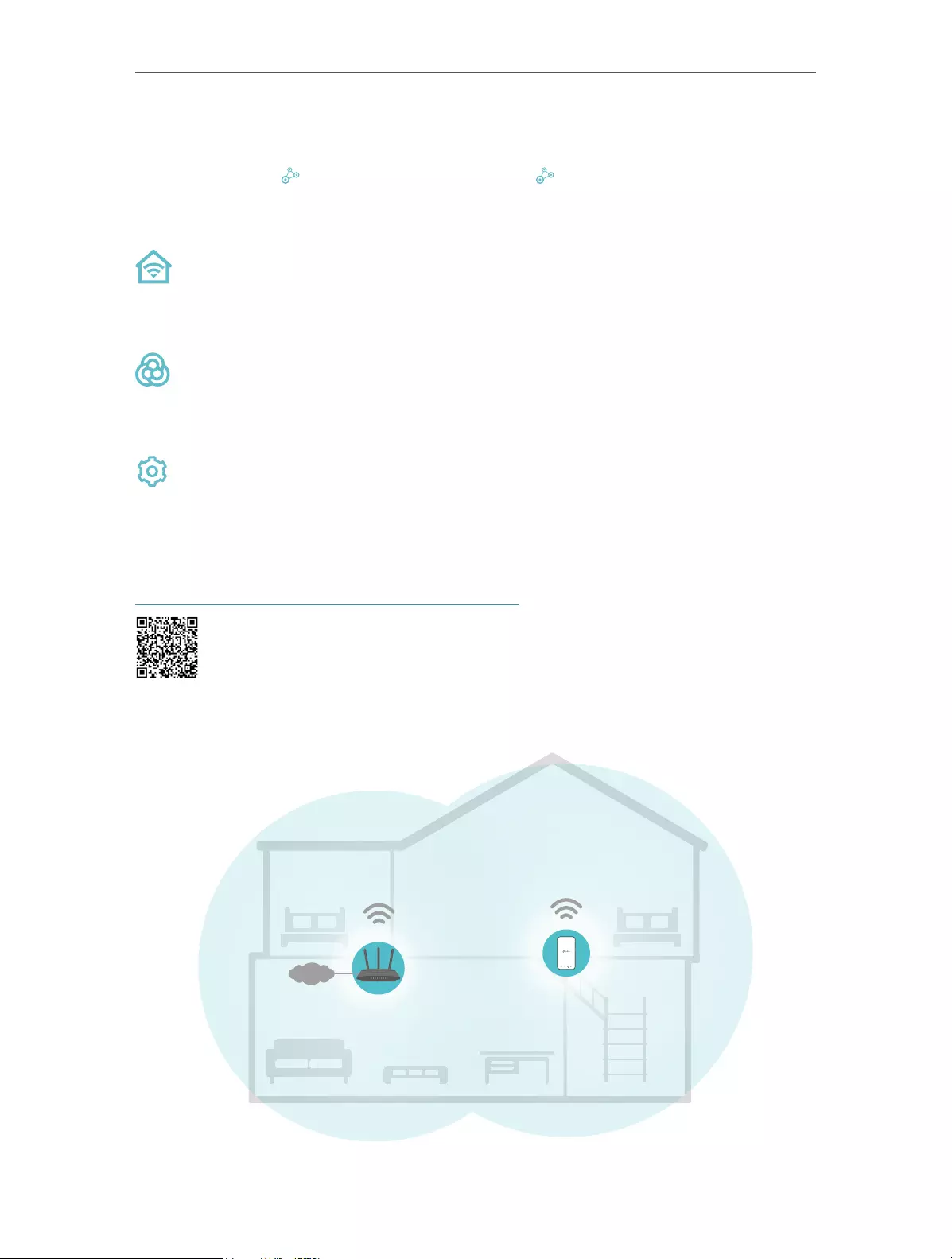
TP-Link OneMesh router and TP-Link OneMesh extenders work together to form
one unified Wi-Fi network. Walk through your home and stay connected with the fastest
possible speeds thanks to OneMesh’s seamless coverage.
Unified Wi-Fi Network
Router and extenders share the same wireless settings, including network name,
password, access control settings and more.
Seamless Roaming
Devices automatically switch between your router and extenders as you move
through your home for the fastest possible speeds.
Easy Setup and Management
Set up a OneMesh network with a push of WPS buttons. Manage all network devices
on the Tether app or at your router’s web management page.
To check full list of TP-Link OneMesh devices, scan the QR code, or visit
https://www.tp-link.com/One-Mesh/compatibility.
Unified OneMesh Network
INT E R NET
SAME
Network Name & Password
for seamless roaming

16
Chapter 3 OneMesh with Seamless Roaming
3. 2. How to Set Up a OneMesh Network
Once the extender is connected to a TP-Link OneMesh router via web browser or WPS
button, the extender will automatically join the router’s OneMesh network and copy
the router’s wireless settings. You can manually join a OneMesh network during the
configuration via the TP-Link Tether app. For more information about setting up the
extender with OneMesh network, refer to Set Up the Extender.
If you have already set up the extender before without joining the OneMesh network,
choose one of the methods below to set up a OneMesh network:
Note:
Before setting up a OneMesh network, it is recommended to enable Smart Connect on your host router to enjoy a
seamless connection between dual-band networks.
3. 2. 1. Method 1: Via the TP-Link Tether App
1. Launch Tether and select the extender you want to join the OneMesh network.
2. Go to Tools > OneMesh and enable OneMesh.
Tip:
If your host router does not support OneMesh, you need to reselect a host network first. Go to Tools > Host Network and
click Reselect Host Network, and then follow the app instructions to complete the configuration.
3. Follow the app instructions to join the OneMesh network.
3. 2. 2. Method 2: Via a Web Browser
1. Visit http://tplinkrepeater.net, and log in with the password you set for the extender.

17
Chapter 3 OneMesh with Seamless Roaming
2. Go to Settings > OneMesh and enable Join OneMesh.
Tip:
If your host router does not support OneMesh, you need to reselect a host network first. Go to Settings > Wireless >
Connect to Network and follow the instructions to complete the configuration.
3. Follow the web instructions to join the OneMesh network. After that, you can view all
the devices in OneMesh network in Basic > OneMesh on the web management page
of your host router.
3. 3. Remove Extender from OneMesh Network
If you want to remove the extender from the OneMesh network, follow the steps below:
3. 3. 1. Method 1: Via the TP-Link Tether App
1. Launch Tether and select the extender you want to remove from the OneMesh
network.

18
Chapter 3 OneMesh with Seamless Roaming
2. Go to Tools > OneMesh and disable OneMesh.
Or
1. Launch Tether and select your host router of the OneMesh network.
2. Go to Tools > OneMesh and select the extender you want to remove from the
OneMesh network.
3. Click Remove Device.

19
Chapter 3 OneMesh with Seamless Roaming
3. 3. 2. Method 2: Via a Web Browser
1. Visit http://tplinkrepeater.net, and log in with the password you set for the extender.
2. Go to Settings > OneMesh and disable Join OneMesh.

Chapter 4
TP-Link Cloud Service
TP-Link Cloud service provides a better way to manage your cloud devices. Log in to
your cloud device with a TP-Link ID, and you can easily monitor and manage your home
network when you are out and about via the Tether app on your smartphone or tablet.
To ensure that your cloud device stays new and gets better over time, the TP-Link
Cloud will notify you when an important firmware upgrade is avaliable. Surely you can
also manage multiple TP-Link Cloud devices with a single TP-Link ID.
This chapter introduces how to register a new TP-Link ID, bind or unbind TP-Link IDs
to manage your cloud device, and the Tether app with which you can manage your
home network no matter where you may find yourself.
It contains the following sections:
• Register a TP-Link ID
• Change Your TP-Link ID Information
• Manage the User TP-Link IDs
• Manage the Extender via the TP-Link Tether App

21
Chapter 4 TP-Link Cloud Service
4. 1. Register a TP-Link ID
When you log in after initial setup, the web page will ask whether you need TP-Link
Cloud service. You can also access the TP-Link Cloud settings as follows:
1. Visit http://tplinkrepeater.net, and log in with the password you set for the extender.
2. Go to Settings > TP-Link Cloud.
3. Click Register Now and follow the instructions to register a TP-Link ID.
4. After activating your TP-Link ID, come back to the TP-Link Cloud page to log in. The
TP-Link ID used to log in to the extender for the first time will be automatically bound
as an Admin.
Notes:
• To learn more about the Admin and User TP-Link ID, refer to Manage the User TP-Link IDs.
• Once you have registered a TP-Link ID on the web management page, you can only register another TP-Link ID via the
Tether APP. Please refer to Manage the Extender via the TP-Link Tether App to install the app and register a new one.
• If you want to unbind the admin TP-Link ID from your extender, please go to Settings > TP-Link Cloud, an click Unbind
in the Device Information section.
4. 2. Change Your TP-Link ID Information
Follow the steps below to change your email address and password of your TP-Link ID
as needed.
1. Visit http://tplinkrepeater.net, and log in with your TP-Link ID.
2. Go to Settings > TP-Link Cloud, and focus on the Account Information section.
• To change your email address:
1. Click behind the Email.
2. Enter the password of your TP-Link ID, then a new email address. And click Save.

22
Chapter 4 TP-Link Cloud Service
• To change your password:
1. Click behind the Password.
2. Enter the current password, then a new password twice. And click Save.
4. 3. Manage the User TP-Link IDs
The TP-Link ID used to log in to the extender for the first time will be automatically
bound as the Admin account. An admin account can add or remove other TP-Link IDs to
or from the same extender as Users. All accounts can monitor and manage the extender
locally or remotely, but user accounts cannot:
• Reset the extender to its factory default settings either on the web management page
or in the Tether app.

23
Chapter 4 TP-Link Cloud Service
• Add/remove other TP-Link IDs to/from the extender.
4. 3. 1. Add TP-Link ID to Manage the Extender
1. Visit http://tplinkrepeater.net, and log in with your TP-Link ID.
2. Go to Settings > TP-Link Cloud, and focus on the Bound Accounts section.
3. Click , enter another TP-Link ID as needed and click Save.
Note:
If you need another TP-Link ID, please register a new one via the Tether app. Please refer to Manage the Extender via the
TP-Link Tether App to install the app and register a new TP-Link ID.
4. The new TP-Link ID will be displayed in the Bound Accounts table as a User.
4. 3. 2. Remove TP-Link ID(s) from Managing the Extender
1. Visit http://tplinkrepeater.net, and log in with your TP-Link ID.
2. Go to Settings > TP-Link Cloud, and focus on the Bound Accounts section.
3. Tick the checkbox(es) of the TP-Link ID(s) you want to remove and click Unbind.
24
Chapter 4 TP-Link Cloud Service
4. 4. Manage the Extender via the TP-Link Tether App
The Tether app runs on iOS and Android devices, such as smartphones and tablets.
1. Launch the Apple App Store or Google Play store and search “TP-Link Tether” or
simply scan the QR code to download and install the app.
OR
2. Connect your device to the extender’s or host router’s wireless network.
3. Launch the Tether app, select the model of your extender and log in with your TP-Link
ID or the password your set for the extender.
4. Manage your extender as needed.
Note:
If you need to remotely access your extender from your smart devices, you need:
• Log in with your TP-Link ID. If you don’t have one, refer to Register a TP-Link ID.
• Make sure your smartphone or tablet can access the internet with cellular data or a Wi-Fi network.

Chapter 5
Customize Your Network
This chapter guides you on how to configure network settings that are available for this
extender.
It contains the following sections:
• Check Internet Status
• Configure Wireless Network
• Change LAN Settings
• Adjust Wi-Fi Coverage
• Set Access Control
• Set High Speed Mode

26
Chapter 5 Customize Your Network
5. 1. Check Internet Status
You can view the internet status of your extender to check whether you have
successfully set up the extended network(s).
1. Visit http://tplinkrepeater.net, and log in with the password you set for the extender.
2. Go to Settings > Status to view the internet status of your extender.
Tips: Click the icon of the Internet/Router/Range Extender/Clients to view the corresponding information.
• The extender runs normally.
• The extender fails to connect to the host networks. Please go to Settings >
Wireless > Connect to Network to check whether the host network passwords
are correct. If the problem still exists, relocate the extender closer to the router
to achieve better signal quality.
• The extender is connected to the host networks, but is not transmitting data.
Please check the internet connection of your router.
• The extender is connected to the router abnormally. Please go to Settings >
Network and try setting your extender to obtain an IP address automatically.

27
Chapter 5 Customize Your Network
5. 2. Configure Wireless Network
If you want to extend another host network after Quick Setup, you can refer to this
section. Moreover, you can change the wireless settings for your extended networks.
Visit http://tplinkrepeater.net, and log in with the password you set for the extender.
• To extend another host network:
1. Go to Settings > Wireless > Connect to Network.
2. Enable Connect to 2.4GHz Network and click Wireless Scanner to find all available
networks.
3. Select the 2.4GHz host network you want to extend.
Note:
If the network you want to extend is on but not listed, please try the following steps.
· Move the extender closer to your router, and click Rescan in the top-right corner of the list.
· You can manually enter the SSID (network name) and password of the network you want to extend, and click Save.
4. Once a host network is selected, the SSID and security type will be automatically
filled in. If the selected network is encrypted, enter the password in the Password
field.
5. Click Save.
• To enable or disable the extended network:
1. Go to Settings > Wireless > Extended Network.

28
Chapter 5 Customize Your Network
2. Extended networks are enabled by default. If you want to disable the wireless function
of a certain band, just clear the Enable checkbox. In this case, all the wireless settings
of this band will be invalid.
3. Click Save.
• To change the wireless network name (SSID):
1. Go to Settings > Wireless > Extended Network.
2. Create a new SSID in Extended 2.4GHz SSID or click Copy Host SSID. The value is
case-sensitive.
3. Click Save.
Note:
If you have changed the wireless settings via a wireless device, you will be disconnected after the settings are applied.
Please write down the new SSID for future use.
• To hide the SSID of the extended network:
1. Go to Settings > Wireless > Extended Network.
2. Select Hide SSID broadcast, and the corresponding SSID will not be displayed when
wireless devices scan for local wireless networks. You need to manually enter the
SSID to join the network.
3. Click Save.
5. 3. Change LAN Settings
The extender is preset with a default LAN IP 192.168.0.254, with which you can log in to
the web management page. The LAN IP address, together with the Subnet Mask, also
defines the subnet that the connected devices are on. If the IP address conflicts with
another device on your local network or your network requires a specific IP subnet, you
can change it.
1. Visit http://tplinkrepeater.net, and log in with the password you set for the extender.
2. Go to Settings > Network.
3. Select Use the following IP address.
4. Enter a new IP Address as needed and leave the Subnet Mask as the default settings
5. Enter the Default Gateway that is in the same subnet as the IP Address. The gateway
is usually the LAN IP address of your extender.
6. Leave the Primary DNS and Secondary DNS addresses as the default settings.

29
Chapter 5 Customize Your Network
7. Click Save.
5. 4. Adjust Wi-Fi Coverage
You can set the extender’s Wi-Fi coverage depending on how large you want your Wi-Fi
area to be.
1. Visit http://tplinkrepeater.net and log in with the password you set for the extender.
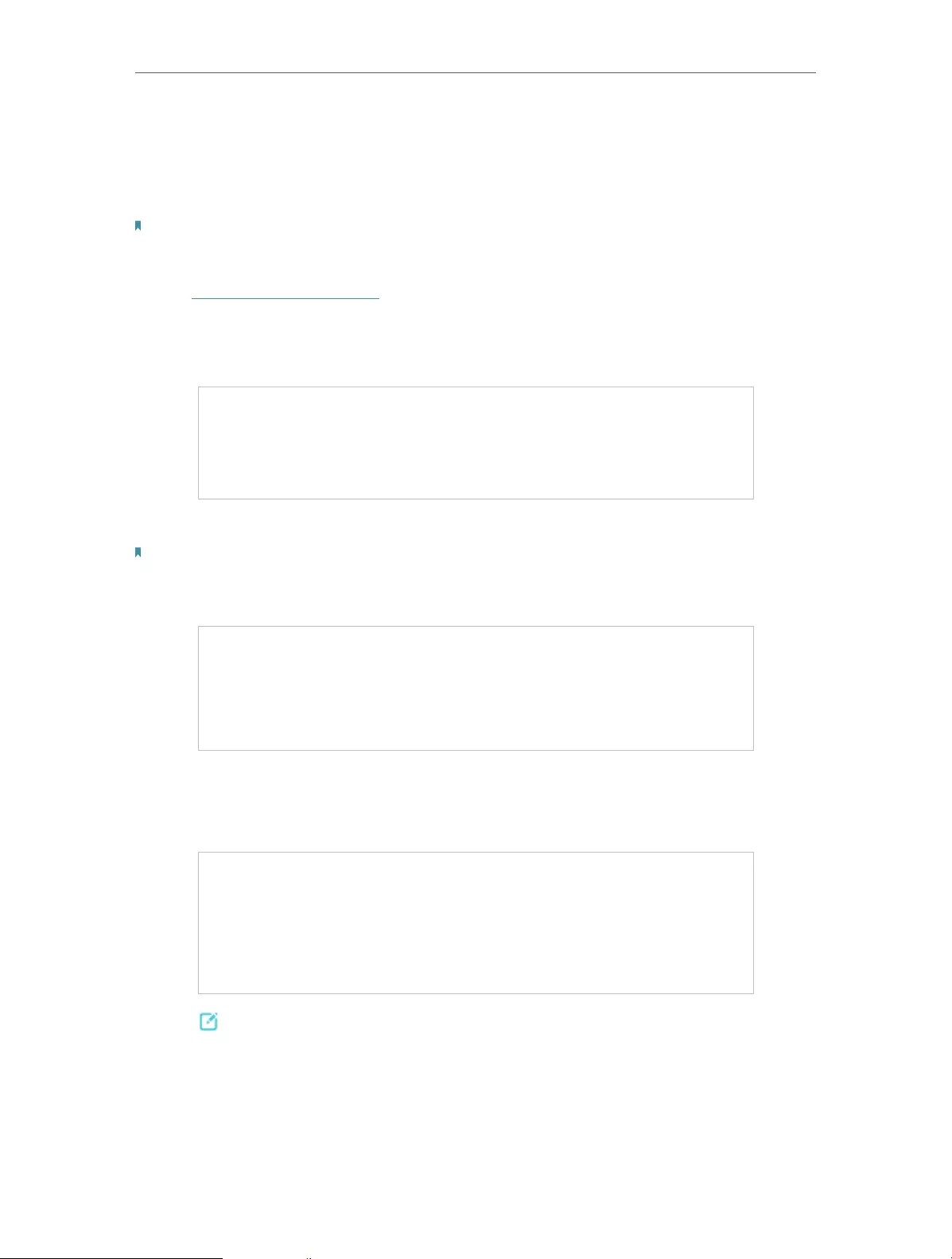
2. Go to Settings > Advanced Settings > Wi-Fi Coverage.
3. Select your desired Wi-Fi coverage level for the extender.
4. Click Save.
30
Chapter 5 Customize Your Network
5. 5. Set Access Control
Access Control allows you to permit or block specific devices from accessing the
internet for a specific period.
Note:
Access Control is not available when your range extender is in a OneMesh network, where it automatically synchronizes
network settings from your host router.
1. Visit http://tplinkrepeater.net and log in with the password you set for the extender.
2. Go to Settings > Advanced Settings > Access Control.
3. Enable Access Control.
• To block specific device(s):
Note:
Devices connected to the extender via an Ethernet cable cannot be blocked.
1. Select Blacklist and click Save.
2. Select the device to be blocked in the Online Devices table by ticking the
corresponding checkbox.
3. Click Block and the selected device(s) will be added to the Devices in Blacklist table.
4. Click in the Devices in Blacklist table to set the Effective Time for a certain entry
as needed.

31
Chapter 5 Customize Your Network
5. Click Save.
• To permit specific device(s):
1. Select Whitelist and click Save.
2. Click Add in the Devices in Whitelist table. Enter the Device Name and MAC Address.
And you can set the Effective Time for a certain entry as needed.
3. Click Save.

32
Chapter 5 Customize Your Network
5. 6. Set High Speed Mode
The High Speed feature switches off one of the wireless bands to leave one high-
performance, super-fast network, ideal for HD streaming and gaming applications.
If most of your devices are connected to one wireless band, this feature can increase
the overall performance of your wireless network.
Note:
Before enabling this feature, make sure that your extender is in Range Extender mode and not in a OneMesh network,
and then go to Settings > Wireless > Extended Network to check that the 2.4GHz and 5GHz bands are both enabled.
Additionally, if you are going to disable the 2.4GHz network, it’s recommended to first make sure all your wireless devices
support 5GHz network connection.
1. Visit http://tplinkrepeater.net and log in with the password you set for the extender.
2. Go to Settings > Advanced Settings > High Speed.
3. Enable High Speed Mode.
4. Select a high speed mode as needed.
• Select the Auto mode. The extender will decide which band the high-speed
network will work on based on its wireless connection to your host router. The
other band will be disabled.
• Select the Manual mode and choose to transmit 2.4GHz band or 5GHz band only.

33
Chapter 5 Customize Your Network
5. Click Save.

Chapter 6
More Features of Your
Extender
This chapter explains how to use the extender as a wireless adapter and as an
access point .
It contains the following sections:
• Use Your Extender as a Wireless Adapter
• Transform Your Existing Wired Network to a Wireless One
35
Chapter 6 More Features of Your Extender
6. 1. Use Your Extender as a Wireless Adapter
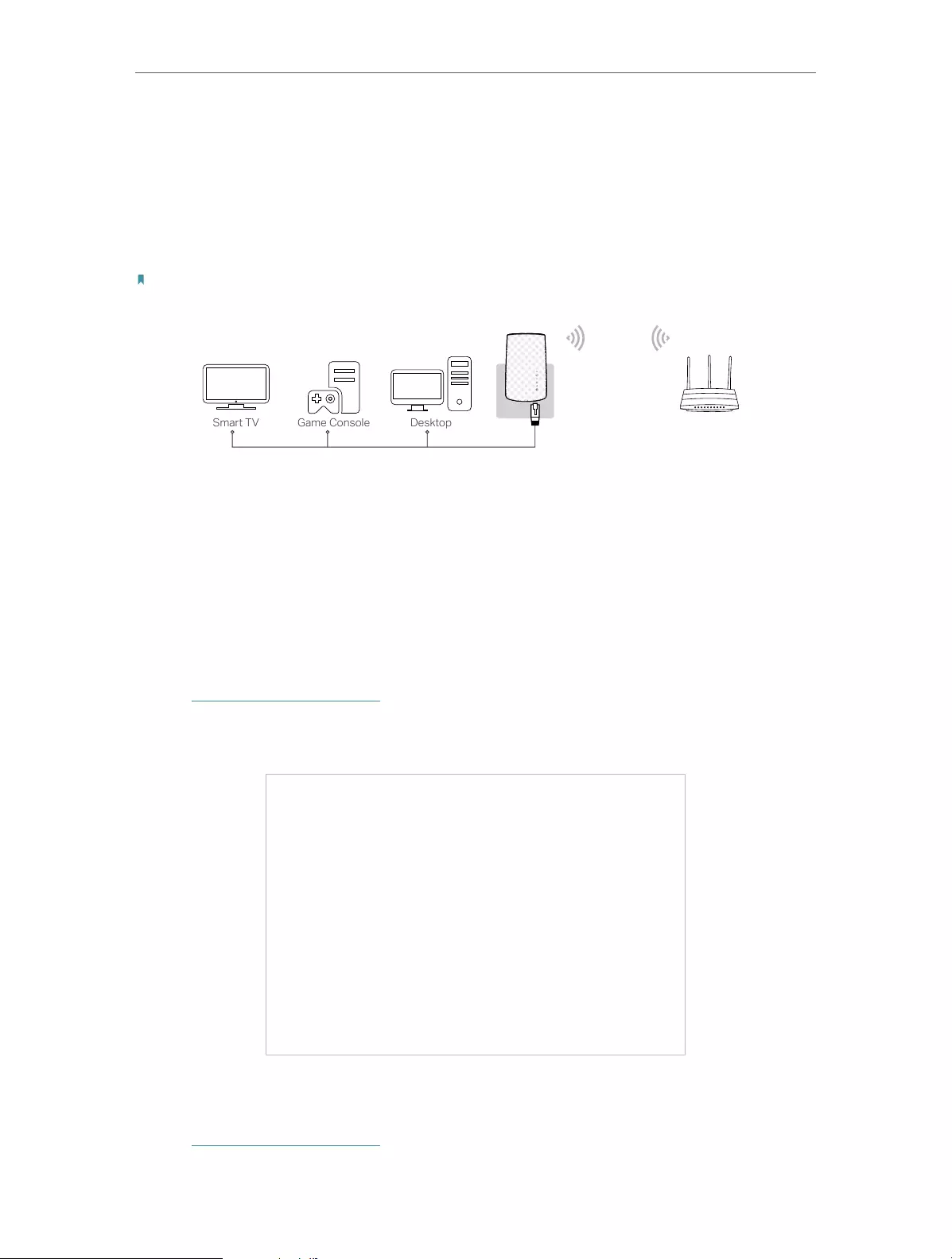
The extender can be used as a wireless adapter to connect any wired-only device, such
as a Blu-ray player, game console, DVR, or smart TV, to your wireless network.
After configuration, you can connect an Ethernet—enabled device to the extender via an
Ethernet cable.
Note:
Extenders that have no Ethernet port do not support this feature.
Router
6. 2. Transform Your Existing Wired Network to a
Wireless One
The extender can work as an access point, transforming your existing wired network to
a wireless one.
6. 2. 1. To Set Up the Extender as an Access Point
1. Visit http://tplinkrepeater.net, and log in with the password you set for the extender.
2. Click Mode in the top right corner of the page. Select Access Point and click Save.
The extender will reboot and switch to Access Point mode.
3. After rebooting, connect the extender to your modem or wired router via an Ethernet
cable.
4. Visit http://tplinkrepeater.net, and log in with the password you set for the extender.

36
Chapter 6 More Features of Your Extender
5. Go to Quick Setup to configure your wireless settings and click Next.
6. Confirm the information and click Finish.
7. Connect to the extended network SSID (network name) and enjoy Wi-Fi.

37
Chapter 6 More Features of Your Extender
6. 2. 2. To Connect Your Wireless Devices to the Extender via WPS
Wi-Fi Protected Setup (WPS) provides an easier way to set up a secure Wi-Fi connection.
Wireless devices that support WPS, including Android phones, tablets, and most USB
network cards, can be connected to your extender through this method (not supported
by iOS devices).
1. Visit http://tplinkrepeater.net, and log in with the password you set for the extender.
2. Go to Settings > Wireless > WPS.
3. Enable WPS.
4. Connect via WPS:
• AP’s PIN: Enable AP’s PIN and enter the PIN on your device. You can click
Generate to get a new PIN or click Default to restore the PIN to its factory one.
• Push Button (Recommended): Click Connect and push the WPS button on the
client device.
• PIN code: Enter the client’s PIN, and click Connect.

Chapter 7
Manage Your Extender
This chapter presents how to manage and maintain your extender.
It includes the following sections:
• Set System Time
• Control LEDs
• Set Power Schedule
• Upgrade the Firmware
• Backup and Restore Configuration Settings
• Change Login Password
• Check System Log

39
Chapter 7 Manage Your Extender
7. 1. Set System Time
The System Time of the extender will be used for time-based function such as the
Power Schedule function. If you have enabled the Daylight Saving Time feature, the
system time will be synchronized with the daylight saving time you configure.
1. Visit http://tplinkrepeater.net, and log in with the password you set for the extender.
2. Go to Settings > System Tools > Time Settings.
• To get system time:
1. Select your local Time Zone from the drop-down list.
2. Click Save.
• To set up Daylight Saving Time:
1. Select Enable Daylight Saving Time.
2. Select the Start and End date and time of the daylight saving time at your local time
zone.
3. Click Save.
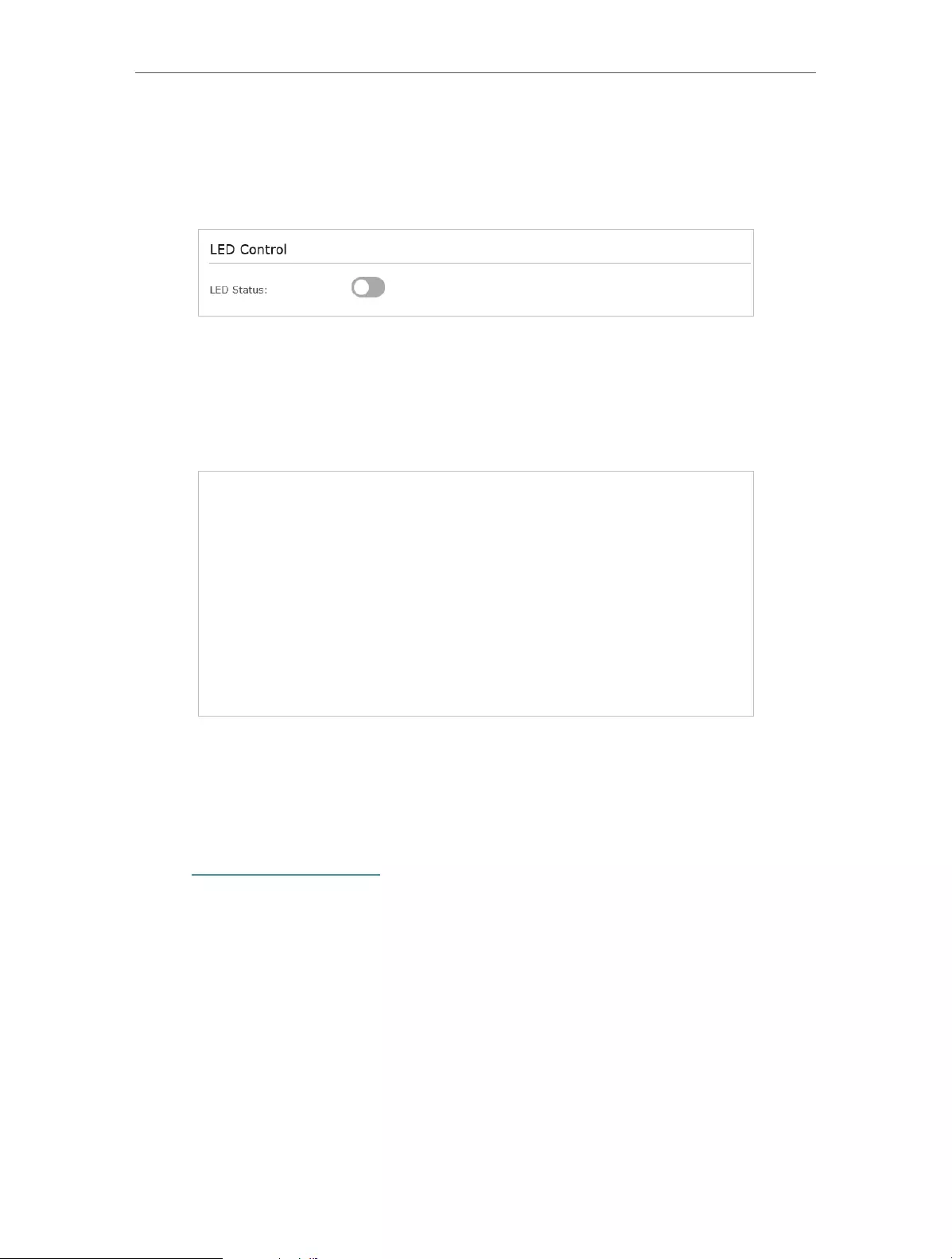
7. 2. Control LEDs
The LEDs of the extender indicate its activities and status. You can turn off LEDs when
you don’t need them.
1. Visit http://tplinkrepeater.net, and log in with the password you set for the extender.
40
Chapter 7 Manage Your Extender
2. Go to Settings > System Tools > LED Control.
• To turn off the LEDs:
Disable LED Status.
• To specify a time period when LEDs are off:
1. Enable Night Mode.
2. Specify the LED off time period.
3. Click Save.
7. 3. Set Power Schedule
The Power Schedule feature allows you to specify a time period during which the
extender is off.
1. Visit http://tplinkrepeater.net, and log in with the password you set for the extender.
2. Go to Settings > Advanced Settings > Power Schedule.
• To specify a time period when the extender is off:
1. Click Add.
2. Specify the power off time period and repetitive days.

41
Chapter 7 Manage Your Extender
3. Click Save.
7. 4. Upgrade the Firmware
TP-Link is committed to improving product features, giving you a better network
experience. You can download the latest firmware file from Download Center at
https://www.tp-link.com/support/ and upgrade the extender to the latest firmware
version.
Note:
• Make sure the latest firmware file is matched with the hardware version (as shown in the download
section of the Support page).
• Make sure that you have a stable connection between the extender and your computer. It is NOT
recommended to upgrade the firmware wirelessly.
• Backup your extender configuration.
• Do NOT power off the extender during the firmware upgrade.
1. Download the latest firmware file for the extender from our website
https://www.tp-link.com.
2. Visit http://tplinkrepeater.net, and log in with the password you set for the extender.
3. Go to Settings > System Tools > Firmware Upgrade.
4. Click Browse to locate the downloaded new firmware file, and then click Upgrade.

42
Chapter 7 Manage Your Extender
5. Wait a few minutes for the firmware upgrade to complete and the extender to reboot.
7. 5. Backup and Restore Configuration Settings
The configuration settings are stored as a configuration file in the extender. You can
backup the configuration file and restore the extender to the previous settings from the
backup file when needed. Moreover, if necessary, you can erase the current settings
and reset the extender to the default factory settings.
1. Visit http://tplinkrepeater.net, and log in with the password you set for the extender.
2. Go to Settings > System Tools > Backup & Restore.
• To backup configuration settings:
Click Backup to save a copy of the current settings to your local computer. A ‘.bin’ file of
the current settings will be stored on your computer.
• To restore previous settings from a saved file:
Click Browse to locate the backup configuration file stored on your computer, and click
Restore.
Note: During the restore process, do not power off or reset the extender.
• To restore configuration settings:
In Factory Default Restore, click Restore to restore all configuration settings to default
values, except your login and cloud account information.
Note: During the restore process, do not power off or reset the extender.
43
Chapter 7 Manage Your Extender
• To reset the extender to factory default settings:
Click Factory Restore to reset the extender.
Note:
1. During the reset process, do not power off or reset the extender.
2. We strongly recommend you backup the current configuration settings before resetting the extender.
7. 6. Change Login Password
The account management feature allows you to change your login username and
password of the web management webpage.
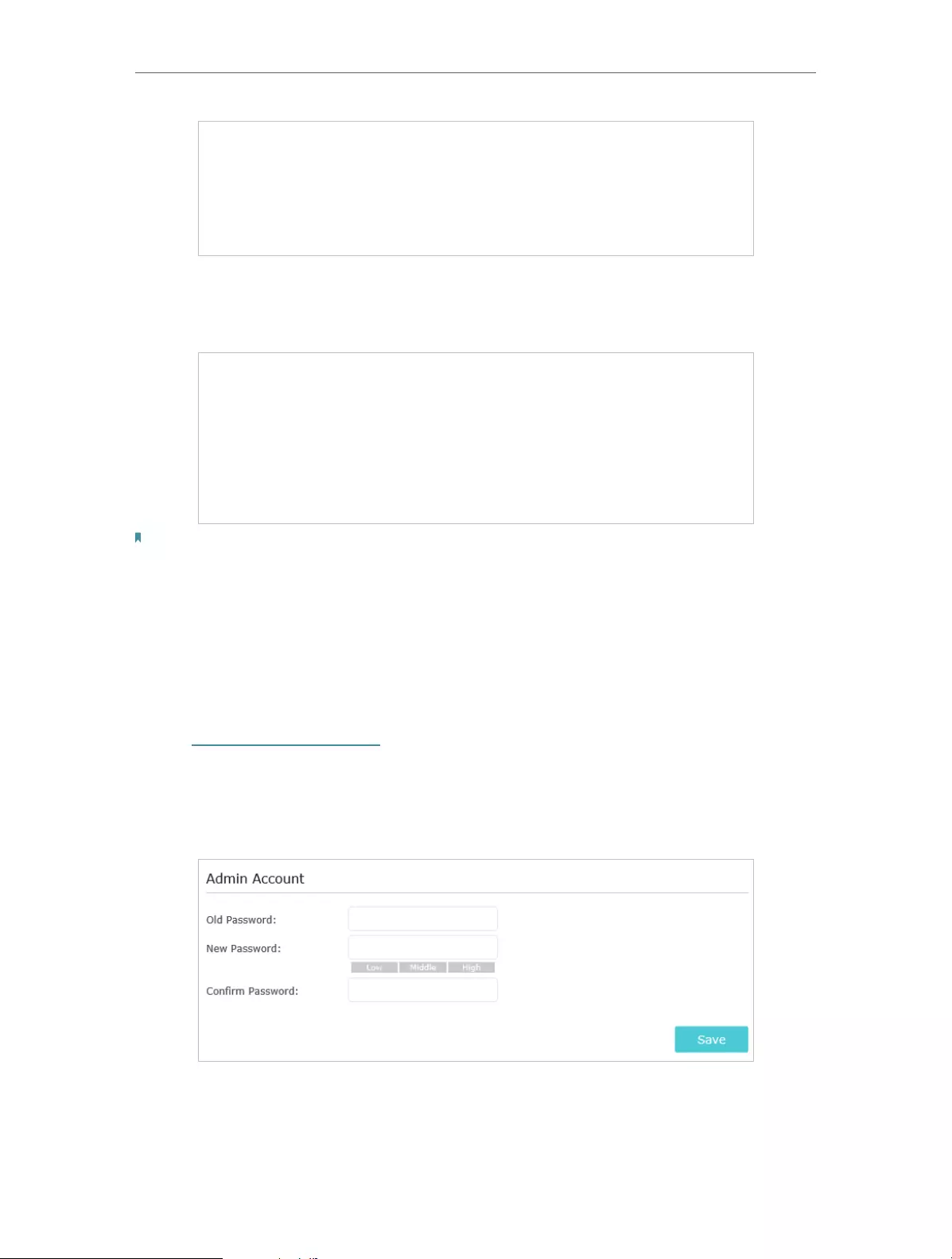
1. Visit http://tplinkrepeater.net, and log in with the password you set for the extender.
2. Go to Settings > System Tools > Admin Account.
3. Enter the old password. Then enter the new password twice (case-sensitive) and
click Save. Then you can use the new password for future logins.

44
Chapter 7 Manage Your Extender
7. 7. Check System Log
If the extender is not working properly, you can save the system log and send it to our
technical support team.
1. Visit http://tplinkrepeater.net, and log in with the password you set for the extender.
2. Go to Settings > System Tools > System Log.
• To save the system log locally:
1. Choose the type and level of the system log as needed.
2. Click Save Log to save the system logs to a local disk.

45
FAQ
Q1. How to reset the extender to its factory default settings?
• With the extender powered on, use a pin to press the RESET button for 1 second. The
extender will reboot.
• Log in to the extender’s web management page. Go to Settings > System Tools >
Backup & Restore and click Factory Restore.
Q2. What should I do if I forget my login password?
Refer to FAQ > Q1 to reset the extender, and then visit http://tplinkrepeater.net to create
a new login password.
Note: The extender must be reconfigured after a reset to access the internet. Please note down your login password
for future logins.
Q3. What should I do if I forget my wireless password?
In Range Extender mode, the extender shares the same wireless passwords as those
of your host networks.
In Access Point mode, please connect your computer to the extender using an Ethernet
cable and follow the steps below:
1. Visit http://tplinkrepeater.net, and log in with the password you set for the extender.
2. Go to Settings > Wireless > Wireless Settings to retrieve or reset your wireless
password.
Q4. What should I do if I can’t access the web management page?
This can happen for a variety of reasons. Please try the methods below to log in again.
• If your computer is wirelessly connected, make sure that you have connected to the
extender’s SSID.
• If your computer is connected via an Ethernet cable, please make sure that the
connection is stable.
• Make sure your computer is set to obtain an IP address and DNS server address
automatically.
• Verify that http://tplinkrepeater.net is correctly entered in the web browser and press
Enter.
• Use the IP address to access the extender. The default IP is 192.168.0.254. If the
extender is connected to the router, you should go to your router’s DHCP client list to
obtain the extender’s current IP address.
• Reset the extender and try again.

46
Q5. I have enabled wireless MAC filter, wireless access control, or access
control list (ACL) on my router. What should I do before configuring
the extender?
When a device connects through the extender to your router, the MAC address of the
device shown on the router is translated to another MAC address. If your router’s MAC
filter, wireless access control, or ACL is enabled, the devices connected to the extender
cannot get an IP address from the extender and cannot access the Internet.
To solve this problem, please follow the steps below:
1. Log in to your router and disable the MAC filter, wireless access control or ACL.
Note: For more information about how to disable your router’s MAC filter, wireless access control or ACL, please refer
to your router’s user guide.
2. Power on your extender, and run the Quick Setup to configure your extender.
3. Connect all of your devices to the extended network.
4. On your router, add all the Online Devices’ MAC addresses to your router’s MAC filter
table.
5. Enable the router’s MAC filter, wireless access control, or ACL to complete the
configuration.

47
COPYRIGHT & TRADEMARKS
Specifications are subject to change without notice. is a registered trademark
of TP-Link Technologies Co., Ltd. Other brands and product names are trademarks or
registered trademarks of their respective holders.
No part of the specifications may be reproduced in any form or by any means or used
to make any derivative such as translation, transformation, or adaptation without
permission from TP-Link Technologies Co., Ltd. Copyright © 2019 TP-Link Technologies
Co., Ltd. All rights reserved.

48
FCC compliance information statement
Product Name: AC750 Wi-Fi Range Extender
Model Number: RE200 / RE220
Responsible Party:
TP-Link USA Corporation, d/b/a TP-Link North America, Inc.
Address: 145 South State College Blvd. Suite 400, Brea, CA 92821
Website: http://www.tp-link.com/us/
Tel: +1 626 333 0234
Fax: +1 909 527 6803
E-mail: sales.usa@tp-link.com
This equipment has been tested and found to comply with the limits for a Class B digital
device, pursuant to part 15 of the FCC Rules. These limits are designed to provide
reasonable protection against harmful interference in a residential installation. This
equipment generates, uses and can radiate radio frequency energy and, if not installed
and used in accordance with the instructions, may cause harmful interference to radio
communications. However, there is no guarantee that interference will not occur in a
particular installation. If this equipment does cause harmful interference to radio or
television reception, which can be determined by turning the equipment off and on, the
user is encouraged to try to correct the interference by one or more of the following
measures:
• Reorient or relocate the receiving antenna.
• Increase the separation between the equipment and receiver.
• Connect the equipment into an outlet on a circuit different from that to which the
receiver is connected.
• Consult the dealer or an experienced radio/ TV technician for help.
This device complies with part 15 of the FCC Rules. Operation is subject to the following
two conditions:
1. This device may not cause harmful interference.
2. This device must accept any interference received, including interference that may
cause undesired operation.
Any changes or modifications not expressly approved by the party responsible for
compliance could void the user’s authority to operate the equipment.
Note: The manufacturer is not responsible for any radio or TV interference caused by
unauthorized modifications to this equipment. Such modifications could void the user’s
authority to operate the equipment.

49
FCC RF Radiation Exposure Statement:
This equipment complies with FCC RF radiation exposure limits set forth for an
uncontrolled environment. This device and its antenna must not be co-located or
operating in conjunction with any other antenna or transmitter.
“To comply with FCC RF exposure compliance requirements, this grant is applicable to
only Mobile Configurations. The antennas used for this transmitter must be installed to
provide a separation distance of at least 20 cm from all persons and must not be co—
located or operating in conjunction with any other antenna or transmitter.”
This device is restricted in indoor environment only.
We, TP-Link USA Corporation, has determined that the equipment shown as above
has been shown to comply with the applicable technical standards, FCC part 15. There
is no unauthorized change is made in the equipment and the equipment is properly
maintained and operated.
Issue Date: 2019-09-03

50
CE Mark Warning
This is a class B product. In a domestic environment, this product may cause radio
interference, in which case the user may be required to take adequate measures.
OPERATING FREQUENCY (the maximum transmitted power)
2400 MHz -2483.5 MHz (20dBm)
5150 MHz -5250 MHz (23dBm)
5250 MHz -5350 MHz (23dBm)
5470 MHz -5725 MHz (23dBm)
EU Declaration of Conformity
TP-Link hereby declares that the device is in compliance with the essential requirements
and other relevant provisions of directives 2014/53/EU, 2009/125/EC, 2011/65/EU and
(EU) 2015/863.
The original EU declaration of conformity may be found at http://www.tp-link.com/en/ce
RF Exposure Information
This device meets the EU requirements (2014/53/EU Article 3.1a) on the limitation of
exposure of the general public to electromagnetic fields by way of health protection.
The device complies with RF specifications when the device used at 20 cm from your
body.
Attention: This device may only be used indoors in all EU member states and EFTA
countries.
Canadian Compliance Statement
This device contains licence-exempt transmitter(s)/receiver(s) that comply with
Innovation, Science and Economic Development Canada’s licence-exempt RSS(s).
Operation is subject to the following two conditions:
1. This device may not cause interference.
2. This device must accept any interference, including interference that may cause
undesired operation of the device.

51
L’émetteur/récepteur exempt de licence contenu dans le présent appareil est conforme
aux CNR d’Innovation, Sciences et Développement économique Canada applicables
aux appareils radio exempts de licence. L’exploitation est autorisée aux deux conditions
suivantes :
1. L’appareil ne doit pas produire de brouillage;
2. L’appareil doit accepter tout brouillage radioélectrique subi, même si le brouillage est
susceptible d’en compromettre le fonctionnement.
Caution:
1. The device for operation in the band 5150–5250 MHz is only for indoor use to reduce
the potential for harmful interference to co-channel mobile satellite systems;
The high-power radars are allocated as primary users (i.e. priority users) of the bands
5250-5350 MHz and 5650-5850 MHz and that these radars could cause interference
and/or damage to LE-LAN devices.
DFS (Dynamic Frequency Selection) products that operate in the bands 5250- 5350
MHz, 5470-5600MHz, and 5650-5725MHz.
Avertissement:
1. Le dispositif fonctionnant dans la bande 5150-5250 MHz est réservé uniquement
pour une utilisation à l’intérieur afin de réduire les risques de brouillage préjudiciable
aux systèmes de satellites mobiles utilisant les mêmes canaux;
En outre, les utilisateurs devraient aussi être avisés que les utilisateurs de radars de
haute puissance sont désignés utilisateurs principaux (c.-à-d., qu’ils ont la priorité) pour
les bandes 5250-5350 MHz et 5650-5850 MHz et que ces radars pourraient causer du
brouillage et/ou des dommages aux dispositifs LAN-EL.
Les produits utilisant la technique d’atténuation DFS (sélection dynamique des
fréquences) sur les bandes 5250- 5350 MHz, 5470-5600MHz et 5650-5725MHz.
Radiation Exposure Statement:
This equipment complies with IC radiation exposure limits set forth for an uncontrolled
environment. This equipment should be installed and operated with minimum distance
20cm between the radiator & your body.
Déclaration d’exposition aux radiations:
Cet équipement est conforme aux limites d’exposition aux rayonnements IC établies
pour un environnement non contrôlé. Cet équipement doit être installé et utilisé avec
un minimum de 20 cm de distance entre la source de rayonnement et votre corps.
Industry Canada Statement
CAN ICES-3 (B)/NMB-3(B)
Korea Warning Statements
당해 무선설비는 운용중 전파혼신 가능성이 있음.

52
NCC Notice & BSMI Notice
注意!
依據 低功率電波輻射性電機管理辦法
第十二條 經型式認證合格之低功率射頻電機,非經許可,公司、商號或使用者均不得擅
自變更頻率、加大功率或變更原設計之特性或功能。
第十四條 低功率射頻電機之使用不得影響飛航安全及干擾合法通信;經發現有干擾現象
時,應立即停用,並改善至無干擾時方得繼續使用。前項合法通信,指依電信規定作業
之無線電信。低功率射頻電機需忍受合法通信或工業、科學以及醫療用電波輻射性電機
設備之干擾。
4.7.9.1應避免影響附近雷達系統之操作。
4.7.9.2高增益指向性天線只得應用於固定式點對點系統。
安全諮詢及注意事項
• 請使用原裝電源供應器或只能按照本產品注明的電源類型使用本產品。
• 清潔本產品之前請先拔掉電源線。請勿使用液體、噴霧清潔劑或濕布進行清潔。
• 注意防潮,請勿將水或其他液體潑灑到本產品上。
• 插槽與開口供通風使用,以確保本產品的操作可靠並防止過熱,請勿堵塞或覆蓋
開口。
• 請勿將本產品置放於靠近熱源的地方。除非有正常的通風,否則不可放在密閉位
置中。
• 請不要私自打開機殼,不要嘗試自行維修本產品,請由授權的專業人士進行此項
工作。
限用物質含有情況標示聲明書
產品元件名
稱
限用物質及其化學符號
鉛
Pb
鎘
Cd
汞
Hg
六價鉻
CrVI
多溴聯苯
PBB
多溴二苯醚
PBDE
PCB ○ ○ ○ ○ ○ ○
外殼 ○ ○ ○ ○ ○ ○
電源供應板 − ○ ○ ○ ○ ○
備考1. «超出0.1 wt %» 及 «超出0.01 wt %» 系指限用物質之百分比含量超出百分比含量
基準值。
備考2. «○»系指該項限用物質之百分比含量未超出百分比含量基準值。
備考3. » − » 系指該項限用物質為排除項目。
53
Продукт сертифіковано згідно с правилами системи УкрСЕПРО на відповідність
вимогам нормативних документів та вимогам, що передбачені чинними
законодавчими актами України.
Safety Information
• Keep the device away from water, fire, humidity or hot environments.
• Do not attempt to disassemble, repair, or modify the device.
• Do not use the device where wireless devices are not allowed.
• The socket-outlet shall be installed near the equipment and shall be easily accessible.
Please read and follow the above safety information when operating the device. We
cannot guarantee that no accidents or damage will occur due to improper use of the
device. Please use this product with care and operate at your own risk.
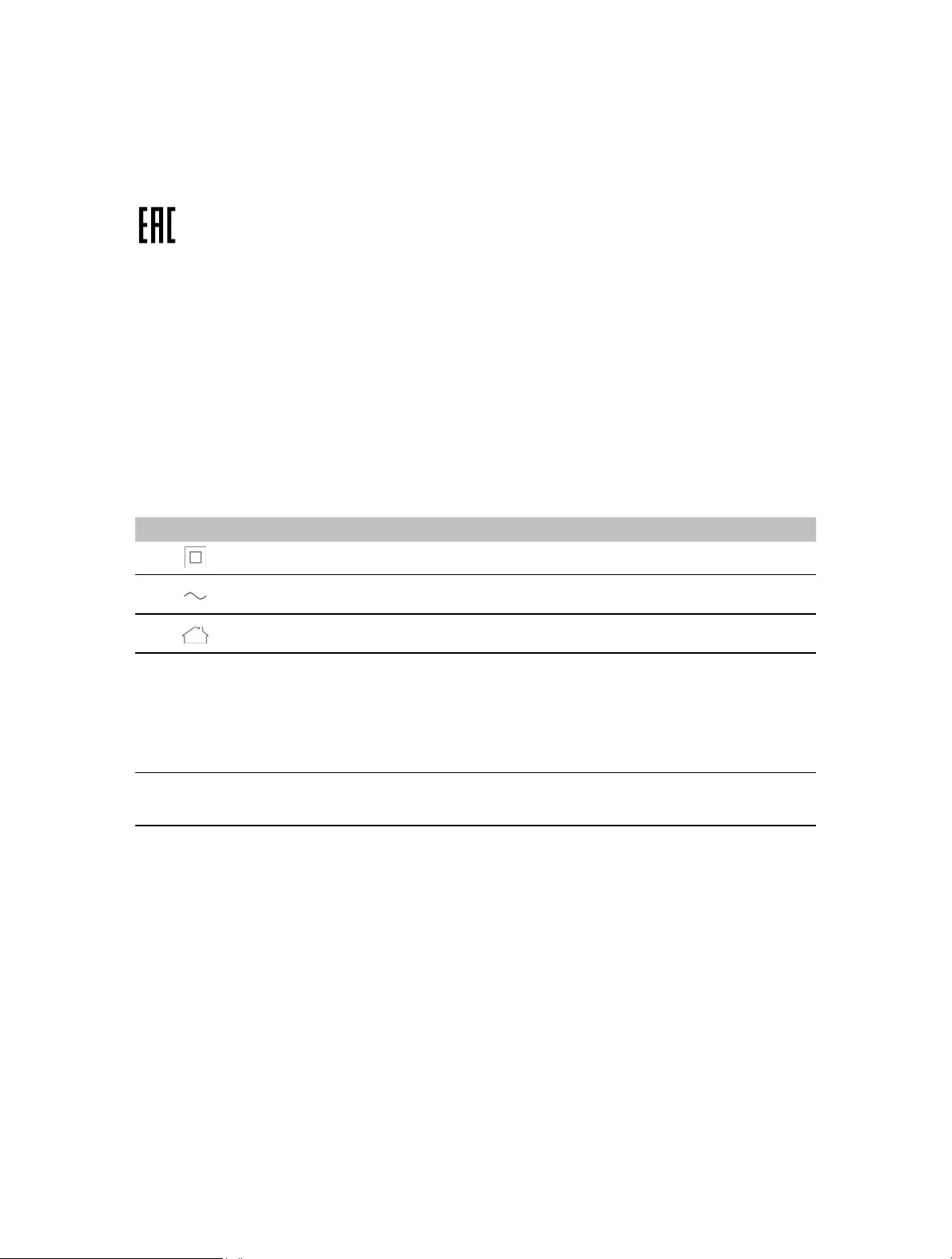
Explanations of the symbols on the product label
Symbol Explanation
Class II equipment
AC voltage
Indoor use only
RECYCLING
This product bears the selective sorting symbol for Waste electrical and electronic equipment
(WEEE). This means that this product must be handled pursuant to European directive 2012/19/
EU in order to be recycled or dismantled to minimize its impact on the environment.
User has the choice to give his product to a competent recycling organization or to the retailer
when he buys a new electrical or electronic equipment.
Protection earth
Усилитель Wi-Fi RE 220 от ТП-Линк – это надежное и простое решение для усиления Wi-Fi сигнала дома или в офисе. Когда сигнал вашего маршрутизатора не достаточно сильный или не покрывает все нужные помещения, RE 220 поможет улучшить покрытие и усилит сигнал, чтобы вы могли наслаждаться быстрым и стабильным интернетом везде.
Настройка и установка RE 220 не сложны, и даже новичок сможет справиться с этим заданием. В этой статье мы рассмотрим пошаговую инструкцию по настройке и установке усилителя Wi-Fi RE 220, которая поможет вам быстро и легко настроить устройство и наслаждаться всеми его преимуществами.
Прежде чем приступить к настройке RE 220, убедитесь, что у вас есть следующие вещи:
- Маршрутизатор с рабочим Wi-Fi сигналом;
- Беспроводное устройство (например, ноутбук, смартфон), чтобы можно было проверить наличие сигнала после установки усилителя;
- Кабель Ethernet (обычно входит в комплект устройства) для подключения усилителя к маршрутизатору;
- Электрическая розетка поблизости, чтобы подключить усилитель к питанию.
Теперь, когда у вас есть все необходимое, мы можем приступить к настройке усилителя Wi-Fi RE 220. Следуйте следующей пошаговой инструкции, чтобы успешно установить и настроить усилитель и улучшить покрытие Wi-Fi сигнала.
Содержание
- Инструкция по настройке и установке ТП-Линк усилителя Wi-Fi RE 220
- 1. Распакуйте и подготовьте устройство
- 2. Подключите усилитель к электропитанию
- 3. Подключите усилитель к вашей Wi-Fi сети
- 4. Проверьте стабильность и покрытие сигнала
- Разобрать усилитель на компоненты
- Подключение усилителя к роутеру
- Подключение усилителя к электропитанию
- Настройка усилителя через веб-интерфейс
- Выбор оптимального места для установки усилителя
- Проверка сигнала и качества связи
- Настройка дополнительных параметров усилителя
1. Распакуйте и подготовьте устройство
Перед началом настройки и установки усилителя Wi-Fi RE 220, убедитесь, что у вас есть все необходимые компоненты. Распакуйте коробку и проверьте следующее:
- Усилитель Wi-Fi RE 220
- Кабель Ethernet
- Инструкция по установке
- Гарантийный талон
2. Подключите усилитель к электропитанию
Вставьте один конец кабеля питания в порт «Power» на усилителе, а другой конец в электрическую розетку. Убедитесь, что усилитель подключен к источнику питания.
3. Подключите усилитель к вашей Wi-Fi сети
Чтобы подключить усилитель Wi-Fi RE 220 к вашей Wi-Fi сети, выполните следующие шаги:
- Расположите усилитель в месте, где сигнал вашей Wi-Fi сети слабый.
- Нажмите кнопку «WPS» на вашем основном маршрутизаторе, а затем на кнопку «WPS» на усилителе Wi-Fi RE 220.
- Подождите некоторое время, пока устройства установят соединение. После этого индикатор сигнала на усилителе должен загореться зеленым цветом.
- Поздравляем! Усилитель Wi-Fi RE 220 успешно подключен к вашей Wi-Fi сети.
4. Проверьте стабильность и покрытие сигнала
После настройки и установки усилителя Wi-Fi RE 220, проверьте стабильность и покрытие сигнала в различных частях вашего дома или офиса. Убедитесь, что вы получаете стабильный сигнал и полное покрытие во всех необходимых помещениях.
Теперь вы знаете, как настроить и установить ТП-Линк усилитель Wi-Fi RE 220. С этим усилителем вы сможете расширить покрытие вашей Wi-Fi сети и наслаждаться более стабильным сигналом в любом уголке вашего дома или офиса.
Разобрать усилитель на компоненты
Перед началом установки и настройки усилителя Wi-Fi RE 220 от ТП-Линк, важно разобраться в его структуре и компонентах. Разборка усилителя может быть полезной при необходимости замены отдельных деталей или проведении технического обслуживания. В этом разделе мы рассмотрим, как разобрать усилитель на компоненты.
1. Перед разборкой убедитесь, что усилитель отключен от сети питания.
2. Найдите винты на корпусе усилителя и используйте отвертку для их выкручивания. Обычно винты расположены на задней или нижней стенке корпуса.
3. После выкручивания винтов, аккуратно снимите заднюю или нижнюю крышку усилителя. Для этого можно использовать пластиковую открывашку или специальный инструмент для разбора.
4. Внутри усилителя вы увидите плату с электроникой. Осторожно извлеките плату из корпуса, держась за ее края и не прикасаясь к металлическим частям или контактам.
5. При необходимости, вы можете отсоединить провода или кабели, подключенные к плате. Это может понадобиться, например, для замены антенны усилителя.
6. Теперь вы имеете доступ к различным компонентам усилителя. Внимательно осмотрите плату и детали на наличие повреждений или износа.
7. При сборке убедитесь, что все компоненты правильно вставлены на место и соединены проводами или кабелями.
Теперь вы знаете, как разобрать усилитель на компоненты. Но помните, что разборка усилителя может повлечь за собой нарушение гарантии или повреждение устройства, поэтому проводите данную процедуру только при необходимости и на свой страх и риск.
Подключение усилителя к роутеру
Для того чтобы настроить и использовать усилитель Wi-Fi RE220 от TP-Link, необходимо сначала подключить его к вашему роутеру. В этом разделе мы расскажем вам о нескольких простых шагах, которые помогут вам правильно выполнить данную процедуру.
Перед началом установки удостоверьтесь, что ваш роутер работает и имеет доступ к интернету. Также убедитесь, что у вас есть доступ к Wi-Fi сети на роутере.
| Шаг 1 | Подключите усилитель Wi-Fi RE220 к розетке питания и дождитесь, пока индикатор питания на устройстве не загорится зеленым цветом. |
| Шаг 2 | Разместите усилитель рядом с роутером, чтобы сигнал Wi-Fi был сильным и устойчивым. Обратите внимание на индикатор сигнала на устройстве, чтобы найти оптимальное местоположение. |
| Шаг 3 | Найдите кнопку WPS на вашем роутере и нажмите ее. Затем нажмите кнопку WPS на усилителе Wi-Fi RE220. Их индикаторы начнут мигать, а затем установятся на постоянное горение, что означает успешное подключение. |
| Шаг 4 | Вам также может потребоваться войти в веб-браузере на страницу настроек роутера и включить функцию WPS, если она отключена. Обратитесь к инструкции вашего роутера для получения подробной информации о настройке. |
| Шаг 5 | После успешного подключения усилитель Wi-Fi RE220 будет готов к использованию. Вам необходимо перенести его в другую комнату или в зону с плохим сигналом Wi-Fi и наслаждаться усиленным сигналом. |
Обратите внимание, что настройки могут отличаться в зависимости от модели вашего роутера. Если вы испытываете трудности при подключении усилителя к роутеру, рекомендуется обратиться к руководству пользователя вашего роутера или к службе поддержки TP-Link для получения дополнительной помощи.
Подключение усилителя к электропитанию
Прежде чем начать установку и настройку репитера TP-Link RE220, необходимо подключить его к источнику электропитания. Для этого выполните следующие шаги:
- Найдите розетку вблизи области, где вы планируете установить усилитель.
- Вставьте один конец кабеля питания в разъём на задней панели усилителя.
- Вставьте другой конец кабеля питания в розетку электропитания.
- Убедитесь, что усилитель получает электропитание, проверив наличие светодиодного индикатора питания на передней панели устройства.
Подключение репитера к электропитанию — это первый и важный шаг перед началом процесса настройки усилителя. Убедитесь, что разъём электропитания надёжно подсоединен и устройство получает питание для правильной работы.
Настройка усилителя через веб-интерфейс
Для настройки усилителя Wi-Fi RE 220 от ТП-Линк, необходимо выполнить следующие шаги:
| Шаг 1: | Подключите усилитель к розетке и дождитесь, пока индикатор Power не перестанет мигать и стабилизируется. |
| Шаг 2: | Подключите свой компьютер или мобильное устройство к Wi-Fi сети усилителя с помощью имени сети и пароля, указанных на наклейке на задней панели устройства. |
| Шаг 3: | Откройте веб-браузер и в адресной строке введите IP-адрес усилителя. Если адрес не известен, вы можете воспользоваться приложением Tether для настройки устройства. |
| Шаг 4: | В появившемся окне авторизации, введите имя пользователя и пароль. Если ранее не меняли настройки, используйте стандартные учетные данные: admin в поле «Имя пользователя» и admin в поле «Пароль». |
| Шаг 5: | После успешной авторизации, вы будете перенаправлены на главную страницу веб-интерфейса усилителя. |
| Шаг 6: | Пройдите по настройкам, следуя инструкциям на экране. Вы можете настроить различные параметры сети, обновить прошивку усилителя, изменить имя и пароль доступа и многое другое. |
После завершения настройки, усилитель будет готов к использованию. Проверьте связь совместимых устройств с новой Wi-Fi сетью и наслаждайтесь стабильным интернет-соединением.
Выбор оптимального места для установки усилителя
| Факторы | Рекомендации |
| 1. Расстояние до роутера | Установите усилитель в таком месте, чтобы расстояние до роутера было минимальным. Это позволит снизить потерю сигнала и увеличить скорость передачи данных. |
| 2. Преодоление преград | Избегайте установки усилителя за металлическими или бетонными стенами, так как они могут сильно ослабить сигнал Wi-Fi. Выбирайте место с минимальным количеством преград. |
| 3. Наличие электрической розетки | Убедитесь, что выбранное место обеспечивает доступ к электрической розетке. Установка усилителя вблизи розетки обеспечит более удобное подключение и избавит от необходимости использования длинных удлинителей. |
| 4. Отсутствие помех | Установите усилитель в удаленном от других электронных устройств месте, чтобы избежать взаимных помех. Другие устройства, работающие на одной частоте, могут ослабить сигнал Wi-Fi и снизить пропускную способность сети. |
| 5. Высота установки | Рекомендуется устанавливать усилитель на высоте, не превышающей 2 метров от пола. Это поможет обеспечить распространение сигнала наиболее равномерно по всему помещению. |
Учитывая эти рекомендации, выбрав оптимальное место для установки усилителя Wi-Fi RE 220, вы сможете наслаждаться более стабильным и качественным беспроводным соединением в вашем доме или офисе.
Проверка сигнала и качества связи
После выполнения настройки и установки усилителя Wi-Fi RE 220 от TP-Link рекомендуется проверить сигнал и качество связи. Это позволит убедиться в оптимальной работе устройства и найти наилучшее расположение для него.
Шаг 1: Подключите свое устройство (например, ноутбук или смартфон) к усилителю Wi-Fi RE 220 с помощью беспроводной сети.
Шаг 2: Откройте веб-браузер и введите адрес http://tplinkrepeater.net/ в строке адреса. Нажмите Enter, чтобы перейти на страницу управления усилителем Wi-Fi RE 220.
Шаг 3: Введите имя пользователя и пароль для аутентификации и нажмите кнопку «Войти», чтобы получить доступ к настройкам усилителя.
Шаг 4: В разделе «Статус» найдите информацию о текущем сигнале и качестве связи. Обратите внимание на показатели силы сигнала (RSSI) и качества связи (SNR).
Шаг 5: Варьируйте местоположение усилителя Wi-Fi RE 220, перемещая его на некоторое расстояние от вашего маршрутизатора. Наблюдайте изменения в показателях сигнала и качества связи на странице управления усилителем.
Шаг 6: Определите оптимальное местоположение для усилителя Wi-Fi RE 220, где сила сигнала будет максимальной, а качество связи — стабильным и высоким.
Проверка сигнала и качества связи поможет вам оптимизировать работу усилителя Wi-Fi RE 220 и обеспечить качественное и стабильное подключение к интернету во всем вашем доме или офисе.
Настройка дополнительных параметров усилителя
После успешной установки и базовой настройки усилителя Wi-Fi RE 220, вы можете настроить дополнительные параметры, чтобы оптимизировать работу вашей беспроводной сети. Вот некоторые важные параметры, которые вы можете настроить:
-
Настройка подключения к основной точке доступа. Если у вас есть основная точка доступа Wi-Fi, к которой вы хотите подключить усилитель, вы можете настроить подключение, чтобы усилитель автоматически подключался к основной точке доступа при включении.
-
Настройка сетевого имени (SSID) и пароля усилителя. По умолчанию усилитель создает новую беспроводную сеть с названием (SSID) «TP-Link_RE220», и паролем «admin». Вы можете изменить эти параметры для обеспечения безопасности вашей беспроводной сети.
-
Настройка режима работы усилителя. Усилитель поддерживает различные режимы работы, включая режим усиления сигнала, режим точки доступа и режим клиента. Вы можете выбрать подходящий режим в зависимости от ваших потребностей.
-
Настройка канала и ширины канала. Вы можете настроить канал и ширину канала для усилителя, чтобы улучшить производительность вашей беспроводной сети. Возможно, вам потребуется провести анализ использования каналов в вашей области, чтобы выбрать наиболее свободный канал.
-
Настройка временного доступа и контроля родительского контроля. Если у вас есть дети или вы хотите установить ограничения по времени доступа к беспроводной сети, вы можете настроить эти параметры на усилителе.
-
Настройка функций безопасности. Усилитель поддерживает различные функции безопасности, такие как защита от атак DOS, блокировка MAC-адресов и фильтрация IP-адресов. Вы можете настроить эти функции, чтобы обеспечить безопасность вашей беспроводной сети.
Помните, что изменение дополнительных параметров может потребовать некоторых знаний и понимания работы беспроводных сетей. Если у вас возникли трудности при настройке, рекомендуется обратиться к документации производителя или обратиться в службу поддержки.
перейти к содержанию

Расширитель диапазона tp-link RE220

Нужны видео для настройки?
Отсканируйте QR-код или посетите https://www.tp-link.com/support/setup-video/ и найдите установочное видео для вашей модели.
* Изображения могут отличаться от реального продукта.

ИНСТРУКЦИЯ ПО УСТАНОВКЕ
Включение
Подключите повторитель к розетке рядом с роутером. Подождите, пока индикатор питания не загорится.

- Метод 1: через приложение Tether
- Получите последнюю версию приложения Tether.

- Подключите смартфон к сети TP-Link_Extender повторителя.

- Запустите приложение Tether и выберите свой повторитель.
Придумайте пароль для входа в систему.
- Следуйте инструкциям приложения, чтобы завершить настройку.
Так, Светодиод должен гореть постоянно, указывая на успешное подключение к маршрутизатору.
Примечание: Если светодиод не горит постоянно, см. FAQ> Q2.
- Получите последнюю версию приложения Tether.
- Метод 2: через Web Браузер
- Подключите свой компьютер или смартфон к сети повторителя TP-Link_Extender. Если вы используете компьютер, отсоедините кабель Ethernet, если он есть.

- Запустить web браузер и введите http://tplinkrepeater.net or http://192.168.0.254 в адресной строке. Придумайте пароль для входа в систему.
Примечание: Если окно входа в систему не появляется, см. FAQ> Q1.
- Подписаться web инструкции по завершению настройки.
Так, Светодиод должен гореть постоянно, указывая на успешное подключение к маршрутизатору.
Примечание: Если светодиод не горит постоянно, см. FAQ> Q2.
- Подключите свой компьютер или смартфон к сети повторителя TP-Link_Extender. Если вы используете компьютер, отсоедините кабель Ethernet, если он есть.
- Метод 3: с помощью кнопки WPS
- Нажмите кнопку WPS на роутере.

- В течение 2 минут нажмите кнопку WPS на повторителе и удерживайте ее в течение 1 секунды. В
 Светодиод должен перестать мигать и начать постоянно гореть, указывая на успешное подключение.
Примечание: Если светодиод не загорается, попробуйте еще раз или воспользуйтесь методом 1 или 2.
- Если повторитель подключается к двухдиапазонному маршрутизатору, повторите шаги 1 и 2 выше, чтобы подключиться к другому диапазону.
- Расширенные сетевые имена:
Сетевое имя маршрутизатора с _EXT в конце - Пароли:
То же, что и ваш роутер
Примечание: Если вы хотите изменить расширенные сетевые имена, обратитесь к разделу «Управление повторителем» на последней странице.
Если вы не можете найти имена сетей с _EXT в своем списке сетей Wi-Fi, это означает, что повторитель был подключен к маршрутизатору OneMesh и автоматически скопировал его настройки Wi-Fi. Смотрите назад для получения дополнительной информации.
- Расширенные сетевые имена:
- Нажмите кнопку WPS на роутере.


 Светодиод должен гореть постоянно, указывая на успешное подключение к маршрутизатору.


 Светодиод должен перестать мигать и начать постоянно гореть, указывая на успешное подключение.
переезд
- Подключите повторитель примерно на полпути между маршрутизатором и мертвой зоной Wi-Fi. Выбранное вами местоположение должно находиться в пределах досягаемости вашего маршрутизатора.
- Подождите около 2 минут, пока светодиод не загорится зеленым цветом. Если это не так, переместите повторитель ближе к маршрутизатору, чтобы улучшить качество сигнала.
Наконечник: Чтобы получить более интуитивно понятный помощник по определению местоположения, откройте настройки повторителя через приложение Tether и выберите «Инструменты»> «Ассистент определения местоположения».
Наслаждайтесь интернетом!

Управление повторителем
После настройки вы можете управлять повторителем любым из следующих способов.
Примечание: Если ваш повторитель и маршрутизатор используют одно и то же сетевое имя, рекомендуется метод 1.
- Метод 1: через приложение Tether
- Подключите смартфон к сети повторителя или роутера.
- Запустите приложение Tether, выберите повторитель и войдите в систему.
- При необходимости управляйте повторителем.
- Метод 2: через Web Браузер
- Подключите компьютер или смартфон к сети повторителя. Если вы используете компьютер, отключите кабель Ethernet, если он есть.
- Запустить web браузер, введите http://tplinkrepeater.net в адресной строке и авторизуйтесь.
Примечание: Если окно входа в систему не появляется, см. FAQ> Q1. - При необходимости управляйте повторителем.
 OneMeshTM с бесшовным роумингом
 OneMeshTM с бесшовным роумингом
Маршрутизатор TP-Link OneMesh и повторители работают вместе, образуя единую сеть Wi-Fi. Гуляйте по дому и оставайтесь на связи с максимально возможной скоростью благодаря бесшовному покрытию OneMesh.
Чтобы просмотреть полный список устройств TP-Link OneMesh, отсканируйте QR-код или посетите https://www.tp-link.com/One-Mesh/compatibility.

Светодиод Пояснение


FAQ
- Q1.Что делать, если я не могу получить доступ к повторителю? web страница управления?
- Убедитесь, что ваш компьютер или смартфон подключен к сети повторителя, а не маршрутизатора. Если ваш маршрутизатор и повторитель используют одно и то же сетевое имя, подключите компьютер к повторителю с помощью кабеля Ethernet или используйте приложение Tether.
- Если вы используете компьютер, убедитесь, что он настроен на автоматическое получение IP-адреса и адреса DNS-сервера.
- Подтвердите это http://tplinkrepeater.net or http://192.168.0.254 правильно введен в web браузер и нажмите Enter. Обратите внимание, что http://192.168.0.254 применяется только для повторителей с заводскими настройками по умолчанию.
- Использовать другой web браузер и попробуйте еще раз.
- Перезагрузите или перезагрузите повторитель и попробуйте еще раз.
- Если проблема не исчезла, обратитесь в нашу службу технической поддержки.
- Q2. Что делать, если после завершения настройки через приложение Tether или светодиодный индикатор не загорается. web браузер?
- Возможно, вы ввели неправильные пароли Wi-Fi для своих хост-сетей во время настройки. Проверьте пароли и попробуйте еще раз.
- Убедитесь, что повторитель находится близко к маршрутизатору, предпочтительно в пределах 16 футов, и вдали от крупных электроприборов.
- Если вы включили фильтрацию MAC-адресов беспроводной сети, управление беспроводным доступом или список управления доступом (ACL) на своем маршрутизаторе, сначала отключите их, а затем следуйте любому методу на первой странице, чтобы завершить настройку.
- Попробуйте настроить через кнопку WPS.
- Перезагрузите повторитель и снова выполните настройку.
- Если проблема не исчезла, обратитесь в нашу службу технической поддержки.
- Как сбросить повторитель?
- При включенном повторителе с помощью булавки нажмите кнопку RESET и удерживайте ее в течение 1 секунды. Повторитель перезагрузится.

- При включенном повторителе с помощью булавки нажмите кнопку RESET и удерживайте ее в течение 1 секунды. Повторитель перезагрузится.

Информация по технике безопасности
- Держите устройство подальше от воды, огня, влажности или жарких сред.
- Не пытайтесь разбирать, ремонтировать или модифицировать устройство.
- Не используйте устройство там, где использование беспроводных устройств запрещено.
- Розетка должна быть установлена рядом с оборудованием и быть легко доступной.
Пожалуйста, прочтите и соблюдайте приведенную выше информацию по безопасности при работе с устройством. Мы не можем гарантировать отсутствие несчастных случаев или повреждений из-за неправильного использования устройства.
Пожалуйста, используйте этот продукт осторожно и действуйте на свой страх и риск.
TP-Link настоящим заявляет, что устройство соответствует основным требованиям и другим соответствующим положениям директив 2014/53 / EU, 2009/125 / EC, 2011/65 / EU и (EU) 2015/863. Оригинал декларации соответствия ЕС можно найти по адресу https://www.tp-link.com/en/ce
КОНТАКТ
Для получения технической поддержки, руководства пользователя и другой информации посетите https://www.tp-link.com/support/или просто отсканируйте QR-код.
