

ИД: 68012003061
Отметки «Нравится»:
0
Загрузить
Другие языки
Дополнительная информация
Технологии:
PCR
Model:
DM4600e , DM4601e , DM4600 , DM4601
Версия:
GP
Тип:
User Guide
Язык:
Русский
- Описание
Описание
Данное руководство содержит основные сведения о работе, программных функциях и процедурах, связанных с функциями программного обеспечения для радиостанций MOTOTRBO
Поддержка Bluetooth
Полоса частот = 2400 — 2483,5 МГц* Максимальная ЭИИМ = 1 мВт* Ширина канала = 1 МГц.*
Поддержка GPS
L1 = 1575,42 МГц* L2 = 1227,60 МГц* L5 = 1176,45 МГц*
Поддержка ГЛОНАСС
L1=1602+n*0.5625 МГц * L2=1246+n*0.4375 МГц, где n=-7,-6,-5,…,0,….5,6,7* L3=1202.025 МГц*
Сигнализация
PL/DPL, MDC, Quik-Call II, 5 Tone
Диапазон частот, МГц
136-174
Дисплей
цветной, дневной и ночной режим
Ёмкость аккумулятора, мАч
—
Кодирование DCS / CTCSS
есть
Мощность передатчика, Вт
25
Напряжение питания, В
13.2
Переключение мощности передатчика
есть
Рабочая температура, °C
от -30 до +60
Стабильность частоты, ±ррт
0.5
Стандарт безопасности
IP 54 и Mil STD 810
Чувствительность, мкВ
0.25
Шаг частоты, кГц
12,5 / 20 / 25
3.0
Rated 3.0 out of 5
3.0 out of 5 stars (based on 1 review)
Your overall rating
MOTOROLA MOTOTRBO DM4600 (01) PDF MANUAL
Click here to download MOTOROLA MOTOTRBO DM4600 (01) PDF MANUAL
MOTOROLA MOTOTRBO DM4600 (01) PDF MANUAL
FREE ENGLISH PDF
OPERATING INSTRUCTIONS
USER GUIDE – USER MANUAL
OWNER GUIDE – OWNER MANUAL
REFERENCE GUIDE – REFERENCE MANUAL
INSTRUCTION GUIDE – INSTRUCTION MANUAL
Your overall rating
- YouTube
MOTOROLA MOTOTRBO DM4600 (01) PDF MANUAL
MOTOROLA MOTOTRBO DM4600 (01) PDF MANUAL
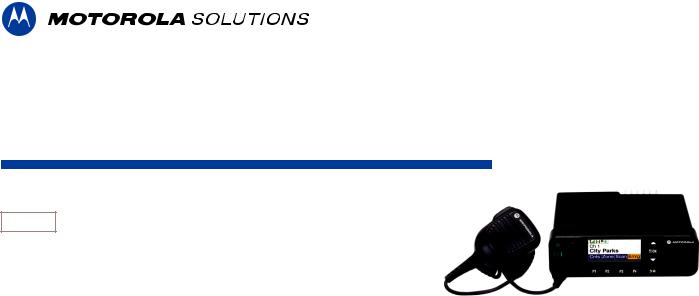
PROFESSIONAL DIGITAL TWO-WAY RADIO
MOTOTRBO™
DM4600/DM4600e, DM4601/DM4601e
ALPHANUMERIC DISPLAY MOBILE RADIO
USER GUIDE
en-US
|
APRIL 2019 |
@68012007021@ |
|
© 2019 Motorola Solutions, Inc. All rights reserved. |
68012007021-GL

|
English |
|
|
Contents |
|
|
Important Safety Information…………………………………. |
27 |
|
Software Version…………………………………………………. |
28 |
|
Copyrights………………………………………………………….. |
29 |
|
Computer Software Copyrights……………………………… |
31 |
|
Handling Precautions…………………………………………… |
32 |
|
Chapter 1: Basic Operations…………………………………. |
33 |
|
Powering Up the Radio……………………………….. |
33 |
|
Powering Off the Radio………………………………. |
33 |
|
Adjusting the Volume………………………………….. |
33 |
|
Chapter 2: Radio Controls…………………………………….. |
35 |
|
Volume/Channel Knob………………………………… |
35 |
|
Setting Dual Knob Operation |
|
|
Preference………………………………………. |
36 |
|
Keypad Microphone Buttons……………………….. |
37 |
|
Chapter 3: WAVE………………………………………………… |
39 |
|
WAVE OnCloud/OnPremise………………………… |
39 |
|
Switching from Radio Mode to WAVE |
|
|
Mode………………………………………………. |
39 |
|
Making WAVE Group Calls………………… |
40 |
|
Receiving and Responding to WAVE |
|
|
Group Calls……………………………………… |
40 |
|
Receiving and Responding to WAVE |
|
|
Private Calls…………………………………….. |
41 |
|
Switching from WAVE Mode to Radio |
|
|
Mode ……………………………………………… |
41 |
|
WAVE Tactical/5000…………………………………… |
42 |
|
Setting Active WAVE Channels …………. |
42 |
|
Viewing WAVE Channel Information…… |
42 |
|
Viewing WAVE Endpoints Information…. |
42 |
|
Changing WAVE Configuration………….. |
43 |
|
Making WAVE Group Calls………………… |
44 |
|
Part I: Capacity Max Operations……………………………. |
45 |
|
Push-To-Talk (PTT) Button…………………………. |
45 |
|
Programmable Buttons……………………………….. |
45 |
|
Assignable Radio Functions………………………… |
46 |
|
Assignable Settings or Utility Functions………… |
48 |
|
Accessing Programmed Functions……………….. |
48 |
|
Status Indicators………………………………………… |
49 |
|
Icons………………………………………………. |
49 |
|
LED Indicator…………………………………… |
55 |
|
Tones……………………………………………… |
56 |
2

|
Audio Tones…………………………… |
56 |
|
Indicator Tones………………………. |
56 |
|
Registration………………………………………………. |
57 |
|
Zone and Channel Selections……………………… |
58 |
|
Selecting Zones ………………………………. |
58 |
|
Selecting Zones by Using the Alias |
|
|
Search……………………………………………. |
59 |
|
Selecting a Call Type………………………… |
59 |
|
Selecting a Site………………………………… |
60 |
|
Roam Request…………………………………. |
60 |
|
Site Lock On/Off………………………………. |
60 |
|
Site Restriction…………………………………. |
61 |
|
Site Trunking …………………………………… |
61 |
|
Calls…………………………………………………………. |
62 |
|
Group Calls……………………………………… |
63 |
|
Making Group Calls………………… |
63 |
|
Making Group Calls by Using |
|
|
the Contacts List…………………….. |
64 |
|
Making Group Calls by Using |
|
|
the Programmable Number Key |
|
|
…………………………………………….. |
65 |
|
English |
|
|
Making Group Calls by Using |
|
|
the Alias Search …………………….. |
65 |
|
Responding to Group Calls………. |
68 |
|
Broadcast Call…………………………………. |
69 |
|
Making Broadcast Calls…………… |
69 |
|
Making Broadcast Calls Using |
|
|
the Contact List………………………. |
69 |
|
Making Broadcast Calls Using |
|
|
the Programmable Number Key.. 70 |
|
|
Receiving Broadcast Calls……….. |
71 |
|
Private Call……………………………………… |
71 |
|
Making Private Calls……………….. |
72 |
|
Making Private Calls by Using |
|
|
the Programmable Number Key |
|
|
…………………………………………….. |
72 |
|
Making Private Calls by Using |
|
|
the Alias Search …………………….. |
73 |
|
Making a Private Call with a |
|
|
One Touch Call Button ……………. |
75 |
|
Making Private Calls by Using |
|
|
the Manual Dial ……………………… |
76 |
|
Receiving Private Calls……………. |
77 |
|
Accepting Private Calls……………. |
77 |
3

English
|
Declining Private Calls…………….. |
78 |
|
All Calls…………………………………………… |
78 |
|
Making All Calls……………………… |
78 |
|
Making All Calls by Using the |
|
|
Programmable Number Key ……. |
79 |
|
Making All Calls by Using the |
|
|
Alias Search…………………………… |
80 |
|
Receiving All Calls………………….. |
81 |
|
Phone Calls…………………………………….. |
82 |
|
Making Phone Calls………………… |
82 |
|
Making Phone Calls with the |
|
|
Programmable Button …………. |
83 |
|
Making Phone Calls by Using |
|
|
the Contacts List ……………………. |
85 |
|
Making Phone Calls by Using |
|
|
the Alias Search……………………… |
87 |
|
Making Phone Calls by Using |
|
|
the Manual Dial………………………. |
90 |
|
Dual Tone Multi Frequency………. |
92 |
|
Initiating DTMF Calls……… |
92 |
|
Responding to Phone Calls as |
|
|
All Calls…………………………………. |
93 |
|
Responding to Phone Calls as |
|
|
Group Calls……………………………. |
93 |
|
Responding to Phone Calls as |
|
|
Private Calls…………………………… |
94 |
|
Call Preemption……………………………….. |
94 |
|
Voice Interrupt…………………………………. |
95 |
|
Enabling Voice Interrupt…………… |
95 |
|
Advanced Features……………………………………. |
96 |
|
Call Queue………………………………………. |
96 |
|
Priority Call……………………………………… |
96 |
|
Talkgroup Scan………………………………… |
97 |
|
Turning Talkgroup Scan On or |
|
|
Off………………………………………… |
97 |
|
Receive Group List…………………………… |
98 |
|
Priority Monitor…………………………………. |
98 |
|
Editing Priority for a Talkgroup….. |
99 |
|
Multi-Talkgroup Affiliation………………… |
100 |
|
Adding Talkgroup Affiliation……. |
100 |
|
Removing Talkgroup Affiliation.. 101 |
|
|
Talkback……………………………………….. |
102 |
|
Bluetooth……………………………………….. |
102 |
|
Turning Bluetooth On and Off…. |
103 |
4

|
Connecting to Bluetooth |
|
|
Devices……………………………….. |
104 |
|
Connecting to Bluetooth |
|
|
Devices in Discoverable Mode… |
105 |
|
Disconnecting from Bluetooth |
|
|
Devices……………………………….. |
105 |
|
Switching Audio Route between |
|
|
Internal Radio Speaker and |
|
|
Bluetooth Device…………………… |
106 |
|
Viewing Device Details………….. |
106 |
|
Deleting Device Name…………… |
107 |
|
Bluetooth Mic Gain………………… |
107 |
|
Indoor Location………………………………. |
108 |
|
Turning Indoor Location On or |
|
|
Off………………………………………. |
108 |
|
Accessing Indoor Location |
|
|
Beacons Information……………… |
109 |
|
Multi-Site Controls………………………….. |
110 |
|
Starting Manual Site Search…… |
110 |
|
Site Lock On/Off……………………. |
110 |
|
Accessing Neighbor Sites List… |
111 |
|
Home Channel Reminder………………… |
111 |
|
English |
|
|
Muting the Home Channel |
|
|
Reminder…………………………….. |
111 |
|
Setting New Home Channels….. |
111 |
|
Remote Monitor……………………………… |
112 |
|
Initiating Remote Monitor……….. |
112 |
|
Initiating Remote Monitor by |
|
|
Using the Contacts List …………. |
113 |
|
Initiating Remote Monitors by |
|
|
Using the Manual Dial……………. |
114 |
|
Contacts Settings……………………………. |
115 |
|
Assigning Entries to |
|
|
Programmable Number Keys….. |
116 |
|
Removing Associations |
|
|
Between Entries and |
|
|
Programmable Number Keys….. |
117 |
|
Adding New Contacts …………… |
117 |
|
Call Indicator Settings……………………… |
118 |
|
Activating or Deactivating Call |
|
|
Ringers for Private Calls………… |
118 |
|
Activating or Deactivating Call |
|
|
Ringers for Text Messages ……. |
119 |
|
Activating or Deactivating Call |
|
|
Ringers for Call Alerts……………. |
120 |
5

English
|
Activating or Deactivating Call |
|
|
Ringers for Selective Calls……… |
120 |
|
Activating or Deactivating Call |
|
|
Ringers for Telemetry Status |
|
|
with Text………………………………. |
121 |
|
Assigning Ring Styles……………. |
121 |
|
Escalating Alarm Tone Volume..122 |
|
|
Call Log Features…………………………… |
122 |
|
Viewing Recent Calls…………….. |
123 |
|
Storing Aliases or IDs from the |
|
|
Call List……………………………….. |
123 |
|
Deleting Calls from the Call List. 124 |
|
|
Deleting All Calls from the Call |
|
|
List …………………………………….. |
124 |
|
Viewing Details from the Call |
|
|
List……………………………………… |
125 |
|
Call Alert Operation………………………… |
126 |
|
Making Call Alerts…………………. |
126 |
|
Making Call Alerts by Using the |
|
|
Contacts List………………………… |
127 |
|
Responding to Call Alerts ……… |
127 |
|
Mute Mode…………………………………….. |
128 |
|
Turning On Mute Mode………….. |
128 |
|
Setting Mute Mode Timer……….. |
128 |
|
Exiting Mute Mode………………… |
129 |
|
Emergency Operation……………………… |
130 |
|
Sending Emergency Alarms…… |
131 |
|
Sending Emergency Alarms with |
|
|
Call……………………………………… |
132 |
|
Sending Emergency Alarms with |
|
|
Voice to Follow……………………… |
133 |
|
Receiving Emergency Alarms … |
135 |
|
Responding to Emergency |
|
|
Alarms ………………………………… |
136 |
|
Responding to Emergency |
|
|
Alarms with Call……………………. |
136 |
|
Status Message……………………………… |
137 |
|
Sending Status Messages……… |
138 |
|
Sending Status Message by |
|
|
Using Programmable Button…… |
138 |
|
Sending a Status Message by |
|
|
Using the Contacts List………….. |
139 |
|
Sending Status Message by |
|
|
Using Manual Dial…………………. |
140 |
|
Viewing Status Messages………. |
141 |
6

|
Responding to Status Messages |
|
|
…………………………………………… |
141 |
|
Deleting a Status Message…….. |
142 |
|
Deleting All Status Messages … |
143 |
|
Text Messaging……………………………… |
143 |
|
Text Messages……………………… |
143 |
|
Viewing Text Messages . 144 |
|
|
Viewing Telemetry Status |
|
|
Text Messages……………. |
144 |
|
Responding to Text |
|
|
Messages…………………… |
145 |
|
Responding to Text |
|
|
Messages with Quick |
|
|
Text…………………………… |
145 |
|
Resending Text |
|
|
Messages ………………….. |
146 |
|
Forwarding Text |
|
|
Messages…………………… |
147 |
|
Forwarding Text |
|
|
Messages by Using the |
|
|
Manual Dial………………… |
147 |
|
Editing Text Messages…. |
148 |
|
Writing Text Messages…. |
149 |
|
English |
|
|
Sending Text Messages..150 |
|
|
Deleting Text Messages |
|
|
from the Inbox…………….. |
150 |
|
Deleting All Text |
|
|
Messages from the Inbox151 |
|
|
Sent Text Messages……………… |
152 |
|
Viewing Sent Text |
|
|
Messages…………………… |
152 |
|
Sending Sent Text |
|
|
Messages…………………… |
153 |
|
Deleting Sent Text |
|
|
Messages from the Sent |
|
|
Items Folder……………….. |
154 |
|
Deleting All Sent Text |
|
|
Messages from the Sent |
|
|
Items Folder ………………. |
154 |
|
Saved Text Messages…………… |
155 |
|
Viewing Saved Text |
|
|
Messages…………………… |
155 |
|
Editing Saved Text |
|
|
Messages…………………… |
155 |
|
Deleting Saved Text |
|
|
Messages from the Drafts |
|
|
Folder………………………… |
156 |
7

English
|
Quick Text Messages …………… |
157 |
|
Sending Quick Text |
|
|
Messages ………………….. |
157 |
|
Text Entry Configuration………………….. |
158 |
|
Enabling or Disabling Word |
|
|
Correct………………………………… |
158 |
|
Enabling or Disabling Word |
|
|
Predict…………………………………. |
159 |
|
Sentence Cap………………………. |
160 |
|
Viewing Custom Words………….. |
160 |
|
Editing Custom Words…………… |
161 |
|
Adding Custom Words…………… |
162 |
|
Deleting a Custom Word………… |
163 |
|
Deleting All Custom Words…….. |
164 |
|
Job Tickets…………………………………….. |
164 |
|
Accessing the Job Ticket Folder 165 |
|
|
Logging In or Out of the Remote |
|
|
Server…………………………………. |
166 |
|
Creating Job Tickets……………… |
166 |
|
Responding to Job Tickets……… |
167 |
|
Sending Job Tickets Using One |
|
|
Job Ticket Template………………. |
168 |
Sending Job Tickets Using More
Than One Job Ticket Template..168
|
Deleting Job Tickets………………. |
169 |
|
Deleting All Job Tickets………….. |
170 |
|
Privacy………………………………………….. |
170 |
|
Turning Privacy On or Off………. |
171 |
|
Response Inhibit…………………………….. |
172 |
|
Turning Response Inhibit On or |
|
|
Off………………………………………. |
172 |
|
Stun/Revive…………………………………… |
172 |
|
Stunning a Radio………………….. |
173 |
|
Stunning a Radio by Using the |
|
|
Contacts List ……………………….. |
173 |
|
Stunning a Radio by Using the |
|
|
Manual Dial………………………….. |
174 |
|
Reviving a Radio…………………… |
175 |
|
Reviving a Radio by Using the |
|
|
Contacts List………………………… |
176 |
|
Reviving a Radio by Using the |
|
|
Manual Dial………………………….. |
176 |
|
Radio Kill……………………………………….. |
177 |
|
Lone Worker………………………………….. |
178 |
|
Password Lock Features…………………. |
178 |
8

|
Accessing Radios by Using |
|
|
Passwords…………………………… |
178 |
|
Unlocking Radios in Locked |
|
|
State……………………………………. |
179 |
|
Turning Password Lock On or |
|
|
Off………………………………………. |
179 |
|
Changing Passwords…………….. |
180 |
|
Notification List ……………………………… |
181 |
|
Accessing Notification List …….. |
181 |
|
Over-the-Air Programming ………………. |
182 |
|
Selecting Third-Party Peripherals |
|
|
Connection Modes………………………….. |
182 |
|
Received Signal Strength Indicator…… |
183 |
|
Viewing RSSI Values…………….. |
183 |
|
Front Panel Configuration………………… |
183 |
|
Entering Front Panel |
|
|
Configuration Mode……………….. |
184 |
|
Editing Mode Parameters………. |
184 |
|
Wi-Fi Operation………………………………. |
184 |
|
Turning Wi-Fi On or Off………….. |
185 |
|
Turning Wi-Fi On or Off |
|
|
Remotely by Using a |
|
English |
|
|
Designated Radio (Individual |
|
|
Control)……………………………….. |
186 |
|
Turning Wi-Fi On or Off |
|
|
Remotely by Using a |
|
|
Designated Radio (Group |
|
|
Control)……………………………….. |
186 |
|
Connecting to a Network Access |
|
|
Point……………………………………. |
187 |
|
Checking Wi-Fi Connection |
|
|
Status …………………………………. |
188 |
|
Refreshing the Network List……. |
189 |
|
Adding a Network………………….. |
189 |
|
Viewing Details of Network |
|
|
Access Points………………………. |
190 |
|
Removing Network Access |
|
|
Points………………………………….. |
191 |
|
Dynamic Group Number Assignment |
|
|
(DGNA)…………………………………………. |
191 |
|
Making DGNA Calls………………. |
192 |
|
Making Non-DGNA Calls……….. |
192 |
|
Receiving and Responding to |
|
|
DGNA Calls………………………….. |
193 |
|
Utilities……………………………………………………. |
193 |
9

English
|
Power Levels…………………………………. |
193 |
|
Setting Power Levels…………….. |
194 |
|
Turning Radio Tones/Alerts On or Off.. 194 |
|
|
Turning Keypad Tones On or Off………. |
195 |
|
Setting Tones/Alerts Volume Offset |
|
|
Levels…………………………………………… |
196 |
|
Turning Talk Permit Tone On or Off….. |
196 |
|
Turning Power Up Tone On or Off…….. |
197 |
|
Setting Text Message Alert Tones…….. |
198 |
|
Changing Display Modes…………………. |
198 |
|
Adjusting Display Brightness……………. |
199 |
|
Turning Horns/Lights On or Off ………… |
199 |
|
Turning LED Indicators On or Off……… |
200 |
|
Turning Public Address System On or |
|
|
Off………………………………………………… |
201 |
|
Turning External Public Address |
|
|
System On or Off……………………………. |
201 |
|
Turning Introduction Screen On or Off..202 |
|
|
Setting Languages………………………….. |
203 |
|
Identifying Cable Type…………………….. |
203 |
|
Turning Voice Announcement On or |
|
|
Off ……………………………………………….. |
204 |
|
Turning Option Board On or Off………… |
204 |
|
Text-to-Speech………………………………. |
204 |
|
Setting Text-to-Speech………….. |
205 |
|
Setting Menu Timer………………………… |
205 |
|
Turning Digital Microphone AGC On or |
|
|
Off ……………………………………………….. |
206 |
|
Turning Intelligent Audio On or Off……. |
206 |
|
Turning the Acoustic Feedback |
|
|
Suppressor Feature On or Off………….. |
207 |
|
Turning Trill Enhancement On or Off…. |
208 |
|
Audio Ambience……………………………… |
209 |
|
Setting Audio Ambience…………. |
209 |
|
Audio Profiles…………………………………. |
210 |
|
Setting Audio Profiles…………….. |
210 |
|
Turning Global Navigation Satellite |
|
|
System On or Off……………………………. |
211 |
|
General Radio Information ………………. |
211 |
|
Checking Radio Alias and ID …. |
212 |
|
Checking Firmware and |
|
|
Codeplug Versions………………… |
212 |
|
Checking Software Update |
|
|
Information…………………………… |
213 |
10

|
Checking GNSS Information…… |
213 |
|
Displaying Site Information…….. |
214 |
|
Viewing Enterprise Wi-Fi Certificate |
|
|
Details…………………………………………… |
214 |
|
Part II: Connect Plus Operations………………………….. |
216 |
|
Additional Radio Controls in Connect Plus |
|
|
Mode………………………………………………………. |
216 |
|
Push-To-Talk (PTT) Button………………. |
216 |
|
Programmable Buttons……………………. |
216 |
|
Assignable Radio Functions…… |
217 |
|
Assignable Settings or Utility |
|
|
Functions…………………………….. |
218 |
|
Identifying Status Indicators in Connect |
|
|
Plus Mode……………………………………… |
219 |
|
Display Icons………………………… |
219 |
|
Call Icons…………………………….. |
221 |
|
Advanced Menu Icons…………… |
222 |
|
Sent Item Icons ……………………. |
222 |
|
Bluetooth Device Icons………….. |
223 |
|
LED Indicator……………………….. |
224 |
|
Indicator Tones…………………….. |
224 |
|
Alert Tones…………………………… |
225 |
|
English |
|
|
Switching Between Connect Plus and |
|
|
Non-Connect Plus Modes………………… |
225 |
|
Making and Receiving Calls in Connect Plus |
|
|
Mode………………………………………………………. |
225 |
|
Selecting a Site………………………………. |
225 |
|
Roam Request……………………… |
226 |
|
Site Lock On/Off……………………. |
226 |
|
Site Restriction……………………… |
226 |
|
Selecting a Zone…………………………….. |
227 |
|
Using Multiple Networks………………….. |
228 |
|
Selecting a Call Type………………………. |
228 |
|
Receiving and Responding to a Radio |
|
|
Call……………………………………………….. |
228 |
|
Receiving and Responding to a |
|
|
Group Call……………………………. |
229 |
|
Receiving and Responding to a |
|
|
Private Call…………………………… |
229 |
|
Receiving a Site All Call…………. |
230 |
|
Receiving an Inbound Private |
|
|
Phone Call…………………………… |
231 |
|
Making a Buffered Over- |
|
|
Dial in an Inbound Phone |
|
|
Private Call…………………. |
231 |
11

English
|
Making a Live Over-Dial |
|
|
in an Inbound Phone |
|
|
Private Call…………………. |
232 |
|
Receiving an Inbound Phone |
|
|
Talkgroup Call………………………. |
232 |
|
Inbound Phone Multi-Group Call232 |
|
|
Making a Radio Call………………………… |
232 |
|
Making a Call with the Channel |
|
|
Selector Knob………………………. |
233 |
|
Making a Group Call……. |
233 |
|
Making a Private Call…… |
234 |
|
Making a Site All Call…… |
234 |
|
Making a Multi-group Call |
|
|
…………………………………. |
235 |
|
Making a Private Call with a |
|
|
One Touch Call Button…………… |
235 |
|
Making a Call with the |
|
|
Programmable Manual Dial |
|
|
Button………………………………….. |
236 |
|
Making a Private Call…… |
236 |
|
Making an Outbound Private |
|
|
Phone Call with the |
|
|
Programmable Manual Dial |
|
|
Button………………………………….. |
237 |
|
Making an Outbound Private |
|
|
Phone Call via the Phone Menu 238 |
|
|
Making an Outbound Private |
|
|
Phone Call from Contacts………. |
238 |
|
Waiting for the Channel Grant in |
|
|
an Outbound Private Phone Call |
|
|
…………………………………………… |
240 |
|
Making a Buffered Over-Dial in |
|
|
a Connected Outbound Private |
|
|
Phone Call…………………………… |
240 |
|
Making a Live Over-Dial in a |
|
|
Connected Outbound Private |
|
|
Phone Call…………………………… |
241 |
|
Advanced Features in Connect Plus Mode….. |
241 |
|
Home Channel Reminder………………… |
241 |
|
Auto Fallback…………………………………. |
242 |
|
Indications of Auto Fallback |
|
|
Mode…………………………………… |
242 |
|
Making/Receiving Calls in |
|
|
Fallback Mode………………………. |
243 |
|
Returning to Normal Operation.. 243 |
|
|
Radio Check………………………………….. |
244 |
|
Sending a Radio Check…………. |
244 |
12

|
Remote Monitor……………………………… |
245 |
|
Initiating Remote Monitor……….. |
245 |
|
Scan……………………………………………… |
246 |
|
Starting and Stopping Scan……. |
246 |
|
Responding to a Transmission |
|
|
During a Scan………………………. |
247 |
|
User Configurable Scan…………………… |
247 |
|
Turning Scan On or Off……………………. |
248 |
|
Editing the Scan List……………………….. |
249 |
|
Add or Delete a Group via the Add |
|
|
Members Menu………………………………. |
250 |
|
Understanding Scan Operation………… |
252 |
|
Scan Talkback……………………………….. |
253 |
|
Editing Priority for a Talkgroup…………. |
253 |
|
Contacts Settings……………………………. |
254 |
|
Making a Private Call from |
|
|
Contacts………………………………. |
255 |
|
Making a Call Alias Search…….. |
255 |
|
Adding a New Contact…………… |
256 |
|
Call Indicator Settings……………………… |
257 |
|
Activating and Deactivating Call |
|
|
Ringers for Call Alert……………… |
257 |
|
English |
|
|
Activating and Deactivating Call |
|
|
Ringers for Private Calls………… |
258 |
|
Activating and Deactivating Call |
|
|
Ringers for Text Message………. |
258 |
|
Selecting a Ring Alert Type……. |
259 |
|
Escalating Alarm Tone Volume..259 |
|
|
Call Log…………………………………………. |
260 |
|
Viewing Recent Calls…………….. |
260 |
|
Deleting a Call from a Call List… |
260 |
|
Viewing Details from a Call List. 261 |
|
|
Call Alert Operation………………………… |
261 |
|
Responding to Call Alerts ……… |
262 |
|
Making a Call Alert from the |
|
|
Contact List………………………….. |
262 |
|
Making a Call Alert with the One |
|
|
Touch Access Button…………….. |
263 |
|
Mute Mode…………………………………….. |
263 |
|
Turning On Mute Mode………….. |
264 |
|
Setting Mute Mode Timer……….. |
264 |
|
Exiting Mute Mode………………… |
265 |
|
Emergency Operation……………………… |
265 |
13

English
|
Receiving an Incoming |
|
|
Emergency…………………………… |
267 |
|
Saving the Emergency Details |
|
|
to the Alarm List……………………. |
267 |
|
Deleting the Emergency Details.268 |
|
|
Responding to an Emergency |
|
|
Call……………………………………… |
268 |
|
Responding to an Emergency |
|
|
Alert…………………………………….. |
269 |
|
Ignore Emergency Revert Call… |
269 |
|
Initiating an Emergency Call…… |
270 |
|
Initiating an Emergency Call |
|
|
with Voice to Follow………………. |
270 |
|
Initiating an Emergency Alert….. |
271 |
|
Exiting Emergency Mode……….. |
271 |
|
Text Messaging……………………………… |
272 |
|
Sending a Quick Text Message. 272 |
|
|
Sending a Quick Text Message |
|
|
with the One Touch Access |
|
|
Button………………………………….. |
273 |
|
Accessing the Drafts Folder……. |
273 |
|
Viewing a Saved Text |
|
|
Message…………………….. |
273 |
|
Editing and Sending a |
|
|
Saved Text Message…… |
274 |
|
Deleting a Saved Text |
|
|
Message from Drafts……. |
275 |
|
Managing Fail-to-Send Text |
|
|
Messages…………………………….. |
276 |
|
Resending a Text |
|
|
Message…………………….. |
276 |
|
Forwarding a Text |
|
|
Message…………………….. |
276 |
|
Managing Sent Text Messages. 277 |
|
|
Viewing a Sent Text |
|
|
Message…………………….. |
277 |
|
Sending a Sent Text |
|
|
Message…………………….. |
278 |
|
Deleting All Sent Text |
|
|
Messages from Sent |
|
|
Items…………………………. |
279 |
|
Receiving a Text Message……… |
280 |
|
Reading a Text Message……….. |
280 |
|
Managing Received Text |
|
|
Messages…………………………….. |
280 |
|
Viewing a Text Message |
|
|
from the Inbox…………….. |
281 |
14

|
Replying to a Text |
|
|
Message from the Inbox..281 |
|
|
Deleting a Text Message |
|
|
from the Inbox…………….. |
282 |
|
Deleting All Text |
|
|
Messages from the Inbox283 |
|
|
Privacy………………………………………….. |
284 |
|
Making a Privacy-Enabled |
|
|
(Scrambled) Call…………………… |
285 |
|
Security…………………………………………. |
285 |
|
Radio Disable……………………….. |
286 |
|
Radio Enable……………………….. |
287 |
|
Bluetooth Operation………………………… |
289 |
|
Turning Bluetooth On and Off…. |
289 |
|
Finding and Connecting to a |
|
|
Bluetooth Device…………………… |
290 |
|
Finding and Connecting from a |
|
|
Bluetooth Device (Discoverable |
|
|
Mode)………………………………….. |
291 |
|
Disconnecting from a Bluetooth |
|
|
Device…………………………………. |
291 |
|
English |
|
|
Switching Audio Route between |
|
|
Internal Radio Speaker and |
|
|
Bluetooth Device…………………… |
292 |
|
Viewing Device Details………….. |
292 |
|
Deleting Device Name…………… |
293 |
|
Bluetooth Mic Gain………………… |
293 |
|
Indoor Location………………………………. |
294 |
|
Turning Indoor Location On or |
|
|
Off………………………………………. |
294 |
|
Accessing Indoor Location |
|
|
Beacons Information……………… |
295 |
|
Notification List………………………………. |
296 |
|
Accessing the Notification List… |
296 |
|
Wi-Fi Operation………………………………. |
296 |
|
Turning Wi-Fi On or Off………….. |
297 |
|
Turning Wi-Fi On or Off |
|
|
Remotely by Using a |
|
|
Designated Radio (Individual |
|
|
Control)……………………………….. |
298 |
|
Turning Wi-Fi On or Off |
|
|
Remotely by Using a |
|
|
Designated Radio (Group |
|
|
Control)……………………………….. |
299 |
15

English
|
Connecting to a Network Access |
|
|
Point……………………………………. |
299 |
|
Checking Wi-Fi Connection |
|
|
Status …………………………………. |
300 |
|
Refreshing the Network List……. |
301 |
|
Adding a Network………………….. |
302 |
|
Viewing Details of Network |
|
|
Access Points………………………. |
302 |
|
Removing Network Access |
|
|
Points………………………………….. |
303 |
|
Utilities………………………………………….. |
304 |
|
Turning the Radio Tones/Alerts |
|
|
On or Off……………………………… |
304 |
|
Setting the Tone Alert Volume |
|
|
Offset Level………………………….. |
305 |
|
Turning the Talk Permit Tone |
|
|
On or Off……………………………… |
305 |
|
Turning the Power Up Alert |
|
|
Tone On or Off……………………… |
306 |
|
Setting the Power Level…………. |
307 |
|
Changing the Display Mode……. |
308 |
|
Adjusting the Display Brightness |
|
|
…………………………………………… |
308 |
|
Turning the Introduction Screen |
|
|
On or Off……………………………… |
309 |
|
Language…………………………….. |
310 |
|
Turning the LED Indicator On or |
|
|
Off………………………………………. |
310 |
|
Identifying Cable Type…………… |
311 |
|
Voice Announcement…………….. |
311 |
|
Menu Timer………………………….. |
312 |
|
Turning Horns/Lights On or Off.. 312 |
|
|
Setting Dual Knob Operation |
|
|
Preference…………………………… |
313 |
|
Digital Mic AGC (Mic AGC-D)…. |
313 |
|
Intelligent Audio……………………. |
314 |
|
Turning the Acoustic Feedback |
|
|
Suppressor Feature On or Off… |
315 |
|
Turning GNSS On or Off………… |
316 |
|
Accessing General Radio |
|
|
Information…………………………… |
317 |
|
Checking the Radio |
|
|
Model Number Index……. |
317 |
|
Checking the CRC of the |
|
|
Option Board OTA |
|
|
Codeplug File……………… |
318 |
16

|
Displaying the Site ID |
|
|
(Site Number)……………… |
318 |
|
Checking the Site Info….. |
319 |
|
Checking the Radio ID…. |
319 |
|
Checking the Firmware |
|
|
Version and Codeplug |
|
|
Version………………………. |
320 |
|
Checking for Updates…… |
321 |
|
Viewing Enterprise Wi-Fi |
|
|
Certificate Details………………….. |
328 |
|
Part III: Other Systems……………………………………….. |
329 |
|
Push-To-Talk Button ………………………………… |
329 |
|
Programmable Buttons……………………………… |
329 |
|
Assignable Radio Functions…………….. |
329 |
|
Assignable Settings or Utility Functions332 |
|
|
Accessing Programmed Functions……. |
333 |
|
Status Indicators………………………………………. |
333 |
|
Icons…………………………………………….. |
333 |
|
LED Indicators ………………………………. |
340 |
|
Tones……………………………………………. |
341 |
|
Indicator Tones…………………….. |
341 |
|
Audio Tones…………………………. |
341 |
|
English |
|
|
Conventional Analog and Digital Modes………. |
342 |
|
Icon Information……………………………………….. |
342 |
|
IP Site Connect …………………………………… |
342 |
|
Capacity Plus–Single-Site …………………….. |
343 |
|
Capacity Plus–Multi-Site ………………………. |
344 |
|
Zone and Channel Selections……………………. |
344 |
|
Selecting Zones …………………………….. |
345 |
|
Selecting Zones by Using the Alias |
|
|
Search………………………………………….. |
345 |
|
Selecting Channels…………………………. |
346 |
|
Calls……………………………………………………….. |
346 |
|
Group Calls……………………………………. |
347 |
|
Making Group Calls………………. |
347 |
|
Making Group Calls by Using |
|
|
the Contacts List ………………….. |
348 |
|
Making Group Calls by Using |
|
|
the Programmable Number Key |
|
|
…………………………………… |
348 |
|
Responding to Group Calls…….. |
349 |
|
Private Calls ……………………………… |
350 |
|
Making Private Calls …………. |
350 |
17

English
|
Making Private Calls by Using |
|
|
the Contacts List ………………. |
351 |
|
Making Private Calls by Using |
|
|
the Manual Dial ………………… |
352 |
|
Making Private Calls by Using |
|
|
the Programmable Number Key |
|
|
…………………………………… |
353 |
|
Responding to Private Calls |
. 354 |
|
All Calls…………………………………………. |
354 |
|
Receiving All Calls………………… |
354 |
|
Making All Calls……………………. |
355 |
|
Making All Calls by Using the |
|
|
Programmable Number Key |
. 356 |
|
Selective Calls …………………………… |
357 |
|
Making Selective Calls…………… |
357 |
|
Responding to Selective Calls |
|
|
…………………………………………… |
357 |
|
Phone Calls ………………………………. |
358 |
|
Making Phone Calls ………….. |
359 |
|
Making Phone Calls by Using |
|
|
the Contacts List ………………. |
360 |
|
Making Phone Calls by Using |
|
|
the Manual Dial ………………… |
362 |
|
Making Group, Private, Phone |
|
|
or All Calls by Using the Alias |
|
|
Search ………………………… |
365 |
|
Dual Tone Multi Frequency…….. |
367 |
|
Initiating DTMF Calls……. |
367 |
|
Responding to Phone Calls as |
|
|
Group Calls ……………………… |
367 |
|
Responding to Phone Calls as |
|
|
All Calls …………………………… |
368 |
|
Responding to Phone Calls as |
|
|
Private Calls …………………….. |
368 |
|
Stopping Radio Calls ………………….. |
369 |
|
Talkaround…………………………………….. |
370 |
|
Toggling Between Repeater and |
|
|
Talkaround Modes………………… |
370 |
|
Broadcast Voice Calls……………………… |
370 |
|
Making Broadcast Voice Calls… |
371 |
|
Making Broadcast Voice Calls |
|
|
by Using the Programmable |
|
|
Number Key …………………….. |
371 |
18

|
Making Broadcast Voice Calls |
|
|
by Using the Alias Search …..372 |
|
|
Receiving Broadcast Voice Calls |
|
|
…………………………………………… |
373 |
|
Unaddressed Calls…………………………. |
374 |
|
Making Unaddressed Calls…….. |
374 |
|
Responding to Unaddressed |
|
|
Calls……………………………………. |
375 |
|
Open Voice Channel Mode (OVCM)…. |
376 |
|
Making OVCM Calls………………. |
376 |
|
Responding to OVCM Calls……. |
376 |
|
Advanced Features………………………………….. |
377 |
|
Home Channel Reminder………………… |
377 |
|
Muting the Home Channel |
|
|
Reminder…………………………….. |
378 |
|
Setting New Home Channels….. |
378 |
|
Radio Check ……………………………… |
378 |
|
Sending Radio Checks ……… |
379 |
|
Sending Radio Checks by Using |
|
|
the Manual Dial ………………… |
379 |
|
Remote Monitor……………………………… |
380 |
|
Initiating Remote Monitor……….. |
381 |
|
English |
|
|
Initiating Remote Monitor by |
|
|
Using the Contacts List …………. |
382 |
|
Initiating Remote Monitor by |
|
|
Using the Manual Dial ……….. |
383 |
|
Scan Lists……………………………………… |
384 |
|
Viewing Entries in the Scan List 384 |
|
|
Viewing Entries in the Scan List |
|
|
by Using the Alias Search ……… |
385 |
|
Adding New Entries to the Scan |
|
|
List……………………………………… |
385 |
|
Adding New Entries to the Scan |
|
|
List by Using the Alias Search |
|
|
…………………………………………… |
386 |
|
Deleting Entries from the Scan |
|
|
List……………………………………… |
387 |
|
Setting Priority for Entries in the |
|
|
Scan List……………………………… |
388 |
|
Scan……………………………………………… |
388 |
|
Turning Scan On or Off …………. |
389 |
|
Responding to Transmissions |
|
|
During Scanning…………………… |
389 |
|
Deleting Nuisance Channels…… |
390 |
|
Restoring Nuisance Channels… |
390 |
19

English
|
Vote Scan …………………………………. |
391 |
|
Contacts Settings……………………………. |
391 |
|
Making Group Calls by Using |
|
|
the Contacts List ………………….. |
392 |
|
Making Private Calls by Using |
|
|
the Contacts List ………………. |
393 |
|
Assigning Entries to |
|
|
Programmable Number Keys |
|
|
…………………………………………… |
393 |
|
Removing Associations |
|
|
Between Entries and |
|
|
Programmable Number Keys |
|
|
…………………………………………… |
394 |
|
Adding New Contacts …………… |
395 |
|
Setting Default Contact ……… |
396 |
|
Call Indicator Settings……………………… |
397 |
|
Activating or Deactivating Call |
|
|
Ringers for Call Alerts……………. |
397 |
|
Activating or Deactivating Call |
|
|
Ringers for Private Calls ……. |
397 |
|
Activating or Deactivating Call |
|
|
Ringers for Selective Calls |
….398 |
Activating or Deactivating Call Ringers for Text Messages  …399
…399
|
Activating or Deactivating Call |
|
|
Ringers for Telemetry Status |
|
|
with Text………………………………. |
400 |
|
Assigning Ring Styles……………. |
400 |
|
Escalating Alarm Tone Volume..401 |
|
|
Call Log Features…………………………… |
401 |
|
Viewing Recent Calls…………….. |
401 |
|
Deleting Calls from the Call List |
|
|
……………………………………….. |
402 |
|
Viewing Call List Details ……. |
403 |
|
Storing Aliases or IDs from the |
|
|
Call List …………………………… |
403 |
|
Call Alert Operation ……………………….. |
404 |
|
Making Call Alerts…………………. |
404 |
|
Making Call Alerts by Using the |
|
|
Contacts List………………………… |
404 |
|
Making Call Alerts by Using the |
|
|
Manual Dial………………………….. |
405 |
|
Responding to Call Alerts ……… |
406 |
|
Mute Mode…………………………………….. |
406 |
20

|
Turning On Mute Mode………….. |
406 |
|
Setting Mute Mode Timer……….. |
407 |
|
Exiting Mute Mode………………… |
407 |
|
Emergency Operation …………………….. |
408 |
|
Receiving Emergency Alarms…. |
409 |
|
Responding to Emergency |
|
|
Alarms…………………………………. |
410 |
|
Exiting Emergency Mode After |
|
|
Receiving the Emergency Alarm410 |
|
|
Sending Emergency Alarms ….. |
411 |
|
Sending Emergency Alarms with |
|
|
Call …………………………………….. |
412 |
|
Emergency Alarms with Voice to |
|
|
Follow …………………………………. |
413 |
|
Sending Emergency Alarms with |
|
|
Voice to Follow ………………… |
414 |
|
Reinitiating Emergency Mode…. |
414 |
|
Exiting Emergency Mode After |
|
|
Sending the Emergency Alarm.. 415 |
|
|
Deleting an Alarm Item from the |
|
|
Alarm List…………………………….. |
415 |
|
Text Messaging……………………………… |
416 |
|
Text Messages ………………… |
416 |
|
English |
|
|
Viewing Text Messages . 416 |
|
|
Viewing Telemetry Status |
|
|
Text Messages……………. |
417 |
|
Responding to Text |
|
|
Messages ………………. |
417 |
|
Responding to Text |
|
|
Messages with Quick |
|
|
Text ………………………. |
418 |
|
Resending Text |
|
|
Messages ………………….. |
419 |
|
Forwarding Text |
|
|
Messages ………………. |
420 |
|
Forwarding Text |
|
|
Messages by Using the |
|
|
Manual Dial ……………. |
420 |
|
Editing Text Messages…. |
421 |
|
Writing Text Messages…. |
422 |
|
Sending Text Messages..422 |
|
|
Deleting Text Messages |
|
|
from the Inbox…………….. |
423 |
|
Deleting All Text |
|
|
Messages from the Inbox |
|
|
……………………………… |
424 |
21
English
|
Sent Text Messages …………. |
425 |
|
Viewing Sent Text |
|
|
Messages ………………. |
425 |
|
Sending Sent Text |
|
|
Messages ………………. |
426 |
|
Deleting Sent Text |
|
|
Messages from the Sent |
|
|
Items Folder …………… |
427 |
|
Deleting All Sent Text |
|
|
Messages from the Sent |
|
|
Items Folder ………………. |
427 |
|
Saved Text Messages…………… |
428 |
|
Viewing Saved Text |
|
|
Messages…………………… |
428 |
|
Editing Saved Text |
|
|
Messages…………………… |
428 |
|
Deleting Saved Text |
|
|
Messages from the Drafts |
|
|
Folder………………………… |
429 |
|
Quick Text Messages ……….. |
430 |
|
Sending Quick Text |
|
|
Messages ………………. |
430 |
|
Text Entry Configuration………………….. |
431 |
|
Enabling or Disabling Word |
|
|
Correct………………………………… |
431 |
|
Enabling or Disabling Word |
|
|
Predict…………………………………. |
432 |
|
Sentence Cap………………………. |
433 |
|
Viewing Custom Words………….. |
433 |
|
Editing Custom Words…………… |
434 |
|
Adding Custom Words…………… |
435 |
|
Deleting a Custom Word………… |
436 |
|
Deleting All Custom Words…….. |
437 |
|
Job Tickets…………………………………….. |
437 |
|
Accessing the Job Ticket Folder 438 |
|
|
Logging In or Out of the Remote |
|
|
Server…………………………………. |
439 |
|
Creating Job Tickets……………… |
439 |
|
Responding to Job Tickets……… |
440 |
|
Sending Job Tickets Using One |
|
|
Job Ticket Template………………. |
441 |
|
Sending Job Tickets Using More |
|
|
Than One Job Ticket Template..441 |
|
|
Deleting Job Tickets………………. |
442 |
|
Deleting All Job Tickets………….. |
443 |
22

|
Privacy ……………………………………… |
443 |
|
Turning Privacy On or Off ….. 444 |
|
|
Response Inhibit…………………………….. |
445 |
|
Turning Response Inhibit On or |
|
|
Off………………………………………. |
445 |
|
Multi-Site Controls………………………….. |
446 |
|
Starting Manual Site Search…… |
446 |
|
Site Lock On/Off……………………. |
446 |
|
Accessing Neighbor Sites List… |
447 |
|
Security …………………………………….. |
447 |
|
Disabling Radios ………………. |
447 |
|
Disabling Radios by Using the |
|
|
Contacts List ……………………. |
448 |
|
Disabling Radios by Using the |
|
|
Manual Dial ……………………… |
449 |
|
Enabling Radios ……………….. |
450 |
|
Enabling Radios by Using the |
|
|
Contacts List ……………………. |
451 |
|
Enabling Radios by Using the |
|
|
Manual Dial ……………………… |
452 |
|
Lone Worker………………………………….. |
453 |
|
Bluetooth……………………………………….. |
454 |
|
English |
|
|
Turning Bluetooth On and Off…. |
454 |
|
Connecting to Bluetooth |
|
|
Devices……………………………….. |
455 |
|
Connecting to Bluetooth |
|
|
Devices in Discoverable Mode… |
456 |
|
Disconnecting from Bluetooth |
|
|
Devices……………………………….. |
457 |
|
Switching Audio Route between |
|
|
Internal Radio Speaker and |
|
|
Bluetooth Device…………………… |
458 |
|
Viewing Device Details………….. |
458 |
|
Deleting Device Name…………… |
458 |
|
Bluetooth Mic Gain………………… |
459 |
|
Indoor Location………………………………. |
459 |
|
Turning Indoor Location On or |
|
|
Off………………………………………. |
460 |
|
Accessing Indoor Location |
|
|
Beacons Information……………… |
461 |
|
Notification List ……………………………… |
461 |
|
Accessing Notification List …….. |
462 |
|
Auto-Range Transponder System … 462 |
|
|
Over-the-Air Programming ………….. |
463 |
|
Transmit Inhibit………………………………. |
463 |
23

English
|
Enabling Transmit Inhibit……….. |
463 |
|
Disabling Transmit Inhibit……….. |
464 |
|
Selecting Third-Party Peripherals |
|
|
Connection Modes………………………….. |
464 |
|
Received Signal Strength Indicator…… |
465 |
|
Viewing RSSI Values…………….. |
465 |
|
Password Lock Features…………………. |
465 |
|
Accessing Radios by Using |
|
|
Passwords…………………………… |
465 |
|
Unlocking Radios in Locked |
|
|
State……………………………………. |
466 |
|
Turning Password Lock On or |
|
|
Off………………………………………. |
466 |
|
Changing Passwords…………….. |
467 |
|
Front Panel Configuration………………… |
468 |
|
Entering Front Panel |
|
|
Configuration Mode……………….. |
468 |
|
Editing Mode Parameters………. |
468 |
|
Wi-Fi Operation………………………………. |
469 |
|
Turning Wi-Fi On or Off………….. |
469 |
|
Turning Wi-Fi On or Off |
|
|
Remotely by Using a |
|
Designated Radio (Individual |
|
|
Control)……………………………….. |
470 |
|
Turning Wi-Fi On or Off |
|
|
Remotely by Using a |
|
|
Designated Radio (Group |
|
|
Control)……………………………….. |
471 |
|
Connecting to a Network Access |
|
|
Point……………………………………. |
471 |
|
Checking Wi-Fi Connection |
|
|
Status …………………………………. |
472 |
|
Refreshing the Network List……. |
473 |
|
Adding a Network………………….. |
474 |
|
Viewing Details of Network |
|
|
Access Points………………………. |
474 |
|
Removing Network Access |
|
|
Points………………………………….. |
475 |
|
Utilities……………………………………………………. |
476 |
|
Squelch Levels ……………………………… |
476 |
|
Setting Squelch Levels …………. |
476 |
|
Power Levels…………………………………. |
477 |
|
Setting Power Levels…………….. |
477 |
|
Turning Radio Tones/Alerts On or Off.. 478 |
|
|
Turning Keypad Tones On or Off………. |
479 |
24

|
Setting Tones/Alerts Volume Offset |
|
|
Levels…………………………………………… |
479 |
|
Turning Talk Permit Tone On or Off….. |
480 |
|
Turning Power Up Tone On or Off…….. |
481 |
|
Setting Text Message Alert Tones…….. |
481 |
|
Changing Display Modes…………………. |
482 |
|
Adjusting Display Brightness……………. |
483 |
|
Turning Horns/Lights On or Off ………… |
483 |
|
Turning LED Indicators On or Off……… |
484 |
|
Turning Public Address System On or |
|
|
Off………………………………………………… |
484 |
|
Turning External Public Address |
|
|
System On or Off……………………………. |
485 |
|
Turning Introduction Screen On or Off..486 |
|
|
Setting Languages………………………….. |
486 |
|
Identifying Cable Type…………………….. |
487 |
|
Voice Operating Transmission …………. |
487 |
|
Turning Voice Operating |
|
|
Transmission On or Off………….. |
488 |
|
Turning Voice Announcement On or |
|
|
Off ……………………………………………….. |
488 |
|
Turning Option Board On or Off………… |
489 |
|
English |
|
|
Text-to-Speech………………………………. |
489 |
|
Setting Text-to-Speech………….. |
489 |
|
Turning Automatic Call Forwarding On |
|
|
or Off…………………………………………….. |
490 |
|
Setting Menu Timer………………………… |
491 |
|
Turning Analog Microphone AGC On |
|
|
or Off ……………………………………………. |
491 |
|
Turning Digital Microphone AGC On or |
|
|
Off ……………………………………………….. |
492 |
|
Turning Intelligent Audio On or Off……. |
493 |
|
Turning the Acoustic Feedback |
|
|
Suppressor Feature On or Off………….. |
493 |
|
Turning Trill Enhancement On or Off…. |
494 |
|
Audio Ambience……………………………… |
495 |
|
Setting Audio Ambience…………. |
495 |
|
Audio Profiles…………………………………. |
496 |
|
Setting Audio Profiles…………….. |
496 |
|
Turning Global Navigation Satellite |
|
|
System On or Off……………………………. |
497 |
|
Flexible Receive List …………………… |
497 |
|
Turning Flexible Receive List On |
|
|
or Off…………………………………… |
498 |
25

|
English |
|
|
General Radio Information ………………. |
498 |
|
Checking Radio Alias and ID …. |
498 |
|
Checking Firmware and |
|
|
Codeplug Versions………………… |
499 |
|
Checking Software Update |
|
|
Information…………………………… |
499 |
|
Checking GNSS Information…… |
500 |
|
Displaying Site Information…….. |
501 |
|
Viewing Enterprise Wi-Fi Certificate |
|
|
Details…………………………………………… |
501 |
|
Part IV: Authorized Accessories List…………………….. |
502 |
|
Citizens Band License………………………………………… |
503 |
|
Citizens Band Repeater Operation……………… |
503 |
|
Limited Warranty……………………………………………….. |
504 |
|
MOTOROLA SOLUTIONS |
|
|
COMMUNICATION PRODUCTS……………….. |
504 |
|
I. WHAT THIS WARRANTY COVERS AND |
|
|
FOR HOW LONG:……………………………………. |
504 |
|
II. GENERAL PROVISIONS………………………. |
505 |
|
III. STATE LAW RIGHTS:………………………….. |
505 |
|
IV. HOW TO GET WARRANTY SERVICE…… |
505 |
|
V. WHAT THIS WARRANTY DOES NOT |
|
|
COVER…………………………………………………… |
505 |
VI. PATENT AND SOFTWARE PROVISIONS506
|
VII. GOVERNING LAW…………………………….. |
507 |
|
VIII. For Australia Only……………………………… |
507 |
26

English
Important Safety Information
RF Energy Exposure and Product Safety
Guide for Mobile Two-Way Radios
ATTENTION!
This radio is restricted to Occupational use only. Before using the radio, read the RF Energy Exposure and Product Safety Guide for Mobile Two-Way Radios which contains important operating instructions for safe usage and RF energy awareness and control for Compliance with applicable standards and Regulations.
For a list of Motorola Solutions-approved antennas and other accessories, visit the following website:
http://www.motorolasolutions.com
27

English
Software Version
All the features described in the following sections are supported by the software version R02.10.00.0000 or later.
See Checking Firmware and Codeplug Versions on page 212 to determine the software version of your radio.
Check with your dealer or system administrator for more information.
28

Copyrights
The Motorola Solutions products described in this document may include copyrighted Motorola Solutions computer programs. Laws in the United States and other countries preserve for Motorola Solutions certain exclusive rights for copyrighted computer programs. Accordingly, any copyrighted Motorola Solutions computer programs contained in the Motorola Solutions products described in this document may not be copied or reproduced in any manner without the express written permission of Motorola Solutions.
© 2019 Motorola Solutions, Inc. All Rights Reserved
No part of this document may be reproduced, transmitted, stored in a retrieval system, or translated into any language or computer language, in any form or by any means, without the prior written permission of Motorola Solutions, Inc.
Furthermore, the purchase of Motorola Solutions products shall not be deemed to grant either directly or by implication, estoppel or otherwise, any license under the copyrights, patents or patent applications of Motorola Solutions, except for the normal non-exclusive, royalty-free license to use that arises by operation of law in the sale of a product.
English
Disclaimer
Please note that certain features, facilities, and capabilities described in this document may not be applicable to or licensed for use on a specific system, or may be dependent upon the characteristics of a specific subscriber unit or configuration of certain parameters. Please refer to your Motorola Solutions contact for further information.
Trademarks
MOTOROLA, MOTO, MOTOROLA SOLUTIONS, and the Stylized M Logo are trademarks or registered trademarks of Motorola Trademark Holdings, LLC and are used under license. All other trademarks are the property of their respective owners.
European Union (EU) Waste of Electrical and Electronic Equipment (WEEE) directive
 The European Union’s WEEE directive requires that products sold into EU countries must have the crossed out trash bin label on the product (or the package in some cases).
As defined by the WEEE directive, this cross-out trash bin label means that customers and end users in EU countries
29

English
should not dispose of electronic and electrical equipment or accessories in household waste.
Customers or end users in EU countries should contact their local equipment supplier representative or service centre for information about the waste collection system in their country.
30

Computer Software
Copyrights
The Motorola Solutions products described in this manual may include copyrighted Motorola Solutions computer programs stored in semiconductor memories or other media. Laws in the United States and other countries preserve for Motorola Solutions certain exclusive rights for copyrighted computer programs including, but not limited to, the exclusive right to copy or reproduce in any form the copyrighted computer program. Accordingly, any copyrighted Motorola Solutions computer programs contained in the Motorola Solutions products described in this manual may not be copied, reproduced, modified, reverse-engineered, or distributed in any manner without the express written permission of Motorola Solutions. Furthermore, the purchase of Motorola Solutions products shall not be deemed to grant either directly or by implication, estoppel, or otherwise, any license under the copyrights, patents or patent applications of Motorola Solutions, except for the normal non-exclusive license to use that arises by operation of law in the sale of a product.
The AMBE+2™ voice coding Technology embodied in this product is protected by intellectual property rights including
English
patent rights, copyrights and trade secrets of Digital Voice Systems, Inc.
This voice coding Technology is licensed solely for use within this Communications Equipment. The user of this Technology is explicitly prohibited from attempting to decompile, reverse engineer, or disassemble the Object Code, or in any other way convert the Object Code into a human-readable form.
U.S. Pat. Nos. #5,870,405, #5,826,222, #5,754,974, #5,701,390, #5,715,365, #5,649,050, #5,630,011, #5,581,656, #5,517,511, #5,491,772, #5,247,579, #5,226,084 and #5,195,166.
31

English
Handling Precautions
The MOTOTRBO Series Digital Portable radio meets IP67 specifications, allowing your radio to withstand adverse field conditions such as being submersed in water. This section describes some basic handling precautions.
CAUTION:
Do not disassemble your radio. This could damage radio seals and result in leak paths into the radio. Radio maintenance should only be done in service depot that is equipped to test and replace the seal on the radio.
•If your radio has been submersed in water, shake your radio well to remove any water that may be trapped inside the speaker grille and microphone port. Trapped water could cause decreased audio performance.
•If your radio’s battery contact area has been exposed to water, clean and dry battery contacts on both your radio and the battery before attaching the battery to radio.
The residual water could short-circuit the radio.
•If your radio has been submersed in a corrosive substance (for example, saltwater), rinse radio and battery in fresh water then dry radio and battery.
•To clean the exterior surfaces of your radio, use a diluted solution of mild dishwashing detergent and fresh water (for example, one teaspoon of detergent to one gallon of water).
•Never poke the vent (hole) located on the radio chassis below the battery contact. This vent allows for pressure equalization in the radio. Doing so may create a leak path into radio and your radio’s submersibility may be lost.
•Never obstruct or cover the vent, even with a label.
•Ensure that no oily substances come in contact with the vent.
•Your radio with antenna attached properly is designed to be submersible to a maximum depth of 1 m (3.28 ft) and a maximum submersion time of 30 minutes.
Exceeding either maximum limit or use without antenna may result in damage to your radio.
•When cleaning your radio, do not use a high pressure jet spray on radio as this will exceed the 1 m depth pressure and may cause water to leak into your radio.
32

Basic Operations
This chapter explains the operations to get you started on using the radio.
Powering Up the Radio
Follow the procedure to power up your radio.
Press the On/Off button.
If successful:
•A tone sounds.
•The green LED lights up.
•The display shows MOTOTRBO (TM), followed by a welcome message or image.
•The Home screen lights up.
If the Tones/Alerts function is disabled, there is no tone upon powering up.
Check your battery if your radio does not power up. Make sure that it is charged and properly attached. Contact your dealer if your radio still does not power up.
English
Powering Off the Radio
Follow the procedure to power off your radio.
Press and hold the On/Off button.
The radio may take up to seven seconds to completely turn off.
The display shows Powering Down.
Adjusting the Volume
Follow the procedure to change the volume level of your radio.
Do one of the following:
•Turn the On/Off/Volume Control Knob clockwise to increase the volume.
•Turn the On/Off/Volume Control Knob counterclockwise to decrease the volume.
33

English
NOTICE:
Your radio can be programmed to have a minimum volume offset where the volume level cannot be lowered past the programmed minimum volume. Check with your dealer or system administrator for more information.
34

Radio Controls
This chapter explains the buttons and functions to control the radio.
|
1 |
2 |
3 |
4 |
5 |
6 |
||||||||||||||||||||||||||
1 On/Off/Information Button
2 Volume/Channel Knob
3 Display
4 Menu/OK Button
5 Scroll Up/Down Buttons
6 Speaker
English
7 Return/Home Button
8 Front Programmable Buttons
9 Accessory Connector
10 LED Indicators
Volume/Channel Knob
The Volume/Channel Knob can be programmed for dual volume and channel control, or for volume control only.
To adjust the volume, see Adjusting the Volume on page 33.
To change the channels, press and hold the Volume/ Channel Knob until the channel selection state is displayed. Turn the Volume/Channel Knob to select the channel. Do one of the following to exit the channel selection state:
•Press the Volume/Channel Knob.
•Press  .
.
•Press  .
.
•Wait for the menu timer to expire.
35

English
Setting Dual Knob Operation
Preference
Follow the procedure to set the dual knob operation preference of the radio.
|
1 Press |
to access the menu. |
2Press  or
or  to Utilities. Press
  to select.
3Press  or
or  to Radio Settings. Press
 to select.
4Press  or
or  to Dual Knob. Press
  to select.
The display shows Volume Only and Volume & Channel.
|
5 Press |
or |
to the required setting. Press |
to select.
A  appears beside the selected settings. The screen returns to the previous menu.
36

English
Keypad Microphone Buttons
You can use the 3 x 4 alphanumeric keypad on the 4-Way Navigation Keypad Microphone (Motorola Solutions part number RMN5127_) to access your radio features. Many characters require that you press a key multiple times. The table shows the number of times a key needs to be pressed to generate the required character.
Key Number of Times Key is Pressed
|
1 |
2 |
3 |
4 |
5 |
6 |
7 |
8 |
9 |
10 |
11 |
12 |
13 |
|
1 |
. |
, |
? |
! |
@ |
& |
‘ |
% |
— |
: |
* |
# |
|
A |
B |
C |
2 |
|||||||||
|
D |
E |
F |
3 |
|||||||||
|
G |
H |
I |
4 |
|||||||||
|
J |
K |
L |
5 |
37

English
|
Key Number of Times Key is Pressed |
|||||||||||||
|
1 |
2 |
3 |
4 |
5 |
6 |
7 |
8 |
9 |
10 |
11 |
12 |
13 |
|
|
M |
N |
O |
6 |
||||||||||
|
P |
Q |
R |
S |
7 |
|||||||||
|
T |
U |
V |
8 |
||||||||||
|
W |
X |
Y |
Z |
9 |
|
0 |
NOTICE: |
|
Press to enter «0» and long press to activate the CAPS lock. Another long press to turn off |
|
|
the CAPS lock. |
|
|
* or |
NOTICE: |
|
del |
Press during text entry to delete the character. Press during numeric entry to enter a «*». |
|
# or |
NOTICE: |
|
spac |
Press during text entry to insert a space. Press during numeric entry to enter a «#». |
|
e |
38

WAVE
Wide Area Voice Environment (WAVE™) provides a new method of making calls between two or more radios.
WAVE allows you to communicate across different networks and devices using Wi-Fi. WAVE calls are made when the radio is connected to an IP network through WiFi.
Your radio supports different system configurations:
•WAVE OnCloud/OnPremise
•WAVE Tactical/5000
The method to initiate a WAVE Call is different for each system type. Refer to the appropriate section depending on the system configuration of your radio.
Table 1: WAVE Display Icons
The following icons appear momentarily on the display when WAVE is enabled.
WAVE Connected
WAVE is connected.
English
WAVE Disconnected
WAVE is disconnected.
NOTICE:
This feature is applicable to specific models only.
WAVE OnCloud/OnPremise
Switching from Radio Mode to WAVE Mode
1Do one of the following:
•Press the programmed WAVE button. Skip the following steps.
•Press  to access the menu.
|
2 Press |
or |
to WAVE. Press |
to select. |
The yellow LED double blinks.
The display shows a momentary notice of Switching to WAVE, then shows Preparing WAVE.
39

English
NOTICE:
Your radio automatically enables Wi-Fi after you switch to WAVE mode.
If successful:
•The blinking yellow LED turns off.
•The display shows the WAVE connected icon,
<Talkgroup Alias>, and <Channel Index>.
If unsuccessful:
•A negative tone sounds.
•The red LED blinks.
•The display shows the WAVE disconnected icon and No Connection or Activation: Fail, depending on the error type.
NOTICE:
Synchronization occurs when new settings are updated to your radio. When you enter the WAVE mode, your radio displays Syncing…. When the synchronization completes, your radio returns to the home screen.
Making WAVE Group Calls
1Select the WAVE talkgroup using the channel selector knob/buttons.
2 Press the PTT button to make the call.
If successful, the display shows the Group Call icon and the WAVE talkgroup alias.
If unsuccessful:
•A negative indicator tone sounds.
•The display shows a momentary notice of Call Failed or No Participants.
Receiving and Responding to WAVE Group Calls
When you receive a WAVE group call:
•A tone sounds.
•The display shows the group call icon, WAVE talkgroup alias, and caller alias.
40

•Your radio unmutes and the incoming call sounds through the speaker.
1 Press the PTT button to respond to the call.
2 Release the PTT button to listen.
Receiving and Responding to WAVE Private Calls
When you receive a WAVE private call:
•A tone sounds.
•The display shows the private call icon and caller alias.
•Your radio unmutes and the incoming call sounds through the speaker.
1 Press the PTT button to respond to the call.
2 Release the PTT button to listen.
English
Switching from WAVE Mode to Radio Mode
1Do one of the following:
•Press the programmed Radio Mode button. Skip the following steps.
•Press  to access the menu.
2Press  or
or  to Radio Mode. Press
  to select.
The yellow LED double blinks.
The display shows a momentary notice of Switching to Radio and then shows Preparing Radio.
When successful:
•The blinking yellow LED turns off.
•The WAVE connected icon disappears on the status bar. The display shows <Talkgroup Alias> and
<Channel Index>.
41

English
WAVE Tactical/5000
Setting Active WAVE Channels
NOTICE:
WAVE channels are configured through CPS. Your radio automatically enables Wi-Fi and logs in to the WAVE server once you enter WAVE channel.
|
1 Press |
to access the menu. |
2Press  or
or  to WAVE Channels. Press to select.
3Press  or
or  to the required WAVE channel. Press
  to select.
|
4 Press |
or |
to Set As Active. Press |
|
to select. |
The display shows  beside the selected channel.
Viewing WAVE Channel Information
1Do one of the following:
•Press the programmed WAVE Channel List button. Skip the following steps.
•Press  to access the menu.
2Press  or
or  to WAVE Channels. Press to select.
3Press  or
or  to the required WAVE channel. Press
  to select.
4Press  or
or  to View Details. Press to select.
The display shows the WAVE channel details.
Viewing WAVE Endpoints Information
1 Do one of the following:
42

•Press the programmed Contact button. Skip to step 3.
•Press  to access the menu.
2Press  or
or  to Endpoints. Press
  to select.
3Press  or
or  to the required WAVE Endpoint. Press
  to select.
4 Press  to select View Details.
The display shows the WAVE Endpoint details.
Changing WAVE Configuration
Follow the procedure to set the WAVE server IP address, user ID, and password.
|
1 Press |
to access the menu. |
English
2Press  or
or  to Utilities. Press
  to select.
3Press  or
or  to Radio Settings. Press
 to select.
|
4 Press |
or |
to WAVE. Press |
to select. |
5Press  to select Server Address. Press
  to change the server address. Press
  to select.
6Press  to User ID. Press
  to change the user ID. Press
  to select.
7Press  to Password. Press
  to view or change the WAVE password. Press
  to select.
43

English
8Press  to Apply. Press
  to apply all the changes made.
The display shows the positive mini notice momentarily before returning to the Radio Settings screen.
Making WAVE Group Calls
1Select the WAVE channel with the required group alias or ID.
2Press the PTT button to make the call.
The green LED lights up. The first text line displays the Group Call icon and alias. The second text line displays the WAVE group alias.
3Do one of the following:
•Wait for the Talk Permit Tone to end and speak clearly into the microphone if enabled.
•Wait for the PTT Sidetone to end and speak clearly into the microphone if enabled
4Release the PTT button to listen.
The green LED lights up when the target radio responds.The display shows the Group Call icon, and alias or ID, and the transmitting radio alias or ID.
5If the Channel Free Indication feature is enabled, you hear a short alert tone the moment the transmitting radio releases the PTT button, indicating the channel is free for you to respond. Press the PTT button to respond to the call.
The call ends when there is no voice activity for a predetermined period. The radio returns to the screen you were on prior to initiating the call.
44

Capacity Max Operations
Capacity Max is a control channel-based trunked radio system. Features that are available to the radio users under this system are available in this chapter.
Push-To-Talk (PTT) Button
The PTT button serves two basic purposes.
•While a call is in progress, the PTT button allows the radio to transmit to other radios in the call. The microphone is activated when the PTT button is pressed.
•While a call is not in progress, the PTT button is used to make a new call.
Press and hold the PTT button to talk. Release the PTT button to listen.
If the Talk Permit Tone or the PTT Sidetone is enabled, wait until the short alert tone ends before talking.
If the Channel Free Indication feature is enabled on your radio (programmed by your dealer), you will hear a short alert tone the moment the target radio (the radio that is receiving your call) releases the PTT button, indicating the channel is free for you to respond.
English
You hear a continuous Talk Prohibit Tone if your call is interrupted, for example when the radio receives an Emergency call. You should release the PTT button.
Programmable Buttons
Depending on the duration of a button press, your dealer can program the programmable buttons as shortcuts to radio functions.
Short press
Pressing and releasing rapidly.
Long press
Pressing and holding for the programmed duration.
NOTICE:
See Emergency Operation on page 408 for more information on the programmed duration of the
Emergency button.
45

English
Assignable Radio Functions
The following radio functions can be assigned to the programmable buttons by your dealer or system administrator.
Audio Ambience
Allows the user to select an environment the radio is operating in.
Audio Profiles
Allows the user to select the preferred audio profile.
Bluetooth® Audio Switch
Toggles audio routing between internal radio speaker and external Bluetooth-enabled accessory.
Bluetooth Connect
Initiates a Bluetooth find-and-connect operation.
Bluetooth Disconnect
Terminates all existing Bluetooth connections between your radio and any Bluetooth-enabled devices.
Bluetooth Discoverable
Enables your radio to enter Bluetooth Discoverable Mode.
Contacts
Provides direct access to the Contacts list.
Call Alert
Provides direct access to the contacts list for you to select a contact to whom a Call Alert can be sent.
Call Log
Selects the call log list.
Emergency
Depending on the programming, initiates or cancels an emergency.
Ext Public Address (PA)
Toggles audio routing between the connected PA loudspeaker amplifier and the internal PA system of the radio.
Reset Home Channel
Sets a new home channel.
Silence Home Channel Reminder
Mutes the Home Channel Reminder.
Indoor Location
Toggles Indoor Location on or off.
Intelligent Audio
Toggles intelligent audio on or off.
Manual Dial
Initiates a Private Call by keying in any subscriber ID.
46

Manual Site Roam
Starts the manual site search.
Mic AGC
Toggles the internal microphone automatic gain control (AGC) on or off.
Notifications
Provides direct access to the Notifications list.
One Touch Access
Directly initiates a predefined Broadcast, Private, Phone or Group Call, a Call Alert, or a Quick Text message.
Option Board Feature
Toggles option board feature(s) on or off for option board-enabled channels.
Phone
Provides direct access to the Phone Contacts list.
Privacy
Toggles privacy on or off.
Public Address (PA)
Toggles the internal PA system of the radio on or off.
Radio Alias and ID
Provides radio alias and ID.
English
Remote Monitor
Turns on the microphone of a target radio without it giving any indicators.
Site Info
Displays the current Capacity Max site name and ID.
Plays site announcement voice messages for the current site when Voice Announcement is enabled.
Site Lock
When toggled on, the radio searches the current site only. When toggled off, the radio searches other sites in addition to the current site.
Telemetry Control
Controls the Output Pin on a local or remote radio.
Text Message
Selects the text message menu.
Toggle Call Priority Level
Enables your radio to enter Call Priority Level High/ Normal.
Trill Enhancement
Toggles trill enhancement on or off.
Voice Announcement On/Off
Toggles voice announcement on or off.
47

English
Voice Announcement for Channel
Plays zone and channel announcement voice messages for the current channel. This function is unavailable when Voice Announcement is disabled.
Wi-Fi
Toggles Wi-Fi on or off.
Zone Selection
Allows selection from a list of zones.
Assignable Settings or Utility Functions
The following radio settings or utility functions can be assigned to the programmable buttons.
Tones/Alerts
Toggles all tones and alerts on or off.
Backlight
Toggles display backlight on or off.
Channel Up/Down
Depending on the programming, changes channel to previous or next channel.
Display Mode
Toggles the day/night display mode on or off.
Power Level
Toggles transmit power level between high and low.
Accessing Programmed
Functions
Follow the procedure to access programmed functions in your radio.
1Do one of the following:
•Press the programmed button. Proceed to step 3.
•Press  to access the menu.
2Press  or
or  to the menu function, and press
 to select a function or enter a sub-menu.
3Do one of the following:
•Press  to return to the previous screen.
•Long press  to return to the Home screen.
Your radio automatically exits the menu after a period of inactivity and returns to the Home screen.
48

The Menu Navigation Buttons are also available on a keypad microphone. See Keypad Microphone Buttons on page 37.
Status Indicators
This chapter explains the status indicators and audio tones used in the radio.
Icons
The Liquid Crystal Display (LCD) of your radio shows the radio status, text entries, and menu entries.
Table 2: Display Icons
The following icons appear on the status bar at the top of the radio display. The icons are arranged left most in order of appearance or usage, and are channel-specific.
Bluetooth Connected
The Bluetooth feature is enabled. The icon stays lit when a remote Bluetooth device is connected.
English
Bluetooth Not Connected
The Bluetooth feature is enabled but there is no remote Bluetooth device connected.
DGNA
Radio is in DGNA Talkgroup.
Emergency
Radio is in Emergency mode.
GNSS Available
GNSS feature is enabled. The icon stays lit when a position fix is available.
GNSS Not Available
GNSS feature is enabled but is not receiving data from the satellite.
High Volume Data
Radio is receiving high volume data and channel is busy.
49

English
Indoor Location Available1
Indoor location status is on and available.
Indoor Location Unavailable1
Indoor location status is on but unavailable due to Bluetooth disabled or Beacons Scan suspended by Bluetooth.
Mute Mode
Mute Mode is enabled and speaker is muted.
Notification
Notification List has one or more missed events.
Option Board
The Option Board is enabled. (Option board enabled models only)
Option Board Non-Function
The Option Board is disabled.
Over-the-Air Programming Delay Timer
Indicates time left before automatic restart of radio.
Priority 1
Indicates Priority Talkgroup 1.
Priority 2
Indicates Priority Talkgroup 2.
Received Signal Strength Indicator (RSSI)
The number of bars displayed represents the radio signal strength. Four bars indicate the strongest signal.
This icon is only displayed while receiving.
Response Inhibit
Response Inhibit is enabled.
Ring Only
Ringing mode is enabled.
1 Only applicable for models with the latest software and hardware.
50
 Loading…
 |
[Page 1] Motorola Mototrbo DM4600 … |
 |
[Page 2] Motorola Mototrbo DM4600 … |
 |
[Page 3] Motorola Mototrbo DM4600 … |
 |
[Page 4] Motorola Mototrbo DM4600 … |
 |
[Page 5] Motorola Mototrbo DM4600 … |
 |
[Page 6] Motorola Mototrbo DM4600 … |
 |
[Page 7] Motorola Mototrbo DM4600 … |
 |
[Page 8] Motorola Mototrbo DM4600 … |
 |
[Page 9] Motorola Mototrbo DM4600 … |
 |
[Page 10] Motorola Mototrbo DM4600 … |
 |
[Page 11] Motorola Mototrbo DM4600 … |
 |
[Page 12] Motorola Mototrbo DM4600 … |
 |
[Page 13] Motorola Mototrbo DM4600 … |
 |
[Page 14] Motorola Mototrbo DM4600 … |
 |
[Page 15] Motorola Mototrbo DM4600 … |
 |
[Page 16] Motorola Mototrbo DM4600 … |
 |
[Page 17] Motorola Mototrbo DM4600 … |
 |
[Page 18] Motorola Mototrbo DM4600 … |
 |
[Page 19] Motorola Mototrbo DM4600 … |
 |
[Page 20] Motorola Mototrbo DM4600 … |
 |
[Page 21] Motorola Mototrbo DM4600 … |
 |
[Page 22] Motorola Mototrbo DM4600 … |
 |
[Page 23] Motorola Mototrbo DM4600 … |
 |
[Page 24] Motorola Mototrbo DM4600 … |
 |
[Page 25] Motorola Mototrbo DM4600 … |
 |
[Page 26] Motorola Mototrbo DM4600 … |
 |
[Page 27] Motorola Mototrbo DM4600 … |
 |
[Page 28] Motorola Mototrbo DM4600 … |
 |
[Page 29] Motorola Mototrbo DM4600 … |
 |
[Page 30] Motorola Mototrbo DM4600 … |
 |
[Page 31] Motorola Mototrbo DM4600 … |
 |
[Page 32] Motorola Mototrbo DM4600 … |
 |
[Page 33] Motorola Mototrbo DM4600 … |
 |
[Page 34] Motorola Mototrbo DM4600 … |
 |
[Page 35] Motorola Mototrbo DM4600 … |
 |
[Page 36] Motorola Mototrbo DM4600 … |
 |
[Page 37] Motorola Mototrbo DM4600 … |
 |
[Page 38] Motorola Mototrbo DM4600 … |
 |
[Page 39] Motorola Mototrbo DM4600 … |
 |
[Page 40] Motorola Mototrbo DM4600 … |
 |
[Page 41] Motorola Mototrbo DM4600 … |
 |
[Page 42] Motorola Mototrbo DM4600 … |
 |
[Page 43] Motorola Mototrbo DM4600 … |
 |
[Page 44] Motorola Mototrbo DM4600 … |
 |
[Page 45] Motorola Mototrbo DM4600 … |
 |
[Page 46] Motorola Mototrbo DM4600 … |
 |
[Page 47] Motorola Mototrbo DM4600 … |
 |
[Page 48] Motorola Mototrbo DM4600 … |
 |
[Page 49] Motorola Mototrbo DM4600 … |
 |
[Page 50] Motorola Mototrbo DM4600 … |
 |
[Page 51] Motorola Mototrbo DM4600 … |
 |
[Page 52] Motorola Mototrbo DM4600 … |
 |
[Page 53] Motorola Mototrbo DM4600 … |
 |
[Page 54] Motorola Mototrbo DM4600 … |
 |
[Page 55] Motorola Mototrbo DM4600 … |
 |
[Page 56] Motorola Mototrbo DM4600 … |
 |
[Page 57] Motorola Mototrbo DM4600 … |
 |
[Page 58] Motorola Mototrbo DM4600 … |
 |
[Page 59] Motorola Mototrbo DM4600 … |
 |
[Page 60] Motorola Mototrbo DM4600 … |
 |
[Page 61] Motorola Mototrbo DM4600 … |
 |
[Page 62] Motorola Mototrbo DM4600 … |
 |
[Page 63] Motorola Mototrbo DM4600 … |
 |
[Page 64] Motorola Mototrbo DM4600 … |
 |
[Page 65] Motorola Mototrbo DM4600 … |
 |
[Page 66] Motorola Mototrbo DM4600 … |
 |
[Page 67] Motorola Mototrbo DM4600 … |
 |
[Page 68] Motorola Mototrbo DM4600 … |
 |
[Page 69] Motorola Mototrbo DM4600 … |
 |
[Page 70] Motorola Mototrbo DM4600 … |
 |
[Page 71] Motorola Mototrbo DM4600 … |
 |
[Page 72] Motorola Mototrbo DM4600 … |
 |
[Page 73] Motorola Mototrbo DM4600 … |
 |
[Page 74] Motorola Mototrbo DM4600 … |
 |
[Page 75] Motorola Mototrbo DM4600 … |
 |
[Page 76] Motorola Mototrbo DM4600 … |
 |
[Page 77] Motorola Mototrbo DM4600 … |
 |
[Page 78] Motorola Mototrbo DM4600 … |
 |
[Page 79] Motorola Mototrbo DM4600 … |
 |
[Page 80] Motorola Mototrbo DM4600 … |
 |
[Page 81] Motorola Mototrbo DM4600 … |
 |
[Page 82] Motorola Mototrbo DM4600 … |
 |
[Page 83] Motorola Mototrbo DM4600 … |
 |
[Page 84] Motorola Mototrbo DM4600 … |
 |
[Page 85] Motorola Mototrbo DM4600 … |
 |
[Page 86] Motorola Mototrbo DM4600 … |
 |
[Page 87] Motorola Mototrbo DM4600 … |
 |
[Page 88] Motorola Mototrbo DM4600 … |
 |
[Page 89] Motorola Mototrbo DM4600 … |
 |
[Page 90] Motorola Mototrbo DM4600 … |
 |
[Page 91] Motorola Mototrbo DM4600 … |
 |
[Page 92] Motorola Mototrbo DM4600 … |
 |
[Page 93] Motorola Mototrbo DM4600 … |
 |
[Page 94] Motorola Mototrbo DM4600 … |
 |
[Page 95] Motorola Mototrbo DM4600 … |
 |
[Page 96] Motorola Mototrbo DM4600 … |
 |
[Page 97] Motorola Mototrbo DM4600 … |
 |
[Page 98] Motorola Mototrbo DM4600 … |
 |
[Page 99] Motorola Mototrbo DM4600 … |
 |
[Page 100] Motorola Mototrbo DM4600 … |