
Данная статья описывает характеристики, особенности и инструкцию по настройке grandstream GXP1450. Внешнее описание Функционал Настройка Внешнее описание Черно-белый LCD-дисплей с подсветкой, панель дополнена, помимо цифрового блока, шестью функциональными клавишами, три из которых выполняют: Hold – постановка звонящего на удержание Transfer – перевод звонка Conf – создание конференции средствами телефона Еще три, расположенные под экраном не […]
Данная статья
описывает характеристики, особенности и инструкцию по настройке grandstream GXP1450.
- Внешнее описание
- Функционал
- Настройка
Внешнее описание
Черно-белый LCD-дисплей с подсветкой, панель дополнена,
помимо цифрового блока, шестью функциональными клавишами, три из которых
выполняют:
- Hold – постановка звонящего на удержание
- Transfer – перевод звонка
- Conf
– создание конференции средствами телефона
Еще три, расположенные под экраном не имеют строгого назначения
и могут принимать разный функционал в зависимости от пункта меню или его
отсутствия (на главном экране).
Кнопками управления звуком: отключение микрофона,
переключение на гарнитуру или громкую связь, ответ на вызов, клавиши регуляции
громкости.
Кнопками навигации в меню или (с главного экрана) в истории
звонков.
Последние, но не по значению клавиши с правой стороны от
экрана: голосовая почта и телефонная книга.
Функционал
- Поддерживает до двух SIP линий. Возможно
подключение к разным серверам. - Благодаря наличию двух портов (WAN и LAN) позволяет работу в
режиме сетевого моста (swich)
с компьютером. - Поддерживает подключение гарнитуры с выходом rj9 и внешний динамик.
- Допускает питание посредством PoE.
- Имеет web-интерфейс.
- Содержит встроенную телефонную книгу, до 2000
контактов.
Настройка
Перейдем к настройке телефона для работы. Для этого подключим его к маршрутизатору через WAN порт. На экране должен отобразиться ip адрес. Если этого не произошло, его можно посмотреть в меню->статус->статус сети во второй строке IPv4 будет ip адрес телефона. Вводим его в адресной строке вашего браузера и попадаем на страницу web-интерфейса:

Пароль по умолчанию «admin», без кавычек. Здесь же можно выбрать язык интерфейса. Рекомендуется использовать английский, т.к. в русской локализации возможны недостатки.

После ввода пароля, попадаем на страницу отображающую статусы обеих линий. Чтобы произвести настройку откроем одну из линий accounts->account 2-> general settings
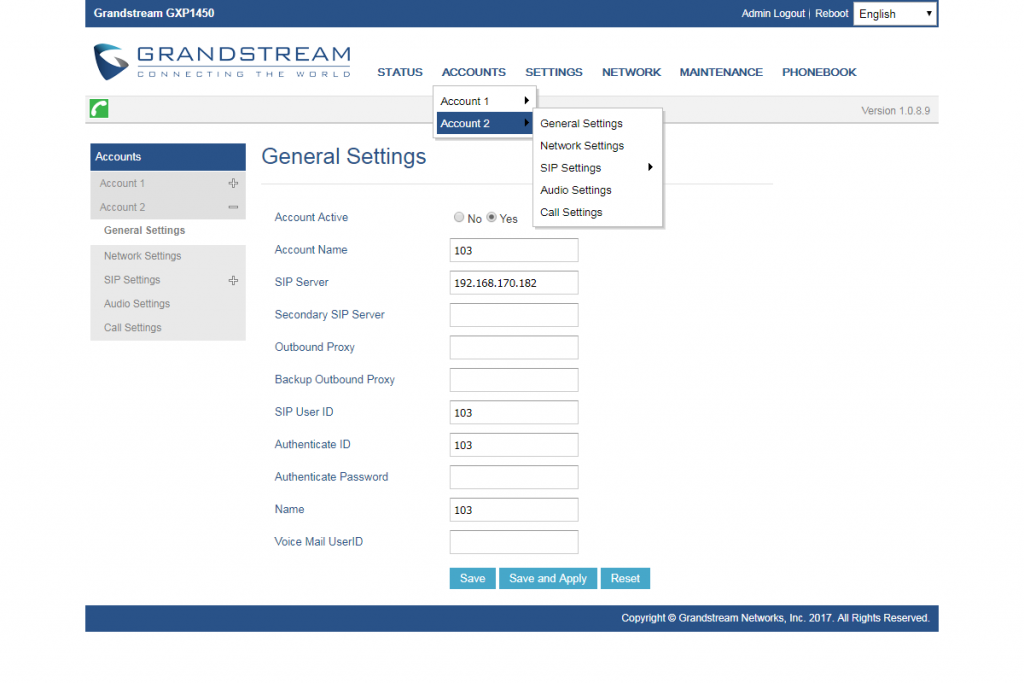
Переключаем линию в активное состояние. Заполняем
необходимые поля. В минимальной конфигурации это:
- Account name
– значение внутреннего номера или extension’а. - SIP server
– адрес сервера регистрации - SIP user ID —
значение внутреннего номера или extension’а - Authenticate ID —
значение внутреннего номера или extension’а - Authenticate password – пароль от внутреннего номера или extension’а
- Name
— значение внутреннего номера или extension’а
Важно перед началом использования позаботиться о правильной настройке плана набора номера. Эта функция может как ограничить набор некоторых номеров, так и парализовать набор всех. Распологается она во вкладке call settings.

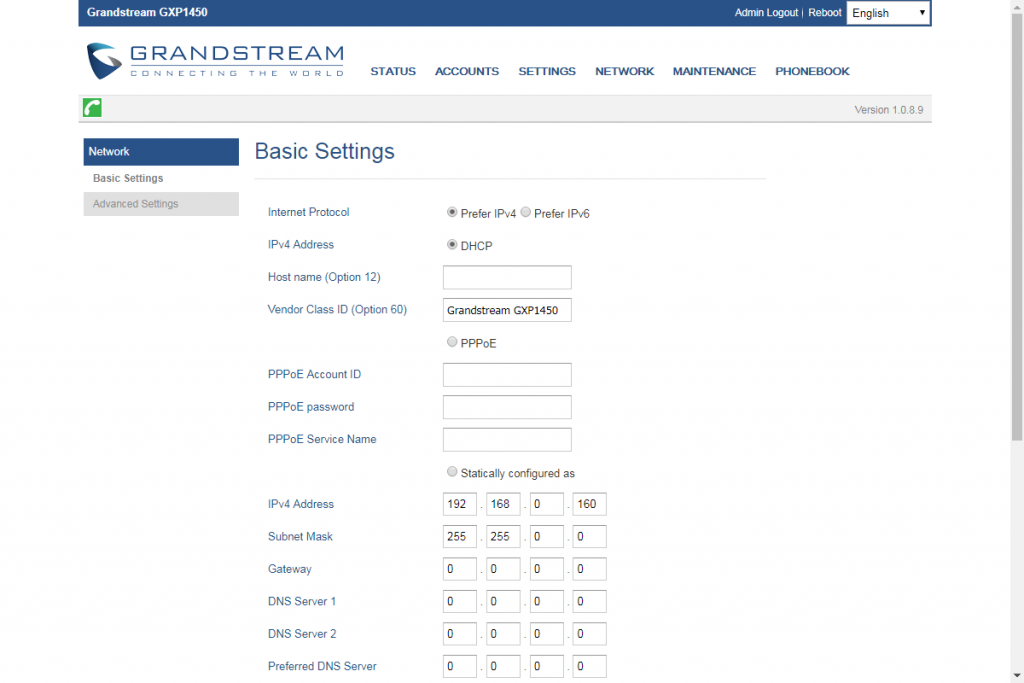
Если есть необходимость сменить способ получения ip адреса и назначить аппарату статику, то это делается во вкадке network.
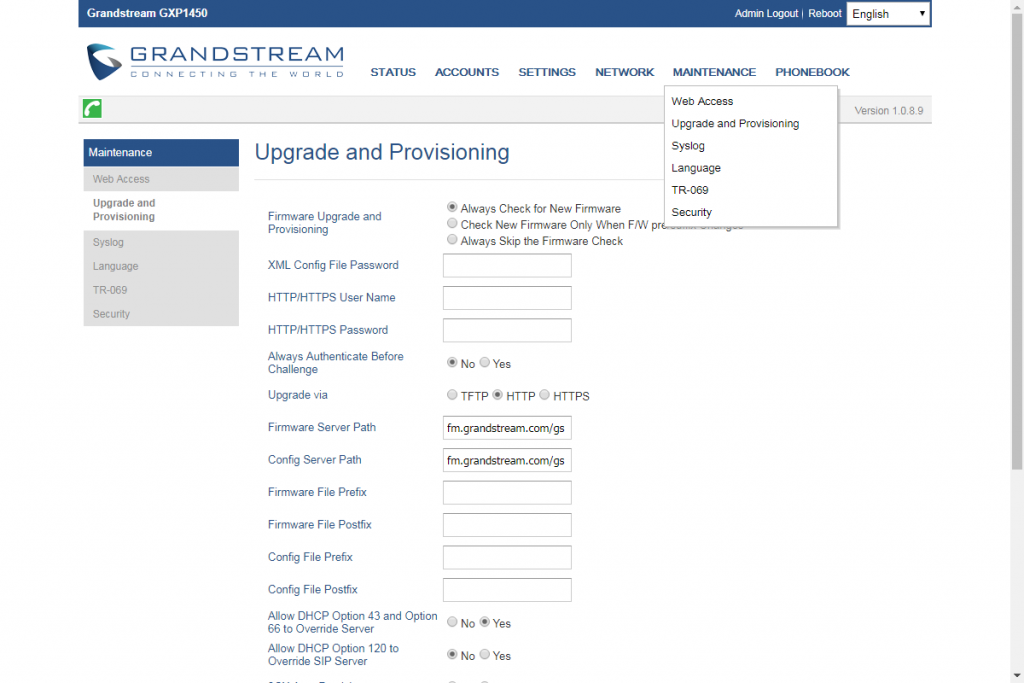
Телефон так же поддерживает функцию автопровиженинга, что облегчает настройку одного или же группы телефонов. Параметры отвечающие за его настройки находятся во вкладке maintenance, пункт upgrade and provisioning.
При желании обезопасить себя, рекомендуется сменить пароль к web-интерфейсу. Сделать это можно во вкладке network, пункт Web Access.

Если необходимо сменить язык интерфейса телефона необходимо перейти во вкладку Maintenance, пункт Language и в выпадающем меню Display Language.

Как уже говорилось ранее, на телефоне присутствуют две программируемые кнопки (слева от экрана). Назначение им можно задать на вкладке: settings-programming keys

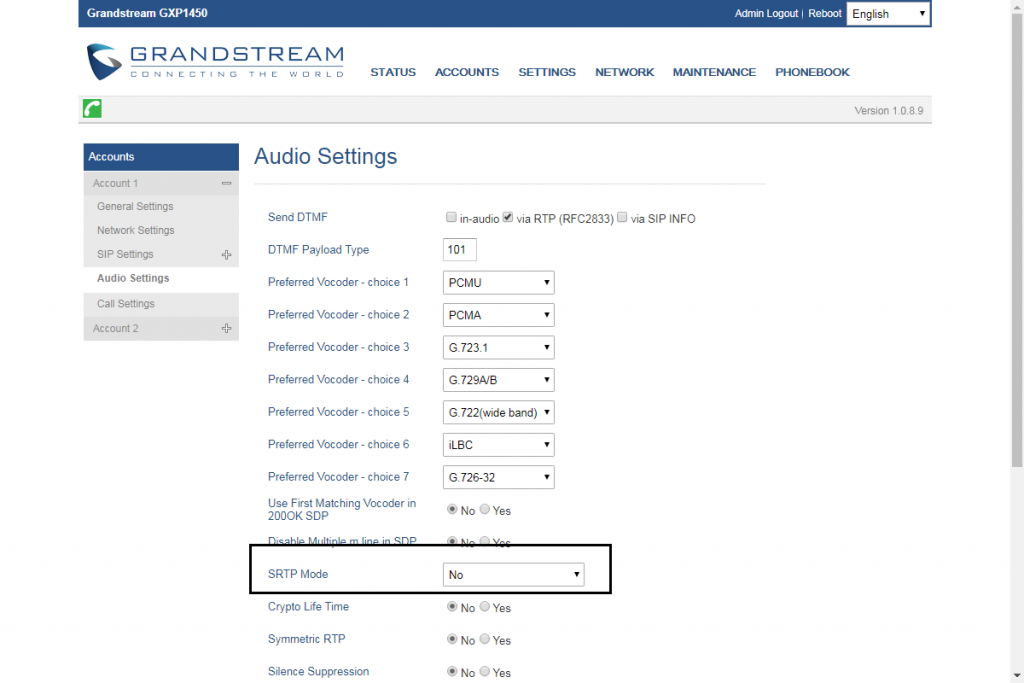
В целях повышения мер безопасности, помимо смены пароля к веб интерфейсу можно назначить передачу по защищенному каналу. Как это сделать показано на следующих скриншотах:

Для настройки телефона в первую очередь вам необходимо подсоединить кабель LAN к аппарату, и узнать его IP адрес.
Для этого нажимаете Меню, Статус, Статус сети.
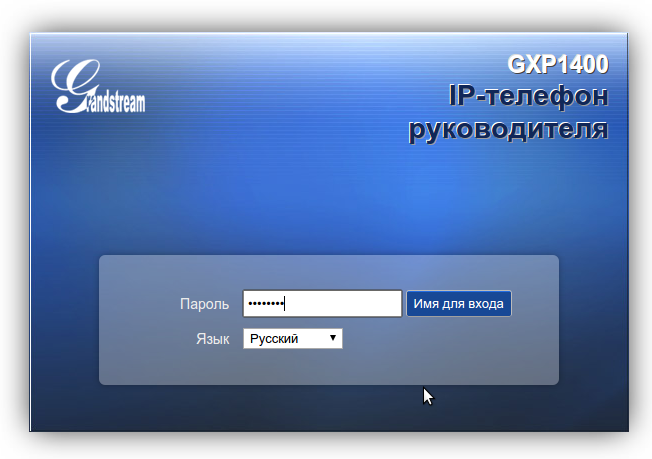
Вбиваем этот адрес в браузер компьютера, чтобы открыть панель управления.
Пароль для входа обычно указан в инструкции к аппарату, по умолчанию – admin.
После аутентификации вы попадаете в панель управления.
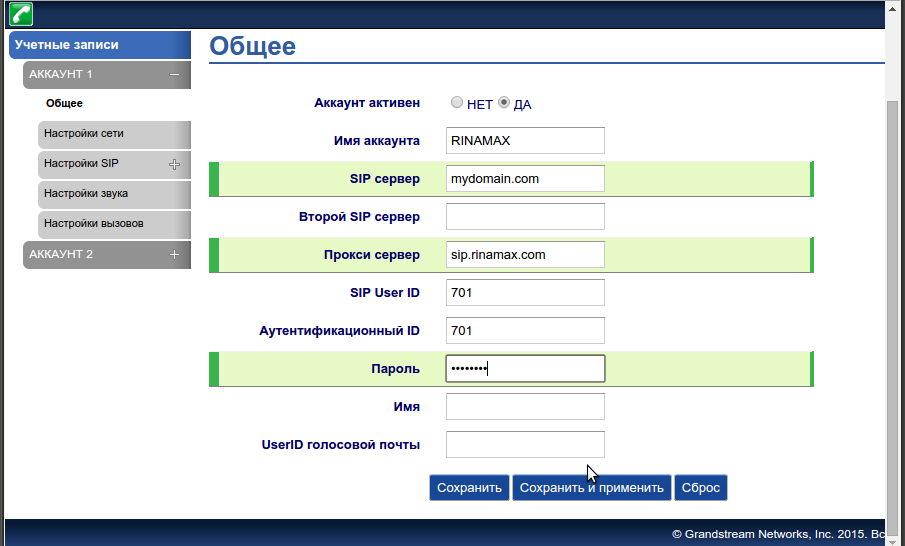
Теперь нам необходимо зарегистрировать телефон в системе. Для этого переходим во вкладку Учетные записи.
Заполните поля по примеру как на изображении. Для примера будем настраивать внутреннего пользователя 701.
- Имя аккаунта: 701
- SIP сервер: mydomain.com
- SIP User ID: 701
- Идентификационный ID: 701
- Прокси сервер: sip.digitoffice.ru
- Идентификационный ID: 701
- Режим DNS: Запись
- Транспорт SIP: UDP
- Проброс NAT: Нет
- Outbound Proxy Mode: not in route
- Удалять OBP из маршрута: Да
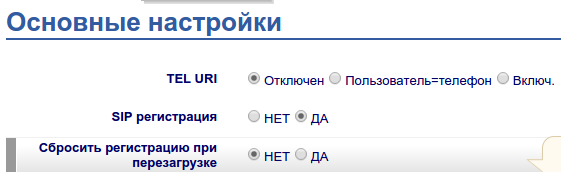
Перейдите в меню Настройки SIP > Основные настройки и включите SIP регистрацию
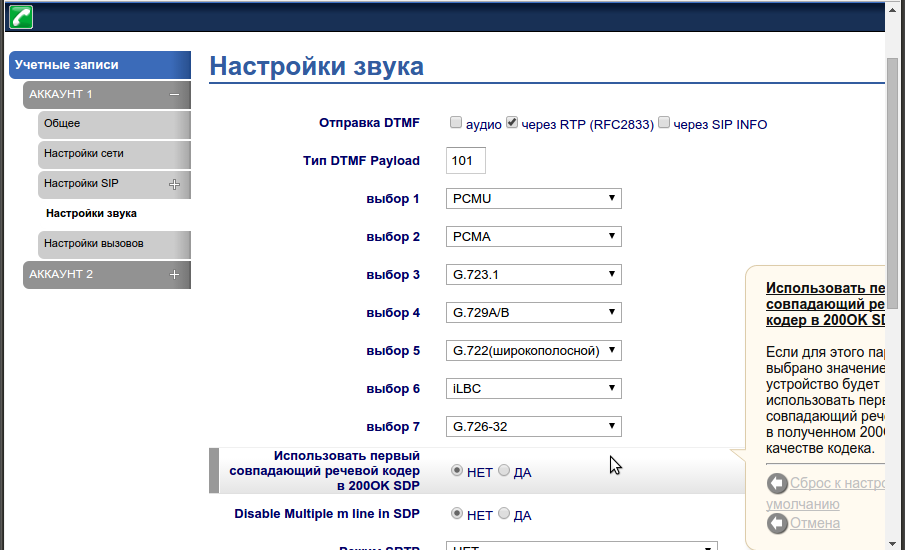
Так же необходимо убедиться, что аудиокодеки выставлены в правильной последовательности.
Для этого переходим во вкладку Настройка звука, и выставляем приоритеты —
- Выбор 1: PCMU
- Выбор 2: PCMA
Так же рекомендуется установить использование произвольного порта для входящих звонков, вместо 5060 (Use Random Port) и
разрешить принимать входящие звонки только с сервера регистрации (Allow Incoming SIP Messages from SIP Proxy Only).
После этих настроек необходимо сделать тестовые звонки. Если у вас не удается сделать тестовый звонок, еще раз
пересмотрите настройки. Если и после этого не удается позвонить, сделайте скриншоты ваших настроек, и пришлите
их нам в службу поддержки.
Скачать
Grandstream Networks, Inc.
GXP1450 User Manual
Page 1 of 1
Firmware 1.0.1.66
Last Updated: 05/2011
Grandstream Networks, Inc.
GXP1450 SIP Enterprise Phone
-
Grandstream Networks GXP1450 — page 1
GXP 2120/GX P21 10/GXP2100/G XP1450 USER M ANUAL Grands tream Ne tworks , Inc. GX P2120/G XP21 10/G XP2100 /GXP14 50 S I P Enter prise Phone s …
-
Grandstream Networks GXP1450 — page 2
FIRM WARE VERSION 1.0.4.23 GX P2120/GX P21 10/GX P2100/GX P1450 USER MA NUAL Page 2 of 69 GXP212 0 /GXP 21 10/GXP2100 /GXP1450 Use r Manual Index GNU GP L INFORMA TION ……………………………………………………………….. 5 CHANGE LOG ………………………………………………………………………………. 6 …
-
Grandstream Networks GXP1450 — page 3
FIRM WARE VERSION 1.0.4.23 GX P2120/GX P21 10/GX P2100/GX P1450 USER MA NUAL Page 3 of 69 VOICE MESSAG ES ( MESSAG E WAITI NG IND ICA TOR) ………………………………………………….. 29 SHARED CALL APPEARANCE (SCA) ……………………………………………………………………………. 29 CALL FEA TURES ………… …
-
Grandstream Networks GXP1450 — page 4
FIRM WARE VERSION 1.0.4.23 GX P2120/GX P21 10/GX P2100/GX P1450 USER MA NUAL Page 4 of 69 T ab l e 6: LCD DISPLA Y DEFINITIONS ………………………………………………………………………………………….. 15 T able 7: LCD ICONS ………………………………………………………………………………….. …
-
Grandstream Networks GXP1450 — page 5
FIRM WARE VERSION 1.0.4.23 GX P2120/GX P21 10/GX P2100/GX P1450 USER MA NUAL Page 5 of 69 GNU GPL INFO RMA TION GXP 2120/GXP21 1 0/GXP2 100/GXP 1450 firm ware contain s third — par ty software licens ed under the GNU Ge neral Pub lic License ( GPL). Gr andstr eam us es software u nder the specif ic term s of the GPL. Please see the G NU Gener al Pu …
-
Grandstream Networks GXP1450 — page 6
FIRM WARE VERSION 1.0.4.23 GX P2120/GX P21 10/GX P2100/GX P1450 USER MA NUAL Page 6 of 69 CHANGE LO G This s ection docum ents sign ificant c hanges f rom previous v ersions of user manuals f or GXP2120 /GXP21 10/ GXP2100/G XP145 0 . Onl y maj or new features or maj or do cument updates are listed here. Min or updates for c orrections or editing ar …
-
Grandstream Networks GXP1450 — page 7
FIRM WARE VERSION 1.0.4.23 GX P2120/GX P21 10/GX P2100/GX P1450 USER MA NUAL Page 7 of 69 WEL COME Thank you for purchas ing Gr andstream GXP2120/GX P2110/GXP2 100 /GX P1450 S IP Enterpr ise Phone s . Your Gran dstream GXP21 20/GX P2110/G XP2100/G XP145 0 Enterprise IP ph one is feature — enrich ed, sophist icated, yet sim ple to use. It delivers s …
-
Grandstream Networks GXP1450 — page 8
FIRM WARE VERSION 1.0.4.23 GX P2120/GX P21 10/GX P2100/GX P1450 USER MA NUAL Page 8 of 69 P RO D UC T O V E RVI E W F EA TU RE HIGHTLIG HTS T able 1 : GXP2120/GXP 21 10/ GXP2100/GXP1450 F E A TURES I N A GLANCE GXP2 1 20 GXP2 1 20 is an ex ecutive S IP phone. It features: 6 lines 7 programm able Mult i Purp ose K e ys 4 XML program m ab …
-
Grandstream Networks GXP1450 — page 9
FIRM WARE VERSION 1.0.4.23 GX P2120/GX P21 10/GX P2100/GX P1450 USER MA NUAL Page 9 of 69 T able 2 : GXP2120/GXP 21 10/ GXP2100/GXP1450 COMP A RISON GUIDE Features GXP21 20 GXP21 10 GXP21 00 GXP145 0 LCD Display 320×16 0 pixel 240×120 p ixel 180×90 pixel 180×60 pixe l Number of Li nes 6 4 4 2 Programm able Ha rd K e ys 7 18 7 N/A Programm able Sof …
-
Grandstream Networks GXP1450 — page 10
FIRM WARE VERSION 1.0.4.23 GX P2120/GX P21 10/GX P2100/GX P1450 USER MA NUAL Page 10 of 69 Feature K eys Feature k ey com parison: GXP2 1 20 GXP2 11 0 GXP2 10 0 GXP1450 HOLD Ye s Ye s Ye s Ye s SPEAK ERPHON E Ye s Ye s Ye s Ye s SEND Ye s Ye s Ye s Ye s TRAN SFER Ye s Ye s Ye s Ye s CONF Ye s Y es Ye s Ye s MUTE Ye s Ye s Ye s Ye s DND Ye s Ye s No …
-
Grandstream Networks GXP1450 — page 11
FIRM WARE VERSION 1.0.4.23 GX P2120/GX P21 10/GX P2100/GX P1450 USER MA NUAL Page 11 of 69 Multi-language English, G erm an, Italian, Fr ench, Sp anish, Portugues e, Russ ian, Cr oatian , Sim plified Chinese, traditi onal Chi nese, Kore an, J apanes e , and etc Upgrade a nd Provisi oning Firm ware upgrad e via T FTP /HTT P/HTTPS , m ass provisionin …
-
Grandstream Networks GXP1450 — page 12
FIRM WARE VERSION 1.0.4.23 GX P2120/GX P21 10/GX P2100/GX P1450 USER MA NUAL Page 12 of 69 INST A LLA TION EQUIPMENT P ACK AG IN G T able 4: GXP212 0 /GXP 21 10/GXP2100/GXP1450 EQUIPMENT PA CKA GING Main Case Ye s ( 1) Handset Ye s ( 1) Phone Cor d Ye s (1) Pow er Ada ptor Ye s (1) Etherne t Cable Ye s ( 1) Phone S t and Ye s (2 ) W all Mount Space …
-
Grandstream Networks GXP1450 — page 13
FIRM WARE VERSION 1.0.4.23 GX P2120/GX P21 10/GX P2100/GX P1450 USER MA NUAL Page 13 of 69 6. Using the k e ypad configura tion m enu or phone’ s em bedded w eb serv er (Web GUI) by enter ing th e I P address i n web bro ws e r, y ou can f urther c onfigure t he phon e. GXP2120/GXP2110 EXT ENSION MODULE GXP2 12 0 / 2 11 0 sup ports two exten s …
-
Grandstream Networks GXP1450 — page 14
FIRM WARE VERSION 1.0.4.23 GX P2120/GX P21 10/GX P2100/GX P1450 USER MA NUAL Page 14 of 69 N ote : • Should your system lose po wer , pl ease unp lug your d evices and power up the GX P2 12 0 /21 10 first . • Extension f or GX P2120/21 1 0 is the sam e for G XP2020/2010 m odels. H owever , GXP2120/2 1 10 uses a different — shape d connector for …
-
Grandstream Networks GXP1450 — page 15
FIRM WARE VERSION 1.0.4.23 GX P2120/GX P21 10/GX P2100/GX P1450 USER MA NUAL Page 15 of 69 USING THE GXP 2120 /GXP 2110/GXP2100 /GXP1450 GETTING F AMIL AR WITH THE L CD GXP212 0 /GXP 21 10/G XP2100/GX P1450 has a d ynam ic and custom izable sc reen. The s creen displa y s differentl y depending o n wheth er the p hone is idle or in use (active). Th …
-
Grandstream Networks GXP1450 — page 16
FIRM WARE VERSION 1.0.4.23 GX P2120/GX P21 10/GX P2100/GX P1450 USER MA NUAL Page 16 of 69 Note: If XML applicat ion is us ed for GXP2120/G XP21 10/G XP210 0 , the s oftke y for XML application w ill show u p in the def ault idl e screen as conf igured. SOFT KEYS in Call Screen The sof tkeys are con text se nsitive an d will change depend ing on th …
-
Grandstream Networks GXP1450 — page 17
FIRM WARE VERSION 1.0.4.23 GX P2120/GX P21 10/GX P2100/GX P1450 USER MA NUAL Page 17 of 69 SPECI AL SOFT KEYS (Only for GXP2120/ GXP 21 10/ GXP21 00 when integrate d wit h GXE5024/502
 Call Parking: P lease ref er to GX E5024/50 28 Online User M anual f or m ore inform ation. • CallPark W hen the phone dials out , the Call Park s oftkey will di …
 -
Grandstream Networks GXP1450 — page 18
FIRM WARE VERSION 1.0.4.23 GX P2120/GX P21 10/GX P2100/GX P1450 USER MA NUAL Page 18 of 69 Call Forw ard No Answer Status. OFF — Call For ward No Answer f eature disabl ed ON — Call For ward No Ans wer featur e enabled Call For ward A ll and Ca ll Forward No A n swer S t a tus. OFF — Call For ward A ll and Call For ward No Answer f eature disa bled …
-
Grandstream Networks GXP1450 — page 19
FIRM WARE VERSION 1.0.4.23 GX P2120/GX P21 10/GX P2100/GX P1450 USER MA NUAL Page 19 of 69 Speaker Statu s. OFF — speak er off ON — speak er on Headset Statu s. OFF — headset off ON — headse t on Calling Out. The phon e is call ing out Calling In. P hone is ringing w ith incom ing ca ll Incoming Ca ll. The cur rent call is a n incom ing call Outgoi …
-
Grandstream Networks GXP1450 — page 20
FIRM WARE VERSION 1.0.4.23 GX P2120/GX P21 10/GX P2100/GX P1450 USER MA NUAL Page 20 of 69 GETTIN G F AMI LAR WITH THE KEYP AD T he follo wing table des cribes the buttons used on the GX P212 0 /GXP21 1 0/GXP2100/G XP145 0 k e ypad . T able 8 : K E Y PAD DEF INITIONS GXP21xx GXP1450 Definiti on LINE K EYS O pen or sw itch line. HOLD P lace acti ve …
-
Grandstream Networks GXP1450 — page 21
FIRM WARE VERSION 1.0.4.23 GX P2120/GX P21 10/GX P2100/GX P1450 USER MA NUAL Page 21 of 69 PHONEBOOK/ CONT A CT Displa y phonebook list and options. V olume (For GXP210 0/GXP14 50 only) . On GXP210 0/GXP1 450, pr ess «- » or «+ » to adj ust the volum e; On GXP2120/G XP21 10, w hen the phone is off hook, pr ess U P or DOW N butto …
-
Grandstream Networks GXP1450 — page 22
FIRM WARE VERSION 1.0.4.23 GX P2120/GX P21 10/GX P2100/GX P1450 USER MA NUAL Page 22 of 69 COMPLETING CALLS There ar e several ways to c om plete a call o n GXP212 0 /GXP21 1 0/GXP2 100/GXP1450 . • On hook dial ing . Enter the num ber when t he pho ne is on h ook and t hen send out. W hen the phone is in idle, enter the n umber to be dialed o …
-
Grandstream Networks GXP1450 — page 23
FIRM WARE VERSION 1.0.4.23 GX P2120/GX P21 10/GX P2100/GX P1450 USER MA NUAL Page 23 of 69 Select an d en ter Phoneb ook ; Sele ct t he phonebook entry you w ould lik e to call using t he navigat i on arr ow k eys . Pr ess M ENU button to enter the entry detail ; Select o ption «D ial» usin g the nav igation arr ow k eys and t …
-
Grandstream Networks GXP1450 — page 24
FIRM WARE VERSION 1.0.4.23 GX P2120/GX P21 10/GX P2100/GX P1450 USER MA NUAL Page 24 of 69 MAKIN G CALLS U SING IP ADDRESSES Direc t I P Call a llo ws t wo p h ones to talk to e ach other in an ad — hoc fashion withou t a SI P proxy . V oIP calls can be m ade betwe en two phon es if: • Both phones have p ublic IP address es; or • Both phones ar …
-
Grandstream Networks GXP1450 — page 25
FIRM WARE VERSION 1.0.4.23 GX P2120/GX P21 10/GX P2100/GX P1450 USER MA NUAL Page 25 of 69 For examp le: • 192.168.0.2 c allin g 192.16 8.0.3 — dia l #3 f ollo w ed by # or “S END” ; • 192.168.0.2 c allin g 192.16 8.0.23 — dial #23 follo w ed by # “SEND” ; • 192.168.0.2 c allin g 192.16 8.0.123 — d ial #123 fol low ed b y # “SEND …
-
Grandstream Networks GXP1450 — page 26
FIRM WARE VERSION 1.0.4.23 GX P2120/GX P21 10/GX P2100/GX P1450 USER MA NUAL Page 26 of 69 DURING A PHON E CALL C ALL W AITING/CALL HOL D • Hold . Place a call on hold b y pressing t he HOLD b utton. The acti ve LINE k ey will bl ink in gre en; • Resume . R esum e call by p ressing th e blink ing LINE k ey; • Multiple calls . Autom aticall y …
-
Grandstream Networks GXP1450 — page 27
FIRM WARE VERSION 1.0.4.23 GX P2120/GX P21 10/GX P2100/GX P1450 USER MA NUAL Page 27 of 69 Establish one c all f irst; Durin g the c all, pres s TR AN ke y . A n ew line will be brought up and the fir st call will be automat ical l y placed on hol d; Enter the number and press SEND k ey to establish th e second ca ll; After the seco …
-
Grandstream Networks GXP1450 — page 28
FIRM WARE VERSION 1.0.4.23 GX P2120/GX P21 10/GX P2100/GX P1450 USER MA NUAL Page 28 of 69 Select 1 LINE k ey and p res s to resum e the 2 — wa y c on versation ; If u sers would like to re — establish co nfer ence call , before 1 separate LINE is selec ted, press the ReConf s oftke y right after t he confer ence call is hel d/ spli t ; • …
-
Grandstream Networks GXP1450 — page 29
FIRM WARE VERSION 1.0.4.23 GX P2120/GX P21 10/GX P2100/GX P1450 USER MA NUAL Page 29 of 69 • End Confer ence . Press HO LD ke y to split th e confer ence call. T he conferenc e call w ill be ended with both ca lls on hold; Or Users c ould press the EndCal l softk ey or simply han g up the c all to ter minate t he conf erence cal l. N ote: …
-
Grandstream Networks GXP1450 — page 30
FIRM WARE VERSION 1.0.4.23 GX P2120/GX P21 10/GX P2100/GX P1450 USER MA NUAL Page 30 of 69 by the red — f lash i ng button and the y will be able to re sume the c all from their phone b y pressing t he line button. H owever , if this c all is p laced on pr ivate — ho ld, no other m ember of the S CA gr oup wil l be able to resum e that call. T o en …
-
Grandstream Networks GXP1450 — page 31
FIRM WARE VERSION 1.0.4.23 GX P2120/GX P21 10/GX P2100/GX P1450 USER MA NUAL Page 31 of 69 • Dial *71 a nd then ent er the num ber to dial out. *72 Unconditiona l Call Forward . T o set up unco nditional call for ward: • Off hook the phone; • Dial * 72 and t hen enter the num ber to f orward the ca ll ; • Press O K softkey or SEND k e y . * …
-
Grandstream Networks GXP1450 — page 32
FIRM WARE VERSION 1.0.4.23 GX P2120/GX P21 10/GX P2100/GX P1450 USER MA NUAL Page 32 of 69 • XML custom idle screen ( cus tomize idle screen l ogo, s oftkey layout, an d etc.) http://www .grands tream .com /products/gxp_s eries/gener al/docum ents/GXP21xx _14xx_X ML_Screen _ Custom ization.zip • XML download able phon ebook http://www .grands t …
-
Grandstream Networks GXP1450 — page 33
FIRM WARE VERSION 1.0.4.23 GX P2120/GX P21 10/GX P2100/GX P1450 USER MA NUAL Page 33 of 69 CONFIGU RA T ION GU IDE The GXP 2120/GX P2110/G XP2100/ GXP1450 c an be c onfigured v ia tw o wa ys : • LCD Configurat ion M enu us ing the phon e’s k eypad; • W eb GUI embedded o n the phone us ing PC’s web browser. CONFIGURA TION VIA KEYP AD T …
-
Grandstream Networks GXP1450 — page 34
FIRM WARE VERSION 1.0.4.23 GX P2120/GX P21 10/GX P2100/GX P1450 USER MA NUAL Page 34 of 69 searching . Instant Messag es Display s receive d instant mess ages . Direct IP C all Mak es direct I P call . Prefer enc e Preferenc e sub m enu inclu des the f ollowing opt ions : • Do Not Distur b Enables /disables D o Not Di sturb on the phone. • Forw …
-
Grandstream Networks GXP1450 — page 35
FIRM WARE VERSION 1.0.4.23 GX P2120/GX P21 10/GX P2100/GX P1450 USER MA NUAL Page 35 of 69 Configures SIP Prox y , Outbound Proxy , SI P User ID, S IP Auth ID, SIP Pa sswor d, SIP Transport and A udio inf orm ation to register SIP account on th e pho ne . • Upgrade Configures firm ware server and conf ig server for upgra ding and provisio ning th …
-
Grandstream Networks GXP1450 — page 36
FIRM WARE VERSION 1.0.4.23 GX P2120/GX P21 10/GX P2100/GX P1450 USER MA NUAL Page 36 of 69 Figure 2: Key pad MENU Flow Call Hist ory St atus Phone Book L D AP Director y Inst ant Messag e s Direct I P Call Preferen ce Config Factory Functions Network Call Feat ures V oice M ails Reboot Exit MENU Answered Calls Diale d Ca lls Missed Calls T ransfer …
-
Grandstream Networks GXP1450 — page 37
FIRM WARE VERSION 1.0.4.23 GX P2120/GX P21 10/GX P2100/GX P1450 USER MA NUAL Page 37 of 69 CONFIGURA TION VIA WEB BR OW SER The GX P 2120/GXP 21 10/G XP21 00 /GX P1450 em bedded W eb server res ponds to HT TP/HT TPS GET/PO ST requests. Embedde d HTML p ages all ow a user to c onfigure t he IP phone through a W eb browser s uch as M icrosoft’s IE, …
-
Grandstream Networks GXP1450 — page 38
FIRM WARE VERSION 1.0.4.23 GX P2120/GX P21 10/GX P2100/GX P1450 USER MA NUAL Page 38 of 69 • Status: D isplays t he Acco un t stat us, Network status, and S ystem I nfo of the ph one; • Account: To con figure the SIP ac c ount ; • Basic Se ttings : To c onfigure bas ic net work settings , tim e settings, Li ne keys, and e tc; • A dvanced Se …
-
Grandstream Networks GXP1450 — page 39
FIRM WARE VERSION 1.0.4.23 GX P2120/GX P21 10/GX P2100/GX P1450 USER MA NUAL Page 39 of 69 SIP Server T he URL or IP address, an d port of the SIP server. T hi s is pro vided b y your VoIP s ervice provider (ITSP). S econdar y SIP Server The URL or IP address, and por t of the SIP s erver. This wil l be used when the prim ar y SIP server fails. Out …
-
Grandstream Networks GXP1450 — page 40
FIRM WARE VERSION 1.0.4.23 GX P2120/GX P21 10/GX P2100/GX P1450 USER MA NUAL Page 40 of 69 notify the s erver t o unbind t he connec tion. The d efault s etting is «No». Register Expirati on Specifies the fr equenc y (in m inutes) in whic h the phone r efreshes its registrat ion with th e specifi ed registr ar. The def ault va lue is 60 m …
-
Grandstream Networks GXP1450 — page 41
FIRM WARE VERSION 1.0.4.23 GX P2120/GX P21 10/GX P2100/GX P1450 USER MA NUAL Page 41 of 69 «Keep -Al ive». Conf igure th is to be «No » if an outbound prox y is used. «STUN» ca nnot be used if the d etecte d NAT is symmetric N AT. SUBSCR IBE f or MW I W hen set to «Yes», a SUB SCRIBE for Message W aiting Indi …
-
Grandstream Networks GXP1450 — page 42
FIRM WARE VERSION 1.0.4.23 GX P2120/GX P21 10/GX P2100/GX P1450 USER MA NUAL Page 42 of 69 e) [147] — an y digit of 1, 4, or 7 f) <2=01 1> — replac e digit 2 with 01 1 when dia ling g) | — the O R operan d • Exam ple 1: {[369]1 1 | 1617xx xxxxx} Allow 31 1, 61 1, a nd 91 1 or any 10 digit num bers with le ading digit s 1617 ; • Exam ple 2 …
-
Grandstream Networks GXP1450 — page 43
FIRM WARE VERSION 1.0.4.23 GX P2120/GX P21 10/GX P2100/GX P1450 USER MA NUAL Page 43 of 69 picks up a c all w ith BLF k ey. T he def ault s etti ng is **. (No t appl ic abl e to GXP1450) De la ye d Call For ward Wait Tim e Def ines the tim eout (in se conds) bef ore the cal l is forwarded on no answer . The default value is 20 seconds. Enable Ca ll …
-
Grandstream Networks GXP1450 — page 44
FIRM WARE VERSION 1.0.4.23 GX P2120/GX P21 10/GX P2100/GX P1450 USER MA NUAL Page 44 of 69 impor tant in ord er to s upp o rt PST N internet working. T o in vok e a reliabl e provisio nal respons e, the 100r el tag is app ended to t he value of the required h eader of the initi al signal ing m essages. Account R in g T one Al lows users t o configu …
-
Grandstream Networks GXP1450 — page 45
FIRM WARE VERSION 1.0.4.23 GX P2120/GX P21 10/GX P2100/GX P1450 USER MA NUAL Page 45 of 69 Contact header i nformat ion for attended tr ansfer . The default sett ing is «No». Transfer on Conferenc e Hangup Defines whether or not t he call is t ransfer red to the other part y if the initiator of the conf erence h angs up. The d efault s et …
-
Grandstream Networks GXP1450 — page 46
FIRM WARE VERSION 1.0.4.23 GX P2120/GX P21 10/GX P2100/GX P1450 USER MA NUAL Page 46 of 69 between 96 and 127 . Jitter Buffer Type Selects e ither Fixe d or A daptive bas ed on n etwork conditi ons. The default se tting is «Adaptive «. Jitter Buffer Length Selects Lo w, Med ium , or High bas e d on n et work conditions . T he def ault set …
-
Grandstream Networks GXP1450 — page 47
FIRM WARE VERSION 1.0.4.23 GX P2120/GX P21 10/GX P2100/GX P1450 USER MA NUAL Page 47 of 69 character s. Confirm Password Confirm s the end us er pas sword fiel d to be the s ame a s above. Internet Pro tocol Sel ects Pref er IPv4 or Pref er IPv6. IPv4 Addres s T ype Allows user s t o c onf ig ure th e ap pr opri ate net work s ettings on the ph one …
-
Grandstream Networks GXP1450 — page 48
FIRM WARE VERSION 1.0.4.23 GX P2120/GX P21 10/GX P2100/GX P1450 USER MA NUAL Page 48 of 69 to EAP — MD5. Identit y Enter the Identit y for the 80 2.1x m ode. MD5 Pass word Enter the MD5 Password for the 8 02.1x m ode. HTTP Prox y Specifies the HT TP prox y URL for the ph one to sen d packet s to. The prox y server wil l act as a n interm ediary to …
-
Grandstream Networks GXP1450 — page 49
FIRM WARE VERSION 1.0.4.23 GX P2120/GX P21 10/GX P2100/GX P1450 USER MA NUAL Page 49 of 69 • Voice Mail Select Account an d enter the Voic e Mail access num ber in the UserID f ield. • Call Retur n The last a ns wer ed calls can be d ialed out b y using Ca ll Retur n . T he Nam e and UserID field s hould be lef t blank . Also, this option is no …
-
Grandstream Networks GXP1450 — page 50
FIRM WARE VERSION 1.0.4.23 GX P2120/GX P21 10/GX P2100/GX P1450 USER MA NUAL Page 50 of 69 • Speed Dia l via acti ve account Similar to Speed Di al but it will dia l based on th e cur rent active account. For exam ple, if the pho ne is of fhook and ac count 2 is active, it w ill call the conf igur ed Speed Dial number us ing account 2 . • Dial …
-
Grandstream Networks GXP1450 — page 51
FIRM WARE VERSION 1.0.4.23 GX P2120/GX P21 10/GX P2100/GX P1450 USER MA NUAL Page 51 of 69 U.S centr al tim e. If it is po sitive ( +) if the loca l tim e zone is west of the Prime Mer idian ( A.K.A: I nternatio nal or Greenwic h Merid ian) an d negative ( — ) if it is eas t. M4.1. 0,M11.1.0 The 1st number ind icates Month: 1,2,3. ., 12 (f or Jan, …
-
Grandstream Networks GXP1450 — page 52
FIRM WARE VERSION 1.0.4.23 GX P2120/GX P21 10/GX P2100/GX P1450 USER MA NUAL Page 52 of 69 Date Displ ay Form at Configures the d ate dis play form at on the LCD. T he f ollowing f ormats are supp orted: • yyyy — mm — dd: 2012 — 07 — 02 • mm — dd — yyy y: 0 7 — 02 — 2012 • dd — mm — yyy y: 0 2 — 07 — 2012 • dddd, MMMM dd: Fr iday, Oc tober …
-
Grandstream Networks GXP1450 — page 53
FIRM WARE VERSION 1.0.4.23 GX P2120/GX P21 10/GX P2100/GX P1450 USER MA NUAL Page 53 of 69 between H eadset a nd Speak er. Call Hist ory Flash W riting: Write Ti meout D efines th e inter val (in sec onds) to sa v e the ca ll histor y to phon e’s flash. The def ault valu e i s 300 sec onds. Max Unsa ved Log Defines th e num ber of unsave d log …
-
Grandstream Networks GXP1450 — page 54
FIRM WARE VERSION 1.0.4.23 GX P2120/GX P21 10/GX P2100/GX P1450 USER MA NUAL Page 54 of 69 STUN Server The IP addr ess or Domain name of the ST UN server. STUN res olution results are displ ayed in t he ST ATUS page of the W eb GUI. O nly non — symm etric NAT routers work with ST UN. Firm ware Upgrade and P rovisioni ng Specifies how firm ware upgr …
-
Grandstream Networks GXP1450 — page 55
FIRM WARE VERSION 1.0.4.23 GX P2120/GX P21 10/GX P2100/GX P1450 USER MA NUAL Page 55 of 69 TR — 069 Username ACS usernam e for T R — 069. TR — 069 Password ACS pass word for T R — 069. Periodic I nform Enable Ena bles periodic inform. If set to » Yes», device wi ll send inform packets to the AC S. The def ault set ting is «N o». …
-
Grandstream Networks GXP1450 — page 56
FIRM WARE VERSION 1.0.4.23 GX P2120/GX P21 10/GX P2100/GX P1450 USER MA NUAL Page 56 of 69 Exam ples: (|(teleph oneNum ber=%)(Mobi le=%) r et urns a ll records which has the » tel ephoneN umber » or «Mobile» f iel d s tart ing w ith the e ntered pr ef ix; (&(teleph oneNum ber=%) (c n=*)) re turns all the r ecords with the &q …
-
Grandstream Networks GXP1450 — page 57
FIRM WARE VERSION 1.0.4.23 GX P2120/GX P21 10/GX P2100/GX P1450 USER MA NUAL Page 57 of 69 Search Timeout S pecifies the interval (in s econds) f or the server to proc ess the reques t and clie nt waits f or server t o return. T he d efaul t sett ing is 30 sec onds. Sort Res ults Specifies whether t he sea rching resu lt is sor ted or not . The def …
-
Grandstream Networks GXP1450 — page 58
FIRM WARE VERSION 1.0.4.23 GX P2120/GX P21 10/GX P2100/GX P1450 USER MA NUAL Page 58 of 69 are 4 le vels: DEBUG, INFO , W ARNING AND ERROR. S yslog mes sages are s ent based on t he follo wing eve nts: • p roduct m odel/versi on on boot up (INFO level) ; • NAT relate d info ( INFO lev el) ; • sent or rec eived SIP mes sage (DEBUG level) ; • …
-
Grandstream Networks GXP1450 — page 59
FIRM WARE VERSION 1.0.4.23 GX P2120/GX P21 10/GX P2100/GX P1450 USER MA NUAL Page 59 of 69 Call — Waiting T one Busy T one Reorder T one S ynta x : f1=val,f 2=val[,c =on1/of f1[ — on2/of f2[ — on3/off 3]]]; (Frequenci es are in Hz and cadenc e on and of f are in 10ms ) ON is the period of r inging ( “On tim e” in ‘m s ’) while OF F is the p …
-
Grandstream Networks GXP1450 — page 60
FIRM WARE VERSION 1.0.4.23 GX P2120/GX P21 10/GX P2100/GX P1450 USER MA NUAL Page 60 of 69 NETW ORK options wil l not displa y for users to access in keypad menu. Enable ST AR key Ke ypad lock ing If set to » Ye s » , t he ke ypad can be loc ked by pr essing an d holdin g the ST AR * ke y for about 4 s econds . A lock ic on will s how ind …
-
Grandstream Networks GXP1450 — page 61
FIRM WARE VERSION 1.0.4.23 GX P2120/GX P21 10/GX P2100/GX P1450 USER MA NUAL Page 61 of 69 • NAT Traver sal (under Acc ount Set tin g page) Default set ting is » No » . Ena ble the de vice to use NAT t raversal when it is b ehind f irewall o n a private network . Select Kee p — Alive, Auto, STU N (with STUN ser ver path co nfigure d too …
-
Grandstream Networks GXP1450 — page 62
FIRM WARE VERSION 1.0.4.23 GX P2120/GX P21 10/GX P2100/GX P1450 USER MA NUAL Page 62 of 69 PUBLIC MODE The GX P 2120/GXP2 110/GXP210 0/GXP14 50 supports hot desk ing using publ ic mode. Under public mode, users c ould lo gin th e phon e with t h e SIP acc ount U s e r ID an d pas s word. Ple as e f ollo w the s t eps be lo w to configure th e phon …
-
Grandstream Networks GXP1450 — page 63
FIRM WARE VERSION 1.0.4.23 GX P2120/GX P21 10/GX P2100/GX P1450 USER MA NUAL Page 63 of 69 • phonenumber= 1234 : The num ber f or the phone t o dial out • account= 0 : The acc ount index f or the phon e to mak e call. T he index is 0 for account 1, 1 for account 2, 2 for account 3 , and etc. • password= admin : The adm in login pass word of p …
-
Grandstream Networks GXP1450 — page 64
FIRM WARE VERSION 1.0.4.23 GX P2120/GX P21 10/GX P2100/GX P1450 USER MA NUAL Page 64 of 69 Figure 4: Click — to — Dial S A VING THE C ONFIGURA TION CHANGES After users m a kes c hanges t o the conf iguration, pres s the Update button on the bottom of the W eb GUI page . W e rec ommend reboot ing or po wering c ycle the IP phone af ter sav ing chang …
-
Grandstream Networks GXP1450 — page 65
FIRM WARE VERSION 1.0.4.23 GX P2120/GX P21 10/GX P2100/GX P1450 USER MA NUAL Page 65 of 69 UPGRAD ING AND PR O VISIONING The GX P 2120/GX P21 1 0 /G XP210 0 /G XP1450 can be upgrad ed via TFT P/HTTP/HTT PS by configur ing th e URL/IP Address f or the T FTP/HTT P/HTTPS server a nd selecting a download m ethod. Configur e a valid URL for TFTP or HTT …
-
Grandstream Networks GXP1450 — page 66
FIRM WARE VERSION 1.0.4.23 GX P2120/GX P21 10/GX P2100/GX P1450 USER MA NUAL Page 66 of 69 Firm ware upgrades tak e around 60 sec onds i n a controlle d LAN or 5 — 10 m inutes over the Int ernet. We recom mend com pleting fir mware upgra des in a c ontr olled LAN en vironm ent whenev er possi ble. NO LO C AL TFTP/HTTP S ER VERS For users that woul …
-
Grandstream Networks GXP1450 — page 67
FIRM WARE VERSION 1.0.4.23 GX P2120/GX P21 10/GX P2100/GX P1450 USER MA NUAL Page 67 of 69 server pa th for the configur ation file . It needs to be set to a va lid URL, either i n FQDN or I P addres s form at. The » Conf ig Ser ver Path » c an be th e sam e or differ ent from the » Firm ware Server Path «. A configura tion par …
-
Grandstream Networks GXP1450 — page 68
FIRM WARE VERSION 1.0.4.23 GX P2120/GX P21 10/GX P2100/GX P1450 USER MA NUAL Page 68 of 69 REST ORE F A C T O RY DEF A U L T SETT ING S W arning : Restorin g the Fac tory Def ault Sett ings wi ll delete a ll conf iguration inform ation on the phon e. Pleas e back up or print all the s ettings b efore you restor e to the factor y default sett ings. …
-
Grandstream Networks GXP1450 — page 69
FIRM WARE VERSION 1.0.4.23 GX P2120/GX P21 10/GX P2100/GX P1450 USER MA NUAL Page 69 of 69 EXPERIENCING THE GX P 2120/GX P2110/GX P2100/GXP1450 Please vis it our websi te: htt p://www .grandstream .com to receive th e mos t up — to — date updat es on firm ware releases, addition al featur es, F AQs, docum entation and ne ws on n ew products. W e en …
 Call Parking: P lease ref er to GX E5024/50 28 Online User M anual f or m ore inform ation. • CallPark W hen the phone dials out , the Call Park s oftkey will di …
Grandstream Networks, Inc.
1297 Beacon Street, 2nd Floor
Brookline, MA 02446. USA
Tel : +1 (617) 566 – 9300
Fax: +1 (617) 249 – 1987
www.grandstream.com
For Warranty and RMA information, please visit www.grandstream.com
GXP1450 Enterprise IP Phone
Quick Start Guide

|
Content |
|
|
English……………………………………………………………………. |
1 |
|
……………………………………………………………….. |
7 |
|
Español…………………………………………………………………. |
13 |
|
Français………………………………………………………………… |
19 |
|
Deutsch…………………………………………………………………. |
25 |
|
Italiano………………………………………………………………….. |
31 |
|
Русскй………………………………………………………………….. |
37 |

EN
The GXP1450 is not pre-configured to support or carry emergency calls to any type of hospital, law enforcement agency, medical care unit (“Emergency Service(s)”) or any other kind of Emergency Service. You must make additional arrangements to access Emergency Services. It is Your responsibility to purchase SIP-compliant Internet telephone service, properly configure the GXP1450 to use that service, and periodically test your configuration to confirm that it works as You expect. If You do not do so, it is Your responsibility to purchase traditional wireless or landline telephone services to access Emergency Services.
GRANDSTREAM DOES NOT PROVIDE CON-
NECTIONS TO EMERGENCY SERVICES VIA THE
GXP1450. NEITHER GRANDSTREAM NOR ITS OFFICERS, EMPLOYEES OR AFFILIATES MAY
BE HELD LIABLE FOR ANY CLAIM, DAMAGE, OR
LOSS, AND YOU HEREBY WAIVE ANY AND ALL
SUCH CLAIMS OR CAUSES OF ACTION ARISING
FROM OR RELATING TO YOUR INABILITY TO USE THE GXP1450 TO CONTACT EMERGENCY SERVICES, AND YOUR FAILURE TO MAKE ADDITION-
AL ARRANGEMENTS TO ACCESS EMERGENCY SERVICES IN ACCORDANCE WITH THE IMMEDIATELY PRECEDING PARAGRAPH.
1
PRECAUTIONS:
WARNING: Please DO NOT power cycle the GXP1450 when the LED lights are flashing during system boot up or firmware upgrade. You may corrupt firm-
ware images and cause the unit to malfunction.
WARNING: Use only the power adapter included in the GXP1450 package. Using an alternative non-qualified power adapter may possibly damage the unit.
OVERVIEW:
GXP1450 is a next generation small-to-medium business IP phone that features 2 lines with 2 SIP accounts, a 180×60 graphical LCD, 3 XML programmable con- text-sensitive soft keys, dual network ports with PoE and 3-way conference. The
GXP1450 delivers superior HD audio quality, rich and leading edge telephony features, personalized information and customizable application service, automated provisioning for easy deployment, advanced security protection for privacy, and broad interoperability with most 3rd party SIP devices and leading SIP/NGN/IMS platforms. It is a perfect choice for small-to-medium businesses looking for a high quality, feature rich IP phone with affordable cost.
PACKAGE CONTENTS:
|
1 x GXP1450 Main Case |
1 x Handset |
1 x 5V Power adapter |
|
1 x Ethernet Cable |
1 x Phone Cord |
1 x Phone Stand |
1 x Quick Start Guide 2 x Wall Mount Spacers
2

PHONE SETUP:
Wall Mount Holes are available
Slot for the phone stand if placing the phone on the table
Slot for the wall mount spacers if placing the phone on the wall
Installing the Phone (Wall Mount):
1.Attach the two wall mount spacers to the slot for wall mount spacers on the back of the phone.
2.Attach the phone to the wall via the wall mount hole.
3.Pull out the tab on from the handset cradle (See figure below).
4.Rotate the tab and plug it back into the slot with the extension up to hold the handset while the phone is mounted on the wall (See figure below).
Handset rest
Tab with extension up
Tab with extension down
Installing the Phone (Phone Stand):
For installing the phone on the table with the phone stand, attach the phone stand to the bottom of the phone where there is a slot for the phone stand (upper part, bottom part).
CONNECTING THE PHONE:
|
Headset Port |
||||
|
PC Port |
LAN Port |
Power |
Headset Port |
Handset Port |
To setup the GXP1450, follow the steps below:
1.Connect the handset and main phone case with the phone cord.
2.Connect the LAN port of the phone to the RJ-45 socket of a hub/switch or a router (LAN side of the router) using the Ethernet cable.
3.Connect the 5V DC output plug to the power jack on the phone; plug the power adapter into an electrical outlet.
4.The LCD will display provisioning or firmware upgrade information. Before continuing, please wait for the date/time display to show up.
5.Using the phone embedded web server or keypad configuration menu, you can further configure the phone using either a static IP or DHCP.

Tips For Using the Keypad:
|
Message Waiting Indicator |
|
|
Line Keys |
Message |
|
Phonebook |
|
|
Soft Keys |
|
|
Transfer |
Conference |
|
Hold |
|
|
Navigation Keys |
|
|
Menu/OK Key |
|
|
Standard Keypad |
|
|
Volume |
|
|
Mute |
|
|
Headset |
|
|
Speaker |
|
|
Send |
1.To access the MENU, press the round MENU button.
2.Navigate the menu by using the UP/DOWN and LEFT/RIGHT buttons.
3.Press the round MENU button to confirm a menu selection.
4.The phone automatically exits MENU mode when there is an incoming call, the phone goes off-hook, or when the MENU mode is left idle for 60 seconds.
PHONE CONFIGURATION:
Configure the GXP1450 using Web Browser:
1.Ensure your phone is powered up and connected to the Internet.
2.Press MENU button to go into menu of the phone.
3.Press the “down” arrow button to “Status” and press MENU button to check the
IP address.
4.Type the phone’s IP address in your PC browser (See figure on the right).
5.The default administrator password is “admin”; the default end-user password is “123”.
Configure the GXP1450 using the Keypad:
1.Make sure the phone is idle.
2.Press the “MENU” button to access the menu options to configure the phone.
3.Select MENU->Config, to configure settings for SIP Proxy, Outbound Proxy,
SIP User ID, SIP Auth ID, SIP Password.
4.Follow MENU options to configure the basic features of the phone. For example, the IP address if using a static IP. For details, please check GXP1450
User Manual.
5.Please contact your ITSP (Internet Telephony Service Provider) for additional settings that may be necessary to configure the phone.
Note: For the detailed user manual, please download from:
http://www.grandstream.com/support

ZH
GXP1450( )SIPGXP1450GXP1450
Grandstream Networks GXP1450Grandstream Networks
由于无法通过GXP1450
7
:
: LED
:
:
GXP1450 IP 2 SIP ,2180×60 LCD 3 XML 2 10/100 Mbps PoE GXP1450
信息服务、自动配置、先进的安全隐私保护设置。它广泛兼容其它第三方SIPSIP/NGN/IMS GXP1450
:
1 1
8

|
( ): |
|||
|
: |
|||
|
PC |
5V |
||
|
1. |
2.RJ-45
4./
5.WEB IP DHCP
 Loading…
You can only view or download manuals with
Sign Up and get 5 for free
Upload your files to the site. You get 1 for each file you add
Get 1 for every time someone downloads your manual
Buy as many as you need
Если у вас отсутствует техническая возможность для скачивания Инструкция по эксплуатации для Grandstream Networks GXP1450
вы можете прочесть документ прямо на нашем сайте или
Скачать Grandstream Networks GXP1450 Инструкция по эксплуатации

- 1
- 2
- 3
- 4
- 5
- 6
- 7
- 8
- 9
- 10
- 11
- 12
- 13
- 14
- 15
- 16
- 17
- 18
- 19
- 20
- 21
- 22
- 23
- 24
- 25
- 26
- 27
- 28
- 29
- 30
- 31
- 32
- 33
- 34
- 35
- 36
- 37
- 38
- 39
- 40
- 41
- 42
- 43
- 44
- 45
- 46
- 47
- 48
- 49
- 50
- 51
- 52
- 53
- 54
- 55
- 56
- 57
- 58
- 59
- 60
- 61
- 62
- 63
- 64
- 65
- 66
- 67
- 68
- 69
- 70
