
-
Страница 1
TL-WA750RE 15 0Mbps Universal WiFi Range Exte nder R EV 1.0. 0 1910010798[…]
-
Страница 2
COPYRIGHT & TRAD EMARKS Specific ations are subject t o change without notic e. is a registered t rademark of TP — LINK TECHNOLOGIES CO., L TD. Other brands and pr oduct names are trademarks or registered tradem arks of their res pective holders. No part of the specific ations may be reproduced in any form or by any means or used to make any de[…]
-
Страница 3
FCC STATEMENT This equipment has been t ested and found to comply with t he limits for a Class B digital device, pursuant to part 15 of the FCC Rules . These limits are des igned to provid e reasonable protection against harmf ul interference i n a residential i nstallation. This equipment ge nerates, uses and can radiate radio f requency energy an[…]
-
Страница 4
CE Mark Warning This is a class B product . In a domestic environm ent, this product may cause radio interfere nce, in which case the user m ay be required to t ake adequate measure s. This device has been des igned to operate with the antennas l isted below, and having a maxi mum gain of 3 dBi . Antennas not inc luded in this list or having a gain[…]
-
Страница 5
第十四條 低功率射頻電機之使用不得影響飛航安全及干擾合法通行;經發現有干擾現象時,應立 即停用,并改善至無干擾時方得繼續使用。前項合法通信,指依電信規定作業之無線電信。 低功率 射頻電機需忍受合法通信或工業、科學以及醫療用電波輻射性電機設?[…]
-
Страница 6
TP — LINK TECHNOLO GIES CO., L TD TP — LINK TECHNOLOGIES CO., LTD. Building 24 (floors 1, 3, 4, 5) , and 28 (floors 1 — 4) Centr al Science and Technology Park, Shennan Rd, Nanshan, Shenzhen, China DECLARA TION OF CONFORMITY For the following equi pment: Product Descri ption: 15 0Mbps Universal Wi Fi Range Extender Model No.: TL -W A7 50RE T radema[…]
-
Страница 7
CONTENTS Package Contents ………………………………………………………………………………………. 1 Chapter 1 Introduction ………………………………………………………………………………. 2 1.1 Product Ov erview ……………………………………………………………………….[…]
-
Страница 8
TL -WA 750RE 15 0Mbps Universal Wi Fi Range E xtender User Guide 1 Package Contents The following i tem s should be f ound in your package : TL -WA 75 0RE 150Mbps Universal Wi Fi Range E xtender Ethernet Cable Quick Instal lation Guide Resource CD for TL -WA 750RE 150Mbps Universal Wi Fi Range Extender, including only t hi s User Gu[…]
-
Страница 9
TL -WA 750RE 15 0Mbps Universal Wi Fi Range E xtender User Guide 2 Chapter 1 Introduction 1.1 Product Overvie w The TL -WA 75 0RE 150Mbps Univers al Wi Fi Range Extender i s dedicated to Small Offic e/Home Office (SOHO) wireles s network solut ions. It will enlarge your existing wireless network and mobility withi n your wireless network while also[…]
-
Страница 10
TL -WA 750RE 15 0Mbps Universal Wi Fi Range E xtender User Guide 3 LED Explanation : Name Status Indication RE On The Range Extender is c onnected the router successfully . Flashing The Range E xtender is connecti ng the router . Off The Range Extender is not connected any router yet . Wireless Off Th e Wireless funct ion is disabled . Flashing[…]
-
Страница 11
TL -WA 750RE 15 0Mbps Universal Wi Fi Range E xtender User Guide 4 Chapter 2 Hardware Inst allation 2.1 Before Y ou Begin Please read thi s User Guide carefull y before install ing and usin g the equipment . The operating distance range of you r wireless connec tion can vary signif icantly depending o n the physica l position of the wireles s devic[…]
-
Страница 12
TL -WA 750RE 15 0Mbps Universal Wi Fi Range E xtender User Guide 5 2.2 Basic Requ irement s P lace your Range Extender in a wel l — ventilated place f ar from direct sunlight, any heat er or heating vent . L eave at least 2 inches (5cm) space around the devi ce for heat diss ipation . Turn off your Range Extende r and unplug the power a[…]
-
Страница 13
TL -WA 750RE 15 0Mbps Universal Wi Fi Range E xtender User Guide 6 Chapter 3 Quick Installation Guide This chapter wil l guide you to c onfigure your PC to c ommunicate with t he Range Extender and t o configure an d manage the TL -WA 750 RE 150Mbps Unive rsal Wi Fi Range Extender eas ily with a Web — based utili ty. With a Web — based utili ty, it[…]
-
Страница 14
TL -WA 750RE 15 0Mbps Universal Wi Fi Range E xtender User Guide 7 2. After suc cessful log i n, there will pop up the Quick Setup Start page. Click Next to get the quick set up started. Figure 3-3 Quick Setup S tart 3. Figure 3-4 will appear for you to choose t he region . Then cli ck Next to conti nue. Figure 3-4 Quick Setup – Choose Region 4. […]
-
Страница 15
TL -WA 750RE 15 0Mbps Universal Wi Fi Range E xtender User Guide 8 5. A list of available wirele ss network s will appear. Check the box bef ore the SSID of your desired network, and then click Next . Figure 3-6 Quick Setup – Available Wirel ess Networks Note: I f you could not find your wi reless network na me (SSID) in the lis t, you can cl[…]
-
Страница 16
TL -WA 750RE 15 0Mbps Universal Wi Fi Range E xtender User Guide 9 7. Double — check your wireless setti ng and network setting on the page as shown i n Figure 3-8 . If verified, clic k Finish to complete the Quic k Setup. If there is anything wrong, cli ck Back to return the previous pag es and reconfigure i t. Figure 3-8 Quick Setup – Review Se[…]
-
Страница 17
TL -WA 750RE 15 0Mbps Universal Wi Fi Range E xtender User Guide 10 Chapter 4 Configure t he Device This Chapter des cribes how to conf igure your Ra nge Extender via t he web — based managem ent page. The TL -WA 75 0RE 150Mbps Univers al Wi Fi Range Extender is easy to conf igure and manage with t he Web — based (Internet Explorer, N etscape ® Na[…]
-
Страница 18
TL -WA 750RE 15 0Mbps Universal Wi Fi Range E xtender User Guide 11 Firmware Versio n — This field di splays the current fi rmware version of the Range Extender . Hardware Versio n — This field displ ays the current hardware ver sion of the Range Extend er . Connection Status to Exi sting Network — This part shows you the current inform[…]
-
Страница 19
TL -WA 750RE 15 0Mbps Universal Wi Fi Range E xtender User Guide 12 Figure 4-2 WPS — Enabled Operation Mode — Displays the current operation mode of the device. WPS Status — To enable or disabl e the WPS function here. Current PIN — The current value of t he device ‘s PIN is displayed here. The default PIN of the device can be f ou[…]
-
Страница 20
TL -WA 750RE 15 0Mbps Universal Wi Fi Range E xtender User Guide 13 Method One: Push the button of the Range Extender an d Wireless Adapter Step 1: Keep the “ WPS Status ” as Enabled and click the Add D evice button in Figure 4-2 , then the following sc reen will app ear. Figure 4-3 Add A New Device Step 2: Choose “ Pre ss the button of the n[…]
-
Страница 21
TL -WA 750RE 15 0Mbps Universal Wi Fi Range E xtender User Guide 14 Step 4: Wait unt il the next screen appe ars. Click OK to c omplete the WPS c onfiguration. Figure 4-5 The WPS Configuration Sc reen of Wireless Adapter Method Two: Enter the PIN into my Range Extender Step 1: Configur e the wireless adapt er. Pleas e c hoose “ Enter the PI N of […]
-
Страница 22
TL -WA 750RE 15 0Mbps Universal Wi Fi Range E xtender User Guide 15 Step 2: Configur e the router . Keep the default “ WPS Status ” as Enabled and click the Add device button in Figure 4-2 , then the f ollo w ing screen wil l appear . Figure 4-7 Step 3: Choose Ent er the new device’s PIN and e nter t he PIN code of the wi reless adapt er i[…]
-
Страница 23
TL -WA 750RE 15 0Mbps Universal Wi Fi Range E xtender User Guide 16 Figure 4-9 The WPS Configuration Sc reen of Wireless Adapter Note: The default PIN code of the Range Exte nder can be found in its label or the W PS configuration screen as Figure 4- 2 . You will see the f ollowing screen when the new device has s uccessfully c onnected to the […]
-
Страница 24
TL -WA 750RE 15 0Mbps Universal Wi Fi Range E xtender User Guide 17 4.4 Profile Profile funct ion can help you remember pre viously connec ted wireless net works . Y ou can Edit , Delete or Add profil es in this page (as shown in Figure 4- 11 ) for your convenient reconnection later on . Figure 4- 11 Prof ile Choose — You can choos e any one wi[…]
-
Страница 25
TL -WA 750RE 15 0Mbps Universal Wi Fi Range E xtender User Guide 18 Profile Name — The name you give to your wireless network s . B y default, it’s the same as root SSID, but you can c hange it to any other names that you can easily remember a nd distinguish. Root SSID — The wireless network name of your root A P this profile will c on[…]
-
Страница 26
TL -WA 750RE 15 0Mbps Universal Wi Fi Range E xtender User Guide 19 Figure 4- 15 LAN MAC Address — The physic al address of the LAN port, as seen from the LAN. The value can n ot be changed. Typ e — Several IP t ypes are supported, i ncluding: (1) Static IP ; (2) Smar t IP (DHCP), and they are explained below. Static IP — In this type, […]
-
Страница 27
TL -WA 750RE 15 0Mbps Universal Wi Fi Range E xtender User Guide 20 There are six submenus under the Wirel ess menu (shown in Figure 4- 16 ): Wireless Settin gs , Wireless Securit y , Wireless MAC Filtering , Wireless Advanced , Wireless S tatistics and Throughput Monitor . Click any of them, and you will be able t o configure the corresponding fun[…]
-
Страница 28
TL -WA 750RE 15 0Mbps Universal Wi Fi Range E xtender User Guide 21 Wireless Name of R oot AP — The SSID of the AP your device is going to connec t to as a client. You can als o use the search functi on to select the SSID to join. MAC Address of R oot AP — The B SSID of the AP your device i s going to connect to as a client. You can als o u[…]
-
Страница 29
TL -WA 750RE 15 0Mbps Universal Wi Fi Range E xtender User Guide 22 Figure 4- 18 Wireless Security Operation Mode — Shows the current operation mode. Disable Securi ty — Check this box radi o button to disable wire less securit y. If disabled, the wireless st ations will be able to connec t this device wit hout encryption. It is strongly re[…]
-
Страница 30
TL -WA 750RE 15 0Mbps Universal Wi Fi Range E xtender User Guide 23 2) Shared Ke y — Select 802.11 Shared K ey authentication t ype. 3) Open System — Select 802.11 Open System aut hentication t ype . • WEP Key Forma t — You can select ASCII or Hexadecimal format. ASCII format stands for any combinat ion of keyboard c haracters i n the specified l[…]
-
Страница 31
TL -WA 750RE 15 0Mbps Universal Wi Fi Range E xtender User Guide 24 Operation Mode — S how s t he c urrent operation mode. Wireless MAC F iltering — Click the Enable button to trigger the W ireless MA C Address Filtering function . The default s etting is disabled. To Add a Wireless M AC Address filt ering entry, click the Add New… button[…]
-
Страница 32
TL -WA 750RE 15 0Mbps Universal Wi Fi Range E xtender User Guide 25 Click the Disable All but ton to make all entries disabled. Click the Delete All butt on to delete all entries Click the Next button to go to the next page and clic k the Previous button to return to the previous page. For exampl e: If you des ire that t he wireless station A with […]
-
Страница 33
TL -WA 750RE 15 0Mbps Universal Wi Fi Range E xtender User Guide 26 Operation Mode — S how s t he c urrent Operation Mode. T ransmit Pow er — S pecif ies the transmit power of the device . You can select Hi gh , Middle or Low which you woul d like. High is the defaul t setting and is recommended. Beacon Interval — S pecifi es a value be[…]
-
Страница 34
TL -WA 750RE 15 0Mbps Universal Wi Fi Range E xtender User Guide 27 Current Status — The connected wi reless stati on’s running status, one of S TA — AUTH / STA — ASSOC / STA — JOIN ED / WPA / WPA -P SK / W PA2 / WPA2 -P SK / AP — UP / AP — DOWN / Disconnected . Received Packets — pac kets recei ved by the station . Sent Packets — […]
-
Страница 35
TL -WA 750RE 15 0Mbps Universal Wi Fi Range E xtender User Guide 28 Click the Start button to start wi reless throughput moni tor. Click the Stop button to stop wireles s throughput monitor. 4.7 DHCP DHCP stands for Dynam ic Host Configuration P rotocol. T he DHCP Server will aut omatically assig n dynamic IP addresses to the computers on the netwo[…]
-
Страница 36
TL -WA 750RE 15 0Mbps Universal Wi Fi Range E xtender User Guide 29 Figure 4- 26 DHCP Settings – Enabled DHCP Se rver — Select ing the radio button bef ore Disable/E nable will disabl e/enable the DHCP server on your Range Ext ender. T he defa ult setting is Enable . If you dis able the Server, you must have another DHCP s erver within your n[…]
-
Страница 37
TL -WA 750RE 15 0Mbps Universal Wi Fi Range E xtender User Guide 30 Figure 4- 27 DHCP Clients List ID — Here displays the index of the DHCP client . Client Name — Here dis plays the name of the DHC P client. MAC Address — Here dis plays the MAC addr ess of the DHCP client . Assigned IP — Here displays the IP address that the Range E[…]
-
Страница 38
TL -WA 750RE 15 0Mbps Universal Wi Fi Range E xtender User Guide 31 Figure 4- 29 Firmware Up grade New firmware versions are posted at http://www .tp — link.com and can be downl oaded for free. Firmware Versio n — Here displays the current firmware v ers ion. Hardware Versio n — Here displays t he current hardware versi on. The hardware ve […]
-
Страница 39
TL -WA 750RE 15 0Mbps Universal Wi Fi Range E xtender User Guide 32 Click Restore to reset all configuration set tings to their default values . 1) D efault User Name : admi n 2) D efault Passw ord : admin 3) D efault IP Address : 192. 168. 0. 254 4) D efault Subnet Mask : 255.255.255.0 Note: Any settings you have saved will be los t when the d[…]
-
Страница 40
TL -WA 750RE 15 0Mbps Universal Wi Fi Range E xtender User Guide 33 Click the Reboot button to reboot the device . Some settings of the device will tak e effect only after rebooti ng, which inc lude: 3) Change LAN IP Address (System will reboot autom aticall y) . 4) Change the Wireless c onfigurations. 5) Change the Web Management P ort. 6) Upgrade[…]
-
Страница 41
TL -WA 750RE 15 0Mbps Universal Wi Fi Range E xtender User Guide 34 Figure 4- 34 System Log The device can keep logs of all traff ic. You can query the lo gs to find what ha ppened to the devic e . Log Type — By selecting the log type, only logs of this type will be shown. Log Level — By sele cting the log level, only logs of this l evel wi[…]
-
Страница 42
TL -WA 750RE 15 0Mbps Universal Wi Fi Range E xtender User Guide 35 Appendix A: Factory Defaults Item Default Valu e Common Default Setting s Username admin Password admin IP Address 192.16 8. 0. 254 Subnet Mask 255.255.255. 0 Domain http: //tplinkextende r.net Wireless SSID TP — LINK _ Extend er_XXXXXX Wireless Securit y Disabled Wireless MAC Addr[…]
-
Страница 43
TL -WA 750RE 15 0Mbps Universal Wi Fi Range E xtender User Guide 36 Appendix B: Trouble shooting T1. How do I restore my Range Extender’ s configuration to its factor y default s ettings? There are TWO methods available to rest ore the factory defaul ts. Method 1: With the Range Ext ender TL -WA 75 0RE powered on, use a pi n to press and hold the[…]
-
Страница 44
TL -WA 750RE 15 0Mbps Universal Wi Fi Range E xtender User Guide 37 2) Try to obtain an IP address and gat eway; if suc ceed, open your web — br owser, enter th e default domain ht tp://tplink extender.net in the address field and get logged in. If you are unable to log in, pleas e RESET the device, and then use the def ault IP address to get into […]
-
Страница 45
TL -WA 750RE 15 0Mbps Universal Wi Fi Range E xtender User Guide 38 Appendix C : Specifi cations General Standards and P rotocols IE EE 802.3, 802.3u, 802.11n, 802.11b and 802.11g, TCP/I P, DHCP Safety & Emi ssion FCC, CE Ports One 10/100 M Auto — Negotiat ion LAN RJ45 port Wireless Frequency Band 2.4~2.4835GHz Radio Data Rate 11n : up to 150[…]
-
Страница 46
TL -WA 750RE 15 0Mbps Universal Wi Fi Range E xtender User Guide 39 Appendix D : Glos sary 802.11b — The 802.11b standard spec ifies a wireless net working at 11 Mbps using direct — sequenc e spread — spectrum (DS SS) technology and op erating in the unlic ensed radio spectrum at 2.4GHz, and W EP encryption for securit y. 802.11b networks are a[…]
-
Страница 47
TL -WA 750RE 15 0Mbps Universal Wi Fi Range E xtender User Guide 40 WPA (Wi — Fi P rotec ted A ccess ) — WPA is a security t echnology for wirel ess networks that improves on the aut hentication and enc ryption features of W EP (Wired Equival ent Privacy). I n fact, WPA was develo ped by the network ing indust ry in response to t he shortcoming[…]
Дать ссылку друзьям:
Рейтинг: Пока без рейтинга
Наличие инструкции подключения и альтернативной прошивки: В наличии
Настройка подключения
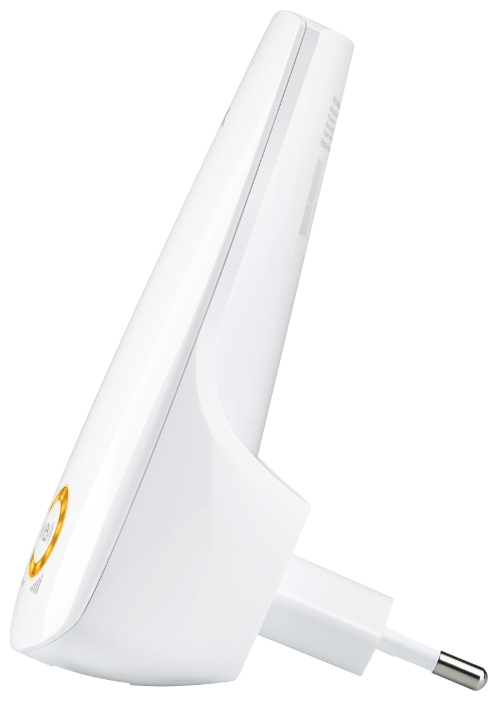
На данной странице вы узнаете как подключить Wi-Fi маршрутизатор к компьютеру, а также сможете найти инструкцию по настройке на русском языке.
Сотрудники нашего информационного портала ежедневно обновляют официальные прошивки для той или иной модели устройства.
Настройка Вай-Фай
Пошаговая настройка роутера TP-LINK TL-WA750RE для Ростелеком, Билайн и других интернет провайдеров займет у Вас несколько минут и после этого вы сможете наслаждаться всеми достоинствами Wi-Fi точки доступа ТП-Линк.
Настройка IPTV
Если вы хотите получить последнюю версию официальной прошивки и инструкцию по подключению VPN или PPPOE и настройка IPTV телевидения для этого устройства на русском языке на ваш Email, то вам следует оставить полный, развернутый отзыв о той или иной модели Вай-Фай устройства.
Скачать прошивку для маршрутизатораЧтобы скачать прошивку для TP-LINK TL-WA750RE вам достаточно внимательно ознакомиться со страницей, на которой вы сейчас находитесь. Не забывайте оставлять свои отзывы (форма для добавления отзывов находится в нижней части страницы). Если вас не затруднит, то вы можете поделиться ссылкой на прошивку со своими друзьями. Также, если вы не нашли ответ на свой вопрос, то вы можете задать его воспользовавшись формой в нижней части сайта. У нас вы найдете последние версии драйверов для беспроводных устройств. Чтобы скачать новый драйвер, вам необходимо перейти по ссылке «Скачать прошивку», которая расположена чуть ниже.
Скачать прошивку Настройки роутера Видео-инструкция как настроить TP-LINK TL-WA750RE |
|
На этой странице вы можете совершенно бесплатно скачать Инструкция по эксплуатации TP-Link TL-WA750RE.
У документа PDF Инструкция по эксплуатации 47 страниц, а его размер составляет 1.96 Mb.
Читать онлайн Сетевые роутеры (маршрутизаторы) TP-Link TL-WA750RE Инструкция по эксплуатации
Скачать файл PDF «TP-Link TL-WA750RE Инструкция по эксплуатации» (1.96 Mb)
Популярность:
4657 просмотры
Подсчет страниц:
47 страницы
Тип файла:
Размер файла:
1.96 Mb
Прочие инструкции TP-Link TL-WA750RE


Прочие инструкции TP-Link Сетевые роутеры (маршрутизаторы)



Прочие инструкции TP-Link




-
Page 1
TL-WA750RE 150Mbps Universal WiFi Range Extender REV 1.0.0 1910010798… -
Page 2
Specifications are subject to change without notice. is a registered trademark of TP-LINK TECHNOLOGIES CO., LTD. Other brands and product names are trademarks or registered trademarks of their respective holders. No part of the specifications may be reproduced in any form or by any means or used to make any derivative such as translation, transformation, or adaptation without permission from TP-LINK TECHNOLOGIES CO., LTD. -
Page 3: Fcc Statement
FCC STATEMENT This equipment has been tested and found to comply with the limits for a Class B digital device, pursuant to part 15 of the FCC Rules. These limits are designed to provide reasonable protection against harmful interference in a residential installation. This equipment generates, uses and can radiate radio frequency energy and, if not installed and used in accordance with the instructions, may cause harmful interference to radio communications.
-
Page 4: Ce Mark Warning
CE Mark Warning This is a class B product. In a domestic environment, this product may cause radio interference, in which case the user may be required to take adequate measures. This device has been designed to operate with the antennas listed below, and having a maximum gain of 3 dBi.
-
Page 5: Safety Information
第十四條 低功率射頻電機之使用不得影響飛航安全及干擾合法通行;經發現有干擾現象時,應立 即停用,并改善至無干擾時方得繼續使用。前項合法通信,指依電信規定作業之無線電信。低功率 射頻電機需忍受合法通信或工業、科學以及醫療用電波輻射性電機設備之干擾。 安全諮詢及注意事項 ● 請使用原裝電源供應器或只能按照本產品注明的電源類型使用本產品。 ● 清潔本產品之前請先拔掉電源線。請勿使用液體、噴霧清潔劑或濕布進行清潔。 ● 注意防潮,請勿將水或其他液體潑灑到本產品上。 ● 插槽與開口供通風使用,以確保本產品的操作可靠並防止過熱,請勿堵塞或覆蓋開口。 ● 請勿將本產品置放於靠近熱源的地方。除非有正常的通風,否則不可放在密閉位置中。 ● 請不要私自打開機殼,不要嘗試自行維修本產品,請由授權的專業人士進行此項工作。 Продукт сертифіковано згідно с правилами системи УкрСЕПРО на відповідність вимогам нормативних документів та вимогам, що передбачені чинними законодавчими актами України. Safety Information When product has power button, the power button is one of the way to shut off the product; …
-
Page 6: Declaration Of Conformity
TP-LINK TECHNOLOGIES CO., LTD DECLARATION OF CONFORMITY For the following equipment: Product Description: 150Mbps Universal WiFi Range Extender Model No.: TL-WA750RE Trademark: TP-LINK We declare under our own responsibility that the above products satisfy all the technical regulations applicable to the product within the scope of Council Directives:…
-
Page 7: Table Of Contents
CONTENTS Package Contents ………………..1 Chapter 1 Introduction ………………. 2 Product Overview ………………..2 Main Features ………………..2 Appearance ………………….. 2 Chapter 2 Hardware Installation …………….4 Before You Begin ………………..4 Basic Requirements ………………5 Connecting the Device ………………5 Chapter 3 Quick Installation Guide ……………
-
Page 8: Package Contents
Conventions The Range Extender, the Device or TL-WA750RE mentioned in this User guide stands for TL-WA750RE 150Mbps Universal WiFi Range Extender without any explanations. Parameters provided in the pictures are just references for setting up the product, which may differ from the actual situation.
-
Page 9: Chapter 1 Introduction
Even though you may not be familiar with the Range Extender, you can easily configure it with the help of this Guide. Before installing the Range Extender, please look through this Guide to get the full information of the TL-WA750RE 150Mbps Universal WiFi Range Extender.
-
Page 10: Led Explanation
WPS or QSS button and then press the RANGE EXTENDER button to establish a secure connection between the Wireless router (or AP) and the Range Extender TL-WA750RE. RESET: This button is used to restore the Range Extender’s factory default settings.
-
Page 11: Chapter 2 Hardware Installation
RF (radio frequency) noise in your home or office. In order to optimize the performance of TL-WA750RE, please follow the instructions below to achieve an ideal location (please make sure it is always within the wireless coverage of the wireless router).
-
Page 12: Basic Requirements
To establish a typical connection of the Range Extender, please take the following steps: 1. Connect the Cable/DSL modem to a Wireless router with an Ethernet cable. 2. Plug your TL-WA750RE directly to a standard electrical wall socket, which is next to the Wireless router.
-
Page 13: Chapter 3 Quick Installation Guide
TL-WA750RE 150Mbps Universal WiFi Range Extender easily with a Web-based utility. With a Web-based utility, it is easy to configure and manage the TL-WA750RE 150Mbps Universal WiFi Range Extender. The Web-based utility can be used on any Windows, Macintosh or UNIX OS with a Web browser, such as Microsoft Internet Explorer, Mozilla Firefox or Apple Safari.
-
Page 14
TL-WA750RE 150Mbps Universal WiFi Range Extender User Guide After successful login, there will pop up the Quick Setup Start page. Click Next to get the quick setup started. Figure 3-3 Quick Setup Start Figure 3-4 will appear for you to choose the region. Then click Next to continue. -
Page 15
TL-WA750RE 150Mbps Universal WiFi Range Extender User Guide A list of available wireless networks will appear. Check the box before the SSID of your desired network, and then click Next. Figure 3-6 Quick Setup – Available Wireless Networks Note: If you could not find your wireless network name (SSID) in the list, you can click Rescan to redetect it or tick the checkbox before «Set SSID and MAC Manually»… -
Page 16
TL-WA750RE 150Mbps Universal WiFi Range Extender User Guide Double-check your wireless setting and network setting on the page as shown in Figure 3-8. If verified, click Finish to complete the Quick Setup. If there is anything wrong, click Back to return the previous pages and reconfigure it. -
Page 17: Chapter 4 Configure The Device
150Mbps Universal WiFi Range Extender User Guide Chapter 4 Configure the Device This Chapter describes how to configure your Range Extender via the web-based management page. The TL-WA750RE 150Mbps Universal WiFi Range Extender is easy to configure and ® manage with the Web-based (Internet Explorer, Netscape…
-
Page 18: Quick Setup
TL-WA750RE 150Mbps Universal WiFi Range Extender User Guide Firmware Version — This field displays the current firmware version of the Range Extender. Hardware Version — This field displays the current hardware version of the Range Extender. Connection Status to Existing Network — This part shows you the current information of the …
-
Page 19
TL-WA750RE 150Mbps Universal WiFi Range Extender User Guide Figure 4-2 WPS — Enabled Operation Mode — Displays the current operation mode of the device. WPS Status — To enable or disable the WPS function here. Current PIN — The current value of the device’s PIN is displayed here. The default PIN of the … -
Page 20
TL-WA750RE 150Mbps Universal WiFi Range Extender User Guide Method One: Push the button of the Range Extender and Wireless Adapter Keep the “WPS Status” as Enabled and click the Add Device button in Figure 4-2, then Step 1: the following screen will appear. -
Page 21
TL-WA750RE 150Mbps Universal WiFi Range Extender User Guide Step 4: Wait until the next screen appears. Click OK to complete the WPS configuration. Figure 4-5 The WPS Configuration Screen of Wireless Adapter Method Two: Enter the PIN into my Range Extender Step 1: Configure the wireless adapter. -
Page 22
TL-WA750RE 150Mbps Universal WiFi Range Extender User Guide Step 2: Configure the router. Keep the default “WPS Status” as Enabled and click the Add device button in Figure 4-2, then the following screen will appear. Figure 4-7 Step 3: Choose Enter the new device’s PIN and enter the PIN code of the wireless adapter in the field behind PIN in the previous figure. -
Page 23
TL-WA750RE 150Mbps Universal WiFi Range Extender User Guide Figure 4-9 The WPS Configuration Screen of Wireless Adapter Note: The default PIN code of the Range Extender can be found in its label or the WPS configuration screen as Figure 4-2. -
Page 24: Profile
TL-WA750RE 150Mbps Universal WiFi Range Extender User Guide 4.4 Profile Profile function can help you remember previously connected wireless networks. You can Edit, Delete or Add profiles in this page (as shown in Figure 4-11) for your convenient reconnection later on.
-
Page 25: Network
TL-WA750RE 150Mbps Universal WiFi Range Extender User Guide Profile Name — The name you give to your wireless networks. By default, it’s the same as root SSID, but you can change it to any other names that you can easily remember and distinguish.
-
Page 26: Wireless
TL-WA750RE 150Mbps Universal WiFi Range Extender User Guide Figure 4-15 LAN MAC Address — The physical address of the LAN port, as seen from the LAN. The value cannot be changed. Type — Several IP types are supported, including: (1) Static IP; (2) Smart IP (DHCP), and they …
-
Page 27: Wireless Settings
TL-WA750RE 150Mbps Universal WiFi Range Extender User Guide There are six submenus under the Wireless menu (shown in Figure 4-16): Wireless Settings, Wireless Security, Wireless MAC Filtering, Wireless Advanced, Wireless Statistics and Throughput Monitor. Click any of them, and you will be able to configure the corresponding function.
-
Page 28: Wireless Security
TL-WA750RE 150Mbps Universal WiFi Range Extender User Guide Wireless Name of Root AP — The SSID of the AP your device is going to connect to as a client. You can also use the search function to select the SSID to join.
-
Page 29
TL-WA750RE 150Mbps Universal WiFi Range Extender User Guide Figure 4-18 Wireless Security Operation Mode — Shows the current operation mode. Disable Security — Check this box radio button to disable wireless security. If disabled, the wireless stations will be able to connect this device without encryption. It is strongly recommended that you choose one of the security types to enable security. -
Page 30: Wireless Mac Filtering
TL-WA750RE 150Mbps Universal WiFi Range Extender User Guide Shared Key — Select 802.11 Shared Key authentication type. Open System — Select 802.11 Open System authentication type. WEP Key Format — You can select ASCII or Hexadecimal format. ASCII format stands •…
-
Page 31
TL-WA750RE 150Mbps Universal WiFi Range Extender User Guide Operation Mode — Shows the current operation mode. Wireless MAC Filtering — Click the Enable button to trigger the Wireless MAC Address Filtering function. The default setting is disabled. To Add a Wireless MAC Address filtering entry, click the Add New… button. The “Add or Modify Wireless MAC Address Filtering entry»… -
Page 32: Wireless Advanced
TL-WA750RE 150Mbps Universal WiFi Range Extender User Guide Click the Disable All button to make all entries disabled. Click the Delete All button to delete all entries Click the Next button to go to the next page and click the Previous button to return to the previous page.
-
Page 33: Wireless Statistics
TL-WA750RE 150Mbps Universal WiFi Range Extender User Guide Operation Mode — Shows the current Operation Mode. Transmit Power — Specifies the transmit power of the device. You can select High, Middle or Low which you would like. High is the default setting and is recommended.
-
Page 34: Throughput Monitor
TL-WA750RE 150Mbps Universal WiFi Range Extender User Guide Current Status — The connected wireless station’s running status, one of STA-AUTH / STA-ASSOC / STA-JOINED / WPA / WPA-PSK / WPA2 / WPA2-PSK / AP-UP / AP-DOWN / Disconnected. Received Packets — packets received by the station.
-
Page 35: Dhcp
TL-WA750RE 150Mbps Universal WiFi Range Extender User Guide Click the Start button to start wireless throughput monitor. Click the Stop button to stop wireless throughput monitor. 4.7 DHCP DHCP stands for Dynamic Host Configuration Protocol. The DHCP Server will automatically assign dynamic IP addresses to the computers on the network.
-
Page 36: Dhcp Client List
TL-WA750RE 150Mbps Universal WiFi Range Extender User Guide Figure 4-26 DHCP Settings – Enabled DHCP Server — Selecting the radio button before Disable/Enable will disable/enable the DHCP server on your Range Extender. The default setting is Enable. If you disable the Server, you must have another DHCP server within your network or else you must manually configure the computer.
-
Page 37: System Tools
TL-WA750RE 150Mbps Universal WiFi Range Extender User Guide Figure 4-27 DHCP Clients List ID — Here displays the index of the DHCP client. Client Name — Here displays the name of the DHCP client. MAC Address — Here displays the MAC address of the DHCP client.
-
Page 38: Factory Defaults
TL-WA750RE 150Mbps Universal WiFi Range Extender User Guide Figure 4-29 Firmware Upgrade New firmware versions are posted at http://www.tp-link.com and can be downloaded for free. Firmware Version — Here displays the current firmware version. Hardware Version — Here displays the current hardware version. The hardware version of the …
-
Page 39: Backup & Restore
TL-WA750RE 150Mbps Universal WiFi Range Extender User Guide Click Restore to reset all configuration settings to their default values. Default User Name: admin Default Password: admin Default IP Address: 192.168.0.254 Default Subnet Mask: 255.255.255.0 Note: Any settings you have saved will be lost when the default settings are restored.
-
Page 40: Password
TL-WA750RE 150Mbps Universal WiFi Range Extender User Guide Click the Reboot button to reboot the device. Some settings of the device will take effect only after rebooting, which include: Change LAN IP Address (System will reboot automatically). Change the Wireless configurations.
-
Page 41
TL-WA750RE 150Mbps Universal WiFi Range Extender User Guide Figure 4-34 System Log The device can keep logs of all traffic. You can query the logs to find what happened to the device. Log Type — By selecting the log type, only logs of this type will be shown. -
Page 42: Appendix A: Factory Defaults
TL-WA750RE 150Mbps Universal WiFi Range Extender User Guide Appendix A: Factory Defaults Item Default Value Common Default Settings Username admin Password admin IP Address 192.168.0.254 Subnet Mask 255.255.255.0 Domain http://tplinkextender.net Wireless SSID TP-LINK_Extender_XXXXXX Wireless Security Disabled Wireless MAC Address Filtering Disabled …
-
Page 43: Appendix B: Troubleshooting
There are TWO methods available to restore the factory defaults. Method 1: With the Range Extender TL-WA750RE powered on, use a pin to press and hold the RESET button on the rear panel for more than 8 seconds before releasing it.
-
Page 44
An easy way is to compare the signal strength of your target wireless network (identified by its SSID), with TL-WA750RE in operation vs. out of operation. Before comparison, you’d better make sure your computer can obtain an IP address from your target wireless network and thus access the Internet, either via TL-WA750RE or without. -
Page 45: Appendix C: Specifications
TL-WA750RE 150Mbps Universal WiFi Range Extender User Guide Appendix C: Specifications General Standards and Protocols IEEE 802.3, 802.3u, 802.11n, 802.11b and 802.11g, TCP/IP, DHCP Safety & Emission FCC, CE Ports One 10/100M Auto-Negotiation LAN RJ45 port Wireless Frequency Band 2.4~2.4835GHz 11n:up to 150Mbps(Automatic)…
-
Page 46: Appendix D: Glossary
TL-WA750RE 150Mbps Universal WiFi Range Extender User Guide Appendix D: Glossary 802.11b — The 802.11b standard specifies a wireless networking at 11 Mbps using direct-sequence spread-spectrum (DSSS) technology and operating in the unlicensed radio spectrum at 2.4GHz, and WEP encryption for security. 802.11b networks are also referred to as Wi-Fi networks.
-
Page 47
TL-WA750RE 150Mbps Universal WiFi Range Extender User Guide WPA (Wi-Fi Protected Access) — WPA is a security technology for wireless networks that improves on the authentication and encryption features of WEP (Wired Equivalent Privacy). In fact, WPA was developed by the networking industry in response to the shortcomings of WEP.
инструкцияTP-Link TL-WA750RE

Wi-Fi Range Extender
Quick
Installation
Guide
7106508578 REV3.0.0
For technical support, the user guide and other
information, please visit https://www.tp-link.com/support/,
or simply scan the QR code.
TP-Link Technologies Co., Ltd.
Specications are subject to change without notice. is a
registered trademark of TP-Link Technologies Co., Ltd. Other brands
and product names are trademarks or registered trademarks of their
respective holders.
No part of the specications may be reproduced in any form or by
any means or used to make any derivative such as translation,
transformation, or adaptation without permission from TP-Link
Technologies Co., Ltd. Copyright © 2020 TP-Link Technologies Co.,
Ltd. All rights reserved.
*Images may dier from actual products.
Посмотреть инструкция для TP-Link TL-WA750RE бесплатно. Руководство относится к категории wi-fi ретрансляторы, 7 человек(а) дали ему среднюю оценку 8.4. Руководство доступно на следующих языках: русский, английский. У вас есть вопрос о TP-Link TL-WA750RE или вам нужна помощь? Задайте свой вопрос здесь
Главная
| TP-Link | |
| TL-WA750RE | TL-WA750RE | |
| wi-fi ретранслятор | |
| 5052916746256, 6935364070649, 6935364070755, 845973070762, 9154401796282, 0845973070762, 4054842122617, 8459730707628, 0994377639171, 5054533246843, 5053086334298 | |
| русский, английский | |
| Руководство пользователя (PDF), Техническая спецификация (PDF) |
Производительность
| Тип | Сетевой передатчик и приемник |
| Максимальное расстояние передачи | — m |
| Скорость передачи данных | 150 Мбит/с |
| Поддерживаемые операционные системы Windows | Windows 2000, Windows 98SE, Windows NT, Windows Vista Business, Windows Vista Business x64, Windows Vista Enterprise, Windows Vista Enterprise x64, Windows Vista Home Basic, Windows Vista Home Basic x64, Windows Vista Home Premium, Windows Vista Home Premium x64, Windows Vista Ultimate, Windows Vista Ultimate x64, Windows XP Home, Windows XP Home x64, Windows XP Professional, Windows XP Professional x64 |
| Поддерживаемые операционные системы Mac | Да |
| Поддерживаемые операционные системы Linux | Да |
Дизайн
| Светодиодные индикаторы | Да |
| Цвет товара | Белый |
Сеть
| Свивка кабеля | 10/100Base-T(X) |
| Стандарты сети | IEEE 802.11b, IEEE 802.11g, IEEE 802.11n, IEEE 802.3, IEEE 802.3u |
| Wi-Fi | Да |
| Алгоритмы шифрования данных | WPA-PSK, WPA2-PSK |
| Wi-Fi стандартов | 802.11b, 802.11g, Wi-Fi 4 (802.11n) |
Порты и интерфейсы
| Количество портов Ethernet LAN ( RJ-45) | 1 |
Энергопитание
| Потребляемая мощность (в обычном режиме) | 3 W |
| Внешний адаптер питания | Нет |
Вес и размеры
| Ширина | 110 mm |
| Глубина | 65.8 mm |
| Высота | 75.2 mm |
Содержимое упаковки
| Поставляемые кабели | LAN (RJ-45) |
| Краткая инструкция пользователя | Да |
Прочие свойства
| Диапазон рабочих температур | 32 — 104 °F |
Условия эксплуатации
| Диапазон температур при эксплуатации | 0 — 40 °C |
| Диапазон температур при хранении | -40 — 70 °C |
| Диапазон относительной влажности при эксплуатации | 10 — 90 % |
| Диапазон относительной влажности при хранении | 5 — 90 % |
показать больше
Не можете найти ответ на свой вопрос в руководстве? Вы можете найти ответ на свой вопрос ниже, в разделе часто задаваемых вопросов о TP-Link TL-WA750RE.
В чем разница между роутером и модемом?
Модем обеспечивает подключение к Интернету через интернет-провайдера. Затем маршрутизатор распределяет через Интернет сигнал на подключенные к маршрутизатору устройства.
От чего зависит скорость загрузки в Интернете?
Скорость загрузки в Интернете зависит от вашего типа соединения. Если ваша скорость составляет 25 Мб/сек, это означает, что теоретически скорость загрузки будет составлять 25 Мб/сек.
Вредно ли Wi-Fi-излучение?
Wi-Fi — радиочастотный сигнал в виде неионизирующего излучения. Это излучение не может повредить клетки и ткани и, следовательно, не наносит вреда здоровью.
Какая высота TP-Link TL-WA750RE?
TP-Link TL-WA750RE имеет высоту 75.2 mm.
Какая ширина TP-Link TL-WA750RE?
TP-Link TL-WA750RE имеет ширину 110 mm.
Какая толщина TP-Link TL-WA750RE?
TP-Link TL-WA750RE имеет толщину 65.8 mm.
Инструкция TP-Link TL-WA750RE доступно в русский?
Да, руководствоTP-Link TL-WA750RE доступно врусский .
Не нашли свой вопрос? Задайте свой вопрос здесь