
Предыдущая страница (1)
Страница из 34
Следующая страница (2)

Предыдущая страница (1)
Страница из 34
Следующая страница (2)
- Все страницы
- В этой категории
- Закладки
- Текстовая версия
1
 2
2
 3
3
 4
4
 5
5
 6
6
Показать
все
страницы
 Zhiyun Crane 2 инструкция на русском
 DJI Osmo Mobile инструкция на русском
 DJI Ronin-M инструкция на русском
 Zhiyun Crane Plus инструкция на русском
 DJI Ronin-S инструкция на русском
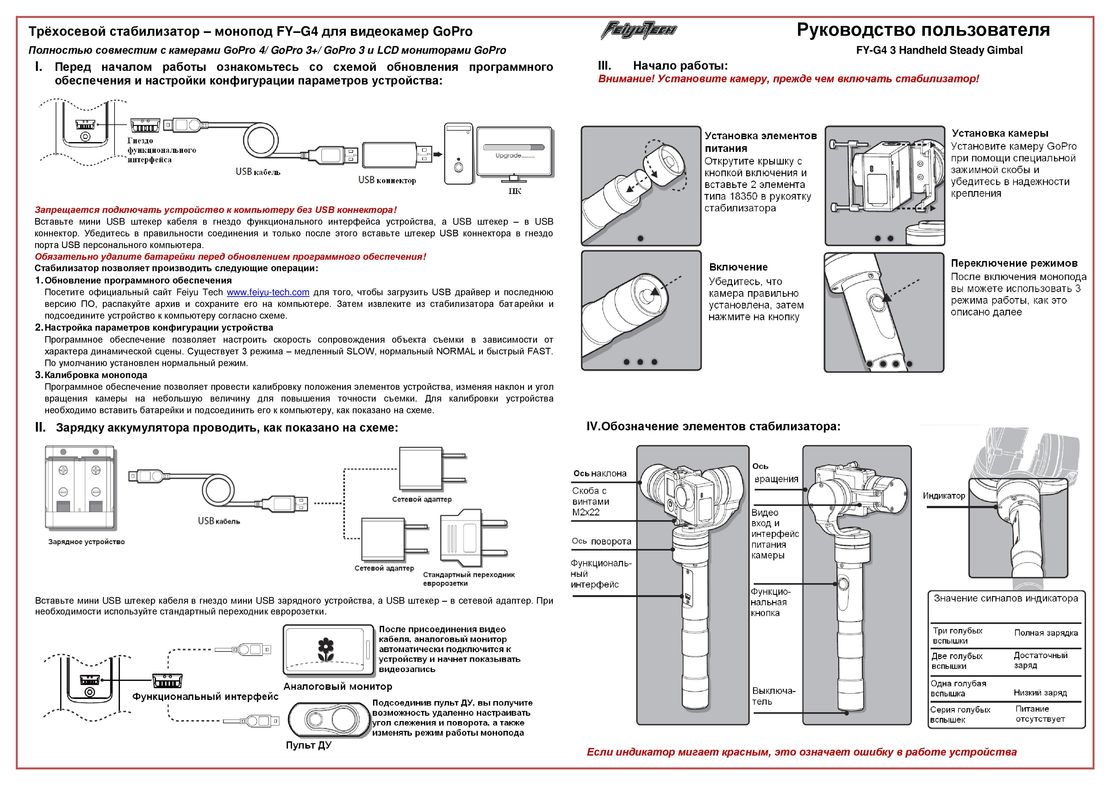 FeiyuTech FY-G4 инструкция на русском

0 1 . 1 v — N U Y I H Z
SMOOTH 4
U s e r G u i d e
Contents
■■ Product Introduction································· 1
■■ Get to Know Smooth 4····························· 2
■■ Battery and Charging Instructions············· 3
■■ Installation················································· 4
■■ The Use of Stabilizer································· 6
■■ The Use of APP········································ 13
■■ Calibration and Firmware Upgrade··········· 15
■■ Basic Specifications·································· 17
■■ Disclaimer and Warning···························· 19
■■ Warranty Terms········································ 24
■■ Contact Card············································ 27

Product Introduction
Product Introduction
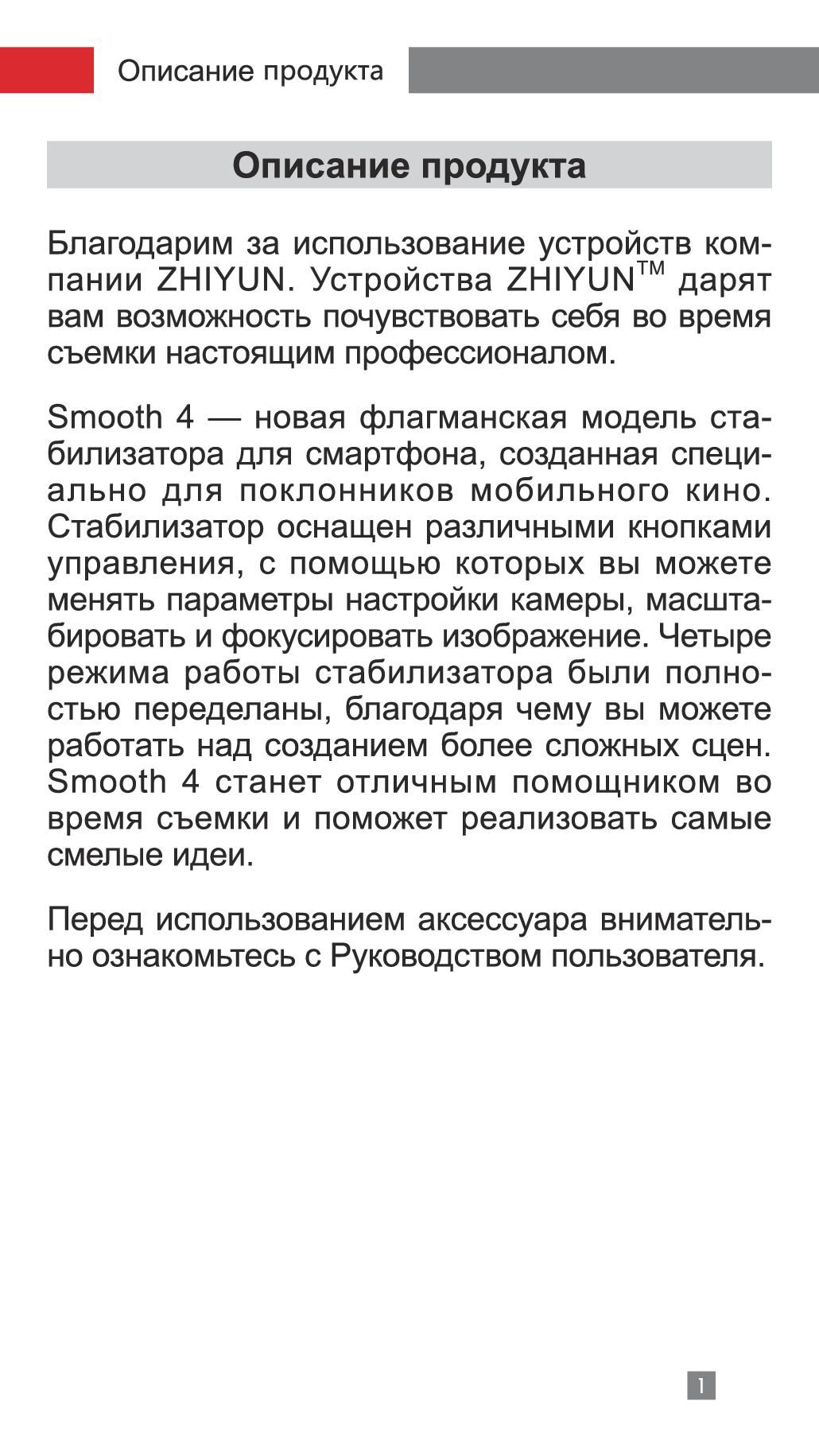
Thanks for using ZHIYUN products. ZHIYUNTM products bring you the fun of more professional shooting.
As the latest flagship phone stabilizer born for filmmakers, Smooth 4 is equipped with diverse function keys. It can navigate camera parameter settings and realize zooming and focusing. Its four redesigned working and operating modes can capture more advanced footage. Smooth 4 will be your great and innovative camera assistant.
Please read the user manual carefully before using the product.
Packing List
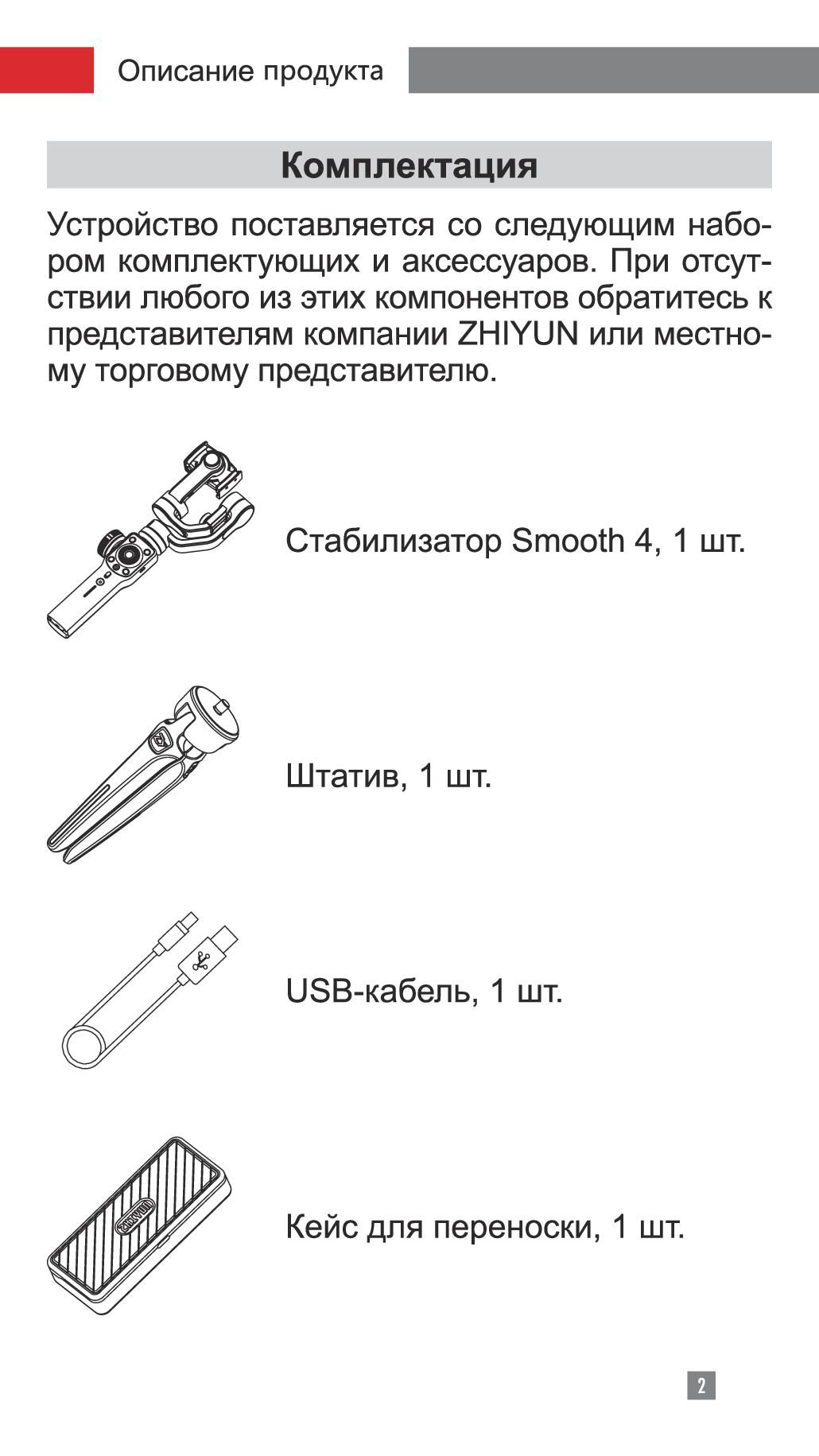
The product comes with the following items. In case that any item is found missing, please contact ZHIYUN or your local selling agent.
|
Smooth 4 Stabilizer ×1 |
Tripod ×1 |
|
Carrying Case × 1 |
USB Cable × 1 |

Get to Know Smooth 4
Get to Know Smooth 4
|
1 |
7 |
|
|
2 |
8 |
|
|
3 |
9 |
|
|
10 |
||
|
11 |
4
12
6
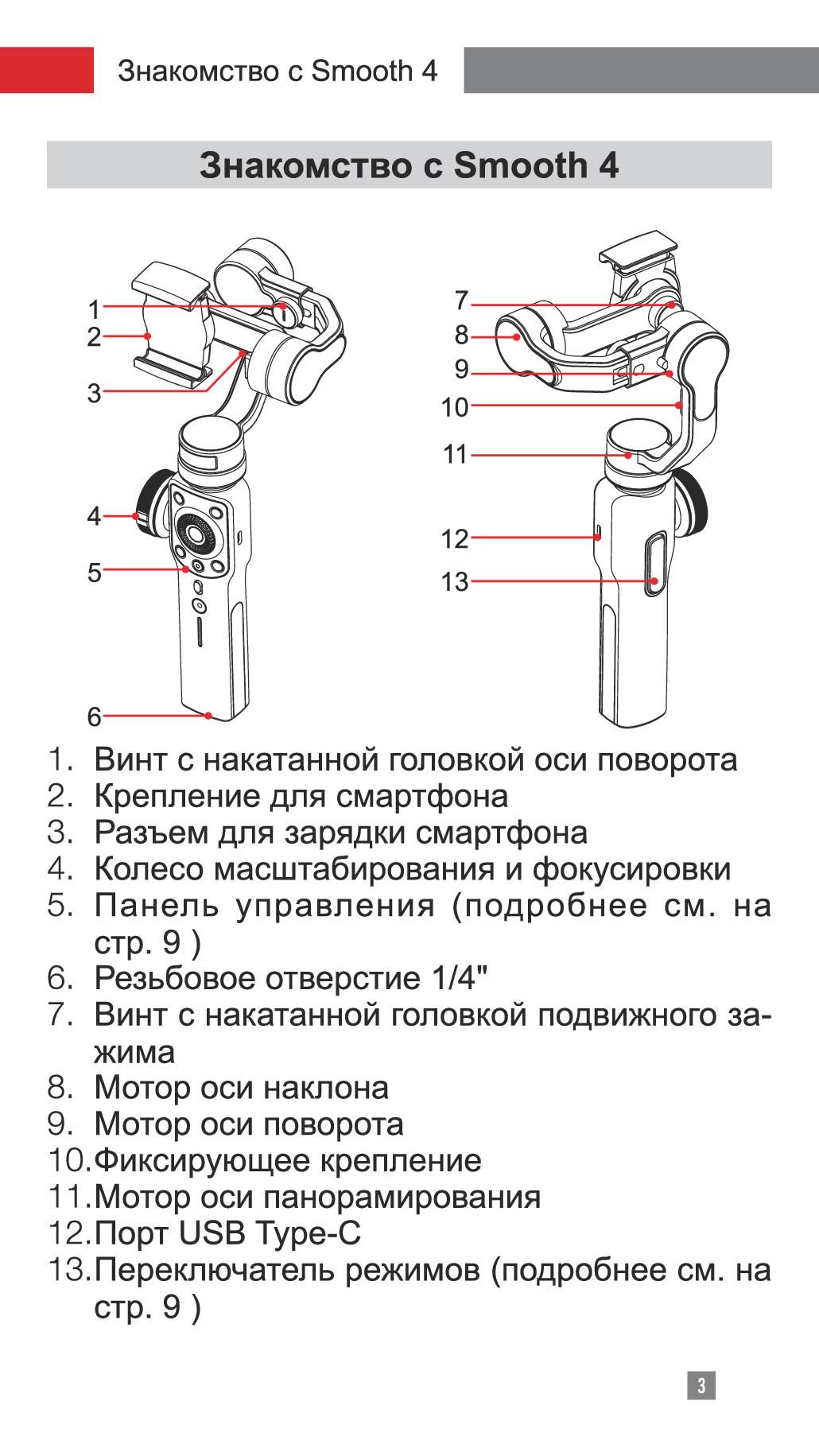
1.Roll Axis Thumb Screw
2.Phone Clamp
3.Mobile Charging Port
4.Zoom/Focus Handwheel
5.Control Panel (see more on Page 6)
6.1/4″ Threaded Hole
7.Mobile Clamp Thumb Screw
8.Tilt Axis Motor
9.Roll Axis Motor
10.Fixing Buckle
11.Pan Axis Motor
12.Type-C USB Port
13.Trigger Button (see more on Page 6)

Battery and Charging Instructions
Battery and Charging Instructions
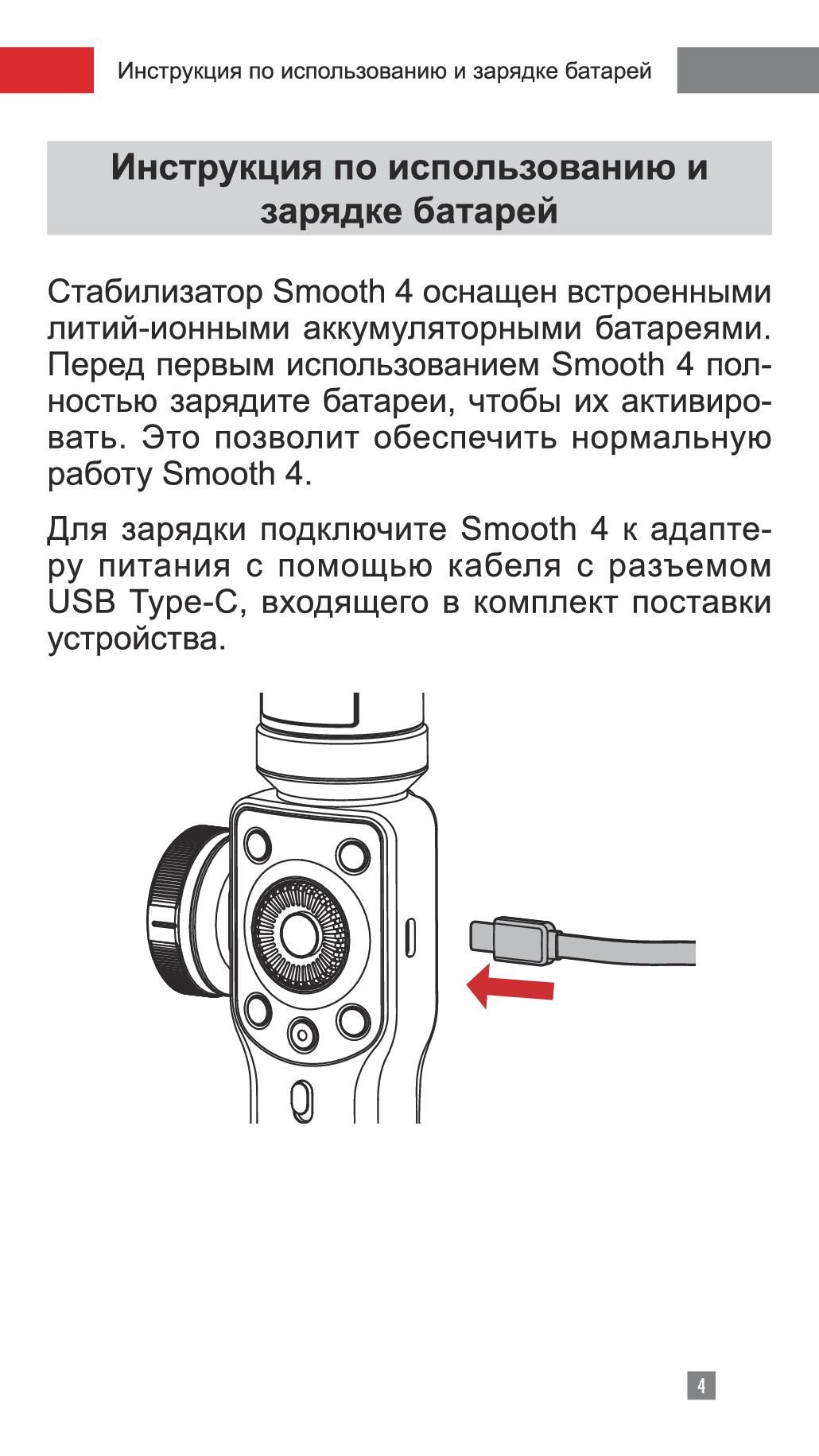
Smooth 4 is charged by built-in Li-ion batteries. During first use of Smooth 4, please fully charge it to activate batteries and guarantee the appropriate use of Smooth 4.
Charging method: Connect Type-C cable provided in the package with adapter and Smooth 4.
Installation
Installation of Tripod
Get the tripod ready and tighten it to the 1/4″ threaded hole at the bottom of the stabilizer, then unfold the tripod on a flat surface.

Installation
Installation of Phone
Push and hold open the camera clamp, slide the smartphone in as close as possible against the tilt axis motor, and clmap on. You can also loosen the Mobile Clamp Thumb Screw on the back and rotate the clamp to make the phone vertical.
 Please do not turn on the Smooth 4 before putting in the phone.

Installation
Balancing
If the smartphone fails to stay in level and keeps tilting when mounted, loosen the Roll (Y) Axis Thumb Screw to adjust the gravity center by sliding the horizontal arm (as marked red in the Figure) until the smartphone stays still and vertical on the tilt axis. Tighten the Thumb Screw after the smartphone is well balanced in level to ensure normal operations.
Proper adjustment of gravity center ensures better power saving during operation. The stabilizer may still function well when the gravity center is not properly configured, however, it may lead to more power consumption on the motors, and can greatly affect the torque output.

The Use of Stabilizer
The Introduction of Control Panel
|
Menu/Return Button [ |
] |
●● In general menu, press the button once to enter parameter adjustment menu;
●● In parameter adjustment menu, click the button to save settings and return to previous option;
Zoom/Focus Handwheel
Handwheel can adjust the focal length of phone camera focus and its zoom ratio.
Handwheel Zoom/Focus Switch Button [ ] ●● Press the button once to switch functions
●● When the button light is on, handwheel on the side controls the zoom of phone camera lens.
●● When the button light is off, handwheel on the side controls the focus of phone camera lens.

The Use of Stabilizer
|
Parameter Display Button [ |
] |
|
|
●● Press the button once to display/close shooting |
||
|
parameters; |
●● In album mode, press the button once to display photo parameters;
●● Long press the button to automatically return to “Full Auto Mode” on the APP.
Resolution Ratio/Frame Rate Selection Button [ 
 ]
]
Press the button once to enter resolution ratio/frame rate adjustment menu.
Camera Switch Button [ ]
Press the button once to switch between front and rear phone cameras.
Album Mode Button [  ]
]
Press the button once to enter phone album and playback photos or videos.
Confirm/LED Light Button [ ]
●● The Button works as Confirm Button when pressed once;
●● Long Press the button to turn on/off Fill Light.
Exposure Compensation Button [  ]
]
Press the button once to enter exposure compensation adjustment menu.
Thumb Wheel
Rotate the Thumb Wheel to adjust current option parameters.
Photo Button [ ] Single press to take pictures.
 Loading…
3.0
Rated 3.0 out of 5
3.0 out of 5 stars (based on 1 review)
Your overall rating
ZHIYUN SMOOTH 4 SMA04 (02) PDF MANUAL
Click here to download ZHIYUN SMOOTH 4 SMA04 (02) PDF MANUAL
ZHIYUN SMOOTH 4 SMA04 (02) PDF MANUAL
FREE ENGLISH PDF
OPERATING INSTRUCTIONS
USER GUIDE – USER MANUAL
OWNER GUIDE – OWNER MANUAL
REFERENCE GUIDE – REFERENCE MANUAL
INSTRUCTION GUIDE – INSTRUCTION MANUAL
Your overall rating
- YouTube
ZHIYUN SMOOTH 4 SMA04 (02) PDF MANUAL
ZHIYUN SMOOTH 4 SMA04 (02) PDF MANUAL
Инструкцию для Zhiyun Smooth 4 Black (SMA04) на русском языке, в формате pdf можно скачать с нашего сайта. Наш каталог предоставляем Вам инструкцию производителя фирмы Zhiyun, которая была взята из открытых источников. Ознакомившись с руководством по эксплуатации от Zhiyun, Вы на все 100% и правильно сможете воспользоваться всеми функциями устройства.
Для сохранения инструкции «Стабилизатор Zhiyun Smooth 4 Black (SMA04)» на русском языке на вашем компьютере либо телефоне, нажмите кнопку «Скачать инструкцию». Если активна кнопка «Инструкция онлайн», то Вы можете просмотреть документ (manual), в своём браузере онлайн.
Если у Вас нет возможности скачать инструкцию по эксплуатации либо просмотреть её, Вы можете поделиться ссылкой на эту страницу в социальных сетях и при удобном моменте скачать инструкцию. Либо добавьте эту страницу в закладки Вашего браузера, нажав кнопку «Добавить страницу в закладки браузера».