

Help Guide
Wireless Noise Canceling Stereo Headset
WF-1000XM3
Use this manual if you encounter any problems, or have any questions.
Update the software of the headset and “Sony | Headphones Connect” app to the latest version. For details, refer to the
following:
https://www.sony.net/elesupport/
Getting started
What you can do with the Bluetooth function
About voice guidance
Supplied accessories
Checking the package contents
Replacing the earbuds
When you have finished using the headset
Parts and controls
Location and function of parts
About the indicator
Wearing the headset

Wearing the headset
Using only one unit of the headset
About the touch sensor
Power/Charging
Charging the headset
Available operating time
Checking the remaining battery charge
Turning on the headset
Turning off the headset
Making connections
How to make a wireless connection to Bluetooth devices
Easy setup with app
Connecting with the “Sony | Headphones Connect” app
Android smartphone
Pairing and connecting with an Android smartphone
Connecting to a paired Android smartphone
One-touch connection (NFC) with an Android smartphone
Disconnecting the Android smartphone with one-touch (NFC)
Switching the device by one-touch (NFC)
iPhone (iOS devices)
Pairing and connecting with an iPhone
Connecting to a paired iPhone
Disconnecting Bluetooth connection (after use)
Listening to music
Listening to music via a Bluetooth connection
Listening to music from a device via Bluetooth connection
Controlling the audio device (Bluetooth connection)
Disconnecting Bluetooth connection (after use)
Noise canceling function
What is noise canceling?

Using the noise canceling function
Listening to ambient sound
Listening to ambient sound during music playback (Ambient Sound Mode)
Listening to ambient sound quickly (Quick Attention Mode)
Sound quality mode
About the sound quality mode
Supported codecs
About the DSEE HX function
Making phone calls
Receiving a call
Making a call
Functions for a phone call
Disconnecting Bluetooth connection (after use)
Using the voice assist function
Using the Google Assistant
Using the voice assist function (Google app)
Using the voice assist function (Siri)
Using the apps
What you can do with “Sony | Headphones Connect” app
Installing “Sony | Headphones Connect” app
Important information
Precautions
License notice
Trademarks
Customer support websites
Troubleshooting
What can I do to solve a problem?
Power/Charging
Unable to turn on the headset.

4-747-585-11(1) Copyright 2019 Sony Corporation
Charging cannot be done.
Charging time is too long.
The headset cannot be charged even if connecting the charging case to a computer.
The remaining battery charge of the headset is not displayed on the screen of smartphone.
Sound
No sound
Low sound level
There is a difference in volume between the left and right sides, insufficient low-frequency sound.
Low sound quality
Sound skips frequently.
The noise canceling effect is not sufficient.
Bluetooth
Pairing cannot be done.
One-touch connection (NFC) does not work.
Unable to make a Bluetooth connection.
Distorted sound
The Bluetooth wireless communication range is short, or the sound skips.
The headset does not operate properly.
Cannot hear a person on a call.
Low voice from callers
Resetting or initializing the headset
Resetting the headset
Initializing the headset to restore factory settings

Help Guide
Wireless Noise Canceling Stereo Headset
WF-1000XM3
What you can do with the Bluetooth function
The headset uses BLUETOOTH® wireless technology, allowing you to listen to music or make phone calls wirelessly.
Listening to music
You can receive audio signals from a smartphone or music player to enjoy music wirelessly.
Talking on the phone
You can make and receive calls hands-free, while leaving your smartphone or mobile phone in your bag or pocket.
4-747-585-11(1) Copyright 2019 Sony Corporation

Help Guide
Wireless Noise Canceling Stereo Headset
WF-1000XM3
About voice guidance
In the factory setting, when you wear the headset, you will hear the English voice guidance via the headset.
You can change the language of the voice guidance and turn on/off the voice guidance using “Sony | Headphones
Connect” app. For more details, refer to the following URL:
http://rd1.sony.net/help/mdr/hpc/h_zz/
You will hear voice guidance in the following situations from the left and right units of the headset.
When the headset is turned on: “Power on”
When informing the remaining battery charge: “Battery about XX %” (The “XX” value indicates the approximate
remaining charge. Use it as a rough estimate.) / “Battery fully charged”
When the remaining battery charge is low: “Low battery, please recharge headset”
When automatically turning off due to low battery: “Please recharge headset. Power off”
You will hear voice guidance in the following situations from the left unit (or from the right unit when you are wearing only
the right unit) of the headset.
When powering off with the “Sony | Headphones Connect” app: “Power off”
When entering pairing mode: “Bluetooth pairing”
When establishing a Bluetooth connection: “Bluetooth connected”
When disconnecting a Bluetooth connection: “Bluetooth disconnected”
When turning on the noise canceling function: “Noise canceling”
When turning on the Ambient Sound Mode: “Ambient sound”
When turning off the noise canceling function and the Ambient Sound Mode: “Ambient Sound Control off”
You will hear voice guidance in the following situation from the unit to which the Google Assistant feature is assigned.
When the Google Assistant is not available on the smartphone connected to the headset even if you tap the touch
sensor twice on the side that is set as the Google Assistant feature: “The Google Assistant is not connected”
Note
When you are wearing only one unit of the headset, you will hear the voice guidance from the unit you are wearing.
It takes about 20 minutes when you change the language of voice guidance.
When you initialize the headset to restore the factory settings after you change the language of voice guidance, the language will
also return to the factory setting.
If the voice guidance is not heard after changing the voice guidance language or updating the firmware, turn the headset off and
on again.
Related Topic
Using only one unit of the headset
4-747-585-11(1) Copyright 2019 Sony Corporation

Help Guide
Wireless Noise Canceling Stereo Headset
WF-1000XM3
Checking the package contents
After opening the package, check that all of the items in the list are included. If any items are missing, contact your
dealer.
Numbers in ( ) indicate the item amount.
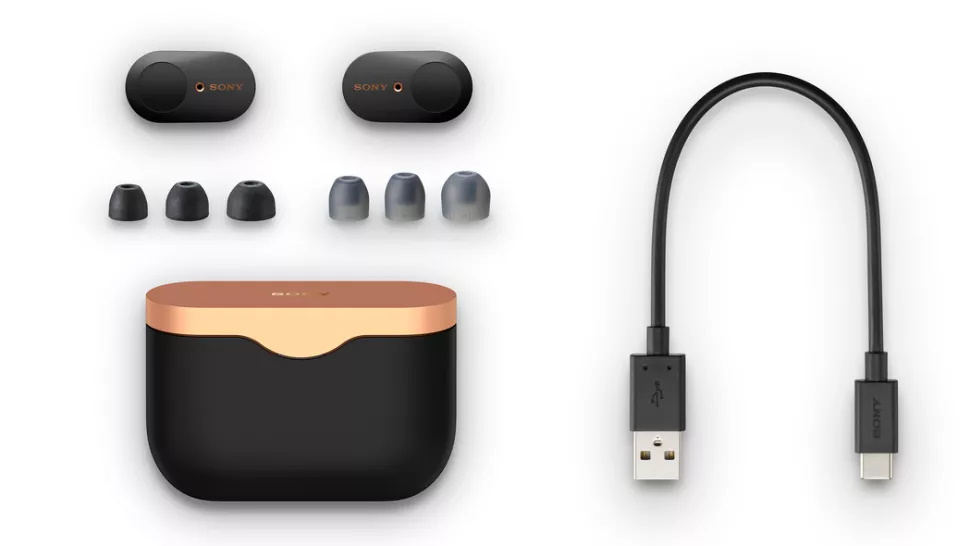
Wireless Noise Canceling Stereo Headset
USB Type-C™ cable (USB-A to USB-C™) (approx. 20 cm (7.88 in.)) (1)
Long Hybrid silicone rubber earbuds (SS/S/M/L 2 each)
The size M earbuds come attached to the headset.
Triple-comfort earbuds (S/M/L 2 each)
Charging case (1)
4-747-585-11(1) Copyright 2019 Sony Corporation

Help Guide
Wireless Noise Canceling Stereo Headset
WF-1000XM3
Replacing the earbuds
For the noise canceling function to be fully effective, select the earbuds that fit your ears the best.
Size M long hybrid silicone rubber earbuds come attached to the left and right units of the headset. Select and attach the
earbud that allows you to hear the least ambient sounds to each unit.
Long hybrid silicone rubber earbuds
SS: 1 line
S: 2 lines
M: 3 lines
L: 4 lines
Triple-comfort earbuds
S: orange
M: green
L: light blue
4-747-585-11(1) Copyright 2019 Sony Corporation
Remove the earbuds.
Do not pinch the end of the earbud when removing it.
1
Attach the earbuds.
Firmly insert the earbuds all the way. Do not attach the earbuds in a loose or skewed manner.
2

Help Guide
Wireless Noise Canceling Stereo Headset
WF-1000XM3
When you have finished using the headset
When you have finished using the headset, be sure to keep the headset in the charging case.
Close the lid of the charging case.
Note
If any water drops are left in the microphone hole of the headset, it may cause corrosion. If you get water on the headset, turn the
microphone hole downward and gently tap it about 5 times towards a dry cloth, etc.
If perspiration or water is left on the charging port, it may impair the ability to charge the unit. Immediately wipe off any
perspiration or water on the charging port after use.
4-747-585-11(1) Copyright 2019 Sony Corporation

Help Guide
Wireless Noise Canceling Stereo Headset
WF-1000XM3
Location and function of parts
Headset
Charging case
(left) mark and tactile dot
The left unit has a tactile dot.
1.
Touch sensor
Tap to operate the headset.
In the factory setting, in order to prevent the headset from reacting incorrectly, the headset will not work even if you
tap the touch sensor when not wearing the headset.
2.
Left unit3.
Microphone
Picks up the sound of your voice (when talking on the phone) and noise (when using the noise canceling function).
4.
Indicator (blue/red)
Lights up in red while charging.
Lights up in red or blue to indicate the power or communication status of the headset.
In the factory setting, when you wear the headset, the indicator turns off.
5.
Earbuds6.
(right) mark7.
Right unit8.
Built-in antenna
A Bluetooth antenna is built into the headset.
9.

Related Topic
About the indicator
Checking the remaining battery charge
4-747-585-11(1) Copyright 2019 Sony Corporation
Lid1.
N-Mark2.
Indicator (red)
Lights up while charging.
3.
USB Type-C port
Connect the charging case to a computer or a commercially available USB AC adaptor with the supplied USB Type-
C cable to simultaneously charge both the headset and the charging case.
4.

Help Guide
Wireless Noise Canceling Stereo Headset
WF-1000XM3
About the indicator
You can check various statuses of the headset by the indicator.
: Turns on in blue / : Turns on in red / — : Turns off
Turning on
The headset turns on when it is removed from the charging case.
— (flashes twice)
In this case, when the remaining battery charge is 20% or lower (requires charging), the indicator lights successively as
follows.
— — (flashes for about 15 seconds)
For details, see “Checking the remaining battery charge”.
Turning off
When the headset is not worn for about 5 minutes after being removed from the charging case, the headset turns off
automatically.
(lights up for about 2 seconds)
When the remaining battery charge becomes low
— — (flashes for about 15 seconds)
Charging (indicated by the indicator of the charging case)
You can check the charging state with the indicator (red) of the charging case.
While charging
The indicator (red) on the charging case lights up while the headset is placed in the charging case and is being
charged. The indicator turns off after charging of the headset is complete.
When charging the headset and charging case by connecting the charging case to an AC outlet, the indicator (red)
on the charging case turns off after charging of both the headset and charging case is completed.
Abnormal temperature
— — — — (flashes twice each)
Abnormal charging
— — — —
Bluetooth function
In the factory setting, when you wear the headset, the indicator turns off. If you change the setting on the “Sony |
Headphones Connect” app so that the headset does not turn off by the automatic power off function by wearing
detection, the indicator will not turn off even when the headset is worn.
Device registration (pairing) mode
— — — — (flashes twice each)
Not connected
— — — — — — — — (about 1-second intervals)
Connection process completed
(flashes quickly for about 5 seconds)
Connected
— — — — — — — — — — — — (about 5-second intervals)

Incoming call
The not connected and connected status indications automatically turn off after a period of time has passed. They start
flashing again for a period of time when some operation is performed. When the remaining battery charge becomes low,
the indicator (red) starts flashing slowly.
Other
Updating software
— — — —
Initialization completed
(flashes 4 times)
For details, see “Initializing the headset to restore factory settings”.
Hint
In the factory setting, when you wear the headset, the indicator turns off. When you are wearing the headset, you can check
various statuses of the headset with the voice guidance.
Related Topic
What you can do with “Sony | Headphones Connect” app
About voice guidance
4-747-585-11(1) Copyright 2019 Sony Corporation

Help Guide
Wireless Noise Canceling Stereo Headset
WF-1000XM3
Wearing the headset
For the noise canceling function to be fully effective, select the earbuds that fit your ears the best, and wear the headset
correctly.
Hint
Attach the earbuds.
Size M long hybrid silicone rubber earbuds come attached to the left and right units of the headset. Select and
attach the earbud that allows you to hear the least ambient sounds to each unit.
Long hybrid silicone rubber earbuds
Triple-comfort earbuds
Be careful of the following when you change the earbuds.
To remove the earbuds
To attach the earbuds
1
Wear the headset.
Twist the headset to slide the earbud deep into your ear.
2

The earbud will be easier to slide deep into your ear if you pull up on the top of the ear lightly while twisting the headset.
When wearing and removing the headset
In the factory setting, the built-in sensors work when the headset is removed or attached, enabling the headset to pause
or resume music playback or control the touch sensors, indicators, and voice guidance.
When the headset is worn
The indicators of the headset turn off.
You can use the touch sensor to play music, make and receive calls, etc.
You will hear voice guidance corresponding to the operation and status.
When the headset is removed
When only one unit is removed, the headset pauses music playback. When the unit is worn again, the headset
resumes music playback.
When the headset is not worn for about 5 minutes after being removed from the charging case, the headset turns off
automatically to save the battery. The headset will turn on by tapping the touch sensor or wearing the headset.
In order to prevent the headset from reacting incorrectly, you cannot play music, make and receive calls, etc. even if
you tap the touch sensor when not wearing the headset.
Hint
You can also play music, make and receive calls, etc. when wearing only one unit.
By using the “Sony | Headphones Connect” app, you can change the setting of automatically pausing and resuming the music
playback, or automatically turning off the headset.
Related Topic
Replacing the earbuds
Using only one unit of the headset
What you can do with “Sony | Headphones Connect” app
4-747-585-11(1) Copyright 2019 Sony Corporation

Help Guide
Wireless Noise Canceling Stereo Headset
WF-1000XM3
Using only one unit of the headset
You can remove one unit from the charging case and use it by itself. In this case, only the unit that has been removed
from the charging case will turn on.
When you put on the other unit of the headset
The connection between the left and right units is established automatically, and you will hear the music or other audio
on both units of the headset.
About voice guidance
When you are wearing only one unit of the headset, you will hear voice guidance from that unit.
When you are wearing both units, you will hear some voice guidance from the left unit. When only wearing the right unit,
you will hear such voice guidance from the right unit.
Assigning functions to the touch sensors
Depending on the unit you are wearing, some functions may not be available in the factory setting. In this case, you can
change the assignment of functions to the touch sensors using the “Sony | Headphones Connect” app.
Hint
The Google Assistant feature can be assigned to the touch sensor of either the left or right unit.
When the Google Assistant feature is assigned to the headset and you want to use only one unit of the headset, use the unit with
the Google Assistant feature assigned.
Note
When you play music or other stereo audio while wearing only one unit, you will hear the sound of either left or right channel
depending on the unit you are wearing. You cannot hear monaural sound with the left and right channels mixed.
Related Topic
What you can do with “Sony | Headphones Connect” app
4-747-585-11(1) Copyright 2019 Sony Corporation

Help Guide
Wireless Noise Canceling Stereo Headset
WF-1000XM3
About the touch sensor
Tap the touch sensor for various operations, such as music playback, phone calls, or changing the setting of the noise
canceling function.
A︓ Touch sensor
To operate the touch sensor, hold the headset between your thumb and middle finger, then tap the touch sensor with
your forefinger.
Some available operations
Left Right
Tap
To switch the noise canceling
function and Ambient Sound
Mode
To play or pause music
Tap twice To receive or end a call
・To skip to the beginning of the next
track
・To receive or end a call
Tap 3 times ―
To skip to the beginning of the previous
track (or the current track during
playback)
Hold your finger to the touch sensor
To activate Quick Attention
Mode
To use or cancel the voice assist
function (Siri/Google app)
Hold your fingers to the touch sensors on
both the left and right units for about 7
seconds
To enter the device registration (pairing) mode

Hint
When tapping the touch sensor 2 or 3 times, tap it quickly with an interval of about 0.4 seconds between taps.
You can change the assignment of the functions to the touch sensors of both the left and right units using the “Sony |
Headphones Connect” app. For example, the music playback function that is assigned to the touch sensor of the right unit in the
factory setting can be changed to the touch sensor of the left unit.
Note
You cannot operate the touch sensor when not wearing the headset. If you change the setting on the “Sony | Headphones
Connect” app so that the headset does not turn off by the automatic power off function by wearing detection, you can operate the
touch sensor even when not wearing the headset.
When the initial settings for the Google Assistant are performed on your smartphone, the assignment of the functions to the touch
sensors may be automatically changed.
Check the assignment of the functions to the touch sensors using the “Sony | Headphones Connect” app.
Related Topic
What you can do with “Sony | Headphones Connect” app
4-747-585-11(1) Copyright 2019 Sony Corporation

Help Guide
Wireless Noise Canceling Stereo Headset
WF-1000XM3
Charging the headset
The headset contains a built-in lithium-ion rechargeable battery. Use the supplied USB Type-C cable to charge the
headset before use.
About the charging time
The required time for fully charging the headset and the charging case is about 3.5 hours.
Connect the charging case to an AC outlet.
Use the supplied USB Type-C cable and a commercially available USB AC adaptor.
The indicator (red) on the charging case lights up and the charging case starts charging.
1
Set the headset in the charging case.
Close the lid of the charging case after setting the headset in the charging case. The headset also starts
charging.
If one unit of the headset is finished charging when you open the lid of the charging case, the indicator of the
unit is not lit. The other unit continues charging.
Charging of the headset and the charging case is completed in about 3.5 hours (*) and the indicator (red) on the
charging case turns off automatically. When you open the lid of the charging case after charging is completed,
the indicators (red) of the headset will remain lit for a while.
After charging is complete, disconnect the USB Type-C cable.
2
Time required for charging the empty battery to its full capacity. The charging time may differ depending on the conditions of use.
*

Charging the headset when you are outside
A rechargeable battery is built into the charging case. If you charge the charging case in advance, you can use it to
charge the headset when you go out without a power supply. If the charging case is fully charged, you can charge the
headset about 3 times.
The required time for fully charging the left/right unit of the headset is about 1.5 hours.
Notes on charging the headset when you are outside
If the indicator (red) on the charging case flashes and then immediately turns off when the headset is placed in the
charging case, then the remaining battery charge of the charging case is low and the headset cannot be charged.
If the indicator (red) on the charging case does not turn on/flash even when the headset is placed in the charging
case, then the battery charge of the charging case is empty.
System requirements for battery charge using USB
USB AC adaptor
A commercially available USB AC adaptor capable of supplying an output current of 0.5 A (500 mA)
Personal computer
Personal computer with a standard USB port
We do not guarantee operation on all computers.
Operations using a custom-built or homebuilt computer are not guaranteed.
Hint
The headset can be also charged by connecting the charging case to a running computer using the supplied USB Type-C cable.
Note
Charging may not be successful with cables other than the supplied USB Type-C cable.
Charging may not be successful depending on the type of USB AC adaptor.
When the charging case with the headset placed in is connected to an AC outlet or computer, all operations such as turning on
the headset, registering or connecting to Bluetooth devices, and music playback cannot be performed.
The headset cannot be charged when the computer goes into standby (sleep) or hibernation mode. In this case, change the
computer settings, and start charging the headset once again.
If the headset is not used for a long time, the rechargeable battery usage hours may be reduced. However, the battery life will
improve after a few recharges.
If you store the headset for a long time, charge the battery to its full capacity once every 6 months to avoid over-discharge.
If the headset is not used for a long time, it may take longer to charge the battery.
Be sure to close the lid of the charging case to prevent the battery of the charging case from being consumed.
If the headset or the charging case detects a problem while charging due to the following causes, the indicator (red) of the
charging case flashes. In this case, charge once again within the charging temperature range. If the problem persists, consult
your nearest Sony dealer.
Ambient temperature exceeds the charging temperature range of 5 °C – 35 °C (41 °F — 95 °F).
There is a problem with the battery.
It is recommended to charge in a place with an ambient temperature between 15 °C and 35 °C (59 °F — 95 °F). Efficient charging
may not be possible beyond this range.
If the headset is not used for a long time, the indicator (red) may not light up right away when charging. Please wait a moment
until the indicator (red) lights up.
If the usage hours of the built-in rechargeable battery decreases significantly, the battery should be replaced. Consult your
nearest Sony dealer to replace the rechargeable battery.
Avoid exposure to extreme temperature changes, direct sunlight, moisture, sand, dust, and electrical shock. Never leave the
headset in a parked vehicle.

When connecting the charging case to a computer, use only the supplied USB Type-C cable, and be sure to directly connect
them. Charging will not be properly completed when the charging case is connected through a USB hub.
4-747-585-11(1) Copyright 2019 Sony Corporation

Help Guide
Wireless Noise Canceling Stereo Headset
WF-1000XM3
Available operating time
The available operating times of the headset with the battery fully charged are as follows:
Bluetooth connection
Music playback time
About 90 minutes of music playback is possible after 10 minutes charging.
Communication time
Standby time
Codec DSEE HX Noise canceling function/Ambient Sound Mode Available operating time
AAC
AUTO
Noise canceling function: ON Max. 3 hours
Ambient Sound Mode: ON Max. 3 hours
OFF Max. 4 hours
OFF
Noise canceling function: ON Max. 6 hours
Ambient Sound Mode: ON Max. 6 hours
OFF Max. 8 hours
SBC
AUTO
Noise canceling function: ON Max. 3 hours
Ambient Sound Mode: ON Max. 3 hours
OFF Max. 3.5 hours
OFF
Noise canceling function: ON Max. 5.5 hours
Ambient Sound Mode: ON Max. 5.5 hours
OFF Max. 7.5 hours
Noise canceling function/Ambient Sound Mode Available operating time
Noise canceling function: ON Max. 4 hours
Ambient Sound Mode: ON Max. 4 hours
OFF Max. 4.5 hours
Noise canceling function/Ambient Sound Mode Available operating time
Noise canceling function: ON Max. 9 hours
Ambient Sound Mode: ON Max. 8.5 hours

Hint
By using the “Sony | Headphones Connect” app, you can check which codec is used for a connection or switch the DSEE HX
function.
Note
Usage hours may be different depending on the settings and conditions of use.
Related Topic
Supported codecs
About the DSEE HX function
What you can do with “Sony | Headphones Connect” app
4-747-585-11(1) Copyright 2019 Sony Corporation
Noise canceling function/Ambient Sound Mode Available operating time
OFF Max. 15 hours

Help Guide
Wireless Noise Canceling Stereo Headset
WF-1000XM3
Checking the remaining battery charge
You can check the remaining battery charge of the rechargeable battery.
When you are wearing the headset
When you remove the headset from the charging case and put on the headset, voice guidance indicating the remaining
battery charge of the headset can be heard from the left and right units of the headset respectively.
“Battery about XX %” (The “XX” value indicates the approximate remaining charge.)
“Battery fully charged”
The remaining battery charge indicated by the voice guidance may differ from the actual remaining charge in some
cases. Please use it as a rough estimate.
When the remaining charge becomes low
If you hear the voice guidance say, “Low battery, please recharge headset”, charge the headset as soon as possible.
When the battery becomes completely empty, the headset sounds a warning beep, the voice guidance says, “Please
recharge headset. Power off”, and the headset automatically turns off.
When you are using an iPhone or iPod touch
When the headset is connected to an iPhone or iPod touch over an HFP Bluetooth connection, it will show an icon that
indicates the remaining battery charge of the headset on the screen.
A: Remaining battery charge of the headset
B: 100% — 70%
C: 70% — 50%
D: 50% — 20%
E: 20% or lower (needs to charge)
The remaining battery charge of the headset is also displayed on the widget of an iPhone or iPod touch running iOS 9 or
later. For more details, refer to the operating instructions supplied with the iPhone or iPod touch.
The remaining charge which is displayed may differ from the actual remaining charge in some cases. Please use it as a
rough estimate.
When you are using an Android smartphone (OS 8.1 or later)
When the headset is connected to an Android smartphone over an HFP Bluetooth connection, select [Settings] — [Device
connection] — [Bluetooth] to display the remaining battery charge of the headset. It is displayed as “100%”, “70%”, “50%”,
or “20%”. For more details, refer to the operating instructions supplied with the smartphone.
The remaining charge which is displayed may differ from the actual remaining charge in some cases. Please use it as a
rough estimate.
Hint
You can also check the remaining battery charge with the “Sony | Headphones Connect” app. Android smartphones and the
iPhone/iPod touch both support this app.

Note
The remaining battery charge may not be properly displayed immediately after a software update or if the headset has not been
used for a long time. In this case, repeatedly charge and discharge the battery multiple times to properly display the remaining
battery charge.
Related Topic
What you can do with “Sony | Headphones Connect” app
About the indicator
4-747-585-11(1) Copyright 2019 Sony Corporation

Help Guide
Wireless Noise Canceling Stereo Headset
WF-1000XM3
Turning on the headset
When the headset is set in the charging case
When the headset is not set in the charging case
When the headset is not worn for about 5 minutes after being removed from the charging case, the headset turns off
automatically. In this case, the headset will turn on by tapping the touch sensor of the headset or wearing the headset.
When you put on the headset, you will hear voice guidance “Power on”.
When the headset is turned on
The noise canceling function is turned on automatically. When both units are removed, the connection between the left
unit and the right unit is established.
The headset goes into Bluetooth pairing mode when turning on the headset for the first time after purchase.
Related Topic
Using only one unit of the headset
Turning off the headset
4-747-585-11(1) Copyright 2019 Sony Corporation
Remove the headset from the charging case.
Remove the headset, lifting it from the center of the charging case.
The headset turns on automatically and the indicator (blue) flashes. When you remove only one unit from the
charging case, only the removed unit turns on.
1

Help Guide
Wireless Noise Canceling Stereo Headset
WF-1000XM3
Turning off the headset
When the headset is left removed
When the headset is not worn for about 5 minutes after being removed from the charging case, the headset turns off
automatically. When the headset is worn again, the headset turns on and you can operate the headset.
Hint
You can also turn off the headset with the “Sony | Headphones Connect” app.
Note
Charging of the headset will not start when the remaining battery charge of the charging case is not sufficient. Charge the
charging case.
Related Topic
Turning on the headset
What you can do with “Sony | Headphones Connect” app
4-747-585-11(1) Copyright 2019 Sony Corporation
Set the headset in the charging case.
The headset turns off automatically. When the remaining battery charge of the charging case is sufficient, the
charging of the headset will start.
1

Help Guide
Wireless Noise Canceling Stereo Headset
WF-1000XM3
How to make a wireless connection to Bluetooth devices
You can enjoy music and hands-free calling with the headset wirelessly by using your device’s Bluetooth function.
Device registration (pairing)
To use the Bluetooth function, both of the connecting devices must be registered in advance. The operation to register a
device is called device registration (pairing).
If the device to be connected does not support the one-touch connection (NFC), operate the headset and the device to
perform device registration (pairing).
If the device supports one-touch connection (NFC), you can perform device registration (pairing) and establish a
Bluetooth connection by simply touching the charging case with the device.
Connecting the headset to a registered (paired) device
Once a device is registered (paired), it is not necessary to register it again. Connect to a device that is already registered
(paired) with the headset using the appropriate method.
4-747-585-11(1) Copyright 2019 Sony Corporation

Help Guide
Wireless Noise Canceling Stereo Headset
WF-1000XM3
Connecting with the “Sony | Headphones Connect” app
Launch the “Sony | Headphones Connect” app on your Android™ smartphone/iPhone to connect the headset to a
smartphone or iPhone. For more details, refer to the “Sony | Headphones Connect” app help guide.
http://rd1.sony.net/help/mdr/hpc/h_zz/
Note
The connection with some smartphones and iPhone devices may become unstable when connecting using the “Sony |
Headphones Connect” app. In that case, follow the procedures in “Connecting to a paired Android smartphone”, or “Connecting
to a paired iPhone ” to connect to the headset.
Related Topic
Connecting to a paired Android smartphone
Connecting to a paired iPhone
What you can do with “Sony | Headphones Connect” app
Installing “Sony | Headphones Connect” app
4-747-585-11(1) Copyright 2019 Sony Corporation

Help Guide
Wireless Noise Canceling Stereo Headset
WF-1000XM3
Pairing and connecting with an Android smartphone
The operation to register the device that you wish to connect to is called “pairing”. First, pair a device to use it with the
headset for the first time.
Before you start the pairing operation, make sure that:
The Android smartphone is placed within 1 m (3 feet) of the headset.
The headset is charged sufficiently.
The operating instructions of the smartphone is in hand.
Remove both units of the headset from the charging case.
The headset turns on automatically. Check that the indicator (blue) flashes.
1
Enter pairing mode on this headset.
When you pair the headset with a device for the first time after purchase or after initializing the headset (if the
headset has no pairing information), the headset enters pairing mode automatically if you remove the headset from
the charging case. In this case, wear the headset and proceed to step 3.
When you pair a second or subsequent device (if the headset has pairing information for other devices), put the
headset in both ears, then hold your fingers to the touch sensors on both the left and right units for about 7
seconds.
You will hear voice guidance “Bluetooth pairing” from the left unit.
2
Unlock the screen of the Android smartphone if it is locked.
3
 Loading…
Перейти к контенту

Русские электронные инструкции по эксплуатации
Постоянно обновляемый большой каталог документации по эксплуатации и использованию современных устройств и оборудования на русском языке. Бесплатное скачивание файлов.
Поиск:
Главная
♥ В закладки
Просмотр инструкции в pdf


Инструкция по эксплуатации беспроводных наушников Sony WF-1000XM3 Silver.
Скачать инструкцию к беспроводным наушникам Sony WF-1000XM3 Silver (1,82 МБ)

Беспроводные наушники
« Инструкция к беспроводным наушникам Sony MDR-XB950N1-GM
» Инструкция к беспроводным наушникам Sony WF-XB700 Black
Вам также может быть интересно

Инструкция к наушникам Sony MDR-ZX310AP Black

Инструкция к телевизору Sony KD-43X81K

Инструкция к наушникам Sony MDR-ZX310AP Red

Инструкция к телевизору Smart TV Sony KD-49XF8096

Инструкция к наушникам Sony MDR-EX450

Инструкция к экшн-камере Sony HDR-AS300

Инструкция к телевизору Smart TV Sony KD55XH8096

Инструкция к беспроводным наушникам Sony WI-C300-BZ
Добавить комментарий
Имя *
Email *
Сайт
Комментарий


Сохранить моё имя, email и адрес сайта в этом браузере для последующих моих комментариев.
- Добавить инструкцию
- Заказать инструкцию
- Политика конфиденциальности
Sony WF-1000XM3: сопряжение, перезагрузка, подключение к Mac – и многое другое
Руководство по эффективному использованию превосходных беспроводных вкладышей Sony
Сохранить и прочитать потом — 

Итак, вы стали обладателем пары отличных внутриканальных наушников Sony WF-1000XM3? Прекрасный выбор! Мы поможем вам получить максимум удовольствия от своей обновки.
Apple AirPods более известны широкому кругу потребителей, но они не входят в число лучших беспроводных наушников на рынке. Эта честь выпала на долю WF-1000XM3 – а затем и более новой модели, XM4, которая возглавила наш список с момента выпуска.
Таким образом, XM3 уже не являются самой новой беспроводной моделью Sony, но у них все такой же чудесный звук и, возможно, лучшее соотношение цены и качества в своей категории. Кроме того, у них рекордное время автономной работы, и они достаточно удобны, чтобы с ними можно было ходить весь день.
Как и большинство беспроводных наушников, они очень просты в использовании: выполните сопряжение с устройством по Bluetooth – и слушайте в свое удовольствие. Но если вы не знаете, как это сделать, или хотите копнуть немного глубже и понять, на что способны эти наушники, есть множество возможностей, с которыми можно поэкспериментировать. Мы поможем вам разобраться в них.
Если вы хотите выжать максимум производительности из WF-1000XM3 или, наоборот, начать с самого простого, мы покажем вам, как это сделать. Следуйте за нами!
Сопряжение Sony WF-1000XM3
Если вы задаетесь вопросом, как перевести Sony WF-1000XM3 в режим сопряжения, этот раздел предназначен для вас.
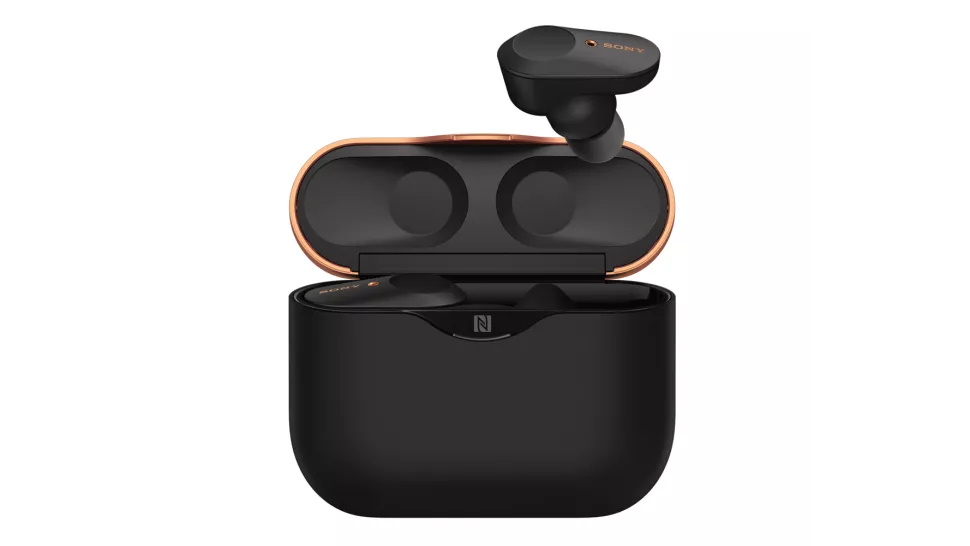
Когда вы откроете чехол и достанете наушники Sony, вы автоматически активируете режим сопряжения, что подтвердится голосом в каждом наушнике. Войдите в аудионастройки Bluetooth на своем смартфоне, компьютере Mac или ноутбуке, включите Bluetooth на этом устройстве – и после того как будут просканированы доступные устройства, WF-1000XM3 должны появиться в качестве варианта сопряжения. Щелкните по нему, и голос в наушниках подтвердит, что вы подключены и готовы слушать музыку.
Владельцы смартфонов под Android с функцией Near Field Communication могут извлечь наушники из чехла и поместить смартфон поблизости от логотипа NFC на передней панели зарядного чехла Sony. Для сопряжения будет достаточно простого соприкосновения.
Теперь каждый раз, когда вы извлечете наушники из чехла и вставите их в уши, вы будете слышать голосовое сообщение, подтверждающее соединение по Bluetooth (и оставшееся время работы аккумулятора). С наушниками Sony можно соединить до восьми различных устройств; если решите сменить источник, просто зайдите в настройки Bluetooth на устройстве, с которого хотите слушать музыку в данный момент, и выберите WF-1000XM3.
Чтобы подключиться к новому устройству, вставьте наушники в уши и приложите палец к сенсорным панелям на каждом из них. Через семь секунд голос сообщит вам, что процесс сопряжения Bluetooth начался, и вы сможете выбрать наушники на своем устройстве.
Подключение Sony WF-1000XM3 к нескольким устройствам
Sony WF-1000XM3 могут быть сопряжены с восемью устройствами, благодаря чему можно установить быстрое (иногда автоматическое) соединение, например, с ноутбуком, двумя телефонами семьи, планшетом и музыкальным плеером. При сопряжении девятого устройства оно просто заменяет собой самую старую позицию в списке. Однако музыка в момент звучания может воспроизводиться только с одного сопряженного устройства.
Сброс настроек Sony WF-1000XM3
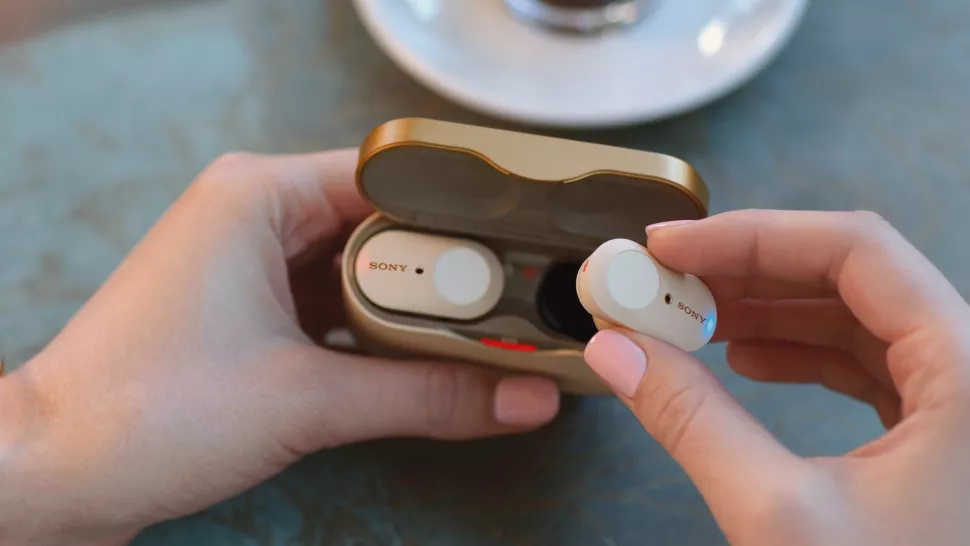
Чтобы выполнить базовую перезагрузку, поместите наушники в чехол и удерживайте палец на левом сенсорном датчике в течение 20 секунд. Когда красный индикатор перестанет мигать, повторите ту же процедуру с правым наушником.
Если вам нужно вернуть заводские настройки наушников, процесс будет таким же простым. Откройте корпус, убедитесь, что на каждом наушнике горит красный светодиодный индикатор, и одновременно удерживайте пальцы на обоих сенсорных датчиках. Через десять секунд отпустите пальцы; индикаторы должны вспыхнуть красным цветом, а затем четыре раза мигнуть синим. Это означает, что первоначальные настройки восстановлены.
Теперь можно заново запустить процесс сопряжения.
Зарядка Sony WF-1000XM3
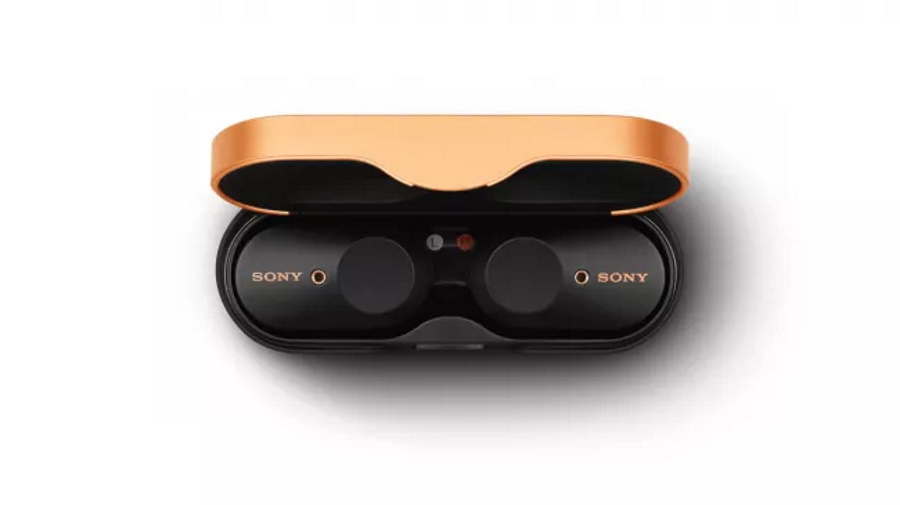
Наушники заряжаются автоматически, когда их помещают в зарядный футляр – конечно, при условии, что в футляре достаточно заряда. Когда он заканчивается, чехол необходимо подключить к розетке с помощью комплектного кабеля USB-C.
Комплектный кабель не очень удачен; он слишком короткий, что может оказаться проблемой в случае, если розетки расположены близко к полу. К счастью, для этой цели подойдет любой другой кабель USB-C.
Единственный потенциальный недостаток заключается в том, что, в отличие от Apple AirPods или Samsung Galaxy Buds Plus, Sony XM3 не поддерживают беспроводную зарядку. Если она вам необходима, выбирайте Sony XM4.
Настройка приложения Sony WF-1000XM3
После подключения по Bluetooth наушники готовы к работе. Чтобы получить доступ ко всем их функциям и возможностям, необходимо загрузить приложение Sony Headphones Connect в версии для iOS или Android.
Приложение позволяет использовать встроенный эквалайзер для корректировки звука, включать функции Adaptive Sound (адаптивное управление звуком) и Ambient Sound (режим окружающего звука) – и даже настроить наушники для воспроизведения музыки, закодированной в формате Sony 360 Reality Audio. В случае нестабильности подключения по Bluetooth можно установить приоритет качества соединения над качеством звука.
Увеличение продолжительности срока работы от аккумулятора Sony WF-1000XM3
У WF-1000XM3 очень приличное время автономной работы, но оно довольно сильно варьируется в зависимости от используемых функций.
Например, звуковой процессор Sony DSEE HX делает звучание WF-1000XM3 более детальным; однако за это приходится платить сокращением продолжительности автономной работы примерно до трех часов при включенных функциях шумоподавления и окружающего звука. Но стоит отключить обработку DSEE HX (что можно сделать с помощью приложения Headphones Connect), и срок работы приблизится к заявленным Sony шести часам.
Любопытно, что мелким шрифтом в руководстве Sony упоминается, что если наушники не используются в течение длительного времени, то продолжительность автономной работы может сократиться, но затем, после нескольких дополнительных подзарядок, она опять возрастет. Так что лучше пользоваться наушниками достаточно регулярно.
Проверка статуса аккумулятора Sony WF-1000XM3
Запустите приложение Headphones Connect, и в правом верхнем углу экрана вы увидите оставшееся время работы для левого и правого наушников. Также можно увидеть, сколько заряда осталось в чехле и достаточно ли его для зарядки наушников во время поездки.
Кроме того, каждый раз, когда вы начинаете использовать наушники, голосовые подсказки сообщают процент оставшегося заряда.
Наконец, индикатор заряда батареи можно увидеть на главном экране смартфона при использовании наушников. На iPhone значок аккумулятора показывает следующие градации: 100-70%, 70-50%, 50-20% и менее 20%. На телефонах под Android индикатор обозначает 100%, 70%, 50% или 20% оставшегося заряда.
Настройка сенсорных элементов управления Sony WF-1000XM3
Настройка выполняется в приложении Sony Headphones Connect. В разделе меню «Изменить функцию сенсорного датчика» можно увидеть, как в данный момент настроены левая и правая сенсорные панели.
Нажав на шестеренку, вы попадете в меню, где можно переключаться между различными функциями и назначать их определенному наушнику. Например, левый сенсор может изменять громкость, а правый – управлять воспроизведением. Если хотите назначить одному из датчиков функцию вызова Amazon Alexa или Google Assistant, это также можно сделать здесь.
Обновление Sony WF-1000XM3
Для обновления прошивки наушников есть два варианта. Сделать это можно вручную или автоматически, но в обоих случаях не обойтись без приложения Sony Headphones Connect.
Если вы выберете ручное обновление, вы будете получать уведомления о появлении нового обновления и предложение загрузить его в приложении, после чего оно будет перенесено с устройства на наушники. При выборе автоматического режима обновления все доступные прошивки будут загружаться и передаваться в фоновом режиме.
Как и в случае с большинством обновлений прошивок, будь то наушники или смартфоны, вернуться к предыдущей версии после обновления невозможно. Иногда стоит подождать несколько недель и поискать в Интернете сообщения о возникших проблемах, прежде чем разрешать установку обновления. Лучше перестраховаться, чем потом жалеть.
Являются ли Sony WF-1000XM3 водонепроницаемыми?
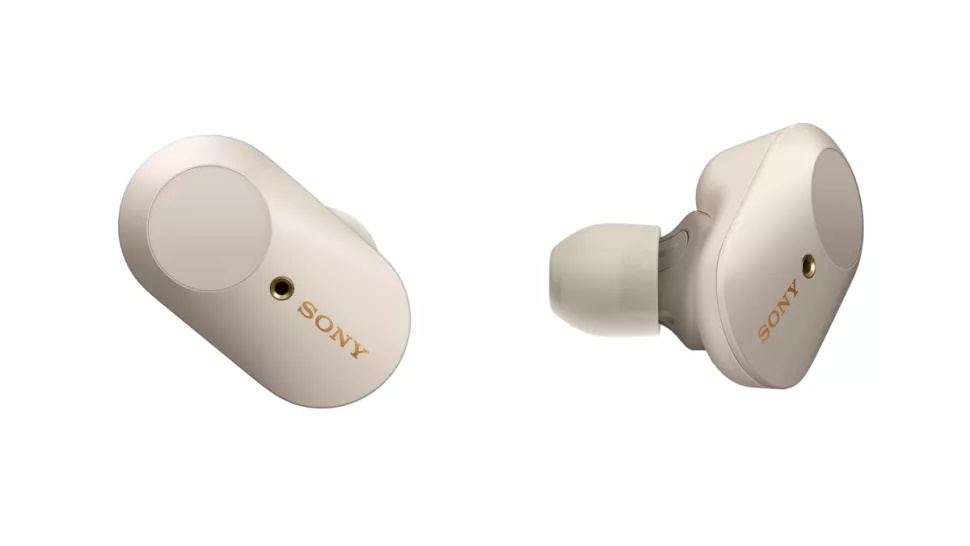
Одна из самых серьезных проблем для потенциальных владельцев заключается в том, что, несмотря на надежность фиксации, Sony WF-1000XM3 не являются водонепроницаемыми. У них нет сертификата IPX. В наши дни многие модели наушников имеют такой сертификат – по крайней мере, на сами чашечки – что обеспечивает определенную защиту.
Для обычного использования или для поездки на работу это не должно стать проблемой, однако лучше держать их подальше от воды.
Подходят ли Sony WF-1000XM3 для бега или спортзала?
Из-за отсутствия водонепроницаемости их нельзя назвать идеальными помощниками для занятий фитнесом. Если вы хотите приобрести пару для бега, вам нужны такие наушники, которые заведомо выдержат обливание капельками пота во время выполнения серии бурпи или попадание под проливной дождь во время бега.
Кроме того, эта модель – не самая компактная и незаметная в ношении.
Конечно, ничто не мешает вам попробовать их на тренировке. Но если вы собираетесь заниматься до седьмого пота, вам стоит выбрать подходящую пару из списка лучших спортивных наушников журнала What Hi-Fi?
Заслуживают ли Sony WF-1000XM3 внимания?
Судя по наградам журнала What Hi-Fi? за 2019 и 2020 годы, вполне заслуживают. Это одни из лучших по качеству звучания истинно беспроводных внутриканальных наушников, которые нам доводилось слышать, опережающие всех конкурентов по ценовой категории, включая Apple AirPods Pro, Sennheiser Momentum True Wireless 2, Bose QuietComfort Earbuds и Samsung Galaxy Buds Plus. Возможно, для занятий спортом мы бы поискали другую модель, но в остальном эти беспроводные наушники Sony, бесспорно, заслуживают рекомендации.
Этот обзор прочитали 13 741 раз
Код: 114352
Извините, товара сейчас нет в наличии
Бесплатная доставка
по Красноярску
Извините, товара сейчас нет в наличии
Новости интернет-магазина «Лаукар»:
Дополнительная информация в категории Наушники:
В интернет-магазине бытовой техники «Лаукар» Вы можете скачать инструкцию к товару Наушники Sony WF-1000XM3 совершенно бесплатно.
Все инструкции, представленные на сайте интернет-магазина бытовой техники «Лаукар», предоставляются производителем товара.
Перед началом использования товара рекомендуем Вам ознакомиться с инструкцией по применению.
Для того чтобы скачать инструкцию, Вам необходимо нажать на ссылку «скачать инструкцию», расположенную ниже, а в случае, если ссылки нет,
Вы можете попробовать обратиться к данной странице позднее,
возможно специалисты интернет-магазина бытовой техники «Лаукар» еще не успели загрузить для скачивания инструкцию к товару:
Наушники Sony WF-1000XM3.

Фирма-производитель оставляет за собой право на внесение изменений в конструкцию, дизайн и комплектацию товара: Наушники Sony WF-1000XM3. Пожалуйста, сверяйте информацию о товаре с информацией на
официальном сайте компании производителя.