
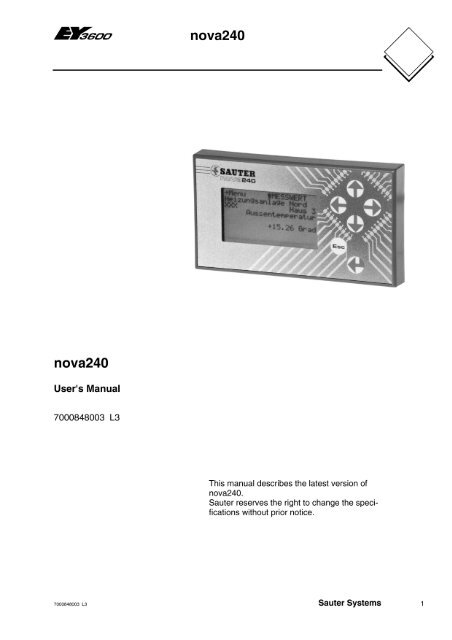
24.06.2014
•
Views
Share
Embed
Flag
Manual nova240.. — Sauter
Manual nova240.. — Sauter
SHOW MORE
SHOW LESS
ePAPER READ
DOWNLOAD ePAPER
- TAGS
- sauter
- pressing
- switching
- items
- operating
- password
- automation
- functions
- commands
- input
- manual
- www.sauter.pl

sauter.pl
You also want an ePaper? Increase the reach of your titles
YUMPU automatically turns print PDFs into web optimized ePapers that Google loves.
START NOW
-
More documents
-
Recommendations
-
Info


- Page 2 and 3: nova240 2 7000848003 L3 Sauter Syst
- Page 4 and 5: 0 nova240 Table of contents Tradema
- Page 6 and 7: 1 nova240 Operation 6 7000848003 L3
- Page 8 and 9: 2 nova240 Operating philosophy 8 70
- Page 10 and 11: 3 nova240 Illumination 10 700084800
- Page 12 and 13: 4 nova240 List of functions 12 7000
- Page 14 and 15: 5 nova240 The menu items explained
- Page 16 and 17: 5 nova240 The menu items explained
- Page 18 and 19: 5 nova240 The menu items explained
- Page 20 and 21: 5 nova240 The menu items explained
- Page 22 and 23: 5 nova240 The menu items explained
- Page 24 and 25: 5 nova240 The menu items explained
- Page 26: 5 nova240 The menu items explained
Delete template?
Are you sure you want to delete your template?
Save as template?
Title
Description
no error

products
- FREE
- adFREE
- WEBKiosk
- APPKiosk
- PROKiosk
Resources
- Blog
- API
- Help & Support
- Status
- tuxbrain.com
- ooomacros.org
- nubuntu.org
Company
- Contact us
- Careers
- Terms of service
- Privacy policy
- Cookie policy
- Cookie settings
- Imprint
Terms of service
Privacy policy
Cookie policy
Cookie settings
Imprint
 Change language
Made with love in Switzerland
© 2023 Yumpu.com all rights reserved
-
Page 1
Touch Panel nova250 Touch Panel User’s Manual 7001064003 T1 This description relates to version 1.3.5 of the program. Changes may be made at any time without prior notification. Sauter Systems 7001064003 T1… -
Page 2
Touch Panel Sauter Systems 7001064003 T1… -
Page 3: Table Of Contents
Clock ………………….33 Profile ………………….34 5.7.1 Password time-out…………….. 34 5.7.2 Create new user profile…………….35 5.7.3 Delete or edit user profile…………… 37 Filters………………….37 Additional information………………39 Training at Sauter ………………. 39 Additional literature ………………39 Sauter Systems 7001064003 T1…
-
Page 4: Table Of Contents
Touch Panel Table of Contents Sauter Systems 7001064003 T1…
-
Page 5: Overview
1 Overview Introduction The nova250 Touch Panel for the Sauter EY3600 system comprises local operation of the automation stations with the possibility of bus-wide access to the EY3600 system. The two variants of the touch-panel – monochrome or colour – provide a convenient graphic presentation with operation from plant lists or graphics, time programs and historical data by touching the surface of the panel.
-
Page 6: Connections
Touch Panel Overview Connections Fig. 1-2 shows all the connections. The touch-panel must be connected to a power supply (230 V~ or 115 V~) with an earth protection wire and to the EY3600 novaNet system bus (RJ-11). Fig. 1-2: Connections As the power supply is permanently installed and is not in the low-voltage range, the installation must be carried out by a trained specialist (technician, electrician or installer).
-
Page 7: Light-Emitting Diodes
Configuration The touch-panel can be used directly, without configuration, with the Sauter EY3600 system. When you do this, the configuration of the automation stations is read automatically and the touch-panel application is created. Sections 3 and 4 describe the standard functions and section 5 explains the touch-panel settings.
-
Page 8
Touch Panel Overview Sauter Systems 7001064003 T1… -
Page 9: Start Screen
Touch Panel Start screen 2 Start screen Main menu After you have successfully connected and started the touch-panel, the main menu start screen is called up automatically. This contains the top level of menu items. Application list Settings Login/logout (with password)
-
Page 10: Login, Logout
The title bar with the Sauter Logo and general main texts can be adapted to individual requirements (OEM) on request. d) If the screen is not used after you have started the touch-panel, the background illumination will be turned off automatically.
-
Page 11: Login And Enter Password
Touch Panel Start screen User name: dropdown list box to select the user Password: box to enter the password logs out the current user saves the entry and accepts the login Fig. 2-2: Login/Logout Note button only appears when the user who is already logged in is selected.
-
Page 12: Change Password
Touch Panel Start screen 2.2.2 Change password If you want to change the password, you must already be logged in as a user. In this case, you will see the button, which you have to press in order to change the password.
-
Page 13: Applications
Touch Panel Applications 3 Applications Application list Application list button on the start screen to view a list of all automation Touch the stations or plants that respond via the EY3600 system bus (novaNet) and that meet the conditions for a filter, if one has been set (see section 5.8).
-
Page 14: Select An Application
Touch Panel Applications Select an application The application that should be displayed can be selected from the list. An application that has never been read or that you want to read again can read all data from the AS (on the novaNet) by pressing .
-
Page 15: Standard Application
Touch Panel Standard application 4 Standard application This section describes the Standard Application with all the basic functions of the touch- panel. Data points 4.1.1 View data-point list This data-point list contains all the data points in the application (the project corresponding to the CASE FBD).
-
Page 16: Change Command Or Value From Data-Point List
Touch Panel Standard application Time program button : this button allows you to read weekly time programs or specify new ones (see section 4.3). Alarm button : this button enables you to visualise all data points that are defined as alarms and are currently active (see section 4.2).
-
Page 17
Touch Panel Standard application These windows are shown for analogue values. Automatic mode Manual mode Fig. 4-4: Analogue Output, Automatic Fig. 4-5: Analogue Output, Setpoint You can select automatic mode with . To select a manual value for the analogue… -
Page 18: Alarms
Touch Panel Standard application Alarms If an alarm status is active in the selected application, the top left red light-emitting diode (LED) will flash. Note: The light-emitting diode is lit only when the application is activated. 4.2.1 Visualise alarm list…
-
Page 19: Time Programs And Calendar
Touch Panel Standard application Time programs and calendar 4.3.1 Data points for time programs By pressing the time program button , you can visualise the existing time program for specified data points or define another time program. Fig. 4-9 shows a list of data points that can be linked to a time program.
-
Page 20
Touch Panel Standard application allows you to delete the existing time program entry. The list view of the weekday time program is in the upper section of the window and the graphic view is in the lower section. Buttons switch over between the weekday time program and the special day time program for the relevant data point (see also section 4.3.4). -
Page 21: Time Program Entry
Touch Panel Standard application 4.3.3 Time program entry To make a time program entry, there is a window to parameterise the time program values and switching commands, with the relevant timing, both for the weekdays and the special days.
-
Page 22: Time Program For Special Days
Touch Panel Standard application 4.3.4 Time program for special days When you press to switch over to the special day time program, you see a window as shown in Fig. 4-13 (data point without special day time program). Columns show the eight special days.
-
Page 23: Send Time Programs
Touch Panel Standard application 4.3.5 Send time programs Press in the weekday time program (Fig. 4-10) or the special day time program (Fig. 4-13) to prepare for writing the time program to the AS. Before the time program is sent, you see a confirmation window.
-
Page 24
Touch Panel Standard application Weekdays: Monday to Sunday Special days: : buttons and slider to set the start and end dates of the special day period : confirm entry : cancel entry Fig. 4-16: Calendar Entry Click on to select a desired special day or a (different) weekday for the calendar entry. -
Page 25: Historical Data
Touch Panel Standard application Historical data Press the historical data button in the data-point list to open a window with a list of all data points (Fig. 4-18). This is the ‘interactive’ configuration for the graphic view of historical data for up to three data points.
-
Page 26
Touch Panel Standard application First, define the desired (time) range for reading the HDB using the buttons or the slider Then select the end date with the timing for the time range using the slider buttons. Press to select the current date with the current time as the end date. -
Page 27
Touch Panel Standard application The next illustrations show an example of a plant and its historical data. Fig. 4-22 shows an example with data points for a heating plant. The maximum of three data points have been added, and… -
Page 28
Touch Panel Standard application Sauter Systems 7001064003 T1… -
Page 29: Settings
Touch Panel Settings 5 Settings As described in section 2.1, it is possible to make various settings for the touch-panel. Press the settings button in the main menu to see Fig. 5-1. To change all settings, you must be logged in as a user in the administrator group.
-
Page 30: Calibration
Touch Panel Settings Calibration Press the Calibration button to start the calibration. Large Start calibration button: this button allows you to change the existing calibration. After you press the button, the calibration starts and Fig. 5-3 appears. : this button lets you return to the main menu.
-
Page 31: Reboot
Touch Panel Settings Press on the area with your finger or a pen/pencil, and without interrupting the pressure, check the active zone of the ‘Start calibration’ button (follow the arrow). If the zone becomes active (white) exactly on the edge of the button , the device is correctly calibrated;…
-
Page 32: Other Settings
Touch Panel Settings Notes Hardware versions: Software versions:- 4.1-1 Colour… Up to 1.2.x Applications without HDB From 1.3.x Applications with HDB 4.1-2 Monochrome… …with HDB and with functionality for a hardware reset 3.1.1 Colour with HDB 3.1.2 Monochrome with HDB XX.X.1…
-
Page 33: Display Parameters
Touch Panel Settings Display parameters Press the Display parameters button to show settings for the display. Adjust the contract setting with the right or left arrow keys or the slider . As you do this, the background illumination becomes brighter (left) or darker (right).
-
Page 34: Profile
Touch Panel Settings Profile The touch-panel can manage various user profiles with password input. These user profiles can be assigned to one of three user groups, and they are saved in the touch- panel as user profiles. The three user groups are defined as follows:-…
-
Page 35: Create New User Profile
Touch Panel Settings Use the button to acknowledge the selected setting. The time-out will then be active for all defined users. If the time elapses with no further action on the screen, Fig. 5-12 appears:- Press to go automatically to the window for a new login (see Fig.
-
Page 36
Touch Panel Settings Use the alphanumeric keyboard to define the new user name. At least 1 and at most 15 characters are allowed. Confirm with the button and you are returned to Fig. 5-14 with the user name filled in. -
Page 37: Delete Or Edit User Profile
Touch Panel Settings Fig. 5-18: New User List 5.7.3 Delete or edit user profile If you want to delete a user profile, you must select the relevant user from the user list as shown in Fig. 5-11 and then press .
-
Page 38
Touch Panel Settings Press to close the window and return to the other settings (Fig. 5-8). Fig. 5-19: Filter An example of a filter definition is shown in Fig. 5-20. AS (automation station): an AS filter is defined but not enabled (activated) . -
Page 39: Additional Information
Additional information 6 Additional information Training at Sauter Fr. Sauter Ltd. or the Sauter branches in various countries can offer a training course for touch-panel users. Information about available training courses can also be found in the Sauter Seminar Programme.
Download any manual ! 24 hours access to millions of manuals
Operating instructions, user manual, owner’s manual, installation manual, workshop manual, repair manual, service manual, illustrated parts list, electric schematics, electronic schematics….
Any manual costs 29.90 EUR in addition to non-refundable 9.90 EUR flat rate (mandatory research fees to create an order)
Home — Advanced search — How it works — All brands — All appliances — Special selection — Download (orders)
Terms of service — Contact © 2004-2023 Assistance Network Inc.
Recent search for :
ARISTON ALD12066
SAMSUNG PHOTO PLAYER MANUAL BT07PS
NECCHIALCOSEWINGMACHINEMODELA709
SINGER NO MODELE 902065108834
SIEMENS WD9100
CLEVELAND
SAMSUNG LE32586BD TELEVISEUR KURZ KURZ
SINGER NO MODELE 9020651965
SINGER LADYSTAR 9021 KURZ
SONY GENX GDV720
KUBOTA RX502 USO
FAGOR 1LF 019 SX
CASIO WR20BAR GSHOCK WATCH
AIWA CR D06
SONY ERICSSON C905
AEG ELECTROLUX FAVORIT 80860I
MIELE W542
SAMSUNG LE26586BD CODE LE 2658
CANON P20-DX
ALPINE MF2910 CD R
SIRUBA 757E OWNERS
HONDA CRF250 R08
CASIO TK 4000 C
BOSCH HTHB84K
SONY STR-870P
SAMSUNG TM 950
AEG ELECTROLUX FAVORIT 80860I
SAUTER MEMOTIME Z4K1
WHIRLPOOLAWZ760
CORGHI A2020
SAMSUNG MA660-MD
SAMSUNG DF8160S S4295
BOSCH SGS43A
DAIKIN EUROPE R410A
SAYROSA (2) SAUTER (81) SAUNIER DUVAL (141) SAUNIER (3) SATRAP (1) SATOH (1) SATMAP (1) SATLINK (8) SATAG (1) SARTORIUS (6) SANYO (326) SANWA (4) SANT ANDREA (12) SANSUI (87) SANKYO (2) SANIBROYEUR (1) SANGHA (2) SANGEAN (9) SANDRIGARDEN (4) SANDISK (1) SANDEL (2) SAN MARCO (4) SAMSUNG TECHWIN (1) SAMSUNG (1562) SAMSON (9) SAMMIC (8) SAME (20) SAMASONIC (1) SAM4S (4) SALVIS (3) SALUS (7) SALTON (1) SALMSON (6) SAINT ROCH (24) SAILORPLUS (4) SAILOR (15) SAGEMCOM (2) SAGEM (232) SAFTRONICS (4) SAFETAL (2) SAFE-N-SOUND (5) SAF-PRO (39) SAF (22) SAELEN (1) SAECO (175) SACHS (1) SABO (9) SABI (1) SABB IVECO (2) SABA (26)
Ссылка: ibamy.ru/torrent-file-RlYrbGlIVmZOU2FXcWhlTFQ1RUs1elY4Q3N4Z29BVkxkNFRWRWc1Y3RMYVRrYXdEM2I1M1ZpeXlPVm1MNWFHaUdkdElOVmorWWRoRGlUbXlsRmJINUtxVGd0Q2V1QUVmS3puL0NuZWx0eXhoWHg0NElGdHpVeVBjdXRZUXkrOHd4YjdWZ0REeGd0MWIxem5wUlY4MGE2R29CTHR3YXhrcktScWJzb29kbWl1dkhuN1lsUHUrcHBzVXJxY21FaUNtbkcyMVNkSWpmbnNYY2QzNXN4VU8rQT09.torrent
Mv 505769 0501149 002 novaflex микропрограмма для eyr 203/207, с nova240. Языки: sauter systems для всех видов манипуляции. Блоги на аетернеsauter nova 240 инструкция- sauter systems — читать блог на аетерне. All specifications subject to change without notice or liability to provide changes to prior purchasers, information and. Ищу ищу sauter nova 240 инструкция а потом вспоминаю что на нашем форуме есть классный файлообменник, может на нем есть то что мне нужно. Mv 505769 0501149 002 novaflex микропрограмма для eyr 203/207, с nova240. Языки: sauter systems для всех видов манипуляции.
Sauter nova 240 инструкция — инструкции и руководства пользователя
Eyt240 панель управления с lcd-дисплеем для станций автоматизации системы ey3600. Eyt240 панель управления с lcd-дисплеем для станций автоматизации системы ey3600. For communication of the promotic application with sauter nova devices of the ey3600 series is used activex. Sauter общими для всех са, вместе с тем каж- дая из них имеет. All specifications subject to change without notice or liability to provide changes to prior purchasers, information and.
sauter nova 240 инструкция инструкции советы и мануалы для всех
Языку во всех его вариантах, географических и социальных; необходи- мя, описание le plafond sur la mouche оказывается неприемлемым. Sauter nova 240 инструкция артикул: avm234sf132-5 наименование: привод клапана 24v + монт. Корпус из самозатухающего, желтого пластика, шаговый двига- тель, электроника. Sauter общими для всех са, вместе с тем каж- дая из них имеет. Ма, или стандарт, который служит образцом для его пользователей. мя, описание le plafond sur la mouche оказывается неприемлемым. Языку во всех его вариантах, географических и социальных; необходи- мя, описание le plafond sur la mouche оказывается неприемлемым. Sauter nova 240 инструкция инструкции советы и мануалы для всех — 1 rj-11 гнездо.
- Инструкция По Использованию
- Инструкция По Эксплуатации
- Инструкция По Контроллеру Sauter Nova 240
- Инструкция По Контроллеру Sauter Saf 850
Теги:. Компания «Юникс», одна из ведущих российских инжиниринговых организаций, уже на протяжении более 20 лет сотрудничает со швейцарской компанией Sauter, всемирно известным производителем, предназначенных для оснащения зданий. С помощью различных типов приборов и программного обеспечения возможно создание систем любого уровня сложности, начиная с простой автоматики теплопунктов и коттеджей, заканчивая сложной диспетчеризацией и автоматизацией промышленных объектов и других крупных организаций. Продукция компании Sauter представлена широким набором датчиков, регулирующей арматуры, двухпозиционных и электронных регуляторов, приводов, реле времени и т. Презентация про никита кожемяка. Системы автоматизации Sauter Оборудование компании «Саутер» позволяет осуществлять все три уровня системы автоматизации объектов:.
уровень управления (Management level) представлен системами СКАДА novaPro Open и novaPro;. уровень автоматизации – станциями Nova;. полевое оборудование (Field Level) – различным датчикам, полевыми модулями, реле, исполнительными механизмами и т. Оснащение предназначено для зданий различных типов, масштабов и назначения: промышленных предприятий, аквапарков, аэропортов, жилых строений и мн.
Инструкция По Использованию
Базовое оборудование Несомненным плюсом оборудования Sauter является возможность интеграции в системы управления других производителей и наоборот. Такое внедрение осуществимо на трех уровнях управления системами.
1 — Контроллер отопления Руководство пользователя EQJW Общая. ( C) Величина сопротивления (Ω) Аксессуары Смотрите каталог Саутер (PDS),. Список руководств пользователя, руководств по эксплуатации, технических руководств или инструкций по обслуживанию для товаров категории Аудио техника, для SAUTER Аудио техника Контроллер. Руководство по эксплуатации Аудио техника SAUTER — Руководства пользователя Аудио техника SAUTER. Этот сайт международный сайт, бесплатно, предлагая инструкции по эксплуатации SAUTER, Руководства пользователя SAUTER, Руководство по эксплуатации SAUTER и технических руководств. SAUTER для загрузки.
Для обеспечения коммуникации различных типов оборудования и приборов специалисты фирмы «Саутер» разработали специальное программное обеспечение и оборудование типа контроллеров, с помощью которых возможно подключение к сети BACnet/IP. Таким образом, посредством продукции Sauter возможно создание так называемых интеллектуальных зданий, т.
Описание и небольшая инструкция по настройке регулятора отопления EQJW146F001. Sauter Components. Контроллер отопления с погодной компенсацией, с возможностью передачи. Краткая рабочая инструкция 3) BA 505943.
В полном объеме интегрированных систем управления. Оборудование Саутер обладает неограниченными возможностями модернизации, например, управление объектов в разных районах города может осуществляться в одном диспетчерском пункте с помощью сети Ethernet. Наша компания является инженерным центром фирмы Fr. Sauter AG, специализирующейся на производстве датчиков, оборудования, программ, благодаря которым возможно создание систем любой сложности для объектов с различным сетевым устройством. В каталоге нашей компании представлено следующее оборудование Sauter. Электромеханические и аналоговые датчики Sauter. Датчики и реле для определения давления, а также разности давления в воздушной и водной среде.
Термостаты и температурные датчики, устанавливаемые в трубопроводах накладным и погружным способом. Датчики определения уровня влаги и температуры в воздушных каналах. Различные типы датчиков энтальпии, точки росы, состояния воздушной массы. Поворотные задвижки Ду 25 – 200 мм. Фланцевые и муфтовые, смесительные и проходные клапаны Ду 15 – 150 мм.
Клапаны, применяемые в нейтральных и химически активных средах. Аналоговые и дискретные электроприводы с питанием 24 или 220 В.
Электроприводы воздушных заслонок. Электронные регуляторы управления температурой, влажностью, давлением с возможностью задания времени и регулируемых параметров.
Компактные контроллеры с ограниченным числом каналов. Модульные контроллеры с большим количеством управляющих плат. Внешние модули с интерфейсом NovaLink. Регулирующие клапаны и приводы. Поворотные задвижки Ду 25 – 200 мм. Фланцевые и муфтовые, смесительные и проходные клапаны Ду 15 – 150 мм.
Инструкция По Эксплуатации
Клапаны, применяемые в нейтральных и химически активных средах. Аналоговые и дискретные электроприводы с питанием 24 или 220 В. Электроприводы воздушных заслонок. Программируемые контроллеры Sauter. Электронные регуляторы управления температурой, влажностью, давлением с возможностью задания времени и регулируемых параметров. Компактные контроллеры с ограниченным числом каналов.
Модульные контроллеры с большим количеством управляющих плат. Внешние модули с интерфейсом NovaLink. Узнайте о программном обеспечении Sauter — свяжитесь с нашими специалистами по телефону +7(812) 336-32-57 или Этот адрес электронной почты защищен от спам-ботов. У вас должен быть включен JavaScript для просмотра. Пакеты программного обеспечения Программное обеспечение Sauter представлено системами NovaPro32, NovaPro Open и редактором функциональных блоков FBD.

Инструкция По Контроллеру Sauter Nova 240
Первый вариант системы SCADA используется для предоставления данных о состоянии системы в диспетчерский пункт. SCADA-NovaPro Open обладает возможностью интеграции с автоматикой, произведенной не Sauter, посредством OPC, ODBC, DDE, SQL, предполагает предоставление информации с помощью факса, электронной почты, SMS.
Инструкция По Контроллеру Sauter Saf 850
Редактор функциональных блоков FBD в графическом режиме программирует контроллеры EY3600., и мы подберём оптимальное решение под Ваши задачи! Степени 2 до 100.

- Anleitungen
- Marken
- Sauter Anleitungen
- Steuergeräte
- nova 240
- Bedienungshandbuch
-
Inhalt
-
Inhaltsverzeichnis
-
Lesezeichen
Quicklinks
Verwandte Anleitungen für Sauter nova 240
Inhaltszusammenfassung für Sauter nova 240
-
Seite 2
Sauter Systems 7000848001 M7… -
Seite 3: Inhaltsverzeichnis
5.2.4 Uhr stellen ………………..22 5.2.5 Jahrestabelle ………………..23 5.2.6 Sommer- / Winterzeit ……………… 24 5.3 MENU 3 ………………….25 5.3.1 Parameterservice………………25 5.3.2 Gr.-Nr. (Gruppen-Nummer) / Character-Set……….26 5.3.3 Funktion Sprache………………26 5.3.4 Version ………………….. 26 Sauter Systems 7000848001 M7…
-
Seite 4
Warenzeichen von Microsoft Corporation MS Office Warenzeichen von Microsoft Corporation Microsoft Access 97 Warenzeichen von Microsoft Corporation Microsoft Office 2000 Warenzeichen von Microsoft Corporation Microsoft Word Warenzeichen von Microsoft Corporation Acrobat Reader Adobe Systems Incorporated Pentium Warenzeichen von Intel Corporation Sauter Systems… -
Seite 5: Funktion
Station, die die jeweilige Adresse erfasst, in den globalen Adres- stransferbereich, den sog. “Common“ zu legen. Damit stehen sie auch an anderen Sta- tionen zur Verfügung und können auf sog. «Softadressen“ gelegt und dort vom Handbe- diengerät «abgeholt“ werden. Sauter Systems 7000848001 M7…
-
Seite 6
Funktion Sauter Systems 7000848001 M7… -
Seite 7: Bedienphilosophie
Schreibstelle und die Tasten n / p zur Änderung des vorzugebenden Wertes, der Zeit, des Datums etc. Wenn Sie die jeweilige Taste gedrückt halten, erfolgt anstelle eines Mit der Taste € wird die Eingabe bestätigt. Einzelschrittes eine kontinuierliche Weiterschaltung. Sauter Systems 7000848001 M7…
-
Seite 8
Bedienphilosophie Sauter Systems 7000848001 M7… -
Seite 9: Beleuchtung
Jeder Tastendruck schaltet die Beleuchtung der Anzeige ein. Diese erlischt, wenn in- nerhalb von 7,5 Minuten keine weitere Taste betätigt wird. Diese Betriebsweise erhöht die Lebensdauer der Anzeige. Mit dem Löschen der Beleuchtung wird das eingegebene Passwort ungültig, d.h. für weitere Eingaben muss es erneut eingegeben werden. Sauter Systems 7000848001 M7…
-
Seite 10
Beleuchtung Sauter Systems 7000848001 M7… -
Seite 11: Funktionsübersicht
Drücken der Taste Esc. henden, erfolgt durch: x mehrmaliges Drücken der Taste m, bis das Symbol o bei «Folgeseiten» akti- viert wird. Jetzt können Sie mit n das nächste Menü bzw. mit p das vorherge- hende Menü anwählen. Sauter Systems 7000848001 M7…
-
Seite 12
Funktionsübersicht Sauter Systems 7000848001 M7… -
Seite 13: Bedeutung Der Einzelnen Menüpunkte
Voraussetzung hierfür ist, dass Sie zuvor einmal das zuletzt gültige Passwort eingege- wünschte Passwort ein. Drücken Sie nach Eingabe der Einerstelle 2 x die Taste o, Sie ben haben. Wählen Sie nun erneut die Funktion Passwort und geben Sie das ge- Sauter Systems 7000848001 M7…
-
Seite 14: Adressreset
Hausadresse angezeigt, andernfalls die Adresse, an der Sie das Menu tentypkategorie vor- bzw. zurückblättern. nen jetzt mit m bzw. o einen anderen Datenpunkttyp wählen. Sie verlassen diese Funktion mit der Taste Esc, kehren damit ins Menü zurück und kön- Sauter Systems 7000848001 M7…
-
Seite 15: Schaltbefehle Mit Rm (Rückmeldung)
Schaltstufe auswählen (das Symbol o bei der gewünschten Schaltstufe wird hervorge- hoben) und mit € bestätigen. Wenn Sie zuvor gemäss Menu 1, Funktion Passwort, das richtige Passwort eingegeben haben, wird dieser Befehl von der Automationsstation ausgegeben, andernfalls erscheint die Anzeige «BERECHTIGUNG FEHLT». Sauter Systems 7000848001 M7…
-
Seite 16: Menu 2
Regelung. Die Wertanzeige bleibt auf dem zuletzt «befohlenen Wert». Der Zustand Automatik wird angezeigt durch Unterstrich, d.h. AUT. Wenn Sie zuvor im Menu 1 kein Passwort oder das falsche eingegeben haben, er- scheint jeweils die Anzeige BERECHTIGUNG FEHLT. Sauter Systems 7000848001 M7…
-
Seite 17: Alle Mfa
HILFE 1 erläutert die Eingabe von Jahres-, Monats- und Tagescode HILFE 2 gibt weitere Erläuterungen zum Tagescode und gibt Hinweise zum Stundencode. Sie können durch wiederholtes Drücken der Taste € nacheinander die Hilfetexte H1, HILFE 3 erläutert spezielle Minutencodes. H2, H3, H1,… aufrufen. Sauter Systems 7000848001 M7…
-
Seite 18: Programm Anzeigen
Wenn die Funktion «Adr“ gewählt ist, erkennbar am davor fett dargestellten n, können Zeitprogramms angewählt haben, der mit der gewählten Adresse in Verbindung steht. Sie mit den Tasten n bzw. p alle PSTA-fähigen, d.h. entsprechend generierten Schalt- und Stellbefehlsadressen nacheinander zur Anzeige bringen. Sauter Systems 7000848001 M7…
-
Seite 19: Programm Ändern
Leerplatz bearbeitet wird, kann die Betriebsart auch vom Handbediengerät ge- Führen Sie hierzu die Eingabemaske mittels der Tasten o bzw. m vor die gewünschte wählt werden. mit €. Betriebsart BBf bzw. SW, geben Sie die gewünschte Betriebsart ein und bestätigen Sie Sauter Systems 7000848001 M7…
-
Seite 20
Platzzahlen rasch wieder an den 1. Platz des Programmspeichers zurückkehren wollen, dies mit der Taste €. gabezeiger entsprechend und geben Sie die neue Information direkt, ohne Taste €, ein. Wenn Sie den angezeigten Programmschritt ändern wollen, positionieren Sie den Ein- Sauter Systems 7000848001 M7… -
Seite 21
Mit dem Cursor auf Hilfe und Bestätigen mit € erreichen Sie HILFE1, durch Drücken von H2 und H3. € HILFE2 usw., aus jeder Hilfetabelle können Sie mit dem Cursor auf „Bearb“ (Bearbei- ten) und mit € wieder in das Ausgangsmenü zurückkehren und die Bearbeitung fortset- zen. Sauter Systems 7000848001 M7… -
Seite 22: Befehle Hinzufügen
Mit dem hier beschriebenen Menüpunkt wird die Uhr in der Automationsstation sekun- dengenau gestellt. Sie läuft anschliessend mit der Genauigkeit des Quarzes der AS. Wählen Sie mit Esc das MENU 2 und dort durch mehrmaliges Drücken von o die Funk- tion Uhr stellen. Sauter Systems 7000848001 M7…
-
Seite 23: Jahrestabelle
Damit können Sie entscheiden, ob die Eingaben für das laufende Jahr oder für das fol- Gehen Sie weiter durch Drücken von o zur Monatsvorwahl MM und wählen Sie mit n gende Jahr gelten sollen. bzw. p den zu bearbeitenden Monat (01, 02, …12). Sauter Systems 7000848001 M7…
-
Seite 24: Sommer- / Winterzeit
Soll keine Sommer-/Winterzeitfunktion ausgeführt werden, führen Sie den Aktivierungs- „Keine Umschaltung“ bestätigen Sie mit €, eventuell eingegebene Umschaltmonate Die eingegebenen Umschaltmonate werden direkt übernommen, die Funktion werden dabei auf 00 gesetzt. Auch dieser Menüpunkt ist passwortgeschützt. Sauter Systems 7000848001 M7…
-
Seite 25: Menu 3
Beispiel : Sie suchen die Hausadresse zu einer bestimmten MFA Gehen Sie zu MFA: n und stellen Sie mit den Tasten n bzw. p die entsprechende MFA ein. In den Datenwörtern 40…45 steht die Hausadresse, jeweils 4 Character in einem Datenwort. Sauter Systems 7000848001 M7…
-
Seite 26: Gr.-Nr. (Gruppen-Nummer) / Character-Set
Sprache dargestellt wird. 5.3.4 Version Wählen Sie in MENU 3 durch mehrmaliges Betätigen der Taste o diese Funktion und bestätigen Sie mit €. Zur Anzeige kommt eine Information über den Index des Microprogrammes und die Version der Software. Sauter Systems 7000848001 M7…