
Просмотр
Доступно к просмотру 89 страниц. Рекомендуем вам скачать файл инструкции, поскольку онлайн просмотр документа может сильно отличаться от оригинала.
-
Данное руководство предназначено только для ознакомления. Информация, содержащаяся в руководстве, может быть изменена без предупреждения. Компания
Samsung Electronics не несет ответственности за какие бы то ни было изменения, прямые или косвенные, вызванные или связанные с использованием данного
руководства.
© 2006 Samsung Electronics Co., Ltd. Все права защищены.
• CLP-300 и CLP-300N являются названиями моделей принтеров Samsung Electronics Co., Ltd.
• Название SAMSUNG и логотип Samsung являются торговыми марками компании Samsung Electronics co., Ltd.
• Apple, TrueType, Laser Writer и Macintosh являются торговыми марками корпорации Apple Computer, Inc.
• Microsoft, Windows, Windows 98, Windows Me, Windows 2000, Windows 2003, Windows NT 4.0, and Windows XP являются зарегистрированными
торговыми марками корпорации Microsoft.
• Все прочие бренды и названия изделий являются торговыми марками соответствующих компаний и организаций.
-
contact SAMSUNG worldwide
If you have any comments or questions regarding Samsung products, contact the Samsung customer care center.
COUNTRY      CUSTOMER CARE CENTER          WEB SITE
COUNTRY      CUSTOMER CARE CENTER         WEB SITE
INDONESIA      0800-112-8888            www.samsung.com
ARGENTINE     0800-333-3733            www.samsung.com/ar
ITALIA         800-SAMSUNG (726-7864)   www.samsung.com
AUSTRALIA     1300 362 603             www.samsung.com
JAMAICA        1-800-234-7267           www.samsung.com/latin
AUSTRIA       0800-SAMSUNG (726-7864)  www.samsung.com/at
JAPAN          0120-327-527             www.samsung.com/jp
BELGIUM       0032 (0)2 201 24 18      www.samsung.com/be
LATVIA         800-7267                 www.samsung.com/lv
BRAZIL        0800-124-421             www.samsung.com
4004-0000                                             LITHUANIA      8-800-77777              www.samsung.com/lt
CANADA        1-800-SAMSUNG (726-7864)  www.samsung.com/ca          LUXEMBURG      0035 (0)2 261 03 710     www.samsung.com/be
CHILE         800-SAMSUNG (726-7864 )  www.samsung.com/cl           MALAYSIA       1800-88-9999             www.samsung.com/my
CHINA         800-810-5858             www.samsung.com.cn           MEXICO         01-800-SAMSUNG (726-     www.samsung.com
010- 6475 1880                                                       7864)
COLOMBIA      01-8000-112-112          www.samsung.com/co           NETHERLANDS    0900-SAMSUNG (726-7864 €   www.samsung.com/nl
0,10/Min)
COSTA RICA    0-800-507-7267           www.samsung.com/latin
NEW ZEALAND    0800SAMSUNG (726-7864)   www.samsung.com/nz
CZECH         844 000 844              www.samsung.com/cz
REPUBLIC                                                            NICARAGUA      00-1800-5077267
Distributor pro Ceskou republiku : Samsung Zrt., ceska
organizacni slozka Vyskocilova 4, 14000 Praha 4       NORWAY         815-56 480               www.samsung.com/no
DENMARK       70 70 19 70              www.samsung.com/dk           PANAMA         800-7267                 www.samsung.com/latin
ECUADOR       1-800-10-7267            www.samsung.com/latin        PHILIPPINES    1800-10-SAMSUNG (726-    www.samsung.com/ph
7864)
EL SALVADOR   800-6225                 www.samsung.com/latin
POLAND         0 801 801 881            www.samsung.com/pl
ESTONIA       800-7267                 www.samsung.ee                              022-607-93-33
KAZAHSTAN     8-10-800-500-55-500      www.samsung.kz               PORTUGAL       80820-SAMSUNG (726-7864)  www.samsung.com/pt
KYRGYZSTAN    00-800-500-55-500                                     PUERTO RICO    1-800-682-3180           www.samsung.com/latin
FINLAND       030-6227 515             www.samsung.com/fi           REP.           1-800-751-2676           www.samsung.com/latin
DOMINICA
FRANCE        3260 SAMSUNG 08 25 08 65   www.samsung.com
65 (€ 0,15/min)                                       EIRE           0818 717 100             www.samsung.com/ie
GERMANY       01805 - SAMSUNG (726-    www.samsung.com              RUSSIA         8-800-555-55-55          www.samsung.com
7864 (€  0,14/Min)
SINGAPORE      1800-SAMSUNG (726-7864)  www.samsung.com/sg
GUATEMALA     1-800-299-0013           www.samsung.com/latin
SLOVAKIA       0800-SAMSUNG (726-7864)  www.samsung.com/sk
HONDURAS      800-7919267
SOUTH          0860-SAMSUNG (726-7864 )  www.samsung.com
HONG KONG     3698-4698                www.samsung.com/hk           AFRICA
HUNGARY       06-80-SAMSUNG (726-7864)  www.samsung.com             SPAIN          902 10 11 30             www.samsung.com
INDIA         3030 8282                www.samsung.com              SWEDEN         0771-400 200             www.samsung.com/se
1800 110011
-
COUNTRY      CUSTOMER CARE CENTER         WEB SITE
SWITZERLAND   0800-SAMSUNG (726-7864)  www.samsung.com/ch
TADJIKISTAN   8-10-800-500-55-500
TAIWAN        0800-329-999             www.samsung.com
THAILAND      1800-29-3232             www.samsung.com/th
02-689-3232
TRINIDAD &    1-800-SAMSUNG (726-7864)  www.samsung.com/latin
TOBAGO
TURKEY        444 77 11                www.samsung.com
U.A.E         800-SAMSUNG (726-7864)   www.samsung.com
8000-4726
U.K           0845 SAMSUNG (726-7864)  www.samsung.com
U.S.A.        1-800-SAMSUNG (726-7864)  www.samsung.com/us
UKRAINE       8-800-502-0000           www.samsung.com
UZBEKISTAN    8-10-800-500-55-500      www.samsung.com.uz
VENEZUELA     0-800-100-5303           www.samsung.com/latin
VIETNAM       1 800 588 889            www.samsung.com
- 1
- 2
- 3
- 4
- 89
-
Драйверы
12
-
Руководства по ремонту
2
-
Инструкции по эксплуатации
4
Языки:

Samsung CLP-300 инструкция по эксплуатации
(90 страниц)
- Языки:Английский
-
Тип:
PDF -
Размер:
5.99 MB
Просмотр

Samsung CLP-300 инструкция по эксплуатации
(91 страница)
- Языки:Португальский
-
Тип:
PDF -
Размер:
6 MB
Просмотр

Samsung CLP-300 инструкция по эксплуатации
(92 страницы)
- Языки:Немецкий
-
Тип:
PDF -
Размер:
6 MB
Просмотр

Samsung CLP-300 инструкция по эксплуатации
(93 страницы)
- Языки:Испанский
-
Тип:
PDF -
Размер:
6.12 MB
Просмотр
На NoDevice можно скачать инструкцию по эксплуатации для Samsung CLP-300. Руководство пользователя необходимо для ознакомления с правилами установки и эксплуатации Samsung CLP-300. Инструкции по использованию помогут правильно настроить Samsung CLP-300, исправить ошибки и выявить неполадки.
-
Page 1
COLOR LASER PRINTER User’s Guide CLP-300 Series… -
Page 2
This manual is provided for information purposes only. All information included herein is subject to change without notice. Samsung Electronics is not responsible for any changes, direct or indirect, arising from or related to use of this manual. © 2006 Samsung Electronics Co., Ltd. All rights reserved. -
Page 3: Contact Samsung Worldwide
SAMSUNG worldwide If you have any comments or questions regarding Samsung products, contact the Samsung customer care center. COUNTRY CUSTOMER CARE CENTER ARGENTINE 0800-333-3733 AUSTRALIA 1300 362 603 AUSTRIA 0800-SAMSUNG (726-7864) BELGIUM 0032 (0)2 201 24 18 BRAZIL 0800-124-421…
-
Page 4
8-10-800-500-55-500 TAIWAN 0800-329-999 THAILAND 1800-29-3232 02-689-3232 TRINIDAD & 1-800-SAMSUNG (726-7864) TOBAGO TURKEY 444 77 11 U.A.E 800-SAMSUNG (726-7864) 8000-4726 0845 SAMSUNG (726-7864) U.S.A. 1-800-SAMSUNG (726-7864) UKRAINE 8-800-502-0000 UZBEKISTAN 8-10-800-500-55-500 VENEZUELA 0-800-100-5303 VIETNAM 1 800 588 889 WEB SITE www.samsung.com/ch www.samsung.com www.samsung.com/th… -
Page 5: Table Of Contents
ONTENTS 1.Introduction Special Features … 1.1 Printer Components … 1.2 Front View … 1.2 Rear View … 1.2 Understanding the Control Panel … 1.3 LEDs … 1.3 Stop button … 1.3 2.Setting Up Your Printer Unpacking … 2.1 Installing the Toner Cartridges … 2.2 Loading Paper …
-
Page 6
Cleaning the Printer … 5.7 Cleaning the Outside of the Printer … 5.7 Cleaning the Inside of the Printer … 5.7 Managing the Printer from the Website (CLP-300N only) … 5.8 6.Solving Problems Troubleshooting Checklist … 6.1 Solving General Printing Problems … 6.2 Clearing Paper Jams … -
Page 7: Laser Safety Statement
Important Precautions and Safety Information When using this machine, these basic safety precautions should always be followed to reduce risk of fire, electric shock, and injury to people: Read and understand all instructions. Use common sense whenever operating electrical appliances. Follow all warnings and instructions marked on the machine and in the literature accompanying the machine.
-
Page 8: Ozone Safety
However, it is advisable that the machine be operated in a well ventilated area. If you need additional information about ozone, please contact your nearest Samsung dealer. Power Saver This printer contains advanced energy conservation technology that reduces power consumption when it is not in active use.
-
Page 9: Declaration Of Conformity
A full declaration, defining the relevant Directives and referenced standards can be obtained from your Samsung Electronics Co., Ltd. representative. Replacing the Fitted Plug (for UK Only) MPORTANT The mains lead for this machine is fitted with a standard (BS 1363) 13 amp plug and has a 13 amp fuse.
-
Page 10: Declaration Of Conformity
#259, Gongdan-Dong, Gumi-City, Gyeongsangbuk-Do, 730-030 Korea of Samsung Electronics (Shandong) Digital Printing Co., Ltd. 264209, Samsung Road, Weihai Hi-Tech. IDZ, Shandong Province, P.R.China of Weihai Shin Heung Digital Electronics Co., Ltd. 98, Samsung Road, Weihai Hi-Tech. IDZ, Shandong Province, P.R.China.
-
Page 11: Introduction
Introduction Congratulations on the purchase of your printer! This chapter includes: • Special Features • Printer Components • Understanding the Control Panel Special Features Your new printer is equipped with several special features that will improve print quality. You can: Print in color with excellent quality and speed •…
-
Page 12: Printer Components
Printer Components These are the main components of your printer. Note that all illustrations on this User’s Guide are from the CLP-300N and that some parts may be different from your printer. Front View Output Tray (Face down) Output Support Front Cover (Open to access the toner cartridges and…
-
Page 13: Understanding The Control Panel
Understanding the Control Panel LEDs Status Toner Description LEDs lights All LEDs The printer is ready to print. green slowly All LEDs The printer is receiving data from blinks the computer. green fast blinks All LEDs The printer is printing data. green lights red All LEDs…
-
Page 14: Setting Up Your Printer
Setting Up Your Printer This chapter gives you step-by-step instructions for setting up your printer. This chapter includes: • Unpacking • Installing the Toner Cartridges • Loading Paper • Connecting a Printer Cable • Turning the Printer On • Printing a Demo Page •…
-
Page 15: Installing The Toner Cartridges
Installing the Toner Cartridges Open the front cover. Pull and remove the paper protecting the imaging unit. Remove four dummy caps which are on the toner cartridge entrances of the imaging unit. When you remove the dummy cap from the cartridge, lift the handle up and pull it out. : If you force too much to the dummy caps, it may AUTION cause problem.
-
Page 16: Loading Paper
Grasp the toner cartridges and align them with the slots inside the printer. Insert them into their corresponding slots until they click into place. Close the front cover. Make sure that the cover is securely closed. : If the front cover is not completely closed, the AUTION printer will not operate.
-
Page 17
Flex the paper sheets back and forth to separate the pages and then fan them while holding one edge. Tap the edges of the stack on a flat surface to even it up. Load paper with the print side up. Make sure not to overfill the tray and that all four corners are flat in the tray and under the brackets, as shown below. -
Page 18: Changing The Size Of The Paper In The Tray
Changing the Size of the Paper in the Tray To change the tray size to other size, you must adjust the paper length guide properly. Pull the tray out of the printer. Open the paper cover and remove paper from the tray if necessary. Pressing and unlatching the guide lock in the top of the tray, pull the tray out manually.
-
Page 19: Connecting A Printer Cable
Connecting a Printer Cable For Local Printing To print from your computer in a local environment, you need to connect your printer to the computer with a Universal Serial Bus (USB) cable. : Connecting the printer to the USB port of the computer requires a certified USB cable.
-
Page 20: Turning The Printer On
Turning the Printer On Plug the power cord into the power receptacle on the rear of the printer. Plug the other end into a properly grounded AC outlet and turn on the power. If there is a AUTION cracking sound, re-install the imaging unit.
-
Page 21: Installing The Printer Software
• Printer driver for Windows. Use this driver to take full advantage of your printer’s features. See the Software Section for details about installing the Samsung printer driver. • Smart Panel. Appears when printing errors occur. See the Software Section for details about installing the Smart Panel program.
-
Page 22: Using Print Materials
Using Print Materials This chapter describes the types of paper you can use with your printer and how to properly load paper in the tray for the best print quality. This chapter includes: • Choosing Paper and Other Materials • Verifying the Output Location •…
-
Page 23: Verifying The Output Location
Verifying the Output Location The printer has the output tray that collects paper face-down, in correct order. OTES • If you continuously print many pages, the surface of the output tray may become hot. Be careful not to touch the surface, and especially keep children away from the surface.
-
Page 24: Printing On Special Print Materials
Printing on Special Print Materials Printing on Envelopes • Only use envelopes recommended for your printer. Before loading envelopes in the tray, make sure that they are undamaged and are not stuck together. • Do not feed stamped envelopes. • Never use envelopes with clasps, snaps, windows, coated linings, or self-stick adhesives.
-
Page 25: Printing On Transparencies
Printing on Transparencies • Place them on a flat surface after removing them from the machine. • Do not leave them in the tray for long periods of time. Dust and dirt may accumulate on them resulting in spotty printing. •…
-
Page 26: Printing On Card Stock Or Custom-Sized Materials
Printing on Card Stock or Custom-sized Materials • Postcards, 3in by 5in (index) cards, and other custom-sized materials can be printed with your printer. The minimum size is 3in by 5in (76mm by 127mm) and the maximum size is 8.5in by 14in (216mm by 356mm). •…
-
Page 27: Basic Printing
Click the Windows Start button. For Windows 98/NT 4.0/2000/Me, select Settings and then Printers. For Windows XP/2003, select Printers and Faxes. Double-click the Samsung CLP-300 Series icon. From the Document menu, select Cancel Printing (Windows 98/Me) or Cancel (Windows NT 4.0/2000/XP/ 2003).
-
Page 28: Maintaining Your Printer
**Image counts based on one color on each page. If you print documents in full color (Cyan, Magenta, Yellow, Black), the life of this item will be reduced by 25%. To purchase replacement parts, contact your Samsung dealer or the retailer where you bought your printer. We strongly recommend that items be installed by a trained service professional, except for the toner cartridges (see 5.3), the…
-
Page 29: Managing Toner Cartridges
Managing Toner Cartridges Toner Cartridge Storage To get the maximum results from a toner cartridge, keep the following guidelines in mind: • Do not remove toner cartridges from their packages until you are ready to use them. • Do not refill toner cartridges. The printer warranty does not cover damage caused by using a refilled cartridge.
-
Page 30: Replacing Toner Cartridges
Grasp the toner cartridge and align it with the corresponding slot inside the printer. Insert it back into its slot until it clicks into place. : If toner gets on your clothing, wipe it off with a dry cloth and wash it in cold water. Hot water sets toner into fabric. Close the front cover.
-
Page 31: Replacing The Imaging Unit
Remove the cartridge cap. : If toner gets on your clothing, wipe it off with a dry cloth and wash it in cold water. Hot water sets toner into fabric. Grasp the toner cartridge and align it with the corresponding slot inside the printer. Insert it into its slot until it clicks into place.
-
Page 32
Extend the top handle on the imaging unit and then use it to pull the imaging unit out of the printer completely. Take a new imaging unit out of its package. Remove the protective devices on both sides of the imaging unit and the paper protecting the surface of the imaging unit. -
Page 33: Replacing The Waste Toner Container
Replacing the Waste Toner Container The life of the waste toner container unit is approximately 1,250 pages for full color 5% image or 5,000 pages for black. When the life span of the waste toner container has expired, the Smart Panel program window appears on the computer, indicating the waste toner container needs to be replaced.
-
Page 34: Cleaning The Printer
Cleaning the Printer During the printing process, particles of paper, toner, and dust can accumulate inside the printer. Over time, this build-up can cause print quality problems such as toner specks or smearing. Your printer has a cleaning mode that can correct and prevent these types of problems.
-
Page 35: Managing The Printer From The Website (Clp-300N Only)
Push the imaging unit until it sounds ‘click’ in to the printer. Close the front cover firmly. : If the front cover is not completely closed, the AUTION printer will not operate. Plug the power cord in and turn the printer on. If there is a AUTION cracking sound, re-install…
-
Page 36: Solving Problems
Solving Problems This chapter provides helpful information for what to do if you encounter an error while using your printer. This chapter includes: • Troubleshooting Checklist • Solving General Printing Problems • Clearing Paper Jams • Solving Print Quality Problems •…
-
Page 37: Solving General Printing Problems
Check the power switch and the print. power source. The printer is not Select Samsung CLP-300 Series selected as the as your default printer. default printer. Check the printer for After locating the problem, clear it.
-
Page 38: Clearing Paper Jams
Problem Possible Cause Half the The page orientation Change the page orientation in your page is setting may be application. For details, see the blank. incorrect. Software Section. The paper size and Ensure that the paper size in the the paper size printer driver settings matches the settings do not paper in the tray.
-
Page 39
If you cannot find the jammed paper, go to the next step. To remove the jammed paper, open the rear cover. Carefully remove the paper by pulling in the direction as shown below. Most of the jammed paper can be removed in this step. -
Page 40: Tips For Avoiding Paper Jams
Tips for Avoiding Paper Jams By selecting the correct paper types, most paper jams can be avoided. If a paper jam occurs, follow the steps outlined in “Clearing Paper Jams” on page 6.3. • Follow the procedures on page 3.2. Ensure that the adjustable guides are positioned correctly.
-
Page 41
Problem Solution Vertical lines If black vertical streaks appear on the page: • A imaging unit has probably been scratched. AaBbCc Remove the imaging unit and install a new one. See AaBbCc page 5.3. If white vertical lines appear on the page: AaBbCc •… -
Page 42
Problem Solution Back of • Check for leaking toner. Clean the inside of the printouts are printer. See “Cleaning the Inside of the Printer” on dirty page 5.7. Solid Color or • The toner cartridge may not be installed properly. Black pages Remove the toner cartridge and reinsert. -
Page 43: Troubleshooting Error Messages
See “Replacing Toner Cartridges” on page 5.3 • The lighting toner cartridge is wrong. Only install a Samsung toner cartridge, designed for your printer. • A paper jam has occurred. To solve the problem, see “Clearing Paper Jams” on page 6.3.
-
Page 44: Common Macintosh Problems
Common Macintosh Problems Problem Possible Cause and Solution The printer does not Incompatibility between the PDF file and the print PDF file correctly. Acrobat products: Some parts of graphics, Printing the PDF file as an image may solve this text, or illustrations are problem.
-
Page 45
Problem Possible Cause and Solution I am using BSD lpr Legacy BSD lpr systems have a hard limitation on (Slackware, Debian, the length of the option string that can be passed to older distributions) the printing system. As such, if you selected a and some options number of different options, you may have chosen in LLPR don’t… -
Page 46: Using Your Printer On A Network
Open the language folder you want to use. Double click Setup.exe to install this program. From the Windows Start menu, select Programs > Samsung Network Printer Utilities > SetIP. Using Your Printer on a Network Requirements Ethernet 10/100 Base-TX (standard) •…
-
Page 47
Select the name of your printer and click » : If you cannot find your printer name click » refresh the list. Enter the network card’s MAC address, IP address, subnet mask, default gateway, and then click Apply. : If you do not know the network card’s MAC address, print the machine’s network information report. -
Page 48: Specifications
• Some paper may meet all of the guidelines in this guide and still not produce satisfactory results. This may be the result of improper handling, unacceptable temperature and humidity levels, or other variables over which Samsung has no control. • Before purchasing large quantities of paper, ensure that the paper meets the requirements specified in this User’s Guide.
-
Page 49: Supported Sizes Of Paper
Supported Sizes of Paper Tray (mm/in) Paper tray Plain paper Tray Letter (216 x 279/8.5 x 11) A4 (210 x 297/8.27 x 11.69) A5 (148 x 210/5.83 x 8.27) Executive (184 x 267/7.25 x 10.5) Manual feed Legal (216 x 356/8.5 x 14) JIS B5 (182 x 257/7.17 x 10.12) A6 (105 x 148/4.13 x 5.83) Oficio (216 x 343/8.5 x 13.5)
-
Page 50: Paper Specifications
Paper Specifications Category Specifications Acid Content 5.5 ~ 8.0 pH Caliper 0.094 ~ 0.18 mm (3.0 ~ 7.0 mils) Curl in Ream Flat within 5 mm (0.02 in) Cut Edge Conditions Cut with sharp blades with no visible fray. Fusing Compatibility Must not scorch, melt, offset, or release hazardous emissions when heated to 180 °C (356 °F) for 0.1…
-
Page 51: Labels
• Condition: Envelopes should not be wrinkled, nicked, or otherwise damaged. • Temperature: You should use envelopes that are compatible with the heat and pressure of the printer. • Size: You should only use envelopes within the following size ranges. Minimum Tray 3 x 5 in…
-
Page 52
NDEX card stock, print 3.5 cleaning inside 5.7 outside 5.7 components 1.2 configuration page, print 5.1 connecting network 2.6 USB 2.6 custom-sized materials, print 3.5 demo page, print 2.7 envelopes, print 3.3 features 1.1 imaging unit life 8.1 replace 5.4 labels, print 3.3 LEDs status 1.3 Linux… -
Page 53: Software Section
Samsung Printer Software section…
-
Page 54
Software section Contents NSTALLING Chapter 1: Installing Printer Software … 4 Installing Software for Local Printing … 4 Installing Software for Network Printing … 7 Reinstalling Printer Software … 10 Removing Printer Software … 11 ASIC Chapter 2: Printing a Document … 12 Printer Settings … -
Page 55
Using an Existing Watermark … 21 Creating a Watermark … 21 Editing a Watermark … 21 Deleting a Watermark … 21 Using Overlays … 22 What is an Overlay? … 22 Creating a New Page Overlay … 22 Using a Page Overlay … 23 Deleting a Page Overlay … -
Page 56
SING RINTER WITH A Chapter 7: Installing Software for Macintosh … 32 Setting Up the Printer … 33 For a Network-connected Macintosh … 33 For a USB-connected Macintosh … 33 Printing … 34 Printing a Document … 34 Changing Printer Settings … 34 Printing Multiple Pages on One Sheet of Paper … -
Page 57: Installing Printer Software In Windows
Installing Printer Software in Windows This chapter includes: • Installing Printer Software • Reinstalling Printer Software • Removing Printer Software Installing Printer Software You can install the printer software for local printing or network printing. To install the printer software on the computer, perform the appropriate installation procedure depending on the printer in use.
-
Page 58: Custom Installation
If the test page prints out correctly, click Yes. If not, click No to reprint it. To register yourself as a user of Samsung Printers in order to receive information from Samsung, select the checkbox and click Finish. You are now sent to the Samsung web site.
-
Page 59
Click Next. • If necessary, select a language from the drop-down list. • View User’s Guide: Allows you to view the User’s Guide. If your computer doesn’t have Adobe Acrobat, click on this option and it will automatically install Adobe Acrobat Reader for you. -
Page 60: Installing Software For Network Printing
To register yourself as a user of Samsung Printers in order to receive information from Samsung, select the checkbox and click Finish. You are now sent to the Samsung web site. Otherwise, just click Finish. Installing Software for Network Printing When you connect your printer to a network, you must first configure the TCP/IP settings for the printer.
-
Page 61
After the installation is finished, a window appears asking you to print a test page and to register yourself as a user of Samsung Printers in order to receive information from Samsung. If you so desire, select the corresponding checkbox(es) and click Finish. -
Page 62
After the installation is finished, a window appears asking you to print a test page and to register yourself as a user of Samsung Printers in order to receive information from Samsung. If you so desire, select the corresponding checkbox(es) and click Finish. -
Page 63: Reinstalling Printer Software
Reinstalling Printer Software You can reinstall the software if installation fails. Start Windows. From the Start menu select Programs or All Programs → your printer driver name → Maintenance. Select Repair and click Next The list of printers available on the network appears. Select the printer you want to install from the list and then click Next.
-
Page 64: Removing Printer Software
Removing Printer Software Start Windows. From the Start menu select Programs or All Programs → your printer driver name → Maintenance. Select Remove and click Next. You will see a component list so that you can remove any item individually. Select the components you want to remove and then click Next.
-
Page 65: Basic Printing
Basic Printing This chapter explains the printing options and common printing tasks in Windows. This chapter includes: • Printing a Document • Printer Settings — Layout Tab — Paper Tab — Graphics Tab — Extras Tab — About Tab — Printer Tab — Using a Favorite Setting — Using Help Printing a Document…
-
Page 66: Printer Settings
Printer Settings You can use the printer properties window, which allows you to access all of the printer options you need when using your printer. When the printer properties are displayed, you can review and change the settings needed for your print job. Your printer properties window may differ, depending on your operating system.
-
Page 67: Paper Tab
Paper Tab Use the following options to set the basic paper handling specifications when you access the printer properties. See “Printing a Document” on page 12 for more information on accessing printer properties. Click the Paper tab to access various paper properties. Copies Copies allows you to choose the number of copies to be printed.
-
Page 68: Graphics Tab
Graphics Tab Use the following Graphic options to adjust the print quality for your specific printing needs. See “Printing a Document” on page 12 for more information on accessing printer properties. Click the Graphics tab to display the properties shown below. Quality The Resolution options you can select may vary depending on your printer model.
-
Page 69: Extras Tab
Extras Tab You can select output options for your document. See “Printing a Document” on page 12 for more information about accessing the printer properties. Click the Extras tab to access the following feature: Watermark You can create a background text image to be printed on each page of your document.
-
Page 70: Advanced Printing
Advanced Printing This chapter explains printing options and advanced printing tasks. OTES • Your printer driver Properties window that appears in this User’s Guide may differ depending on the printer in use. However the composition of the printer properties window is similar.
-
Page 71: Printing Posters
Printing Posters This feature allows you to print a single-page document onto 4, 9, or 16 sheets of paper, for the purpose of pasting the sheets together to form one poster-size document. To change the print settings from your software application, access printer properties.
-
Page 72: Printing On Both Sides Of Paper
Printing on Both Sides of Paper You can print on both sides of a sheet of paper. Before printing, decide how you want your document oriented. The options are: • Printer Setting, if you select this option, this feature is determined by the setting you’ve made on the control panel of the printer.
-
Page 73: Printing A Reduced Or Enlarged Document
Printing a Reduced or Enlarged Document You can change the size of a page’s content to appear larger or smaller on the printed page. To change the print settings from your software application, access printer properties. See “Printing a Document” on page 12. From the Paper tab, select Reduce/Enlarge in the Type drop-down list.
-
Page 74: Using Watermarks
Using Watermarks The Watermark option allows you to print text over an existing document. For example, you may want to have large gray letters reading “DRAFT” or “CONFIDENTIAL” printed diagonally across the first page or all pages of a document. There are several predefined watermarks that come with the printer, and they can be modified, or you can add new ones to the list.
-
Page 75: Using Overlays
Using Overlays What is an Overlay? An overlay is text and/or images stored in the computer hard disk drive (HDD) as a special file format that can be printed on Dear ABC any document. Overlays are often used to take the place of preprinted forms and letterhead paper.
-
Page 76: Using A Page Overlay
Using a Page Overlay After an overlay has been created, it is ready to be printed with your document. To print an overlay with a document: Create or open the document you want to print. To change the print settings from your software application, access printer properties.
-
Page 77: Sharing The Printer Locally
Sharing the Printer Locally You can connect the printer directly to a selected computer, which is called “host computer,” on the network. The following procedure is for Windows XP. For other Windows OS, refer to the corresponding Windows User’s Guide or online help. OTES •…
-
Page 78: Using Smart Panel
Programs or All Programs → your printer driver name → Smart Panel. OTES • If you have already installed more than one Samsung printer, first select the printer model you want in order to use the corresponding Smart Panel. Right-click (in Windows or Linux) or click (in Mac OS X) the Smart Panel icon and select your printer name.
-
Page 79: Opening The Troubleshooting Guide
Opening the Troubleshooting Guide Using the troubleshooting guide, you can view solutions for error status problems. Right-click (in Windows or Linux) or click (in Mac OS X) the Smart Panel icon and select Troubleshooting Guide. Using Printer Settings Utility Using the Printer Settings Utility, you can configure and check print settings.
-
Page 80: Using Your Printer In Linux
Using Your Printer in Linux You can use your printer in a Linux environment. This chapter includes: • System Requirements • Installing the Printer Driver • Changing the Printer Connection Method • Uninstalling the Printer Driver • Using the Configuration Tool •…
-
Page 81: Installing The Printer Driver
Installing the Printer Driver Make sure that you connect the printer to your computer. Turn both the computer and the printer on. When the Administrator Login window appears, type in “root” in the Login field and enter the system password. : You must log in as a super user (root) to install the printer software.
-
Page 82: Changing The Printer Connection Method
Click the Connection tab and ensure that the printer port is set properly. If it is not, change the device setting. You can use the Settings tab and the Queue tab to view the printer’s current settings. If necessary, you can change the settings.
-
Page 83: Uninstalling The Printer Driver
The Info tab shows general information about the printer. If you are an Internet user, you can click Go to the Web page for this printer to access the Samsung web page. Click the Job tab to inspect and manage the job queue for the selected printer.
-
Page 84: Changing Llpr Properties
The Properties tab allows you to change the default printer settings. : Regular users are able to override the system-wide default settings defined by the administrator. When a regular user clicks Apply, these custom settings will be saved in the user’s profile and may be used later with LLPR.
-
Page 85: Using Your Printer With A Macintosh
Double-click the Mac_Printer folder. Double-click the Samsung SPLC Installer icon. Enter the password and click OK. The Samsung SPL Installer window opens. Click Continue and then click Continue. Select Easy Install and click Install. After the installation is finished, click Quit.
-
Page 86: Setting Up The Printer
Enter the queue name in the Queue Name field. If you cannot determine the queue name for your printer server, try using the default queue first. Select Samsung in Printer Model and your printer in Model Name. Click Add. Your printer’s IP address appears on the Printer List, and is set as the default printer.
-
Page 87: Printing
Printing OTES • The Macintosh printer’s properties window that appears in this User’s Guide may differ depending on the printer in use. However the composition of the printer properties window is similar. • You can check your printer name in the supplied Printer software CD.
-
Page 88: Printing Multiple Pages On One Sheet Of Paper
Printer Features Setting The Printer Features tab provides options for selecting the paper type and adjusting print quality. Select Printer Features from the Presets drop-down list to access the following features: Mac OS 10.3 Paper Type Set type to correspond to the paper loaded in the tray from which you want to print.
-
Page 89
Software section Index advanced printing, use 17 booklet printing 18 document, print Macintosh 34 Windows 12 double-sided printing 19 Extras properties, set 16 favorites settings, use 16 Graphics properties, set 15 help, use 16 install printer driver Linux 28 Macintosh 32 Windows 4 Layout properties, set Linux 31… -
Page 90
Windows 4 reinstall Windows 10 system requirements Linux 27 Macintosh 32 uninstall Linux 30 Macintosh 32 Windows 11 status monitor, use 25 system requirements Linux 27 Macintosh 32 uninstall, software Linux 30 Macintosh 32 Windows 11 watermark create 21 delete 21 edit 21 print 21… -
Page 91
Ver. 4.00…
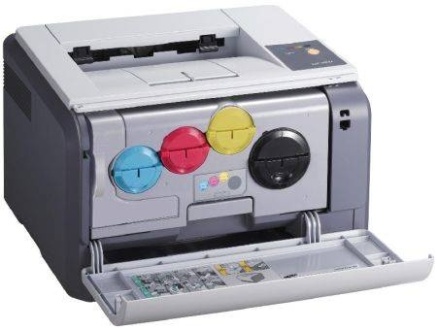
 Samsung CLP-300.
Принтер Samsung CLP-300 способен печатать полноцветные изображения, используя красный, голубой, желтый и черный цвета. Разрешение печати до 2400х600 тчк/дюйм. Для формата А4 производительность составляет 16 страниц в минуту при черно-белой печати и 4 страницы в минуту при цветной печати.
Лоток принтера вмещает 150 листов формата А4, также есть возможность закладки наклеек, буклетов, конвертов, бланков и другой печатной продукции. Есть режим печати водяных знаков. Можно печатать плакаты, то есть изображение увеличивается и печатается на нескольких листах, а потом склеивается между собой. Печать для создания книги позволяет напечатать страницы книги, которые потом остается только согнуть и подшить. В корпусе принтера предусмотрен USB порт.
Содержание инструкции по эксплуатации цветного принтера Samsung CLP-300: специальные функции устройства, внешний вид, панель управления, индикаторы, кнопка стоп, распаковка принтера, установка картриджей, загрузка бумаги, подключения, включение принтера, пробная печать, установка программного обеспечения, правильный выбор бумаги для печати, ручная подача бумаги, печать на различных носителях (конверты, наклейки, прозрачная пленка, картон), отмена печати, замена расходников, обслуживание принтера, срок службы картриджей, замена блока изображения, контрольная таблица для поиска и устранения неисправностей самим в домашних условиях до обращения в ремонтную мастерскую, общее использование принтера в компьютерной сети, технические характеристики принтера, характеристики бумаги, допустимый размер бумаги, условия хранения бумаги.
скачать папку
Samsung CLP-300. pdf. File-Size: 5.23 Мб
Der Samsung CLP-300 Drucker kann Vollfarbbilder in den Farben Rot, Blau, Gelb und Schwarz drucken. Die Druckauflösung beträgt bis zu 2400×600 Dpi. Im A4-Format beträgt die Produktivität 16 Seiten pro Minute beim Schwarzweißdruck und 4 Seiten pro Minute beim Farbdruck. Das Druckerfach fasst 150 A4-Blätter und kann auch Etiketten, Broschüren, Umschläge, Briefbögen und andere Druckprodukte einlegen. Es gibt einen Wasserzeichendruckmodus. Sie können Poster drucken, dh das Bild wird vergrößert und auf mehreren Blättern gedruckt und dann miteinander verklebt. Mit dem Drucken zum Erstellen eines Buches können Sie die Seiten des Buches drucken, die dann nur noch gebogen und genäht werden können. Das Druckergehäuse verfügt über einen USB-Anschluss.
Inhalt der Bedienungsanleitung des Samsung CLP-300 Farbdruckers: Gerätespezifische Funktionen, Aussehen, Bedienfeld, Anzeigen, Stopp-Taste, Drucker Auspacken, Einsetzen der Patronen, Einlegen von Papier, Anschließen, Einschalten des Druckers, Testdruck, Installation der Software, Auswahl des richtigen Druckpapiers, manuelle Papierzuführung, Drucken auf verschiedenen Medien (Umschläge, Aufkleber, Folien, Karton), Abbrechen, Austauschen von Verbrauchsmaterialien, Wartung des Druckers, Lebensdauer der Patronen, Auswechseln der Bildeinheit, Auswechseln des Druckers, Auswechseln des Druckers, Austauschen des Druckers, Austauschen des Druckers, Austauschen des Druckers, Austauschen des Druckers, Austauschen des Druckers, Austauschen des Druckers, Austauschen des Druckers, Austauschen des Druckers, Austauschen des Druckers,, checkliste zur Fehlerbehebung zu Hause vor der Handhabung einer Werkstatt, allgemeine Verwendung des Druckers in einem Computernetzwerk, Druckerspezifikationen, Papierspezifikationen, zulässiges Papierformat, Lagerbedingungen für Papier.