
-
Страница 1
User Guide for UPS ZM400™[…]
-
Страница 2
© 2010 ZIH Corp. The copyrights in this manual and th e software and/or firmware in the label printer described therein are owned by ZIH Corp. Unauthorized reproducti on of this manual or the software and/or firmware in the label printer may result in imp risonmen t of up to one year and fines of u p to $10,000 (17 U.S.C.506). Copyright violators […]
-
Страница 3
3 Declaration of Conformity 2/26/10 ZM400 User Guide for UPS P1016807-001 Rev . A Declaration of Conformity I have determined that the Zebr a printers identified as the ZM™ Series Z4M, Z6M, Z4M plus , Z6M plus , R4M plus , ZM400, ZM600 manufactured by: Zebra T ec hnologies Corpor ation 333 Corporate W oods Parkway V ernon Hills, Illinois 60061-31[…]
-
Страница 4
Declaration of Conformity Compliance Information 4 P1016807-001 Rev . A ZM400 User Guide for UPS 2/26/10 Compliance Information FCC Compliance S t atement This device compli es with Part 15 rules. Operati on is subject to the followin g two conditio ns: 1. This device may not cause harmful in terferen ce, and 2. This device must accept any interfer[…]
-
Страница 5
2/26/10 ZM400 User Guide for UPS P1016807-001 Rev . A Contents Declaration of Conformity . . . . . . . . . . . . . . . . . . . . . . . . . . . . . . . . . . . . . . . . . . . 3 Compliance Information . . . . . . . . . . . . . . . . . . . . . . . . . . . . . . . . . . . . . . . . . . . . . . . . . . . 4 About This Document . . . . . . . . . . . . . […]
-
Страница 6
Contents 6 P1016807-001 Rev . A ZM400 User Guide for UPS 2/26/10 Select a Data Communic ation Interface . . . . . . . . . . . . . . . . . . . . . . . . . . . . . . . . . . . . . . 25 Data Cables and Wireless Cards . . . . . . . . . . . . . . . . . . . . . . . . . . . . . . . . . . . . . . . . 26 Connect the Printer to the Computer or Network . . . […]
-
Страница 7
7 Contents 2/26/10 ZM400 User Guide for UPS P1016807-001 Rev . A 6 • T roubleshooting . . . . . . . . . . . . . . . . . . . . . . . . . . . . . . . . . . . . . . . . . . . . . . . 85 T rouble shooting Checklists . . . . . . . . . . . . . . . . . . . . . . . . . . . . . . . . . . . . . . . . . . . . . . . . 86 LCD Error Messages . . . . . . . . . […]
-
Страница 8
Contents 8 P1016807-001 Rev . A ZM400 User Guide for UPS 2/26/10 Notes • ___________ _________ _________ ___________ _________ _________ _________ ___________ _________ _________ ____________ _________ _________ _________ ______ ___________ _________ _________ ____________ _________ _________ _________ ______ ___________ _________ _________ _____[…]
-
Страница 9
2/26/10 ZM400 User Guide for UPS P1016807-001 Rev . A About This Document This section provides yo u with contact informat ion, document structure and or ganization, an d additional re ference docu ments. Content s Who Should Use This Document . . . . . . . . . . . . . . . . . . . . . . . . . . . . . . . . . . . . . . . . . . . 10 How This Document[…]
-
Страница 10
About This Document Who Shoul d Use This Do cument 10 P1016807-001 Rev . A ZM400 User Guide for UPS 2/26/10 Who Should Use This Document This User Guide for U PS is intended for use by any person who nee ds to operate or t o troubleshoot problems wit h the prin ter. How This Document Is Organized The User Guide for UPS is set up as follows: Section[…]
-
Страница 11
11 About This Document Contacts 2/26/10 ZM400 User Guide for UPS P1016807-001 Rev . A Contact s Use the foll owing phon e numbers to contact UPS technical support: • T echnical Support for UPS OnLin e ® W orl dShip: 888-5 53-1 1 18 • T echnical Support for UP S Internet Shippi ng: 877-289-6 418 • General Information: 1-800-PICK-UPS ® (1-800[…]
-
Страница 12
About This Document Document Conventions 12 P1016807-001 Rev . A ZM400 User Guide for UPS 2/26/10 Document Conventions The following co nventions are used throughout this do cument to convey certain information. Alternate Color (online only) C ross-referenc es contain h ot links to ot her sections in this guide. If you are vi ewing this guide on li[…]
-
Страница 13
13 About This Document Document Conventions 2/26/10 ZM400 User Guide for UPS P1016807-001 Rev . A Illustration Callout s Callouts are used when an illustrati on contains informatio n that needs to be labeled a nd described. A tab le that conta ins the labels a nd descriptions fo llows the graphic. Figure 1 provides an example. Figure 1 • Sample F[…]
-
Страница 14
About This Document Document Conventions 14 P1016807-001 Rev . A ZM400 User Guide for UPS 2/26/10 Notes • ___________ _________ _________ ___________ _________ _________ _________ ___________ _________ _________ ____________ _________ _________ _________ ______ ___________ _________ _________ ____________ _________ _________ _________ ______ ____[…]
-
Страница 15
2/26/10 ZM400 User Guide for UPS P1016807-001 Rev . A 1 Introduction This section shows the operational cont rols and loca tion of major compon ents used when loading medi a. Content s External View . . . . . . . . . . . . . . . . . . . . . . . . . . . . . . . . . . . . . . . . . . . . . . . . . . . . . . . . . . 16 Printer Media Compartment . . . […]
-
Страница 16
Introduction External View 16 P1016807-001 Rev . A ZM400 User Guide for UPS 2/26/10 External Vi e w Figure 2 and Figure 3 show the components and connections o n the outside o f the printer. Figure 2 • Front of Printer Figure 3 • Rear of Printer 1 Control panel 2 Media door 1 2 1 Power switch ( O = off, I = on) 5 Serial port 2 AC power connect […]
-
Страница 17
17 Introd uction Printer Media Compartment 2/26/10 ZM400 User Guide for UPS P1016807-001 Rev . A Printer Media Comp artment Figure 4 shows the components inside the media comp artment of your prin ter . Figure 4 • Printer Components 1 Peel release lever 2 Printhead release l atch 3 Media supply guide 4 Media hanger 5 Dancer assembly 6 Liner take-[…]
-
Страница 18
Introduction Control Pane l 18 P1016807-001 Rev . A ZM400 User Guide for UPS 2/26/10 Control Panel The control pan el contains the lights that indicate basi c operation and the buttons th at you may need to press du ring basic operat ion. The co ntrol panel bu ttons and ligh ts are labeled in Figure 5 . Descriptions for eac h are located in Ta b l […]
-
Страница 19
19 Introd uction Control Panel 2/26/10 ZM400 User Guide for UPS P1016807-001 Rev . A Control Panel Buttons T able 1 • Control Panel Buttons Button Function FEED Forces the printer to feed one blank label each time the button i s pressed. • Printer not printi ng: one blank label immediately feeds. • Printing: one blank label feed s after the c[…]
-
Страница 20
Introduction Control Pane l 20 P1016807-001 Rev . A ZM400 User Guide for UPS 2/26/10 Control Panel Light s T able 2 • Control Panel Light s Light St atus Indication POWER Off The printer is off, or no power is applied. On The printer i s on. P AUSE Off Normal printer oper ation. On The printer has stopped al l printing op erations. Flashing The P[…]
-
Страница 21
2/26/10 ZM400 User Guide for UPS P1016807-001 Rev . A 2 Printer Setup This section provid es the tasks that you must comple te and the issue s that you mu st consider before you load a nd configure yo ur printer. Content s Before Y ou Begin . . . . . . . . . . . . . . . . . . . . . . . . . . . . . . . . . . . . . . . . . . . . . . . . . . . . . . .[…]
-
Страница 22
Printer Setup Before Y ou Begin 22 P1016807-001 Rev . A ZM400 User Guide for UPS 2/26/10 Before Y ou Begin Review this checkl ist, and resolve a ny issues before you set u p or use your pr inter. Unp ack and Inspect the Printer Have you unpacked the printer and inspected it for damage? If you have not, see Unpack an d Inspect the Printer on pag[…]
-
Страница 23
23 Printer Setup Handling the Printer 2/26/10 ZM400 User Guide for UPS P1016807-001 Rev . A Handling the Printer This section describes how to han dle your printer. Unp ack and Inspect the Printer When you receiv e the printer, immediately unp ack it and in spect for shippi ng damage. • Save all packing mate rials. • Check all exterior surfaces[…]
-
Страница 24
Printer Setup Select a Site for the Printer 24 P1016807-001 Rev . A ZM400 User Guide for UPS 2/26/10 Select a Site for the Printer Consider the followin g when selec ting an appr opriate loc ation for you r printer. Select a Surface Select a solid, level surface of suf ficient size and strength to acco mmodate the pri nter and other equipment (such[…]
-
Страница 25
25 Printer Setup Select a Data Communication Interface 2/26/10 ZM400 User Guide for UPS P1016807-001 Rev . A Select a Dat a Communication Interface Ta b l e 5 provides basic information about da ta co mmunication inte rfaces that you can use to connect your printer to a computer . Y ou may send label formats to the printer thro ugh any data communi[…]
-
Страница 26
Printer Setup Select a Data Communication Interface 26 P1016807-001 Rev . A ZM400 User Guide for UPS 2/26/10 Dat a Cables and Wireless Cards Y ou must supply all d ata cables o r wireless cards for your applic ation. Data Cables Ethernet cables do n ot require shiel ding, but all oth er data cables must be fu lly shielded and fitt ed with metal o r[…]
-
Страница 27
27 Printer Setup Select a Data Communication Interface 2/26/10 ZM400 User Guide for UPS P1016807-001 Rev . A IEEE 1284 Bidirectional Parallel No additional configuration i s necessary . USB No additional configuration i s necessary . Caution • Be careful not to plug the USB cable into th e wired Ethernet print server connector on the p rinter bec[…]
-
Страница 28
Printer Setup Select a Data Communication Interface 28 P1016807-001 Rev . A ZM400 User Guide for UPS 2/26/10 Internal wired Ethernet print server Refer to the ZebraNet 10/100 Prin t Server User and Refer ence Guide for configuration i nstructions. A copy of this manual is avail able at http://www .zebra.com/manuals or on the user CD th at came with[…]
-
Страница 29
29 Printer Setup Connect the Printer to a Po wer Source 2/26/10 ZM400 User Guide for UPS P1016807-001 Rev . A Connect the Printer to a Power Source The AC power cord must ha ve a three-prong fema le connector on one end that plugs into the mating AC power connector at th e rear of the printer. If a power cable was n ot included wit h your printer, […]
-
Страница 30
Printer Setup Connect the Printer to a Power Source 30 P1016807-001 Rev . A ZM400 User Guide for UPS 2/26/10 Power Cord Specifications Depending on how your p rinter was ordered, a power cord m ay or may not be included . If one is not includ ed or if the one included is n ot suitable fo r your requirements, se e Figure 6 and refer to the following[…]
-
Страница 31
31 Printer Setup T ypes of Media 2/26/10 ZM400 User Guide for UPS P1016807-001 Rev . A T ypes of Media Y our printer ca n use various ty pes of media: • S tandar d media —Most standard media uses an adhesive backing that sticks individual labels or a c ontinuous len gth of label s to a liner . • Ta g s t o c k —T ags are usually made from a[…]
-
Страница 32
Printer Setup T ypes of Me dia 32 P1016807-001 Rev . A ZM400 User Guide for UPS 2/26/10 Non-Continuous Fanfold Media Fanfold media is folded in a zigzag pattern. Fanfold media can have the same label separation s as non-continuo us roll media. The separations would fall on or near the folds. Continuous Roll Media Roll media is wound on a 3-in. (76-[…]
-
Страница 33
2/26/10 ZM400 User Guide for UPS P1016807-001 Rev . A 3 Operations This section provides th e procedures for loading and calib rating the print er. Note • Complete the tasks and resolve the issues in Printe r Setup on page 21 before operating the printe r. Content s Print Modes and Printer Options . . . . . . . . . . . . . . . . . . . . . . . . .[…]
-
Страница 34
Operations Print Modes and Printer Options 34 P1016807-001 Rev . A ZM400 User Guide for UPS 2/26/10 Print Modes and Printer Options The printer can use dif ferent print mo des and options for label removal ( Ta b l e 8 ). Use a print mode that matches th e media being used and the prin ter options available. Fo r more information on the types of me[…]
-
Страница 35
35 Operations Print Modes and Printer Options 2/26/10 ZM400 User Guide for UPS P1016807-001 Rev . A Media Paths Ta b l e 9 shows the media path s for print mode and printer optio n combinations using roll media. Fanfold media uses the same print modes and pr inter options as roll media. T a ble 9 • Media Paths for Print M odes with V arious Print[…]
-
Страница 36
Operations Load Media 36 P1016807-001 Rev . A ZM400 User Guide for UPS 2/26/10 Load Media The beginning steps for loading media apply to all prin ters, in cluding those that have the peel-of f option. When you have co mpleted the se beginnin g steps, co ntinue with the media loading instru ctions for the print mode an d printer optio ns that apply […]
-
Страница 37
37 Operations Load Media 2/26/10 ZM400 User Guide for UPS P1016807-001 Rev . A 3. Insert media int o the printer. Follo w the instructions for roll or fa nfold media, as appropriate. Roll Media Fanfold Media a. Remove and discard any tags or labels that are dirt y or that are held by adhesives or tape. a. Flip down the media supply gu ide. b. Flip […]
-
Страница 38
Operations Load Media 38 P1016807-001 Rev . A ZM400 User Guide for UPS 2/26/10 4. Feed the media under the dancer assembly ( 1 ), the upper media sensor ( 2 ), and the printhead-op en sensor ( 3 ). Slide the media b ack until it touch es the inside back wall of the upper media sensor . e. Slide in the medi a supply guide until it touches th e edge […]
-
Страница 39
39 Operations Load Media 2/26/10 ZM400 User Guide for UPS P1016807-001 Rev . A 5. Slide in the media guide until it touches the outer edge of th e media. 6. Continue wi th the steps th at apply to th e print mode that you will us e. 7. Push down the peel-of f mechanism rele ase lever to open the peel assembly . T o operate in… Then… T ear -Off […]
-
Страница 40
Operations Load Media 40 P1016807-001 Rev . A ZM400 User Guide for UPS 2/26/10 8. Extend the media approximately 18 in . (500 mm) out of the printe r. 9. Remove the exposed labels so that only the lin er remains. 10. Feed the liner over the tear -off/peel-of f bar ( 1 ) and behind the peel assemb ly ( 2 ). Make sure that th e end of the lin er fall[…]
-
Страница 41
41 Operations Load Media 2/26/10 ZM400 User Guide for UPS P1016807-001 Rev . A 11 . Continue with the steps that a pply to the p rint mode that y ou will use. T o operate in… Then… Peel-Of f mode Continue with step 12 . Liner T ake-Up mode a. Slide the liner i nto the slot in the liner tak e-up spindle ( 1 ). b. Push the liner back until it tou[…]
-
Страница 42
Operations Load Media 42 P1016807-001 Rev . A ZM400 User Guide for UPS 2/26/10 12. 13. Set the printer to the appropriate pri nt mode. See Select Print Mode on page 55 for instructions. 14. Close the pr inthead asse mbly . 15. If the printer is paused (the Pause light is on), press PA U S E to en able prin ting. Caution • Use the peel release lev[…]
-
Страница 43
43 Operations Remove Used Liner 2/26/10 ZM400 User Guide for UPS P1016807-001 Rev . A Remove Used Liner When you use t he liner take-up option, you will period ically need t o remove used liner fro m the liner take-up spin dle. T o remove used liner from the liner t ake-up spindle, complete the se step s: 1. If the media has not run out, t ear the […]
-
Страница 44
Operations Calibrate the Printer 44 P1016807-001 Rev . A ZM400 User Guide for UPS 2/26/10 Calibrate the Printer Auto Calibration By default, th e printer automati cally calib rates on powe r up or when the printhead is closed. During auto cal ibration, th e printer dete rmines the label length and se nsor settings. The results of the auto calibrati[…]
-
Страница 45
45 Operations Adjust Printhead Pressure 2/26/10 ZM400 User Guide for UPS P1016807-001 Rev . A Adjust Printhead Pressure Y ou may need to adjust printhead pre ssure if printing is too light o n one side, if y ou use thick media, or if the media drifts fr om side to side durin g printing. See Figur e 8 . The pressure adjustment dials have fo ur possi[…]
-
Страница 46
Operations Adjust Printhead Pressure 46 P1016807-001 Rev . A ZM400 User Guide for UPS 2/26/10 2. If necessary , adjust the pressure adjustme nt dials as follows: If the media… Then… Requires higher pressu re to print well Increase bo th dials one p osition. Shifts left while printi ng Incre ase the outside dia l setting one position, or decreas[…]
-
Страница 47
2/26/10 ZM400 User Guide for UPS P1016807-001 Rev . A 4 Configuration This section describes the cont rol panel paramete rs that are used to co nfigure the printer for operation. Content s Setup Mode . . . . . . . . . . . . . . . . . . . . . . . . . . . . . . . . . . . . . . . . . . . . . . . . . . . . . . . . . . . 48 Enter Setup Mode . . . . . . […]
-
Страница 48
Configuration Setup Mode 48 P1016807-001 Rev . A ZM400 User Guide for UPS 2/26/10 Setup Mode After you have installed the media and the Power -On Self T est (POST) is complete, the co ntrol panel displays PRINTER READY . Y ou may now set printer parameters for your appl ication using the control panel display and the butt ons directly below it. If […]
-
Страница 49
49 Configuration Setup Mode 2/26/10 ZM400 User Guide for UPS P1016807-001 Rev . A Exit Setup Mode T o leave Setup mode, complete these step s: 1. Press SETUP/EXIT . The LCD displays SAVE CHANGES . 2. Press PLUS (+) or MINUS (-) to display the save option s: 3. Press SETUP/EXIT to select the displayed choice. When the config uration and ca libration[…]
-
Страница 50
Configuration Change Password-Protected Parame ters 50 P1016807-001 Rev . A ZM400 User Guide for UPS 2/26/10 Change Password-Protected Parameters Certain paramet ers, including the communicatio n parameters, are pa ssword-protected by factory defaul t. The first time that you attempt to change a password-protec ted parameter , the printer display s[…]
-
Страница 51
51 Configuration Print a Configuration Label 2/26/10 ZM400 User Guide for UPS P1016807-001 Rev . A Print a Configuration Label A configuration lab el lists the pr inter settings tha t are stored in co nfiguration memory . After you load the media, prin t a configuration label as a record of your printer’ s current set tings. Keep the label to use[…]
-
Страница 52
Configuration Print a Network Configu ration Label 52 P1016807-001 Rev . A ZM400 User Guide for UPS 2/26/10 Print a Network Configuration Label If you are using a print server , you can print a ne twork co nfiguration label after the printe r is connected to the network. T o print a network configuration label, complete these step s: 1. On the cont[…]
-
Страница 53
53 Configuration Control Pane l Parameters 2/26/10 ZM400 User Guide for UPS P1016807-001 Rev . A Control Panel Paramete rs Use the LCD on the contro l panel to vi ew and adjust printer se ttings. How to V iew or Modify Parameters While viewing parameters, press PLUS (+) to continue to t he next parame ter , or press MINUS (-) to return to the previ[…]
-
Страница 54
Configuration Control Pane l Parameters 54 P1016807-001 Rev . A ZM400 User Guide for UPS 2/26/10 S t andard Printer Parameters Ta b l e 1 1 shows parameters in the order in wh ich they are di splayed when you press PLUS (+) after entering Setup mode. T able 1 1 • Printer Parameters (Page 1 of 20) Parameter Action/Explanation Adjust Print Darkness[…]
-
Страница 55
55 Configuration Control Pane l Parameters 2/26/10 ZM400 User Guide for UPS P1016807-001 Rev . A Adjust the T ear-Off Position This parameter establ ishes the position of t he media over the tear -off /peel-of f bar after printing. See Figure 1 1 . Higher numbers move the media out (the tear line moves closer to the leading edge of the ne xt label)[…]
-
Страница 56
Configuration Control Pane l Parameters 56 P1016807-001 Rev . A ZM400 User Guide for UPS 2/26/10 Set Media T ype This paramete r tells the prin ter the type of med ia that you a re using (see T ypes of Media on page 31 for more information) . Selectin g continuous media requires th at you inclu de a label l ength instructi on in your lab el format […]
-
Страница 57
57 Configuration Control Pane l Parameters 2/26/10 ZM400 User Guide for UPS P1016807-001 Rev . A Set Maximum Label Length This paramete r is used du ring the me dia portion of t he calibratio n process. Always set maximu m label length to a value th at is at least 1 .0 in. (25.4 mm) greater than th e actual la bel length ( Figure 12 ). If the value[…]
-
Страница 58
Configuration Control Pane l Parameters 58 P1016807-001 Rev . A ZM400 User Guide for UPS 2/26/10 Set Early W arning for Maintena nce When this featu re is enabled, the printer p rovides warn ings when th e printhead needs to be cleaned. Default V alue: MAINT . OFF Selections: MAINT . OFF , MAINTENANCE ON T o change the Early W arning settings: 1. P[…]
-
Страница 59
59 Configuration Control Pane l Parameters 2/26/10 ZM400 User Guide for UPS P1016807-001 Rev . A Set Printhead Life for Early W arning This parameter appears on ly when Early W a rning for Maintena nce is enabled . Set this value to the number of inches of media t hat the printhead is expected to print. Default V alue: 1,00 0,000 inche s Range: 100[…]
-
Страница 60
Configuration Control Pane l Parameters 60 P1016807-001 Rev . A ZM400 User Guide for UPS 2/26/10 Print Counter Readings Prints a label t hat lists the od om eter readings for the fol lowing: • the non-resettabl e counter • the two user -controlled counters • the Early W arning for Mai ntenance coun ters, whic h indicate wh en the printhead wa[…]
-
Страница 61
61 Configuration Control Pane l Parameters 2/26/10 ZM400 User Guide for UPS P1016807-001 Rev . A List Formats This option prin ts a label t hat lists the ava ilable formats store d in the printer’ s RAM, Flash memory , or optional memory card. T o print a list of the available format s: 1. Press SELECT to select the parameter . 2. Press PLUS (+) […]
-
Страница 62
Configuration Control Pane l Parameters 62 P1016807-001 Rev . A ZM400 User Guide for UPS 2/26/10 Initialize Fl ash Memory This option erases all previously stored inform ation from Flash memory . Caution • This option completely erases the Flash memory . T o initialize Flash memory: 1. Press SELECT to select the parameter . 2. If prompted for a p[…]
-
Страница 63
63 Configuration Control Pane l Parameters 2/26/10 ZM400 User Guide for UPS P1016807-001 Rev . A Calibrate Media Sensor Sensitivity Use this procedu re to adjust sensit ivity of me dia sensors. Import ant • Follow t his procedure exactly as pre sented. All of th e steps must be performed even i f only one of the sensors requir es adjustment. Y ou[…]
-
Страница 64
Configuration Control Pane l Parameters 64 P1016807-001 Rev . A ZM400 User Guide for UPS 2/26/10 Set Baud This setting app lies only when t he serial port is use d. The baud setting of the printer mu st match the bau d set ting of the ho st comp uter for accurat e communications to take place. Sel ect the value that matches the one being used by th[…]
-
Страница 65
65 Configuration Control Pane l Parameters 2/26/10 ZM400 User Guide for UPS P1016807-001 Rev . A Set Host Handshake This setting ap plies only when the serial port is used. The han dshake protocol of the printer must match the handshake protocol of the host computer for communication to take place. Sele ct the handshake protoc ol that matches the o[…]
-
Страница 66
Configuration Control Pane l Parameters 66 P1016807-001 Rev . A ZM400 User Guide for UPS 2/26/10 Set Communicat ions Mode The communicatio n diagnostics mo de is a troublesh ooting tool for checking the interconnection between t he printer and the host compu ter . For more information, see Communications Diagnostics T est on page 1 03 . Default V a[…]
-
Страница 67
67 Configuration Control Pane l Parameters 2/26/10 ZM400 User Guide for UPS P1016807-001 Rev . A Set Delimiter Char acter The delimiter character i s a two-digi t hex value use d as a parameter plac e marker in ZPL/ZPL II form at instructio ns. See the ZPL II Programming Guide for more information. Note • Do not use the same hex value fo r the co[…]
-
Страница 68
Configuration Control Pane l Parameters 68 P1016807-001 Rev . A ZM400 User Guide for UPS 2/26/10 Select Media Pow er -Up Option This paramete r sets the actio n of the media when you turn on the printer. Default V alue: CALIBRA TION Selections: CALIBRA TION, SHOR T CAL, LENGTH, NO MOTION, FEED • Calibration adjusts sensor le vels and th resholds,[…]
-
Страница 69
69 Configuration Control Pane l Parameters 2/26/10 ZM400 User Guide for UPS P1016807-001 Rev . A Select Backfeed Sequence This parameter se ts when or if label backfeed occurs. This se tting is superseded by ~JS when received as part of a label format (see the ZPL II Pr ogramming Guide for more information). Default V alue: DEF AUL T (90 %) Selecti[…]
-
Страница 70
Configuration Control Pane l Parameters 70 P1016807-001 Rev . A ZM400 User Guide for UPS 2/26/10 Set Reprin t Mode When reprint mod e is enabled, y ou can reprin t the last label printed either by issuing the ~PR ZPL command or by pres sing MINUS (-) on the control panel. Default V alue: DISABLED Selections: ENABLED, DISABLED T o change the value s[…]
-
Страница 71
71 Configuration Control Pane l Parameters 2/26/10 ZM400 User Guide for UPS P1016807-001 Rev . A Select Fo rmat Conve rt Selects the bitm ap scaling factor . The fi rst number is the original dots per inch (dpi) value; the second, the dpi to which you would li ke to scale. Default V alue: NONE Selections: NONE, 150 → 300, 150 → 600, 200 → 600[…]
-
Страница 72
Configuration Control Pane l Parameters 72 P1016807-001 Rev . A ZM400 User Guide for UPS 2/26/10 Set Real-T ime Clock (R TC) Date This parameter allows you to se t the date foll owing the conve ntion sele cted in IDLE DISPLAY . T o change the value s hown: 1. Press SELECT to select the parameter . 2. Press MINUS (-) to move to the next digit posi t[…]
-
Страница 73
73 Configuration Control Pane l Parameters 2/26/10 ZM400 User Guide for UPS P1016807-001 Rev . A Select the Displ ay Languag e This parameter changes the lang uage displayed o n the LCD. Each langu age selection is displayed in the lang uage itself. Default V alue: ENGLISH Selections: ENGLISH, SP ANISH, FRENCH, GERMAN, IT ALIA N, NOR WEGIAN, POR T […]
-
Страница 74
Configuration Control Pane l Parameters 74 P1016807-001 Rev . A ZM400 User Guide for UPS 2/26/10 Notes • ___________ _________ _________ ___________ _________ _________ _________ ___________ _________ _________ ____________ _________ _________ _________ ______ ___________ _________ _________ ____________ _________ _________ _________ ______ _____[…]
-
Страница 75
2/26/10 ZM400 User Guide for UPS P1016807-001 Rev . A 5 Routine Maintenance This section provid es routine cl eaning and maintenance p rocedures. Content s Replacing Printer Components . . . . . . . . . . . . . . . . . . . . . . . . . . . . . . . . . . . . . . . . . . . . 76 Ordering Replacement Parts . . . . . . . . . . . . . . . . . . . . . . . .[…]
-
Страница 76
Routine Maintenance Replacing Printer Co mponents 76 P1016807-001 Rev . A ZM400 User Guide for UPS 2/26/10 Replacing Printer Component s Some printer compon ents, such as the printhead and platen roller , may wear out over ti me and can be repl aced easily . Regular cleaning may extend th e life of some of these compon ents. See Cleaning Schedu le […]
-
Страница 77
77 Routine Maintena nce Cleaning Schedule and Procedures 2/26/10 ZM400 User Guide for UPS P1016807-001 Rev . A Cleaning Schedule and Procedures Specific cleaning procedures are pr ovided on the follow ing pages. Ta b l e 1 2 shows the recommended cleaning schedule. These i ntervals are intended as guidelines only . Y ou may have to clean more often[…]
-
Страница 78
Routine Maintenance Cleaning Procedures 78 P1016807-001 Rev . A ZM400 User Guide for UPS 2/26/10 Clean the Printhead and Platen Roller Y ou can minimize print head wear and maintain prin t quality with regula r preventive measures. Over time, the movement of me dia across the printhead wears through the protective cera mic coating, exposing and eve[…]
-
Страница 79
79 Routine Maintena nce Cleaning Procedures 2/26/10 ZM400 User Guide for UPS P1016807-001 Rev . A T o clean the printhead and platen roller , complete these steps: 1. Open the pr inthead as sembly . 2. Remove the media. 3. Using the swab from the Preventive Main tenance Ki t (part number 473 62), wipe alo ng the brown strip o n the printhe ad assem[…]
-
Страница 80
Routine Maintenance Cleaning Procedures 80 P1016807-001 Rev . A ZM400 User Guide for UPS 2/26/10 4. While manually rotating th e platen ro ller , clean it thoroughl y with the swab . Allow the solvent to evaporate. 5. Reload the media, and clos e the printhead assembly . Import ant • Do not use anything but the i sopropyl alcohol solution to clea[…]
-
Страница 81
81 Routine Maintena nce Cleaning Procedures 2/26/10 ZM400 User Guide for UPS P1016807-001 Rev . A Clean the Media Compartment and Sensors T o clean the media comp artment and sensors, complete the se step s: 1. Brush or vacuum any accumulated pape r lint and dust away fro m the media path. 2. Brush or vacuum an y paper lint and dust away from the s[…]
-
Страница 82
Routine Maintenance Cleaning Procedures 82 P1016807-001 Rev . A ZM400 User Guide for UPS 2/26/10 Clean the Peel Assembly The peel assembly , which is part of the Peel-Off option, consists of several spring-l oaded rollers to ensure the proper roller pressure. Cl ean the pinch roller and tear -off/peel-of f bar if adhesive buildup begins t o affect […]
-
Страница 83
83 Routine Maintena nce Cleaning Procedures 2/26/10 ZM400 User Guide for UPS P1016807-001 Rev . A 2. Push down the peel-of f mechanism rele ase lever to open the peel assembly . 3. Remove any media backing to expose the pinch roll er . 4. While manually rotating th e pinch ro ller , clean it thoroug hly with the swab from the Preventive Maint enanc[…]
-
Страница 84
Routine Maintenance Cleaning Procedures 84 P1016807-001 Rev . A ZM400 User Guide for UPS 2/26/10 6. Close the pr inthead asse mbly . 7. 8. Close the media door . The printer is ready to operate. Caution • Use the peel release lever and y our right hand to close the peel assembly . Do not use your left hand to assist in closing. T he top edge of t[…]
-
Страница 85
2/26/10 ZM400 User Guide for UPS P1016807-001 Rev . A 6 Troubleshooting This section provides information about errors that you mig ht need to trou bleshoot. Assorted diagnostic test s are includ ed. Content s T roubleshooting Checklists . . . . . . . . . . . . . . . . . . . . . . . . . . . . . . . . . . . . . . . . . . . . . . . 86 LCD Error Messa[…]
-
Страница 86
T roubleshooting T roubleshooting Chec klists 86 P1016807-001 Rev . A ZM400 User Guide for UPS 2/26/10 T roubleshooting Checklist s If an error condition exist s with the printer, review this checklist: Are nonconti nuous labels being treat ed as continuo us labels? If y es, see Cal ibrate Media Sensor Sensitivity on page 63 . Are you exper[…]
-
Страница 87
87 T roubleshoot ing LCD Error Messages 2/26/10 ZM400 User Guide for UPS P1016807-001 Rev . A LCD Error Messages The LCD disp lays me ssages when there is an error . See Ta b l e 1 3 for LCD errors, the possible causes, and the recommended solut ions. T able 13 • LCD Error Messages LCD Display/ Printer Condition Possible Cause Recommended Solutio[…]
-
Страница 88
T roubleshooting LCD Error Messages 88 P1016807-001 Rev . A ZM400 User Guide for UPS 2/26/10 The printer stops; the ERROR light i s on; the printer cycles through these messages. Caution • An improperly connected printhead data or power cable can cause these error messag es. The printhead may be hot enough to cause severe bu rns. Allow the printh[…]
-
Страница 89
89 T roubleshoot ing LCD Error Messages 2/26/10 ZM400 User Guide for UPS P1016807-001 Rev . A There is not enough memory to perform the functi on specified on the second line of the error message. Free up some of the printer’ s memory by adjusting th e label format or p rinter parameters. One way to free up memory is to ad just the print wi dth t[…]
-
Страница 90
T roubleshooting Print Quality Problems 90 P1016807-001 Rev . A ZM400 User Guide for UPS 2/26/10 Print Quality Problems Ta b l e 1 4 identifies prob lems with print q uality , the possible causes, and th e recommended solutions. T able 14 • Print Quality Problems Problem Possible Cause Recommended Solution General pr int qual ity issues The print[…]
-
Страница 91
91 T roubleshoot ing Print Quality Problems 2/26/10 ZM400 User Guide for UPS P1016807-001 Rev . A V ertical drift in top-of-form position The printer i s out of calib ration. Reca librate the pri nter. V ertical drift occurs during normal printer operation. Note • A vertical drift of ± 4 to 6 dot rows (approximately 0.5 mm) is within no rmal tol[…]
-
Страница 92
T roubleshooting Calibration Problems 92 P1016807-001 Rev . A ZM400 User Guide for UPS 2/26/10 Calibration Problems Ta b l e 1 5 identifies problems with cal ibration, the possible causes, and t he recommended solutions. T able 15 • Calibration Problems Problem Possible Cause Recommended Solution Loss of printing registra tion on labels. Excessiv[…]
-
Страница 93
93 T roubleshoot ing Communicat ions P roblems 2/26/10 ZM400 User Guide for UPS P1016807-001 Rev . A Communications Problems Ta b l e 1 6 identifies problems with communication s , the possible c auses, and the recommended solutions. T a ble 16 • Communications Problems Problem Possible Cause Recommended Solution A label format was sent to the pr[…]
-
Страница 94
T roubleshooting Miscellaneous Printer Problems 94 P1016807-001 Rev . A ZM400 User Guide for UPS 2/26/10 Miscellaneous Printer Problems Ta b l e 1 7 identifies mi scellaneous prob lems with the printe r, the possibl e causes, and the recommended solution s. T able 17 • Miscellaneo us Printer Prob lems Problem Possible Cause Recommended Solution T[…]
-
Страница 95
95 T roubleshoot ing Miscellaneous Printer Problems 2/26/10 ZM400 User Guide for UPS P1016807-001 Rev . A While in Peel-Off mode, media liner wraps around the platen r oller . Y ou are using perforated media, which is not recommende d for Peel-Off mode. While operating in Peel-Of f mode, use media that is not pe rforated. The printer fails to calib[…]
-
Страница 96
T roubleshooting Printer Diagnostics 96 P1016807-001 Rev . A ZM400 User Guide for UPS 2/26/10 Printer Diagnostics Self tests and other diagnost ics provide specific in formation about t he condition of th e printer. The self tests produce sample printou ts and provide spec ific informatio n that helps det ermine the operating conditions for th e pr[…]
-
Страница 97
97 T roubleshoot ing Printer Diagnostics 2/26/10 ZM400 User Guide for UPS P1016807-001 Rev . A CANCEL Self T est The CANCEL self test prints a configurati on label ( Figure 15 ). T o perform the CANCEL Self T est, complete these step s: 1. Tu r n o ff ( O ) the printer. 2. Press and hold CANCEL while turning on ( I ) the printer. Hold CANCEL until […]
-
Страница 98
T roubleshooting Printer Diagnostics 98 P1016807-001 Rev . A ZM400 User Guide for UPS 2/26/10 PA U S E S e l f Te s t This self test can be used to prov ide the test lab els required when making adjustme nts to the printer’ s mechanical assemb lies or to det ermine if any printh ead elements are n ot working. Figure 16 shows a sample printout. T […]
-
Страница 99
99 T roubleshoot ing Printer Diagnostics 2/26/10 ZM400 User Guide for UPS P1016807-001 Rev . A FEED Self T est Different types of media may require differen t darkness settings. This sect ion contains a simple but ef fective method for determini ng the ideal dark ness for printing bar codes tha t are within specifications. During the FEED self test[…]
-
Страница 100
T roubleshooting Printer Diagnostics 100 P1016807-001 Rev . A ZM400 User Guide for UPS 2/26/10 Figure 18 • Bar Code Darkness Comp arison T able 18 • Judging Bar Code Quality Print Quality Description To o d a r k Labels that are too dark are fai rly obvious. They may be readable but not “in-spec.” • The normal bar code bars increase in si[…]
-
Страница 101
101 T roubleshoot ing Printer Diagnostics 2/26/10 ZM400 User Guide for UPS P1016807-001 Rev . A 5. Note the relat ive darkness value a nd the print sp eed printed on the best test la bel. 6. Add or subtract th e relative da rkness value from t he darkness val ue specified on the configuration lab el. The resulting numeric value (0 to 30) is the bes[…]
-
Страница 102
T roubleshooting Printer Diagnostics 102 P1016807-001 Rev . A ZM400 User Guide for UPS 2/26/10 FEED and P AUSE Self T est Performing this self test temporarily resets the printer conf iguration to th e factory defau lt values. These v alues are activ e only until power is turne d of f unless you sa ve them permanently in memory . If the factory def[…]
-
Страница 103
103 T roubleshoot ing Printer Diagnostics 2/26/10 ZM400 User Guide for UPS P1016807-001 Rev . A Communications Diagnostics T est The communicat ion diagnostic s test is a troublesho oting tool fo r checking the interconnectio n between the prin ter and the host computer . When the printe r is in diagnostics mode , it prints all da ta received from […]
-
Страница 104
T roubleshooting Printer Diagnostics 104 P1016807-001 Rev . A ZM400 User Guide for UPS 2/26/10 Sensor Profile Use the sensor profil e label to troubleshoot the following types of p roblems: • If the media sensor ex periences dif ficulty in determining gap s (web) between lab els. • If the media sensor inco rrectly identifies preprinted areas on[…]
-
Страница 105
2/26/10 ZM400 User Guide for UPS P1016807-001 Rev . A 7 Specifications This section provides the features of an d specifications for the printer. Content s General S pecifications . . . . . . . . . . . . . . . . . . . . . . . . . . . . . . . . . . . . . . . . . . . . . . . . . . 106 Printing S pecifications . . . . . . . . . . . . . . . . . . . . .[…]
-
Страница 106
Specifications General S pecifications 106 P1016807-001 Rev . A ZM400 User Guide for UPS 2/26/10 General Specifications General Specifications Height 13.3 in. 338 mm W idth 10.9 in. 278 mm Depth 18.7 in. 475 mm W eight (without options) 32.4 lbs. 15 kg Electrical 90-265 V AC, 48-62 Hz, 5 Amps (fused) T e mperature Operating 40° to 104°F 5° to 40[…]
-
Страница 107
107 Specifications Printing S pecif ication s 2/26/10 ZM400 User Guide for UPS P1016807-001 Rev . A Printing S pecifications Printing Specifications Print resolution 203 dots/in. 8 dots/mm Dot size (width x length) 0.0049 in. x 0.0049 in. 0.125 mm x 0.125 mm First dot loc ation measured fro m inside media backing edge 0.10 in. ± 0.04 in. (2.5 mm ?[…]
-
Страница 108
Specifications Media S pecifications 108 P1016807-001 Rev . A ZM400 User Guide for UPS 2/26/10 Media S pecifications Media Specifications Label length Minimum 0.5 in. 13 mm Maximum 12 in. 305 mm Label width Minimu m 1 in. 25.4 mm Maximum 4.2 5 in. 108 mm T otal thickne ss (includes liner, if any) Minimum 0.0023 in. 0.058 mm Maximum 0.010 in. 0.25 m[…]
-
Страница 109
2/26/10 ZM400 User Guide for UPS P1016807-001 Rev . A Index A adjustments left position, 69 print darkness, 54 printhead p ressure, 45 tear -of f position, 55 auto calibrati on, 44 B backfeed setting, 69 bar codes available, 60 battery disposal, 76 baud setting, 64 before you begin setup, 22 bitmap scaling factor , 71 black mark media described, 31[…]
-
Страница 110
Index 110 P1016807-001 Rev . A ZM400 User Guide for UPS 2/26/10 control panel buttons described, 19 enter Setu p mode, 48 exit Setup mod e, 49 LCD error messages, 87 lights described, 20 location, 16 overview and ill ustration, 18 parameters, 53 control prefix setting, 66 counter s, 60 customer service, 11 D darkness setting, 54 data bits setti ng,[…]
-
Страница 111
111 Index 2/26/10 ZM400 User Guide for UPS P1016807-001 Rev . A Liner T ake-Up mode description, 34 loading medi a, 36 media path, 35 remove used liner , 43 list settings all settings, 6 1 bar codes, 60 fonts, 60 formats, 61 images , 60 network, 61 setup, 61 load factory de faults, 49 loading medi a, 36 lubricatio n, 76 M manual calibration, 44 mar[…]
-
Страница 112
Index 112 P1016807-001 Rev . A ZM400 User Guide for UPS 2/26/10 print modes described, 34 load media for d iffe rent print modes an d options, 36 media path s, 35 selecting, 55 print network configuratio n label, 61 instructions and sample label, 52 print qua lity troubleshoot ing, 90 print server characteristics of in ternal wired connection, 2 5 […]
-
Страница 113
113 Index 2/26/10 ZM400 User Guide for UPS P1016807-001 Rev . A setup checklist, 22 unpack the printer , 23 Setup mode enter Setu p mode, 48 exit Setup mod e, 49 LCD messages, 53 passwords, 50 shipping report damage, 23 reshipping the printer, 23 spacing requirements, 24 specifications general, 106 media, 108 power cord, 30 printing, 1 07 storing t[…]
-
Страница 114
Index 114 P1016807-001 Rev . A ZM400 User Guide for UPS 2/26/10 Notes • ___________ _________ _________ ___________ _________ _________ _________ ___________ _________ _________ ____________ _________ _________ _________ ______ ___________ _________ _________ ____________ _________ _________ _________ ______ ___________ _________ _________ ______[…]
-
Страница 115
[…]
-
Страница 116
Part Number: P1016807-001 © 2010 ZIH Corp. Zebra T echnologies Corporation Zebra Technolo gies Corpo ration 475 Half Day Road, Suite 500 Lincolnshire, IL 6006 9 USA T: +1 847 63 4 6700 Toll-free +1 866 230 9494 F: +1 847 913 8766 Zebra T echnologies Europe Limited Dukes Meadow Millboard Road Bourne End Buckinghamshire, SL8 5XF , UK T : +44 (0)1628[…]

- Manuals
- Brands
- U-Line Manuals
- Label Maker
- ZEBRA ZM400
- Manual
-
Bookmarks
Quick Links
π
Zebra ZM400 Printer
FrOnt OF PrIntEr
Control Panel
rEAr OF PrIntEr
PAGE 1 OF 5
1-800-295-5510
uline.com
ExtErnal ViEw
Power Switch
(O = off, I = on)
Media Door
AC Power Connector
Wireless Print Server
Card Slot (Ethernet)
Wireless Card
Ejector Button
Serial Port
Internal Wired Print
Server Port (Ethernet)
USB Port
Parallel Port
0614 IH-974
Related Manuals for U-Line ZEBRA ZM400
Summary of Contents for U-Line ZEBRA ZM400
-
Page 1
π 1-800-295-5510 uline.com Zebra ZM400 Printer ExtErnal ViEw FrOnt OF PrIntEr Media Door Control Panel rEAr OF PrIntEr Wireless Print Server Card Slot (Ethernet) Wireless Card Ejector Button Serial Port Internal Wired Print Server Port (Ethernet) USB Port Parallel Port… -
Page 2
PrintEr mEdia comPartmEnt notE: For optimal printing quality and proper printer performance, it is recommended to use genuine Zebra™ supplies. Specifically, the Zm400 is designed to work only with genuine Zebra™ printheads, thus maximizing safety and print quality. Media Door Media Supply Guide Control Panel Media Supply Hanger… -
Page 3
loading mEdia caUtion: when loading media, remove all 4. Flip down media supply guide. (See Figure 4) jewelry that could come into contact with the Figure 4 printhead or other printer parts. LOADInG rOLL MEDIA In tEAr-OFF MODE 5. Place roll of media on media supply hanger. Push the roll as far back as possible. -
Page 4
loading mEdia continUEd 9. Slide in media guide until it touches the edge of the 10. Close printhead assembly. (See Figure 10) media. (See Figure 9) 11. If the printer is paused (the Pause light is on), press PAUSE to enable printing. Figure 9 Figure 10 Media Guide… -
Page 5
loading ribbon continUEd d. Close printhead assembly. (See Figure 14) e. Wind ribbon clockwise onto ribbon take-up spindle. (See Figure 15) Figure 14 Figure 15 ribbon take-Up Spindle Print a conFigUration labEl A configuration label lists the printer settings that are Figure 16 stored in configuration memory.
Содержание
- Руководства принтера Zebra ZM400
- Принтеры ZEBRA ZM400 и ZM600 — смена разрешения печати
- Вопросы по калибровке принтера, настройках печати
- Инструкции, мануалы и руководства: Автоматизация торговли Zebra ZM600
- Перейти к описанию Zebra ZM600
- Руководство по эксплуатации Zebra Technologies Zebra Z Series ZM400
- Руководство по эксплуатации для устройства Zebra Technologies Zebra Z Series ZM400
- Как пользоваться?
На данной странице вы можете скачать руководства Zebra ZM400. Мы предлагаем вам ознакомиться с руководством пользователя, инструкцией по сервисному обслуживанию и ремонту.
Также здесь вы найдете список заказных номеров на комплектующие Zebra ZM400.
Все файлы предоставляются исключительно в ознакомительных целях. И не являютя руководством по ремонту, а направлены лишь на то чтобы помочь вам более детально ознакомиться с принципом построения устройства.
Содержимое представленных здесь руководств требуют от вас знания технического английского языка.
Если вы собираетесь скачать руководство по сервисному обслуживанию Zebra ZM400, иными словами сервис мануал, вы дожны обладать хотя бы минимальными познаниями в области электроники и пониманием базовых принципов работы электромеханических устройств.
Для просмотра руководств вам понадобится Adobe Acrobat Reader версии 9 и выше либо другая программа для просмотра pdf файлов.
В связи с популярностью информации представленной на сайте и ее бесплатного предоставления конечному пользователю, убедительная просьба использовать специальные программные продукты для многопотокового скачивания файлов.
Руководства для Zebra ZM400
- Руководство пользователя (User manual)
- Руководство по сервисному обслуживанию (Service manual)
- Руководство по ремонту (Repair manual)
- Перечень комплектующих (PartList)
Источник
Принтеры ZEBRA ZM400 и ZM600 — смена разрешения печати
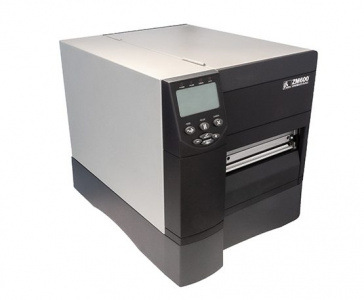
Как известно, качество печати принтера, его способность печатать мелкий текст или штрих-код напрямую зависит от разрешающей способности принтера.
Принтер ZM400 может печатать с разрешением 203 dpi, 300 dpi и 600 dpi.
Принтер ZM600 может печатать с разрешением 203 dpi и 300 dpi.
Что делать если ваши потребности и имеющееся разрешение вашего принтера не совпадают?
Есть решение: Вы можете приобрести у нас набор для смены разрешения печати!
Например, если у вас ZM400 на 600 или 203dpi, а вам нужен принтер на 300 dpi, вам подойдет набор с партномером «Zebra 79806».
Набор состоит из трех частей:
* печатная головка ZM400 на 300 dpi, артикул: 10777
* ремень, артикул: 10926
* шкив (шестерня), артикул: 10873
Купить набор вы можете у нас.
Наборы для смены разрешения печати принтеров Zebra ZM400 и ZM600
| Замена | Партномер |
| Kit Convert 600 dpi OR 300 dpi to 203dpi ZM400 | 79805 |
| Kit Convert 203 dpi OR 600 dpi to 300dpi ZM400 | 79806 |
| Kit Convert 203 dpi OR 300 dpi to 600dpi ZM400 | 79807 |
| Kit Convert 203 dpi to 300 dpi ZM600 | 79808 |
| Kit Convert 300 dpi to 203 dpi ZM600 | 79809 |
Установка набора не требует специальных навыков.
Перепрограммирование принтера также не требуется.
По запросу мы можем подготовить видео инструкцию процесса установки набора.
Источник
Вопросы по калибровке принтера, настройках печати
Как выполнить перекалибровку принтера zebra gk420t?
В списке принтеров, установленных на компьютере выбрать zebra gk420t. Установив курсор на ярлыке принтера вызвать контекстное меню, в котором выбрать строку «Настройка печати». Потом во вкладке «Специальные установки» выбрать в левом окне «Действие», в правом окне «Калибровать носитель». Подтвердить свой выбор кнопкой «Послать». После этого принтер должен протянуть несколько этикеток и остановиться в разрыве между этикетками, что означает успешную калибровку принтера. Если же остановка произошла на самой этикетке, это означает, что принтер не откалибровался и следует повторить процесс калибровки.
Красящая лента (риббон) в принтере Zebra липнет к этикеткам, что делать?
Красящая лента липнет к этикеткам обычно если некачественный риббон, либо износилась печатающая головка, либо слишком высокая интенсивность печати. В первых двух случаях понятно что делать. А вот в третьем случае попробуйте изменить настройки принтера, а именно или увеличить скорость печати или уменьшить интенсивность (чем больше скорость протяжки риббона тем меньше он нагревается).
Но перед этим произведите чистку рабочей поверхности печатающей головки (зеркально коричневая). Если нет чистящего карандаша — чистка проводится ватным тампоном, смоченным в спирте.
Настройки меняются с помощью компьютераноутбука, к которому подключен принтер. Путь такой: пуск — принтеры — ПКМ — настройка печати, вкладка «Опции». Вы увидите много полей, в том числе «Скорость» и «Интенсивность»
Как откалибровать принтер zebra 105 sl?
В списке принтеров, установленных на компьютере выбрать принтер 105 sl. Установив курсор на ярлыке принтера вызвать контекстное меню, в котором выбрать строку «Настройка печати». Потом во вкладке «Специальные установки» выбрать в левом окне «Действие», в правом окне «Калибровать носитель». Подтвердить свой выбор кнопкой «Послать».
Возможна также калибровка непосредственно из меню принтера. Смотрите инструкцию к принтеру.
Как выставить размер штрих кода в zebra gk420t?
Размер штрихкода обычно устанавливается в программе печати Zdesigner. Программное обеспечение Zebra Designer (ZDesigner) включает в себя драйвер для управления принтером и утилиту для создания дизайна самоклеящейся этикетки со штрих-кодами (русcкоязычный вариант) на принтерах этикеток Zebra.
Как увеличить скорость печати zebra 2824?
В списке принтеров, установленных на компьютере выбрать zebra 2824. Установив курсор на ярлыке принтера вызвать контекстное меню, в котором выбрать строку «Настройка печати». Далее зайти во вкладку «Опции» в поле «Параметры» и выбрать требуемую скорость печати.
Как поменять в принтере zebra ZM400 параметры печати?
В списке принтеров, установленных на компьютере выбрать zebra ZM400. Установив курсор на ярлыке принтера вызвать контекстное меню, в котором выбрать строку «Настройка печати». Также параметры печати доступны из самого драйвера на ПК.
Как добавить/изменить размер этикетки (листа) в zebra lp2824?
В списке принтеров, установленных на компьютере выбрать zebra lp2824. Установив курсор на ярлыке принтера вызвать контекстное меню, в котором выбрать строку «Настройка печати». Во вкладке «Опции» Вы сможете создать образец этикетки с необходимым размером этикетки.
Как проверить сколько напечатано этикеток в zebra 170xi4?
Количество напечатанных этикеток можно проверить на табло принтера. Для этого найдите соответствующий пункт в меню принтера.
Как настроить печать через принт-сервер в zebra gk420?
Принт-сервер – это встраиваемая плата, которая позволяет подключить принтер в компьютерную сеть предприятия. Необходимо правильно сконфигурировать принт-сервер. Смотрите инструкции к принтеру.
Как происходит настройка com порта gk 420d?
Ообычно принтер работает на стандартных настройках порта сконфигурированными операционной системой, поэтому ничего настраивать не нужно. Если вы нуждаетесь в дополнительных настройках, обратитесь к инструкции принтера.
Источник
Инструкции, мануалы и руководства: Автоматизация торговли Zebra ZM600
Ошибка! Запрашиваемого файла не существует.
Перейти к описанию Zebra ZM600
© 2005-2019. Интернет-магазин техники связи. ЗАО «Вива-Телеком», ООО «Карат-Телеком».
 |
 |
Мы принимаем: |  |
 |
 |
 |
 |
 |
 |
Автоматизация торговли Zebra. Магазин по продаже оборудования радиосвязи: портативные радиостанции, стационарные и автомобильные радиостанции, ретрансляторы, базовые и автомобильные антенны, блоки питания, любительские рации. Продажа систем оповещения, видеонаблюдения, измерительных приборов и систем навигации. Цены на всю технику поддерживаются актуальными и конкурентноспособными. Все предлагаемое оборудование Zebra можно купить с доставкой в регионы.
Источник
Руководство по эксплуатации Zebra Technologies Zebra Z Series ZM400
Руководство по эксплуатации для устройства Zebra Technologies Zebra Z Series ZM400
Устройство: Zebra Technologies Zebra Z Series ZM400
Размер: 7,23 MB
Добавлено: 2013-11-25 12:52:26
Количество страниц: 146
Печатать инструкцию
Как пользоваться?
Наша цель — обеспечить Вам самый быстрый доступ к руководству по эксплуатации устройства Zebra Technologies Zebra Z Series ZM400 . Пользуясь просмотром онлайн Вы можете быстро просмотреть содержание и перейти на страницу, на которой найдете решение своей проблемы с Zebra Technologies Zebra Z Series ZM400 .
Для Вашего удобства
Если просмотр руководства Zebra Technologies Zebra Z Series ZM400 непосредственно на этой странице для Вас неудобен, Вы можете воспользоваться двумя возможными решениями:
- Полноэкранный просмотр -, Чтобы удобно просматривать инструкцию (без скачивания на компьютер) Вы можете использовать режим полноэкранного просмотра. Чтобы запустить просмотр инструкции Zebra Technologies Zebra Z Series ZM400 на полном экране, используйте кнопку Полный экран .
- Скачивание на компьютер — Вы можете также скачать инструкцию Zebra Technologies Zebra Z Series ZM400 на свой компьютер и сохранить ее в своем архиве. Если ты все же не хотите занимать место на своем устройстве, Вы всегда можете скачать ее из ManualsBase.
Печатная версия
Многие предпочитают читать документы не на экране, а в печатной версии. Опция распечатки инструкции также предусмотрена и Вы можете воспользоваться ею нажав на ссылку, находящуюся выше — Печатать инструкцию . Вам не обязательно печатать всю инструкцию Zebra Technologies Zebra Z Series ZM400 а только некоторые страницы. Берегите бумагу.
Резюме
Ниже Вы найдете заявки которые находятся на очередных страницах инструкции для Zebra Technologies Zebra Z Series ZM400 . Если Вы хотите быстро просмотреть содержимое страниц, которые находятся на очередных страницах инструкции, Вы воспользоваться ими.
Источник
Посмотреть инструкция для Zebra ZM400 бесплатно. Руководство относится к категории принтеры для этикеток, 5 человек(а) дали ему среднюю оценку 9.1. Руководство доступно на следующих языках: английский. У вас есть вопрос о Zebra ZM400 или вам нужна помощь? Задайте свой вопрос здесь
Не можете найти ответ на свой вопрос в руководстве? Вы можете найти ответ на свой вопрос ниже, в разделе часто задаваемых вопросов о Zebra ZM400.
Что означает аббревиатура DPI?
Инструкция Zebra ZM400 доступно в русский?
Не нашли свой вопрос? Задайте свой вопрос здесь
Подписаться на новости
Вы подписались на новости
117105, г. Москва, Варшавское шоссе, д. 37А
Отдел продаж: +7 (495)
662 98-03
sales@cleverence.ru
Пн-пт: с 07-00 до 19-00
Скачать бесплатную пробную версию
Скачать на устройство



-
Продукты- Склад 15
- Магазин 15
- Учет имущества
- Курьер
- Кировка
- Mobile SMARTS
- Все продукты
-
Возможности- Для складов
- Для магазинов
- Для учреждений
- Онлайн-магазин и доставка
- Для производств
- Кейсы
-
Библиотека- База знаний
- Техническая поддержка
- Обновления ПО
- Обучение
- Партнерский раздел
- Личный кабинет
- О Компании
© Клеверенс 2023
Политика конфиденциальности
Подписывайтесь на наши соцсети


-
Zebra Technologies ZM400 — page 1
79695L-003 Rev . A Z Series ® /RZ™ Series Industrial/Commercial Printer User Guide ZM400, ZM600, RZ400, and RZ600 printers …
-
Zebra Technologies ZM400 — page 2
© 201 1 ZIH Corp. The copyrights in this manual and the software and/or firmware in the pri nter described therein are owned by ZIH Corp. and Zebra’ s licensors. Unaut horized reproduction of this manual or the software and/or firmware in the printer may result in impr isonm ent of up to one year and fines of up to $10,000 (17 U.S.C.506). Copyri …
-
Zebra Technologies ZM400 — page 3
3 Declaration of Conformity 1/1 1/1 1 Z Series ® /RZ™ Series User Guide 79695L-003 Declaration of Conformity W e have determined that the Zebra printers identi fied as the Z Series ® and RZ™ Se ries Z4M, Z6M, Z4Mplus, Z6 Mplus, ZM40 0, ZM600, R4Mplus, RZ400, RZ6 00 manufactured by: Zebra T echnologies Corpor ation 475 Half Day Road, Suite 50 …
-
Zebra Technologies ZM400 — page 4
Compliance Information Compliance Information 4 79695L-003 Z Series ® /RZ™ Series User Guide 1/1 1/1 1 Compliance Information FCC Compliance S t atement This device compli es with Part 15 rules. Operati o n is subject to the followin g two conditions: 1. This device may not cause harmful in terferen ce, and 2. This device must accept any interfe …
-
Zebra Technologies ZM400 — page 5
1/1 1/1 1 Z Series ® /RZ™ Series User Guide 79695L-003 Contents Declaration of Conformity . . . . . . . . . . . . . . . . . . . . . . . . . . . . . . . . . . . . . . . . . . . 3 Compliance Information . . . . . . . . . . . . . . . . . . . . . . . . . . . . . . . . . . . . . . . . . . . . . . . . . . . 4 About This Document . . . . . . . . . . . …
-
Zebra Technologies ZM400 — page 6
Contents 6 79695L-003 Z Series ® /RZ™ Series User Guide 1/1 1/1 1 Select a Site for the Print er . . . . . . . . . . . . . . . . . . . . . . . . . . . . . . . . . . . . . . . . . . . . . . . . 26 Select a Surface . . . . . . . . . . . . . . . . . . . . . . . . . . . . . . . . . . . . . . . . . . . . . . . . . . . . . 26 Provide Proper Operating …
-
Zebra Technologies ZM400 — page 7
7 Contents 1/1 1/1 1 Z Series ® /RZ™ Series User Guide 79695L-003 5 • Routine Maintenance . . . . . . . . . . . . . . . . . . . . . . . . . . . . . . . . . . . . . . . . . . . 99 Replacing Printer Components . . . . . . . . . . . . . . . . . . . . . . . . . . . . . . . . . . . . . . . . . . . . 100 Ordering Replacement Parts . . . . . . . . . …
-
Zebra Technologies ZM400 — page 8
Contents 8 79695L-003 Z Series ® /RZ™ Series User Guide 1/1 1/1 1 Notes • ___________ ____________________ _____________________ _______________ ___________ _____________________ ____________________ ____________________ __ ___________ _____________________ ____________________ ____________________ __ ___________ _____________________ ________ …
-
Zebra Technologies ZM400 — page 9
1/1 1/1 1 Z Series ® /RZ™ Series User Guide 79695L-003 About This Document This section provides yo u wit h cont act information, document structure and or ganization, and additional re ference documents. Content s Who Should Use This Document . . . . . . . . . . . . . . . . . . . . . . . . . . . . . . . . . . . . . . . . . . . 10 How This Docum …
-
Zebra Technologies ZM400 — page 10
About This Document Who Shoul d Us e This Document 10 79695L-003 Z Series ® /RZ™ Series User Guide 1/1 1/1 1 Who Should Use This Document This User Guide is intended for use by any pe rson who needs to op erate or to troubleshoot problems with th e printer. How This Document Is Organized The User Guide is set up as follows: Section Description I …
-
Zebra Technologies ZM400 — page 11
11 About This Document Contacts 1/1 1/1 1 Z Series ® /RZ™ Series User Guide 79695L-003 Contact s T echnical Supp ort via the Internet is a vailable 24 hours pe r day , 365 days per year . W e b Site: www .zebra.com E-mail Back T e chnical Library: E-mail address: emb@zebra.com Subject line: Email list Self Service Knowledge Base: www .zebra.com/ …
-
Zebra Technologies ZM400 — page 12
About This Document Document Conventions 12 79695L-003 Z Series ® /RZ™ Series User Guide 1/1 1/1 1 Document Conventions The following co nventions are used throughout this do cument to convey certain information. Alternate Color (online only) C r oss-references contain hot links to other sections in this guide. If you are vi ewing this guide on …
-
Zebra Technologies ZM400 — page 13
13 About This Document Document Conventions 1/1 1/1 1 Z Series ® /RZ™ Series User Guide 79695L-003 Illustration Callout s Callouts are used when an illustrati on contains informatio n that needs to be labeled a n d described. A table that conta ins the labels a nd descriptions follo ws the graphic. Figure 1 provides an example. Figure 1 • Samp …
-
Zebra Technologies ZM400 — page 14
About This Document Document Conventions 14 79695L-003 Z Series ® /RZ™ Series User Guide 1/1 1/1 1 Notes • ___________ ____________________ _____________________ _______________ ___________ _____________________ ____________________ ____________________ __ ___________ _____________________ ____________________ ____________________ __ _________ …
-
Zebra Technologies ZM400 — page 15
1/1 1/1 1 Z Series ® /RZ™ Series User Guide 79695L-003 1 Introduction This section shows the operational cont rols and loca tion of major compon e nts used when loading medi a. Content s External View . . . . . . . . . . . . . . . . . . . . . . . . . . . . . . . . . . . . . . . . . . . . . . . . . . . . . . . . . . 16 Printer Media Compartment . …
-
Zebra Technologies ZM400 — page 16
Introduction External View 16 79695L-003 Z Series ® /RZ™ Series User Guide 1/1 1/1 1 External Vi e w Figure 2 and Figure 3 show the components an d connection s on the outsid e of the prin ter. Figure 2 • Front of Printer 1 Control panel 2 Media door 1 2 …
-
Zebra Technologies ZM400 — page 17
17 Introd uction External View 1/1 1/1 1 Z Series ® /RZ™ Series User Guide 79695L-003 Figure 3 • Rear of Printer 1 Power switch ( O = of f, I = on) 5 Serial port 2 AC power connect or 6 Internal wired pr int server port (Ethernet option) 3 W ireless card ejector button 7 USB port 8 Parallel port 4 W ireless Plus print server card slot (Etherne …
-
Zebra Technologies ZM400 — page 18
Introduction Printer Media Compartment 18 79695L-003 Z Series ® /RZ™ Series User Guide 1/1 1/1 1 Printer Media Comp artment Figure 4 shows the components i n side the media compartment of your pr inter . Depending on installed opti ons, your printer may loo k slightly different. Figure 4 • Printer Components Note • For optimal printin g q ua …
-
Zebra Technologies ZM400 — page 19
19 Introd uction Control Panel 1/1 1/1 1 Z Series ® /RZ™ Series User Guide 79695L-003 Control Panel The control pan el contains the lights that ind icate basic ope ration and the b uttons that you may need to press du ring basic operation. The contro l panel butto ns and lights are labeled in Figure 5 . Descriptions for eac h are located in Ta b …
-
Zebra Technologies ZM400 — page 20
Introduction Control Pane l 20 79695L-003 Z Series ® /RZ™ Series User Guide 1/1 1/1 1 Control Panel Buttons T able 1 • Control Panel Buttons Button Function FEED Forces the printer to feed one blank label each time the button is pressed. • Printer not printi ng: one blank label immediately feeds. • Printing: one bl ank label feeds a fter t …
-
Zebra Technologies ZM400 — page 21
21 Introd uction Control Panel 1/1 1/1 1 Z Series ® /RZ™ Series User Guide 79695L-003 Control Panel Light s T able 2 • Control Panel Lights Light St atus Indication POWER Off The printer is off, or no power is applied. On The printer i s on . P AUSE Off Normal printer oper ation. On The printer has stopped al l printing oper ations. Flashing T …
-
Zebra Technologies ZM400 — page 22
Introduction Printer Language Modes 22 79695L-003 Z Series ® /RZ™ Series User Guide 1/1 1/1 1 Printer Language Modes Depending on how your print e r was ordered, it came from the factory wi th firmware that operates in or allows you to use certain comma nds for one of the follow ing printer languag es: • Zebra Programming Langua ge (ZPL ® ), …
-
Zebra Technologies ZM400 — page 23
1/1 1/1 1 Z Series ® /RZ™ Series User Guide 79695L-003 2 Printer Setup This section provid es the tasks that you must comple te and the issues that you must c onsider before you load a nd configure yo ur printer. Content s Before Y ou Begin . . . . . . . . . . . . . . . . . . . . . . . . . . . . . . . . . . . . . . . . . . . . . . . . . . . . . …
-
Zebra Technologies ZM400 — page 24
Printer Setup Before Y ou Begin 24 79695L-003 Z Series ® /RZ™ Series User Guide 1/1 1/1 1 Before Y ou Begin Review this checkl ist, and resolve any issues before you set u p or use your prin ter. Unp ac k and Inspect the Printer Have you unpacked the printer and inspected it for damage? If you have not, see Unpack an d Inspect the Printer on …
-
Zebra Technologies ZM400 — page 25
25 Printer Setup Handling the Printer 1/1 1/1 1 Z Series ® /RZ™ Series User Guide 79695L-003 Handling the Printer This section describes how to han dl e you r printer. Unp ack and Inspect the Printer When you receiv e the printer, immediately unp ack it and in spect for shippi ng damage. • Save all packing mate rials. • Check all exterior su …
-
Zebra Technologies ZM400 — page 26
Printer Setup Select a Site for the Printer 26 79695L-003 Z Series ® /RZ™ Series User Guide 1/1 1/1 1 Select a Site for the Printer Consider th e following w hen selecti ng an approp riate locati on for your pr inter. Select a Surface Select a solid, level surface of suf ficient size and strength to acco mmodate the pri nter and other equipment …
-
Zebra Technologies ZM400 — page 27
27 Printer Setup Select a Data Communication Interface 1/1 1/1 1 Z Series ® /RZ™ Series User Guide 79695L-003 Select a Dat a Communication Interface Ta b l e 5 provides basic information about data co mmunication interfaces that you can use to connect your printer to a computer . Y ou may send label formats to the printer t hrough any d ata comm …
-
Zebra Technologies ZM400 — page 28
Printer Setup Select a Data Communication Interface 28 79695L-003 Z Series ® /RZ™ Series User Guide 1/1 1/1 1 IEEE 1284 Bidirectional Parallel Sta nd ar d Limit ations and Requirements • Maximum cable len g th of 10 ft (3 m). • Recommended cable length of 6 ft (1.83 m). • No printer parameter chan ges required to match the h o st computer …
-
Zebra Technologies ZM400 — page 29
29 Printer Setup Select a Data Communication Interface 1/1 1/1 1 Z Series ® /RZ™ Series User Guide 79695L-003 T winax/Coax Optional Limit ations and Requirement s • Acts as an EBC DIC to ASCI I converter . • Allows for the ability to communicate with the printer in an IBM ® AS/400 ® en vironment. Connections and Configuration No additi ona …
-
Zebra Technologies ZM400 — page 30
Printer Setup Select a Data Communication Interface 30 79695L-003 Z Series ® /RZ™ Series User Guide 1/1 1/1 1 Internal wire d Ethernet print serve r Optional Limit ations and Requirements • Can print to t he printer fro m any compute r on your L AN. • Can communicate with the prin ter through the printer’ s web pages when in ZPL mode. • …
-
Zebra Technologies ZM400 — page 31
31 Printer Setup Select a Data Communication Interface 1/1 1/1 1 Z Series ® /RZ™ Series User Guide 79695L-003 Dat a Cables and Wireless Cards Y ou must supply all data cabl es or removeable radio c ards for your app lication. (Some wireless print servers come with an integrated radio card.) Data Cables Ethernet cables do n ot require sh ielding, …
-
Zebra Technologies ZM400 — page 32
Printer Setup Connect the Printer to a Power Source 32 79695L-003 Z Series ® /RZ™ Series User Guide 1/1 1/1 1 Connect the Printer to a Power Source The AC power cord must ha ve a three-prong fema le connector on one end that plugs into the mating AC power connector at the rear of the printer. If a power cable was n ot included with your printer, …
-
Zebra Technologies ZM400 — page 33
33 Printer Setup Connect the Printer to a Po wer Source 1/1 1/1 1 Z Series ® /RZ™ Series User Guide 79695L-003 Power Cord Specifications Depending on how your p rinter was ordered, a power cord m ay or may not be included. If o ne is not includ ed or if the one included is n ot suitable fo r your requirements, se e Figure 6 and refer to the foll …
-
Zebra Technologies ZM400 — page 34
Printer Setup T ypes of Media 34 79695L-003 Z Series ® /RZ™ Series User Guide 1/1 1/1 1 T ypes of Media Y our printer can use vario us types of media: • S tandar d media —Most standard media uses an adhesive backing that sti cks individual labels or a c ontinuous len gth of label s to a liner . • Ta g s t o c k —T ags are usually ma de f …
-
Zebra Technologies ZM400 — page 35
35 Printer Setup T ypes of Media 1/1 1/1 1 Z Series ® /RZ™ Series User Guide 79695L-003 T able 6 • Roll and Fanfold Media Media T ype How It Looks Des cription Non-Continuous Roll Media Roll media is w ound on a 3-in. (7 6-mm) core. Individu al labels are separated by on e or more of the followin g met hods: • We b m e d i a separates labe l …
-
Zebra Technologies ZM400 — page 36
Printer Setup Ribbon Overview 36 79695L-003 Z Series ® /RZ™ Series User Guide 1/1 1/1 1 Ribbon Overview Ribbon is a t hin film that is co ated on one side with wax, resin, o r wax resin, whi ch is transferred to the media duri ng the therm al transfer pr ocess. The media d etermines wh ether you need to use ribbon and how wide the ribb on must b …
-
Zebra Technologies ZM400 — page 37
37 Printer Setup Ribbon Overview 1/1 1/1 1 Z Series ® /RZ™ Series User Guide 79695L-003 4. Observe the results. Did flakes or particles of ink from the rib bon adhere to th e label? Ribbon Scratch T est Perform the ribbon scratch test when labels are unavailable. T o perform a ribbon scratch test, complete these step s: 1. Unroll a short len gth …
-
Zebra Technologies ZM400 — page 38
Printer Setup Ribbon Overview 38 79695L-003 Z Series ® /RZ™ Series User Guide 1/1 1/1 1 Notes • ___________ ____________________ _____________________ _______________ ___________ _____________________ ____________________ ____________________ __ ___________ _____________________ ____________________ ____________________ __ ___________ ________ …
-
Zebra Technologies ZM400 — page 39
1/1 1/1 1 Z Series ® /RZ™ Series User Guide 79695L-003 3 Operations This section provides th e procedures for loading and calibrating the printer. Note • Complete the tasks and resolve the issues in Printe r Se tup on page 23 before operating the printe r. Content s Print Modes and Printer Options . . . . . . . . . . . . . . . . . . . . . . . …
-
Zebra Technologies ZM400 — page 40
Operations Print Modes and Printer Options 40 79695L-003 Z Series ® /RZ™ Series User Guide 1/1 1/1 1 Print Modes and Printer Options The printer can use dif ferent print mo des and options fo r label removal ( Ta b l e 7 ). Use a print mode that matches th e media being used and the prin ter op tions available. For mor e information on the types …
-
Zebra Technologies ZM400 — page 41
41 Operations Print Modes and Printer Options 1/1 1/1 1 Z Series ® /RZ™ Series User Guide 79695L-003 Media Paths Ta b l e 8 shows the media paths for print mode and printer option combinations using rol l media. Fanfold media uses the same print mode s and printer o ptions as roll media. RFID printers can use a ll of these printer options and ha …
-
Zebra Technologies ZM400 — page 42
Operations Print Modes and Printer Options 42 79695L-003 Z Series ® /RZ™ Series User Guide 1/1 1/1 1 Cutter or Delayed Cut Cutter (shown with an optional catch tray) Rewind Rewind T able 8 • Media Paths for Print Modes wi th V arious Printer Options (Continued) Print Mode Printer Option Media Path Red solid lines = media, Blue dotted lines = b …
-
Zebra Technologies ZM400 — page 43
43 Operations Load Media 1/1 1/1 1 Z Series ® /RZ™ Series User Guide 79695L-003 Load Media The beginning steps for loading m edia apply to a ll printers , in cluding those that have the peel-off, liner take-up, cutter , or rewind option . When you have completed these beginnin g steps, continue wit h the media loading instructio ns for the print …
-
Zebra Technologies ZM400 — page 44
Operations Load Media 44 79695L-003 Z Series ® /RZ™ Series User Guide 1/1 1/1 1 3. Insert media int o the printer. Follo w the instructions for roll or fanfold media, as appropriate. Roll Media Fanfold Media a. Remove and discard any tags or labels that ar e dirty or that are held by adhesives or tape. a. Pull out and, if applicable , flip down …
-
Zebra Technologies ZM400 — page 45
45 Operations Load Media 1/1 1/1 1 Z Series ® /RZ™ Series User Guide 79695L-003 c. Place the roll of media on the media supply hanger . Push the roll as far back as it will go. c. Drape the media over the me dia supply ha nger . d. If applicable, flip up the media sup ply guide. d. If applicable, flip up the media sup ply guide. Roll Media (Cont …
-
Zebra Technologies ZM400 — page 46
Operations Load Media 46 79695L-003 Z Series ® /RZ™ Series User Guide 1/1 1/1 1 4. Feed the media un der the dancer assembl y ( 1 ), t he upper me dia senso r ( 2 ), an d the ri bbon sensor ( 3 ). Slide the medi a back until it touches the inside back wall of the upper me di a sensor . 5. Continue wi th the final instruc tions for the desired pr …
-
Zebra Technologies ZM400 — page 47
47 Operations Load Media 1/1 1/1 1 Z Series ® /RZ™ Series User Guide 79695L-003 Additional S tep s for T e ar-Off Mode After completing Beginning S te ps for all Print Modes and Printer Option s on page 43 , continue wi th this section to operate the printer in T ear-Of f mode. T o operate the printer in T ear-Off mode, complete the se step s: 1 …
-
Zebra Technologies ZM400 — page 48
Operations Load Media 48 79695L-003 Z Series ® /RZ™ Series User Guide 1/1 1/1 1 Additional S tep s for Peel-Off Mode (with or without Liner T ake-Up) After completing Beginning S te ps for all Print Modes and Printer Option s on page 43 , continue with this section to op erate the printer in Peel-Of f mode with o r without liner ta ke-up. Y our …
-
Zebra Technologies ZM400 — page 49
49 Operations Load Media 1/1 1/1 1 Z Series ® /RZ™ Series User Guide 79695L-003 3. Push down the peel-of f mechanism rele ase lever to open the peel a ssembly . 4. Feed the liner over the tear -off/peel-of f bar ( 1 ) and behind the peel assembly ( 2 ). Make sure that th e end of the lin er falls outside of t he printer. 5. Complete this step on …
-
Zebra Technologies ZM400 — page 50
Operations Load Media 50 79695L-003 Z Series ® /RZ™ Series User Guide 1/1 1/1 1 b. Loosen the thumbscrew on the rewind media guide. b. Push the liner b ack until it touches the back plate of the l iner take-up spin dle assembly . c. Slide the rewind media guide all the way out, and t hen fold it do wn. d. Slide an empty core onto the rewind spin …
-
Zebra Technologies ZM400 — page 51
51 Operations Load Media 1/1 1/1 1 Z Series ® /RZ™ Series User Guide 79695L-003 e. W rap the liner arou nd the core and turn the rewind spindle counterclo ckwise to tighten the liner . (No addition al steps for the liner take-up option.) f. Fold up the rewind media guide, and then slide it in until it t ouches the liner . g. T ighten the thumbsc …
-
Zebra Technologies ZM400 — page 52
Operations Load Media 52 79695L-003 Z Series ® /RZ™ Series User Guide 1/1 1/1 1 6. 7. Slide in the media guide until it touches the ou ter edge of the media. 8. Set the printer to Peel-Of f mode. See Select Print Mode on page 76 for instructions. 9. Close the pr inthead asse mbly . 10. If the printer is p aused (the Pause ligh t is on), press PA …
-
Zebra Technologies ZM400 — page 53
53 Operations Load Media 1/1 1/1 1 Z Series ® /RZ™ Series User Guide 79695L-003 Additional S tep s for Cutter or Delayed Cut Mode After completing Beginning S te ps for all Print Modes and Printer Option s on page 43 , continue wi th this section to operate the printer in Cut ter or Delayed Cut mode. T o operate the printer in Cutter or Delayed …
-
Zebra Technologies ZM400 — page 54
Operations Load Media 54 79695L-003 Z Series ® /RZ™ Series User Guide 1/1 1/1 1 4. Close the pr inthead asse mbly . 5. If the printer is paused (the Pause light is on), press PA U S E to enable printing. Cuttin g begins automatica lly . Additional S tep s for Rewind Mode After completing Beginning S te ps f or all Print Modes and Pri nter Option …
-
Zebra Technologies ZM400 — page 55
55 Operations Load Media 1/1 1/1 1 Z Series ® /RZ™ Series User Guide 79695L-003 2. Feed the media over the peel assembly ( 1 ). 3. Feed the media under the me dia alignment roller ( 1 ). 4. Loosen the thumbsc r ew on the rewind media guide . 5. Slide the rewind media guide all the way out, an d then fold it down. 1 1 …
-
Zebra Technologies ZM400 — page 56
Operations Load Media 56 79695L-003 Z Series ® /RZ™ Series User Guide 1/1 1/1 1 6. Slide an empty core onto the rewind spindle. 7. W rap the media around the core and t urn the rewind sp indle counte rclockwise to tighten the media. Ensure that the edge of the media is flush against the backplate of the rewind spindle. 8. Fold up the rewind medi …
-
Zebra Technologies ZM400 — page 57
57 Operations Load Media 1/1 1/1 1 Z Series ® /RZ™ Series User Guide 79695L-003 10. Slide in the media guide until it touches the ou ter edge of the media. 11 . Set the printer t o Rewind mode. See Select Print Mode on page 76 for instructions. 12. Close the pr inthead asse mbly . 13. If the printer is pau sed (the Pause light is on), press PA U …
-
Zebra Technologies ZM400 — page 58
Operations Load Ribbon 58 79695L-003 Z Series ® /RZ™ Series User Guide 1/1 1/1 1 Load Ribbon Always use ribbon th at is wider than th e media to protect the printhead from wear . For direct thermal print in g, do not load ri bb on in the prin ter. The standard Thermal T ransfer option (black rib b on spindle) uses ribbon coated on the outside, a …
-
Zebra Technologies ZM400 — page 59
59 Operations Load Ribbon 1/1 1/1 1 Z Series ® /RZ™ Series User Guide 79695L-003 T o load ribbon, complete these ste ps: 1. Set the ribbon suppl y spi ndle for normal or lo w tension. • T o place the ri bbon supp ly spi ndle in the normal position , firmly pull out the spindle end cap until it extends and cl icks in place, as shown in Figure 9 …
-
Zebra Technologies ZM400 — page 60
Operations Load Ribbon 60 79695L-003 Z Series ® /RZ™ Series User Guide 1/1 1/1 1 3. Insert the ribbon i nto the printer . In th is step, follow the inst ructions for the Thermal T ransfer option installed i n your printer . Ribbon Coated Out s ide (black ribbon spindle) Ribbon Coated Inside (gray ribbon spindle) a. Hold the ribb on with the l oo …
-
Zebra Technologies ZM400 — page 61
61 Operations Load Ribbon 1/1 1/1 1 Z Series ® /RZ™ Series User Guide 79695L-003 4. Close the pr inthead asse mbly . 5. W ind the ribbon clo ckwise onto th e ribbon take-up spindle ( 1 ). Ribbon Coated Outside (black ribbon spindle) Ribbon Coated Inside (gray ribbon spindle) 1 1 …
-
Zebra Technologies ZM400 — page 62
Operations Load Ribbon 62 79695L-003 Z Series ® /RZ™ Series User Guide 1/1 1/1 1 Remove Used Ribbon T o remove used ribbon, complete the se steps: 1. 2. T o loosen the ribb on , squeeze it against the ribbon take-u p spindle tension blades ( 1 ). At the same time, tu rn the ribbon take-up spindl e release knob co unterclockwise ( 2 ). The tensio …
-
Zebra Technologies ZM400 — page 63
63 Operations Calibrate the Printer 1/1 1/1 1 Z Series ® /RZ™ Series User Guide 79695L-003 Calibrate the Printer The printer can be set to cal ibrate automatically , or you can calibrate it manually . Auto Calibration When the cont rol panel setting for MEDIA POWER UP or HEAD CLOSE is set t o CALIBRATION , the printer auto matically ca librates …
-
Zebra Technologies ZM400 — page 64
Operations Adjust Printhead Pressure 64 79695L-003 Z Series ® /RZ™ Series User Guide 1/1 1/1 1 Adjust Printhead Pressure Y ou may need to adjust printhead pressure if printi ng is too light on one side, if you use thic k media, or if the media drifts fr om side to side during pr inting. See Figur e 10 . The ZM400 and RZ400 pressure adjustment di …
-
Zebra Technologies ZM400 — page 65
65 Operations Adjust Printhead Pressure 1/1 1/1 1 Z Series ® /RZ™ Series User Guide 79695L-003 2. If necessary , adjust the pressure adjustment dials as follows: T able 10 • ZM600 and RZ600 Printhead Pressure Media Wid th Inside Dial Out side Dial 2 in. (50 mm ) 6 1 3 in. (75 mm ) 6 2 4 in. (100 mm) 7 3 5 in. (125 mm) 7 4 5.5 in. and up (140 m …
-
Zebra Technologies ZM400 — page 66
Operations Adjust Printhead Pressure 66 79695L-003 Z Series ® /RZ™ Series User Guide 1/1 1/1 1 Notes • ___________ ____________________ _____________________ _______________ ___________ _____________________ ____________________ ____________________ __ ___________ _____________________ ____________________ ____________________ __ ___________ _ …
-
Zebra Technologies ZM400 — page 67
1/1 1/1 1 Z Series ® /RZ™ Series User Guide 79695L-003 4 Configuration This section describes the cont rol panel paramete rs that are used to co nfigure the printer for operation. Content s Setup Mode . . . . . . . . . . . . . . . . . . . . . . . . . . . . . . . . . . . . . . . . . . . . . . . . . . . . . . . . . . . 68 Enter and Use Setup Mode …
-
Zebra Technologies ZM400 — page 68
Configuration Setup Mode 68 79695L-003 Z Series ® /RZ™ Series User Guide 1/1 1/1 1 Setup Mode After you have inst alled the media and ribbon and the Power- On Self T e st (POST) is complete, the control panel displa ys PRINTER READY . Y ou may now set printer parameters for your application using the control panel display and the buttons directl …
-
Zebra Technologies ZM400 — page 69
69 Configuration Setup Mode 1/1 1/1 1 Z Series ® /RZ™ Series User Guide 79695L-003 Exit Setup Mode When you exi t setup mode, yo u have severa l options for saving, changing , or not changi ng parameters. T o leave Setup mode, complete these ste ps: 1. While in Setup mode, press SETUP/EXIT . The LCD displays SAVE CHANGES . 2. Press PLUS (+) or M …
-
Zebra Technologies ZM400 — page 70
Configuration Change Password-Protected Parame te rs 70 79695L-003 Z Series ® /RZ™ Series User Guide 1/1 1/1 1 Change Password-Protected Parameters Certain paramet ers, including the communication parameters, are passwo rd-protected by factory defaul t. The first time that you attempt to change a password-protec ted parameter , the printer displ …
-
Zebra Technologies ZM400 — page 71
71 Configuration Print a Configuration Label 1/1 1/1 1 Z Series ® /RZ™ Series User Guide 79695L-003 Print a Configuration Label A configuration lab e l lists the printer settings tha t are stored in co nfiguration memory . After you load the media, prin t a configuration label as a record of yo ur printer’ s current settings. Keep the label to …
-
Zebra Technologies ZM400 — page 72
Configuration Print a Network Configu ration Label 72 79695L-003 Z Series ® /RZ™ Series User Guide 1/1 1/1 1 Print a Network Configuration Label If you are using a print server , you can print a ne two rk configuratio n label after the printer is connected to the network. T o print a network configuration label, complete these steps : 1. On the …
-
Zebra Technologies ZM400 — page 73
73 Configuration S tandard Control Panel Parameters 1/1 1/1 1 Z Series ® /RZ™ Series User Guide 79695L-003 S tandard Control Panel Parameters Ta b l e 1 1 shows parameters in the ord er in which t hey are displaye d when you press PLUS (+) after entering Setu p mode. For parameters that do not appea r in this tabl e, see Ad ditional Contr ol Pan …
-
Zebra Technologies ZM400 — page 74
Configuration S tandard Control Panel Paramete rs 74 79695L-003 Z Series ® /RZ™ Series User Guide 1/1 1/1 1 Adjust Print Speed Adjusts the speed fo r printing a label (given in inches per second ). Slower print speeds typica lly yield better print quality . Print speed changes take effect upon exit ing Setup mode. Default V alue (ZPL): 2 IPS Def …
-
Zebra Technologies ZM400 — page 75
75 Configuration S tandard Control Panel Parameters 1/1 1/1 1 Z Series ® /RZ™ Series User Guide 79695L-003 Adjust the T ear -Off Position This parameter establ ish es the position of the medi a over the tear -off /peel-of f bar after printin g. See Figure 13 . Higher numbers move the media out (the tear line mov e s closer to the leading edge of …
-
Zebra Technologies ZM400 — page 76
Configuration S tandard Control Panel Paramete rs 76 79695L-003 Z Series ® /RZ™ Series User Guide 1/1 1/1 1 Select Print Mode This parameter t ells the printer how printed label s will be removed . Make sure that you select a print mode that is compatib le with your printer and printer options. For in formation about how the print modes work wit …
-
Zebra Technologies ZM400 — page 77
77 Configuration S tandard Control Panel Parameters 1/1 1/1 1 Z Series ® /RZ™ Series User Guide 79695L-003 Select Print Method The print method parameter tells the p rinter the method of p rinting that y ou want to use: direct thermal (no ribbon) or t h ermal transfer (using th ermal transfer media and ri bb on). Default V alu e: THERMAL TRANSFE …
-
Zebra Technologies ZM400 — page 78
Configuration S tandard Control Panel Paramete rs 78 79695L-003 Z Series ® /RZ™ Series User Guide 1/1 1/1 1 Set Maximum Label Length This paramete r is used du ring the media portion of the calibration process. Always set maximu m label length to a value th at is at least 1 .0 in. (25.4 mm) greater than th e actual label length ( Figure 14 ). If …
-
Zebra Technologies ZM400 — page 79
79 Configuration S tandard Control Panel Parameters 1/1 1/1 1 Z Series ® /RZ™ Series User Guide 79695L-003 Set Early W arning for Maintenance When this featu re is enabled, the printer p rovides warn ings when th e printhead needs to be cleaned. Default V alu e: MAINT . OFF Selections: MAINT . OFF , MAINTENANCE ON T o change the Early W arning s …
-
Zebra Technologies ZM400 — page 80
Configuration S tandard Control Panel Paramete rs 80 79695L-003 Z Series ® /RZ™ Series User Guide 1/1 1/1 1 Set Printhead Life for Early W arning This parameter appears on ly when Early W arning for Mai nt enance is enabled . Se t this value to the number of inches of media that the printhead is expected to print. Default V alu e: 1,000,00 0 inc …
-
Zebra Technologies ZM400 — page 81
81 Configuration S tandard Control Panel Parameters 1/1 1/1 1 Z Series ® /RZ™ Series User Guide 79695L-003 Print Counter Readings Prints a label t h at lists the odom eter readings for the followi ng: • the non-resettabl e counter • the two user -controlled counters • the Early W arning for Maintenanc e counters, wh ich indicate when the p …
-
Zebra Technologies ZM400 — page 82
Configuration S tandard Control Panel Paramete rs 82 79695L-003 Z Series ® /RZ™ Series User Guide 1/1 1/1 1 List Setup This option prin ts a configuration label (see Fi gure 11 on p age 71 ), which lists the current pri nter configuration. T o print a configuration label: 1. Press SELECT to select the parameter . 2. Press PLUS (+) to select PRIN …
-
Zebra Technologies ZM400 — page 83
83 Configuration S tandard Control Panel Parameters 1/1 1/1 1 Z Series ® /RZ™ Series User Guide 79695L-003 Format Memo ry Card Note • This parameter appears only when a W ireless Plus option board with the flash chip populated is installed. This option erases all previously stored information from the 64 MB flash chip. Caution • This option …
-
Zebra Technologies ZM400 — page 84
Configuration S tandard Control Panel Paramete rs 84 79695L-003 Z Series ® /RZ™ Series User Guide 1/1 1/1 1 Initialize Fl ash Memory This option erases all previously stored inform ation from Flas h memory . Caution • This option completely erases the Flash memory . T o initialize Flash memory: 1. Press SELECT to select the parameter . 2. If p …
-
Zebra Technologies ZM400 — page 85
85 Configuration S tandard Control Panel Parameters 1/1 1/1 1 Z Series ® /RZ™ Series User Guide 79695L-003 Calibrate Me dia and Ribbon Se nsor Sensitiv ity Use this procedu re to adjust se nsitivity of me dia and ribbon sensors. Import ant • Follow this procedure exa ctly as presented. All of the steps must be performed even i f only one of th …
-
Zebra Technologies ZM400 — page 86
Configuration S tandard Control Panel Paramete rs 86 79695L-003 Z Series ® /RZ™ Series User Guide 1/1 1/1 1 (continue d fr om previo us page) Cali brate Medi a and Ribb on Se nsor Sensitivity (continued) Caution • Use the peel release lever and your right hand to close the peel assembly . Do not use your left hand to assist in closi ng. The to …
-
Zebra Technologies ZM400 — page 87
87 Configuration S tandard Control Panel Parameters 1/1 1/1 1 Z Series ® /RZ™ Series User Guide 79695L-003 Set Parallel Communications Select the commun ications port th at matches the one bein g used by the host computer . Default V alu e: BIDIRECTIONAL Selections: BIDIRECTIONAL, UNIDIRECTIONAL T o change the value shown: 1. Press SELECT to sel …
-
Zebra Technologies ZM400 — page 88
Configuration S tandard Control Panel Paramete rs 88 79695L-003 Z Series ® /RZ™ Series User Guide 1/1 1/1 1 Set Data Bits This setting app lies only when t he serial port is use d. The data bi ts of the printer must match the d ata bits of the host comp uter for acc urate communications to take place. Set the data bits to match the setting being …
-
Zebra Technologies ZM400 — page 89
89 Configuration S tandard Control Panel Parameters 1/1 1/1 1 Z Series ® /RZ™ Series User Guide 79695L-003 ZPL only Set Protocol Protocol is a type of error checking system. Depending on the selection, an indicator may be sent from the printe r to the host computer signi fying that data has been received. Select the protocol th at is requested b …
-
Zebra Technologies ZM400 — page 90
Configuration S tandard Control Panel Paramete rs 90 79695L-003 Z Series ® /RZ™ Series User Guide 1/1 1/1 1 ZPL only Set Contr ol Prefix Charac ter The printer loo k s for this two-digit hex character to indicate th e start of a ZPL/ZPL II control instruction. Note • Do not use the same hex value for the control, format, and delimiter characte …
-
Zebra Technologies ZM400 — page 91
91 Configuration S tandard Control Panel Parameters 1/1 1/1 1 Z Series ® /RZ™ Series User Guide 79695L-003 ZPL only Set Delimiter Char acter The delimiter character i s a two-digit hex value used as a parameter place marker in ZPL/ZPL II form at instructions. Se e the Pr ogr amming Guide for ZPL, ZBI, Set-Get-Do, Mirr or , and WML for more infor …
-
Zebra Technologies ZM400 — page 92
Configuration S tandard Control Panel Paramete rs 92 79695L-003 Z Series ® /RZ™ Series User Guide 1/1 1/1 1 Select Media Pow er-Up Option This paramete r sets the actio n of the media when you turn on the printer. Default V alue (n on-RFID printers): CALIBRA TION Default V alue (RFID printers): FEED Selections: CALIBRA TION, SHOR T CAL, LENGTH, …
-
Zebra Technologies ZM400 — page 93
93 Configuration S tandard Control Panel Parameters 1/1 1/1 1 Z Series ® /RZ™ Series User Guide 79695L-003 Select Backfeed Sequence This paramete r sets when label backfeed occurs afte r a label is removed in some print modes. It h as no ef fect in Rewind mode. This setting i s superseded by ~JS when received a s part of a la bel format (see the …
-
Zebra Technologies ZM400 — page 94
Configuration S tandard Control Panel Paramete rs 94 79695L-003 Z Series ® /RZ™ Series User Guide 1/1 1/1 1 ZPL only Set Reprint Mode When reprint mod e is enabled, y o u can reprint the last label printed either by issuing the ~PR ZPL command or by pres sing MINUS (-) on the control panel. Default V alu e: DISABLED Selections: ENABLED, DISABLED …
-
Zebra Technologies ZM400 — page 95
95 Configuration S tandard Control Panel Parameters 1/1 1/1 1 Z Series ® /RZ™ Series User Guide 79695L-003 ZPL only Select Format Convert Selects the bitm ap scaling factor . The fi rst number is the original dots per inch (dpi) value; the second, the dp i to which you would li ke to scale. Default V alu e: NONE Selections: NONE, 150 300, …
-
Zebra Technologies ZM400 — page 96
Configuration S tandard Control Panel Paramete rs 96 79695L-003 Z Series ® /RZ™ Series User Guide 1/1 1/1 1 Set Real-T ime Clock (R TC) Date This parameter allows you to set t he date followi ng the conven tion select ed in IDLE DISPLAY . T o change the value shown: 1. Press SELECT to select the parameter . 2. Press MINUS (-) to move to the next …
-
Zebra Technologies ZM400 — page 97
97 Configuration S tandard Control Panel Parameters 1/1 1/1 1 Z Series ® /RZ™ Series User Guide 79695L-003 Select the Displ ay Language This parameter changes the lang uage displayed on the LCD. Each language selection is displayed in the lang uage itself. Default V alu e: ENGLISH Selections: ENGLISH, SP ANISH, FRENCH, GERMAN, IT ALIA N, NOR WEG …
-
Zebra Technologies ZM400 — page 98
Configuration Additional Co ntrol Panel Para meters 98 79695L-003 Z Series ® /RZ™ Series User Guide 1/1 1/1 1 Additional Control Panel Parameters Additional paramete rs appear in the following situations. • When a Radi o Frequency Identi fication (RFID ) reader is inst alled. For more in formation, refer to the RFID Pr ogramming Guide . • Wh …
-
Zebra Technologies ZM400 — page 99
1/1 1/1 1 Z Series ® /RZ™ Series User Guide 79695L-003 5 Routine Maintenance This section provid es routine cl eaning and maintenance p rocedures. Content s Replacing Printer Components . . . . . . . . . . . . . . . . . . . . . . . . . . . . . . . . . . . . . . . . . . . 100 Ordering Replacement Parts . . . . . . . . . . . . . . . . . . . . . . …
-
Zebra Technologies ZM400 — page 100
Routine Maintenance Replacing Printer Co mponents 100 79695L-003 Z Series ® /RZ™ Series User Guide 1/1 1/1 1 Replacing Printer Component s Ordering Replacement Part s For optimal print ing quality and p rop er prin ter performance across our pr oduct line, Zebra strongly recommends the use of genuine Ze bra™ supplies as part of the total solut …
-
Zebra Technologies ZM400 — page 101
101 Routine Maintena nce Cleaning Schedule and Procedures 1/1 1/1 1 Z Series ® /RZ™ Series User Guide 79695L-003 Cleaning Schedule and Procedures Specific cleaning procedures are pr ovided on the fo llowing pag es. Ta b l e 1 3 shows the recommended cleaning schedule. These i ntervals are intended as guidelines only . Y ou may have to clean more …
-
Zebra Technologies ZM400 — page 102
Routine Maintenance Cleaning Procedures 102 79695L-003 Z Series ® /RZ™ Series User Guide 1/1 1/1 1 Clean the Printhead and Platen Roller Y ou can minimize printhead wear and main tain print quality with regular preven tive measures. Over time, the movement of media o r ribbon across the printhead wear s throug h the protective ceramic coating, e …
-
Zebra Technologies ZM400 — page 103
103 Routine Maintena nce Cleaning Procedures 1/1 1/1 1 Z Series ® /RZ™ Series User Guide 79695L-003 T o clean the printhead and platen rol ler , complete these steps: 1. Open the pr i nthead as semb ly . 2. Remove the medi a and ribbon. 3. Using the swab from the Preventive Mainte nance Kit (part number 4 7362), wipe along the brown strip o n th …
-
Zebra Technologies ZM400 — page 104
Routine Maintenance Cleaning Procedures 104 79695L-003 Z Series ® /RZ™ Series User Guide 1/1 1/1 1 4. While manually rotating th e platen roller , clean it thoroug h ly with the swab. Allow the solvent to evaporate. 5. Reload media and ribbon, and cl ose the printhead assembly . Note • If performing this p rocedure does not improve pri nt qual …
-
Zebra Technologies ZM400 — page 105
105 Routine Maintena nce Cleaning Procedures 1/1 1/1 1 Z Series ® /RZ™ Series User Guide 79695L-003 Clean the Media Compartment and Sensors T o clean the media comp artment and sensors, complete these step s: 1. Brush or vacuum any accumulated pape r lint and dust away fro m the media and ribbon paths. 2. Brush or vacuum an y paper lint and du s …
-
Zebra Technologies ZM400 — page 106
Routine Maintenance Cleaning Procedures 106 79695L-003 Z Series ® /RZ™ Series User Guide 1/1 1/1 1 Clean the Cutter Module If the cutter is no t cutting the labels clean ly or if it jams wit h labels, clean the cutter . T o clean the cutter module, complete thes e steps: 1. T urn the printer of f ( O ), and unplug the printer from i ts power sou …
-
Zebra Technologies ZM400 — page 107
107 Routine Maintena nce Cleaning Procedures 1/1 1/1 1 Z Series ® /RZ™ Series User Guide 79695L-003 4. See Figure 17 . Using the swab from the Preve ntive Maintenan ce Kit (part number 4 7362), wipe along the upper cutting sur face ( 1 ) and the cutter blade ( 2 ). In place of the Preventive Mainte nance Kit, you may use a clean swab dipp ed in …
-
Zebra Technologies ZM400 — page 108
Routine Maintenance Routine Maintenance for the Rewind Option 108 79695L-003 Z Series ® /RZ™ Series User Guide 1/1 1/1 1 Routine Maintenance for the Rewind Option When you use t he Rewind option, you wi ll periodically need to remo ve printed labels or used liner from th e rewind spindle. Y ou may al so need to adjust the media alignment for the …
-
Zebra Technologies ZM400 — page 109
109 Routine Maintena nce Routine Maintenance for the Rewind Op tion 1/1 1/1 1 Z Series ® /RZ™ Series User Guide 79695L-003 4. Slide the rewind media guide all the way out, an d then fold it down. 5. Slide the core with the li ner from the take-up spindle. …
-
Zebra Technologies ZM400 — page 110
Routine Maintenance Routine Maintenance for the Rewind Option 110 79695L-003 Z Series ® /RZ™ Series User Guide 1/1 1/1 1 Adjust Media Alignment for Rewind Option The instructions below appl y on ly if the printer has a Rewi n d option. The liner should be installed flush against t he backplate of the re wind spindle to prevent the medi a/backing …
-
Zebra Technologies ZM400 — page 111
1/1 1/1 1 Z Series ® /RZ™ Series User Guide 79695L-003 6 Troubleshooting This section provides information about errors that you mig ht need to troubl eshoot. Assorted diagnostic test s are includ ed. Content s T roubleshooting Checklists . . . . . . . . . . . . . . . . . . . . . . . . . . . . . . . . . . . . . . . . . . . . . . 1 12 LCD Error M …
-
Zebra Technologies ZM400 — page 112
T roubleshooting T roub leshooting Checkl ists 112 79695L-003 Z Series ® /RZ™ Series User Guide 1/1 1/1 1 T roubleshooting Checklist s If an error condition exist s with the printer, review this checklist: Are nonconti nuous labels being treat ed as continuo us labels? If yes, see Calib rate Media and Ribbon Sensor S ensitivity on page 85 . …
-
Zebra Technologies ZM400 — page 113
113 T roublesh ooting LCD Error Messages 1/1 1/1 1 Z Series ® /RZ™ Series User Guide 79695L-003 LCD Error Messages The LCD disp lays me ssages when there is an error . See Ta b l e 1 4 for LCD errors, the possible causes, and the recommended solut ions. T able 14 • LCD Error Messages LCD Display/ Printer Condition Possible Cause Recommended So …
-
Zebra Technologies ZM400 — page 114
T roubleshooting LCD Error Messages 114 79695L-003 Z Series ® /RZ™ Series User Guide 1/1 1/1 1 The RIBBON light is on; the ERROR light flashes. The ERROR light flashes. Ribbon is loaded, bu t the printer is set for direct th ermal mode. Ribbon is not required with di rect thermal media. If you are using direct thermal media, remove the ribbon . …
-
Zebra Technologies ZM400 — page 115
115 T roublesh ooting LCD Error Messages 1/1 1/1 1 Z Series ® /RZ™ Series User Guide 79695L-003 The printer prints whi le the ERROR light flashes. Caution • An improperly connected printhead data or power cable can cause this error message. Th e printhead may be hot enough to cause severe burns. Allow the printhead to cool. The printhe ad temp …
-
Zebra Technologies ZM400 — page 116
T roubleshooting LCD Error Messages 116 79695L-003 Z Series ® /RZ™ Series User Guide 1/1 1/1 1 The printer stops. The printer is defragmenting memory . Caution • Do NOT turn of f the printer power during defragmenting . Doing so can damage the printer. Allow the p rinter to finish defragmenting. If you get th is error message frequently , chec …
-
Zebra Technologies ZM400 — page 117
117 T roublesh ooting Print Quality Problems 1/1 1/1 1 Z Series ® /RZ™ Series User Guide 79695L-003 Print Quality Problems Ta b l e 1 5 identifies problems with print qua lity , the possible causes , and the recommended solutions. T able 15 • Print Quality Problem s Problem Possible Cause Recommended Solution General pr int qual it y issues Th …
-
Zebra Technologies ZM400 — page 118
T roubleshooting Print Quality Problems 118 79695L-003 Z Series ® /RZ™ Series User Guide 1/1 1/1 1 Wrinkled ribbon Ribbon was fe d through the ribbon system inco rrectly . Load the ribbon correctly . See Load Ribbon on page 58 . Incorrect burn temperature. Set the darkness to the lowest possib le setting for good print qua lity . See Adjust Prin …
-
Zebra Technologies ZM400 — page 119
119 T roublesh ooting Print Quality Problems 1/1 1/1 1 Z Series ® /RZ™ Series User Guide 79695L-003 V ertical drift in top-of-form position The printer is ou t of calibratio n. Calibrate th e printer. See Cal ibrate Media and Ribbon Senso r Sensitivity on page 85 . V ertical drift occurs d uring normal printer operation. Note • A vertical drif …
-
Zebra Technologies ZM400 — page 120
T roubleshooting Calibration Problems 120 79695L-003 Z Series ® /RZ™ Series User Guide 1/1 1/1 1 Calibration Problems Ta b l e 1 6 identifies problems with calib ra tio n, the possible causes, and the recommended solutions. T able 16 • Calibration Problems Problem Possible Cause Recommended Solution Loss of printing registra tion on labels. Ex …
-
Zebra Technologies ZM400 — page 121
121 T roublesh ooting Communicat ions Problems 1/1 1/1 1 Z Series ® /RZ™ Series User Guide 79695L-003 Communications Problems Ta b l e 1 7 identifies problems with communications , the possible causes, and the recommended solutions. T able 17 • Communications Problems Problem Possible Cause Recommended Solution A label format wa s sent to the …
-
Zebra Technologies ZM400 — page 122
T roubleshooting Ribbon Problems 122 79695L-003 Z Series ® /RZ™ Series User Guide 1/1 1/1 1 Ribbon Problems Ta b l e 1 8 identifies problems that may occur w ith ribbon, the possible causes, and the recommended solution s. T able 18 • Ribbon Problems Problem Possible Cause Recommended Solution Broken or mel ted ribbon Darkness sett ing too hig …
-
Zebra Technologies ZM400 — page 123
123 T roublesh ooting RFID Problems 1/1 1/1 1 Z Series ® /RZ™ Series User Guide 79695L-003 RFID Problems Ta b l e 1 9 identifies problems tha t may occur with RFID printers, the possib le causes, and t he recommended solution s. F or more information ab out RFID, refer to the RFID Pr ogramming Guide . A copy of the manual is available at http:// …
-
Zebra Technologies ZM400 — page 124
T roubleshooting RFID Problems 124 79695L-003 Z Series ® /RZ™ Series User Guide 1/1 1/1 1 The RFID-ena bled printer voids eve ry label. (Continued fr om pr evious page.) Y ou are using an incorrect programming position , particularly if the tags being used are within printer specifications. Do one or more of the follow ing as necessary: • Chec …
-
Zebra Technologies ZM400 — page 125
125 T roublesh ooting RFID Problems 1/1 1/1 1 Z Series ® /RZ™ Series User Guide 79695L-003 The printer stops at the RFID inlay . The printer calibrated the label length only to the RFID inl ay instead of to the interl abel gap. 1. Select FEED for the MEDIA POWER UP and HEAD CLOSE parameters (see Select Media Power-Up Option on p age 92 or Select …
-
Zebra Technologies ZM400 — page 126
T roubleshooting Miscellaneous Printer Problems 126 79695L-003 Z Series ® /RZ™ Series User Guide 1/1 1/1 1 Miscellaneous Printer Problems Ta b l e 2 0 identifies miscel laneous problems wit h the printer, the possible causes, and the recommended solution s. T able 20 • Miscellaneous Printer Problems Problem Possible Cause Recommended Solution …
-
Zebra Technologies ZM400 — page 127
127 T roublesh ooting Miscellaneous Printer Problems 1/1 1/1 1 Z Series ® /RZ™ Series User Guide 79695L-003 Changes in parameter settings did not take eff ect Parameters are set incorrectly . 1. Set parameters and save permanentl y . 2. T urn the printer off ( O ) and then on ( I ). A firmware co mmand turned of f the ability t o change the para …
-
Zebra Technologies ZM400 — page 128
T roubleshooting Miscellaneous Printer Problems 128 79695L-003 Z Series ® /RZ™ Series User Guide 1/1 1/1 1 The printer locks up while running the Power -On Self T est. Main logic board failur e. C all a service technician. The printer prints VOID on every label that I try t o print. The printer is set for RFID operation, but you are not using RF …
-
Zebra Technologies ZM400 — page 129
129 T roublesh ooting Printer Diagnostics 1/1 1/1 1 Z Series ® /RZ™ Series User Guide 79695L-003 Printer Diagnostics Self tests and other diagnost ics provide specific in formation about t he condition of the print er. The self tests produce sample printouts and provide specific information that helps determine the operating conditions for th e …
-
Zebra Technologies ZM400 — page 130
T roubleshooting Printer Diagnostics 130 79695L-003 Z Series ® /RZ™ Series User Guide 1/1 1/1 1 CANCEL Self T est The CANCEL self test prints a configuration label ( Figure 18 ). T o perform the CANCEL Self T est, complete these step s: 1. Tu r n o f f ( O ) the printer. 2. Press and hold CANCEL while turning on ( I ) the printer. Hold CANCEL un …
-
Zebra Technologies ZM400 — page 131
131 T roublesh ooting Printer Diagnostics 1/1 1/1 1 Z Series ® /RZ™ Series User Guide 79695L-003 PA U S E S e l f Te s t This self test can be used to prov ide the test labels required when making adjustment s to the printer’ s mechanical assemblies or to d etermine if any prin thead elements a re not working. Figure 19 shows a sample printout …
-
Zebra Technologies ZM400 — page 132
T roubleshooting Printer Diagnostics 132 79695L-003 Z Series ® /RZ™ Series User Guide 1/1 1/1 1 FEED Self T est Different types of media may require differen t darkness settings. This sect ion contains a simple but ef fective method for determi ning the ideal darkness for printi ng bar codes that are within specifications. During the FEED self t …
-
Zebra Technologies ZM400 — page 133
133 T roublesh ooting Printer Diagnostics 1/1 1/1 1 Z Series ® /RZ™ Series User Guide 79695L-003 4. See Figur e 21 and Ta b l e 2 1 . Inspect the te st labels and determine which one has the best print quality for yo ur app lication. If you have a bar code verifier, use it to measure bars/spaces and calculate the print contrast. If yo u do not h …
-
Zebra Technologies ZM400 — page 134
T roubleshooting Printer Diagnostics 134 79695L-003 Z Series ® /RZ™ Series User Guide 1/1 1/1 1 5. Note the relat ive darkness value a n d the print speed printed on the best test la bel. 6. Add or subtract th e relative darkness value from the darkness value specified on th e configuration la bel. The resulting numeric value is the best darknes …
-
Zebra Technologies ZM400 — page 135
135 T roublesh ooting Printer Diagnostics 1/1 1/1 1 Z Series ® /RZ™ Series User Guide 79695L-003 FEED and P AUSE Self T est Performing this self test temporarily resets the printer conf iguration to th e factory defau lt values. These v alues are active only until po wer is turned off un less you save them permanently in memory . If the factory …
-
Zebra Technologies ZM400 — page 136
T roubleshooting Printer Diagnostics 136 79695L-003 Z Series ® /RZ™ Series User Guide 1/1 1/1 1 Communications Diagnostics T est The communicat ion d iagno stics test i s a troubl eshoot in g tool for chec king the int erconn ectio n between the prin ter and the host computer . When the printe r is in diagnostics mode , it prints all da ta recei …
-
Zebra Technologies ZM400 — page 137
137 T roublesh ooting Printer Diagnostics 1/1 1/1 1 Z Series ® /RZ™ Series User Guide 79695L-003 Sensor Profile Use the sensor profil e la bel to troubleshoot th e following types of prob lems: • If the media sensor ex periences dif ficulty in determinin g gaps (web) betwee n labels. • If the media sensor inco rrectly identifies preprinted a …
-
Zebra Technologies ZM400 — page 138
T roubleshooting Printer Diagnostics 138 79695L-003 Z Series ® /RZ™ Series User Guide 1/1 1/1 1 Notes • ___________ ____________________ _____________________ _______________ ___________ _____________________ ____________________ ____________________ __ ___________ _____________________ ____________________ ____________________ __ ___________ …
-
Zebra Technologies ZM400 — page 139
1/1 1/1 1 Z Series ® /RZ™ Series User Guide 79695L-003 7 Specifications This section provides the features of and specifications fo r the printer. Content s General S pecifications . . . . . . . . . . . . . . . . . . . . . . . . . . . . . . . . . . . . . . . . . . . . . . . . . . 140 Printing S pecifications . . . . . . . . . . . . . . . . . . . …
-
Zebra Technologies ZM400 — page 140
Specifications General S pecifications 140 79695L-003 Z Series ® /RZ™ Series User Guide 1/1 1/1 1 General Specifications General Specifications ZM40 0/RZ400 ZM600/RZ600 Height 13.3 in. 338 mm 13.3 in. 338 mm W idth 10.9 in. 278 mm 13.4 in. 341 mm Depth 18.7 in. 475 mm 18.7 in. 475 mm W eight (wit hout option s) 32.4 lbs. 15 kg 34.7 lbs. 16 k g E …
-
Zebra Technologies ZM400 — page 141
141 Specifications Printing S pecificatio n s 1/1 1/1 1 Z Series ® /RZ™ Series User Guide 79695L-003 Printing S p ecifications Printing Specifications ZM400/RZ400 ZM 600/R Z600 Print resoluti on 203 dots/in. 8 dots/mm 203 dot s/in. 8 dots/mm 300 dots/in . 12 dot s/mm 300 dots/in. 12 do ts/ mm 600 dots/i n. 24 dots/mm N/A N/ A Dot size (width x l …
-
Zebra Technologies ZM400 — page 142
Specifications Printing S pecifi cations 142 79695L-003 Z Series ® /RZ™ Series User Guide 1/1 1/1 1 Programmable constant print speeds 203 dots/i n. • 2.4 in. (61 mm) per second • 3 in. through 10 in . per second in 1-in. increments (76 mm through 254 mm per second i n 25-mm increments) • 2.4 in. (61 mm) per second • 3 in. throug h 10 in …
-
Zebra Technologies ZM400 — page 143
143 Specifications Media S pecificat io n s 1/1 1/1 1 Z Series ® /RZ™ Series User Guide 79695L-003 Media S p ecifications Media Specifications ZM400/RZ400 ZM600/RZ600 Label length Minimum Non-RFID T ear-o ff 0.5 in. 13 mm 0.5 in. 13 mm Peel-of f 0.5 in. 13 mm 0.5 in. 13 mm Rewind 0.5 in. 13 mm 0.5 in. 13 mm Cutter 1 in. 25.4 mm 1.0 in. 25.4 mm R …
-
Zebra Technologies ZM400 — page 144
Specifications Ribbon S pecificatio ns 144 79695L-003 Z Series ® /RZ™ Series User Guide 1/1 1/1 1 Ribbon S p ecifications Ribbon can be woun d wi th th e coated side on the inside or outsid e. The ri bbon used must match the Thermal T ransfer option installed. The standard Thermal T ransfer option (black ribbon spindle) us es ribbon coated o n t …
-
Zebra Technologies ZM400 — page 145
145 Specifications Printer Options 1/1 1/1 1 Z Series ® /RZ™ Series User Guide 79695L-003 Printer Options Option ZM400 ZM600 RZ400 RZ600 C u t t e r XXXX P e e l — o f f XXXX Liner take-up X Not available XN o t available Alternate Thermal T ransfer option (gray spind le), which uses ribbon co ated on the inside XN o t available XN o t available …
-
Zebra Technologies ZM400 — page 146
Specifications Printer Options 146 79695L-003 Z Series ® /RZ™ Series User Guide 1/1 1/1 1 Notes • ___________ ____________________ _____________________ _______________ ___________ _____________________ ____________________ ____________________ __ ___________ _____________________ ____________________ ____________________ __ ___________ ______ …
-
Zebra Technologies ZM400 — page 147
1/1 1/1 1 Z Series ® /RZ™ Series User Guide 79695L-003 Index A adhesive test for ribbon coating, 36 adjustments left position, 93 media alignment for rewind, 11 0 print darkness, 73 printhead p ressure, 64 tear -o f f position, 75 auto calibrati on, 63 B backfeed setting, 93 bar codes darkness comparison du ri ng FEED self test, 132 list avail a …
-
Zebra Technologies ZM400 — page 148
Index 148 79695L-003 Z Series ® /RZ™ Series User Guide 1/1 1/1 1 control panel buttons described, 20 enter and use Setup mode, 68 exit Setup mod e, 69 LCD error messages, 113 lights described, 21 location, 16 overview and ill ustration, 19 parameters, 73 control prefix setting, 90 counter s, 81 customer service, 11 cutter cleaning, 10 6 Cutter J …
-
Zebra Technologies ZM400 — page 149
149 Index 1/1 1/1 1 Z Series ® /RZ™ Series User Guide 79695L-003 internatio nal safety or ganization marks, 33 INVALID HEA D message, 113 L label length maximum setting, 78 label top printer cannot detect, 127 setting, 93 labels did no t print, 121 language changing from unreadable la ng uage, 126 selection, 97 LCD messages error messages, 113 l …
-
Zebra Technologies ZM400 — page 150
Index 150 79695L-003 Z Series ® /RZ™ Series User Guide 1/1 1/1 1 passwords default, 70 disable, 70 enterin g , 70 setting passwor d level, 96 P AU SE button description, 20 FEED and P AUSE self test, 135 P AUSE self test, 131 Peel-Off mode loading medi a, 43 media path, 41 print mode use described, 40 selecting, 76 perforated media, 35 power con …
-
Zebra Technologies ZM400 — page 151
151 Index 1/1 1/1 1 Z Series ® /RZ™ Series User Guide 79695L-003 restore factory defaul t settings, 69 network settings , 6 9 Rewind mode adjust media al ignment, 110 liner remov al, 108 loading medi a, 43 media path, 42 print mode use described, 40 selecting, 76 RFID firmware and language restrictions, 22 printer para meters, 98 “smart” lab …
-
Zebra Technologies ZM400 — page 152
Index 152 79695L-003 Z Series ® /RZ™ Series User Guide 1/1 1/1 1 thermal transf er mode media scratch test, 3 6 setting, 77 THERMISTOR FAU LT message cycling with other messa ges, 114 displayed alone, 114 time setting, 96 top of label printer cannot detect, 127 setting, 93 troubleshoot ing checklist, 112 communications prob le ms, 121 diagnostic …
-
Zebra Technologies ZM400 — page 153
…
-
Zebra Technologies ZM400 — page 154
Zebra T echnologies Corporation Zebra Technolo gies Corporation 475 Half Day Road, Suite 500 Lincolnshire, IL 6006 9 USA T: +1 847 63 4 6700 Toll-free +1 866 230 9494 F: +1 847 913 8766 Zebra T echnologies Europe Limited Dukes Meadow Millboard Road Bourne End Buckinghamshire, SL8 5XF , UK T : +44 (0)1628 5560 00 F: +44 (0)1628 55600 1 Zebra T echno …