
Outline
This manual will give you basic functions of this product. For more advanced functions, you can jump to the Online Manual. An internet connection is required to link to the Online Manual.
Update History
[Ver.1.20]
— Wrong information about the network has been corrected.
[Ver.1.10]
— The information of service center has been updated.
Setup instruction
[Download / Installation Procedures]
1. Download the file. For the location where the file is saved, check the computer settings.
2. Double-click the downloaded EXE file to decompress it, then installation will start automatically.
[Uninstall Procedures]
If needed, you can uninstall this program using the Control Panel.
Note :
The steps below are for Windows 7. This procedure may be different for other OSes.
1. On the Start menu, click Control Panel, and then, under Programs click Uninstall a Program.
2. A page will open with a list of installed programs. Double click on the program that you want to uninstall.
3. Click «Yes» then «OK», this will complete the uninstallation process.
Disclaimer
All software, programs (including but not limited to drivers), files, documents, manuals, instructions or any other materials (collectively, “Content”) are made available on this site on an «as is» basis.
Canon Marketing (Malaysia) Sdn Bhd., and its affiliate companies (“Canon”) make no guarantee of any kind with regard to the Content, expressly disclaims all warranties, expressed or implied (including, without limitation, implied warranties of merchantability, fitness for a particular purpose and non-infringement) and shall not be responsible for updating, correcting or supporting the Content.
Canon reserves all relevant title, ownership and intellectual property rights in the Content. You may download and use the Content solely for your personal, non-commercial use and at your own risks. Canon shall not be held liable for any damages whatsoever in connection with the Content, (including, without limitation, indirect, consequential, exemplary or incidental damages).
You shall not distribute, assign, license, sell, rent, broadcast, transmit, publish or transfer the Content to any other party. You shall also not (and shall not let others) reproduce, modify, reformat, disassemble, decompile or otherwise reverse engineer or create derivative works from the Content, in whole or in part.
You agree not to send or bring the Content out of the country/region where you originally obtained it to other countries/regions without any required authorization of the applicable governments and/or in violation of any laws, restrictions and regulations.
By proceeding to downloading the Content, you agree to be bound by the above as well as all laws and regulations applicable to your download and use of the Content.
Canon Driver Downloads is for the support of Canon Products SOLD IN AUSTRALIA AND NEW ZEALAND ONLY. It includes drivers and demonstration software for Canon brand printers, scanners, cameras and other Canon products.
DISCLAIMER: CANON AUSTRALIA PTY LTD MAKES NO GUARANTEES OF ANY KIND WITH REGARD TO ANY PROGRAMS, FILES, DRIVERS OR ANY OTHER MATERIALS CONTAINED ON OR DOWNLOADED FROM THIS, OR ANY OTHER, CANON SOFTWARE SITE. ALL SUCH PROGRAMS, FILES, DRIVERS AND OTHER MATERIALS ARE SUPPLIED «AS IS.» CANON DISCLAIMS ALL WARRANTIES, EXPRESS OR IMPLIED, INCLUDING, WITHOUT LIMITATION, IMPLIED WARRANTIES OF MERCHANTABILITY, FITNESS FOR A PARTICULAR PURPOSE AND NON-INFRINGEMENT. CANON AUSTRALIA PTY LTD SHALL NOT BE HELD LIABLE FOR ERRORS CONTAINED HEREIN, OR FOR LOST PROFITS, LOST OPPORTUNITIES, CONSEQUENTIAL OR INCIDENTAL DAMAGES INCURRED AS A RESULT OF ACTING ON INFORMATION, OR THE OPERATION OF ANY SOFTWARE, INCLUDED IN THIS SOFTWARE SITE.
Export: Some of the software is subject to export controls under the U.S. Export Administration Regulations (EAR), and anyone receiving the software cannot export the software without a license or other authorisation of the U.S. Canon will not be liable for any loss of whatsoever nature incurred as a result of this prohibition.
Applicable software includes;
— Software using OS created by US companies
— Driver software (printer driver, fax driver),
— Utility software (Network ScanGear),
— Application software (imageWARE products),
— Support tool (SST, NAVI, etc)
— Firmware of the device (main body)
and any further software that may from time to time be added to this list.
Table of Contents: Canon PIXMA G3010 Series Printer Owner’s Manual
-
Canon PIXMA G3010 Series 1 1. Kim tra cc vt dng km theo my □ Dây ngun □ Thông tin an ton v quan trng □ Hưng dn bt đu (sch hưng dn s dng ny) □ CD-ROM ci đt cho Windows PC □ Hp mc □ L np mc 2. Tho vt liu đng gi 1 Tho vt liu đng gi (v d như băng dnh mu cam) ra khi phn bên ngoi ca my in. 2 aM b qut / np. bTho băng dnh mu cam v vt liu bo v ra v b đi. a b 3. Lp Hp mc 1 M np kha hp mc.
-
Canon PIXMA G3010 Series 5 Setup CD-ROM (Windows a ■ : b �
-
Canon PIXMA G3010 Series 1 2 Lp đt My in ……………………………………………………………………………..trang 1 Kt ni vi my tnh v smartphone/my tnh bng ………………………….. trang 4 Cch gi My in Đon phim gii thch Memasang Pencetak ………………………………………………………………. halaman 1 Menghubungkan dengan Komputer dan Ponsel Pintar/Tablet ………. halaman 4 Cara Memegang Pencetak Video Penjela
-
7 a 2 b �
-
Canon PIXMA G3010 Series 1 ENGLISH 1. Checking Included Items □ Power cord □ Safety and Important Information □ Getting Started (this manual) □ Setup CD-ROM for Windows PC □ Cartridge □ Ink bottle 2. Removing Packing Materials 1 Remove the packing materials (such as orange tape) from outside the printer. 2 aOpen the scanning unit / cover. bRemove the orange tape and the protective material and discard them. a b 3. Installing the Cartridge 1 Open the cartridge locking cover. 2 Take out the C (color) car
-
8 1 Buka pendukung kertas. 2 Geser pemandu kertas kanan ke ujung. 3 aMuatkan kertas dengan sisi cetak menghadap ke atas. bGeser pemandu kertas sebelah kanan untuk mengepaskannya dengan sisi tumpukan kertas. a b 4 aTarik keluar tatakan keluaran kertas. bBuka perpanjangan tatakan keluaran. a b Memuatkan Kertas Menyalin 1 Pastikan pencetak telah dinyalakan. 2 Muatkan kertas biasa ukuran LTR atau A4. 3 Buka penutup dokumen dan muatkan dokumen menghadap ke bawah pada kaca platen. Jajarkan dok
-
Canon PIXMA G3010 Series 4 7-A. Kt ni vi my tnh Windows Bn cn thit lp kt ni cho tng my tnh. Chuyn sang thit lp t bưc 1 cho tng my tnh. 1 Thc hin theo phương thc hoc đ chy d liu ci đt. Ti xung t Internet aM trnh duyt web ( v.v.) trên my tnh. bNhp URL sau đây v truy nhp trang web ca Canon. cChn Thit lp. dNhp tên model ca my in v nhp OK. Bn c th chn tên model t danh sch. eNhp Thi�
-
Canon PIXMA G3010 Series 8 1 M gi đ giy. 2 Trưt thanh dn giy bên phi ht v cui. 3 aNp giy vi mt cn in nga lên. bTrưt thanh dn giy bên phi đ căn chnh thng vi cnh ca chng giy. a b 4 aKo khay giy ra ra. bM phn m rng khay giy ra. a b Np Giy Sao chp 1 Đm bo đ bt my in. 2 Np giy thưng c LTR hoc A4. 3 M np ti liu v np ti liu p xung trên mn qut. Căn chnh ti liu thng
-
4 7-A. Menghubungkan ke Komputer Windows Anda perlu melakukan pengesetan koneksi untuk setiap komputer. Lanjutkan dengan pengesetan dari langkah 1 untuk setiap komputer. 1 Jalankan berkas pengesetan baik untuk metode maupun metode . Mengunduh dari Internet aBuka browser web ( dll.) pada komputer Anda. bMasukkan URL berikut ini dan akses situs web Canon. cPilih Mengeset. dMasukkan nama model pencetak Anda dan klik OK. Anda dapat memilih nama model dari daftar. eKlik Pengesetan. Prosedur untuk Windows ditunjukkan di bawah ini
-
Canon PIXMA G3010 Series Hưng dn bt đu Trưc tiên đc Thông tin an ton v quan trng (ph lc). Mari Memulai Baca Keamanan dan Informasi Penting (lampiran) terlebih dahulu. Getting Started Read Safety and Important Information (addendum) rst.
-
1 1 Windows �
-
6 7-B. Kt ni vi smartphone iOS Android Bn cn thit lp kt ni cho tng smartphone. Chuyn sang thit lp t bưc 1 cho tng smartphone. Chun b • Bt Wi-Fi trên smartphone. • Nu bn c b đnh tuyn không dây, hy kt ni smartphone vi b đnh tuyn không dây bn mun kt ni vi my in. * Đ thao tc, tham kho hưng dn s dng ca smart
-
Canon PIXMA G3010 Series 8 1 Open the paper support. 2 Slide the right paper guide to the end. 3 aLoad paper with the print side facing up. bSlide the right paper guide to align it with the side of the paper stack. a b 4 aPull out the paper output tray. bOpen the output tray extension. a b Loading Paper Copying 1 Make sure the printer is turned on. 2 Load plain LTR or A4 size paper. 3 Open the document cover and load the document face down on the platen glass. Align the document with the alignment mark ( ). 4 Close the document cover. 5 To make more than one copy, use the + button to set the desire
-
Canon PIXMA G3010 Series 7 ENGLISH Troubleshooting Printer is not found from your smartphone. aPress and hold the Direct button on the printer for about 2 seconds until the icon starts to ash on the screen. bReturn to the operation of your smartphone. Procedures below vary depending on iOS or Android. Select your operating system and proceed to its procedure. aTap Settings on your smartphone’s home screen, and tap Canon_ij_XXXX in the Wi-Fi settings. If Canon_ij_XXXX does not appear on the list, see «Troubleshooting» below to operate the printer, and then repeat step a. bTap the installed application
-
Canon PIXMA G3010 Series 8 1 2 3 a b a b 4 a b �
-
Canon PIXMA G3010 Series 2 2 M np khay bnh mc. 3 Nm vo v tho np bnh ca bnh mc. 4 Gi l np mc thng đng v tho np l np ra. 5 Đt ming ng ca l np mc vo trong đu np mc v dng thng l np mc ngưc xung. 6 Rt ht mc vo trong bnh mc. Xc nhn rng mc đ đưc np đn đưng gii hn trên (A). (A) 4. Bt My in 1 NÂNG b qut / np LÊN, ri đng li. a b 2 Kt ni dây ngun. Mt sau Không
-
Canon PIXMA G3010 Series 3 7 8 9 28 �
-
Canon PIXMA G3010 Series 6 7-B. Menghubungkan ke Ponsel Pintar iOS Android Anda perlu melakukan pengesetan koneksi untuk setiap ponsel pintar. Lanjutkan dengan pengesetan dari langkah 1 untuk setiap ponsel pintar. Persiapan • Nyalakan Wi-Fi pada ponsel pintar Anda. • Jika Anda memiliki perute nirkabel, hubungkan ponsel pintar Anda ke perute nirkabel yang ingin Anda hubungkan ke pencetak. * Untuk pengoperasian, rujuk ke petunjuk ponsel pintar dan perute nirkabel Anda atau hubungi produsennya. 1 Instal perangkat lunak aplikasi Can
-
Canon PIXMA G3010 Series RMC (Regulatory Model Code): K10471
-
5 ENGLISH Using Setup CD-ROM (Windows Only) aLoad the Setup CD-ROM in your computer. ■ When using Windows 10 or Windows 8.1: bWhen the following message appears on the right side of your computer screen, click it. cIf the following screen appears, click Run Msetup4.exe. dIf the User Account Control dialog box appears, click Yes. When This Message Does Not Appear (or Has Disappeared) 1. Click File Explorer on the taskbar. or 2. Click This PC on the left side of the opened window. 3. Double-click the CD-ROM icon on the right side of the window. If the contents o
-
6 7-B 1 •
-
7 Penyelesaian Masalah Pencetak tidak ditemukan dari ponsel pintar Anda. aTekan dan tahan tombol Langsung pada pencetak selama sekitar 2 detik hingga ikon mulai berkedip pada layar. bKembali ke pengoperasian ponsel pintar Anda. Prosedur di bawah ini berbeda tergantung pada iOS atau Android. Pilih sistem operasi Anda dan lanjutkan sesuai prosedurnya. aKetuk Pengaturan(Settings) pada layar utama ponsel pintar Anda, dan ketuk Canon_ij_XXXX dalam setelan Wi-Fi. Jika Canon_ij_XXXX tidak muncul pada daftar, lihat «Penyelesaia
-
Canon PIXMA G3010 Series 2 4. Menyalakan Pencetak 1 ANGKAT unit pemindaian / penutup, kemudian tutup. a b 2 Hubungkan kabel listrik. Belakang Jangan hubungkan kabel apa pun selain kabel listrik terlebih dahulu. 3 Tekan tombol D AYA . 4 Pastikan bahwa (ikon Tinta) dan ditampilkan pada layar. Jika layar yang berbeda muncul, rujuk ke «Jika layar berikut ini muncul» pada halaman 3 untuk mengatasi kesalahan. 5. Menuang Tinta Produk ini membutuhkan penanganan tinta yang seksama. Tinta mungkin terpercik ketika kotak tinta diisi. Jika tinta menodai pakaian Anda atau benda lain, mungkin tidak akan dapat dibersihkan. 1 Buka unit p
-
1 1. Memeriksa Item yang Tersedia □ Kabel listrik □ Keamanan dan Informasi Penting □ Mari Memulai (petunjuk ini) □ Setup CD-ROM untuk PC Windows □ Kartrij □ Botol tinta 2. Melepaskan Material Kemasan 1 Lepaskan material kemasan (misalnya pita oranye) dari bagian luar pencetak. 2 aBuka unit pemindaian / penutup. bLepaskan pita oranye dan material pelindung kemudian buang. a b 3. Memasang Kartrij 1 Buka penutup pengunci kartrij. 2 Keluarkan kartrij C (warna) dari dalam ke
-
4 7-A Windows 1 1
-
Canon PIXMA G3010 Series 2 4 1 a b 2 3 4
-
Canon PIXMA G3010 Series 5 Menggunakan Setup CD-ROM (Hanya Windows) aMasukkan Setup CD-ROM ke komputer Anda. ■ Ketika menggunakan Windows 10 atau Windows 8.1: bKetika pesan berikut ini muncul pada sisi kanan layar komputer Anda, klik pesan tersebut. cJika layar berikut ini muncul, klik Jalankan Msetup4.exe(Run Msetup4.exe). dJika kotak dialog Kontrol Akun Pengguna(User Account Control) muncul, klik Ya(Yes). Ketika Pesan Ini Tidak Muncul (atau Telah Menghilang) 1. Klik File Explorer pada taskbar. atau 2. Klik PC ini(This PC) pada sisi kiri jendela yang terbuka. 3. Klik dua kali ikon CD-RO
-
Canon PIXMA G3010 Series 2 4. Turning on Printer 1 LIFT UP the scanning unit / cover, and then close it. a b 2 Connect the power cord. Back Do not connect any cables except the power cord yet. 3 Press the ON button. 4 Conrm that (Ink icon) and are displayed on the screen. If a different screen appears, refer to «If any of the following screens appear» on page 3 to resolve the error. 5. Pouring Ink This product requires careful handling of ink. Ink may splatter when the ink tanks are lled with ink. If ink gets on your clothes or belongin
-
Canon PIXMA G3010 Series 6 7-B. Connecting to Smartphone iOS Android You need a connection setup for each smartphone. Proceed with the setup from step 1 for each smartphone. Preparation • Turn on Wi-Fi on your smartphone. • If you have a wireless router, connect your smartphone to the wireless router you want to connect to the printer. * For operations, refer to manuals of your smartphone and the wireless router or contact those manufacturers. 1 Install the application software Canon PRINT Inkjet/SELPHY in your smartphone. : Search «Canon PRINT» in App Store. : Search «Canon PRINT» in Google Play. Or access the Canon websit
-
5 S dng CD-ROM ci đt (Ch dnh cho Windows) aChn CD-ROM ci đt vo trong my tnh. ■ Khi s dng Windows 10 hoc Windows 8.1: bKhi thông bo sau đây xut hin bên phi ca mn hnh my tnh, nhp vo thông bo. cNu mn hnh sau đây xut hin, nhp Chy Msetup4.exe(Run Msetup4.exe). dNu hp thoi Điu khin Trương mc Ngưi dng(User Account Control) xut hin, nhp C(Yes). Khi thông bo ny không xut hin (ho
-
Canon PIXMA G3010 Series 7 Khc phc s c Không tm thy my in t smartphone. aNhn v gi nt Trc tip trên my in khong 2 giây đn khi biu tưng bt đu nhp nhy trên mn hnh. bQuay li thao tc ca smartphone. Quy trnh bên dưi khc nhau ty thuc vo iOS hoc Android. Chn h điu hnh v chuyn ti quy trnh tương ng. aG nh vo Ci đt(Settings) trên mn hnh trang ch ca smartphone v g nh vo Canon_ij_XXXX trong ci đt Wi-Fi. Nu Canon_ij_XXXX
-
3 ENGLISH 7 Replace the tank cap securely. 8 Close the ink tank cover. 9 Repeat steps 2 to 8 to pour all ink into the corresponding ink tanks on the right according to the label. Conrm that the ink has been lled to the upper limit line (A). (A) 10 LIFT UP the scanning unit / cover, and then close it. a b 6. Preparing the Ink System 1 Press the Black button and conrm that (Ink icon) disappears. Flashing Turns off Ink preparation takes about 5 to 6 minutes. Proceed to the next page.
-
Canon PIXMA G3010 Series 3 7 Đng li np bnh mt cch chc chn. 8 Đng np khay bnh mc. 9 Lp li cc bưc t 2 đn 8 đ rt ht mc vo trong cc bnh mc tương ng bên phi theo đng nhn. Xc nhn rng bnh mc đ đưc np đn đưng gii hn trên (A). (A) 10 NÂNG b qut / np LÊN, ri đng li. a b 6. Chun b H thng mc 1 Nhn nt Đen v xc nhn rng (biu tưng Mc) bin mt. Nhp nhy Tt Qu trnh chun b mc mt kho
-
Canon PIXMA G3010 Series 3 7 Pasang kembali penutup kotak dengan hati-hati. 8 Tutup penutup unit kotak tinta. 9 Ulangi langkah 2 sampai 8 untuk menuang semua tinta ke kotak tinta yang sesuai pada sebelah kanan menurut labelnya. Pastikan bahwa tinta telah diisikan sampai garis batas atas (A). (A) 10 ANGKAT unit pemindaian / penutup, kemudian tutup. a b 6. Menyiapkan Sistem Tinta 1 Tekan tombol Hitam dan pastikan bahwa (ikon Tinta) menghilang. Berkedip Mati Penyiapan tinta membutuhkan waktu sekitar 5 sampai 6 menit. Lanjutkan ke halaman berikutnya. Kartrij tidak terpasang dengan benar. &q
-
4 7-A. Connecting to Computer Windows You need a connection setup for each computer. Proceed with the setup from step 1 for each computer. 1 Start the setup le for either method or method . Downloading from the Internet aOpen a web browser ( etc.) on your computer. bInput the following URL and access the Canon website. cSelect Set Up. dInput the model name of your printer and click OK. You can select a model name from the list. eClick Setup. The procedures for Windows are shown below. If you are using a computer with an OS other tha
Questions, Opinions and Exploitation Impressions:
You can ask a question, express your opinion or share our experience of Canon PIXMA G3010 Series device using right now.
Руководстве по эксплуатации Canon Pixma G3010 series — вам приходилось его терять? Поскольку вы попали сюда, наверняка с вами это случилось. Но вы не единственный человек, сталкивающийся с проблемами с хранением руководства по эксплуатации всех домашних устройств. Ниже несколько советов, касающихся того, зачем собирать руководства по эксплуатации.
Руководстве по эксплуатации Canon Pixma G3010 series это определенный вид технической документации, являющейся неразлучным элементом каждого устройства, которое мы приобретаем. Они отличаются между собой количеством информации, которую можно найти на тему данного устройства: напр. Canon Pixma G3010 series. Конечно же, если производитель считает что необходимо передать нам большее количество информации, касающейся устройства Canon Pixma G3010 series, то стоит ее хоть раз прочитать — в начале, сразу же после покупки данной вещи. Однако мы считаем, что инструкции должны заключать самую важную, наиболее необходимую информацию о Canon Pixma G3010 series, так, чтобы не отнимать желания пользователя прочесть ее уже в самом начале. Несомненно, если устройство Canon Pixma G3010 series имеет много продвинутых функций, неизбежно большое количество информации в содержании этого документа.
Które из информации в инструкции Canon Pixma G3010 series необходимо обязательно прочитать?
- Информацию, касающуюся правильного использования и ухода за устройством Canon Pixma G3010 series — нам необходимо ознакомиться с основными правилами, чтобы в случае проблем с устройством сервисный центр не отказал нам в гарантийном обслуживании, из-за неправильного использования
- Информация, касающаяся самых частых проблем с Canon Pixma G3010 series и способы их решения
- Информация, касающаяся гарантии устройства Canon Pixma G3010 series и ближайших сервисных центров, способных починить устройство в соответствии с рекомендациям производителя Canon
Как хранить инструкции дома?
Хорошей идеей является предназначение одного ящика, в котором бы хранилась инструкция Canon Pixma G3010 series а также всех других домашних устройств которыми мы пользуемся. Тогда значительно легче вам будет ее найти, чем искать в родных коробках, которые наверняка уже выбросили вы, или другие домочадцы. Раз в год достаточно просмотреть ящик и выбросить инструкции, которые касаются устройств, которыми вы уже не пользуетесь. Таким образом вы избежите хранения ненужных документов, а останутся только актуальные. Вы можете также скачать и распечатать инструкцию Canon Pixma G3010 series чтобы разместить ее в своем ящике.
Похожие инструкции
| Language | Type | Pages | |
|---|---|---|---|
| English | User Manual | 356 | > Go to the manual |
| German | User Manual | 84 | Go to the manual |
| German | User Manual | 374 | Go to the manual |
| Dutch | User Manual | 84 | Go to the manual |
| Dutch | User Manual | 371 | Go to the manual |
| Danish | User Manual | 84 | Go to the manual |
| Italian | User Manual | 84 | Go to the manual |
| Swedish | User Manual | 84 | Go to the manual |
| Norwegian | User Manual | 84 | Go to the manual |
| Finnish | User Manual | 84 | Go to the manual |
682446
Report abuse
Libble takes abuse of its services very seriously. We’re committed to dealing with such abuse according to the laws in your country of residence. When you submit a report, we’ll investigate it and take the appropriate action. We’ll get back to you only if we require additional details or have more information to share.
Product: Canon Pixma G3010 series
Forumrules
To achieve meaningful questions, we apply the following rules:
- First, read the manual;
- Check if your question has been asked previously;
- Try to ask your question as clearly as possible;
- Did you already try to solve the problem? Please mention this;
- Is your problem solved by a visitor then let him/her know in this forum;
- To give a response to a question or answer, do not use this form but click on the button ‘reply to this question’;
- Your question will be posted here and emailed to our subscribers. Therefore, avoid filling in personal details.
Your question has been posted on this page
Would you like to receive an email when new answers and questions are posted? Please enter your email address.
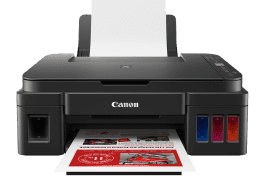
Canon G3010 manual download, user guide. Help, instructions, installation, configuration, Wi-Fi wireless connection, how to print and scan, printer specifications, maintenance, troubleshooting, etc.
- Hardware: Canon PIXMA G3010.
- Category: Wireless all in one printer.
- Functions: Print, scan and copy.
- Connectivity: USB High Speed, Wi-Fi.
- Wireless (Wi-Fi): Yes, WiFi 802.11b/g/n.
- Mobile printing: PIXMA Cloud Link, Canon PRINT, Mopria, Google Cloud Print.
- Supported Operating Systems: Windows.
| Canon PIXMA G3010 | User Manual | Start Guide |
 |
||
| English | English | |
| 7.3 MB | 7.3 MB | |
| 356 pages | 36 pages | |
|
|
|
