
Если у вас отсутствует техническая возможность для скачивания Руководство пользователя для Avaya 1616/1616-I
вы можете прочесть документ прямо на нашем сайте или
Скачать Avaya 1616/1616-I Руководство пользователя
BB кодПрямая ссылка
 1
1- 2
- 3
- …
- 50
 1
1 2
2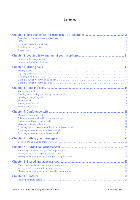 3
3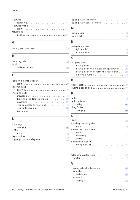 50
50
- 1
- 2
- 3
- 4
- 5
- 6
- 7
- 8
- 9
- 10
- 11
- 12
- 13
- 14
- 15
- 16
- 17
- 18
- 19
- 20
- 21
- 22
- 23
- 24
- 25
- 26
- 27
- 28
- 29
- 30
- 31
- 32
- 33
- 34
- 35
- 36
- 37
- 38
- 39
- 40
- 41
- 42
- 43
- 44
- 45
- 46
- 47
- 48
- 49
- 50
- 51
Инструкции для прочих Avaya 1616/1616-I
-
Avaya 1616/1616-I Инструкция по эксплуатации
Популярность:
8669 просмотры
Подсчет страниц:
3 страницы
Тип файла:
PDF
Размер файла:
517 Kb
Скачать (PDF 517 Kb) Читать онлайн (3 страницы)

Инструкции для прочих Avaya Настольные IP-телефоны
-
Avaya Nortel IP Phones Объявления
Популярность:
0 просмотры
Подсчет страниц:
3 страницы
Тип файла:
PDF
Размер файла:
18 Kb
Скачать (PDF 18 Kb) Читать онлайн (3 страницы)
-
Avaya one-X Deskphone Value Edition SIP for 1603SW-I IP Deskphone Инструкция по эксплуатации
Популярность:
0 просмотры
Подсчет страниц:
2 страницы
Тип файла:
PDF
Размер файла:
88 Kb
Скачать (PDF 88 Kb) Читать онлайн (2 страницы)
-
Avaya Communication Server 1000 — IP Phone 1110 Руководство пользователя
Популярность:
0 просмотры
Подсчет страниц:
120 страницы
Тип файла:
PDF
Размер файла:
1.66 Mb
Скачать (PDF 1.66 Mb) Читать онлайн (120 страницы)
-
Avaya Communication Server 1000 — IP Phone 1110 Руководство пользователя
Популярность:
0 просмотры
Подсчет страниц:
120 страницы
Тип файла:
PDF
Размер файла:
1.85 Mb
Скачать (PDF 1.85 Mb) Читать онлайн (120 страницы)
-
Avaya Communication Server 1000 IP Line Fundamentals Инструкция по эксплуатации
Популярность:
0 просмотры
Подсчет страниц:
552 страницы
Тип файла:
PDF
Размер файла:
4.59 Mb
Скачать (PDF 4.59 Mb) Читать онлайн (552 страницы)
-
Avaya Communication Server 1000 IP Line Fundamentals Инструкция по эксплуатации
Популярность:
0 просмотры
Подсчет страниц:
534 страницы
Тип файла:
PDF
Размер файла:
4.56 Mb
Скачать (PDF 4.56 Mb) Читать онлайн (534 страницы)
-
Avaya Agent Deskphone 16CC Инструкция по эксплуатации
Популярность:
0 просмотры
Подсчет страниц:
66 страницы
Тип файла:
PDF
Размер файла:
428 Kb
Скачать (PDF 428 Kb) Читать онлайн (66 страницы)
-
Avaya Agent Deskphone 16CC Инструкция по эксплуатации
Популярность:
0 просмотры
Подсчет страниц:
2 страницы
Тип файла:
PDF
Размер файла:
125 Kb
Скачать (PDF 125 Kb) Читать онлайн (2 страницы)
-
Avaya 1600 Series IP Deskphones Указание по применению
Популярность:
0 просмотры
Подсчет страниц:
10 страницы
Тип файла:
PDF
Размер файла:
341 Kb
Скачать (PDF 341 Kb) Читать онлайн (10 страницы)
-
Avaya 1600 Series IP Deskphones Указание по применению
Популярность:
0 просмотры
Подсчет страниц:
9 страницы
Тип файла:
PDF
Размер файла:
340 Kb
Скачать (PDF 340 Kb) Читать онлайн (9 страницы)





Инструкции для прочих Avaya
-
Avaya IP-телефоны 1100 Series Указание по применению
Популярность:
0 просмотры
Подсчет страниц:
12 страницы
Тип файла:
PDF
Размер файла:
699 Kb
Скачать (PDF 699 Kb) Читать онлайн (12 страницы)
-
Avaya IP-телефоны 1100 Series Указание по применению
Популярность:
0 просмотры
Подсчет страниц:
12 страницы
Тип файла:
PDF
Размер файла:
255 Kb
Скачать (PDF 255 Kb) Читать онлайн (12 страницы)
-
Avaya IP-телефоны 1100 Series Руководство пользователя
Популярность:
0 просмотры
Подсчет страниц:
28 страницы
Тип файла:
PDF
Размер файла:
996 Kb
Скачать (PDF 996 Kb) Читать онлайн (28 страницы)
-
Avaya IP-телефоны 1100 Series Руководство пользователя
Популярность:
0 просмотры
Подсчет страниц:
28 страницы
Тип файла:
PDF
Размер файла:
841 Kb
Скачать (PDF 841 Kb) Читать онлайн (28 страницы)
-
Avaya IP-телефоны 1140E Руководство пользователя
Популярность:
0 просмотры
Подсчет страниц:
204 страницы
Тип файла:
PDF
Размер файла:
3.04 Mb
Скачать (PDF 3.04 Mb) Читать онлайн (204 страницы)
-
Avaya IP-телефоны 1140E Руководство пользователя
Популярность:
0 просмотры
Подсчет страниц:
51 страницы
Тип файла:
PDF
Размер файла:
309 Kb
Скачать (PDF 309 Kb) Читать онлайн (51 страницы)
-
Avaya IP-телефоны 1140E Руководство пользователя
Популярность:
0 просмотры
Подсчет страниц:
166 страницы
Тип файла:
PDF
Размер файла:
1.2 Mb
Скачать (PDF 1.2 Mb) Читать онлайн (166 страницы)
-
Avaya IP-телефоны 1140E Руководство пользователя
Популярность:
0 просмотры
Подсчет страниц:
242 страницы
Тип файла:
PDF
Размер файла:
1.22 Mb
Скачать (PDF 1.22 Mb) Читать онлайн (242 страницы)
-
Avaya IP-телефоны 1140E Руководство пользователя
Популярность:
0 просмотры
Подсчет страниц:
198 страницы
Тип файла:
PDF
Размер файла:
1.84 Mb
Скачать (PDF 1.84 Mb) Читать онлайн (198 страницы)
-
Avaya IP-телефоны 1140E Руководство пользователя
Популярность:
0 просмотры
Подсчет страниц:
174 страницы
Тип файла:
PDF
Размер файла:
1.78 Mb
Скачать (PDF 1.78 Mb) Читать онлайн (174 страницы)


Скачать
Avaya 1616/1616-I IP Deskphone User
Guide
16-601448
Issue 2
February 2010

Русский
- Bedienungsanleitung Avaya 1616-I
- Avaya 1616-I User Manual
- Manual Usuario Avaya 1616-I
- Mode d’emploi Avaya 1616-I
- Istruzioni Avaya 1616-I
- инструкция Avaya 1616-I
- Avaya 1616-Iの取扱説明書
- Handleiding Avaya 1616-I
- Manual de uso Avaya 1616-I
Вам нужна инструкция? Мы поможем Вам ее найти и сэкономить Ваше время.
- 50 stron
- 0.68 mb
Изделие Avaya 1616-I, а также другие, которыми Вы пользуетесь ежедневно, наверняка вы получили в комплекте с инструкцией обслуживания. Из опыта наших пользователей мы знаем, что большинство из Вас не уделили этому особого внимания. Большая часть инструкций, сразу же после покупки попадает в корзину для мусора вместе с коробкой — это ошибка. Ознакомьтесь с информацией, касающейся инструкции Avaya 1616-I, которая поможет Вам в будущем сэкономить нервы и избежать головной боли.
Важная подсказка — не забывайте хотя бы раз прочитать инструкцию Avaya 1616-I
Если вы не хотите каждый раз читать информационные брошюры, касающиеся, тех или Avaya 1616-I иных изделий, достаточно, прочитать их раз — сразу же после покупки устройства. Вы получите основное знания, касающиеся поддержания изделия Avaya 1616-I в хорошем эксплуатационном состоянии, так, чтобы без проблем достигнуть его планируемого цикла работы. Затем инструкцию можно отложить на полку и вернуться к ней только в случае, если вы не уверены, правильно ли проводится техобслуживание изделия. Правильный уход является необходимым элементом Вашего удовольствия Avaya 1616-I.
Раз в году пересмотрите шкафчик, в котором держите инструкции для всех устройств, — выбросите те, которыми вы уже не пользуетесься. Это поможет Вам сохранять порядок в своей домашней базе инструкций обслуживания.
Summary of Contents for Avaya 1616-I
Что находится в инструкции Avaya 1616-I? Почему стоит ее прочитать?
- Гарантия и подробности, касающиеся техобслуживания изделия
Хорошей идеей будет прикрепить чек к странице инструкции. Если что-то плохое случится во время использования Avaya 1616-I, у вас будет комплект документов, необходимый для гарантийного ремонта. В этой части инструкции вы найдете информацию об авторизованных сервисных центрахAvaya 1616-I а также, как самостоятельно правильно ухаживать за оборудованием — так, чтобы не потерять гарантийных прав. - Указания по монтажу и Setup
Не терять нервов и времени на самостоятельную попытку установки и первого запуска изделия. Воспользуйтесь рекомендациями производителя Avaya 1616-I чтобы правильно запустить изделие, без лишнего риска повреждения оборудования. - Информация, касающаяся дополнительных запчастей (входящих в комплект а также являющихся опцией)
Пересматривая эту часть документа вы сможете проверить, доставлен ли ваш Avaya 1616-I с полним комплектом аксессуаров. Вы также сможете узнать, какие дополнительные запчасти или аксессуары для Avaya 1616-I Вы сможете найти и докупить к своему устройству. - Troubleshooting
Самые частые проблемы, касающиеся Avaya 1616-I и методы их решения. Это очень полезная часть руководства по обслуживанию — она позволит Вам сэкономить много времени на поиск решений. 90% проблем с Avaya 1616-I повторяется у многих пользователей. - Требования, касающиеся питания и энергетический класс
Информация, касающаяся количества потребляемой энергии, а также рекомендации, касающиеся установки и питания Avaya 1616-I. Прочитайте, чтобы оптимально пользоваться Avaya 1616-I и не использовать большего количества ресурсов, нежели это необходимо для правильной работы изделия. - Специальные функции Avaya 1616-I
Здесь вы можешь узнать, как персонализировать изделие Avaya 1616-I. Вы узнаете, какие дополнительные функции могут помочь Вам удобно использовать продукт Avaya 1616-I а также, какие функции Вашего устройства оптимальны для выполнения конкретной деятельности.
Как видите в инструкции вы найдете информацию, которая реально поможет Вам в использовании Вашего изделия. Стоит с ней ознакомиться, чтобы избежать разочарований, возникающих из более короткого, нежели предусматривалось, периода исправности изделия Avaya 1616-I. Если все же вы не хотите копить инструкции в своем доме, наш сайт поможет Вам в этом — вы должны найти у нас руководство по обслуживанию большинства из своих устройств, а также Avaya 1616-I.
Комментарии (2)
Интернет-магазин оборудования «AVAYAMARKET».
Являясь официальным партнёром AVAYA, мы выполняем заказы на поставку оборудования, услуг по интеграции и обслуживанию.
«AVAYAMARKET» ориентирован на регулярные и разовые закупки юридическими лицами. Большинство товаров находится на нашем собственном складе, что существенно ускоряет процесс покупки оборудования.

AVAYA серии 9600
-
Полное Руководство пользователя для Телефонов AVAYA серии 9600 -
Полное Руководство пользователя IP-телефон 9608 и 9611G -
Краткое руководство для AVAYA 9608 -
Краткое руководство для AVAYA 9611 -
Краткое руководство для AVAYA 9620 -
Краткое руководство для AVAYA 9621 -
Краткое руководство для AVAYA 9630 -
Краткое руководство для AVAYA 9640 -
Краткое руководство для AVAYA 9641 -
Краткое руководство для AVAYA 9650
AVAYA 374x DECT
-
Полное Руководство пользователя для Телефонов AVAYA 374x DECT -
Краткое руководство для AVAYA 3720 -
Краткое руководство для AVAYA 3725 -
Краткое руководство для AVAYA 3740
AVAYA E129
-
Полное Руководство пользователя для Телефонов AVAYA E129 -
Краткое руководство для AVAYA E129
AVAYA серии 9500
-
Полное Руководство пользователя для Телефонов AVAYA серии 9500 -
Краткое руководство для AVAYA 9504 -
Краткое руководство для AVAYA 9508
AVAYA серии 1600
-
Краткое руководство для AVAYA1603 -
Краткое руководство для AVAYA1608 -
Краткое руководство для AVAYA1616
AVAYA серии 2400
-
Краткое руководство для AVAYA 2402 -
Краткое руководство для AVAYA 2410 -
Краткое руководство для AVAYA 2420
Другие модели AVAYA
-
Краткое руководство для AVAYA 4400 -
Краткое руководство для AVAYA 4601 -
Краткое руководство для AVAYA 4602 -
Краткое руководство для AVAYA 4610 -
Краткое руководство для AVAYA 4620 -
Краткое руководство для AVAYA 4621 -
Краткое руководство для AVAYA 4625 -
Краткое руководство для AVAYA 5402 -
Краткое руководство для AVAYA 5410 -
Краткое руководство для AVAYA 5420 -
Краткое руководство для AVAYA 5601 -
Краткое руководство для AVAYA 5602 -
Краткое руководство для AVAYA 5610 -
Краткое руководство для AVAYA 5620 -
Краткое руководство для AVAYA 5621 -
Краткое руководство для AVAYA 6400
инструкцияAvaya 1616-I

Avaya 1600 Series IP Deskphones
Installation and Maintenance Guide
Release 1.3.6
16-601438
Issue 6
August 2014
Посмотреть инструкция для Avaya 1616-I бесплатно. Руководство относится к категории телефоны, 1 человек(а) дали ему среднюю оценку 10. Руководство доступно на следующих языках: английский. У вас есть вопрос о Avaya 1616-I или вам нужна помощь? Задайте свой вопрос здесь
- Avaya 1600 Series IP Deskphones
- Contents
- Chapter 1: Introduction
- Chapter 2: 1600 Series IP Deskphone Installation
- Chapter 3: Local Administrative Options
- Chapter 4: Maintaining 1600 Series IP Deskphones
- Chapter 5: Troubleshooting Guidelines
- Appendix A: Restart Scenarios
- Appendix B: Glossary of Terms
- Appendix C: Related Documentation
- Index
Нужна помощь?
У вас есть вопрос о Avaya а ответа нет в руководстве? Задайте свой вопрос здесь Дай исчерпывающее описание проблемы и четко задайте свой вопрос. Чем детальнее описание проблемы или вопроса, тем легче будет другим пользователям Avaya предоставить вам исчерпывающий ответ.
Количество вопросов: 0


Главная
| Avaya | |
| 1616-I | 700458540 | |
| телефон | |
| 721867397071, 5052179469336, 0133588172149, 4260452910548 | |
| английский | |
| Руководство пользователя (PDF) |
Характеристики управления
| Количество клавиш доп. клавиатуры | 12 |
Экран
| Диагональ экрана | 3.5 « |
| Сенсорный экран | Нет |
Характеристики телефона
| Количество линий | 16 линий |
| Удержание вызова | Да |
| Возможность совещаний по телефону | Да |
| Повторный набор | Да |
| Идентификация абонента (Caller ID) | Да |
| Вместимость телефонной книги | 100 записей |
| Количество VoIP аккаунтов | — |
Аудио
| Громкоговоритель | Да |
| Кодеки голоса | G.711, G.726 |
| Отключение микрофона | Да |
Сеть
| Подключение Ethernet | Да |
| Поддерживаемые сетевые протоколы | H.323 |
| Bluetooth | Нет |
| Wi-Fi | — |
Порты и интерфейсы
| Количество портов Ethernet LAN ( RJ-45) | 1 |
| Линейные выходы наушников | 1 |
Энергопитание
| Питание по Ethernet (PoE) | Да |
Прочие свойства
| Минимальные системные требования | Communication Manager 3.0 +rnIP Office 4.2 (11) + |
Дизайн
| Настенный | Да |
| Цвет товара | Черный |
| Тип телефонной трубки | Проводная телефонная трубка |
| Крепление | Стол / Стена |
| Тип продукта | IP телефон |
Сертификаты
Содержимое упаковки
| Количество ручек в комплекте | 1 шт |
показать больше
Не можете найти ответ на свой вопрос в руководстве? Вы можете найти ответ на свой вопрос ниже, в разделе часто задаваемых вопросов о Avaya 1616-I.
Какие сертификаты Avaya 1616-I имеет?
Какой размер экрана Avaya 1616-I?
Инструкция Avaya 1616-I доступно в русский?
Не нашли свой вопрос? Задайте свой вопрос здесь
Нет результатов

Avaya J139
инструкция198 страниц(ы)

Avaya J159
инструкция198 страниц(ы)

Avaya J179
инструкция467 страниц(ы)

Avaya 9630
инструкция76 страниц(ы)

Avaya J189
инструкция175 страниц(ы)

Avaya 9620
инструкция76 страниц(ы)

Avaya 9650
инструкция76 страниц(ы)

Avaya 9640
инструкция25 страниц(ы)

Avaya 3745
инструкция1084 страниц(ы)

Avaya J100 EM
инструкция176 страниц(ы)
Посмотреть все Avaya руководства Посмотреть все Avaya телефон руководства
Краткое содержание страницы № 2
© 2009 Avaya Inc. Shrinkwrap License (SR). With respect to Software that contains elements provided by third party suppliers, End User may install and All Rights Reserved. use the Software in accordance with the terms and conditions of the applicable license agreements, such as «shrinkwrap» or «clickwrap» Notice license accompanying or applicable to the Software («Shrinkwrap License»). The text of the Shrinkwrap License will be available from While reasonable efforts were made to ensure that th
Краткое содержание страницы № 3
Contents Chapter 1: Introduction to the 1616/1616-I IP Telephone………………………………………………5 Overview of phone buttons and features…………………………………………………………………………………………….5 LEDs…………………………………………………………………………………………………………………………………………….8 Icons in the telephone display………………………………..
Краткое содержание страницы № 4
Contents Adding a new contact……………………………………………………………………………………………………………………..29 Editing a contact…………………………………………………………………………………………………………………………….30 Deleting a contact…………………………………………………………………………………………………………………………30 Chapter 10: C
Краткое содержание страницы № 5
Chapter 1: Introduction to the 1616/1616-I IP Telephone The 1616/1616-I telephone is a multiline IP telephone for use with Avaya Communication Manager or Avaya Distributed Office call processing systems. The 1616/1616-I IP telephone puts convenient features and capabilities at your fingertips, including a phone screen to view and manage your calls, a contacts list, a call log, a menu of options and settings to customize your phone, and access to your voice mail. Not all features described in thi
Краткое содержание страницы № 6
Introduction to the 1616/1616-I IP Telephone Name Description Message Waiting An illuminated red light in the upper-right corner of your Indicator phone indicates you have voicemail messages waiting. If Visual Alerting is enabled, this light flashes when you receive an incoming call. Phone Display There are four lines in the phone display. When the phone is idle, the top line shows the missed call icon with number of calls missed and either the call forwarding icon, the Send All Calls icon, or t
Краткое содержание страницы № 7
Overview of phone buttons and features Name Description Hold Press the Hold button to put the active call on hold. Conference Press the Conference button to add another party to an existing call. Transfer Press the Transfer button to transfer a call to another number. Drop Press the Drop button to drop the active call. While on a conference call, press the Drop button to drop the last person added to the conference call.See Dropping the last person added from a conference call on page 20 or Dro
Краткое содержание страницы № 8
Introduction to the 1616/1616-I IP Telephone LEDs Each call/line appearance button and feature button has two LEDs, one green and one red, to indicate the status of the call/line appearance or feature. The status is identified by whether the LED is on, off, or blinking as described in the following tables. Table 1: Call/Line Appearance Button LEDs LED Description Steady green Call/line appearance is active. Slow blinking green Call/line appearance is ringing. Fast blinking green Call/line appear
Краткое содержание страницы № 9
Icons in the telephone display Icons in the telephone display Icons are provided in the phone display to indicate the state of a call and navigation choices. The icons that appear in the phone display are described in the following table. Icon Description #X Number of calls missed, where # represents the number. Call forward, Send All Calls, or EC500 is active. (These features are available if they have been administered for your telephone.) Incoming call is ringing. Call is active. Call is on h
Краткое содержание страницы № 10
Introduction to the 1616/1616-I IP Telephone Paper labels Next to each call/line appearance button and feature button is a paper label. The label identifies the call/line appearance number or the feature that has been programmed on the button by your system administrator. You can remove the labels if you want to change a label or write on a blank one. Printed labels are also available for your telephone. See your system administrator for more information. 10 Avaya 1616/1616-I IP Deskphone Us
Краткое содержание страницы № 11
Chapter 2: Logging in to and out of your telephone Logging in and out maintains your contacts and personal options if you share a telephone with other users, or if you want to use the same extension from another phone. Logging out also prevents unauthorized use of your telephone during an absence. Note: Call log information is lost after you log out. Logging in to your telephone Log in from the initial screen that prompts you for your extension. 1. Enter your extension. 2. Press the OK button,
Краткое содержание страницы № 12
Logging in to and out of your telephone 12 Avaya 1616/1616-I IP Deskphone User Guide February 2010
Краткое содержание страницы № 13
Chapter 3: Making calls Use the procedures in this chapter to make calls from your telephone. Making a call If you are not on a call, simply dial the number you want to call. 1. Lift the handset, press the Speaker button, press the Headset button, or press an available call/line appearance button. 2. Dial the number you want to call. Clearing a number Press Clear to erase all dialed digits and enter a new number. Redialing a number 1. From the Phone screen, press the Redial button. The last numb
Краткое содержание страницы № 14
Making calls Calling a person from the contacts list 1. Press the Contacts button. 2. Scroll up or down to select the person or number you want to call. 3. Press the OK button or the Call softkey. Calling a person from the call log 1. Press the Call Log button. 2. Scroll to the left or right to view a separate list of all, missed, answered, or outgoing calls. 3. Scroll up or down to select the person or number you want to call. 4. Press the Call softkey or the OK button. 14 Avaya 1616/1616-I
Краткое содержание страницы № 15
Chapter 4: Handling calls Use the procedures in this chapter to handle calls from your telephone. This includes procedures such as answering a call, muting a call, and transferring a call. Answering a call When you receive an incoming call, the green LED associated with the call will flash. The incoming call is usually selected automatically. However, if you are already on a call or if you receive more than one incoming call at a time, you may need to select the call you want to answer manually.
Краткое содержание страницы № 16
Handling calls Sending an incoming call directly to voice mail Press the To Vmail softkey to send an incoming call directly to voice mail without answering. To do this, your voice mail must be administered as the first entry in your coverage path. See your system administrator for more information. Ignoring an incoming call Press the Ignore softkey to stop the ringer for an incoming call. Muting a call If a call is on mute and you switch between the handset, headset, or speakerphone, the mute wi
Краткое содержание страницы № 17
Transferring a call The fast blinking green LED next to the call/line appearance button indicates the call is on hold. If the active call is on a line appearance on an Avaya Distributed Office system, the red LED will also be on. 2. To resume the call when there is more than one call on hold, do one of the following: • Press the call/line appearance button. • Scroll to the call and press the Resume softkey or the OK button. 3. To resume the calI when there is only one call on hold, do one of the
Краткое содержание страницы № 18
Handling calls 18 Avaya 1616/1616-I IP Deskphone User Guide February 2010
Краткое содержание страницы № 19
Chapter 5: Conference calls You can use conference calls to speak with up to five people in different locations on the same call. Additional conferencing options may be available through Expanded Meet-Me Conferencing. Contact your system administrator for more information about this feature. Making a conference call 1. While active on a call, press the Conference button. The very fast blinking green LED next to the call/line appearance button indicates the call is being conferenced. If the activ
Краткое содержание страницы № 20
Conference calls • Press the call/line appearance button for the call on hold. Be sure not to choose the call/line appearance button for the call that is on soft hold. • Scroll to the call on hold, and press the Resume softkey. 4. Press the Join softkey or the Conference button to add the person to the conference call. Putting a conference call on hold When you put a conference call on hold, the other parties can still talk to each other. 1. Press the Hold button during a conference call. The bl
Краткое содержание страницы № 1
Avaya 1616/1616-I IP Deskphone User
Guide
16-601448
Issue 2
February 2010
-
Avaya 1616-I — page 1
A vaya 1616/1616-I IP Deskphone User Guide 16-601448 Issue 2 February 2010 …
-
Avaya 1616-I — page 2
© 2009 Avaya Inc. All Rights Reserved. Notice While reasonable efforts were made to ensure that the information in this document was complete and accurate at the time of printing, Avaya Inc. can assume no liability for any errors. Changes and corrections to the information in this document might be incorporated in future releases. Note: Using a ce …
-
Avaya 1616-I — page 3
Contents Chapter 1: Introduction to the 1616/1616-I IP T elephone ……………………………………………… 5 Overview of phone buttons and features …………………………………………………………………………………………….5 LEDs ………………………………………………………………… …
-
Avaya 1616-I — page 4
Adding a new contact …………………………………………………………………………………………………………………….. 29 Editing a contact…………………………………………………………………………………………………………………………….30 Deleting a contact ………. …
-
Avaya 1616-I — page 5
Chapter 1: Introduction to the 1616/1616-I IP T elephone The 1616/1616-I telephone is a multiline IP telephone for use with Avaya Communication Manager or Avaya Distributed Of fice call processing systems. The 1616/1616-I IP telephone puts convenient features and capabilities at your fingertips, including a phone screen to view and manage your call …
-
Avaya 1616-I — page 6
Name Description Message W aiting Indicator An illuminated red light in the upper-right corner of your phone indicates you have voicemail messages waiting. If Visual Alerting is enabled, this light flashes when you receive an incoming call. Phone Display There are four lines in the phone display . When the phone is idle, the top line shows the miss …
-
Avaya 1616-I — page 7
Name Description Hold Press the Hold button to put the active call on hold. Conference Press the Conference button to add another party to an existing call. T ransfer Press the T ransfer button to transfer a call to another number . Drop Press the Drop button to drop the active call. While on a conference call, press the Drop button to drop the las …
-
Avaya 1616-I — page 8
LEDs Each call/line appearance button and feature button has two LEDs, one green and one red, to indicate the status of the call/line appearance or feature. The status is identified by whether the LED is on, off, or blinking as described in the following tables. T able 1: Call/Line Appearance Button LEDs LED Description Steady green Call/line appea …
-
Avaya 1616-I — page 9
Icons in the telephone display Icons are provided in the phone display to indicate the state of a call and navigation choices. The icons that appear in the phone display are described in the following table. Icon Description # X Number of calls missed, where # represents the number . Call forward, Send All Calls, or EC500 is active. (These features …
-
Avaya 1616-I — page 10
Paper labels Next to each call/line appearance button and feature button is a paper label. The label identifies the call/line appearance number or the feature that has been programmed on the button by your system administrator . Y ou can remove the labels if you want to change a label or write on a blank one. Printed labels are also available for y …
-
Avaya 1616-I — page 11
Chapter 2: Logging in to and out of your telephone Logging in and out maintains your contacts and personal options if you share a telephone with other users, or if you want to use the same extension from another phone. Logging out also prevents unauthorized use of your telephone during an absence. Note: Call log information is lost after you log ou …
-
Avaya 1616-I — page 12
Logging in to and out of your telephone 12 Avaya 1616/1616-I IP Deskphone User Guide February 2010 …
-
Avaya 1616-I — page 13
Chapter 3: Making calls Use the procedures in this chapter to make calls from your telephone. Making a call If you are not on a call, simply dial the number you want to call. 1. Lift the handset, press the Speaker button, press the Headset button, or press an available call/line appearance button. 2. Dial the number you want to call. Clearing a num …
-
Avaya 1616-I — page 14
Calling a person from the contacts list 1. Press the Contacts button. 2. Scroll up or down to select the person or number you want to call. 3. Press the OK button or the Call softkey . Calling a person from the call log 1. Press the Call Log button. 2. Scroll to the left or right to view a separate list of all, missed, answered, or outgoing calls. …
-
Avaya 1616-I — page 15
Chapter 4: Handling calls Use the procedures in this chapter to handle calls from your telephone. This includes procedures such as answering a call, muting a call, and transferring a call. Answering a call When you receive an incoming call, the green LED associated with the call will flash. The incoming call is usually selected automatically . Howe …
-
Avaya 1616-I — page 16
Sending an incoming call directly to voice mail Press the T o Vmail softkey to send an incoming call directly to voice mail without answering. T o do this, your voice mail must be administered as the first entry in your coverage path. See your system administrator for more information. Ignoring an incoming call Press the Ignore softkey to stop the …
-
Avaya 1616-I — page 17
The fast blinking green LED next to the call/line appearance button indicates the call is on hold. If the active call is on a line appearance on an Avaya Distributed Office system, the red LED will also be on. 2. T o resume the call when there is more than one call on hold, do one of the following: • Press the call/line appearance button. • Scr …
-
Avaya 1616-I — page 18
Handling calls 18 Avaya 1616/1616-I IP Deskphone User Guide February 2010 …
-
Avaya 1616-I — page 19
Chapter 5: Conference calls Y ou can use conference calls to speak with up to five people in dif ferent locations on the same call. Additional conferencing options may be available through Expanded Meet-Me Conferencing. Contact your system administrator for more information about this feature. Making a conference call 1. While active on a call, pre …
-
Avaya 1616-I — page 20
• Press the call/line appearance button for the call on hold. Be sure not to choose the call/line appearance button for the call that is on soft hold. • Scroll to the call on hold, and press the Resume softkey . 4. Press the Join softkey or the Conference button to add the person to the conference call. Putting a conference call on hold When yo …
-
Avaya 1616-I — page 21
Dropping a person from a conference call 1. From the Phone screen, select the Details softkey (if available) during a conference call. 2. Scroll to the person you want to drop. 3. Press the Drop button. Silencing a person on a conference call Only people calling from external numbers can be silenced on a conference call. 1. From the Phone screen, s …
-
Avaya 1616-I — page 22
Conference calls 22 Avaya 1616/1616-I IP Deskphone User Guide February 2010 …
-
Avaya 1616-I — page 23
Chapter 6: Getting your messages Use the Message button to connect to your voice mail system. When you have messages waiting, the red light on the upper right-hand corner of your telephone is illuminated. Y our messages are an administered function. Contact your system administrator with any questions. Logging into your voice mail 1. T o log in to …
-
Avaya 1616-I — page 24
Getting your messages 24 Avaya 1616/1616-I IP Deskphone User Guide February 2010 …
-
Avaya 1616-I — page 25
Chapter 7: Bridged call appearances Y our phone may show one or more bridged call appearances on the display screen in addition to your own call appearances. A bridged call appearance typically belongs to someone else, but bridging allows you to see if that call appearance is in use, answer calls on that appearance, or join a call in progress on th …
-
Avaya 1616-I — page 26
Making an outgoing call on a bridged call appearance When you make a call on a bridged call appearance, you are using another person’s call appearance. The caller ID may show the call as coming from you or coming from the person whose call appearance you are using. If you have any questions about how the name or extension displays to the person y …
-
Avaya 1616-I — page 27
Chapter 8: Shared line appearances If your call processing system is an Avaya Distributed Of fice system and depending on how it is configured, your phone may show shared line appearances on the display screen in addition to your own lines. A shared line appearance is a line that is shared among multiple users. Y ou can answer a call, join a call i …
-
Avaya 1616-I — page 28
Making an outgoing call on a shared line appearance If you have any questions about how the name or extension displays to the person you are calling when you make a call on a shared line appearance, contact your system administrator . Y ou can make only outside calls on shared line appearances. 1. Press the call/line button associated with the shar …
-
Avaya 1616-I — page 29
Chapter 9: Contacts Y ou can save up to 100 names and telephone numbers. For additional information, see Calling a person from the contacts list on page 14. V iewing contacts details 1. Press the Contacts button. 2. Scroll to the contact you want to view . Names are listed alphabetically by last name. T o return to the top of the list, press the Co …
-
Avaya 1616-I — page 30
d. Enter remaining letters or numbers. e. Press Bksp to delete the last character . Note: If you want to remove a letter , number , space, or symbol that is in the middle of the text you entered, use the left and right navigation arrows to place your cursor after the character you want to remove. Once your cursor is in the correct position, press B …
-
Avaya 1616-I — page 31
If you press the Cancel softkey prior to pressing the Delete softkey , your contact information will not be removed. Deleting a contact Avaya 1616/1616-I IP Deskphone User Guide February 2010 31 …
-
Avaya 1616-I — page 32
Contacts 32 Avaya 1616/1616-I IP Deskphone User Guide February 2010 …
-
Avaya 1616-I — page 33
Chapter 10: Call log Y ou can use the call log to view a list of your recent calls or view separate lists of your outgoing, answered, or missed calls. See T urning call logging on or of f on page 35 for information about logging bridged call appearances, line call appearances, and line calls that are answered by others. V iewing the call log 1. Pre …
-
Avaya 1616-I — page 34
Adding an entry from the call log to your contacts list 1. Press the Call Log button. 2. Scroll to the number you want to add to your contacts list. 3. Press the Details softkey . 4. Press the +Contact softkey . If your contacts list is full, the +Contact softkey is not displayed. 5. T o edit the name or number , scroll up or down and edit as appro …
-
Avaya 1616-I — page 35
3. Press More > DelAll to delete all of the entries in the list you are viewing. 4. Press the DelAll softkey again to confirm. T urning call logging on or off Y ou can turn call logging on or of f. In addition to logging your primary calls, if you have bridged call appearances or line call appearances, you can choose whether or not to include th …
-
Avaya 1616-I — page 36
Call log 36 Avaya 1616/1616-I IP Deskphone User Guide February 2010 …
-
Avaya 1616-I — page 37
Chapter 1 1: Advanced telephone features Avaya call management systems provide many advanced telephone features such as Directory , Call Forwarding, and Abbreviated Dial buttons. These features are administered on the feature buttons on your telephone. The features are identified on the associated paper labels. The features that have been administe …
-
Avaya 1616-I — page 38
Send all calls The Send All Calls (SAC) feature allows you to send all of your incoming calls directly to a predefined coverage number , typically your voice mail. Incoming calls ring once at your extension and then go directly to a number which is set by your system administrator . If you use a Feature Access Code to enable Send All Calls, the for …
-
Avaya 1616-I — page 39
you are away from your desk. The cell phone number is programmed by your system administrator . If you use a Feature Access Code to enable EC500, the forwarding icon does not appear in the phone display . 1. Press the EC500 feature button to turn the feature on. The green LED next to the feature button turns on. 2. T o turn the feature off, press t …
-
Avaya 1616-I — page 40
Advanced telephone features 40 Avaya 1616/1616-I IP Deskphone User Guide February 2010 …
-
Avaya 1616-I — page 41
Chapter 12: Features menu The Features menu provides access to the same advanced telephone features, such as Directory and Call Forwarding, that are programmed on your feature buttons. In addition to providing another way of accessing the features, you can use the Features Menu to confirm the features programmed on the feature buttons if, for examp …
-
Avaya 1616-I — page 42
Features menu 42 Avaya 1616/1616-I IP Deskphone User Guide February 2010 …
-
Avaya 1616-I — page 43
Chapter 13: A vaya Menu Y ou can use the A vaya Menu to adjust and customize phone settings, configure call logging, select the display language, view network settings, and log out. The Avaya Menu has six sub-menus: Screen/Sound Lets you adjust the display brightness and contrast, select your ringing pattern, turn button click sounds on and off, an …
-
Avaya 1616-I — page 44
5. Press the Select softkey or the OK button. 6. Scroll to the right or left to adjust the brightness or contrast. Changing the ring pattern 1. Press the A button. 2. Select Screen/Sound Options. 3. Press the Select softkey or the OK button. 4. Select Personalized Ringing. 5. Press the Select softkey or the OK button. 6. Scroll up or down to see a …
-
Avaya 1616-I — page 45
T urning error tones on or off 1. Press the A button. 2. Select Screen/Sound Options. 3. Press the Select softkey or the OK button. 4. Select Error T ones. 5. Press the On or Off softkeys, the OK button, or the right or left navigation arrow to turn error tones on or off. T urning the call timer on or off Y ou can set your call settings to automati …
-
Avaya 1616-I — page 46
3. Press the Select softkey or the OK button. 4. Select Visual Alerting. 5. Press the On or Off softkeys, the OK button, or the right or left navigation arrow to turn visual alerting on or off. Setting redial options Y ou can set Redial to dial the last number you dialed or to display a list of the last numbers you dialed. 1. Press the A button. 2. …
-
Avaya 1616-I — page 47
T urning show incoming call on or off Y ou can set your call settings to automatically display incoming calls. Y ou can turn the Show Incoming Call option on or off. 1. Press the A button. 2. Scroll to Call Settings. 3. Press the Select softkey or the OK button. 4. Select Show Incoming Call . 5. Press the On or Off softkeys, the OK button, or the r …
-
Avaya 1616-I — page 48
Changing the language 1. Press the A button. 2. Scroll to Advanced Options. 3. Press the Select softkey or the OK button. 4. Select Language . 5. Press the Select softkey or the OK button. 6. Scroll up or down to select a display language. Note: Other languages may be available. Contact your system administrator . 7. Press the Select softkey or the …
-
Avaya 1616-I — page 49
Index A advanced options setting automatic gain control ………………………… 47 Advanced Options changing language ……………………………………….. 48 advanced telephone features about ………………………………………………………….. 37 applications call logging …………………………………… …
-
Avaya 1616-I — page 50
Features accessing ……………………………………………………. 41 Features menu about ………………………………………………………….. 41 forwarding a call …………………………………………………………… 37 G getting your messages ……………………………………….. 23 H handli …
-
Страница 1
A vaya 1616/1616-I IP Deskphone User Guide 16-601448 Issue 2 February 2010[…]
-
Страница 2
© 2009 Avaya Inc. All Rights Reserved. Notice While reasonable efforts were made to ensure that the information in this document was complete and accurate at the time of printing, Avaya Inc. can assume no liability for any errors. Changes and corrections to the information in this document might be incorporated in future releases. Note: Using a ce[…]
-
Страница 3
Contents Chapter 1: Introduction to the 1616/1616-I IP T elephone ……………………………………………… 5 Overview of phone buttons and features …………………………………………………………………………………………….5 LEDs …………………………………………………………………[…]
-
Страница 4
Adding a new contact …………………………………………………………………………………………………………………….. 29 Editing a contact…………………………………………………………………………………………………………………………….30 Deleting a contact ……….[…]
-
Страница 5
Chapter 1: Introduction to the 1616/1616-I IP T elephone The 1616/1616-I telephone is a multiline IP telephone for use with Avaya Communication Manager or Avaya Distributed Of fice call processing systems. The 1616/1616-I IP telephone puts convenient features and capabilities at your fingertips, including a phone screen to view and manage your call[…]
-
Страница 6
Name Description Message W aiting Indicator An illuminated red light in the upper-right corner of your phone indicates you have voicemail messages waiting. If Visual Alerting is enabled, this light flashes when you receive an incoming call. Phone Display There are four lines in the phone display . When the phone is idle, the top line shows the miss[…]
-
Страница 7
Name Description Hold Press the Hold button to put the active call on hold. Conference Press the Conference button to add another party to an existing call. T ransfer Press the T ransfer button to transfer a call to another number . Drop Press the Drop button to drop the active call. While on a conference call, press the Drop button to drop the las[…]
-
Страница 8
LEDs Each call/line appearance button and feature button has two LEDs, one green and one red, to indicate the status of the call/line appearance or feature. The status is identified by whether the LED is on, off, or blinking as described in the following tables. T able 1: Call/Line Appearance Button LEDs LED Description Steady green Call/line appea[…]
-
Страница 9
Icons in the telephone display Icons are provided in the phone display to indicate the state of a call and navigation choices. The icons that appear in the phone display are described in the following table. Icon Description # X Number of calls missed, where # represents the number . Call forward, Send All Calls, or EC500 is active. (These features[…]
-
Страница 10
Paper labels Next to each call/line appearance button and feature button is a paper label. The label identifies the call/line appearance number or the feature that has been programmed on the button by your system administrator . Y ou can remove the labels if you want to change a label or write on a blank one. Printed labels are also available for y[…]
-
Страница 11
Chapter 2: Logging in to and out of your telephone Logging in and out maintains your contacts and personal options if you share a telephone with other users, or if you want to use the same extension from another phone. Logging out also prevents unauthorized use of your telephone during an absence. Note: Call log information is lost after you log ou[…]
-
Страница 12
Logging in to and out of your telephone 12 Avaya 1616/1616-I IP Deskphone User Guide February 2010[…]
-
Страница 13
Chapter 3: Making calls Use the procedures in this chapter to make calls from your telephone. Making a call If you are not on a call, simply dial the number you want to call. 1. Lift the handset, press the Speaker button, press the Headset button, or press an available call/line appearance button. 2. Dial the number you want to call. Clearing a num[…]
-
Страница 14
Calling a person from the contacts list 1. Press the Contacts button. 2. Scroll up or down to select the person or number you want to call. 3. Press the OK button or the Call softkey . Calling a person from the call log 1. Press the Call Log button. 2. Scroll to the left or right to view a separate list of all, missed, answered, or outgoing calls. […]
-
Страница 15
Chapter 4: Handling calls Use the procedures in this chapter to handle calls from your telephone. This includes procedures such as answering a call, muting a call, and transferring a call. Answering a call When you receive an incoming call, the green LED associated with the call will flash. The incoming call is usually selected automatically . Howe[…]
-
Страница 16
Sending an incoming call directly to voice mail Press the T o Vmail softkey to send an incoming call directly to voice mail without answering. T o do this, your voice mail must be administered as the first entry in your coverage path. See your system administrator for more information. Ignoring an incoming call Press the Ignore softkey to stop the […]
-
Страница 17
The fast blinking green LED next to the call/line appearance button indicates the call is on hold. If the active call is on a line appearance on an Avaya Distributed Office system, the red LED will also be on. 2. T o resume the call when there is more than one call on hold, do one of the following: • Press the call/line appearance button. • Scr[…]
-
Страница 18
Handling calls 18 Avaya 1616/1616-I IP Deskphone User Guide February 2010[…]
-
Страница 19
Chapter 5: Conference calls Y ou can use conference calls to speak with up to five people in dif ferent locations on the same call. Additional conferencing options may be available through Expanded Meet-Me Conferencing. Contact your system administrator for more information about this feature. Making a conference call 1. While active on a call, pre[…]
-
Страница 20
• Press the call/line appearance button for the call on hold. Be sure not to choose the call/line appearance button for the call that is on soft hold. • Scroll to the call on hold, and press the Resume softkey . 4. Press the Join softkey or the Conference button to add the person to the conference call. Putting a conference call on hold When yo[…]
-
Страница 21
Dropping a person from a conference call 1. From the Phone screen, select the Details softkey (if available) during a conference call. 2. Scroll to the person you want to drop. 3. Press the Drop button. Silencing a person on a conference call Only people calling from external numbers can be silenced on a conference call. 1. From the Phone screen, s[…]
-
Страница 22
Conference calls 22 Avaya 1616/1616-I IP Deskphone User Guide February 2010[…]
-
Страница 23
Chapter 6: Getting your messages Use the Message button to connect to your voice mail system. When you have messages waiting, the red light on the upper right-hand corner of your telephone is illuminated. Y our messages are an administered function. Contact your system administrator with any questions. Logging into your voice mail 1. T o log in to […]
-
Страница 24
Getting your messages 24 Avaya 1616/1616-I IP Deskphone User Guide February 2010[…]
-
Страница 25
Chapter 7: Bridged call appearances Y our phone may show one or more bridged call appearances on the display screen in addition to your own call appearances. A bridged call appearance typically belongs to someone else, but bridging allows you to see if that call appearance is in use, answer calls on that appearance, or join a call in progress on th[…]
-
Страница 26
Making an outgoing call on a bridged call appearance When you make a call on a bridged call appearance, you are using another person’s call appearance. The caller ID may show the call as coming from you or coming from the person whose call appearance you are using. If you have any questions about how the name or extension displays to the person y[…]
-
Страница 27
Chapter 8: Shared line appearances If your call processing system is an Avaya Distributed Of fice system and depending on how it is configured, your phone may show shared line appearances on the display screen in addition to your own lines. A shared line appearance is a line that is shared among multiple users. Y ou can answer a call, join a call i[…]
-
Страница 28
Making an outgoing call on a shared line appearance If you have any questions about how the name or extension displays to the person you are calling when you make a call on a shared line appearance, contact your system administrator . Y ou can make only outside calls on shared line appearances. 1. Press the call/line button associated with the shar[…]
-
Страница 29
Chapter 9: Contacts Y ou can save up to 100 names and telephone numbers. For additional information, see Calling a person from the contacts list on page 14. V iewing contacts details 1. Press the Contacts button. 2. Scroll to the contact you want to view . Names are listed alphabetically by last name. T o return to the top of the list, press the Co[…]
-
Страница 30
d. Enter remaining letters or numbers. e. Press Bksp to delete the last character . Note: If you want to remove a letter , number , space, or symbol that is in the middle of the text you entered, use the left and right navigation arrows to place your cursor after the character you want to remove. Once your cursor is in the correct position, press B[…]
-
Страница 31
If you press the Cancel softkey prior to pressing the Delete softkey , your contact information will not be removed. Deleting a contact Avaya 1616/1616-I IP Deskphone User Guide February 2010 31[…]
-
Страница 32
Contacts 32 Avaya 1616/1616-I IP Deskphone User Guide February 2010[…]
-
Страница 33
Chapter 10: Call log Y ou can use the call log to view a list of your recent calls or view separate lists of your outgoing, answered, or missed calls. See T urning call logging on or of f on page 35 for information about logging bridged call appearances, line call appearances, and line calls that are answered by others. V iewing the call log 1. Pre[…]
-
Страница 34
Adding an entry from the call log to your contacts list 1. Press the Call Log button. 2. Scroll to the number you want to add to your contacts list. 3. Press the Details softkey . 4. Press the +Contact softkey . If your contacts list is full, the +Contact softkey is not displayed. 5. T o edit the name or number , scroll up or down and edit as appro[…]
-
Страница 35
3. Press More > DelAll to delete all of the entries in the list you are viewing. 4. Press the DelAll softkey again to confirm. T urning call logging on or off Y ou can turn call logging on or of f. In addition to logging your primary calls, if you have bridged call appearances or line call appearances, you can choose whether or not to include th[…]
-
Страница 36
Call log 36 Avaya 1616/1616-I IP Deskphone User Guide February 2010[…]
-
Страница 37
Chapter 1 1: Advanced telephone features Avaya call management systems provide many advanced telephone features such as Directory , Call Forwarding, and Abbreviated Dial buttons. These features are administered on the feature buttons on your telephone. The features are identified on the associated paper labels. The features that have been administe[…]
-
Страница 38
Send all calls The Send All Calls (SAC) feature allows you to send all of your incoming calls directly to a predefined coverage number , typically your voice mail. Incoming calls ring once at your extension and then go directly to a number which is set by your system administrator . If you use a Feature Access Code to enable Send All Calls, the for[…]
-
Страница 39
you are away from your desk. The cell phone number is programmed by your system administrator . If you use a Feature Access Code to enable EC500, the forwarding icon does not appear in the phone display . 1. Press the EC500 feature button to turn the feature on. The green LED next to the feature button turns on. 2. T o turn the feature off, press t[…]
-
Страница 40
Advanced telephone features 40 Avaya 1616/1616-I IP Deskphone User Guide February 2010[…]
-
Страница 41
Chapter 12: Features menu The Features menu provides access to the same advanced telephone features, such as Directory and Call Forwarding, that are programmed on your feature buttons. In addition to providing another way of accessing the features, you can use the Features Menu to confirm the features programmed on the feature buttons if, for examp[…]
-
Страница 42
Features menu 42 Avaya 1616/1616-I IP Deskphone User Guide February 2010[…]
-
Страница 43
Chapter 13: A vaya Menu Y ou can use the A vaya Menu to adjust and customize phone settings, configure call logging, select the display language, view network settings, and log out. The Avaya Menu has six sub-menus: Screen/Sound Lets you adjust the display brightness and contrast, select your ringing pattern, turn button click sounds on and off, an[…]
-
Страница 44
5. Press the Select softkey or the OK button. 6. Scroll to the right or left to adjust the brightness or contrast. Changing the ring pattern 1. Press the A button. 2. Select Screen/Sound Options. 3. Press the Select softkey or the OK button. 4. Select Personalized Ringing. 5. Press the Select softkey or the OK button. 6. Scroll up or down to see a […]
-
Страница 45
T urning error tones on or off 1. Press the A button. 2. Select Screen/Sound Options. 3. Press the Select softkey or the OK button. 4. Select Error T ones. 5. Press the On or Off softkeys, the OK button, or the right or left navigation arrow to turn error tones on or off. T urning the call timer on or off Y ou can set your call settings to automati[…]
-
Страница 46
3. Press the Select softkey or the OK button. 4. Select Visual Alerting. 5. Press the On or Off softkeys, the OK button, or the right or left navigation arrow to turn visual alerting on or off. Setting redial options Y ou can set Redial to dial the last number you dialed or to display a list of the last numbers you dialed. 1. Press the A button. 2.[…]
-
Страница 47
T urning show incoming call on or off Y ou can set your call settings to automatically display incoming calls. Y ou can turn the Show Incoming Call option on or off. 1. Press the A button. 2. Scroll to Call Settings. 3. Press the Select softkey or the OK button. 4. Select Show Incoming Call . 5. Press the On or Off softkeys, the OK button, or the r[…]
-
Страница 48
Changing the language 1. Press the A button. 2. Scroll to Advanced Options. 3. Press the Select softkey or the OK button. 4. Select Language . 5. Press the Select softkey or the OK button. 6. Scroll up or down to select a display language. Note: Other languages may be available. Contact your system administrator . 7. Press the Select softkey or the[…]
-
Страница 49
Index A advanced options setting automatic gain control ………………………… 47 Advanced Options changing language ……………………………………….. 48 advanced telephone features about ………………………………………………………….. 37 applications call logging ……………………………………[…]
-
Страница 50
Features accessing ……………………………………………………. 41 Features menu about ………………………………………………………….. 41 forwarding a call …………………………………………………………… 37 G getting your messages ……………………………………….. 23 H handli[…]
- Главная
-
Avaya
-
Настольные IP-телефоны
-
1616/1616-I
На этой странице вы найдёте полный список документов на Настольные IP-телефоны Avaya 1616/1616-I.
Выберите необходимый PDF файл.
-
Настольные IP-телефоны
Avaya 1616/1616-I Руководство пользователяТип файла
PDFРазмер
699 KbКол-во страниц
50Просмотров
13197Download / Read online
-
Настольные IP-телефоны
Avaya 1616/1616-I Инструкция по эксплуатацииТип файла
PDFРазмер
517 KbКол-во страниц
3Просмотров
8669Download / Read online


- 1
Другие Avaya Настольные IP-телефоны
-
Avaya 1616/1616-I Руководство пользователя
PDF файлов
2Просмотров
31373 -
Avaya Communication Server 1000 IP Phones Fundamentals Руководство пользователя
PDF файлов
2Просмотров
16836 -
Avaya 1608/1608-I Инструкция по эксплуатации
PDF файлов
1Просмотров
16033 -
Avaya Communication Server 1000 IP Line Fundamentals Руководство пользователя
PDF файлов
3Просмотров
12760 -
Avaya 1600 Series IP Deskphones Руководство пользователя
PDF файлов
33Просмотров
8955 -
Avaya 1603/1603SW/1603-I/1603SW-I Руководство пользователя
PDF файлов
2Просмотров
8862
Другие устройства Avaya
-
Радиотелефоны
Avaya 1230 Руководство пользователяPDF файлов
5Просмотров
25146 -
Радиотелефоны
Avaya 1165E Руководство пользователяPDF файлов
11Просмотров
23801 -
Радиотелефоны
Avaya 1120E Руководство пользователяPDF файлов
9Просмотров
21605 -
Телефоны
Avaya 1608/1616 МануалPDF файлов
1Просмотров
21226 -
IP-телефоны
Avaya 1150E Руководство пользователяPDF файлов
6Просмотров
14834 -
Радиотелефоны
Avaya 1110 Руководство пользователяPDF файлов
5Просмотров
14554
Вопросы
-
слабая батарея
Ноутбуки
Acer
1310
Alex 12.02.2016 17:26
Ранее вы смотрели
Производители
AF Lighting
Animation Tech
Boundless Technologies
Cyberlink
eMachines
Grace Digital
Nexgrill
Reel Mowers, Etc
ShoreTel
Weed Eater
Типы устройств
Консоли для видеоигр
Мойки высокого давления
Продукты для ухода за животными
Устройства записи
Аксессуары для сушилки
Трубные ключи
Аргонно-дуговая сварка
Тележки с роликами — шарнирные
Проигрыватели
Котлы на биомассе
Устройства
American Standard Aqualyn 0476.028
GE JTP8630
Hamilton Beach 31508
Hitachi GXV3140
National Instruments NI PCI-6541
Optoma HD806
Philips Armstrong F7000-17
Pyramid Car Audio 903G
Radio Shack P26LCD
freeuserguide.ru
About Us
Contacts
Disclamers
Privacy Policy
Эта страница полезна для вас? Поделитесь ссылкой: