
Table of Contents: WowWee RS Media Robotics Owner’s Manual
-
WowWee RS Media 44 45 VISION SYSTEMS / GUARD MODE RS Media’s color camera might sometimes have problems identifying certain colors, especially skin-tones and the color blue, under different light conditions. You can change the white-balance setting manually by choosing white balance under options in Media Mode. RS Media automatically determines the best color
-
WowWee RS Media 36 37 OPTIONS MENU The Options menu allows you to adjust RS Media’s system settings (including volume level, camera, and display congurations), control USB and line-in connectivity, and set RS Media tracking options. To adjust any of the settings available in the options menu, select the setting you want to change, then press the right directional pad arrows to increase or decrease the levels of the setting accordingly. Allo
-
WowWee RS Media 34 35 GAME CONTROLS OVERVIEW / DESCRIPTION OF GAMES If you do upload new Java games to RS Media, refer to the gameplay mapping of the keys for RS Media remote controller as follows: The following are descriptions of the pre-installed games on RS Media. Three law enforcers are sworn in to create the Ghost Force squad to go and ght the ying army of Commander Boralo and free Doctor Larson who has been kidnapped for his extraordinary scientic knowledge. They are convinced that they will succeed. If they are successful, they wi
-
WowWee RS Media 10 11 RS MEDIA BASICS In addition to RS Media’s status, the LCD screen located on RS Media’s chest is used to display media les such as photos, videos, and MP3 le information. Refer to page 56 for information on caring for the LCD screen. RS Media is equipped with numerous types of sensors. He has sonic sensors, infrared sensors, tilt sensors, grip sensors, and foot sensors. He is also equipped with comprehensive vision systems. See the section RS Media’s sensors on page 42. �
-
WowWee RS Media 14 15 REMOTE CONTROLLER OVERVIEW Mode Change Button Left Shift SeLeCt Button deMo Button Stop Button SignaL indiCator Light Stop pad pLay / pauSe Button CaMera Button right Shift pLay/pauSe pad Left direCtion pad right direCtion pad
-
WowWee RS Media 34 35 DESCRIPTIONS OF MEDIA MODE MENUS/ GAME CONTROLS OVERVIEW The Games menu allows you to browse and select one of RS Media’s three preinstalled Java games. The three games included are: • Bubble Soccer • Ghost Force • Vortex Racer You can download more Java games and upload them to RS Media using the RS Media Editing Suite. For a description of the game play and controls, refer to the next section, Game controls overview below. To select a game in the
-
WowWee RS Media 28 29 DESCRIPTIONS OF MEDIA MODE MENUS The Photo menu allows you to browse, delete, or take photos. In this menu, you can also set your photo display options including slideshow and photo timer options. To select a function in the Photo menu, use the Left directional arrow on the remote controller (or hand controls) to navigate to the function you want, and then press the Select button. Allows you to browse through the list of and display available photo les on RS Media. �
-
WowWee RS Media 8061US03FLA Manufactured and distributed by © 2006 Wowwee Ltd. All Rights Reserved. Asia Ofce — Unit 301A-C, 92 Granville Rd, T.S.T. East, Hong Kong North America Ofce — 6600 Decarie, Suite 200, Montreal, QC H3X 2K4, Canada 1-800-310-3033 [email protected] CAUTION Changes or modifications not expressly approved by the party responsible for compliance c
-
WowWee RS Media 26 27 DESCRIPTIONS OF MEDIA MODE MENUS The Audio menu allows you to browse, select, adjust or delete audio features available on RS Media. Note that you can also play music from an external source through RS Media. Refer to the section on Line-in option of the Options menu for more information. To select a function in the Audio menu, use the Left directional arrow on the remote controller (or hand controls) to navigate to the function you want, and then press the Select button. �
-
3 RS Media™, Robosapien™, Robosapien™ V2, Roboreptile™, Robopet™, and Roboraptor™ are copyright and trademarked by Wowwee Ltd. Sun Microsystems and Java are registered trademarks of Sun Microsystems, Inc. All other copyrights are hereby acknowledged. Minimum system requirements for running RS Media Editing Suite. Microsoft® Windows® XP SP2 or h
-
52 53 PROGRAMMING RS MEDIA USING RS MEDIA EDITING SUITE The BodyCon editor allows you to create and customize your own RS Media movements and routines. It also allows you to preview your customized movements and routines in a 3D animation window of RS Media. You can create a sequence of movements, add voice and sound effects, and save it as a BodyCon le (*.bcn). This le can be added to any per
-
WowWee RS Media 30 31 DESCRIPTIONS OF MEDIA MODE MENUS The Video menu allows you to browse, delete, or take videos. To select a function in the Video menu, use the Left directional arrow on the remote controller (or hand controls) to navigate to the function you want, and then press the Select button. Note that video les can only be played in Media mode. Allows you to browse through the list of and play back available video les on RS Media. Allows you to delete a video le.
-
WowWee RS Media 32 33 DESCRIPTIONS OF MEDIA MODE MENUS/ PERSONALITY CONTROLS CHART The Personality menu allows you to browse and select one of RS Media’s four built-in personalities, or one of your own customized personalities. You can upload your own customized RS Media personality to the robot using the RS Media Editing Suite. Refer to page 52-53 for more information. To select a personality in the Personality menu, use the Left directional arrow on the remote controller (or hand controls) to navigate to the function y
-
WowWee RS Media 20 21 ARM MODE MAPPING CHART In Arm mode, you can control RS Media’s arm movements using the remote controller. For instance, you can make him pick up or throw items. Control RS Media’s right arm independently Control RS Media’s left arm independently Press to return RS Media to his default standing position., when not walking. Press twice to make RS Media take
-
24 25 MEDIA MODE FUNCTIONS OVERVIEW/ HAND CONTROLS The following is an overview of some of the main functions in Media mode: Press up or down to adjust RS Media’s volume. Press up or down to navigate RS Media’s menu. �
-
WowWee RS Media 48 49 ADVANCED INTERACTION WITH RS MEDIA Puppet mode is a method of programming a sequence of movements into RS Media by manipulating him manually. Enter Puppet Control Enters the main Mode puppet mode programming. Playback Puppet Control Plays back the main Mode puppet
-
User Item No. 8061 | Ages 8+ A Fusion of technology and Personality CAUTION — ELECTRICAL TOY: NOT RECOMMENDED FOR CHILDREN UNDER 4 YEARS OF AGE. AS WITH ALL ELECTRICAL PRODUCTS, PRECAUTIONS SHOULD BE OBSERVED DURING HANDLING AND USE TO PREVENT ELECTRICAL SHOCK. INPUT: AC100-240V, 50/60HZ OUTPUT: DC 7.5V 3.1A
-
36 37 Doctor Geek has gathered the best pilots in the Galaxy in order to determine who will be the rst to use his brand new invention: a vessel capable of travelling through the Vortexes. Travel through planets with spectacular backgrounds, but be careful, you don’t have time for tourist visits: you’re going to have to face merciless, frighteningly intelligent opponents, at
-
WowWee RS Media 52 53 PROGRAMMING RS MEDIA USING RS MEDIA EDITING SUITE The RS Media Editing Suite has a help le which contains general instructions and tutorials on using the software interface on your computer. You can access the help le for the RS Media Editing Suite at any time by clicking on the [?] button in the software interface. When you click on the help button, the help le will open onto the page relevant to your location in the software interface; this is called contextual help. You can download an updated help �
-
WowWee RS Media 4 5 CONTENTS
-
54 55 PLAYING AUDIO FROM AN EXTERNAL AUDIO SOURCE / CARING FOR YOUR RS MEDIA You can play audio from an external audio source through RS Media, just like a speaker system. You must connect an audio cable (not included) from your audio source t
-
32 33 VIDEO CONTROLS CHART Press to play or pause the current video. Press to enter RS Media’s Video folder. Press to play back a Video Memo track, if one is present. Press to Rewind X 2 the video currently playing. Press to Fast Forward X 2 the video currently playing.
-
WowWee RS Media 56 57 WARRANTY INFORMATION / FAQS / SUPPORT Your RS Media is warranted against defects for a period of 180 days. Wowwee Ltd. warrants to the original consumer purchasers that RS Media (“Product”) will be free from defects in material and/or workmanship under normal use for a period of180 days from the date of purchase. This Warranty is in lieu of all other express or implied warranties which might arise with respect to this Product, including the warranties of merchantability or tness for a particular purpose. IN ADDITION,
-
4 5 �
-
WowWee RS Media 44 45 VISION SYSTEMS RS Media uses his IR Vision System to avoid obstacles while walking. RS Media’s IR vision does not function while he is walking
-
WowWee RS Media 26 27 MEDIA FORMAT COMPATIBILITY RS Media supports only certain media les for playback and only certain image formats. This means if you try to upload other types of les on RS Media to the RS Editing Suite or directly onto RS Media, he will not recognize the format and not be able to display it on his LCD screen. Also, you can upload Java format games to RS Media. Refer to the section on RS Media Editing Suite for more details. The following chart outlines the media and image formats RS Media supports.
-
38 39 MEDIA MODE MAPPING CHART Control upper body with the Left Control Pad. Control head with the Right Control Pad. Press to select from RS Media’s menu. Press twice to record a short video. (The second press can be without Left Shift) Press to perform his Media demo. Press to enter RS Media’s Media Menu.
-
WowWee RS Media 42 43 RS MEDIA’S SENSORS RS Media has stereo sonic sensors that can detect sharp, loud sounds such as a handclap. He listens for sounds whe
-
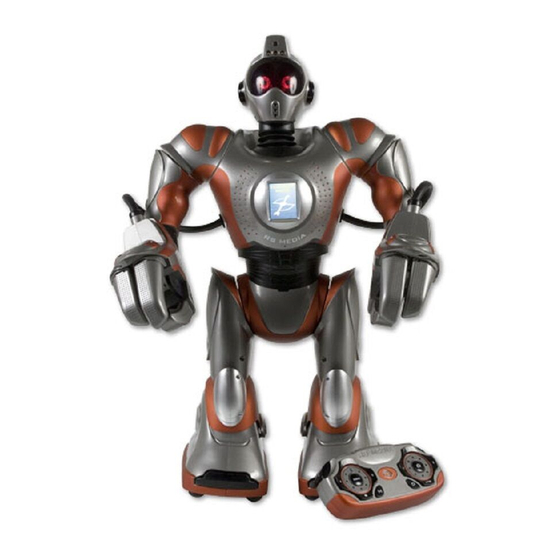
10 11 RS MEDIA OVERVIEW ir ViSion SenSorS and CaMera eyeS eyeS LCd SCreen right hand Speaker Left hand Speaker Line in / uSB CoMpartMent Sd Card CoMpartMent BaCk foot SenSorS front foot SenSorS aC/dC power point woofer on/off Button SoniC SenSor hand ControLS RS Media is equipped with a multitude of features that really makes him a multi-media experience contained in a robot. Refer to the illustration for an overview of his features.
-
WowWee RS Media 6 7 QUICK START
-
WowWee RS Media 48 49 ADVANCED INTERACTION WITH RS MEDIA Main Program mode allows you to program a sequence of movements into RS Media by entering commands from the remote controller. + Enters the Main Program mode Plays back the Main Pr
-
WowWee RS Media 30 31 PHOTO CONTROLS CHART Press twice to take a photo. Press to select the previous photo. Track a human and take a photo. Press to select the next photo. Press to enter RS Media’s Photo folder. Press to make RS Media track the color Green and take a photo. Press to make R
-
38 39 MEDIA MODE MAPPING CHART Press up or down to navigate RS Media’s menu. Press up or down to adjust RS Media’s volume. Press to select from RS Media’s menu. Press twice to take a photo. Press to select Game menu. Press to select the previous menu. �
-
22 23 ARM MODE MAPPING CHART Control RS Media’s left and right arms simultaneously Control RS Media’s left and right arms simultaneously User BodyCon / Macro slot User BodyCon / Macro slot User BodyCon / Macro slot User BodyCon/ Macro slot User BodyCon / Macro slot �
-
WowWee RS Media 6 7 QUICK START �
-
18 19 CONTROL MODE MAPPING CHART Control RS Media’s left and right arms simultaneously Control RS Media’s left and right arms simultaneously User BodyCon / Macro slot User BodyCon / Macro slot User BodyCon / Macro slot User BodyCon / Macro slot
-
WowWee RS Media 28 29 AUDIO CONTROLS CHART Press twice to start recording audio. Press to select previous track. Press to select the next track. Press to play or pause the current MP3. Press to play back a Sound Memo, if one is present. Press to Rewind the audio le currently playing. Press to Fast Forward the audio le
-
42 43 VISION SYSTEMS RS Media is equipped with two sets of vision systems. One vision system tracks movements and detects obstacles; the other system differentiates between certain colors. RS Media’s infrared vision system allows him to respond to commands from the remote controller. �
-
WowWee RS Media 16 17 CONTROL MODE MAPPING CHART Control the upper body with the Left Control Pad. Control the hips and waist with the Right Control Pad. With each press, RS Media will toggle through one step in this routine. Press twice to record a short video. (The second press can be without Left Shift) Press to make RS Media perform a Personality Demo. �
-
40 41 MEDIA MODE MAPPING CHART Control RS Media’s left and right arms simultaneously Control RS Media’s left and right arms simultaneously User BodyCon / Macro slot User BodyCon / Macro slot User BodyCon / Macro slot User BodyCon / Macro slot User BodyCon / Macro slot
-
WowWee RS Media 12 13 BASIC MOVEMENTS OVERVIEW This section describes basic remote controller movement and functions on RS Media. This section describes basic movements on RS Media using the remote controller functions. �
-
WowWee RS Media 3 RS Media is a complete multimedia robotic experience with the unique ability to be fully customized. The perfect fusion of cutting-edge technology and personality
-
14 15 You can use RS Media’s hand controls to navigate between modes by pressing the outer buttons simultaneously. Press both outer buttons again to toggle to the next mode. �
-
58 batteries, 8 installing, 8 remote controller, 9 blinking, 45 BodyCon denition, 56 BodyCon editor, 53 camera, 43-45 camera settings white balance, 44 color recognition, 44 external audio source, 55 features, 10 inching, 43 foot sensors, 42 frequently asked questions, 57 gait denition, 56 gaits walking gaits, 12 games, 34-36 controls, 34 glossary, 56 grip sensors, 42 Guard mode, 45,50 hand controls, 1
-
WowWee RS Media 24 25 DESCRIPTION OF MEDIA MODE In Media mode, you can take advantage of RS Media’s head-mounted camera, color LCD screen on his chest, full speaker system embedded in his armor, internal (built-in) memory and external memory card slot (SD memory card not included). Refer to the section Memory expansion for details. In Media mode, you can access his media and PC connectivity functions using the remote controller or his hand controls. RS Media can play MP3 (.mp3) and MPEG4 (.avi) les, take and display photos, and record and playback video les and audio clips. RS Media also comes with 3 pre-insta
-
WowWee RS Media 58 Index —B— batteries, 8 installing, 8 remote controller, 9 blinking, 45 BodyCon denition, 56 BodyCon editor, 53 —C— camera, 43-45 camera settings white balance, 45 color recognition, 44 —E— external audio source, 55 —F— features, 10 inch, 43 foot sensors, 42 frequently asked questions, 57 —G— gait denition, 56 gaits walking gaits, 12 games, 34-36 controls, 34 glossary, 56 grip sensors, 42 Guard mode, 45,50 —H— hand controls, 15 handling RS Media, 55 help le, 52 —I�
-
WowWee RS Media 22 23 ARM MODE MAPPING CHART Control RS Media’s left and right arms simultaneously. Control RS Media’s left and right arms simultaneously. Press to make RS Media stand straight up, whether lying or sitting. Press twice to make RS Media take a photo. Press to initiate an interaction between RS Media and Robopet™. Press t
-
18 19 CONTROL MODE MAPPING CHART Press forwards or backwards and RS Media will Bulldozer in that direction. Press left or right to make RS Media perform a kick with that foot. Move RS Media’s head around using the Right Control Pad. Press to make RS Media stand straight up, whether lying or sitting. Press twice to make RS Media take a photo.
-
WowWee RS Media 8 9 This section describes the battery and power requirements for RS Media. RS Media tells you when his batteries are running low, after which he will shut down. When he does this, you will need to replace all the batteries in the robot. If RS Media is not responding well to controller commands, you might need to replace the batteries in the controller. Your RS Media is powered by 6 x “D” size batteries (not included) and 4 x �
-
WowWee RS Media 46 47 ROBOT INTERACTION RS Media can interact with any one of the following robotic companions at a time: Roboreptile, Robosapien™ V2, RS Media™, Roboraptor™, or Robopet™. To have RS Media interact with his companions, align RS Media facing the other robot, on a level surface with a clear line of sight. Turn RS Media’s companion on and then press the associated button combination on the remote controller to initiate the interaction.
-
20 21 ARM MODE MAPPING CHART Control RS Media’s arms simultaneously. Control RS Media’s arms simultaneously. With each press, RS Media will toggle through one step in this routine. Press twice to make RS Media record a short video. (The second press can be without Left Shift) �
-
WowWee RS Media 16 17 INTERACTING WITH RS MEDIA/ CONTROL MODE MAPPING CHART This chapter deals with different ways you can interact with RS Media. RS Media is equipped with three modes: • Allows you to control his full body movements and functions. • Allows you to control his arm movements and functions. • Allows you to access his media and connecti
-
WowWee RS Media 8 9 Your RS Media remote controller is powered by 3 x “AA” size batteries (not included). We recommend using only top-quality alkaline batteries. To install or change batteries in RS Media remote controller: 1. Locate the battery compartment on the underside of the remote controller. 2. Using a Philli
-
54 55 MEMORY EXPANSION / USB CONNECTION RS Media has built in onboard memory on which you can store your media les and personalities. You can expand the memory capacity on RS Media using a SD card (sold separately) in the SD card slot. There are two types of memory available on RS Media: • Onboard memory. Memory that is built-in on RS Media and can
-
40 41 Control upper body with the Left Control Pad. Control head with the Right Control Pad. Press to select the currently highlighted menu option. Press to enter RS Media’s Photo folder. Press to enter RS Media’s Audio folder. Press to enter RS Media’s Vide
-
WowWee RS Media 46 47 ROBOT INTERACTION/ ADVANCED INTERACTION WITH RS MEDIA Turn Robopet on, and then command him to sit down. Once he is sitting, you should initiate the interaction routine within 10 seconds before he enters Free Roam mode; otherwise, you will have to start the process over.
-
WowWee RS Media 50 51 PROGRAMMING RS MEDIA USING RS MEDIA EDITING SUITE The RS Media™ Editing Suite is the perfect software companion that complements the multimedia robotic experience of RS Media. It allows you to manage and customize data les, games and other programs created on your RS Media or PC, giving you complete creative control of content and reprogramming. The RS Media Editing Suite softwareCD is packaged with RS Media. Visit www.wowweeesupport.com to download any upd
-
56 57 CARING FOR YOUR RS MEDIA / GLOSSARY Red, blue or green spots (bright spots) or black spots (dark spots) may appear in certain locations on the LCD screen. The appearance of such spots is a normal occurrence associated with LCD screens and is not a sign of a malfunction. LCD screens are made using highly precise technology. However, a very small number of dark pixels or continuously lit pixels exist on each screen. Also, a distorted image ma
-
50 51 ADVANCED INTERACTION WITH RS MEDIA Positional subroutines (puppet mode programs) can be added as a step in your robot program. When the program is played back and reaches the subroutine step, the preprogrammed positional routine will be performed. Enter Positional
- Manuals
- Brands
- WowWee Manuals
- Robotics
- RS Media
- User manual
-
Contents
-
Table of Contents
-
Bookmarks
Quick Links
A Fusion of technology and Personality
User Manual
North America
Item No. 8061 | Ages 8+
CAUTI O N — ELECTRI C AL TOY:
NOT RECOMMENDED FOR CHILDREN UNDER 4
YEARS OF AGE. AS WITH ALL ELECTRICAL PRODUCTS,
PRECAUTIONS SHOULD BE OBSERVED DURING
HANDLING AND USE TO PREVENT ELECTRICAL SHOCK.
INPUT: AC100-240V, 50/60HZ OUTPUT: DC 7.5V 3.1A
Related Manuals for WowWee RS Media
Summary of Contents for WowWee RS Media
-
Page 1
A Fusion of technology and Personality User Manual North America Item No. 8061 | Ages 8+ CAUTI O N — ELECTRI C AL TOY: NOT RECOMMENDED FOR CHILDREN UNDER 4 YEARS OF AGE. AS WITH ALL ELECTRICAL PRODUCTS, PRECAUTIONS SHOULD BE OBSERVED DURING HANDLING AND USE TO PREVENT ELECTRICAL SHOCK. -
Page 2: System Requirements
COPYRIGHT INFORMATION RS Media™, Robosapien™, Robosapien™ V2, Roboreptile™, Robopet™, and Roboraptor™ are copyright and trademarked by Wowwee Ltd. Sun Microsystems and Java are registered trademarks of Sun Microsystems, Inc. All other copyrights are hereby acknowledged. sYsTeM RequIReMeNTs Minimum system requirements for running RS Media Editing Suite.
-
Page 3: Welcome
, the next generation of Robosapien ™ technology and personality. RS Media is a complete multimedia robotic experience with the unique ability to be fully customized. The perfect fusion of cutting-edge technology and personality modeling software, RS Media allows you to take total control.
-
Page 4: Table Of Contents
Ghost Force Basic media mode functions Vortex Racer Remote controller overview Bubble soccer Hand controls basics Options menu Introduction to Rs Media’s modes Media mode mapping chart 38-41 Description of Control mode sonic sensors Control mode mapping chart 16-19 Tilt sensors…
-
Page 5
Directly programming Rs Media Warranty information Puppet Mode (Positional programming) FAqs Puppet Mode: Foot sensors support Puppet Mode: Left and Right side programming Index Main Program Mode subroutines sound and Vision subroutines Positional subroutines Guard subroutine Introduction to the Rs Media editing suite… -
Page 6: Quick Start
QUICK stARt To sample some of Rs Media’s functions immediately, insert his batteries (see p.8-9) turn him on (see p.11) and follow this brief overview of some of his functions in each Mode. see page 14 for full details of controller button symbols used throughout this manual.
-
Page 7
QUICK stARt Mode selection. Press to cycle through Rs Media’s three modes. ControL Mode — arM Mode — Media Mode — ControLLer LeVeL 1 ControLLer LeVeL 2 ControLLer LeVeL 3 Stop Right Arm Menu Navigation Dance Demo Left Arm Menu Select… -
Page 8: Power And Battery Details
4. Replace the battery compartment covers and then replace the screws. Battery requirements Your RS Media is powered by 6 x “D” size batteries (not included) and 4 x “AA” size batteries (not included). We recommend using only top-quality BottoM View of the rS Media alkaline batteries.
-
Page 9
• Do not mix old and new batteries, different types of batteries Battery requirements [standard (Carbon-Zinc), Alkaline or rechargeable] or rechargeable Your RS Media remote controller is powered by 3 x “AA” size batteries batteries of different capacities. (not included). We recommend using only top-quality alkaline •… -
Page 10: Rs Media Overview
Rs MEdIA OvERvIEW RS Media is equipped with a multitude of features that really makes him a multi-media experience contained in a robot. Refer to the illustration for an overview of his features. Sd Card Line in / uSB ir ViSion SenSorS and CaMera eyeS…
-
Page 11: Lcd Screen
RS Media’s power button is located on his back, just below the woofer, as illustrated. To turn RS Media on, press the power button to set it to the ON position; to turn him off, press the power button to set it in the OFF position.
-
Page 12: Basic Movements
* RS Media has two (2) walking speeds. Press forward on the directional pad while he is walking to toggle between the two walking speeds. ** When you press the left or right on the directional pad in Control mode, RS Media will turn on the spot, that is, he will not perform a walking turn.
-
Page 13: Basic Arm Movements
ARM MOvEMEnts/ bAsIC MEdIA MOdE FUnCtIOns Basic arm movements This section describes basic arm movements in Arm mode on RS Media using the remote controller. ARM MODe BuTTON NO sHIFT LeFT sHIFT RIGHT sHIFT Right arm Drop Chop Place…
-
Page 14: Remote Controller Overview
REMOtE COntROLLER OvERvIEW SignaL indiCator Light Left Shift right Shift Stop pad pLay/pauSe pad SeLeCt Button CaMera Button Stop Button pLay / pauSe Button Left direCtion pad right direCtion pad Mode Change Button deMo Button…
-
Page 15: Hand Controls Basics
COntROLs bAsICs Hand controls basics You can use RS Media’s hand controls to navigate between modes by Left Hand Controls Right Hand Controls pressing the outer buttons simultaneously. Press both outer buttons again to toggle to the next mode.
-
Page 16: Introduction To Rs Media’s Modes
Press to toggle to RS Media’s next personality, including those entered by user. Hearing OFF/ON Press once to disable RS Media’s hearing. Press again to enable RS Media’s hearing. Stop / Full Reset Press to stop RS Media from performing his current action.
-
Page 17
Control the hips and waist with the Right Control Pad. Lie / Sit / Get up With each press, RS Media will toggle through one step in this routine. Press twice to record a short video. (The second press can be without Left Shift) -
Page 18
Press to play RS Media’s Sound Program, if one is present. Stop Movement Press to stop RS Media from performing any movement. Any Media playing will not be affected. Vision Program Play Press to play back a Vision Program, if one is present. -
Page 19
COntROL MOdE MAPPIng ChARt LEFT & RIGHT SHIFT Both Arms Control RS Media’s left and right arms simultaneously Both Arms Control RS Media’s left and right arms simultaneously User BodyCon 1 User BodyCon / Macro slot User BodyCon / Macro slot… -
Page 20: Description Of Arm Mode
ARM MOdE MAPPIng ChARt Description of Arm mode In Arm mode, you can control RS Media’s arm movements using the remote controller. For instance, you can make him pick up or throw items. NO SHIFT Right Arm Control RS Media’s right arm independently Left Arm Control RS Media’s left arm independently…
-
Page 21
Lie / Sit / Get up With each press, RS Media will toggle through one step in this routine. Press twice to make RS Media record a short video. (The second press can be without Left Shift) Video Record Roboraptor Interaction Press to initiate an interaction between RS Media and Roboraptor ™… -
Page 22
Press to make RS Media perform a Right Arm Push. Stop Movement Press to stop RS Media performing any movement. Any media playing will not be affected. Left Arm Push Press to make RS Media perform a Left Arm Push. -
Page 23
ARM MOdE MAPPIng ChARt LEFT AND RIGHT SHIFT Control RS Media’s left and right arms simultaneously Both Arms Both Arms Control RS Media’s left and right arms simultaneously User BodyCon 1 User BodyCon / Macro slot User BodyCon 2 User BodyCon / Macro slot… -
Page 24: Description Of Media Mode
In Media mode, you can access his media and PC connectivity functions using the remote controller or his hand controls. When audio is playing in Control mode or Arm mode, RS Media will make no other sounds. RS Media can play MP3 (.mp3) and MPEG4 (.avi) files, take and display photos, and record and playback video files and audio clips.
-
Page 25: Media Mode Functions Overview
You can use RS Media’s hand controls in Media mode to navigate through the Media mode menu. NOTE: You can only use the outer buttons on RS Media’s hand controls in Control mode and Arm mode to toggle through RS Media’s modes.
-
Page 26: Media Format Compatibility
In the RS Media Editing Suite, you can use *.mp3 files in your Personalities, Macros or BodyCons. You can even upload *.mp3 files to RS Media to play as if he was a stereo system. RS Media supports *.mp3 sampling bitrates up to 192 Kbps. Supported frequencies: 16 kHz, 22.05 kHz, 32 kHz, and 44.1 kHz.
-
Page 27: Descriptions Of Media Mode Menus
MENU ITEM DESCRIPTION Browse Allows you to look through the list of available audio files on RS Media. Delete Allows you to delete an audio file. Record Allows you to record an audio clip. Options include Start Recording and Set Record Volume (Under the Options menu).
-
Page 28: Audio Controls Chart
Press to Rewind the audio file currently playing. Fast Forward Press to Fast Forward the audio file currently playing. Camera Setting Press to display RS Media’s camera settings. RIGHT SHIFT Audio Folder Press to enter RS Media’s Audio menu. Rewind x 2 Press to Rewind X 2 the audio file currently playing.
-
Page 29: Photo Menu
Delete Allows you to delete a photo file. Take photo Allows you to take a photo using RS Media’s camera and display the image on RS Media’s LCD screen. Press the camera button to take a photo. Options Allows you to select slideshow and Photo Timer.
-
Page 30: Photo Controls Chart
Next Track Press to select the next photo. LEFT SHIFT Track & Photo Red Press to make RS Media track the color Red and take a photo. Camera Setting Press to display RS Media’s camera settings. RIGHT SHIFT Photo Folder Press to enter RS Media’s Photo folder.
-
Page 31: Video Menu
Allows you to delete a video file. Take Video Allows you to record a video clip using RS Media’s camera and display the video on RS Media’s LCD screen. Press the camera button on the remote controller to record video.
-
Page 32: Video Controls Chart
Camera Setting Press to display camera settings. RIGHT SHIFT Video Folder Press to enter RS Media’s Video folder. Video memo Playback Press to play back a Video Memo track, if one is present. Rewind x 2 Press to Rewind X 2 the video currently playing.
-
Page 33: Personality Menu
Allows you to preview BodyCon files in the current personality Personality controls chart NO SHIFT Change Personality Press to toggle through RS Media’s personalities, including those entered by the user. LEFT SHIFT Personality Folder Press to enter RS Media’s Personality folder.
-
Page 34: Games Menu
(or hand controls) to navigate to the game you • Vortex Racer want, and then press the Select button. You can download more Java games and upload them to RS Media using the RS Media Editing Suite. MENU ITEM…
-
Page 35: Description Of Games
COntROLs OvERvIEW / dEsCRIPtIOn OF gAMEs If you do upload new Java games to RS Media, refer to the gameplay Game strategy mapping of the keys for RS Media remote controller as follows: Ghost Force is a shoot ‘em up in the best tradition of the golden age of the greatest arcade games.
-
Page 36: Vortex Racer
dEsCRIPtIOn OF gAMEs Vortex Racer Bubble soccer Doctor Geek has gathered the best pilots in the Galaxy in order to This remake of an old classic arcade game, Bubble Soccer needs your determine who will be the first to use his brand new invention: a vessel help! capable of travelling through the Vortexes.
-
Page 37: Options Menu
— Treble Allows you to adjust the treble frequency levels. Line In Allows you to enable an external audio source to play through RS Media using the line-in jack. Enables an external audio source to play through RS Media. — On NOTE: When the external audio source is enabled, RS Media will not play any internal sounds.
-
Page 38: Media Mode Mapping Chart
Press to select Game menu. Previous Menu Press to select the previous menu. Change Personality Press to toggle through RS Media’s personalities, including those entered by the user. Record Audio Press to start recording audio. Stop / Full Reset Press to stop RS Media from performing his current action.
-
Page 39
Rewind Press to Rewind the video or song currently playing. Track & Photo Red Press to make RS Media track the color Red and take a photo. Fast Forward Press to Fast Forward the video or song currently playing. Camera Setting… -
Page 40
Press to play back a Video Memo track, if one is present. Stop Movement Press to stop RS Media from performing any movement. Any media playing will not be affected. Rewind Press to Rewind X 2 the video or song currently playing. -
Page 41
MEdIA MOdE MAPPIng ChARt LEFT AND RIGHT SHIFT Both Arms Control RS Media’s left and right arms simultaneously Both Arms Control RS Media’s left and right arms simultaneously User BodyCon 1 User BodyCon / Macro slot User BodyCon / Macro slot… -
Page 42: Sonic Sensors
MODE BUTTON DESTRIPTION for instance, he will stop functioning. If RS Media falls on his back, he will stop what he is doing. When trying to control RS Media, if he is not Toggle Control Turn the sonic standing, you will be informed by him that he cannot perform certain…
-
Page 43: Infrared Vision Systems
Turn the IR sensor Close-range infrared vision on/off on or off When tracking something at a close range, RS Media will follow it as far as his head turns. Flinch response He will make comments about objects seen using the close-range IR vision.
-
Page 44: Obstacle Avoidance
Media. Refer to Color Camera Settings on p.45 still objects If RS Media sees a red, green, or blue object held still in front of him, he When an object suddenly appears in front of him (and he was not will perform a grab BodyCon.
-
Page 45: Color Camera Settings
If there is no program stored in Vision or Sound then RS Media will perform his default Guard Mode reaction. When it is too dark, RS Media will have trouble correctly identifying…
-
Page 46: Rs Media™ / Robosapien™ V2 Interaction
To have RS Media interact with his companions, align RS Media facing the enters Free Roam mode; otherwise, you will have to start the other robot, on a level surface with a clear line of sight. Turn RS Media’s process over. To keep Roboreptile from entering Free Roam mode, companion on and then press the associated button combination on the press the stop button on Roboreptile’s remote controller.
-
Page 47: Robopet™ Interaction
You can directly program RS Media or program him using the remote you should initiate the interaction routine within 10 seconds before he controller. You can program RS Media directly in one of five (5) ways. enters Free Roam mode; otherwise, you will have to start the process over.
-
Page 48: Puppet Mode (Positional Programming)
If you move RS Media into a position that is unsafe (for example, if you • Left and Right Puppet Modes have a maximum of 6 moves for each lean him forward too far, or backwards so that he falls over), he will foot.
-
Page 49: Main Program Mode
AdvAnCEd IntERACtIOn WIth Rs MEdIA Main Program Mode when you enter the Main Program mode, RS Media will tell you there is no more room left. Main Program mode allows you to program a sequence of movements into RS Media by RS Media will automatically exit Main Program Mode after waiting entering commands from the remote controller.
-
Page 50: Positional Subroutines
Main Program mode. If RS Media reaches this step in his programming and does not have a stored Puppet Mode (positional) program, he will immediately skip to the next step in the programmed routine. Guard subroutine Guard subroutines can be added as a step in your robot program.
-
Page 51: Introduction To The Rs Media Editing Suite
RSMediaSetup.msi file on the CD drive and double-click on it to begin the installation process. Follow the instructions that appear onscreen to install the software. You can now use the RS Media Editing Suite to customize your RS Media.
-
Page 52: Help File
Help file for more information. computer. You can access the help file for the RS Media Editing Suite at any time Macro editor overview by clicking on the [?] button in the software interface. When you click…
-
Page 53: Bodycon Editor Overview
RS Media. NOTE: When you want to transfer files to RS Media from your computer, or vice versa, you must make sure RS Media is ON and that USB mode is enabled. For more information on the RS Media Editing Suite, refer to the software’s Help file, which you can access through the software interface…
-
Page 54: Onboard Memory Vs. Expandable Memory
SD card slot. The maximum size for the SD card is 1 GByte. NOTE: When you use an SD card on RS Media, you will not be able to You can transfer files from a PC to an SD memory card inserted in RS access any data saved on his onboard memory.
-
Page 55: Playing Audio From An External Source
Line In • Do not place RS Media close to items with a magnetic strip, such as option by setting the option a credit card. to OFF (see p.37 for details).
-
Page 56: Glossary
For safety reasons, unplug the power cord (if using — not included) from • In the RS Media Editing Suite, you can create macros to create your the electrical outlet and remove the batteries from RS Media before own sequence of RS Media movements which you can then save to cleaning.
-
Page 57: Warranty Information
Recommended size of SD Card is 1GByte. FAqs support If you have questions or issues with your RS Media, take some time to go through the following list of frequently asked questions. For an updated list of troubleshooting tips or frequently asked questions, visit the RS Media support site at www.wowweesupport.com.
-
Page 58: Index
43 precautions, 55 support, 57 blinking, 45 —L— programming BodyCon —T— using RS Media Editing Suite, 51 definition, 56 LCD screen, 11, 56 programming modes, 47 tilt sensors, 42 BodyCon editor, 53 line-in, 55 Main Program mode, 49 tracking —C—…
-
Page 60
Manufactured and distributed by © 2006 Wowwee Ltd. All Rights Reserved. Wowwee Limited Asia Office — Unit 301A-C, 92 Granville Rd, T.S.T. East, Hong Kong Wowwee Group North America Office — 6600 Decarie, Suite 200, Montreal, QC H3X 2K4, Canada Consumer Hotline: 1-800-310-3033 Email: support@wowwee.com www.wowwee.com…
Девиз Robosapien RS Media — сплав технологии и индивидуальности.
В Robosapien RS Media используются передовые технологии в сочетании с ультрасовременными мультимедийными аппаратными средствами и редактируемым программным обеспечением (personality editing software).
Robosapien RS Media – является продолжением версии Robosapien V2.
В новом Robosapiene V3 имеется встроенный MP-3 плеер, полноцветный дисплей (на корпусе), слот для карт памяти SD, встроенный микрофон и фото-видео-камера, фотоальбом, имеется возможность персональных настроек (индивидуальное программирование), поддержка Java-игр, полноценное соединение с компьютером через USB-порт.
Robosapien RS Media – обладает большими возможностями для взаимодействия со своим владельцем и окружающей средой.
Полноцветный ЖК-дисплей и колонки в корпусе Robosapien V3, смонтированная на голове камера — создают ультрасовременные способности игрушки-робота. Используя программное обеспечение для PC, (идет в комплекте с игрушкой роботом), можно загружать и скачивать информацию с Robosapien RS Media (посредством USB-порта или карточки памяти SD), просматривать фотографии и видео, играть в видеоигры, слушать музыку и хранить звуковые файлы.
Вы можете создать собственного уникального Robosapien RS Media, используя идущее в комплекте с роботом Personality Editing Suite(программное обеспечение). Просто выберите и загрузите действия, звуки и голосовые файлы или создайте ваши собственные. Научите робота танцевать под одну из известных популярных мелодий или выберите один из многих готовых файлов, типа «JIVEBOT», «WISEGUY»…
Вы можете программировать действия робота на компьютере с помощью трехмерной анимации.
Просто переместите трехмерную модель Robosapien RS Media на Вашем персональном компьютере, (программное обеспечение прилагается), добавляя и синхронизируя файлы голоса с каждым движением; затем загрузите в память и наблюдайте, как он выполнит действия.
Размещенный на груди полный цветной ЖК монитор показывает операционный статус Robosapien RS Media, кинофильмы, фотографию, информацию MP3 или игры.
- Многоуровневое взаимодействие с окружающей средой, с людьми и объектами;
- зрительные, акустические и сенсоры контакта;
- естественные движения тела;
- голосовая реакция робота Robosapien RS Media;
- Система Цветового Видения: распознает цвета и оттенки кожи;
- Акустическая Стерео Система Обнаружения: улавливает и реагирует на звук;
- IR-Видение: обнаруживает и избегает препятствия; отслеживает перемещения объектов;
- «лазерная» технология слежения;
- взаимодействие с другими роботами-компаньонами;
- натуральная походка;
- сгибающиеся пальцы, способные удерживать различные предметы;
- спящий режим и функция автоматического отключения
Рекомендуемый возраст, как обычно :-): 8 — 99 лет
Элементы питания для робота Robosapien RS Media — 6 батареек типа D и 7 батареек типа АА (в комплект не входят).
Артикул для заказа — Robosapien 8061.
| Характеристика | Значение |
|---|---|
| Элемент питания, тип АА, шт | 7 |
| Элемент питания, тип D, шт | 6 |
Покупателей интернет-магазинов в первую очередь волнует вопрос доставки!
Компания «Робот 96» постаралась сделать все, чтобы вы получили заказ в самые короткие сроки и в удобное для вас время. Мы понимаем, как для вас важно убедиться в качестве товара, поэтому мы не только доставляем товар в удобное для вас время, но и демонстрируем его работу в вашем присутствии.

Доставка
Наш магазин с удовольствием предоставит услугу доставки от любой суммы заказа.
Срок доставки до 5 дней.
— Доставка осуществляется в любой удобный для вас день с 9 до 23 часов.
— Наш курьер-менеджер не только доставит вам товар, но и продемонстрирует его работу, а также ответит на все ваши вопросы.
— Оплата возможна наличным и безналичным способом, а так же онлайн перевод на все распространенные банковские карты банков России.
— Мы также осуществляем доставку в ближайшие города вашей области в день заказа
узнавайте о возможности доставки у наших менеджеров.
Оплата товара
Мы принимаем к оплате: Наличные (оплата при получении товара), онлайн перевод на все распространенные банковские карты банков России, оплатить пластиковой картой можно у нас в магазине, безналичный расчет (для юридических и физических лиц)
Срок доставки
Доставка осуществляется в срок 2-5 дней (зависит от удаленности города от транспортной компании).
Подробности о сроках доставки узнавайте у наших менеджеров.
Гарантийный срок
Одним из показателей серьезности и надежности любой компании являются предоставляемые гарантии.
Компания «Робот 96» предоставляет гарантию на все товары (сроки гарантии указаны в описании товара).
При покупке заполняется гарантийный талон с полными данными и необходимыми реквизитами продавца и покупателя.
Возврат товара и денежных средств
Вы вправе отказаться от товара:
- в любое время до его получения
- после передачи товара – в течение 5 дней.
Возврат товара надлежащего качества возможен в случае, если сохранены его товарный вид, потребительские свойства, фирменная упаковка, он полностью укомплектован, имеется документ, подтверждающий факт покупки указанного товара.
Важно: если товар грязный, мы вычитаем сумму требуемую для приведения товара в товарный вид. Например, если товар использовался и фильтр стал грязным, то необходимо будет заплатить за новый фильтр.
При отказе от товара, мы возвратим сумму, уплаченную вами не позднее чем через 10 дней с даты предъявления покупателем соответствующего требования.
Гарантия качества
Мы хорошо понимаем, как важно для вас качество покупаемых товаров. Наша компания работает только с самыми надежными фирмами-производителями, которые гарантируют высокое качество своей продукции.
К каждому товару обязательно прилагается инструкция, где указаны правила эксплуатации, а также данные о фирме-производителе.
Для того чтобы ваш товар был доставлен вовремя и по назначению, пожалуйста, внимательно заполняйте форму заказа.
Все подробности о сроках и ценах вы можете уточнить у наших менеджеров.
Контактные данные наших представителей вы сможете найти в разделе контакты.
Сотрудники нашего интернет-магазина с удовольствием ответят на все вопросы, возникающие на любом этапе покупки и доставки.
Компания «Робот 96» работает для того, чтобы подарить вам радость от нашего сотрудничества!
Полноцветный ЖК-дисплей и колонки в корпусе Robosapien V3, смонтированная на голове камера — создают ультрасовременные способности игрушки-робота. Используя программное обеспечение для PC, (идет в комплекте с игрушкой роботом), можно загружать и скачивать информацию с Robosapien RS Media (посредством USB-порта или карточки памяти SD), просматривать фотографии и видео, играть в видеоигры, слушать музыку и хранить звуковые файлы.
Вы можете создать собственного уникального Robosapien RS Media, используя Personality Editing Suite (программное обеспечение). Выберите и загрузите действия, звуки и голосовые файлы или создайте ваши собственные. Научите робота танцевать под одну из известных популярных мелодий или выберите один из многих готовых файлов, типа ‘JIVEBOT’, ‘ WISEGUY ‘.
Вы можете программировать действия робота на компьютере с помощью трехмерной анимации. Просто переместите трехмерную модель Robosapien RS Media на Вашем персональном компьютере, (программное обеспечение прилагается), добавляя и синхронизируя файлы голоса с каждым движением; затем загрузите в память и наблюдайте, как он выполнит действия.
Стандартные функции
- Операционная система — Linux Embedded OS;
- высококачественный TFT-дисплей 1,9″, разрешение — 176х132 пикселей; 16 bit цвет;
- поддержка файлов: MPEG (avi) до 320 на 240; MP3 (mp3), WAVE (wav) и JPEG (jpg, jpeg) размером не более 10 Мб; JAVA (jar);
- фото сенсор для записи видео и фотографирования (камера с разрешением 0.33 мегапикселя);
- динамики 11 Вт и сабвуфер на спине;
- звуковые сенсоры: для локализации звука — 2 микрофона (по бокам в районе ушей), а для записи — 1 микрофон;
- собственная память робота — 40 Мб (доступно примерно 16 Мб), слот для карт памяти Secure Digital объемом до 1 Гб;
- USB-порт для подключения к ПК;
- аудио-порт (мини джек) для поключения к ПК или аудио аппаратуре (кабель покупается отдельно);
- питание робота: 6 элементов типа D и 4 элемента АА типа (покупаются отдельно);
- питание для пульта: 3 элемента типа АА (покупаются отдельно).
- Элементы питания для робота Robosapien RS Media — 6 батареек типа D и 7 батареек типа АА.
Дополнительные возможности
- зрительные, акустические и тактильные сенсоры;
- свободный режим и режим охраны;
- естественные движения тела;
- голосовая реакция;
- система цветового видения – камера собирает сведения о цвете и форме предметов, даже распознаёт цвета и оттенки человеческой кожи;
- инфракрасный лазер для ориентации в пространстве и отслеживании объектов;
- отслеживает перемещения объектов;
- «лазерная» технология слежения;
- взаимодействие с другими роботами-компаньонами фирмы WOWWEE;
- натуральная походка;
- сильные кисти и сгибающиеся «пальцы», способные удерживать не слишком тяжёлые предметы довольно уверенно;
- спящий режим (если в течение 2 минут не произведено никаких действий) и функция автоматического отключения (через 10 минут)кроме основной модели поведения, есть ещё 3 программы, каждая из которых будет определять индивидуальную манеру разговора и поведения робота:
- BILLY-JOE SAPIEN (железный ковбой);
- SERVICE BOT 3000 (прилежный робот-слуга);
- SPACE BOT (робот-герой из далёкого космоса).
Каждая из программ определяет голос и манеру поведения робота.
Используя программное обеспечение PERSONALITY EDITING SUITE, можно создать собственные уникальные роли для RS MEDIA — выбрать и загрузить действия, звуки и голосовые файлы.
Спецификация
Размеры упаковки: 45 x 33 x 61 мм.
Вес робота: 2,5 кг.
Вес упаковки: 3,1 кг.
Примечание: Возраст: от 8 лет.
Комплект поставки:
- робот Robosapien RS Media (V3)»
- пульт Д/У;
- USB-кабель;
- софт для ПК;
- инструкция по эксплуатации.
Страна-производитель:Китай
RS медиа это еще один продукт в WowWee линии «s из биоморфных роботов , основанный на пешеходную системы , разработанной Марком Tilden . RS Media использует в основном тот же корпус, что и Robosapien V2 , но другой мозг, основанный на ядре Linux. Как следует из названия, основное внимание RS Media уделяется мультимедийным возможностям, включая возможность записи и воспроизведения звука , изображений и видео . он сохраняет и развивает матрицу датчиков и возможности программирования Robosapien V2 .
Аппаратное обеспечение
- Два основных процессора :
- ARM9 200 МГц с 64 МБ флэш-памяти для основной операционной системы LINUX и пользовательских файлов
- Пользовательский 16-битный процессор для обработки функций биоморфного робота
- 16 МБ (модель 2006 г.) или 32 МБ (модель 2007 г.) ОЗУ
- 1 порт USB
- Стерео аудио штекер
- Слот для SD-карты (принимает карты до 1 ГБ)
- Цветная камера VGA во лбу для распознавания изображений и записи видео
- Микрофон 20кГц в груди для записи звука
- 1,9-дюймовый цветной TFT- дисплей Supertwist с разрешением 176×132 пикселей в груди
- Система с 3 динамиками мощностью 11 Вт (2 металлических динамика + 1 НЧ — динамик на задней панели )
- Порт адаптера питания в ноге
- 14 двигателей на основе конфигурации Robosapien V2, обеспечивающих 11 степеней свободы
- 2 мотора в каждой ноге
- 2 мотора на голову
- 3 мотора в каждой руке
- 2 тазобедренных мотора
Датчики
- 3 инфракрасных (ИК) детектора, которые используют ИК-диапазон для обнаружения объектов
- Камера качества VGA во лбу для видео и отслеживания людей
- 3 звуковых датчика для локализации звука и записи звука
- 2 сенсорных датчика на тыльной стороне каждой руки
- 1 датчик касания пальца и 1 пятки на каждой ступне
Программное обеспечение
В отличие от предыдущих продуктов в линейке продуктов WowWee Robo, RS Media является первым устройством, в котором есть программное обеспечение для ПК . Существует 4 приложения: редактор BodyCon, редактор индивидуальности, редактор макросов и медиа-органайзер.
Редактор BodyCon: Редактор
BodyCon позволяет пользователю настраивать и предварительно просматривать движения RS Media. Пользователь может создать последовательность движений, а также голосовые и звуковые эффекты и сохранить все в файл для воспроизведения в будущем. Этот файл также может быть включен в личность или в созданный пользователем макрос.
Редактор личности:
RS Media расширяет единую личность, с которой были исходные модели Robosapien, и поставляется с 4 различными личностями ( дополнительную информацию см. Ниже ). Это также позволяет вам создать свою личность с нуля.
Редактор макросов: редактор
макросов на самом деле является подкомпонентом редактора личности, но требует отдельного описания. Пользователь может создавать свои собственные макросы, которые представляют собой последовательности команд, которые может выполнять RS Media. Макросы также могут включать условные процедуры, основанные на отзывах пользователей или окружения.
Media Organizer:
Media Organizer предоставляет пользователю графический интерфейс для управления аудио, изображениями, видео, играми и личностями на RS Media. Файлы можно загружать, скачивать, удалять и перемещать. Робот необходимо подключить к компьютеру, на котором запущено программное обеспечение Media Organizer, с помощью кабеля USB.
Стороннее программное обеспечение, темы и утилиты
Есть стороннее программное обеспечение, которое люди разработали, чтобы упростить использование RS Media.
RSM Remote:
он позволяет вам управлять большинством функций RS Media и даже делать видео, фото или аудиозаписи, а также указывать ему отслеживать определенный цвет, и все это с ПК.
Тема экрана iMedia:
iMedia — это тема, вдохновленная iPhone для RS Media. Он заменяет изображения для режима управления, режима охраны, режима охраны и всех изображений, связанных с режимом мультимедиа.
RS Media Time Sync:
удобное маленькое приложение, которое автоматически синхронизирует время вашего RSMedia с вашим компьютером, без проблем с его настройкой через USB или последовательную консоль.
RS Media Tango! Тема экрана:
раскройте Linux в вашем RSMedia с помощью этой экранной темы Tango! / GNOME. Включает графику для режима управления, режима охраны в режиме охраны, всех программных режимов, а также анимации в режиме мультимедиа, которые постепенно появляются и исчезают по мере их прокрутки.
Дополнительную информацию и ссылки для скачивания этих вещей можно найти в блоге Computers ‘n’ More .
Больше утилит, тем и программного обеспечения также можно найти на сайте Computers ‘n’ More
Личности
Личность — это набор аудиоответов RS Media. RS Media поставляется с 4 личностями, между которыми пользователь может переключаться с помощью пульта дистанционного управления :
- RS Media (по умолчанию)
- Service Bot 3000 — английский дворецкий.
- Space Bot — вымышленный космический капитан
- Билли-Джо Сапиен — ковбой
Пользователи также могут изменять существующие личности или создавать свои с нуля.
Мультимедийные возможности
RS Media может записывать и воспроизводить файлы MP3 , MPEG4 , JPEG , а также приложения Java. Он поставляется с 3 играми Java , которые управляются с пульта дистанционного управления и отображаются на ЖК-экране. Его также можно использовать в качестве аудиоплеера через линейный стереовход . Встроенную память можно дополнить, вставив карту памяти SD (размером до 1 ГБ) в слот SD.
Программирование
Как и другие роботы WowWee, RS Media можно запрограммировать на выполнение последовательностей движений и аудиоклипов либо как отдельную программу, либо как реакцию на звук, прикосновение или визуальный стимул . RS Media имеет тот же режим программирования, что и V2, марионеточный режим, в котором пользователь может вручную сгибать и перемещать части тела робота для создания программы. Самый изощренный способ программирования RS Media — использование компьютерных приложений.
Взлом
Как и другие модели Robosapien, RS Media был разработан с возможностью модификации. Ссылаясь на философию, лежащую в основе «взлома» роботов, Тилден однажды сказал: «Несколько лет назад некоторые умные ребята из искусственного интеллекта спросили, могу ли я построить компетентную гуманоидную колыбель, в которую они могли бы поместить свои умные программы. Мне потребовалось время, но вот это, ребята, недорогое и готовое к работе прямо из коробки. Дайте ему подумать и дайте мне знать, как оно идет «.
Весной 2009 года Helibot из сообщества RoboCommunity создал новый драйвер, позволяющий получить доступ к операционной системе робота Linux через порт USB и программу терминала. Теперь это часть комплекта разработки RSMedia, который теперь доступен на SourceForge. Приложения для RS Media можно найти в магазине RobotAppStore.
Доступность
RS Media был выпущен в октябре 2006 года в Австралии и Великобритании .
Рекомендации
Внешние ссылки
- RS Media на WowWee
Робот-пылесос уже является практически полностью автономным бытовым прибором. Он легко ориентируется в пространстве. Может автоматически начинать и завершать уборку, заряжаться и даже опустошать свой собственный контейнер для мусора, используя станцию очистки. Но он по-прежнему требует пусть и минимального, но участия человека в подключении, настройке и подготовке квартиры для уборки. От того, насколько тщательно вы будете придерживаться рекомендаций, во многом зависит качество уборки.
Как подготовить квартиру к уборке роботом-пылесосом
Для начала необходимо привести все провода в доме в порядок. Роботу-пылесосу могут помешать как и тонкие кабели со свободным концом, так и толстые кабели, закрученные кольцами. В таких «джунглях» робот вероятней всего запутается, а если вдруг нет, то качество уборки будет оставлять желать лучшего.

Хорошим вариантом будет подвесить сетевой фильтр или удлинитель на обратную сторону крышки стола. Сделать это можно или при помощи двустороннего скотча или закрепив саморезами.
Зарядки гаджетов также могут стать ловушкой для робота-пылесоса. Их тонкий кабель легко наматывается на турбощетку и ведущие колеса, поэтому провода стоить прибрать.
Провод от зарядной базы необходимо аккуратно смотать. Нельзя оставлять его в подобном виде, иначе робот-пылесос рано или поздно в нем запутается.

Для этого производитель обычно предусматривает на задней части базы органайзер. Провод сматывается до нужной длины и выводится в необходимую сторону.
Но если конкретно в вашей модели робота-пылесоса органайзер не предусмотрен, можно воспользоваться хомутами. Причем лучше использовать хомуты-липучки — они не повреждают изоляцию кабеля, и при необходимости их легко снять.
Как показывает практика, толстые прямые провода, идущие вдоль плинтусов, такие как витая пара или провода удлинителя — для робота не проблема. Но можно на всякий случай перестраховаться и в нескольких местах их или приклеить каплей «суперклея», или использовать U-образные скобы для крепления кабеля.
Затем необходимо расставить всю мебель по своим местам.
Для робота пылесоса обычные стулья с обеденным столом могут превратится в непреодолимое препятствие. Дело в том, что робот пылесос с лазерной навигацией (LDS) плохо определяет тонкие вертикальные ножки. А если они еще и хромированы, то для этой системы их вовсе не существует. Желая убраться и попав в такую западню, робот может долго пытаться из нее выбраться, ударяясь бесчисленное количество раз. А может и вообще выдать ошибку, что «область заблокирована». Поэтому составляем все максимально компактно. Можно стулья или табуретки вообще поднять на стол, как делают в школах. Так вся зона под столом будет свободна для уборки.
Если у вас есть ковры с бахромой по краям, ее необходимо подвернуть под края ковра. Обувь из коридора лучше убрать в шкаф, или в тумбу. Наибольшую опасность представляют шнурки, которые могут намотаться на подвижные части робота-пылесоса. А еще вы можете обнаружить свой кроссовок в другой комнате, куда робот усердно его оттолкает.
Детские игрушки, раскиданные домашние тапочки, носки и прочие мелкие предметы также необходимо убирать.
Но как быть с вещами, которые вы часто используете, или не хотите убирать с их привычного места? Например, любимый музыкальный инструмент или напольные весы. Очевидно, что весы низкие, и пылесос может их просто не заметить и биться о них. А укулеле слишком легкое, и робот может легко оттолкать его в любую часть квартиры.
А что же делать с областью штор и тюли, если боитесь, что робот в них запутается? Неужели их придется постоянно поднимать на подоконник? Для таких случаев в роботах-пылесосах предусмотрена функция «виртуальной стены». Помеченный такими стенами участок будет закрыт от робота.

Как определить место для станции зарядки
Роботу-пылесосу необходимо регулярно подзаряжать батареи. Возможно даже и в процессе уборки, если площадь помещений большая. От того, как правильно вы выберете место, будет зависеть, сможет ли робот самостоятельно возвращаться на базу и выезжать с нее.
- Необходимо учитывать наличие розетки. Вы же помните про трудности с удлинителями и проводами?
- Зарядная станция должна находиться в зоне действия сети Wi-Fi, чтобы можно было управлять роботом во время режима ожидания со смартфона.
- Необходимо выдержать свободное расстояние по сторонам, чтобы робот-пылесос мог легко заезжать на базу для зарядки.
- Станцию необходимо размещать задней стенкой обязательно у стены, иначе при заезде робот ее просто сдвинет.

Базу не следует размещать рядом с нагревательными приборами, в местах с повышенной влажностью и под прямыми солнечными лучами — это стандартная рекомендация для любой техники.
Как подключить робот-пылесос к смартфону
Перед подключением робота-пылесоса к смартфону, стоит выполнить предварительную подготовку:
- Убедитесь, что смартфон подключен к сети Wi-Fi и выходит в интернет через него. Например, временно отключите услуги мобильной передачи данных.
- Если ваш маршрутизатор использует WEP-шифрование, измените его на WPA2.
- Если вы используете двухдиапазонный маршрутизатор, и он настроен на вещание двух сетей, игнорируйте сигнал точки доступа Wi-Fi в диапазоне 5 ГГц и убедитесь, что смартфон подключен к сети 2.4 ГГц. Именно эта сеть нужна, так как она имеет максимальную зону покрытия.
- Учтите, что роботы-пылесосы не поддерживает сети со скрытым именем.
Процесс подключения робота несложен. Следуйте общему алгоритму — с небольшими изменениями он подойдет практически для любых роботов-пылесосов:
- Скачайте приложение для своего робота-пылесоса из магазина приложений (AppStore, Play Маркет) на свой смартфон.
- Откройте приложение. Если на пылесосе есть QR-код, выберите режим распознавания в приложении и наведите камеру на код.
- Если ваш робот-пылесос не поддерживает такой функционал, можно добавить устройство по модели (как например Ecovacs или Xiaomi):
- Подключите пылесос к Wi-Fi сети:
- Если вдруг по каким-то причинам приложение подключиться не сможет, будет отображена ошибка. Следуйте рекомендации на скриншоте:
- На этом шаге подключение успешно завершится. Вы восхитительны!


Что установить на пылесос перед первой уборкой
Перед первым запуском робот-пылесос необходимо полностью зарядить. В зависимости от модели, необходимо установить аксессуары, которые идут в комплекте. На примере Ecovacs Deebot Ozmo 900:
- боковые щетки
- турбощетка или насадка прямого всасывания
бак для воды - пластина для мытья пола
- контейнер для мусора
Ограничение зон. Виртуальные стены
Виртуальная стена — это функция для ограничения определенной области вашей квартиры от робота-пылесоса, настраиваемая через приложение.
Для добавления виртуальной стены необходимо в главном меню приложения нажать кнопку с изображением кирпичной стены, а затем выбрать пункт добавления новой границы (на других моделях пылесосов интерфейс приложения может отличаться):
Подтверждение – галочка, отмена – крестик. Все просто. Можно задавать любой размер области. После установки выбранная часть квартиры для уборки будет закрыта. Придется там наводить порядок уже самостоятельно.
Важное примечание: робот-пылесос иногда все же преодолевать установленные виртуальные стены, но автор статьи с таким случаем ни разу не сталкивался.
Виртуальные стены также могут быть представлены и магнитной лентой, но только для роботов с соответствующим датчиком (это указано в спецификациях):

Несколько метров идет в комплекте с пылесосом, но при необходимости можно приобрести ее дополнительно. Магнитная лента представляет собой резиновую полосу с ферромагнетиком. Она легко режется обыкновенными ножницами и наклеивается на пол, например, в дверном проеме. Механизм работы очень прост: доезжая до такого препятствия, робот по информации с датчика поймет, что зона для него закрыта и изменит траекторию движения. Но такой механизм ограничения не совсем удобен, так как его невозможно быстро снять, а внешний вид интерьера он портит. Программные виртуальные стены в этом плане выглядят гораздо перспективней.
Первый запуск
При первом запуске робот-пылесос будет строить карту вашей квартиры. Он может вести себя достаточно странно, упираясь бампером в предметы и выбирать непонятный маршрут для передвижения. Но это нормальное поведение – таким образом он знакомится с планировкой и расположением предметов вашего интерьера. В следующий раз у него получится гораздо лучше. Верьте в него!

После первой полноценной уборки будет возможно задавать различные типы уборок в зависимости от модели робота-пылесоса:
- Полностью автоматическая — будет убрана вся квартира.
- Уборка области — будет убрано конкретное помещение.
- Пользовательская — возможно отметить область, которую робот-пылесос уберет несколько раз.
Во всех этих режимах робот будет сам определять наилучший способ уборки — зигзагом, спиралью, вдоль плинтуса и т. д.
Напоследок наше видео о том, как выбрать робот-пылесос правильно:
Table of Contents: WowWee RS Media Robotics Owner’s Manual
-
WowWee RS Media 22 23 ARM MODE MAPPING CHART Control RS Media’s left and right arms simultaneously Control RS Media’s left and right arms simultaneously User BodyCon / Macro slot User BodyCon / Macro slot User BodyCon / Macro slot User BodyCon/ Macro slot User BodyCon / Macro slot Us
-
WowWee RS Media 42 43 RS MEDIA’S SENSORS RS Media has stereo sonic sensors that can detect sharp, loud sounds such as a handclap. He listens for sounds when he is stationary and/or quiet; he will not be able to listen to sounds when he is lying down or sitt
-
User Item No. 8061 | Ages 8+ A Fusion of technology and Personality CAUTION — ELECTRICAL TOY: NOT RECOMMENDED FOR CHILDREN UNDER 4 YEARS OF AGE. AS WITH ALL ELECTRICAL PRODUCTS, PRECAUTIONS SHOULD BE OBSERVED DURING HANDLING AND USE TO PREVENT ELECTRICAL SHOCK. INPUT: AC100-240V, 50/60HZ OUTPUT: DC 7.5V 3.1A
-
16 17 INTERACTING WITH RS MEDIA/ CONTROL MODE MAPPING CHART This chapter deals with different ways you can interact with RS Media. RS Media is equipped with three modes: • Allows you to control his full body movements and functions. • Allows you to control his arm movements and functions. • Allows you to access his media and connectivity functions. Refer to the
-
28 29 AUDIO CONTROLS CHART Press twice to start recording audio. Press to select previous track. Press to select the next track. Press to play or pause the current MP3. Press to play back a Sound Memo, if one is present. Press to Rewind the audio le currently playing. Press to Fast Forward th
-
WowWee RS Media 24 25 MEDIA MODE FUNCTIONS OVERVIEW/ HAND CONTROLS The following is an overview of some of the main functions in Media mode: Press up or down to adjust RS Media’s volume. Press up or down to navigate RS Media’s menu. Enables the demonstration
-
56 57 CARING FOR YOUR RS MEDIA / GLOSSARY Red, blue or green spots (bright spots) or black spots (dark spots) may appear in certain locations on the LCD screen. The appearance of such spots is a normal occurrence associated with LCD screens and is not a sign of a malfunction. LCD screens are made using highly precise technology. However, a very small number of dark pixels or continuously lit pixels exist on each screen. Also, a distorted image may remain on the screen for several seconds after the system has been turned off. Direct e
-
38 39 MEDIA MODE MAPPING CHART Control upper body with the Left Control Pad. Control head with the Right Control Pad. Press to select from RS Media’s menu. Press twice to record a short video. (The second press can be without Left Shift) Press to perform his Media demo.
-
54 55 MEMORY EXPANSION / USB CONNECTION RS Media has built in onboard memory on which you can store your media les and personalities. You can expand the memory capacity on RS Media using a SD card (sold separately) in the SD card slot. There are two types of memory available on RS Media: • Onboard memory. Memory that is built-in on RS Media a
-
WowWee RS Media 30 31 PHOTO CONTROLS CHART Press twice to take a photo. Press to select the previous photo. Track a human and take a photo. Press to select the next photo. Press to enter RS Media’s Photo folder. Press to make RS Media track the color Green and take a photo. Press to make RS
-
WowWee RS Media 26 27 MEDIA FORMAT COMPATIBILITY RS Media supports only certain media les for playback and only certain image formats. This means if you try to upload other types of les on RS Media to the RS Editing Suite or directly onto RS Media, he will not recognize the format and not be able to display it on his LCD screen. Also, you can upload Java format games to RS Media. Refer to the section on RS Media Editing Suite for more details. The following chart outlines the media and image formats RS Media supports.
-
32 33 VIDEO CONTROLS CHART Press to play or pause the current video. Press to enter RS Media’s Video folder. Press to play back a Video Memo track, if one is present. Press to Rewind X 2 the video currently playing. Press to Fast Forward X 2 the video currently playing. Pre
-
40 41 Control upper body with the Left Control Pad. Control head with the Right Control Pad. Press to select the currently highlighted menu option. Press to enter RS Media’s Photo folder. Press to enter RS Media’s Audio folder. Press to enter RS Media’s Video folder. �
-
WowWee RS Media 3 RS Media is a complete multimedia robotic experience with the unique ability to be fully customized. The perfect fusion of cutting-edge technology and personality modeling software, RS Media allow
-
WowWee RS Media 46 47 ROBOT INTERACTION RS Media can interact with any one of the following robotic companions at a time: Roboreptile, Robosapien™ V2, RS Media™, Roboraptor™, or Robopet™. To have RS Media interact with his companions, align RS Media facing the other robot, on a level surface with a clear line of sight. Turn RS Media’s companion on and then press the associated button combination on the remote controller to initiate the interaction. �
-
22 23 ARM MODE MAPPING CHART Control RS Media’s left and right arms simultaneously. Control RS Media’s left and right arms simultaneously. Press to make RS Media stand straight up, whether lying or sitting. Press twice to make RS Media take a photo. Press to initiate an interaction be
-
56 57 WARRANTY INFORMATION / FAQS / SUPPORT Your RS Media is warranted against defects for a period of 180 days. Wowwee Ltd. warrants to the original consumer purchasers that RS Media (“Product”) will be free from defects in material and/or workmanship under normal use for a period of180 days from the date of purchase. This Warranty is in lieu of all other express or implied warranties which might arise with respect to this Product, including the warranties of merchantability or tness for a particular pur
-
WowWee RS Media 10 11 RS MEDIA OVERVIEW ir ViSion SenSorS and CaMera eyeS eyeS LCd SCreen right hand Speaker Left hand Speaker Line in / uSB CoMpartMent Sd Card CoMpartMent BaCk foot SenSorS front foot SenSorS aC/dC power point woofer on/off Button SoniC SenSor hand ControLS RS Media is equipped with a multitude of features that really makes him a multi-media experience contained in a robot. Refer to the illustration for an overview of his features.
-
WowWee RS Media 20 21 ARM MODE MAPPING CHART In Arm mode, you can control RS Media’s arm movements using the remote controller. For instance, you can make him pick up or throw items. Control RS Media’s right arm independently Control RS Media’s left arm independently Press to return RS Media to his default standing position., when not walking. Press twice to make RS Media take a photo.
-
WowWee RS Media 3 RS Media™, Robosapien™, Robosapien™ V2, Roboreptile™, Robopet™, and Roboraptor™ are copyright and trademarked by Wowwee Ltd. Sun Microsystems and Java are registered trademarks of Sun Microsystems, Inc. All other copyrights are hereby acknowledged. Minimum system requirements for running RS Media Editing Suite. Microsoft® Windows® XP SP2 or highe
-
18 19 CONTROL MODE MAPPING CHART Control RS Media’s left and right arms simultaneously Control RS Media’s left and right arms simultaneously User BodyCon / Macro slot User BodyCon / Macro slot User BodyCon / Macro slot User BodyCon / Macro s
-
52 53 PROGRAMMING RS MEDIA USING RS MEDIA EDITING SUITE The RS Media Editing Suite has a help le which contains general instructions and tutorials on using the software interface on your computer. You can access the help le for the RS Media Editing Suite at any time by clicking on the [?] button in the software interface. When you click on the help button, the help le will open onto the page relevant to your location in the software interface; this is called contextua
-
WowWee RS Media 24 25 DESCRIPTION OF MEDIA MODE In Media mode, you can take advantage of RS Media’s head-mounted camera, color LCD screen on his chest, full speaker system embedded in his armor, internal (built-in) memory and external memory card slot (SD memory card not included). Refer to the section Memory expansion for details. In Media mode, you can access his media and PC connectivity functions using the remote controller or his hand controls. RS Media can play MP3 (.mp3) and MPEG4 (.avi) les, take and display photos, and record and playback video les and aud
-
WowWee RS Media 50 51 ADVANCED INTERACTION WITH RS MEDIA Positional subroutines (puppet mode programs) can be added as a step in your robot program. When the program is played back and reaches the subroutine step, the preprogrammed positional routine will be performed. Enter Positional Control Enters the Positional subroutine subroutine in the Main Program mode. If R
-
WowWee RS Media 42 43 VISION SYSTEMS RS Media is equipped with two sets of vision systems. One vision system tracks movements and detects obstacles; the other system differentiates between certain colors. RS Media’s infrared vision system allows him to respond to commands from the remote controller. �
-
WowWee RS Media 48 49 ADVANCED INTERACTION WITH RS MEDIA Puppet mode is a method of programming a sequence of movements into RS Media by manipulating him manually. Enter Puppet Control Enters the main Mode puppet mode programming. Playback Puppet Control Plays back the main Mode puppet mode program stored in RS Media. The starti
-
WowWee RS Media 30 31 DESCRIPTIONS OF MEDIA MODE MENUS The Video menu allows you to browse, delete, or take videos. To select a function in the Video menu, use the Left directional arrow on the remote controller (or hand controls) to navigate to the function you want, and then press the Select button. Note that video les can only be played in Media mode. Allows you to browse through the list of and play back available video les on RS Media. Allows you to delete a video �
-
WowWee RS Media 34 35 DESCRIPTIONS OF MEDIA MODE MENUS/ GAME CONTROLS OVERVIEW The Games menu allows you to browse and select one of RS Media’s three preinstalled Java games. The three games included are: • Bubble Soccer • Ghost Force • Vortex Racer You can download more Java games and upload them to RS Media using the RS Media Editing Suite. For a description of the game play and controls, refer to the next section, Game controls overview below. To select a game in the Games menu, use the Left directional arrow on the remote controller (or hand controls) to navigate to the game you wa
-
WowWee RS Media 34 35 GAME CONTROLS OVERVIEW / DESCRIPTION OF GAMES If you do upload new Java games to RS Media, refer to the gameplay mapping of the keys for RS Media remote controller as follows: The following are descriptions of the pre-installed games on RS Media. Three law enforcers are sworn in to create the Ghost Force squad to go and ght the ying army of Commander Boralo and free Doctor Larson who has been kidnapped for his extraordinary scientic knowledge. They are convinced that they will succeed. If they are successful, they will have
-
WowWee RS Media 6 7 QUICK START
-
WowWee RS Media 52 53 PROGRAMMING RS MEDIA USING RS MEDIA EDITING SUITE The BodyCon editor allows you to create and customize your own RS Media movements and routines. It also allows you to preview your customized movements and routines in a 3D animation window of RS Media. You can create a sequence of movements, add voice and sound effects, and save it as a BodyCon le (*.bcn). This le can be added to any personality using the Personality Editor, or to a user-created M
-
10 11 RS MEDIA BASICS In addition to RS Media’s status, the LCD screen located on RS Media’s chest is used to display media les such as photos, videos, and MP3 le information. Refer to page 56 for information on caring for the LCD screen. RS Media is equipped with numerous types of sensors. He has sonic sensors, infrared sensors, tilt sensors, grip sensors, and foot sensors. He is
-
WowWee RS Media 46 47 ROBOT INTERACTION/ ADVANCED INTERACTION WITH RS MEDIA Turn Robopet on, and then command him to sit down. Once he is sitting, you should initiate the interaction routine within 10 seconds before he enters Free Roam mode; otherwise, you will have to start the process over.
-
WowWee RS Media 8 9 This section describes the battery and power requirements for RS Media. RS Media tells you when his batteries are running low, after which he will shut down. When he does this, you will need to replace all the batteries in the robot. If RS Media is not responding well to controller commands, you might need to replace the batteries in the controller. Your RS Media is powered by 6 x “D” size batteries (not included) and 4 x “AA” size batteries (not inclu
-
WowWee RS Media 8 9 Your RS Media remote controller is powered by 3 x “AA” size batteries (not included). We recommend using only top-quality alkaline batteries. To install or change batteries in RS Media remote controller: 1. Locate the battery compartment on the underside of the remote controller. 2. Using a Phillips screwdriver (not included), remove the ba
-
12 13 BASIC MOVEMENTS OVERVIEW This section describes basic remote controller movement and functions on RS Media. This section describes basic movements on RS Media using the remote controller functions.
-
WowWee RS Media 8061US03FLA Manufactured and distributed by © 2006 Wowwee Ltd. All Rights Reserved. Asia Ofce — Unit 301A-C, 92 Granville Rd, T.S.T. East, Hong Kong North America Ofce — 6600 Decarie, Suite 200, Montreal, QC H3X 2K4, Canada 1-800-310-3033 [email protected] �
-
WowWee RS Media 16 17 CONTROL MODE MAPPING CHART Control the upper body with the Left Control Pad. Control the hips and waist with the Right Control Pad. With each press, RS Media will toggle through one step in this routine. Press twice to record a short video. (The second press can be without Left Shift) Press to make RS Media perform a
-
58 batteries, 8 installing, 8 remote controller, 9 blinking, 45 BodyCon denition, 56 BodyCon editor, 53 camera, 43-45 camera settings white balance, 44 color recognition, 44 external audio source, 55 features, 10 inching, 43 foot sensors, 42 frequently asked questions, 57 gait denition, 56 gaits walking gaits, 12 games, 34-36 controls, 34 glossary, 56 grip sensors, 42 Guard mode, 45,50 hand controls, 15 handling RS Media, 55 help le, 52 infrared vision, 43 close-ran
-
18 19 CONTROL MODE MAPPING CHART Press forwards or backwards and RS Media will Bulldozer in that direction. Press left or right to make RS Media perform a kick with that foot. Move RS Media’s head around using the Right Control Pad. Press to make RS Media stand straight up, whether lying or sitting. Press twice to make RS Media take a photo.
-
WowWee RS Media 28 29 DESCRIPTIONS OF MEDIA MODE MENUS The Photo menu allows you to browse, delete, or take photos. In this menu, you can also set your photo display options including slideshow and photo timer options. To select a function in the Photo menu, use the Left directional arrow on the remote controller (or hand controls) to navigate to the function you want, and then press the Select button. Allows you to browse through the list of and display available photo les on RS Media. �
-
20 21 ARM MODE MAPPING CHART Control RS Media’s arms simultaneously. Control RS Media’s arms simultaneously. With each press, RS Media will toggle through one step in this routine. Press twice to make RS Media record a short video. (The second press can be without Left Shift)
-
6 7 QUICK START �
-
54 55 PLAYING AUDIO FROM AN EXTERNAL AUDIO SOURCE / CARING FOR YOUR RS MEDIA You can play audio from an external audio source through RS Media, just like a speaker system. You must connect an audio cable (not included) from your audio source to the line-in connector, located in his USB compartment. To do so: Connect one end of an audio
-
WowWee RS Media 36 37 Doctor Geek has gathered the best pilots in the Galaxy in order to determine who will be the rst to use his brand new invention: a vessel capable of travelling through the Vortexes. Travel through planets with spectacular backgrounds, but be careful, you don’t have time for tourist visits: you’re going to have to face merciless, frighteningly intelligent opponents, at speeds that defy the imagination. Superb graphics and impeccable technical production will ge
-
WowWee RS Media 36 37 OPTIONS MENU The Options menu allows you to adjust RS Media’s system settings (including volume level, camera, and display congurations), control USB and line-in connectivity, and set RS Media tracking options. To adjust any of the settings available in the options menu, select the setting you want to change, then press the right directional pad arrows to increase or decrease the levels of the setting accordingly. Allows you to connect your RS
-
WowWee RS Media 32 33 DESCRIPTIONS OF MEDIA MODE MENUS/ PERSONALITY CONTROLS CHART The Personality menu allows you to browse and select one of RS Media’s four built-in personalities, or one of your own customized personalities. You can upload your own customized RS Media personality to the robot using the RS Media Editing Suite. Refer to page 52-53 for more information. To select a personality in the Personality menu, use the Left directional arrow on the remote controller (or hand controls) to navigate to the function you want, and then press the
-
40 41 MEDIA MODE MAPPING CHART Control RS Media’s left and right arms simultaneously Control RS Media’s left and right arms simultaneously User BodyCon / Macro slot User BodyCon / Macro slot User BodyCon / Macro slot User BodyCon / Macro slot User BodyCon / Macro slot �
-
WowWee RS Media 26 27 DESCRIPTIONS OF MEDIA MODE MENUS The Audio menu allows you to browse, select, adjust or delete audio features available on RS Media. Note that you can also play music from an external source through RS Media. Refer to the section on Line-in option of the Options menu for more information. To select a function in the Audio menu, use the Left directional arrow on the remote controller (or hand controls) to navigate to the function you want, and then press the Select button. Allows you to loo
-
44 45 VISION SYSTEMS / GUARD MODE RS Media’s color camera might sometimes have problems identifying certain colors, especially skin-tones and the color blue, under different light conditions. You can change the white-balance setting manually by choosing white balance under options in Media Mode. RS Media automatically determines the best color camera settings
-
WowWee RS Media 14 15 REMOTE CONTROLLER OVERVIEW Mode Change Button Left Shift SeLeCt Button deMo Button Stop Button SignaL indiCator Light Stop pad pLay / pauSe Button CaMera Button right Shift pLay/pauSe pad Left direCtion pad right direCtion pad
-
WowWee RS Media 58 Index —B— batteries, 8 installing, 8 remote controller, 9 blinking, 45 BodyCon denition, 56 BodyCon editor, 53 —C— camera, 43-45 camera settings white balance, 45 color recognition, 44 —E— external audio source, 55 —F— features, 10 inch, 43 foot sensors, 42 frequently asked questions, 57 —G— gait denition, 56 gaits walking gaits, 12 games, 34-36 controls, 34 glossary, 56 grip sensors, 42 Guard mode, 45,50 —H— hand controls, 15 handling RS Media, 55 help le, 52 —I— infrared vision
-
WowWee RS Media 12 13
-
WowWee RS Media 14 15 You can use RS Media’s hand controls to navigate between modes by pressing the outer buttons simultaneously. Press both outer buttons again to toggle to the next mode. �
-
4 5 CONTENTS �
-
WowWee RS Media 44 45 VISION SYSTEMS RS Media uses his IR Vision System to avoid obstacles while walking. RS Media’s IR vision does not
-
WowWee RS Media 38 39 MEDIA MODE MAPPING CHART Press up or down to navigate RS Media’s menu. Press up or down to adjust RS Media’s volume. Press to select from RS Media’s menu. Press twice to take a photo. Press to select Game menu. Press to select the previous menu. Press to toggle throug
-
4 5 �
-
WowWee RS Media 48 49 ADVANCED INTERACTION WITH RS MEDIA Main Program mode allows you to program a sequence of movements into RS Media by entering commands from the remote controller. + Enters the Main Program mode �
Download or browse on-line these Operation & User’s Manual for WowWee RS Media Robotics, Toy.
More Manuals:
In case you failed to obtain relevant information in this document, please, look through related operating manuals and user instructions for WowWee RS Media.
Just click one of the links below to go to the selected manual:

Summary of Contents:
 |
[Page 1] WowWee RS Media User Item No. 8061 | Ages 8+ A Fusion of technology and Personality CAUTION — ELECTRICAL TOY: NOT RECOMMENDED FOR CHILDREN UNDER 4 YEARS OF AGE. AS WITH ALL ELECTRICAL PRODUCTS, PRECA… |
 |
[Page 2] WowWee RS Media 3 RS Media™, Robosapien™, Robosapien™ V2, Roboreptile™, Robopet™, and Roboraptor™ are copyright and trademarked by Wowwee Ltd. Sun Microsystems and Java are registered … |
 |
[Page 3] WowWee RS Media 3 �… |
 |
[Page 4] WowWee RS Media 4 5 �… |
 |
[Page 5] WowWee RS Media 4 5 CONTENTS … |
 |
[Page 6] WowWee RS Media 6 7 QUICK START �… |
 |
[Page 7] WowWee RS Media 6 7 QUICK START … |
 |
[Page 8] WowWee RS Media 8 9 This section describes the battery and power requirements for RS Media. RS Media tells you when his batteries are running low, after which he will shut down. When he does this, you will need to replace all the batteries in the robot. If RS M… |
 |
[Page 9] WowWee RS Media 8 9 Your RS Media remote controller is powered by 3 x “AA” size batteries (not included). We recommend u… |
 |
[Page 10] WowWee RS Media 10 11 RS MEDIA OVERVIEW ir ViSion SenSorS and CaMera eyeS eyeS LCd SCreen right hand Speaker Left hand Speaker Line in / uSB CoMpartMent Sd Card CoMpartMent BaCk foot SenSorS front foot SenSorS aC/dC power point woofer on/off Button SoniC … |
 |
[Page 11] WowWee RS Media 10 11 RS MEDIA BASICS In addition to RS Media’s status, the LCD screen located on RS Media’s chest is used to display media les such as photos, videos, and MP3 le information. Refer to page 56 for inform… |
 |
[Page 12] WowWee RS Media 12 13 BASIC MOVEMENTS OVERVIEW This section describes basic remote controller movement and functions on RS Media. This section describes basic movements on RS Media using the remote controller functions… |
 |
[Page 13] WowWee RS Media 12 13 … |
 |
[Page 14] WowWee RS Media 14 15 REMOTE CONTROLLER OVERVIEW Mode Change Button Left Shift SeLeCt Button deMo Button Stop Button SignaL indiCator Light Stop pad pLay / pauSe Button CaMera Button right Shift pLay/pauSe pad Left direCtion pad right direCtion pad |
 |
[Page 15] WowWee RS Media 14 15 You can use RS Media’s hand controls to navigate between modes by pressing the outer buttons simultaneously. Press both outer buttons again to toggle to the next mode. �… |
 |
[Page 16] WowWee RS Media 16 17 INTERACTING WITH RS MEDIA/ CONTROL MODE MAPPING CHART This chapter deals with different ways you can interact with RS Media. RS Media is equippe… |
 |
[Page 17] WowWee RS Media 16 17 CONTROL MODE MAPPING CHART Control the upper body with the Left Control Pad. Control the hips and waist with the Right Control Pad. �… |
 |
[Page 18] WowWee RS Media 18 19 CONTROL MODE MAPPING CHART Press forwards or backwards and RS Media will Bulldozer in that direction. Press left or right to make RS Media perform a kick with that foot. �… |
 |
[Page 19] WowWee RS Media 18 19 CONTROL MODE MAPPING CHART Control RS Media’s left and right arms simultaneously Control RS Media’s left and right arms simultaneously Us… |
 |
[Page 20] WowWee RS Media 20 21 ARM MODE MAPPING CHART In Arm mode, you can control RS Media’s arm movements using the remote controller. For instance, you can make him pick up or throw items. … |
 |
[Page 21] WowWee RS Media 20 21 ARM MODE MAPPING CHART Control RS Media’s arms simultaneously. Control RS Media’s arms simultaneously. With each press, RS Me… |
 |
[Page 22] WowWee RS Media 22 23 ARM MODE MAPPING CHART Control RS Media’s left and right arms simultaneously. Control RS Media’s left and right arms simultaneously. Press to make RS Media stan… |
 |
[Page 23] WowWee RS Media 22 23 ARM MODE MAPPING CHART Control RS Media’s left and right arms simultaneously Control RS Media’s left and right arms simultaneously User B… |
 |
[Page 24] WowWee RS Media 24 25 DESCRIPTION OF MEDIA MODE In Media mode, you can take advantage of RS Media’s head-mounted camera, color LCD screen on his chest, full speaker system embedded in his armor, internal (built-in) memory and external memory card slot (SD mem… |
 |
[Page 25] WowWee RS Media 24 25 MEDIA MODE FUNCTIONS OVERVIEW/ HAND CONTROLS The following is an overview of some of the main functions in Media mode: �… |
 |
[Page 26] WowWee RS Media 26 27 MEDIA FORMAT COMPATIBILITY RS Media supports only certain media les for playback and only certain image formats. This means if you try to upload other types of les on RS Media to the RS Editing Suite or directly onto RS Media, he will… |
 |
[Page 27] WowWee RS Media 26 27 DESCRIPTIONS OF MEDIA MODE MENUS The Audio menu allows you to browse, select, adjust or delete audio features available on RS Media. Note that you can also play music from an external source through RS … |
 |
[Page 28] WowWee RS Media 28 29 AUDIO CONTROLS CHART Press twice to start recording audio. Press to select previous track. Press to select the next track. … |
 |
[Page 29] WowWee RS Media 28 29 DESCRIPTIONS OF MEDIA MODE MENUS The Photo menu allows you to browse, delete, or take photos. In this menu, you can also set your photo display options including slideshow and photo timer options. To selec… |
 |
[Page 30] WowWee RS Media 30 31 PHOTO CONTROLS CHART Press twice to take a photo. Press to select the previous photo. Track a human… |
 |
[Page 31] WowWee RS Media 30 31 DESCRIPTIONS OF MEDIA MODE MENUS The Video menu allows you to browse, delete, or take videos. To select a function in the Video menu, use the Left directional arrow on the remote controller (or hand controls… |
 |
[Page 32] WowWee RS Media 32 33 VIDEO CONTROLS CHART Press to play or pause the current video. Press to enter RS Media’s Video folder. … |
 |
[Page 33] WowWee RS Media 32 33 DESCRIPTIONS OF MEDIA MODE MENUS/ PERSONALITY CONTROLS CHART The Personality menu allows you to browse and select one of RS Media’s four built-in personalities, or one of your own … |
 |
[Page 34] WowWee RS Media 34 35 DESCRIPTIONS OF MEDIA MODE MENUS/ GAME CONTROLS OVERVIEW The Games menu allows you to browse and select one of RS Media’s three preinstalled Java games. The three games included are: • Bubbl… |
 |
[Page 35] WowWee RS Media 34 35 GAME CONTROLS OVERVIEW / DESCRIPTION OF GAMES If you do upload new Java games to RS Media, refer to the gameplay mapping of the keys for RS Media remote controller as follows: The f… |
 |
[Page 36] WowWee RS Media 36 37 Doctor Geek has gathered the best pilots in the Galaxy in order to determine who will be the rst to use his brand new invention: a vessel capable of travelling through the Vortexes. … |
 |
[Page 37] WowWee RS Media 36 37 OPTIONS MENU The Options menu allows you to adjust RS Media’s system settings (including volume level, camera, and display congurations), control USB and line-in connectivity, and set R… |
 |
[Page 38] WowWee RS Media 38 39 MEDIA MODE MAPPING CHART Press up or down to navigate RS Media’s menu. Press up or down to adjust RS Media’s vol… |
 |
[Page 39] WowWee RS Media 38 39 MEDIA MODE MAPPING CHART Control upper body with the Left Control Pad. Control head with the Right Control Pad. Press to select from… |
 |
[Page 40] WowWee RS Media 40 41 Control upper body with the Left Control Pad. Control head with the Right Control Pad. Press to select the currently highlighte… |
 |
[Page 41] WowWee RS Media 40 41 MEDIA MODE MAPPING CHART Control RS Media’s left and right arms simultaneously Control RS Media’s left and right arms simultaneously User… |
 |
[Page 42] WowWee RS Media 42 43 RS MEDIA’S SENSORS �… |
 |
[Page 43] WowWee RS Media 42 43 VISION SYSTEMS RS Media is equipped with two sets of vision systems. One vision system tracks movements and detects obstacles; the other system differentiates between certain colors. �… |
 |
[Page 44] WowWee RS Media 44 45 VISION SYSTEMS RS Media uses his IR Vision System to avoid obstacles while walking. �… |
 |
[Page 45] WowWee RS Media 44 45 VISION SYSTEMS / GUARD MODE RS Media’s color camera might sometimes have problems identifying certain colors, especially skin-tones and the color blue, under different light c… |
 |
[Page 46] WowWee RS Media 46 47 ROBOT INTERACTION RS Media can interact with any one of the following robotic companions at a time: Roboreptile, Robosapien™ V2, RS Media™, Roboraptor™, or Robopet™. To have… |
 |
[Page 47] WowWee RS Media 46 47 ROBOT INTERACTION/ ADVANCED INTERACTION WITH RS MEDIA Turn Robopet on, and then command him to sit down. Once he is sitting, you should initiate the interaction routine within 10 se… |
 |
[Page 48] WowWee RS Media 48 49 ADVANCED INTERACTION WITH RS MEDIA Puppet mode is a method of programming a sequence of movements into RS Media by manipulating him … |
 |
[Page 49] WowWee RS Media 48 49 ADVANCED INTERACTION WITH RS MEDIA Main Program mode allows you to program a sequence of movements into RS Media by entering commands from the remote controller. … |
 |
[Page 50] WowWee RS Media 50 51 ADVANCED INTERACTION WITH RS MEDIA Positional subroutines (puppet mode programs) can be added as a step in your robot program. When the program is played back and reaches the… |
 |
[Page 51] WowWee RS Media 50 51 PROGRAMMING RS MEDIA USING RS MEDIA EDITING SUITE The RS Media™ Editing Suite is the perfect software companion th… |
 |
[Page 52] WowWee RS Media 52 53 PROGRAMMING RS MEDIA USING RS MEDIA EDITING SUITE The RS Media Editing Suite has a help le which contains general instructions and tutorials on using the software interface on your computer. You can access the he… |
 |
[Page 53] WowWee RS Media 52 53 PROGRAMMING RS MEDIA USING RS MEDIA EDITING SUITE The BodyCon editor allows you to create and customize your own RS Media movements and routines. It also allows you to prev… |
 |
[Page 54] WowWee RS Media 54 55 MEMORY EXPANSION / USB CONNECTION RS Media has built in onboard memory on which you can store your media les and personalities. You can expand the memory capacity on RS Media using a SD card (sold separately) in the SD card slot. … |
 |
[Page 55] WowWee RS Media 54 55 PLAYING AUDIO FROM AN EXTERNAL AUDIO SOURCE / CARING FOR YOUR RS MEDIA �… |
 |
[Page 56] WowWee RS Media 56 57 CARING FOR YOUR RS MEDIA / GLOSSARY Red, blue or green spots (bright spots) or black spots (dark spots) may appear in certain locations on the LCD screen. The appearance of such spots is a normal occurrence a… |
 |
[Page 57] WowWee RS Media 56 57 WARRANTY INFORMATION / FAQS / SUPPORT Your RS Media is warranted against defects for a period of 180 days. Wowwee Ltd. warrants to the original consumer purchasers that RS Media (“Product”) will be free from defects in material and/or w… |
 |
[Page 58] WowWee RS Media 58 Index —B— batteries, 8 installing, 8 remote controller, 9 blinking, 45 BodyCon denition, 56 BodyCon editor, 53 —C— camera, 43-45 camera settings white balance, 45 color recognition, 44 —E— external audio source, 55 —F�… |
 |
[Page 59] WowWee RS Media 58 batteries, 8 installing, 8 remote controller, 9 blinking, 45 BodyCon denition, 56 BodyCon editor, 53 camera, 43-45 camera settings white balance, 44 color recognition, 44 external audio source, 55 �… |
 |
[Page 60] WowWee RS Media 8061US03FLA Manufactured and distributed by © 2006 Wowwee Ltd. All Rights Reserved. Asia Ofce — Unit 301A-C, 92 Granville Rd, T.S.T. East, Hong Kong North … |
| # | Screen | Document Information | Share in Social |
|---|---|---|---|
| 1 |

|
WowWee RS Media Quick start (4 pages) 4 |
|
| 2 |

|
WowWee RS Media Operation & user’s manual (60 pages) WowWee RS Media User Manual Operation & user’s manual Robotics 60 |
| Document’s Content and Additional Information | Share Manual |
|---|---|
|
WowWee RS Media Quick start
Pages Preview: Document Transcription:
See Details |
|
|
WowWee RS Media Operation & user’s manual
See Details |


