
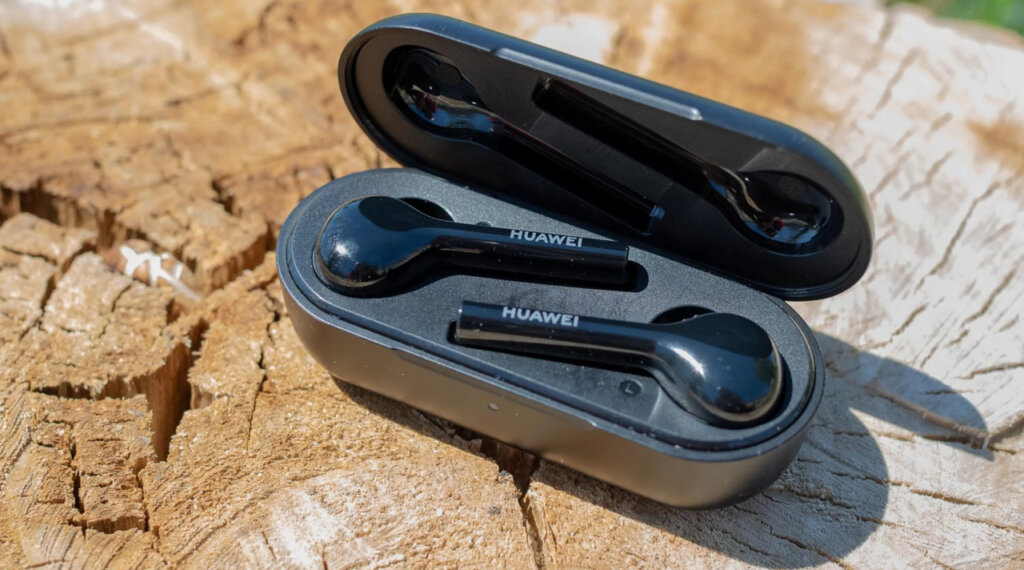
The Huawei FreeBuds Lite come with specs such as Bluetooth 4.2, a working range of about 10 to 12 meters, integrated microphones, 3 hours of battery life + 9 more hours using the charging case, 7mm dynamic drivers in each earbud, app support, the IPX4 dust and sweat-proof certification, and much more. Learn how to use these earbuds using this manual!
What’s Inside
Huawei FreeBuds Lite Manual | Everything You Will Need!
How to Pair The Earbuds?
To Android And iOS Devices
Step 1: Open the lid of the charging case. After that, the earbuds will turn on automatically.
Step 2: Press and hold the button on the back of the charging case for about 2 seconds. When a light starts flashing on the case, it means that the earbuds will be ready to pair with any device.
Step 3: Unlock the desired device.
Step 4: Turn on Bluetooth on the desired device.
Step 5: Go to the device’s Bluetooth settings.
Step 6: Select the “FreeBuds Lite” earbuds. If a password is needed, type “0000”. After that, the pairing will be done.
To PC (Windows)
Step 1: Unlock the desired device.
Step 2: Turn on Bluetooth on the device.
Step 3: Go to the Settings.
Step 4: Go to “Bluetooth and other devices”.
Step 5: Click on “Add device”.
Step 6: Open the lid of the charging case. After that, the earbuds will turn on automatically.
Step 7: Press and hold the button on the back of the charging case for about 2 seconds. When a light starts flashing on the case, it means that the earbuds will be ready to pair with any device.
Step 8: Select the “FreeBuds Lite” earbuds. If a password is needed, type “0000”. After that, the pairing will be done.
How to Wear?
Step 1: Take both earbuds out of the charging case.
Step 2: Identify the left and right earbuds.
Step 3: Choose the ear tips that best suit your ears.
Step 4: Insert the headphones into the inner canal of the ears.
Step 5: Rotate for the best possible comfort and best fit, and make sure that the microphone is pointing to the mouth.
How to Turn On and Off?
Turn on: Open the lid of the charging case. After that, the earbuds will turn on automatically.
Turn off: Place the earbuds into the charging case and close its lid. After that, the earbuds will turn off automatically.
How to Control? / How to Operate? – Instructions
- Play a song: On standby mode, press the multifunction touch button on the right earbud two times.
- Pause a song: During a song, press the multifunction touch button on the right earbud two times.
- Auto-pause a song: Take the earbuds out of the ear canal.
- Answer an incoming call: With an incoming call, press the multifunction touch button on any of the earbuds two times.
- End a current call: While on a current call, press the multifunction touch button on any of the earbuds two times.
- Activate the voice assistant: Press the multifunction touch button on the left earbud two times.
How to Activate The Mono Mode?
To activate or deactivate the mono mode in these earbuds, all you have to do is to pair the earbuds to the device and take out one of the earbuds from the charging case. It will start working by itself.
How to Charge The Earbuds?
Earbuds
To charge the earbuds, all you have to do is to place them into the charging case and close the lid. The earbuds will start charging automatically.
Charging case
To charge the charging case, all you have to do is to connect the case to a USB charger or charging port with the included USB-A to C cable. It will start charging automatically.
What Do The Lights Mean?
Charging case
- A light starts flashing after the earbuds turn on: The earbuds are now ready to pair with any device.
- A red light flashes while resetting the earbuds: The earbuds are resetting.
- A green light on while charging: The case is fully charged.
- A green light on with the earbuds inside: The earbuds are fully charged.
- A red light flashing: The case has a low battery level.
- A green light on when updating: The software is updating.
How to Reset The Earbuds?
Step 1: Delete all pairing information from the “FreeBuds Lite” earbuds on the connected device.
Step 2: Place the earbuds into the charging case.
Step 3: With the lid of the case open, press and hold the button on the back of the charging case for about 10 seconds, until a red light flashes. This means that the resetting process was successful.
A Guide To The Huawei FreeBuds Lite App
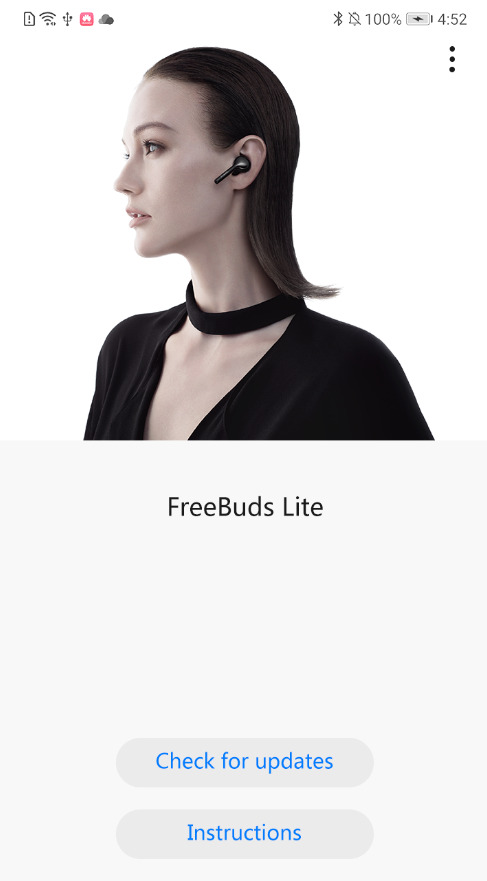
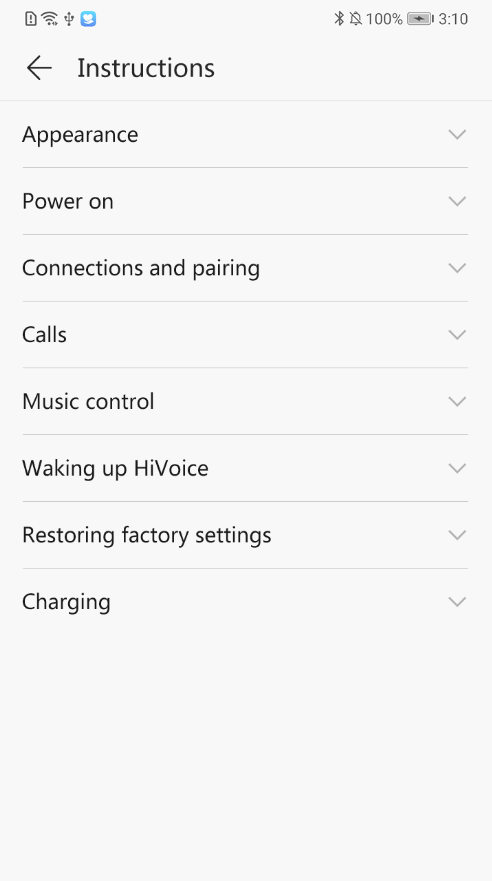
The Huawei FreeBuds Lite can be used with an application, called FreeBuds Lite. This application is available for Android devices. When you open the app, two options will appear: “Check for updates” and “Instructions”.
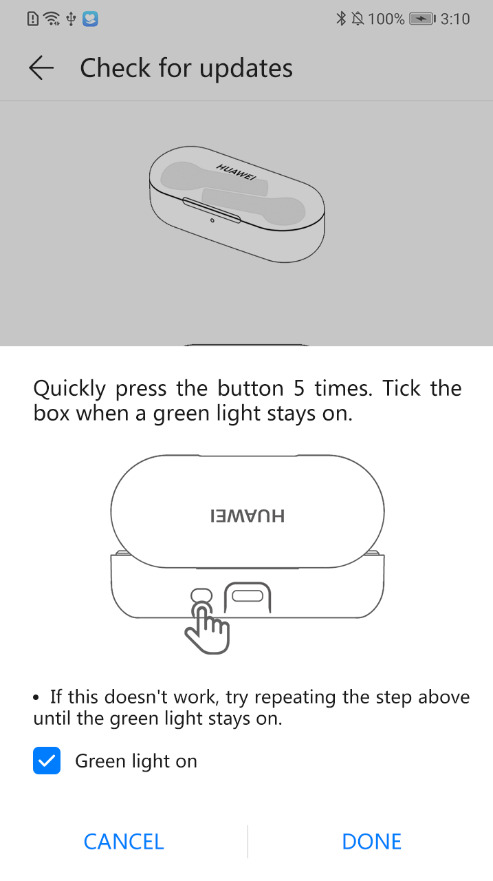
- “Check for updates” page: This part of the app is only to update the software of the earbuds, through simple steps and a short waiting time.
- “Instructions” page: On the other hand, in the instructions, as the name implies, you will find information about the earbuds, as well as the possibility of modifying certain controls and functions.
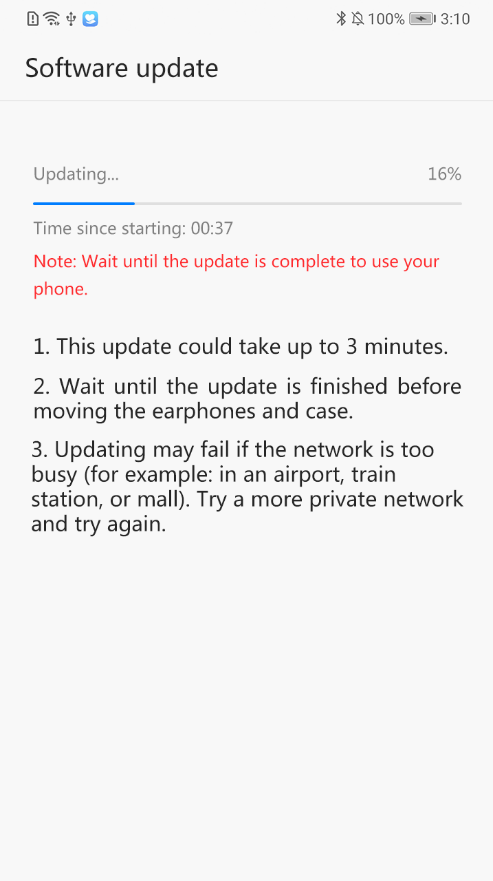
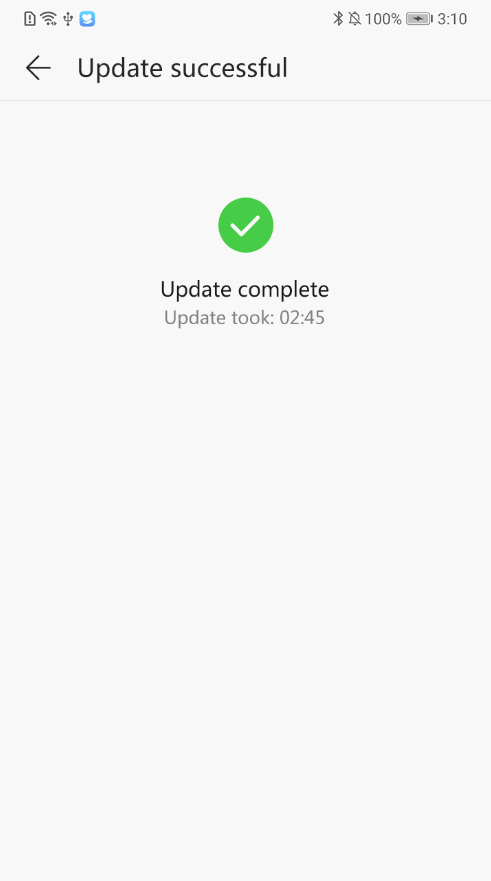
How to Update The Earbuds’ Firmware?
Step 1: Open the FreeBuds Lite app.
Step 2: Tap on “Check for updates”.
Step 3: Place the earbuds into the charging case and keep the lid open.
Step 4: Pair the earbuds with the app.
Step 5: Press the button on the back of the charging case five times, and a green light should turn on.
After that, the process will begin. The updating could take a couple of minutes.
NOTE: While the earbuds are updating, don’t use the device.
Some Common Problems & Troubleshooting
Left / Right / One side of the earbuds has stopped working
If this happens, it may be because it is low on battery or it did not connect correctly with the device. To fix this, you can do the following:
See also
1. Try charging the earbud that is not working or both, placing them in the charging case.
2. Try factory resetting the earbuds.
3. Check if the earbuds are operating within a normal working range
If that doesn’t work, the earbud is probably faulty, and I can go for a refund or replacement of it.
Left / Right / One side of the earbuds has a low volume
If this happens, it may be because the earbuds are dirty or the volume is set low. To fix this, you can do the following:
1. Try cleaning the earbud using a cotton swab or carefully clean the mesh with a pin.
2. Try factory resetting the earbuds.
The microphone is not working
If this happens, it can be because the microphone is muted, or the earbuds are badly positioned. To fix this, you can do the following:
If the microphone is muted, check the device microphone volume. If that doesn’t work, that means that there might be a defect in the earbud, so try replacing them or get a refund.
The earbuds are not connecting to Windows/laptop/PC
If the earbuds are earbuds not connecting, it can be because the Bluetooth on the computer has a pairing problem. To fix this, you can do the following:
1. Try disabling Bluetooth from nearby devices >>> then activate the pairing mode of the earbuds, pair and connect earbuds from Settings >>> Bluetooth & other devices >>> Add a new device >>>> select Bluetooth.
2. Try uninstalling and reinstalling the Bluetooth driver, or updating the Bluetooth driver. All can be done in Manage >>> Device Manager, reset earbuds (if available), and then repeat the step.
3. Try resetting the earbuds.
FAQs
Are the Huawei FreeBuds Lite waterproof?
No, the Huawei FreeBuds Lite are not waterproof (IPX6 and up). They have a rating of IPX4, which means they’re splash and sweat-resistant.
Do the Huawei FreeBuds Lite have a microphone?
No, the earbuds don’t come with integrated microphones.
Do the Huawei FreeBuds Lite have a low latency/gaming mode?
No. These earbuds don’t have a low latency/gaming mode.
Can the Huawei FreeBuds Lite connect to PCs and laptops?
Yes, these earbuds can connect to PCs, laptops, and even tablets.
Are the Huawei FreeBuds Lite noise-canceling?
No. These earbuds don’t come with noise-cancellation technology.
How to know when the Huawei FreeBuds Lite are fully charged?
When the earbuds are charging, a light is on the case. When fully charged, said light turns green.
We hope you now know how to operate the earphone from the above Huawei FreeBuds Lite manual. Want to know anything about the earphones? Do not hesitate to ask in the comments section.
Наушники Huawei FreeBuds Lite — это устройство, которое позволяет наслаждаться качественным звуком без проводов. Они подключаются к вашему смартфону или другому устройству по технологии Bluetooth, что обеспечивает более удобную и свободную передачу звука.
В этой статье мы расскажем вам о том, как правильно использовать наушники Huawei FreeBuds Lite, чтобы получить максимальное удовольствие от звука и комфортность.
Содержание
- Шаг 1: Подключение к устройству
- Шаг 2: Управление функциями
- Шаг 3: Зарядка наушников
- Инструкция по использованию наушников Huawei FreeBuds Lite
- Основные функции и особенности наушников Huawei FreeBuds Lite
- Подключение и настройка наушников Huawei FreeBuds Lite
- Уход и обслуживание наушников Huawei FreeBuds Lite
Шаг 1: Подключение к устройству
Сначала убедитесь, что наушники Huawei FreeBuds Lite заряжены. Подключите их к источнику питания с помощью кабеля USB. Когда наушники полностью зарядятся, они готовы к использованию.
Далее, на вашем устройстве (например, смартфоне) откройте меню «Настройки» и найдите раздел «Bluetooth». Включите Bluetooth на вашем устройстве, а затем найдите наушники Huawei FreeBuds Lite в списке доступных устройств. Нажмите на них, чтобы подключиться.
Шаг 2: Управление функциями
Наушники Huawei FreeBuds Lite обладают несколькими кнопками и функциями для управления музыкой и телефонными вызовами. Нажатие на кнопку на правой наушнике воспроизведет или приостановит музыку. Кнопки на левой и правой наушниках также можно настраивать для выполнения других функций, например, перехода к следующему треку или отвечать на звонки.
Шаг 3: Зарядка наушников
Чтобы зарядить наушники Huawei FreeBuds Lite, поместите их в зарядной коробке. Удостоверьтесь, что зарядная коробка также полностью заряжена. Зарядка начнется автоматически. По окончании зарядки, вы можете использовать наушники для прослушивания музыки или звонков в течение нескольких часов.
Следуя этой инструкции, вы сможете использовать наушники Huawei FreeBuds Lite с удовольствием и комфортом. Они предлагают отличное качество звука и удобство в использовании. Теперь вы готовы наслаждаться своей любимой музыкой в любое время и в любом месте!
Инструкция по использованию наушников Huawei FreeBuds Lite
Наушники Huawei FreeBuds Lite предлагают превосходное качество звука и комфортное использование. В этой инструкции мы расскажем вам, как использовать эти наушники.
- Зарядка наушников: с помощью кабеля USB-C подключите наушники к источнику питания. Когда индикатор наушников начнет мигать красным цветом, это означает, что наушники заряжаются. Индикатор станет белым, когда зарядка будет завершена.
- Включение наушников: чтобы включить наушники, откройте крышку зарядного футляра. Нажимайте и удерживайте кнопку на задней стороне футляра, пока индикатор на футляре мигает белым. Как только индикатор перестанет мигать и останется гореть белым, это будет означать, что наушники включены.
- Сопряжение с устройством Bluetooth: на устройстве включите Bluetooth. В настройках Bluetooth найдите и выберите наушники Huawei FreeBuds Lite. Когда на устройстве появится уведомление о сопряжении, подтвердите его. После этого наушники будут успешно подключены к вашему устройству.
- Управление музыкой и звонками: наушники Huawei FreeBuds Lite имеют сенсорное управление. Одно нажатие на наушнике воспроизводит или приостанавливает музыку, а также принимает или завершает звонок. Двойное нажатие переключает на следующий трек воспроизведения, а тройное нажатие переключает на предыдущий трек.
- Регулировка громкости: для регулировки громкости удерживайте один из наушников Huawei FreeBuds Lite. Удерживание правого наушника повышает громкость, а удерживание левого наушника понижает громкость. Громкость изменяется постепенно, так что вы сможете выбрать оптимальный уровень для себя.
Теперь вы готовы к использованию наушников Huawei FreeBuds Lite. Пользуйтесь ими с удовольствием и наслаждайтесь качеством звука!
Основные функции и особенности наушников Huawei FreeBuds Lite
Наушники Huawei FreeBuds Lite предлагают широкий набор функций и особенностей, которые позволяют вам наслаждаться качественным звуком и удобством при использовании.
| Основные функции | Описание |
|---|---|
| Беспроводное подключение | Наушники поддерживают технологию беспроводной связи Bluetooth, что позволяет подключаться к устройствам без лишних проводов и сложностей. |
| Идеальное качество звука | FreeBuds Lite обеспечивают высокое качество звука с глубокими басами и четкой передачей высоких частот. Вы сможете наслаждаться своей любимой музыкой без искажений и помех. |
| Интеллектуальное управление | С помощью функции сенсорного управления вы можете контролировать воспроизведение музыки, отвечать на вызовы и активировать голосового помощника одним прикосновением. |
| Долгоиграющий аккумулятор | Надежная батарея позволяет наушникам работать до 3 часов при непрерывном использовании. В дополнение к этому, их удобный чехол обеспечивает дополнительные 12 часов воспроизведения музыки. |
| Устойчивость к воде | Naушники имеют степень защиты IPX4, что обеспечивает защиту от пота и брызг воды. Вы можете спокойно заниматься спортом или слушать музыку на свежем воздухе в любых погодных условиях. |
| Удобство при ношении | FreeBuds Lite имеют эргономичный дизайн, который подходит для большинства типов ушей. Они легкие и практически незаметные, чтобы вы могли комфортно носить их в течение всего дня. |
Это лишь некоторые из основных функций и особенностей наушников Huawei FreeBuds Lite, которые делают их привлекательным выбором для любителей музыки и активного образа жизни. Наслаждайтесь музыкой без лишних проводов и с максимальным комфортом с Huawei FreeBuds Lite!
Подключение и настройка наушников Huawei FreeBuds Lite
Для того чтобы начать использовать наушники Huawei FreeBuds Lite, вам потребуется выполнить несколько простых шагов.
Шаг 1: Убедитесь, что наушники полностью заряжены, чтобы избежать проблем со сопряжением.
Шаг 2: Возьмите наушники Huawei FreeBuds Lite и убедитесь, что они находятся внутри зарядного кейса.
Шаг 3: Откройте крышку зарядного кейса и нажмите и удерживайте кнопку синхронизации на задней панели кейса, пока индикатор на передней панели начнет мигать синим светодиодом.
Шаг 4: Включите беспроводной модуль Bluetooth на своем устройстве, будь то смартфон, планшет или компьютер, и найдите наушники Huawei FreeBuds Lite в списке доступных устройств Bluetooth.
Шаг 5: После того как ваше устройство обнаружит наушники Huawei FreeBuds Lite, выберите их в списке и следуйте инструкциям на экране для завершения процесса сопряжения. Вам может потребоваться ввести пароль или подтвердить сопряжение.
Шаг 6: После успешного сопряжения наушники Huawei FreeBuds Lite будут готовы к использованию. Вы можете наслаждаться качественным звуком, свободой от проводов и другими функциями, доступными в этих наушниках.
Не забудьте проверить руководство пользователя, чтобы узнать о дополнительных функциях, настройках и возможностях наушников Huawei FreeBuds Lite.
Уход и обслуживание наушников Huawei FreeBuds Lite
Для долговечной работы и сохранения качества звука наушников Huawei FreeBuds Lite необходимо соблюдать ряд процедур по уходу и обслуживанию:
|
|

Помимо ухода за внешним видом наушников, также важно знать, как правильно заряжать эту модель:
- Используйте только оригинальное зарядное устройство и кабель.
- Подключите зарядное устройство к источнику электропитания.
- Положите наушники в зарядный футляр и закройте его.
- Подключите кабель к зарядному футляру, а другой конец к зарядному устройству.
- Дождитесь полной зарядки наушников.
Если вы соблюдаете эти рекомендации по уходу и обслуживанию наушников Huawei FreeBuds Lite, вы сможете наслаждаться качеством звука и комфортом их использования в течение долгого времени.
Перейти к контенту

Русские электронные инструкции по эксплуатации
Постоянно обновляемый большой каталог документации по эксплуатации и использованию современных устройств и оборудования на русском языке. Бесплатное скачивание файлов.
Поиск:
Главная
Просмотр инструкции в pdf


.jpg)
Инструкция по эксплуатации беспроводных наушников Huawei FreeBuds Lite CharcoalBlack(CM-H1C).
Скачать инструкцию к беспроводным наушникам Huawei FreeBuds Lite CharcoalBlack(CM-H1C) (2,11 МБ)

Беспроводные наушники
« Инструкция к беспроводным наушникам Apple AirPods Max Silver (MGYJ3RU-A)
» Инструкция к беспроводным наушникам Huawei Freebuds Pro керамический белый
Вам также может быть интересно
.jpg)
Инструкция к смартфону Huawei Y5 Prime 2018 Black (DRA-LX2)

Инструкция к фитнес-браслетам HUAWEI Band 7 Graphite Black

Инструкция к смартфону HUAWEI nova 9 SE 8+128GB Crystal Blue
.jpg)
Инструкция к смартфону Huawei Mate 30 Pro Space Silver (LIO-L29)

Инструкция к фитнес-браслетам HUAWEI Band 6 Graphite Black
.jpg)
Инструкция к смартфону Huawei Nova 5T Crush Blue (YAL-L21)
.jpg)
Инструкция к беспроводным наушникам Huawei Freebuds 3 Carbon Black (CM-SHK00)
.jpg)
Инструкция к умным часам Huawei Watch GT2 Pebble Brown, рем. Brown (LTN-B19)
Добавить комментарий
Имя *
Email *
Сайт
Комментарий


Сохранить моё имя, email и адрес сайта в этом браузере для последующих моих комментариев.
- Добавить инструкцию
- Заказать инструкцию
- Политика конфиденциальности
Наушники Huawei FreeBuds Lite – это беспроводные наушники, разработанные для комфортного использования и качественного звука. Они оснащены удобными сенсорными поверхностями, которые позволяют управлять музыкой, вызовами и активировать голосового помощника. Зарядное устройство в виде компактного футляра является не только зарядным устройством, но и защитным чехлом для наушников.
Для начала использования наушников Huawei FreeBuds Lite необходимо активировать их. Для этого откройте зарядное устройство и вставьте наушники в отверстия. Проверьте, что индикаторы наушников загорелись, указывая на их готовность к использованию. Затем на вашем устройстве найдите раздел Bluetooth и включите его. В появившемся списке выберите Huawei FreeBuds Lite и подключите их к устройству.
После активации наушники Huawei FreeBuds Lite готовы к использованию. По однократному нажатию на поверхность наушника можно приостановить или возобновить воспроизведение музыки. Чтобы перейти к следующему треку, дважды нажмите на поверхность правого наушника. Если вы хотите пропустить трек назад, дважды нажмите на поверхность левого наушника. Чтобы ответить на вызов, однократно коснитесь наушника, и повторное нажатие поможет завершить разговор.
Содержание
- Как подключить наушники Huawei FreeBuds Lite к устройству?
- Как настроить наушники Huawei FreeBuds Lite?
- Как управлять функциями наушников Huawei FreeBuds Lite?
- Как правильно носить и хранить наушники Huawei FreeBuds Lite?
- Как улучшить звук при использовании наушников Huawei FreeBuds Lite?
Как подключить наушники Huawei FreeBuds Lite к устройству?
Для того чтобы подключить наушники Huawei FreeBuds Lite к вашему устройству, выполните следующие шаги:
Шаг 1: Убедитесь, что наушники полностью заряжены.
Шаг 2: Включите Bluetooth на устройстве, к которому вы хотите подключить наушники.
Шаг 3: Откройте крышку зарядного футляра наушников, чтобы активировать режим подключения.
Шаг 4: На вашем устройстве найдите раздел «Bluetooth» в настройках и нажмите на него.
Шаг 5: В списке доступных устройств выберите «Huawei FreeBuds Lite» и нажмите на него.
Шаг 6: Дождитесь, пока устройство и наушники установят соединение.
Шаг 7: Как только соединение установлено, вы услышите звуковой сигнал или увидите уведомление на вашем устройстве.
Шаг 8: Теперь вы можете начать использовать наушники Huawei FreeBuds Lite с вашим устройством.
Примечание: Если вы ранее уже подключали данные наушники к устройству, они могут автоматически устанавливать соединение при включенном Bluetooth.
Как настроить наушники Huawei FreeBuds Lite?
Для использования наушников Huawei FreeBuds Lite необходимо выполнить следующие шаги:
- Убедитесь, что ваше устройство Bluetooth включено и находится в режиме поиска новых устройств.
- Откройте крышку зарядного футляра и извлеките наушники.
- На каждом наушнике нажмите и удерживайте кнопку сенсорной поверхности в течение 2 секунд, пока индикатор не начнет мигать синим светом.
- На вашем устройстве найдите список доступных Bluetooth-устройств и выберите Huawei FreeBuds Lite.
- Если требуется, введите пароль или пин-код, указанный в руководстве пользователя.
- После успешной связи наушники Huawei FreeBuds Lite готовы к использованию.
Обратите внимание, что для выполнения этих действий может потребоваться некоторое время, и процедура настройки может немного отличаться в зависимости от используемого устройства и операционной системы.
Как управлять функциями наушников Huawei FreeBuds Lite?
Наушники Huawei FreeBuds Lite имеют несколько функций, которые позволяют управлять воспроизведением музыки, принимать и отклонять звонки, а также активировать виртуального помощника.
Для управления функциями наушников Huawei FreeBuds Lite используются сенсорные панели на поверхности каждого наушника. Вот основные действия, которые можно выполнить с помощью сенсорных панелей:
- Воспроизведение/пауза музыки: Нажмите дважды на сенсорную панель на любом из наушников. Музыка начнется или остановится в зависимости от текущего состояния.
- Переключение треков: Нажмите трижды на сенсорную панель на правом наушнике, чтобы перейти к следующему треку. Нажмите трижды на сенсорную панель на левом наушнике, чтобы вернуться к предыдущему треку.
- Ответ на звонок/окончание звонка: Нажмите дважды на сенсорную панель на любом из наушников, чтобы принять входящий звонок. Нажмите дважды на сенсорную панель во время разговора, чтобы завершить звонок.
- Отклонение звонка: Удерживайте сенсорную панель на любом из наушников во время входящего звонка, чтобы отклонить его.
- Активация виртуального помощника: Нажмите и удерживайте сенсорную панель на любом из наушников в течение двух секунд, чтобы активировать виртуального помощника на вашем смартфоне.
Управление функциями наушников Huawei FreeBuds Lite стало еще проще с использованием сенсорных панелей. Это позволяет вам контролировать воспроизведение музыки и звонки без необходимости доставать смартфон из кармана или сумки.
Как правильно носить и хранить наушники Huawei FreeBuds Lite?
Носить и хранить наушники Huawei FreeBuds Lite можно следующим образом:
- Перед ношением наушников убедитесь, что они полностью заряжены.
- Убедитесь, что наушники надежно фиксируются в вашем ухе. Если необходимо, вы можете использовать дополнительные амбушюры, которые прилагаются к наушникам.
- Прежде чем надеть наушники, очистите уши от загрязнений, чтобы обеспечить наилучшее звуковое качество.
- Если вам удобнее использовать один наушник, вы можете носить только один из них, оставив второй на зарядку или в удобном месте.
- При хранении наушников убедитесь, что они находятся в чистом и сухом месте. Избегайте воздействия прямого солнечного света и высоких температур, чтобы избежать повреждения устройства.
- Не роняйте наушники и не подвергайте их механическим воздействиям, чтобы предотвратить поломку или повреждение.
Следуя этим рекомендациям, вы сможете долго наслаждаться высоким качеством звука и комфортом использования наушников Huawei FreeBuds Lite.
Как улучшить звук при использовании наушников Huawei FreeBuds Lite?
Наушники Huawei FreeBuds Lite обладают отличным звуком, однако существуют несколько способов улучшить качество звука и комфортность использования.
- Выберите правильный размер насадок. Наушники FreeBuds Lite поставляются с различными насадками разных размеров, чтобы подойти к различным типам ушей. Правильный размер насадки позволит наушникам лучше подогнаться к вашим ушам, обеспечивая более надежную посадку и лучшее качество звука.
- Используйте функцию активного шумоподавления (ANC). Наушники FreeBuds Lite оснащены функцией активного шумоподавления (ANC), которая позволяет удалить окружающий шум, обеспечивая более чистый и насыщенный звук. Активируйте эту функцию, чтобы наслаждаться качественным звуком без помех.
- Используйте эквалайзер. Встроенный эквалайзер наушников FreeBuds Lite позволяет настроить звучание под свои предпочтения. Регулируйте уровни басов, средних и высоких частот, чтобы достичь идеального звучания для ваших ушей.
- Улучшите соединение Bluetooth. Поддерживаемое соединение Bluetooth 5.0 позволяет наушникам FreeBuds Lite обеспечить более стабильное и качественное воспроизведение звука. Убедитесь, что ваше устройство подключено к наушникам надежно и без помех, чтобы получить наилучший звук.
- Измените режим звучания. Наушники FreeBuds Lite поддерживают различные режимы звучания, такие как режим «стандартный» и режим «басы». Используйте эти режимы, в зависимости от вида музыки, чтобы получить наилучшее звучание. Экспериментируйте с различными режимами, чтобы найти наиболее подходящий для вас.
Следуя этим простым советам, вы сможете значительно улучшить звук при использовании наушников Huawei FreeBuds Lite и наслаждаться качественным звучанием во время прослушивания музыки, просмотра фильмов или звонков.

HUAWEI FreeBuds Lite
Quick Start Guide
Appearance
Charging case:


- Comes with three pairs of detachable ear tips in Small, Large, and Sport sizes.
- Comes with one pair of detachable silicone rubber rings (one for each side).
Power on
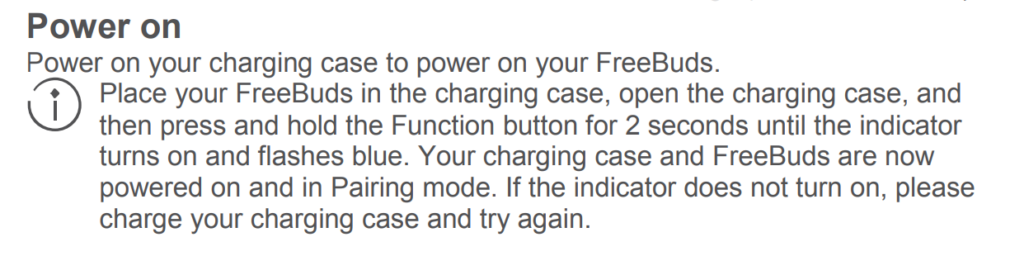
Power on your charging case to power on your FreeBuds. Place your FreeBuds in the charging case, open the charging case, and then press and hold the Function button for 2 seconds until the indicator turns on and flashes blue. Your charging case and FreeBuds are now powered on and in pairing mode. If the indicator does not turn on, please charge your charging case and try again.
Connections and pairing
Pairing
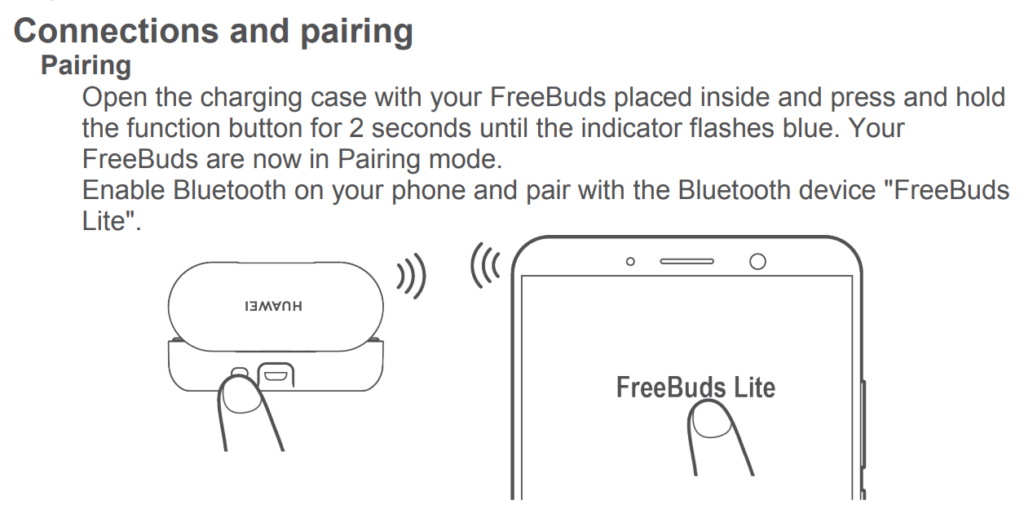
- Open the charging case with your FreeBuds placed inside and press and hold the function button for 2 seconds until the indicator flashes blue. Your FreeBuds are now in Pairing mode.
- Enable Bluetooth on your phone and pair with the Bluetooth device “FreeBuds Lite”.

Bluetooth connections may be affected by local electromagnetic interference and this may prevent you from pairing your FreeBuds with
your phone or cause your FreeBuds to disconnect or be unable to play any sound.
Automatic reconnection
When your FreeBuds are placed in the charging case, they will automatically connect to the most recently paired phone when you open the charging case.Your phone must have Bluetooth enabled and be within Bluetooth range of your FreeBuds.
Reconnection logicIn the event that your FreeBuds disconnect from your phone due to exceeding the Bluetooth connection range:
- If you return to the Bluetooth range within 10 minutes, your FreeBuds will automatically reconnect to your phone.
- If you return to Bluetooth range between 10–30 minutes, your FreeBuds will need to manually reconnect to your phone.
- If you do not return to the Bluetooth range within 30 minutes, your FreeBuds will enter Hibernation mode. Wearing your FreeBuds will wake them back up and allow them to reconnect to your phone when you return to the Bluetooth range.
If your FreeBuds do not automatically reconnect to your phone, please reconnect manually on your phone’s Bluetooth connection screen.
Calls
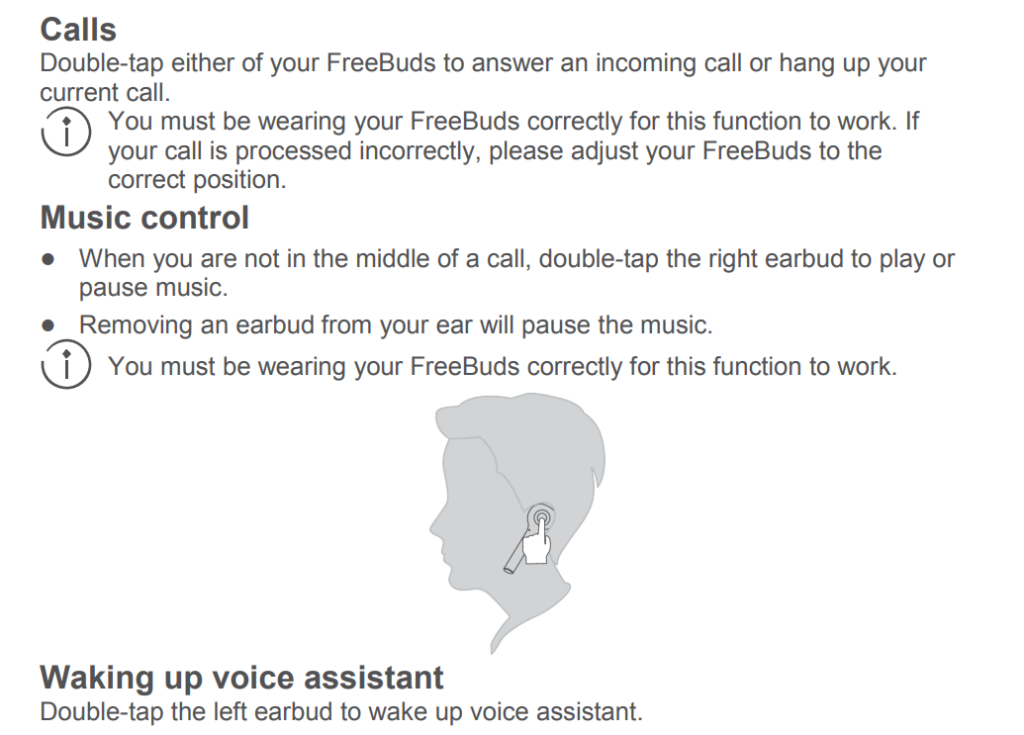
Double-tap either of your FreeBuds to answer an incoming call or hang up your current call.You must be wearing your FreeBuds correctly for this function to work. If your call is processed incorrectly, please adjust your FreeBuds to the correct position.
Music control
- When you are not in the middle of a call, double-tap the right earbud to play or pause music.
- Removing an earbud from your ear will pause the music.
You must be wearing your FreeBuds correctly for this function to work.

Waking up the voice assistant
Double-tap the left earbud to wake up the voice assistant.
You must be wearing your FreeBuds correctly for this function to work.
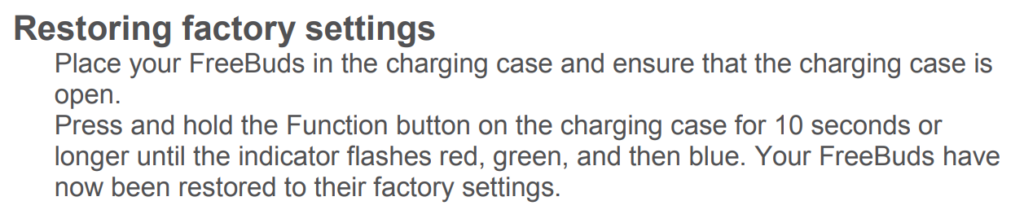
Restoring factory settings
- Place your FreeBuds in the charging case and ensure that the charging case is open.
- Press and hold the Function button on the charging case for 10 seconds or longer until the indicator flashes red, green, and then blue. Your FreeBuds have now been restored to their factory settings.

Charging
Charging your FreeBuds
- When your FreeBuds are placed in their charging case, the indicator on the case will flash blue and then turn off. Your FreeBuds will then enter Charging mode.
Charging your charging case
- When the indicator on your charging case flashes red, this means that its battery level is low and needs to be charged.
- When the indicator on your charging case turns steady green during charging, this means that your charging case is fully charged.
Download and install the app
Note: For best performance, scan the QR code below with your phone to download and install the latest firmware update for your FreeBuds. Firmware updates for your FreeBuds will be released from time to time.

https://play.google.com/store/apps/details?id=com.huawei.cmh1c.oversea
Safety information
Before using the device, read and comply with the following precautions carefully to ensure optimal device performance and avoid danger or violation of laws and regulations.
 To prevent possible hearing damage, do not listen at high volume levels for long periods.
- Do not use the device at locations where the use of wireless devices is prohibited due to potential interference with other electronic devices, which may cause safety hazards.
- In clinics and hospitals where the use of wireless devices is prohibited, please comply with the regulations and power off the device.
- Some wireless devices may interfere with implantable medical devices and other medical equipment, such as pacemakers, cochlear implants, and hearing aids.
Consult the manufacturer of your medical equipment for more information. - When using the device, keep it at least 15 cm away from medical devices.
- When using the earphones to listen to music or make calls, please use the minimum volume necessary in order to avoid damaging your hearing. Prolonged exposure to high volume sounds may result in permanent hearing damage.
- Please reduce your audio volume while driving in order to reduce distractions and avoid accidents.
- Observe all local traffic laws and regulations while using this device. Do not use this device while driving.
- Keep in mind that while driving, safety is your primary responsibility, and avoid engaging in distracting activities.
- The device’s wireless signal may interfere with your car’s electronic systems.
Please contact your car manufacturer for more information. - Wireless devices may interfere with an aircraft’s flight systems. Adhere to aircraft regulations and power off your device when required.
- If you use your FreeBuds while performing activities that require your concentration, such as riding a bike or walking in a potentially dangerous area such as near a construction site or railroad, please pay attention to your safety and the safety of those around you. It is recommended that you either lower the volume on your FreeBuds or remove your FreeBuds in order to increase your awareness of your surroundings.
- Avoid dusty, damp, or dirty environments. Avoid magnetic fields. Using the device in these environments may result in circuit malfunctions.
- Keep the device away from appliances with strong magnetic or electrical fields, such as microwave ovens and refrigerators.
- Do not use the device during thunderstorms to avoid any lightning-related damage or injury.
- Use the device at temperatures between –10°C and +55°C, and store the device and its accessories at temperatures between –40°C and +70°C. Extreme heat or cold may damage the device. At temperatures below 5°C, the performance of the battery will be degraded.
- Do not place the device in places that are easily exposed to direct sunlight such as on a car’s dashboard or on a window sill.
- Do not place the device near exposed heat or ignition sources (such as heaters, microwaves, ovens, stove fire, candles, and so on).
- Do not place sharp metal objects, such as large pins, near the receiver or speaker of the device. Otherwise, metal objects may be attached, which may cause damage to you.
- The device and its accessories may contain small components. Keep the device and its accessories out of the reach of children. Otherwise, children may damage the device and its accessories by mistake, or swallow the small components, which may result in hazards such as choking.
- The device is not a toy, and children should only use it under adult supervision.
- You can only use device manufacturer-approved accessories for this model number. The use of other accessories may void the device warranty, lead to injury, or violate the related regulations of the country where the device is located.
Contact an authorized Huawei Customer Service Center to obtain approved accessories. - Connecting the device to non-approved or incompatible power supplies, chargers, or batteries is not advised as this may cause fires or explosions.
- Do not disassemble or modify the device, insert foreign objects, or submerge in water or other liquids to prevent leakage, overheating fires, or explosions.
- Do not drop, squeeze, or puncture the battery. Avoid applying external pressure to the battery as this may cause its electronic circuitry to short or overheat.
- The device is equipped with a non-removable internal battery. Do not attempt to replace the battery yourself to avoid damaging the battery or device. The battery should only be replaced by professional personnel at an authorized Huawei Customer Service Center.
- Please dispose of the battery in accordance with local recycling laws and regulations. Do not dispose of the battery in normal household waste. Improper handling of the battery may cause explosive hazards.
- When the device is being charged, make sure the power outlet is close to the device and easy to reach.
- When the device is fully charged or when not charging the device, disconnect the charger from the device and unplug the charger from the power outlet.
- Ensure that the device and its accessories are dry. Do not attempt to dry the device using an external heating device such as a microwave oven or hairdryer.
- Avoid placing the device and its accessories in environments that are too hot or cold as this may cause device malfunctions or even explosions.
- Stop using the device, close all apps, and disconnect all connected devices before cleaning and performing maintenance on the device.
- Do not use strong chemicals, cleaning agents, or strong detergents to clean the device and its accessories. Instead, only clean the device and its accessories using a clean, soft, and dry cloth.
- Do not place magnetic stripe cards (such as bank cards or phone cards) near the device for extended periods of time as this may damage the magnetic stripe card.
- Please do not disassemble or modify the device and its accessories without prior authorization. Any resulting damage, in this case, will not be covered by the manufacturer’s warranty. If the device suffers an error or ceases to function properly, please contact an authorized Huawei Customer Service Center for assistance.
- Avoid disposing of the device and its accessories as ordinary household waste.
- Respect local laws on the disposal of electronic products and their accessories and support recycling efforts.
 To prevent possible hearing damage, do not listen at high volume levels for long periods.
Disposal and recycling information The crossed-out wheeled bin symbol on your product, battery, literature or packaging reminds you that all electronic products and batteries must be taken to separate waste collection points at the end of their working lives; they must not be disposed of in the normal waste stream with household garbage. It is the responsibility of the user to dispose of the equipment using a designated collection point or service for separate recycling of waste electrical and electronic equipment (WEEE) and batteries according to local laws.
Proper collection and recycling of your equipment help ensure electrical and electronic equipment (EEE) waste is recycled in a manner that conserves valuable materials and protects human health and the environment, improper handling, accidental breakage, damage, and/or improper recycling at the end of its life may be harmful to health and environment. For more information about where and how to drop off your EEE waste, please contact your local authorities, retailer, or household waste disposal service or visit the website http://consumer.huawei.com/en/.
Reduction of hazardous substances
This device and its electrical accessories are compliant with local applicable rules on the restriction of the use of certain hazardous substances in electrical and electronic equipment, such as EU REACH, RoHS, and Batteries (where included) regulations.
For declarations of conformity about REACH and RoHS, please visit our website http://consumer.huawei.com/certification.
EU regulatory conformance
RF Exposure
Your device is a low-power radio transmitter and receiver. As recommended by international guidelines, the device is designed not to exceed the limits established by the European Commission for exposure to radio waves.
Statement
Hereby, Huawei Technologies Co., Ltd. declares that this device CM-H1C/CMH1CL/CM-H1CR is in compliance with the essential requirements and other relevant provisions of Directive 2014/53/EU.
The most recent and valid version of the oC (Declaration of Conformity) can be viewed at http://consumer.huawei.com/certification.
This device may be operated in all member states of the EU.
Observe national and local regulations where the device is used. This device may be restricted for use, depending on the local network.
Frequency Bands and power
Maximum radio-frequency power transmitted in the frequency bands in which the radio equipment operates: The maximum power for all bands is less than the highest limit value specified in the related Harmonized Standard.
The frequency bands and transmitting power (radiated and/or conducted) nominal limits applicable to this radio equipment are as follows: Bluetooth: 2400MHZ- 2483.5MHZ. Left < 10dBm, Right < 9dBm.
Accessories and Software Information
Optional accessories can be purchased from a licensed vendor as required. The following accessories are recommended:
Batteries: ZJ1254C, 682723
The product software version is 1.0.0.119. Software updates will be released by the manufacturer to fix bugs or enhance functions after the product has been released.
All software versions released by the manufacturer have been verified and are still compliant with the related rules.
All RF parameters (for example, frequency range and output power) are not accessible to the user, and cannot be changed by the user.
For the most recent information about accessories and software, please see the DoC (Declaration of Conformity) at http://consumer.huawei.com/certification.
FCC Regulatory Compliance
RF Exposure
Your device is a low-power radio transmitter and receiver. As recommended by international guidelines, the device is designed not to exceed the limits established by the Federal Communications Commission for exposure to radio waves.
FCC statement
This equipment has been tested and found to comply with the limits for a Class B digital device, pursuant to Part 15 of the FCC Rules. These limits are designed to provide reasonable protection against harmful interference in a residential installation.
This equipment generates, uses, and can radiate radio frequency energy and, if not installed and used in accordance with the instructions, may cause harmful interference to radio communications. However, there is no guarantee that interference will not occur in a particular installation. If this equipment does cause harmful interference to radio or television reception, which can be determined by turning the equipment off and on, the user is encouraged to try to correct the interference by one or more of the following measures:
–Reorient or relocate the receiving antenna.
–Increase the separation between the equipment and receiver.
–Connect the equipment into an outlet on a circuit different from that to which the receiver is connected.
–Consult the dealer or an experienced radio/TV technician for help.
This device complies with Part 15 of the FCC Rules. Operation is subject to the following two conditions: (1) this device may not cause harmful interference, and (2) this device must accept any interference received, including interference that may cause undesired operation.
Caution: Any changes or modifications to this device not expressly approved by Huawei Technologies Co., Ltd. for compliance could void the user’s authority to operate the equipment.
Responsible Party – Contact for FCC Information only
Huawei Device USA Inc.
5700 Tennyson Parkway, Suite 300
Plano, TX 75024
Main: 214-919-6800
Legal statement
Copyright © Huawei Technologies Co., Ltd. 2019. All rights reserved.
This document is for reference only. Nothing in this guide constitutes a warranty of any kind, express or implied.
All pictures and illustrations in this guide, including but not limited to the product colors, and display content, are for your reference only. The actual product may vary.
Nothing in this guide constitutes a warranty of any kind, express or implied.
Please visit http://consumer.huawei.com/us/support/index.htm for the recently updated hotline and email address in your country or region.
The Bluetooth® word mark and logos are registered trademarks owned by Bluetooth SIG, Inc., and any use of such marks by Huawei Technologies Co., Ltd. is under license.
Privacy protection
To understand how we protect your personal information, please visit http://consumer.huawei.com/privacy-policy and read our privacy policy.
For United States warranty card information, visit http://consumer.huawei.com/us/support/warranty-policy/index.htm.
Model: CM-H1C
CM-H1CR
CM-H1CR
 96725677_01
