
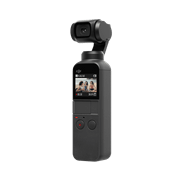
Как сохранить важные моменты? Osmo Pocket, самая маленькая камера на 3-осевом стабилизаторе от DJI поможет вам в этом! Любой момент станет отрывком из кино всего за несколько секунд.
Приложения

DJI Mimo
Разработанное специально для портативных устройств DJI, DJI Mimo обеспечивает просмотр видео HD в реальном времени, интеллектуальные режимы, которые непросто найти на других портативных стабилизаторах. Все это позволяет вам снимать ролики и редактировать их в несколько нажатий.
v1.11.2
Требуется iOS 12.0 или более поздняя версия.
Просмотр совместимых устройств
iOS v1.11.2
Требуется iOS 12.0 или более поздняя версия.
Совместимость с
v1.11.2
Требуется Android 8.0 или более поздняя версия.
Просмотр совместимых устройств
Android v1.11.2
Требуется Android 8.0 или более поздняя версия.
Совместимость с
Huawei Mate 50 pro、Huawei Mate 50、Huawei Mate 40 pro+、Huawei Mate 40 pro、Huawei Mate 40 、Huawei P60、Huawei P50 Pro、Huawei P50、HONOR Magic 5 pro、HONOR Magic 4、HONOR Magic 3、HONOR 80 Pro、Galaxy S23 Ultra、Galaxy S22 Ultra、Galaxy S22、Galaxy S20 Ultra、Galaxy S20+、Galaxy S20、Galaxy Z FIip 4、Galaxy Note 20 Ultra、Xiaomi 13 Ultra、Xiaomi 13 Pro、Xiaomi 12 Pro、Xiaomi 12x 、Xiaomi 11 Ultra、Xiaomi 11 Pro、Xiaomi 11、Xiaomi 10 Pro、Xiaomi 10、mix4、Redmi K60 Pro、Redmi K40 Pro、OPPO Find X6 Pro、OPPO Find X5 Pro、OPPO Find X2 Pro、OPPO Find N、OPPO Reno6 Pro+ 5G(Qualcomm Snapdragon)、OPPO Reno5 Pro+5G(Qualcomm Snapdragon)、OnePlus 11、OnePlus 10 Pro、OnePlus 9 Pro、OnePlus 8 Pro、VIVO X90 Pro +、VIVO X90 Pro、VIVO X80 Pro、VIVO X80、VIVO X70 Pro、VIVO X60 Pro、VIVO X30 Pro、iQOO 10 Pro.
Ниже Android 8.0, пожалуйста, нажмите, чтобы загрузить.
* Поддержка остальных устройств находится в процессе разработки и доступна в тестовом режиме.Для получения информации о совместимости устройств обратитесь к странице приложения Mimo на сайте DJI.

DJI Store
Используйте приложение DJI Store для покупки устройств DJI и получения информации о скидках.
v6.8.6
Требуется iOS 12.0 или более поздняя версия.
Просмотр совместимых устройств
iOS v6.8.6
Требуется iOS 12.0 или более поздняя версия.
Совместимость с
iPhone 14 Pro Max、iPhone 14 Pro、iPhone 14、iPhone 13 Pro Max、iPhone 13 Pro、iPhone 13、iPhone 12 Pro Max、iPhone 12 Pro、iPhone 12、iPhone 11 Pro max、iPhone 11 Pro、iPhone 11、iPhone SE 2020、iPhone XS max、iPhone XS、iPhone XR、iPhone X、iPhone 8 Plus、iPhone 8.
v6.8.5
Требуется Android 7.0 или более поздняя версия.
Просмотр совместимых устройств
Android v6.8.5
Требуется Android 7.0 или более поздняя версия.
Совместимость с
Samsung Galaxy S21,Samsung Galaxy S20,Samsung Galaxy S10+,Samsung Galaxy S10,Samsung Galaxy Note20,Samsung Galaxy Note10+ ,Samsung Galaxy Note9,HUAWEI Mate40 Pro,HUAWEI Mate30 Pro,HUAWEI P40 Pro,HUAWEI P30 Pro,HUAWEI P30,Honor 50 Pro,Mi 11,Mi 10,Mi MIX 4,Redmi Note 10,OPPO Find X3,OPPO Reno 4,vivo NEX 3,OnePlus 9 Pro,OnePlus 9,Pixel 6,Pixel 4,Pixel 3 XL
*Поддержка остальных устройств находится в процессе разработки и доступна в тестовом режиме.
Документация
- Osmo Pocket — Пояснительная записка 2019-12-10
- Osmo Pocket — Краткое руководство 1.22019-09-20
- Osmo Pocket — Руководство пользователя 1.02018-12-11
- Osmo Pocket — Заявление об отказе от ответственности и руководство по технике безопасности 2018-11-29
- Osmo Pocket Charging Case User Guide 2019-01-01
- Osmo Pocket 3.5 mm Adapter Product Information 2019-01-01
- Osmo Pocket ND Filters Set User Guide V 1.02018-12-01
- Osmo Pocket Controller Wheel Wireless Module Accessory Mount V 1.02019-02-01
- Osmo Pocket Extension Rod User Guide V 1.02019-05-01
- Osmo Pocket Waterproof Case User Guide V 1.22019-12-01

Summary of Content for DJI Osmo Pocket Camera User Manual PDF
2019.09v1.2
User Manual
OSMO POCKET
2 2019 DJI OSMO All Rights Reserved.
Using this Manual
Legend
Important Hints and Tips
Read Before First Use Read the following documents before using OSMO POCKETTM: 1. User Manual 2. Quick Start Guide 3. Disclaimer and Safety Guidelines It is recommended to watch all tutorial videos on the official DJITM website (www.dji.com/osmo- pocket) and read the Disclaimer and Safety Guidelines before first use. Prepare for first use by reviewing the Quick Start Guide and refer to this User Manual for more details.
Downloading the DJI Mimo App Scan the QR code to the right or search for «DJI Mimo» on the App Store or Google Play.
The Android version of DJI Mimo is compatible with Android v5.0 and later. The iOS version of DJI Mimo is compatible with iOS v10.0 and later.
Searching for Keywords Search for keywords such as battery and install to find a topic. If you are using Adobe Acrobat Reader to read this document, press Ctrl+F on Windows or Command+F on Mac to begin a search.
Navigating to a Topic View a complete list of topics in the table of contents. Click on a topic to navigate to that section.
Printing this Document This document supports high resolution printing.
2019 DJI OSMO All Rights Reserved. 3
Contents
Using this Manual 2
Legend 2 Read Before First Use 2 Downloading the DJI Mimo App 2
Introduction 4
Overview 4 Activating Osmo Pocket 5
Charging Osmo Pocket 5
Operation 6
Button Feature 6 Adjusting the Gimbal Manually 6 Operating the Touch Screen 7 Storing Photos and Videos 9 Status LED Descriptions 9 DJI Mimo App 10
Updating Firmware 12
Maintenance 12
Specifications 13
After-Sales Information 14
OSMO POCKET User Manual
4 2019 DJI OSMO All Rights Reserved.
Introduction Osmo Pocket is a handheld gimbal camera that combines mobility and stability in one device. It shoots sharp 12 MP photos and stable video at up to 4K 60fps. The onboard touch screen displays a live view from the camera and can control camera and gimbal movements. Connect a mobile device to the DJI Mimo app where professional-quality videos can be created and shared to social media instantly in Story mode. Intelligent modes such as ActiveTrack, Panorama, and Timelapse give you everything you need for the perfect shot. Accessories such as the Wireless Module and Controller Wheel can be used to enjoy more Osmo Pocket features.
Overview
1. Camera 2. Tilt Motor 3. Roll Motor 4. Pan Motor 5. Ventilation Area 6. Status LED 7. Shutter/Record Button 8. microSD Card Slot
9. Microphone * 10. USB-C Port 11. Power/Function Button 12. Microphone * 13. Universal Port 14. Touch Screen
1 2
4 5
3
6 7
8
9
11 12 13
14
10
* For better audio quality, DO NOT block the microphone when recording video.
OSMO POCKET User Manual
2019 DJI OSMO All Rights Reserved. 5
OR
Activating Osmo Pocket When using Osmo Pocket for the first time, activation is required through DJI Mimo. Follow the steps below to activate. 1. Remove the cover on the universal port and choose a lightning or USB-C smartphone adapter
to connect to Osmo Pocket. 2. Press and hold the Power/Function Button to power on. 3. Launch DJI Mimo and follow the on-screen instructions to activate Osmo Pocket.
OSMO
DO NOT touch the gimbal when it is powering on. Otherwise, it may affect the performance.
Charging Osmo Pocket
To charge Osmo Pocket, connect a USB adapter (not included) to the USB-C port using the provided power cable. The battery is fully charged when the status LED turns off. The battery level is displayed on the touch screen after powering on Osmo Pocket. Charging time: approx. 1 hour 13 minutes (when using a USB adapter of 5 V/2 A).
The status LED indicates the battery level during charging. Refer to the table below for details.
Blinking Pattern Battery Level Blinks green 0-24% Blinks green twice 25%-49% Blinks green three times 50%-74% Blinks green four times 75%-99% Glows solid green for six seconds and turns off 100%
OSMO POCKET User Manual
6 2019 DJI OSMO All Rights Reserved.
It is recommended to use a USB adapter of 5 V/2 A USB for optimal charging. Make sure to charge Osmo Pocket in an environment where the temperature is within 41-140 F (5-60 C). For safety, Osmo Pocket limits the charge current when its temperature is between 113-140 F (45-60 C). In that case, Osmo Pocket cannot be fully charged.
Operation
Button Feature Power/Function Button
Press and hold the Power/Function button for one second to power on/off. In camera view, press the Power/Function button once to switch between Video and Photo mode (not available when using Pro settings on DJI Mimo). Press the button twice to recenter the gimbal and press the button three times to switch the camera between facing forward and backward (requires firmware version v1.2.0.20 or higher). In the touch screen settings page, press the button once to go back to the previous menu.
Shutter/Record Button
Press the Shutter/Record button once to take a photo or to start or stop recording a video in camera view. In the touch screen settings page, press once to go back to camera view.
Adjusting the Gimbal Manually The tilt angle of Osmo Pocket can be adjusted manually. In Motionlapse, the pan angle can also be adjusted manually.
OSMO POCKET User Manual
2019 DJI OSMO All Rights Reserved. 7
Swipe Down Swipe down on the touch screen to enter the settings page. Swipe left or right to select between Glamour Effects, Superfine, and Save Settings (according to the shooting mode), System Settings, Screen Settings, and Brightness. Tap the icon to select a setting. 1. Glamour Effects: only available in Photo mode. Tap the icon to turn Glamour Effects on
and off. Turn on Glamour Effects to beautify your photos. Superfine: only available in Video mode. Tap the icon to turn Superfine on and off. Turn
on Superfine to record higher quality video when recording in 1080p 24/25/30p and 4K 23/25p. Note: shooting video with Superfine turned on may cause the device to generate excessive heat.
Save Settings: only available in Timelapse and Motionlapse modes. Choose to save only the converted video or the converted video and original images.
2. System Settings Swipe left or right to scroll through settings.
Battery: displays the battery level of Osmo Pocket. Calibration: tap the icon to calibrate the gimbal. Calibration is used to reduce drift caused
by human error or nearby magnetic interference. Place Osmo Pocket on a steady flat surface and do not touch during calibration.
Tilt Control: tap to enable tilt axis control on the touch screen. Auto Power Off: tap to set the auto power off timer. Storage: displays the remaining capacity of the microSD card. Tap to enter and tap again
to format the microSD card. Accessories: displays information of connected Osmo Pocket accessories. Anti-Flicker: prevent the flickering of lights by selecting the frequency according to local
regulations. More: view device information and firmware version, change language, and reset to default
settings. 3. Screen Settings
Tap the icon to switch between the full screen display and letterbox display. 4. AFS / AFC AFS/AFC Focus Switch
Tap to switch between AFS (Auto Focus Single) and AFC (Auto Focus Continuous). 5. PRO Pro Settings
Tap to enable Pro settings. In camera view, tap Pro in the top left corner to set the format, white balance, or exposure parameters.
Operating the Touch Screen The touch screen displays the camera view after Osmo Pocket is powered on, as well as the shooting mode, battery level, and microSD card information.
OSMO POCKET User Manual
8 2019 DJI OSMO All Rights Reserved.
6. Brightness Tap the icon to switch between the three brightness levels.
7. / Waterproof Case Mode Tap to enable Waterproof Case mode before using Osmo Pocket with the waterproof case underwater. Power off and place Osmo Pocket inside the waterproof case before powering on again.
Swipe Up Swipe up on the touch screen to enter the gimbal settings page. 1. Re-center
Tap to re-center the gimbal. 2. Flip
Tap to switch the camera between facing forward and backward. 3. Follow
Tap to switch between Slow Follow and Fast Follow. In Slow Follow, the gimbal responds slower, but the movement is smoother. In Fast Follow, the gimbal responds faster, but more abruptly.
4. Follow/Tilt Locked/FPV Follow: pan and tilt axes follow. Tilt Locked: only the pan axis follows. FPV: pan, tilt, and roll axes follow.
Swipe Left Swipe left on the screen to enter shooting mode setting page, and swipe up or down to select desired shooting mode. 1. Photo
Swipe left to set the photo ratio and the countdown timer. 2. Video
Swipe left to set the video resolution and frame rate. 3. Slow Motion
Swipe left to check the speed. 4. Timelapse
Swipe left and then up and down to choose between Timelapse and Motionlapse. Tap the blue icon in the camera view to set the duration and interval time. Once set, tap OK to confirm. To begin a Motionlapse, point the camera at the start point and tap the icon. Point the camera at the end point and tap the icon again.
5. Panorama Swipe left to switch between 180 and 33.
Swipe Right Swipe up or down to scroll through photos and videos. Tap to playback videos. Swipe right to add favorites or delete photos and videos.
OSMO POCKET User Manual
2019 DJI OSMO All Rights Reserved. 9
When there is a microSD card inserted in Osmo Pocket, photos and videos automatically store to the microSD card rather than the mobile device.
Blinking Pattern Description
Blinks red three times quickly Battery level is low and device is about to power off
Blinds red and green alternatively Updating firmware Solid red Temperature is too high Blinks red slowly Recording video Blinks yellow No serial number Solid yellow Device not activated Solid green Working normally with microSD card inserted Blinks green X times (X is the time of the countdown) Interval countdown
ActiveTrack is disabled in FPV mode and Video mode with 4K 60fps resolution. When connected to DJI Mimo, the touch screen turns off and cannot be used.
Status LED Descriptions The status LED indicates different statuses on Osmo Pocket. Refer to the table below for details.
Storing Photos and Videos The footage shot on Osmo Pocket can be stored on a mobile device and a microSD card (not provided). If there is no microSD card inserted, only low bitrate video can be stored on a mobile device. Photo, Pano, and Timelapse will be unavailable. A UHS-I Speed Grade 3 rating microSD card is required due to the fast read and write speeds necessary for high-resolution video data. Insert the microSD card into the microSD card slot as shown.
Double Tap When in Photo, Video, or Slow Motion mode, double tap on the screen to enable ActiveTrack. FaceTrack is enabled if a face is detected. When the camera is facing toward the user, FaceTrack is enabled automatically. Press the Power/Function button or tap on the touch screen to exit ActiveTrack.
OSMO POCKET User Manual
10 2019 DJI OSMO All Rights Reserved.
Camera View
66:66 25:56
30 4K
1. Home : tap to return to home page.
2. Wi-Fi : displays Wi-Fi connection with Wireless module.
3. Battery Level : displays current battery level of Osmo Pocket.
1 2 3 4
6
7
8
9
10
12
13
11
5
DJI Mimo App Home Page
Camera View: tap to enter camera view. Home: tap to return to Home. Edit: tap to edit footage from Osmo Pocket or import and edit footage from a mobile device. Profile: register or log in to a DJI account. View works and settings and connect with the DJI
Store and DJI Academy.
OSMO Pocket DJI SUPPORT@
PRODUCT TUTORIALS
OSMO POCKET User Manual
2019 DJI OSMO All Rights Reserved. 11
Shooting Mode Basic Settings Pro Settings
Timelapse Timelapse original photo, Anti- flicker, Grid, Overexposed
Timelapse original photo, White balance, Anti-flicker, Grid, Overexposed, Histogram, Focus mode
Slow Motion Anti-flicker, Grid, Overexposed White balance, Color, Anti-flicker, Grid, Overexposed, Histogram, Focus mode
Video Video format, Video quality, Anti-flicker, Grid, Overexposed
Video format, White balance, Anti- f l icker, Volume amplif ication level, Noise reduction, Grid, Over exposed, Histogram, Focus mode
Photo Photo ratio, Anti-flicker, Glamour effects, Grid, Overexposed
Photo format, Photo ratio, Anti-flicker, Glamour effects, Grid, Over exposed, Histogram, Focus mode
Pano Anti-flicker, Grid, Overexposed Photo format, White balance, Anti- flicker, Grid, Overexposed, Histogram, Focus mode
4. microSD Card Information 25:56 : displays either the remaining number of photos that can be taken or the duration of
video that can be recorded according to the current shooting mode.
5. Flip : tap to switch the gimbal facing forward or backward.
6. Re-center : tap to re-center the gimbal.
7. Shutter Button : tap to take a photo or to start or stop recording video.
8. Shooting Mode Scroll to select the shooting mode. Choose between Photo, Video, Slow Motion, Pano, Timelapse, Motionlapse (enabled in Timelapse settings), and Story.
9. Playback : tap to preview photos and videos as soon as they are captured.
10. Virtual Joystick : pull the virtual joystick left and right to control pan axis movements, and pull the virtual
joystick up and down to control tilt axis movements.
11. Settings : there are three setting pages.
Basic/Pro Settings Choose different Basic and Pro settings for the selected shooting mode.
OSMO POCKET User Manual
12 2019 DJI OSMO All Rights Reserved.
Gimbal and Handle Settings : calibrate the gimbal and turn Gimbal Easy Control on and off. Turn on Gimbal Easy
control to control tilt and pan axes with one virtual joystick. Turn off to control tilt and pan axes on two separate virtual joysticks. General Settings
: view the firmware version and SD card capacity and also format the SD card.
12. Camera Settings Shortcut 30
4K : The camera settings shortcut is different according to the shooting mode.
13. Gimbal Settings : Select Slow Follow or Fast Follow and choose between Tilt Locked, Follow, and FPV mode.
Tap on the screen for focusing and metering. For ActiveTrack, drag a box on the screen and Osmo Pocket will track the subject. For FaceTrack, Osmo Pocket automatically detects faces and will track the subject.
A microSD card is required to update firmware. Make sure Osmo Pockets battery level is at least 15% before updating firmware.
Updating Firmware Osmo Pockets firmware must be updated through DJI Mimo. An on-screen alert will be received when new firmware is available. Follow the on-screen instructions to update the firmware.
Osmo Pocket contains delicate components that may be damaged upon impact, which may cause the gimbal to malfunction.
Make sure there is nothing obstructing the gimbal when Osmo Pocket is powered on. Osmo Pocket is not water resistant. DO NOT use any liquid cleansers. Only use a soft dry cloth to clean Osmo Pocket.
Keep Osmo Pocket away from sand and dust to safeguard the sensors in the motors. When Osmo Pocket is not in use, it is recommended to use the cover to protect the universal port. Avoid touching the universal port during use as it may become hot.
Do not cover or touch the ventilation area of Osmo Pocket as it may become hot during use. Osmo Pocket will stop shooting if it starts to overheat.
To prevent unnecessary gimbal damage, make sure to place Osmo Pocket into the Cover correctly. Make sure to hold Osmo Pocket and your smartphone firmly when using the smartphone adapter to mount your smartphone to Osmo Pocket.
Maintenance Place Osmo Pocket into the Cover as shown for safer transportation and storage.
OSMO POCKET User Manual
2019 DJI OSMO All Rights Reserved. 13
Specifications General Name Osmo Pocket Model OT110 Dimensions 121.936.928.6 mm Weight 116 g Input 5 V/2 A or 5 V/1 A Output 5 V/500 mA Gimbal Angular Vibration Range 0.005 Controllable Range Pan: -230 to +50, Roll: 45, Tilt: -95 to +50 Mechanical Range Pan: -250 to +70, Roll: 90, Tilt: -120 to +98 Max Controllable Speed 120/s Camera Sensor 1/2.3 CMOS, Effective pixels: 12M Lens FOV 80, F2.0 ISO Photo: 100 3200 Video: 100 3200 Electronic Shutter Speed 1/8000 8 s Max Image Size 40003000 Still Photography Modes Single Shot, Countdown, Pano
Video Resolution 4K Ultra HD: 38402160 24/25/30/48/50/60p FHD: 19201080 24/25/30/48/50/60p
Video Recording Modes Timelapse/Slow Motion (video resolution is 1080 120p)/Normal Max Video Bitrate 100Mbps Supported File Formats FAT32(32 GB) / exFAT (>32 GB) Photo Formats JPEG/JPEG+DNG Video Formats MOV/MP4 (MPEG-4 AVC/H.264)
Supported SD Cards
Max. 256 GB SDHC/SDXC UHS-I Speed Grade 1 or UHS-I Speed Grade 3 microSD Its recommended to use Samsung EVO Plus 32GB UHS-I Speed Grade 1 microSDHC, Samsung Pro 64GB UHS-I Speed Grade 3 microSDXC, Samsung Pro Endurance 64GB UHS-I Speed Grade 1 microSDXC, Samsung Evo Plus 64GB UHS-I Speed Grade 3 microSDXC, Sandisk Extreme 16/32GB UHS-I Speed Grade 3 microSDHC, Sandisk Extreme Plus 128GB V30 A1 UHS-I Speed Grade 3 microSDXC, Sandisk Extreme Pro 64GB V30 A1 UHS-I Speed Grade 3 microSDXC, Lexar 633X 32GB UHS-I Speed Grade 1 microSDHC, or a microSD card with a minimal write speed of over 30MB/s.
OSMO POCKET User Manual
14 2019 DJI OSMO All Rights Reserved.
Operating Temperature 0-40 C (32-104 F) Audio Output 48 KHz, AAC Battery Type LiPo Capacity 875 mAh Energy 6.738 Wh Voltage 7.7 V Charging Voltage Limit 8.8 V Charging Enviorment Temperature 41-140 F (5-60 C)
Operating Temperature 32-104 F (0-40 C)
Operating Time 140 mins (this value is tested in a laboratory environment when recording 1080 30fps video and should only be used for reference.)
Charging Time 73 mins (when using a USB adapter of 5 V/2 A)
After-Sales Information Visit https://www.dji.com/support to learn more about after-sales service policies, repair services, and support.
Manualsnet FAQs
If you want to find out how the Osmo Pocket DJI works, you can view and download the DJI Osmo Pocket Camera User Manual on the Manualsnet website.
Yes, we have the User Manual for DJI Osmo Pocket as well as other DJI manuals. All you need to do is to use our search bar and find the user manual that you are looking for.
The User Manual should include all the details that are needed to use a DJI Osmo Pocket. Full manuals and user guide PDFs can be downloaded from Manualsnet.com.
The best way to navigate the DJI Osmo Pocket Camera User Manual is by checking the Table of Contents at the top of the page where available. This allows you to navigate a manual by jumping to the section you are looking for.
This DJI Osmo Pocket Camera User Manual consists of sections like Table of Contents, to name a few. For easier navigation, use the Table of Contents in the upper left corner.
You can download DJI Osmo Pocket Camera User Manual free of charge simply by clicking the “download” button in the upper right corner of any manuals page. This feature allows you to download any manual in a couple of seconds and is generally in PDF format. You can also save a manual for later by adding it to your saved documents in the user profile.
To be able to print DJI Osmo Pocket Camera User Manual, simply download the document to your computer. Once downloaded, open the PDF file and print the DJI Osmo Pocket Camera User Manual as you would any other document. This can usually be achieved by clicking on “File” and then “Print” from the menu bar.
Инструкцию для DJI OSMO Pocket на русском языке, в формате pdf можно скачать с нашего сайта. Наш каталог предоставляем Вам инструкцию производителя фирмы DJI, которая была взята из открытых источников. Ознакомившись с руководством по эксплуатации от DJI, Вы на все 100% и правильно сможете воспользоваться всеми функциями устройства.
Для сохранения инструкции «Видеокамера экшн DJI OSMO Pocket» на русском языке на вашем компьютере либо телефоне, нажмите кнопку «Скачать инструкцию». Если активна кнопка «Инструкция онлайн», то Вы можете просмотреть документ (manual), в своём браузере онлайн.
Если у Вас нет возможности скачать инструкцию по эксплуатации либо просмотреть её, Вы можете поделиться ссылкой на эту страницу в социальных сетях и при удобном моменте скачать инструкцию. Либо добавьте эту страницу в закладки Вашего браузера, нажав кнопку «Добавить страницу в закладки браузера».
-
Version
-
Download
933 -
File Size
1.21 MB -
File Count
1 -
Create Date
April 24, 2019 -
Last Updated
April 24, 2019
DJI Osmo Pocket PDF manual download page
From here you can download for free the detailed instruction manual for the OP 4K gimbal camera. Even during our Osmo Pocket review, we found it easy to use and control, this guide includes some very useful chapters:
- Gimbal overview;
- How to operate the touch screen;
- Storing photos & videos;
- Status LEDs descriptions;
- How to use the DJI MIMO APP;
- Firmware upgrade steps;
- Maintenance instructions.