
Перейти к контенту
- Manuals
- Brands
- dji Manuals
- Digital Camera
- OSMO ACTION 3
- User manual
-
Contents
-
Table of Contents
-
Bookmarks
Quick Links
Related Manuals for dji OSMO ACTION 3
Summary of Contents for dji OSMO ACTION 3
-
Page 1
User Manual v1.0 2022.9… -
Page 2: Using This Manual
It is recommended to watch all the tutorial videos on the official website (www.dji.com/ action-3) or in the DJI Mimo app and read the safety guidelines before using for the first time. Make sure to review the quick start guide before using for the first time and refer to this user manual for more information.
-
Page 3: Table Of Contents
Contents Using this Manual Legend Read Before First Use Download DJI Mimo App and Watch the Tutorial Videos Introduction Overview Accessories Using for the First Time Attaching the Battery Inserting the microSD Card Charging Osmo Action 3 Activating Osmo Action 3…
-
Page 4: Introduction
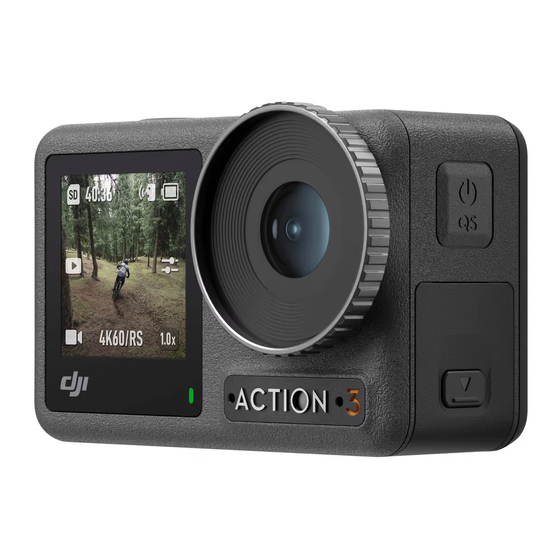
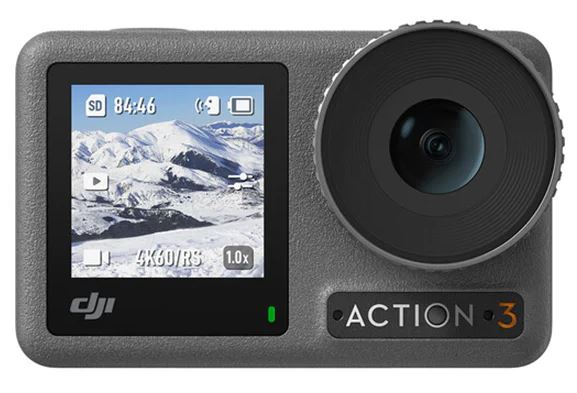
4K/120fps. With DJI’s latest EIS (Electronic Image Stabilization) technology, Osmo Action 3 can record super smooth footage for various sports scenes. Osmo Action 3 is equipped with dual touchscreens. The front touchscreen helps capture the perfect selfie, while the rear touchscreen displays the live view of the camera.
-
Page 5: Accessories
DJI Osmo Action 3 User Manual Accessories Osmo Action 3 is compatible with various accessories to flexibly change the position to shoot various sports scenes. Osmo Action 3 Adhesive Base Kit The Osmo Action 3 Adhesive Base Kit includes the following accessories.
-
Page 6
The left side of the frame is equipped with two quick-release slots, which can be used with the Osmo Action 3 Quick-Release Adapter Mount to fasten other accessories such as the Osmo Action 3 Adhesive Base Kit and the Osmo 1.5m Extension Rod. -
Page 7
DJI 30 W USB-C Charger. • DO NOT use the battery case to charge a non-DJI OSMO battery. DJI OSMO shall not be responsible for any fault or damage caused by the use of any non-DJI OSMO battery. -
Page 8: Using For The First Time
It takes about 18 minutes to charge the battery to 80%. The battery can be fully charged in about 49 minutes*. * Charging time was tested using a DJI 30 W USB-C Charger in a 25° C (77° F) environment. For reference only.
-
Page 9
User Manual Activating Osmo Action 3 The DJI Mimo app is required for activation when using Osmo Action 3 for the first time. Follow the steps below to activate. 1. Press and hold the Quick Switch Button to power on. -
Page 10: Operation
Swipe Left or Swipe Up from Right the Edge of the Switches between Screen video, photo, and To set shooting other shooting parameters such modes. as aspect ratio, countdown time, and resolution. © 2022 DJI All Rights Reserved.
-
Page 11
DJI Osmo Action 3 User Manual Camera View 4:15 04:15 1080P / 30 1080P30 1.0X 1.0x 1. Storage Capacity Information : The icon displays either the remaining number of photos or the video 04:15 duration that can be taken or recorded according to the current shooting mode. The icon is displayed only when a microSD card is inserted. -
Page 12
DJI Osmo Action 3 User Manual 4. Battery Level : This icon displays the current battery level of Osmo Action 3. Tap the icon to view more detailed information about the battery level. 5. Parameters : Click to adjust the image and audio parameters. Tap PRO to adjust pro parameters. -
Page 13
DJI Osmo Action 3 User Manual Hyperlapse Timelapse Basic Mode: The FOV and EIS Priority in Low Light can be set. PRO Mode: More settings are available once PRO is enabled, including Exposure, White Balance, Color, and FOV. Timelapse Basic Mode: The FOV can be set to Standard (Dewarp) or Wide. -
Page 14
Item Description SnapShot When Osmo Action 3 is powered off or in sleep mode, use SnapShot to quickly power on and begin shooting. Supported shooting modes include Video and Hyperlapse. After shooting, the camera will automatically power off if left idle for three seconds. -
Page 15
DJI Osmo Action 3 User Manual LEDs Turn the two status LEDs on Osmo Action 3 on or off. Horizon Calibration Tap to calibrate the horizon according to the prompts on the screen. Continue Last Tap to enable, so the camera can continue the last livestream Livestream after it has stopped. -
Page 16: Storing Photos And Videos
Storing Photos and Videos The footage shot on Osmo Action 3 can only be stored on a microSD card (not included). A UHS-I Speed Grade 3 rating microSD card is required due to the fast read and write speeds necessary for high-resolution video data.
-
Page 17: Dji Mimo App
Home: Tap to return to the home screen. Album: Manage and view footage from a phone or DJI device. Editor: Tap to edit photos or videos on Osmo Action 3 or import them to and edit on a mobile device.
-
Page 18
2. Enable Wi-Fi and Bluetooth on the mobile device. 3. Launch DJI Mimo, tap , and follow the instructions to connect Osmo Action 3. When having problems connecting to DJI Mimo, follow the steps below. 1. Make sure that both Wi-Fi and Bluetooth are enabled on the mobile device. -
Page 19
Record a video. Photo Take a photo or countdown photo. Live Stream Osmo Action 3 supports live broadcasting to livestream platforms such as YouTube and Facebook. 8. Playback : tap to preview photos and videos as soon as they are captured. -
Page 20: Transferring Files
Reconnect Osmo Action 3 to the computer if a file transfer is interrupted. Webcam Mode Osmo Action 3 can work as a webcam on a computer. Power on the camera and connect it to the computer using a USB cable. The camera will go into USB mode. Tap Webcam to enter the Webcam mode, and the camera will function as a webcam input device.
-
Page 21
DJI Osmo Action 3 User Manual Follow the steps below (with DJI Mic as an example) to connect to a microphone: 1. Press the release button on the USB-C port cover and slide it downward. Lift the cover upward until it is detached from the device. -
Page 22: Maintenance
Underwater Usage Notes Osmo Action 3 can be used underwater at depths of up to 16 m. When used with the Osmo Action 3 waterproof case, the device can operate underwater up to 60 m deep.
-
Page 23: Cleaning Notes
4. Discharge and charge the battery completely once every three months to keep it in good working condition. 5. Remove the battery from Osmo Action 3 and store the battery in the Osmo Action 3 Multifunctional Battery Case when stored for an extended period.
-
Page 24: Using Other Accessories (Excluded)
DJI Osmo Action 3 User Manual Using Other Accessories (Excluded) Accessories Diagram Osmo Action 3 1.5m Extension Rod Osmo Action 3 Magnetic Ball-Joint Adapter Mount Osmo Action 3 Waterproof Case © 2022 DJI All Rights Reserved.
-
Page 25
DJI Osmo Action 3 User Manual DJI Floating Handle Osmo Action Suction Cup Mount Osmo Action Helmet Chin Mount © 2022 DJI All Rights Reserved. -
Page 26
DJI Osmo Action 3 User Manual Osmo Action Chest Strap Mount Osmo Action Handlebar Mount Scan the QR code to read the corresponding product information. © 2022 DJI All Rights Reserved. -
Page 27: Specifications
Max Photo Resolution 4000×3000 Digital Zoom Photo: 4x Zoom Video: 2x (> 60fps), 3x (≤ 60fps, HorizonSteady On), 4x (≤ 60fps, HorizonSteady Off) Slow Motion/Timelapse: Not available Single: 12 MP Still Photography Modes Countdown: Off/0.5/1/2/3/5/10 s © 2022 DJI All Rights Reserved.
-
Page 28
DJI Osmo Action 3 User Manual 4K (4:3): 4096×3072@24/25/30/48/50/60fps 4K (16:9): 3840×2160@100/120fps 4K (16:9): 3840×2160@24/25/30/48/50/60fps 2.7K (4:3): 2688×2016@24/25/30/48/50/60fps Standard Recording 2.7K (16:9): 2688×1512@100/120fps 2.7K (16:9): 2688×1512@24/25/30/48/50/60fps 1080p (16:9): 1920×1080@100/120/200/240fps 1080p (16:9): 1920×1080@24/25/30/48/50/60fps 4K: 4x (120fps) Slow Motion 2.7K: 4x (120fps) -
Page 29
DJI Osmo Action 3 User Manual Type LiPo 1S Charging Temperature 5° to 40° C (41° to 104° F) Operating Temperature -20° to 45° C (-4° to 113° F) Voltage 3.85 V Max Charging Power 23 W Operating Time 160 mins [1] Before use, close the battery compartment cover and the USB-C port cover, and tighten the Lens Protective Cover. -
Page 30
This content is subject to change. Download the latest version from https://www.dji.com/action-3/downloads If you have any questions about this document, please contact DJI by sending a message to DocSupport@dji.com. DJI is a trademark of DJI. Copyright © 2022 DJI All Rights Reserved.
Посмотреть инструкция для DJI Osmo Action 3 бесплатно. Руководство относится к категории видеокамеры, 3 человек(а) дали ему среднюю оценку 7.9. Руководство доступно на следующих языках: английский. У вас есть вопрос о DJI Osmo Action 3 или вам нужна помощь? Задайте свой вопрос здесь
Не можете найти ответ на свой вопрос в руководстве? Вы можете найти ответ на свой вопрос ниже, в разделе часто задаваемых вопросов о DJI Osmo Action 3.
Что означает аббревиатура MП?
Какой вес DJI Osmo Action 3?
Какой размер экрана DJI Osmo Action 3?
Какая высота DJI Osmo Action 3?
Какое разрешение экрана дисплея DJI Osmo Action 3?
Какая ширина DJI Osmo Action 3?
Какая толщина DJI Osmo Action 3?
Инструкция DJI Osmo Action 3 доступно в русский?
Не нашли свой вопрос? Задайте свой вопрос здесь
Экшн-камера DJI Osmo Action 3 Standart Combo серый
12 Мп, 2688х1512, 2688х2016, 4096×3072 120 кадр./сек, угол 155°, экран, 1770 мА*ч
подробнее

20
Код товара: 5086086

Summary of Content for DJI Osmo Action 3 Camera Quick Start Guide PDF
Quick Start Guide
v1.0
YCBZSS00212602
This content is subject to change without prior notice.
and OSMO are trademarks of DJI.
Copyright 2022 DJI OSMO All Rights Reserved.
https://www.dji.com/action-3/downloads
1
2
1
2
1
2 https://s.dji.com/guide35
DJI Mimo App
3
4
/1
1s
ON OFF
1
4:15
1.0X
04:15
1.0x1080P30
4:15
1080P / 30 1.0X
04:15
1.0x1080P30
Manualsnet FAQs
If you want to find out how the Osmo Action 3 DJI works, you can view and download the DJI Osmo Action 3 Camera Quick Start Guide on the Manualsnet website.
Yes, we have the Quick Start Guide for DJI Osmo Action 3 as well as other DJI manuals. All you need to do is to use our search bar and find the user manual that you are looking for.
The Quick Start Guide should include all the details that are needed to use a DJI Osmo Action 3. Full manuals and user guide PDFs can be downloaded from Manualsnet.com.
The best way to navigate the DJI Osmo Action 3 Camera Quick Start Guide is by checking the Table of Contents at the top of the page where available. This allows you to navigate a manual by jumping to the section you are looking for.
This DJI Osmo Action 3 Camera Quick Start Guide consists of sections like Table of Contents, to name a few. For easier navigation, use the Table of Contents in the upper left corner.
You can download DJI Osmo Action 3 Camera Quick Start Guide free of charge simply by clicking the “download” button in the upper right corner of any manuals page. This feature allows you to download any manual in a couple of seconds and is generally in PDF format. You can also save a manual for later by adding it to your saved documents in the user profile.
To be able to print DJI Osmo Action 3 Camera Quick Start Guide, simply download the document to your computer. Once downloaded, open the PDF file and print the DJI Osmo Action 3 Camera Quick Start Guide as you would any other document. This can usually be achieved by clicking on “File” and then “Print” from the menu bar.
Смотреть руководство для DJI Osmo Action 3 ниже. Все руководства на ManualsCat.com могут просматриваться абсолютно бесплатно. Нажав кнопку «Выбор языка» вы можете изменить язык руководства, которое хотите просмотреть.

MANUALSCAT | RU
Вопросы и ответы
У вас есть вопрос о DJI Osmo Action 3, но вы не можете найти ответ в пользовательском руководстве? Возможно, пользователи ManualsCat.com смогут помочь вам и ответят на ваш вопрос. Заполните форму ниже — и ваш вопрос будет отображаться под руководством для DJI Osmo Action 3. Пожалуйста, убедитесь, что вы опишите свои трудности с DJI Osmo Action 3 как можно более детально. Чем более детальным является ваш вопрос, тем более высоки шансы, что другой пользователь быстро ответит на него. Вам будет автоматически отправлено электронное письмо, чтобы проинформировать вас, когда кто-то из пользователей ответит на ваш вопрос.
Задать вопрос о DJI Osmo Action 3
- Бренд:
- DJI
- Продукт:
- видеокамеры
- Модель/название:
- Osmo Action 3
- Тип файла:
- Доступные языки:
- английский
Сопутствующие товары DJI Osmo Action 3

ABOUT DJI
DJI, or Da-Jiang Innovations Science and Technology Co., Ltd., is a Chinese technology company specializing in the manufacturing and development of unmanned aerial vehicles (UAVs), commonly known as drones. DJI is considered one of the world’s leading companies in the drone industry.
Founded in 2006 by Frank Wang, DJI is headquartered in Shenzhen, China, and has grown rapidly to become a global leader in consumer and professional-grade drones. The company’s products range from small consumer drones to advanced commercial and industrial drones used for various applications.
Unboxing and Getting Started
Upon receipt of your device, activate it before use. Download DJI Mimo, power on the camera, connect it to a mobile phone, and follow the prompts to activate your device. Consult the content below for details.
Unboxing
App Download
Download the DJI Mimo App before connecting your device to a mobile phone. Click here to download and install DJI Mimo.
Click this link (DJI Mimo Phone Compatibility List) for a list of the compatible operating systems and mobile phones for DJI Mimo.
Powering on or off Your Device
Press the Quick Switch (QS) Button on the left side of the camera to power on or off the device.
Press once to power on or switch the camera to shooting mode.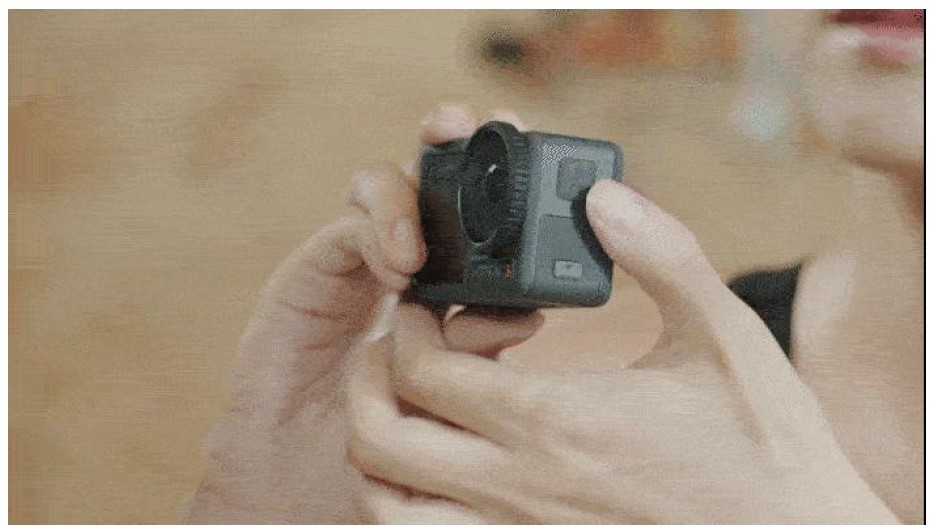
Press and hold to power off the camera.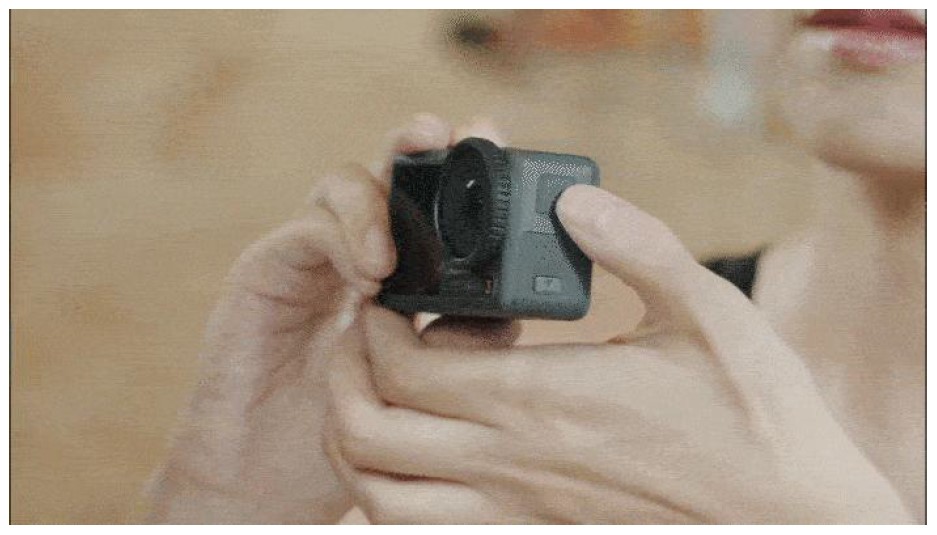
Connecting Your Device to a Phone
- Enable Bluetooth and Wi-Fi on your mobile device, and power on Osmo Action 3.
- Launch DJI Mimo. When it prompts to connect the device, tap “Connect”.
- The phone will automatically pair with Osmo Action 3 via Bluetooth, tap “Pair” to connect your camera to the device.
Activating Your Device
Go through the steps above to connect your camera to a phone before first use, and activate it according to the prompts in DJI Mimo.
* Your device is warranted by DJI from the date of receipt, which will not be affected by the activation status of your device.
Finding the Serial Number (SN) on Your Camera
Check the device SN at the barcode sticker on the side of the box or in the DJI Mimo App.
Status LED Descriptions
You can tell the status of your device through the blinking patterns of the Status LED.
Consult the picture below for details about the Status LED and descriptions.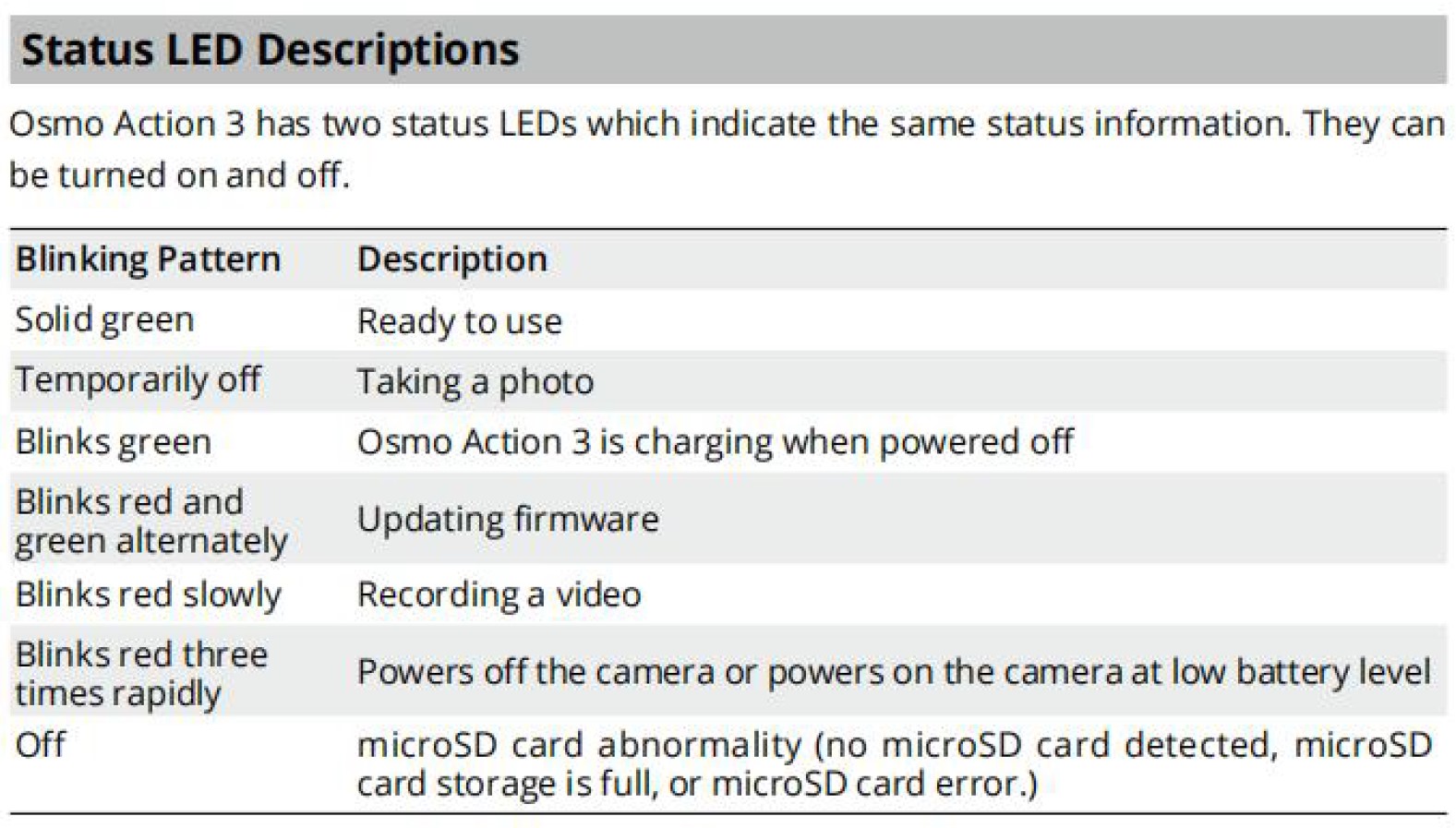
Product Usage
Switching the Front and Rear Touchscreens
Once the camera has been powered on, both the front and rear touchscreens light up simultaneously. When operating one of the screens, the other one is automatically locked. For example, when configuring the rear touchscreen, the front touchscreen will be locked. To use the front screen at this time, swipe up on the screen to unlock it.
Firmware Update
Osmo Action 3 only supports updating firmware via the DJI Mimo app. If new firmware is available, you will be notified by DJI Mimo. Update the firmware according to the on-screen instructions.
Setting App Language
The language of DJI Mimo is consistent with that of your phone system by default. To reset the language, refer to the steps below:
- For iOS users: Reset in DJI Mimo. Go to “Profile > Settings > Language”.
- For Android users: Reset the language of your phone system.
Intermediate Operations
Electronic Image Stabilization (EIS) Technology
With DJI’s latest EIS technology, Osmo Action 3 can record super smooth footage for various sports scenes.
- [RockSteady 3.0] A new generation of intelligent stabilization algorithms fuels the latest version of RockSteady EIS, which can effectively eliminate camera shake in all directions. It supports use while recording at up to 4K/120fps, providing a stable and immersive first-person perspective.
- [HorizonSteady] This smart stabilization feature helps to eliminate camera shake in all directions, and even horizontally corrects tilt at any angle. That means footage can remain horizontally level, even through heavy bumps and 360° rotations.
- [HorizonBalancing] This feature corrects the tilt horizontally within ±45°, and supports recording stable 4K/60fps videos.
EIS Priority in Low Light
This is a new feature for Osmo Action 3, which contributes to recording stable footage in low-light or dark environments. Enabling this feature in low light will remove motion blur, but the shutter speed should be at least 1/200. Image sharpness may be affected when ambient light is too low.
To enable this feature, swipe the screen to the right to disable PRO mode.
Stereo Recording
Osmo Action 3 is designed with three microphones. Exceptional audio performance means more immersive results. Reception direction can be adjusted for more targeted and accurate sound recording. A hidden microphone at the bottom of Action 3 even suppresses wind noise, giving you more audio-recording confidence in windy or high-speed scenarios.
Switch the camera to Video mode and tap “PRO” to set audio parameters such as Channel, Wind Noise Reduction, and Directional Audio.
Connecting External Mics
Action 3 is compatible with DJI Mic. Consult the steps below to connect your device to DJI Mic.
- Connect the receiver of the DJI Mic to the USB-C port on Osmo Action 3 using a Type-C cable.
- Link the receiver and transmitter of DJI Mic.
Scuba Diving Mode
As a new feature in Osmo Action 3, scuba diving mode is automatically enabled when the camera is more than 14 m underwater. Once enabled, the Shutter/Record Button will be locked. Press the Quick Switch button to start or stop recording.
To enable scuba diving mode, swipe down the camera view to enter the Control Menu, tap “Scuba Diving Mode (>=14m)”, and press and hold the Record Button for 5 seconds.
Press the Quick Switch Button five times to disable scuba diving mode.
* In the event of scuba diving at depths over 16 m, it is recommended to equip your Action 3 with a waterproof case. In this case, there is no need to enable scuba diving mode.
Custom Mode
Osmo Action 3 supports saving shooting parameters in custom mode, which can then be used directly to shoot similar scenes. You can save up to five custom modes.
Swipe down the camera view and tap the custom mode icon to save the current configuration as a custom mode.
Tap “Delete” to remove a saved custom mode.
Dynamic Shooting Experience
Osmo Action 3 supports various shooting features, which contributes to making funny videos in sports scenarios.
Storing and Exporting Photos and Videos
The footage shot on Osmo Action 3 can only be stored on a microSD card (not included). You can not shoot videos or photos if the microSD card is not inserted.
Recommended microSD Cards:
- SanDisk Extreme 32GB V30 A2 UHS-I Speed Grade 3 microSDXC
- SanDisk Extreme Pro 32GB V30 A2 UHS-I Speed Grade 3 microSDXC
- Kingston Canvas Go!Plus 64GB UHS-I Speed Grade 3
- Kingston Canvas Go!Plus 128GB UHS-I Speed Grade 3
- Kingston Canvas React Plus 64GB UHS-II Speed Grade 3
- Kingston Canvas React Plus 128GB UHS-II Speed Grade 3
- Kingston Canvas React Plus 256GB UHS-II Speed Grade 3
- Samsung Pro Plus 256GB V30 A2 UHS-I Speed Grade 3
Inserting or Removing a microSD Card
To avoid inadvertently inserting the microSD card into the battery compartment, it is recommended to fit the microSD card into the card slot first, and then attach the battery.
Inserting the microSD Card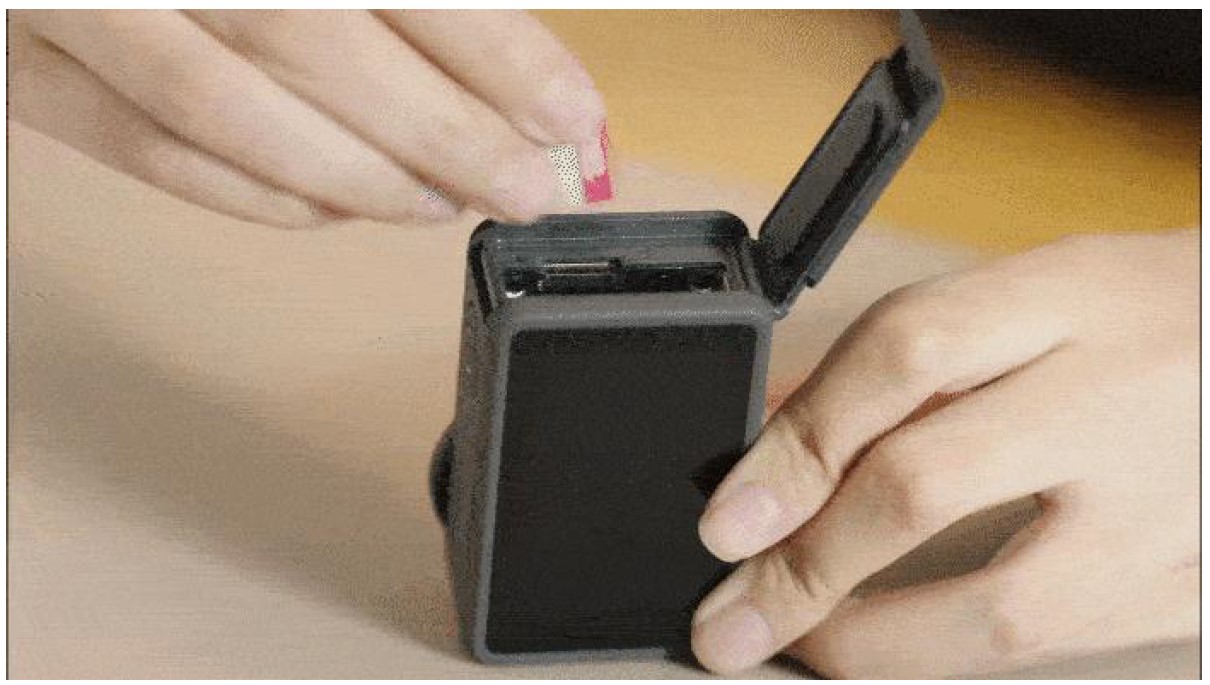
Removing the microSD Card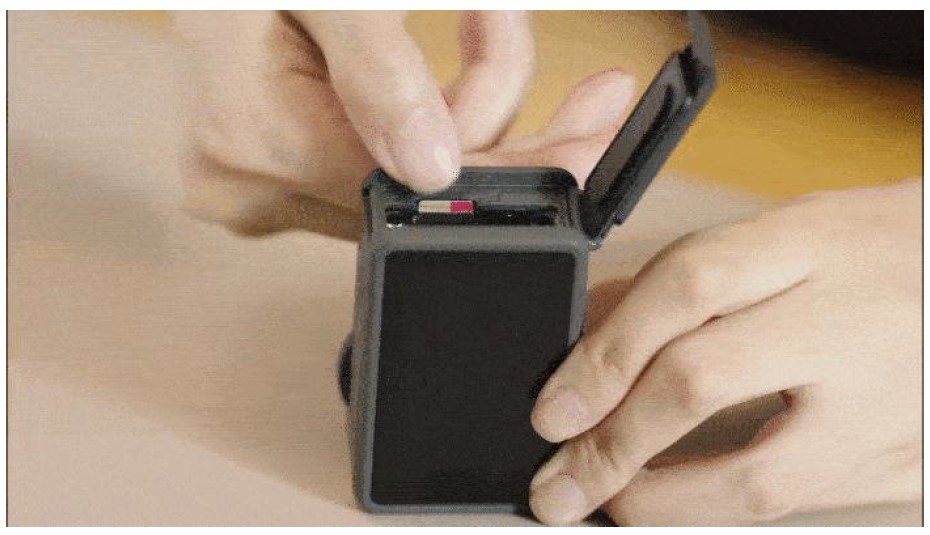
Exporting Materials
It is recommended to download the photos and videos to your phone for editing via DJI Mimo or transfer them to a phone or computer using a USB-C cable.
Charging Instructions
Choosing a Charger
Follow the steps below to charge Osmo Action 3. It is recommended to charge using DJI 30W
USB-C Charger (not included).
- Charge the camera via the USB-C port. Action 3 supports PPS and PD fast charge protocols, and supports up to 23W fast charge.
- Charge the camera using a Multifunctional Battery Case, which also supports PPS and PD fast charge protocols, and supports up to 23W fast charge.
When charging Action 3 using a DJI 30W USB-C Charger, it takes 20 minutes to charge the camera from 0% to 80%, and 49 minutes from 0% to 100%. When charging three batteries using
Multifunctional Battery Case, It takes 58 minutes to charge three batteries from 0% to 80%, and 120 minutes from 0% to 100%.
Why is my Action 3 overheating during charging or shooting?
Osmo Action 3 can shoot 4K/120fps videos at a bitrate of up to 130 Mbps, and the actual video file generated in one minute can be as large as 900 MB. With its compact and portable design, Action 3 inevitably dissipates heat when processing such a large amount of data in a short period of time, which is an irresistible physical law.
The camera was designed with special attention to the heat dissipation issue. To ensure the normal performance of the camera, the internal heat is designed to be conducted to the lens cover, front and rear screens, and body itself through heat sinks and silicone grease. Additionally, strict tests have been made to ensure that the camera temperature is within a reasonable range during long-term recording.
Available Accessories
Accessory Purchase
Popular Accessories
- Multifunctional Battery Case: Stores three batteries and two microSD cards. Intelligently fast charges three batteries, and can be used together with those batteries as a power bank to charge other devices like your smartphone.
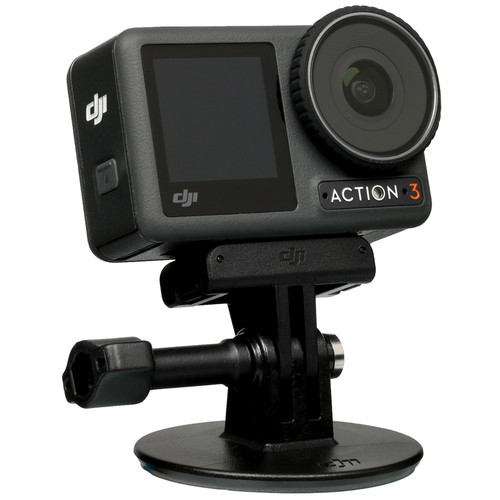
- Adhesive Base Kit: Features a large adhesive area with a strong connective force. With a large area of 3M tape at the bottom, the camera can be securely fixed to surfboards, snowboards, and other sporting equipment or surfaces, making it suitable for a wide range of high-intensity scenarios.
- 1.5m Extension Rod Kit: Compact, easy to hold, and adjustable from 0.3 to 1.5 meters, this extension rod makes selfies and other creative-angle shots effortless. The 1/4″ threaded hole on the bottom supports accessory expansion for more versatile uses.
- Osmo Action Biking Accessory Kit: Includes the Osmo Action Chest Strap Mount and Osmo Action Handlebar Mount to secure your camera to your chest or handlebars, allowing you to focus on your ride and stay in the moment.
Accessory Usage
- Osmo Action 3 Waterproof Case
- Provides waterproof protection at depths of up to 60 meters, giving you more freedom to explore and capture.
- 1.5m Extension Rod (Used with InvisiStick for Skiing)
- When using the 1.5m Extension Rod during skiing, the DJI Mimo app unlocks the power of your smartphone to get the most out of Action 3. It uses cloud computing and AI algorithms to eliminate the selfie stick for skiing and snowboarding scenarios, giving you breathtaking footage that looks like it was shot by a pro.
- Horizontal-Vertical Protective Frame
- It supports quick switches between horizontal and vertical mounting positions by taking off the camera, rotating it by 90°, and re-snapping the clips.
DJI Care Service Plans
DJI Care Refresh is a comprehensive and reliable protection plan that provides your device with coverage for a range of accidental damages and natural wear. There are two DJI Care Refresh options available for you, 1-Year Plan and 2-Year Plan. By selecting the 2-Year Plan, the official warranty of main parts can be extended to 24 months.
- [DJI Care Express] To ensure smooth replacement, after you have paid the replacement fee, DJI will ship a replacement product to you upon receiving the damaged product.
- [Coverage for a Range of Accidental Damage] Inadvertent operations, water damage, or cracking and deformation.
- [Replacement at an Additional Low Cost] The 1-Year Plan provides up to two replacement units at an additional low cost, while 2-Year Plan up to three replacement units.
- [Global Service and Support] The exclusive International Warranty Service allows you to have access to replacement or repair service at any DJI authorized repair center across the globe.
- [Rewards for Safe Use] Throughout the service period, if you haven’t used any replacements or repair discount services, DJI will provide you with a 1-year warranty extension as a reward.
FAQS About DJI Osmo Action 3 Adventure Action Camera
Osmo Action 3 requires a waterproof case, right?
For underwater filming for extended periods of time or in locations with strong water impact pressure, it is advised to install the Waterproof Case.
Can you use the DJI Action 3 as a webcam?
You may use Osmo Action 3 as a webcam.
How far beneath the water can the Osmo Action 3 travel?
164 feet
The Osmo Action 3 can record for how long?
160 minutes maximum
Is Osmo action battery-operated or not?
The Action may be operated without a battery and is continuously rechargeable.
Is the DJI Action 3 a good camera?
The Osmo Action 3’s still pictures are its least impressive feature.
Can the DJI Action 3 be used without an app?
When utilizing Osmo Action 3 for the first time, the DJI Mimo app is necessary for activation.
What is the DJI Action 3’s temperature range?
To minimize problems, we strongly advise using the device between the indicated temperature range of -20° to 45° C (-4° to 113° F).
Zoom on the DJI Action 3?
digital zoom up to four times
How long does it take to charge an Osmo Action 3?
To charge them all to 80%, it takes 56 minutes, and to charge them completely, it takes 120 minutes.
For more manuals by DJI, Visit Manualsdock
[embeddoc url=”https://manualsdock.com/wp-content/uploads/2023/09/DJI-Osmo-Action-3-Adventure-Action-Camera-User-Guide.pdf” download=”all”]
- Home
- Dji
- Dji OSMO ACTION 3 User Manual
Documents for Dji OSMO ACTION 3
The following documents are available:
User Manual
- Owner’s manual — (English) Read Online | Download pdf
- Osmo Action 3 — Quick Start Guide (Standard Combo) v1.0 — (English) Download
- Osmo Action 3 — Quick Start Guide (Adventure Combo) v1.0 — (English) Download
- Osmo Action 3 — User Manual (Polish)v1.0 — (Polish) Download
- Osmo Action 3 User Manual (Bulgarian) V1.0 — (Bulgarian) Download
- Osmo Action 3 User Manual (Czech) v1.0 — (Czech) Download
- Osmo Action 3 User Manual (Danish) v1.0 — (Danish) Download
- Osmo Action 3 User Manual (Greek) v1.0 — (Greek) Download
- Osmo Action 3 User Manual (Finnish) v1.0 — (Finland) Download
- Osmo Action 3 User Manual (Croatian) v1.0 — (Croatian) Download
- Osmo Action 3 User Manual (Hungarian) v1.0 — (Hungarian) Download
- Osmo Action 3 User Manual (Dutch) v1.0 — (Dutch — Holland) Download
- Osmo Action 3 User Manual (Norwegian) v1.0 — (Norway) Download
- Osmo Action 3 User Manual (Portuguese) v1.0 — (Portuguese) Download
- Osmo Action 3 User Manual (Romanian) v1.0 — (Romanian) Download
- Osmo Action 3 User Manual (Swedish) v1.0 — (Swedish) Download
- Osmo Action 3 User Manual (Turkish) v1.0 — (Turkish) Download
- Osmo Action 3 User Manual (Thai) v1.0 — (Thai) Download
- Osmo Action 3 User Manual (Malay) v1.0 — (Malay) Download
- Osmo Action 3 User Manual (Indonesian) v1.0 — (Indonesian) Download
Other Documents
- Osmo Action 3 Release Notes — (English) Download
- Osmo Action 3 — Safety Guidelines v1.0 — (English) Download
3.0
Rated 3.0 out of 5
3.0 out of 5 stars (based on 1 review)
Your overall rating
DJI OSMO ACTION 3 (01) PDF MANUAL
Click here to download DJI OSMO ACTION 3 (01) PDF MANUAL
DJI OSMO ACTION 3 (01) PDF MANUAL
FREE ENGLISH PDF
OPERATING INSTRUCTIONS
USER GUIDE – USER MANUAL
OWNER GUIDE – OWNER MANUAL
REFERENCE GUIDE – REFERENCE MANUAL
INSTRUCTION GUIDE – INSTRUCTION MANUAL
Your overall rating
- YouTube
DJI OSMO ACTION 3 (01) PDF MANUAL
DJI OSMO ACTION 3 (01) PDF MANUAL
Экшн-камера DJI Osmo Action 3 Standart Combo серый
12 Мп, 2688х1512, 2688х2016, 4096×3072 120 кадр./сек, угол 155°, экран, 1770 мА*ч
подробнее
28
Код товара: 5086086