

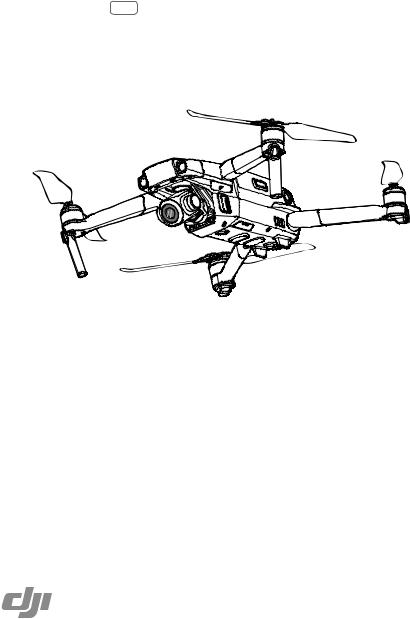
Складной и компактный. Портативный и мощный дрон.
Документация
- Mavic 2 Enterprise — Пояснительная записка 2022-06-20
- Mavic 2 Enterprise — Руководство пользователя v1.82021-04-13
- Mavic 2 Enterprise — Комплект поставки 2018-10-29
- Mavic 2 Enterprise — Краткое руководство (Mavic 2 Enterprise) v1.42020-06-10
- Mavic 2 Enterprise — Краткое руководство (Mavic 2 Enterprise Dual) v1.22020-06-10
- Mavic 2 Enterprise — Комплект поставки (Smart_Controller)2021-03-09
- Mavic 2 Enterprise — Краткое руководство (Mavic 2 Enterprise with Smart_Controller) v1.22020-06-10
- Mavic 2 Enterprise — Краткое руководство (Mavic 2 Enterprise Dual with Smart_Controller) v1.22020-06-10
- Mavic 2 Enterprise — Заявление об отказе от ответственности и руководство по технике безопасности v1.82023-07-28
- Mavic 2 Enterprise — Руководство по технике безопасности для аккумулятора Intelligent Flight Battery 2021-03-09
- Mavic 2 Enterprise Примеры использования Более эффективная работа полиции 2018-11-06
- Mavic 2 Enterprise Примеры использования Спасение людей в труднодоступных местах 2018-11-06
- Mavic 2 Enterprise Примеры использования Спасение жизней в пустыне 2018-11-06
Программное обеспечение

DJI Assistant 2 для Mavic
Совместимость с Mavic. В настоящий момент приложение DJI Assistant 2 недоступно для macOS 11 и более поздних версий. Проблема будет решена в будущих обновлениях.
Программное обеспечение
Windows V2.0.14
2020-08-05
Документы
- DJI Assistant 2 для Mavic Пояснительная записка V2.0.142020-08-05
MAVIC 2 ENTERPRISE SERIES
 Searching for Keywords
Search for keywords such as “battery” and “install” to find a topic. If you are using Adobe Acrobat Reader to read this document, press Ctrl+F on Windows or Command+F on Mac to begin a search.
 Navigating to a Topic
View a complete list of topics in the table of contents. Click on a topic to navigate to that section.
 Printing this Document
This document supports high resolution printing.
Using This Manual
Legend
|
Warning |
Important |
Hints and Tips |
Reference |
Read Before the First Flight
Read the following documents before using the MAVICTM 2 Enterprise series:
1.In the Box
2.User Manual
3.Quick Start Guide
4.Disclaimer and Safety Guidelines
5.Intelligent Flight Battery Safety Guidelines
It is recommend to watch all tutorial videos on the official DJITM website and read the Disclaimer and Safety Guidelines before first time use. Prepare for your first flight by reviewing the Quick Start Guide and refer to this User Manual for more details.
Video Tutorials
Go to the address below or scan the QR code on the right to watch the Mavic 2 Enterprise series tutorial videos, which demonstrate how to use the Mavic 2 Enterprise series safely: http://www.dji.com/mavic-2-enterprise/info#video
Download the DJI Pilot App
Be sure to use the DJI Pilot app during flight. * Scan the QR code on the right to download 


 the latest version. The Android version of DJI Pilot is compatible with Android v5.0 and


 later. The iOS version of DJI Pilot is compatible with iOS v10.0 and later.


*For increased safety, flight is restricted to a height of 98.4 ft (30 m) and range of 164 ft (50 m) when not connected or logged into the app during flight. This applies to DJI Pilot and all apps compatible with DJI aircraft.
Download DJI Assistant 2 for Mavic
Download DJI ASSISTANTTM 2 for Mavic at http://www.dji.com/mavic-2-enterprise/info#downloads.
2 © 2018 DJI All Rights Reserved.
Contents
|
Using This Manual |
2 |
|
Legend |
2 |
|
Read Before the First Flight |
2 |
|
Video Tutorials |
2 |
|
Download the DJI Pilot App |
2 |
|
Download DJI Assistant 2 for Mavic |
2 |
|
Product Profile |
6 |
|
Introduction |
6 |
|
Preparing the Aircraft |
7 |
|
Preparing the Remote Controller |
8 |
|
Aircraft Diagram |
10 |
|
Activation |
13 |
|
Aircraft |
15 |
|
Flight Modes |
15 |
|
Aircraft LEDs and Status Indicator |
16 |
|
Return to Home |
17 |
|
Vision Systems and Infrared Sensing Systems |
21 |
|
Advanced Pilot Assistance Systems |
24 |
|
Flight Recorder |
25 |
|
Password Protection |
25 |
|
Attaching and Detaching the Propellers |
25 |
|
Intelligent Flight Battery |
26 |
|
Gimbal and Camera |
30 |
|
DJI AirSense |
32 |
|
Modular Accessories |
33 |
|
Remote Controller |
36 |
|
Using the Remote Controller |
36 |
|
Linking the Remote Controller |
42 |
|
DJI Pilot App |
44 |
|
Manual Flight |
44 |
|
Mission Flight (Coming soon) |
51 |
|
Album |
51 |
|
DJI FlightHub |
51 |
© 2018 DJI All Rights Reserved. 3
|
Flight |
54 |
|
Flight Environment Requirements |
54 |
|
Flight Limits and GEO Zones |
54 |
|
Pre-Flight Checklist |
55 |
|
Starting/Stopping the Motors |
56 |
|
Test Flight |
57 |
|
Appendix |
59 |
|
Specifications |
59 |
|
Calibrating the Compass |
63 |
|
Firmware Updates |
64 |
|
Remote Controller LCD Screen Menu Information |
65 |
|
After-Sales Information |
66 |
4 © 2018 DJI All Rights Reserved.

Product Profile
T h i s s e c t i o n i n t r o d u c e s M a v i c
2 Enterprise series and lists the components of the aircraft and remote controller.
© 2018 DJI All Rights Reserved. 5
Product Profile
Introduction
The DJI Mavic 2 Enterprise series features omnidirectional Vision Systems and Infrared Sensing Systems. DJI signature technologies such as Obstacle Sensing and the Advanced Pilot Assistance System*, help you capture complex shots effortlessly. Additional features like the built-in AirSense makes you aware of your surrounding airspace, and password protection helps you maintain secure access to your aircraft and protect your data. The Mavic 2 Enterprise series also has attachable modular accessories like the M2E Spotlight, M2E Beacon and M2E speaker that are purpose-built for various industrial applications.
The Mavic 2 Enterprise features a fully stabilized 3-axis gimbal camera that shoots 4K video,
12-megapixel photos, supports 2x optical zoom, 24-48 mm lens, and supports filters.
The Mavic 2 Enterprise Dual features a fully stabilized 3-axis gimbal camera with a FLIR longwave infrared thermal camera and a visual camera, providing both infrared and visible light imaging simultaneously. The infrared thermal camera records 640×480 video, and the visual camera captures 4K videos and 12MP photos.
The Mavic 2 Enterprise series uses the latest technology to increase stability and footage quality, reducing the Mavic 2 Enterprise angle vibration range to within ±0.005° and Mavic 2 Enterprise Dual angle vibration range to within ±0.01°.
Built into the remote controller is DJI’s long-range transmission technology OCUSYNCTM 2.0, offering a maximum transmission range of 5 mi (8 km) and displaying video from the aircraft to DJI Pilot on your mobile device at up to 1080p. The remote controller works at both 2.4 GHz and 5.8 GHz, and it can select the best transmission channel automatically without any latency. The aircraft and camera can easily be controlled using the onboard buttons. An onboard LCD screen gives real-time aircraft data information, and the detachable control sticks make the remote controller easier to store. The maximum run time is 2 hours and 15 minutes. The Mavic 2 Enterprise series boasts a maximum flight speed of 44.7 mph (72 kph) and a maximum flight time of 31 minutes.
 The major difference between the Mavic 2 Enterprise and Mavic 2 Enterprise Dual is the camera. The general descriptions in this manual apply to both Mavic 2 Enterprise series.
 Maximum flight time was tested in an environment with no wind while flying at a consistent 15.5 mph (25 kph) and the maximum flight speed was tested at sea level altitude with no wind. These values are for reference only.
 The remote controller reaches its maximum transmission distance (FCC) in a wide-open area with no electromagnetic interference at an altitude of about 400 ft (120 m). The maximum runtime was tested in a laboratory environment. This value is for reference only.
 5.8 GHz is not supported in some regions. Please observe the local laws and regulations.
* The Advanced Pilot Assistance System is not supported for Mavic 2 Enterprise Dual.
6 © 2018 DJI All Rights Reserved.
Mavic 2 Enterprise Series User Manual
Preparing the Aircraft
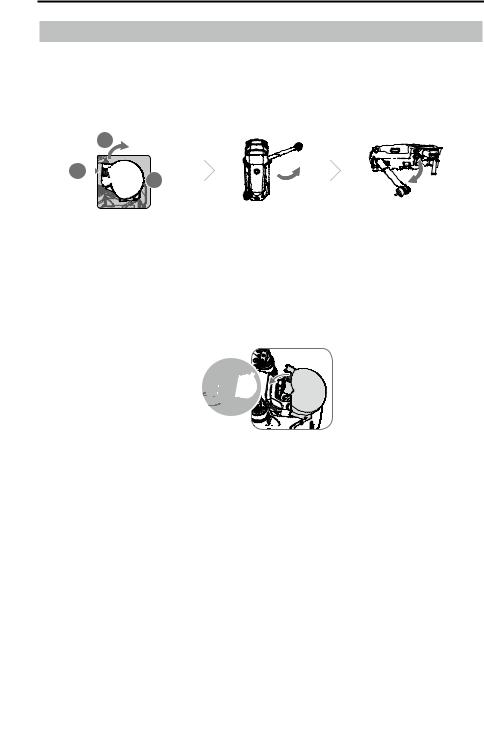
All aircraft arms are folded before the aircraft is packaged at the factory. Follow the steps below to unfold the aircraft.
1.Remove the gimbal cover from the camera.
2.Unfold the front arms, and then unfold the rear arms.
2
1 


 3
3 
*Attach the gimbal cover when not in use.
1) Hold the gimbal in place and insert gimbal clamp between the aircraft and the gimbal.
2)Make sure the hooks on the Gimbal Protector are locked in the grooves of the aircraft, then lower the Gimbal Protector over the gimbal and secure with the buckle. The buckle will click when it is securely attached.
Gimbal clamp
Grooves Hooks


3.Attaching the propellers.
Attach the propellers marked white to the motors with white marks. Press the propeller down onto the motors and turn until it is secure. Attach the other propellers to the unmarked motors. Unfold all the propeller blades.
© 2018 DJI All Rights Reserved. 7
Mavic 2 Enterprise Series User Manual
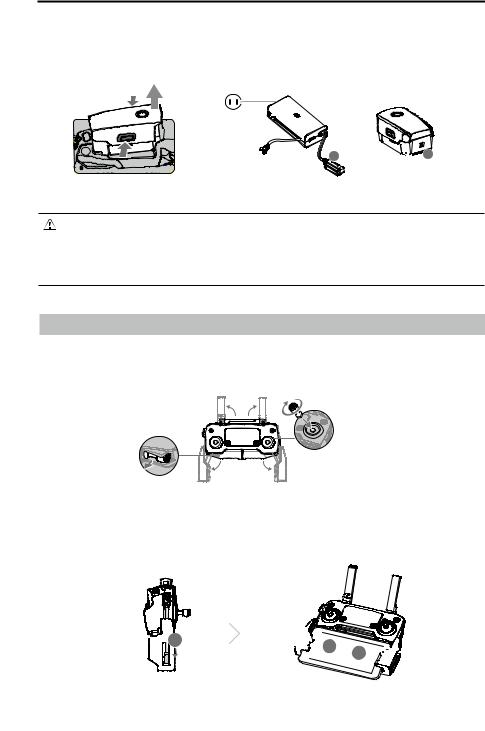
4.All Intelligent Flight Batteries are in Hibernation mode before shipment to ensure safety. Use the provided AC power adapter to charge and activate Intelligent Flight Batteries for the first time. To charge an Intelligent Flight Battery after flight, remove it from the aircraft and attach it to the AC power adapter.
Power Outlet 


100-240 V
A 


 A
A

Charging Time:
~1 hour 30 minutes
 Unfold the front arms and propellers before unfolding the rear arms.
 It is normal if there is friction on the arms and aircraft due to the firmly folding design of the Mavic 2 Enterprise series aircraft.
 Be sure the gimbal cover is removed and all arms and propellers are unfolded before powering on the aircraft. Otherwise, it may affect the aircraft self-diagnostics.
Preparing the Remote Controller
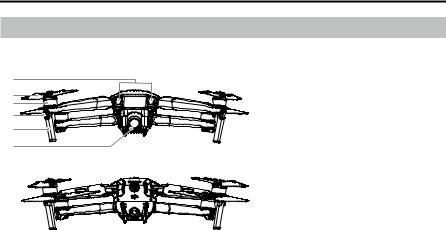
1.Unfold the mobile device clamps and the antennas.
2.Remove the control sticks from their storage slots on the remote controller and screw them into place.
3.Choose an appropriate RC cable based on the type of mobile device. A cable with a Lightning connector is connected by default to the cable slider. Micro USB and USB-C cables are also included in the packaging. Connect the end of the RC cable to your mobile device. Secure your mobile device by pushing both clamps inward.
8 © 2018 DJI All Rights Reserved.

Mavic 2 Enterprise Series User Manual
Refer to the figure below for how to replace the RC cable. The RC cable slider must be replaced if using a USB-C RC cable.
 You can also connect your mobile device to the remote controller using a USB cable if the mobile device is too big to place into the clamps. Plug one end of the cable into your mobile device and the other end into the USB port on the bottom of the remote controller.
 Do not use the Micro USB and USB ports simultaneously for video linking. Remove the cable from one port before connecting a device to the other port for video linking.
© 2018 DJI All Rights Reserved. 9
Mavic 2 Enterprise Series User Manual
Aircraft Diagram
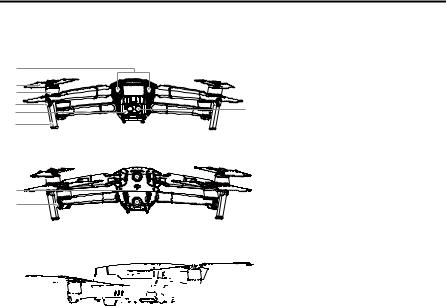
Mavic 2 Enterprise (Model: L1ZE)
1
2
3
4
5
6
7
8
9
10
11
12
13
14
15
16
17
18
19
21
22
19
1. Forward Vision System
2. Propellers
3. Motors
4. Front LEDs
5. Antennas
6. Gimbal and Camera
7. Backward Vision System
8. Aircraft Status Indicator
9. Battery Buckles
10. Lateral Vision System
11. USB-C Port
12. Link Button/Linking Status Indicator
13. Extended Port (to connect accessories)
14. Extended Port Cover
15. Battery Level LEDs
16. Power Button
17. Intelligent Flight Battery
18. Upward Infrared Sensing System
19. Downward Vision System
20. microSD Card Slot
21. Downward Infrared Sensing System
22. Auxiliary Bottom Light
20(can be used as a beacon in low light conditions)
10 © 2018 DJI All Rights Reserved.
Mavic 2 Enterprise Series User Manual
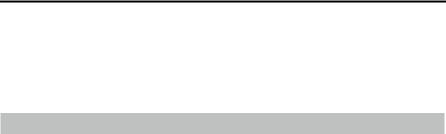
Mavic 2 Enterprise Dual (Model: L1DE)
1
2
3
4
5
6
7
8
9
10
11
12
13
14
15
16
17
18
19
21
22
19
|
A |
1. Forward Vision System |
||
|
B |
|||
|
2. |
Propellers |
||
|
3. |
Motors |
||
|
4. |
Front LEDs |
||
|
5. |
Gimbal and Camera |
||
|
A. Visual Camera |
|||
|
B. Thermal Camera |
|||
|
6. |
Antennas |
||
|
7. |
Backward Vision System |
||
|
8. |
Aircraft Status Indicator |
||
|
9. |
Battery Buckles |
||
|
10. |
Lateral Vision System |
||
|
11. |
USB-C Port |
||
|
12. |
Link Button/Linking Status |
||
|
Indicator |
|||
|
13. |
Extended Port (to connect |
||
|
accessories) |
|||
|
14. |
Extended Port Cover |
||
|
15. |
Battery Level LEDs |
||
|
16. |
Power Button |
||
|
17. |
Intelligent Flight Battery |
||
|
18. |
Upward Infrared Sensing System |
||
|
19. |
Downward Vision System |
||
|
20. microSD Card Slot |
|||
|
21. |
Downward Infrared Sensing |
||
|
System |
|||
|
22. |
Auxiliary Bottom Light |
|
20 |
(can be used as a beacon in low |
|
light conditions) |
© 2018 DJI All Rights Reserved. 11

|
Mavic 2 Enterprise Series User Manual |
|||
|
1 |
|||
|
12 |
18 |
||
|
2 |
11 |
||
|
3 |
13 |
17 |
|
|
4 |
10 |
||
|
14 |
16 |
||
|
5 |
|||
|
9 |
|||
|
6 |
15 |
||
|
7 |
8 |
||
1.Antennas
Relay aircraft control and video wireless signals.
2.Return to Home (RTH) Button
Press and hold the button to initiate RTH.
The aircraft returns to the last recorded Home
Point. Press again to cancel RTH.
3.LCD Screen
Displays the aircraft and remote controller system status.
4.Removable Control Sticks
The removable control sticks are easy to store. The default flight control is set to Mode 2. Set the flight control mode in DJI Pilot.
5.Flight Pause Button
Press to make the aircraft brake and hover in place (only when GPS or Vision System are available).
6.Control Sticks Storage Slot
For storing the control sticks.
7.Mobile Device Clamps
Securely mount your mobile device onto the remote controller.
8.Reserve Video-Downlink Port (USB)
Connect to a mobile device for video downlink via a standard USB cable.
9.5D Button
The default configuration is listed below. The configuration can be adjusted based on your preferences in DJI Pilot.
Left: Decrease EV value. Right: Increase EV value.
Up: Recenter gimbal/gimbal downward. Down: Recenter gimbal/gimbal downward.
10.Flight Mode Switch
Switch between S-mode, P-mode, and
T-mode.
11.Power Button
Press once to check the current battery level. Press once, then again, and hold to turn on/off the remote controller.
12.C1 Button (Customizable)
The default configuration is center focus.
Adjust the configuration in DJI Pilot based on your preferences.
13.Gimbal Dial
Controls the camera’s tilt.
14.Video-Downlink/Power Port (micro USB)
Connect to a mobile device for video linking via the RC cable. Connect to the
AC Power Adapter to charge the remote controller battery.
15.Record Button
Press to start recording video. Press again to stop recording.
16.Focus/Shutter Button
Press halfway to autofocus. Press once to take photos according to the mode selected in the DJI Pilot.
12 © 2018 DJI All Rights Reserved.
Mavic 2 Enterprise Series User Manual
17.Zoom Adjustment Dial (Mavic 2 Enterprise)
Turn to adjust the zoom of the camera.
EV Adjustment Dial (Mavic 2 Enterprise Dual)
Turn to adjust the exposure value of the camera.
18.C2 Button (Customizable)
The default configuration is playback. Adjust the configuration in DJI Pilot based on your preferences.
Activation
The Mavic 2 Enterprise series requires activation before first time use. Follow the onscreen guide to activate the Mavic 2 Enterprise series using DJI Pilot.
© 2018 DJI All Rights Reserved. 13

Aircraft
This section introduces the flight controller, Intelligent Flight Battery, and the Forward, Backward and Downward Vision Systems.
14 © 2018 DJI All Rights Reserved.
Aircraft
The Mavic 2 Enterprise series contains a flight controller, vision systems, video downlink system, propulsion system, and an Intelligent Flight Battery. Refer to the aircraft diagram in the Product Profile section.
Flight Modes
The Mavic 2 Enterprise series has three flight modes, plus a fourth flight mode that the aircraft switches to in certain circumstances:
P-mode (Positioning): P-mode works best when the GPS signal is strong. The aircraft utilizes GPS and the Vision Systems to locate itself, stabilize, and navigate between obstacles.
When the Forward and Backward Vision Systems are enabled and lighting conditions are sufficient, the maximum flight altitude angle is 25°, the maximum forward flight speed is 31 mph (50 kph), and the maximum backward flight speed is 27 mph (43 kph).
Note: P-mode requires larger stick movements to achieve high speeds.
The aircraft automatically changes to Attitude (ATTI) mode when the Vision Systems are unavailable or disabled and when the GPS signal is weak or the compass experiences interference. When the Vision
Systems are unavailable, the aircraft cannot position itself or brake automatically, which increases the risk of potential flight hazards. In ATTI mode, the aircraft may be more easily affected by its surroundings. Environmental factors such as wind can result in horizontal shifting, which may present hazards, especially when flying in confined spaces.
S-mode (Sport): In S-mode, the Obstacle Sensing function is disabled and the aircraft uses GPS and the Vision Systems for positioning. The maximum flight speed is 44.7 mph (72kph). The aircraft cannot sense or avoid obstacles.
Note: In S-mode, aircraft responses are optimized for agility and speed making it more responsive to stick movements.
T-mode (Tripod): T-mode is based on P-mode and the flight speed is limited, which makes the aircraft more stable during shooting. The maximum flight speed, maximum ascend speed and maximum descend speed are 1 m/s.
 The Obstacle Sensing function and the Upward Infrared Sensing System are disabled in S-mode, which means the aircraft cannot sense obstacles on its route automatically.
 The aircraft’s maximum speed and braking distance significantly increase in S-mode. A minimum braking distance of 98.4 ft (30 m) is required in windless conditions.
 Descent speed significantly increases in S-mode.
 The aircraft’s responsiveness significantly increases in S-mode, which means a small stick movement on the remote controller translates into the aircraft moving a large distance. Be vigilant and maintain adequate maneuvering space during flight.
 Use the Flight Mode switch on the remote controller to switch between Flight Modes. Enable
Multiple Flight Modes in DJI Pilot to switch between Flight Modes.
© 2018 DJI All Rights Reserved. 15
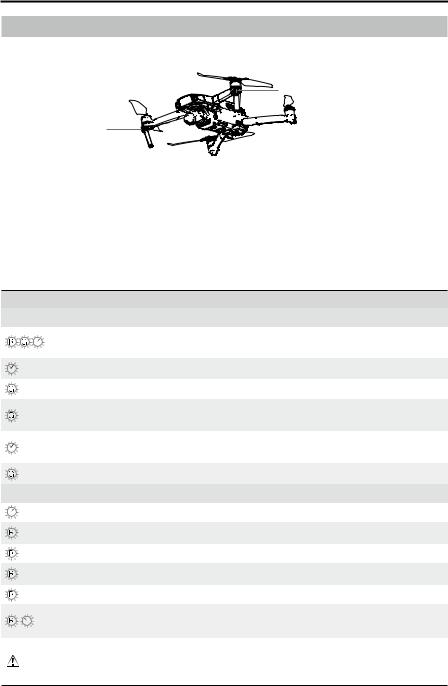
|
Color |
Blinking/Solid |
|
|
Normal States |
||
|
Alternating red, |
Blinking |
|
|
green, and yellow |
||
|
Yellow |
Blinks four times |
|
|
Green |
Blinking slowly |
|
|
Green |
Periodically blinks |
|
|
twice |
||
|
Yellow |
Blinking slowly |
|
|
Green |
Blinking quickly |
|
|
Warning States |
Description of Aircraft State
Turning on and performing self-diagnostic tests
Warming up
P-mode with GPS
P-mode with Forward and Downward Vision
Systems
No GPS, Forward Vision System or
Downward Vision System Braking
|
Yellow |
Blinking quickly |
Remote controller signal lost |
|
|
Red |
Blinking slowly |
Low battery |
|
|
Red |
Blinking quickly |
Critically low battery |
|
|
Red |
Blinking |
IMU error |
|
|
Red |
Solid |
Critical error |
|
|
Alternating red |
Blinking quickly |
Compass calibration required |
|
|
and yellow |
|||
 For missions that require an unobtrusive flight, you can simply enter the setting of the camera and select Smart Arm LEDs in DJI Pilot to turn all the LED lights off.
16 © 2018 DJI All Rights Reserved.
Mavic 2 Enterprise Series User Manual
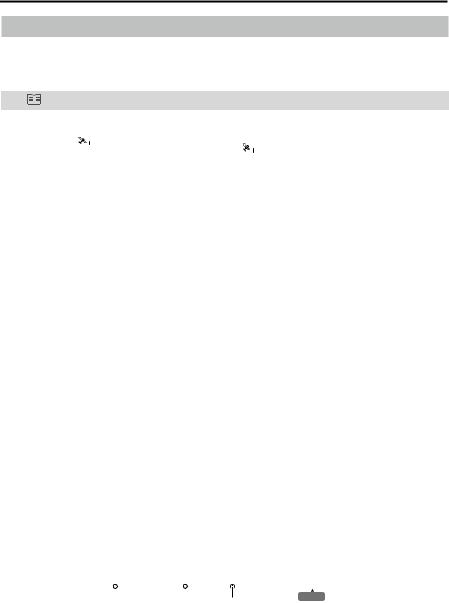
Return to Home
The Return to Home (RTH) function brings the aircraft back to the last recorded Home Point. There are three types of RTH: Smart RTH, Low Battery RTH, and Failsafe RTH. This section describes these three scenarios in detail.
|
GPS |
Description |
|||||||
|
If a strong GPS signal was acquired before takeoff, the Home Point is |
||||||||
|
Home Point |
the location from which the aircraft launched. The GPS signal strength is |
|||||||
|
indicated by the GPS icon ( |
). The Aircraft Status Indicator will blink |
|||||||
|
green quickly when the Home Point is recorded. |
||||||||
Smart RTH
If the GPS signal is sufficiently strong, Smart RTH can be used to bring the aircraft back to the Home Point. Smart RTH is initiated by pressing and holding the RTH button on the remote controller.
Exit Smart RTH by pressing the RTH button on the remote controller.
Low Battery RTH
Low Battery RTH is triggered when the Intelligent Flight Battery is depleted to the point that the safe return of the aircraft may be affected. Return home or land the aircraft immediately when prompted. DJI Pilot displays a warning when the battery level is low. The aircraft will automatically return to the Home Point if no action is taken after a ten-second countdown. The user can cancel RTH by pressing the RTH button or Flight Pause button on the remote controller.
If RTH is cancelled following a low battery level warning, the Intelligent Flight Battery may not have enough charge for the aircraft to land safely, which may lead to the aircraft crashing or being lost. The thresholds for the battery level warnings are automatically determined based on the aircraft’s current altitude and distance from the Home Point.
The aircraft will land automatically if the current battery level can only support the aircraft long enough to descend from its current altitude. The user cannot cancel the auto landing but can use the remote controller to alter the aircraft’s orientation during the landing process.
|
Critically low battery level warning |
Battery level is sufficient |
||||||
|
(Red) |
(Green) |
||||||
|
Low battery level warning |
|||||||
|
(Yellow) |
Remaining flight time |
||||||
|
Charge required to |
12:29 |
|
return to Home Point |
|
|
DJI Pilot Battery Level Indicator Bar |
© 2018 DJI All Rights Reserved. 17

Mavic 2 Enterprise Series User Manual
 The colored zones and markers on the DJI Pilot battery level indicator bar reflect the estimated remaining flight time. They automatically adjust according to the aircraft’s current location and status.
 If the current battery level can only support the aircraft long enough to descend from its current altitude, a critically low battery level warning triggers and the aircraft descends and lands automatically. This cannot be canceled. If there is a danger of a collision, push the throttle up and try to navigate away.
 If the battery level is sufficient, the battery level indicator bar in DJI Pilot displays the estimated remaining flight time based on the current battery level.
|
Warning |
Instructions |
Aircraft Status |
DJI Pilot App |
Actions |
|
Indicator |
||||
|
Remaining battery |
Choose RTH or |
Select an option. If no action |
||
|
is taken, the aircraft will enter |
||||
|
level supports RTH. |
resume normal flight. |
|||
|
RTH. |
||||
|
Remaining |
Select an option. |
|||
|
battery level |
Emergency RTH (aircraft |
|||
|
supports |
descends to 50 m and |
|||
|
Emergency RTH |
Choose Emergency |
returns to the Home Point) |
||
|
(when in RTH, |
or resume RTH (aircraft |
|||
|
RTH or resume RTH. |
||||
|
Low |
with a normal RC |
flies to Home Point without |
||
|
signal, and at an |
Blinks red |
descending). If no action is |
||
|
Battery |
||||
|
altitude higher |
slowly |
taken, the aircraft will enter |
||
|
Level |
||||
|
than 50 m). |
Emergency RTH. |
|||
|
Remaining |
||||
|
battery level |
||||
|
supports |
||||
|
Emergency |
Aircraft lands. Action |
Aircraft lands immediately. |
||
|
Landing (when |
cannot be canceled. |
|||
|
in RTH with |
||||
|
a normal RC |
||||
|
signal). |
||||
|
Aircraft lands |
||||
|
after 10 seconds |
Aircraft lands after |
|||
|
(when flying |
Aircraft lands after 10 |
|||
|
10 seconds. Action |
||||
|
normally with |
seconds. |
|||
|
cannot be canceled. |
||||
|
a critical low |
||||
|
Critically |
||||
|
battery level). |
||||
|
Low |
Blinks red |
|||
|
Aircraft lands |
||||
|
Battery |
quickly |
|||
|
automatically |
||||
|
Level |
||||
|
(when flying |
Aircraft lands |
|||
|
normally with an |
immediately. Action |
Aircraft lands immediately. |
||
|
extremely critical |
cannot be canceled. |
|||
|
low battery |
||||
|
level). |
||||
18 © 2018 DJI All Rights Reserved.
Mavic 2 Enterprise Series User Manual
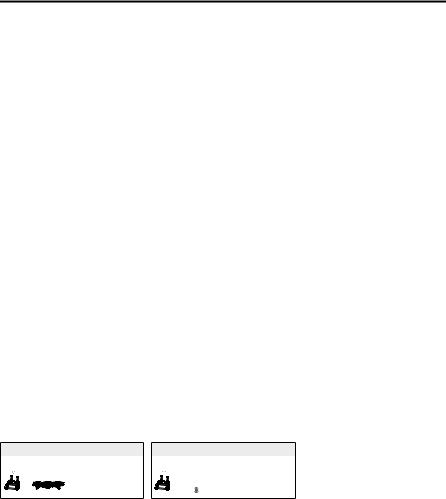
Failsafe RTH
The Forward Vision System allows the aircraft to create a real-time map of its flight route as it flies.
If the Home Point was successfully recorded and the compass is functioning normally, Failsafe RTH automatically activates after the remote control signal is lost for more than two seconds.
When Failsafe RTH is activated, the aircraft starts to retrace its original flight route home. If the remote control signal is re-established within 60 seconds of Failsafe RTH being activated, the aircraft hovers at its present location for 10 seconds and waits for pilot commands. The user may press the RTH button on the remote controller to cancel Failsafe RTH and retake control. If no pilot command is given, the aircraft flies to the Home Point in a straight line. If the remote control signal is still lost 60 seconds after activating Failsafe RTH, the aircraft stops retracing its original flight route and flies to Home Point in a straight line.
RTH Procedure
Smart RTH, Low Battery RTH, and Failsafe RTH all follow the RTH procedure:
1.The aircraft adjusts its orientation.
2.a. If the aircraft is further than 20 m from the Home Point when the RTH procedure begins, it ascends to the pre-set RTH altitude and then flies to the Home Point at a speed of 12 m/s. If the current altitude is higher than the RTH altitude, the aircraft flies to the Home Point at the current altitude. Forward and Backward vision systems are enabled.
b.If the aircraft is between 5 m and 20 m from the Home Point when the RTH procedure begins:
i.If the RTH at Current Altitude option is enabled the aircraft flies to the Home Point at the current altitude, unless the current altitude is less than 2 m, in which case the aircraft ascends to 2 m and then flies to the Home Point at a speed of 3 m/s.
ii.If the RTH at Current Altitude option is disabled, the aircraft lands immediately.
c.If the aircraft is less than 5 m from the Home Point when the RTH procedure begins, it lands immediately.
3.After reaching the Home Point, the aircraft lands and the motors stop.
|
1 |
Record Home Point |
2 |
Confirming Home Point |
3 |
Remote Controller Signal Lost |
|
|
× |
||||||
|
4 |
Signal Lost for Extended Time |
5 |
RTH (adjustable altitude) |
6 |
Landing |
|
|
× |
× |
Height over HP > Failsafe Altitude |
× |
|||
Elevate to Failsafe Altitude
Failsafe Altitude
Height over HP ≤ Failsafe Altitude
Obstacle Avoidance during RTH
Provided that lighting conditions are sufficient for the Forward and Backward Vision Systems to operate, the Mavic 2 Enterprise series senses and actively attempts to avoid obstacles during RTH. The obstacle avoidance procedure is as follows:
1.The aircraft decelerates when an obstacle is sensed.
2.The aircraft stops and hovers and then ascends until no obstacle is sensed.
3.The RTH procedure resumes. The aircraft flies to the Home Point at the new altitude.
© 2018 DJI All Rights Reserved. 19

Mavic 2 Enterprise Series User Manual
 The aircraft cannot return to the Home Point if the GPS signal is weak or unavailable.
 In Smart RTH and Low Battery RTH, the aircraft automatically ascends to an altitude of 65 ft
(20 m). Once the altitude is 65 ft (20 m) or higher, move the throttle stick and the aircraft stops ascending and flies to the Home Point at its current altitude.
 The aircraft cannot avoid obstacles during Failsafe RTH if the Forward and Backward Vision Systems are unavailable. It is important to set a suitable RTH Altitude before each flight. Launch DJI Pilot, tap
  and then set the RTH Altitude.
 During RTH, the aircraft’s speed and altitude can be controlled using the remote controller or DJI Pilot, but the flight controller controls its orientation and direction of flight.
 During RTH, obstacles on either side of the aircraft cannot be detected or avoided.
Landing Protection
Landing Protection activates during Smart RTH and the aircraft performs as follows:
1.When Landing Protection determines that the ground is suitable for landing, the aircraft lands gently.
2.If Landing Protection determines that the ground is not suitable for landing, the aircraft hovers and waits for the pilot to confirm it is suitable to land.
3.If Landing Protection is not operational, DJI Pilot displays a landing prompt when the aircraft descends below 0.5 m. Pull down on the throttle for one second or use the auto landing slider in the app to land.
Landing Protection activates during Low Battery RTH and Failsafe RTH. The aircraft performs as follows:
During Low Battery RTH and Failsafe RTH, the aircraft hovers at 2 m above the ground and waits for the pilot to confirm it is suitable to land. Pull down on the throttle for one second or use the auto landing slider in the app to land. Landing Protection activates and the aircraft performs the steps listed above.
Vision Systems are disabled during landing. Be sure to land the aircraft with caution.
20 © 2018 DJI All Rights Reserved.
Mavic 2 Enterprise Series User Manual
Vision Systems and Infrared Sensing Systems
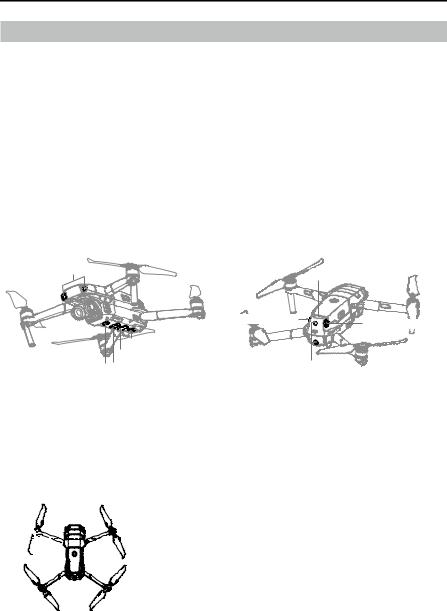
The Mavic 2 Enterprise series is equipped with Forward, Backward, Downward, and Lateral Vision Systems, and Upward and Downward Infrared Sensing Systems, providing omnidirectional obstacle sensing (if lighting conditions are adequate).
The main components of the Forward, Backward, and Downward Vision Systems are six cameras located on the nose, rear side, and the underside of the aircraft. Lateral Vision Systems are two cameras located on either side of the aircraft.
The main components of the Upward and Downward Infrared Sensing Systems are two 3D infrared modules located on the upper and underside of the aircraft.
The Downward Vision System and Infrared Sensing System helps the aircraft maintain its current position and hover in place more precisely and to fly indoors or in other environments where a GPS signal is unavailable. In addition, the Auxiliary Bottom Light located on the underside of the aircraft improves visibility for the Downward Vision System in weak light conditions.
|
Forward Vision System |
Upward Infrared Sensing System |
|
Lateral Vision System |
Lateral Vision System |
|
Downward Vision System |
|
|
Auxiliary Bottom Light |
|
Downward Vision System Downward Infrared Sensing System |
Backward Vision System |
Detection Range
The detection range of the Vision Systems is depicted as followed. Please note that the aircraft cannot sense or avoid the obstacles that are not within detection range.
|
40° |
||||||||
|
40° |
40° |
|||||||
|
3° |
77° |
70° |
6° |
65° |
65° |
6° |
||
|
5° |
||||||||
|
3° |
77° |
|||||||
|
80° |
||||||||
|
80° |
100° |
100° |
83° |
|||||
|
60° |
||||||||
|
4° |
4° |
© 2018 DJI All Rights Reserved. 21
 Loading…
|
Код: 127185 Извините, товара сейчас нет в наличии
Бесплатная доставка
Извините, товара сейчас нет в наличии Сравнить Новости интернет-магазина «Лаукар»:28.03.2023 22.02.2023 13.02.2023 Дополнительная информация в категории Квадрокоптер:Таблица Авторизованных сервисных центров по брендам. Описание Инструкция Отзывы (0) В интернет-магазине бытовой техники «Лаукар» Вы можете скачать инструкцию к товару Квадрокоптер DJI Mavic 2 Enterprise Dual L1DE совершенно бесплатно. Все инструкции, представленные на сайте интернет-магазина бытовой техники «Лаукар», предоставляются производителем товара. Для того чтобы скачать инструкцию, Вам необходимо нажать на ссылку «скачать инструкцию», расположенную ниже, а в случае, если ссылки нет, Скачать инструкцию Смотреть инструкцию
Фирма-производитель оставляет за собой право на внесение изменений в конструкцию, дизайн и комплектацию товара: Квадрокоптер DJI Mavic 2 Enterprise Dual L1DE. Пожалуйста, сверяйте информацию о товаре с информацией на |





- Публикация
- Товары4
Инструкции: Первый полёт DJI Mavic 2 (инструкция на русском)
- Скачайте приложение DJI Go 4 для своего мобильного устройства в магазинах Apple Store или Google Play.
- Разложите зажимы пульта дистанционного управления и прикрутите рычаги управления.
- Раскройте антенны пульта управления.
- Кабель с левой стороны пульта управления служит для подключения телефона к пульту.
- После того как пульт подключен к телефону, а телефон находится в зажимах пульта, раскройте лучи дрона.
- Нажмите и удерживайте кнопку питания 2 секунды для включения дрона и пульта управления.
- Поместите летательный аппарат на землю.
- Запустите приложение DJI Go 4, нажав на ярлык Mavic 2 на рабочем столе.
- Панель статуса полета в верхней части экрана показывает состояние и работоспособность дрона и сенсоров.
- При статусе приложения “Ready to Go” потяните оба стика на себя и к центру для запуска моторов.
- Затем двигайте левый стик от себя для взлета.
- Также Вы можете нажать кнопку “Автовзлет” в левой части экрана для того, чтобы подняться в воздух.
- Для примера возьмем режим управления рычагами “mode” 2.
- Левый стик отвечает за высоту и направление дрона
- В то время как правый контролирует его движения вперед, назад, влево или вправо
- Нажмите иконку в верхнем правом углу приложения для входа в меню пульта управления и изменения режима управления рычагами.
- Если аппарат улетел слишком далеко, Вы можете проверить его позицию на карте в нижнем левом углу.
- Нажмите кнопку “Flight Pause” на пульте управления для экстренного торможения и зависания.
- В левой части меню “Intellegent Flight” встроено очень много интеллектуальных режимов полета, которые значительно упрощают любые действия в воздухе
- A.P.A.S. позволяет автоматически обходить препятствия и значительно увеличивает безопасность полета
- Нажмите “Return to home” — возврат домой или нажмите и удерживайте кнопку “Smart RTH” на пульте управления, чтобы вернуть аппарат назад к точке взлета.
- Функциональные кнопки в правой части приложения — это текущие параметры камеры
- Меню установок для настройки установок съемки, таких как экспозиция и также слайд-бар регулирующий угол подвеса и кнопка “Play”.
- Вы можете записать свой полет и снять великолепные моменты кнопками на пульте управления.
- Например, колесо подвеса контролирует наклон камеры.
- Кнопка спуска — нажмите ее, чтобы сделать фото.
- Кнопка записи — нажмите ее для старта или окончания записи видео.
- Для посадки дрона потяните левый рычаг на себя и удерживайте пока он не коснется земли.
- Также Вы можете нажать кнопку “Auto Landing” в приложении и позволить дрону выполнить посадку самостоятельно.
Товары
Все4
DJI Mavic 22
DJI Mavic 2 Enterprise1
Аксессуары DJI Mavic 21
Артикул: 3005
Добавить к сравнению
Артикул: 3001
Добавить к сравнению
Артикул: 3159
Добавить к сравнению
Артикул: 3003
Добавить к сравнению