
BT600
Bluetooth USB adapter
User Guide
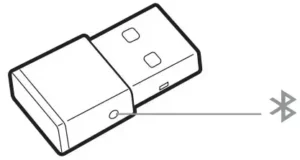
 When paired to your Poly audio device and plugged into your computer, the Bluetooth adapter LEDs indicate your audio status.
NOTE Adapter’s USB connection and design may vary, but the function is the same.
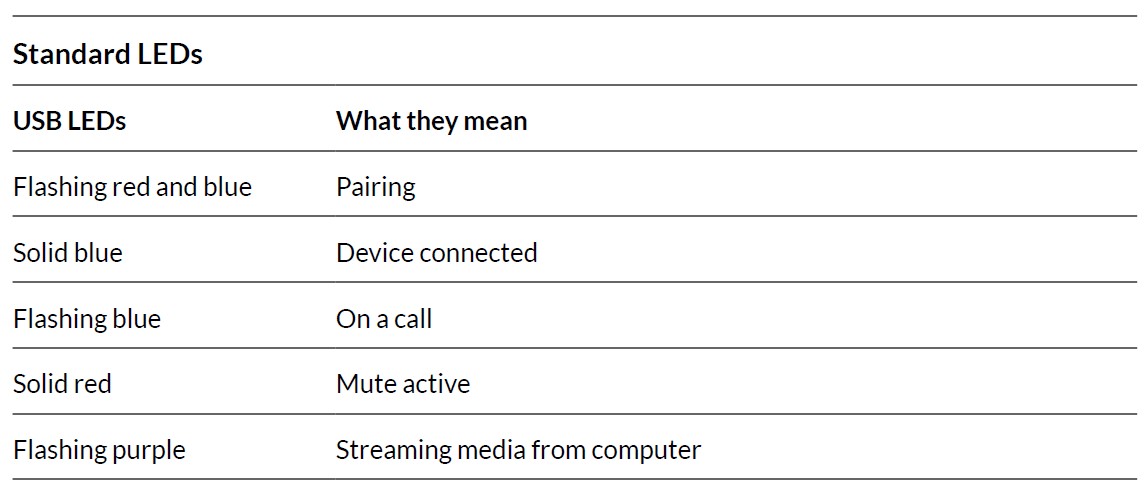
Standard LEDs
| USB LEDs | What they mean |
| Flashing red and blue | Pairing |
| Solid blue | Device connected |
| Flashing blue | On a call |
| Solid red | Mute active |
| Flashing purple | Streaming media from a computer |
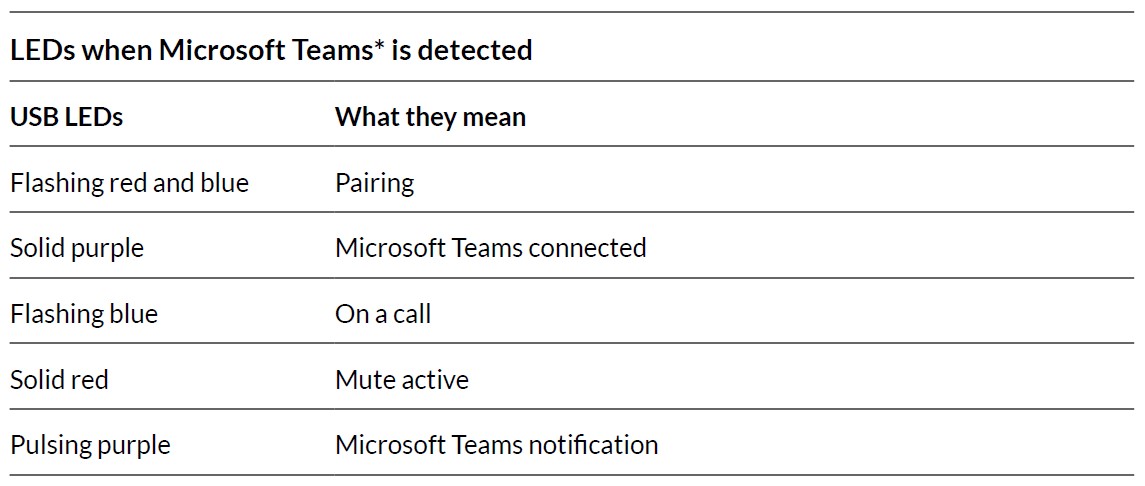
LEDs when Microsoft Teams* is detected
| USB LEDs | What they mean |
| Flashing red and blue | Pairing |
| Solid purple | Microsoft Teams connected |
| Flashing blue | On a call |
| Solid red | Mute active |
| Pulsing purple | Microsoft Teams notification |
NOTE *Requires Microsoft Teams desktop application.
Pair your USB adapter
To pair your Bluetooth USB adapter to your headset, do the following:
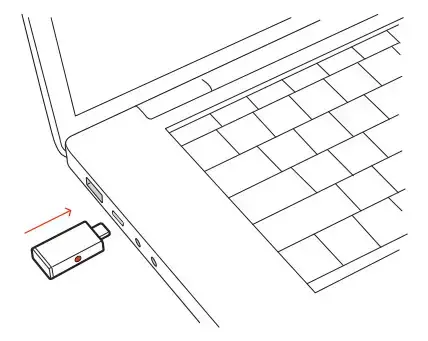
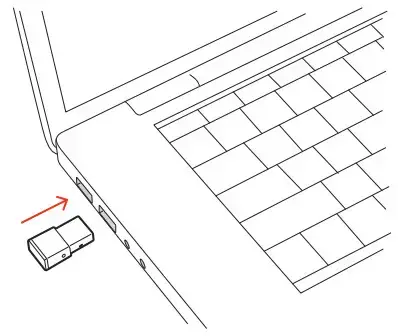
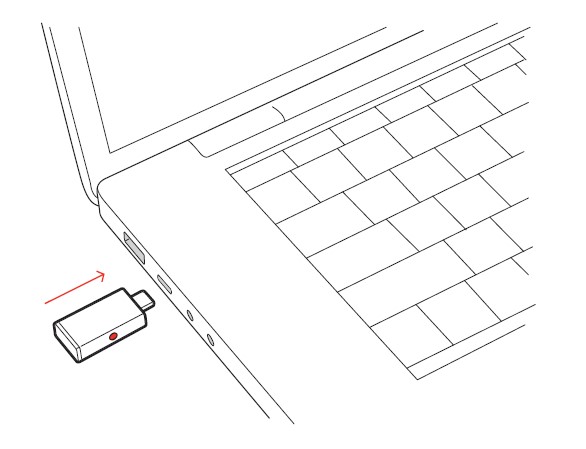
- Insert the USB adapter into your laptop or computer and wait for your computer to recognize it.

- Put your headset in pair mode (refer to your headset’s user guide).
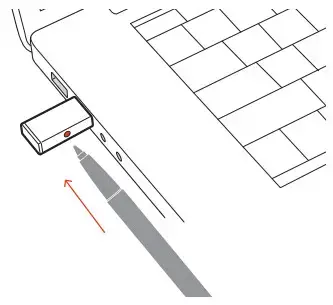
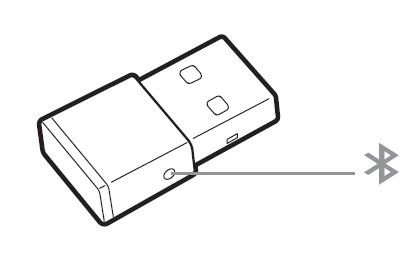
- Put your USB adapter into pair mode by pressing and holding the Pair button with a pen or paperclip until the USB adapter LED flashes red and blue.
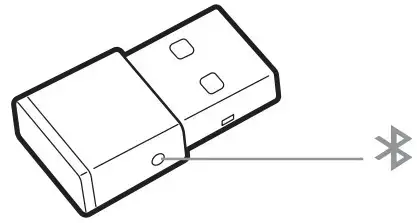
NOTE Adapter design may vary.
Pairing is successful when you hear “pairing successful” and “PC connected” and the Bluetooth USB adapter LED is solid blue.
Connect to PC
Your Bluetooth USB adapter provides the best connection, softphone functionality, and acoustic sound quality through your headset.
- Turn on your headset and insert the Bluetooth USB adapter into your laptop or PC.
- The USB adapter LED flashes and then turns solid to indicate the headset is connected to the USB adapter. If you are wearing your headset you hear “PC connected” to indicate the connection has been established. When on a call, the LED on the USB adapter flashes blue.
When not on a call the LED is solid. - Load Poly Lens Desktop App by visiting poly.com/lens. This allows you to customize your headset behavior through advanced settings and options.
Configure USB adapter
Your high-fidelity Bluetooth USB adapter comes ready to take calls. If you want to listen to music, you will need to configure your Bluetooth USB adapter.
Windows
- To configure your Bluetooth USB adapter to play music, go to the Start menu > Control Panel > Sound > Playback tab. Select Poly BT600, set it as the Default Device, and click OK.
- To pause music when you place or receive calls, go to the Start menu > Control Panel > Sound > Communications tab and select the desired parameter.
Mac
- To configure the Bluetooth USB adapter, go to the Apple menu > System Preferences > Sound.
On both the Input and Output tabs, select Poly BT600.
Load software
Download Poly Lens App to get the most out of your device. Some softphones require the installation of Poly software to enable device call control (answer/end and mute)
functionality. Download: poly.com/lens.
- Enable features
- Change settings
- Configure call control for softphone
- Update device firmware
- Manage notifications and alerts
- Schedule health and wellness reminders
NOTE Device settings and updates are also available in Plantronics Hub App.
Update your Poly device
Keep your firmware and software up-to-date to improve performance and add new features to your Poly device.
Update your device using Poly Lens App. Download at poly.com/lens.
Support
NEED MORE HELP?
poly.com/support
| Manufacturer: Plantronics, Inc. 345 Encinal Street Santa Cruz, CA 95060 United States |
Plantronics B.V. Scorpius 171 2132 LR Hoofddorp Netherlands |
Plantronics Ltd. Building 4, Foundation Park Cannon Lane, Part 1st Floor Maidenhead, SL6 3UD United Kingdom |
© 2022 Poly. Bluetooth is a registered trademark of Bluetooth SIG, Inc. All trademarks are the property of their respective owners. Manufactured by Plantronics, Inc.
Model ID: BT600/BT600 USB-C
217307-06 06.22

About Poly
Poly is a well-known company that specializes in audio and video communication solutions, particularly in the field of unified communications (UC) and collaboration. The company was formed through the merger of two prominent companies: Plantronics and Polycom.
- Plantronics: Plantronics, founded in 1961 by Courtney Graham and Keith Larkin, is a pioneering company in the development of lightweight and comfortable communication headsets. Over the years, they have played a significant role in the evolution of headsets for various applications, including call centers, offices, gaming, and personal use.
- Polycom: Polycom, established in 1990, was a major player in the video conferencing and telecommunication industry. They specialized in providing audio and video conferencing systems for businesses and enterprises, enabling remote communication and collaboration among teams.
The two companies merged in 2018, resulting in the formation of Poly (previously known as Plantronics, Inc.), which brought together their expertise in audio and video communication technologies. The merger aimed to create a comprehensive portfolio of products and services to cater to the growing demand for unified communications and collaboration solutions in the modern workplace.
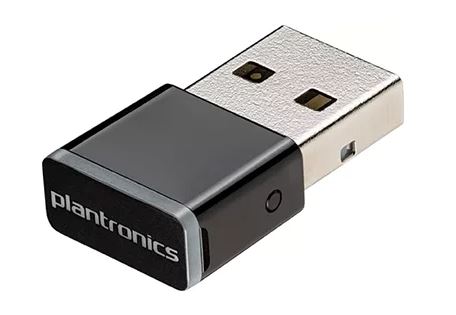
USB Bluetooth adapter
When paired to your Poly audio device and plugged into your computer, the Bluetooth adapter LEDs indicate your audio status.
NOTE:
Adapter’s USB connection and design may vary, but the function is the same.
NOTE:
*Requires Microsoft Teams desktop application.
Pair your USB adapter
To pair your Bluetooth USB adapter to your headset, do the following:
- Insert the USB adapter into your laptop or computer and wait for your computer to recognize it.
 Put your headset in pair mode (refer to your headset’s user guide).
- Put your USB adapter into pair mode by pressing and holding the Pair button with a pen or paperclip until the USB adapter LED flashes red and blue.
 Put your headset in pair mode (refer to your headset’s user guide).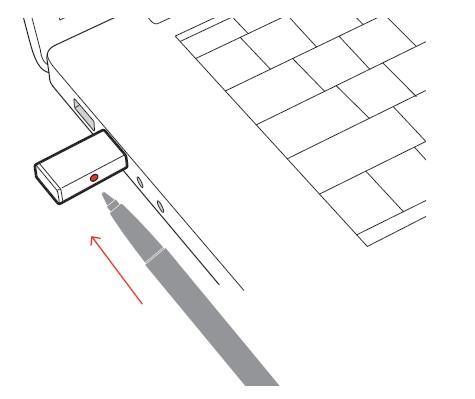
NOTE: Adapter design may vary.
Pairing is successful when you hear “pairing successful” and “PC connected” and the Bluetooth USB adapter LED is solid blue.
Connect to PC
Your Bluetooth USB adapter provides the best connection, softphone functionality, and acoustic sound quality through your headset.
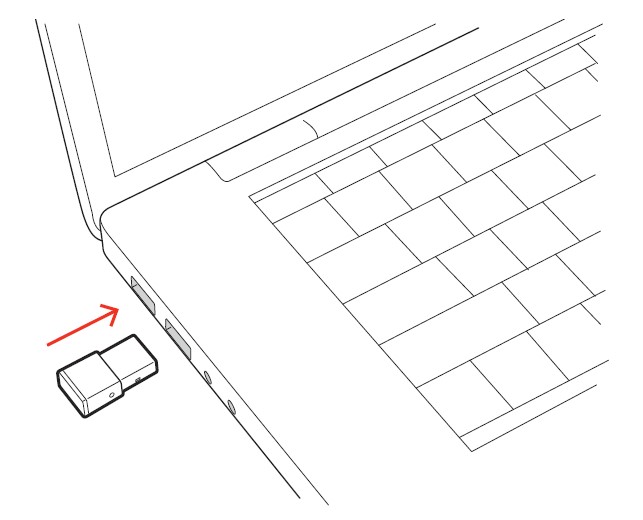
- Turn on your headset and insert the Bluetooth USB adapter into your laptop or PC.
 The USB adapter LED flashes and then turns solid to indicate the headset is connected to the USB adapter. If you are wearing your headset you hear “PC connected” to indicate the connection has been established. When on a call, the LED on the USB adapter flashes blue. When not on a call the LED is solid.
- Load Poly Lens Desktop App by visiting poly.com/lens. This allows you to customize your headset behavior through advanced settings and options.
 The USB adapter LED flashes and then turns solid to indicate the headset is connected to the USB adapter. If you are wearing your headset you hear “PC connected” to indicate the connection has been established. When on a call, the LED on the USB adapter flashes blue. When not on a call the LED is solid.
Configure USB adapter
Your high-fidelity Bluetooth USB adapter comes ready to take calls. If you want to listen to music, you will need to configure your Bluetooth USB adapter.
Windows
- To configure your Bluetooth USB adapter to play music, go to the Start menu > Control Panel > Sound > Playback tab. Select Poly BT600, set it as the Default Device, and click OK.
- To pause music when you place or receive calls, go to the Start menu > Control Panel > Sound > Communications tab and select the desired parameter.
Mac
- To configure the Bluetooth USB adapter, go to the Apple menu > System Preferences > Sound. On both the Input and Output tabs, select Poly BT600.
Load software
Download Poly Lens App to get the most out of your device. Some softphones require the installation of Poly software to enable device call control (answer/end and mute) functionality. Download: poly.com/lens.
- Enable features
- Change settings
- Configure call control for softphones
- Update device firmware
- Manage notifications and alerts
- Schedule health and wellness reminders
NOTE:
Device settings and updates are also available in Plantronics Hub App.
Update your Poly device
Keep your firmware and software up-to-date to improve performance and add new features to your Poly device. Update your device using Poly Lens App. Download at poly.com/lens.
Support
NEED MORE HELP?
poly.com/support
Manufacturer:
Plantronics, Inc.
345 Encinal Street
Santa Cruz, CA 95060
United States
Plantronics B.V.
Scorpius 171
2132 LR Hoofddorp
Netherlands
Plantronics Ltd.
Building 4, Foundation Park
Cannon Lane, Part 1st Floor
Maidenhead, SL6 3UD
United Kingdom
© 2022 Poly. Bluetooth is a registered trademark of Bluetooth SIG, Inc. All trademarks are the property of their respective owners. Manufactured by Plantronics, Inc.
Model ID: BT600/BT600 USB-C
217307-06 06.22
FAQS About Poly BT600 Bluetooth USB Adapter
What is a Bluetooth USB adapter?
A Bluetooth USB adapter is a small device that allows you to add Bluetooth connectivity to a computer or other devices that don’t have built-in Bluetooth capabilities. It enables wireless communication between the device and other Bluetooth-enabled devices such as headphones, speakers, keyboards, mice, and more.
How do I use a Bluetooth USB adapter?
To use a Bluetooth USB adapter, simply plug it into an available USB port on your computer or device. Once connected, your computer should automatically detect the adapter, and you can start pairing it with Bluetooth-enabled devices.
What devices can I connect using a Bluetooth USB adapter?
You can connect various Bluetooth-enabled devices to your computer using the adapter. Common devices include wireless headphones, speakers, mice, keyboards, game controllers, smartphones, and tablets.
How do I pair my devices with the adapter?
The exact pairing process can vary slightly depending on the operating system you’re using, but generally, you’ll need to enable Bluetooth on your computer, put your peripheral device into pairing mode, and then search for and select the device on your computer to complete the pairing process.
Is there any driver installation required?
Most modern Bluetooth USB adapters should work plug-and-play, which means they will be automatically recognized by your computer’s operating system without requiring additional driver installations. However, some older or specialized adapters might require driver installations, in which case you can usually find the necessary drivers on the manufacturer’s website.
What is the range of a Bluetooth USB adapter?
The range of a Bluetooth USB adapter typically depends on the class of the adapter. Class 1 adapters can have a range of up to 100 meters (approximately 328 feet), while Class 2 adapters usually have a range of up to 10 meters (approximately 33 feet). Keep in mind that environmental factors, such as walls and obstacles, can affect the effective range.
Can I use multiple Bluetooth devices simultaneously with the adapter?
Yes, you can use multiple Bluetooth devices simultaneously with the adapter. Bluetooth technology supports connecting multiple devices, but the number of devices that can be connected simultaneously may vary depending on your computer’s specifications and the Bluetooth version used by the adapter.
For more manuals for Poly, Visit Manualsdock
[embeddoc url=”https://manualsdock.com/wp-content/uploads/2023/07/Poly-BT600-Bluetooth-USB-Adapter-User-Guide.pdf” download=”all”]
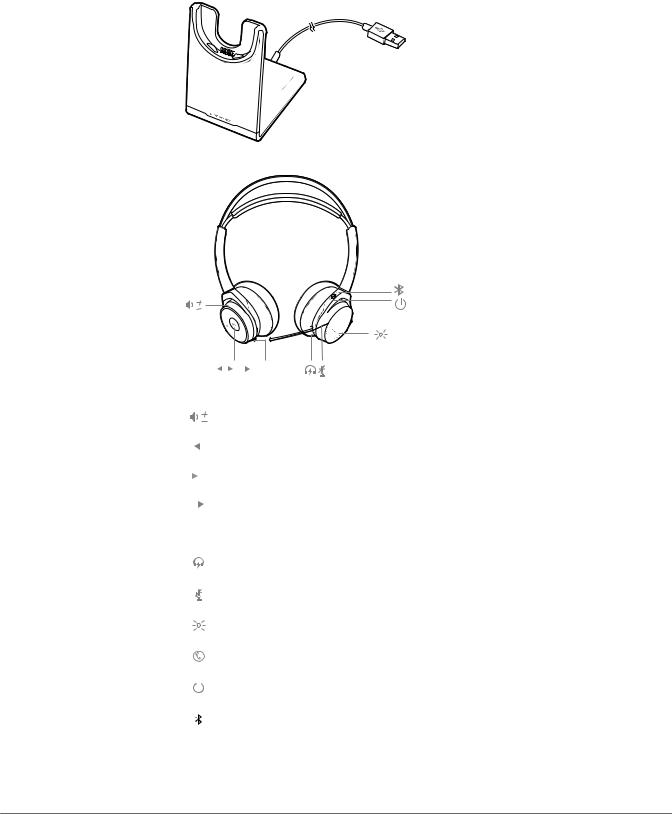
Overview
Charge stand
Headset


 ([ ])
([ ])
|
ANC |
|||||||
|
Volume up/down |
|||||||
|
Track backward |
|||||||
|
Play/pause music |
|||||||
|
Track forward |
|||||||
|
ANC |
Active noise cancelling |
||||||
|
Charge port |
|||||||
|
Active call = mute/unmute, call waiting (softphone only). Idle = open mic |
|||||||
|
Headset LEDs |
|||||||
|
Call button ([ ]) |
|||||||
|
Power button |
|||||||
|
Bluetooth pair button |
|||||||
3

USB Bluetooth adapter
|
USB LEDs |
What they mean |
|
Red and blue flashes |
Pairing |
|
Solid Blue |
Pairing successful; Connected |
|
Blue flashes |
On a call |
|
Solid red |
Mute active |
|
Purple flashes |
Streaming music/media from computer |
4
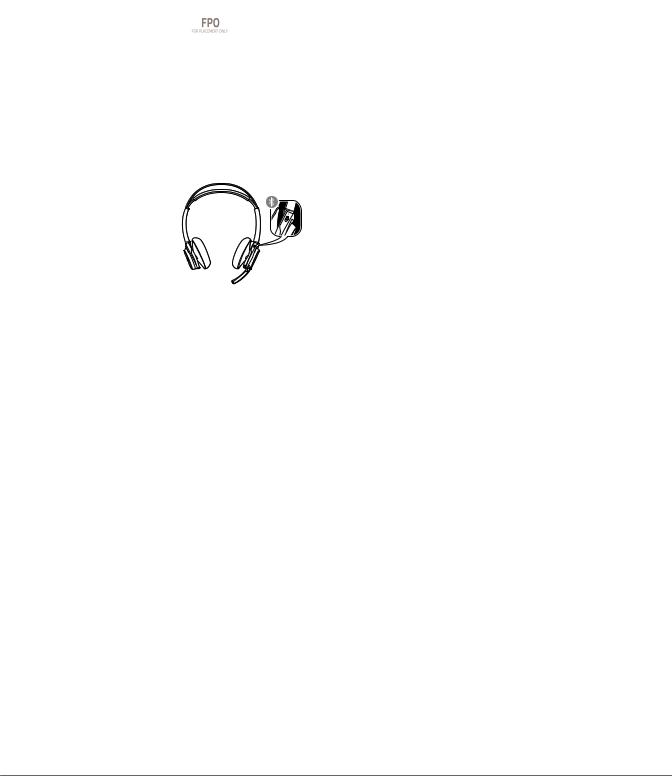
Connect and pair
Connect to PC Your Bluetooth USB adapter comes pre-paired to your headset.
1Insert the Bluetooth USB adapter into your laptop or PC (not docking station).
2Headset call control Some softphones require downloading Plantronics Hub for Windows and
Mac at plantronics.com/software for headset button functionality.
NOTE Plantronics Hub software allows you to customize your headset’s behavior through advanced settings and options.
Pair your headset 1 To put your headset in pair mode, press and hold the power button towards the Bluetooth icon until you hear «pairing» and the headset LEDs flash red and blue.
2Activate Bluetooth on your phone and set it to search for new devices.
•iPhone Settings > Bluetooth > On*
•Android Settings > On > Scan for devices*
NOTE *Menus may vary by device.
3Select “PLT_Madone.”
If necessary, enter four zeros (0000) for the passcode or accept the connection.
Once successfully paired, you hear “pairing successful” and the headset LEDs stop flashing.
NOTE Your headset can pair with up to 8 devices but only maintain 2 connections simultaneously; this includes the Bluetooth USB adapter.
5
Related Documents
| BT600-External Photograph | External Photos | |
| BT600-Internal Photograph | Internal Photos | |
| BT600-Label&Label Location-2015-02-10 | ID Label/Location Info | |
| BT600-User Guide | Users Manual |


Madone/Madone-M
User Guide
Contents
Overview 3
Charge stand 3
Headset
USB Bluetooth adapter
Connect and pair 5
Connect to PC 5
Pair your headset 5
Fit and charge 6
Right or left 6
Charge your headset
Load software 7
Customize your headset
The Basics 8
Make/Take/End Calls 8
Mute/unmute
Volume 8
Play or pause music 8
Track selection 8
Use sensors 8
ANC 9
More Features 10
DeepSleep Mode 10
Pair multiple devices 10
What's in the box
Support
11
12
Overview
Charge stand
Headset
([ ])
ANC
Volume up/down
Track backward
Play/pause music
Track forward
ANC
Active noise cancelling
Charge port
Active call = mute/unmute, call waiting (softphone only). Idle = open mic
Headset LEDs
Call button ([ ])
Power button
Bluetooth pair button
USB Bluetooth adapter
USB LEDs
Red and blue flashes
Solid Blue
Blue flashes
Solid red
Purple flashes
What they mean
Pairing
Pairing successful; Connected
On a call
Mute active
Streaming music/media from computer
Connect and pair
Connect to PC
Pair your headset
Your Bluetooth USB adapter comes pre-paired to your headset.
Insert the Bluetooth USB adapter into your laptop or PC (not docking station).
Headset call control Some softphones require downloading Plantronics Hub for Windows and
Mac at plantronics.com/software for headset button functionality.
NOTE Plantronics Hub software allows you to customize your headset's behavior through advanced
settings and options.
To put your headset in pair mode, press and hold the power button towards the Bluetooth icon
until you hear "pairing" and the headset LEDs flash red and blue.
Activate Bluetooth on your phone and set it to search for new devices.
• iPhone Settings > Bluetooth > On*
• Android Settings > On > Scan for devices*
NOTE *Menus may vary by device.
Select “PLT_Madone.”
If necessary, enter four zeros (0000) for the passcode or accept the connection.
Once successfully paired, you hear “pairing successful” and the headset LEDs stop flashing.
NOTE Your headset can pair with up to 8 devices but only maintain 2 connections simultaneously;
this includes the Bluetooth USB adapter.
Fit and charge
Right or left
To position the microphone on the right or left side, rotate the microphone boom up and over.
Adjust the boom so it points to the corner of your mouth.
TIP Your headset is smart enough to know what side you are wearing it on and all headset controls
including L/R audio channels will switch with your boom side preference.
Charge your headset
Charge your headset with the charge stand or the micro USB cable. Choose:
• Charge stand
• Micro USB cable
The headset LEDs flash when charging. It takes up to 2 hours to fully charge your headset. The
LEDs turn off once charging is complete.
Load software
Some softphones require downloading Plantronics Hub for Windows and
Mac for headset button functionality.
Load Plantronics Hub for Windows and Mac by visiting plantronics.com/software.
Customize your headset
Manage your headset settings by downloading Plantronics Hub for Windows and Mac on your
computer or Plantronics Hub for iOS and Android on your phone by visiting
plantronics.com/software.
Plantronics Hub
Turn features on/off
iOs and Android
Windows and Mac
Change headset language
Update firmware
Customize headset settings
View user guide
The Basics
([ ])
ANC
Make/Take/End Calls
Answer or end a call
Tap the Call button.
Answer a second call
First, tap the Call button
call.
to end current call, then tap the Call button
again to answer new
Call back last call (smartphone)
To dial your last number you dialed, double-tap the Call button.
Voice dial (smartphone)
If your smartphone has a voice-enabled assistant, press and hold the Call button for 3
seconds and wait for the phone prompt.
Mute/unmute
While on an active call, choose:
• Tap the red Mute button
• Take off/put on your headset while on an active call (active smart sensors)
Mute on reminder*
If you have muted an active call and you start to speak, a voice prompt or toast reminds you
that you are on mute. Manage your mute settings and mute alerts by downloading Plantronics
Hub for Windows and Mac at plantronics.com/software.
NOTE *Plantronics Hub for Windows and Mac required. Download at plantronics.com/software
Hear your surroundings
Tap the red Mute button while not on a call to hear your surroundings.
Volume
Play or pause music
Rotate the volume wheel
Tap the Audio
forward (+) or backward (–) to control the volume.
button.
NOTE With smart sensors active, taking off the headset will pause music and putting them on will
resume it.
Track selection
Tap the Forward button
or Back button
to control the track selection.
Use sensors
Smart sensors respond when you put on or take off your headphones.
With active sensors
putting on the headset will:
taking off the headset will:
Call
answer the call
mute the headset
Music/media
resume music/media (if playing
previous to taking off)
pause music/media (if playing)
Mute
unmute if on an active call
mute if on an active call
Disable sensors
To disable the sensors, hold both the Mute and Call buttons for more than 6 seconds until
the LED flashes purple then red. Repeat to reactivate; the LED flashes purple then blue.
Reset sensors
You may need to reset the sensors if they are not working as expected.
To reset the sensors, charge your headset on the charge stand for 10 seconds.
ANC
Active Noise Cancelling (ANC) reduces unwanted noise.
Slide the switch towards ANC to activate.
More Features
DeepSleep Mode
If you leave your headphones powered on but out of range of your paired phone for more than 7
days, your headset conserves its battery power by entering into DeepSleep mode.
Once back in range with your phone, press the Call control
Pair multiple devices
button to exit DeepSleep mode.
Your headset can pair with up to 8 devices but only maintain 2 connections simultaneousl; this
includes the Bluetooth USB adapter.
If you choose to pair multiple devices and want to switch devices, manually disconnect a
device from the Bluetooth settings menu to allow the headset to connect to a third paired
device.
Answer calls from a second device
It's easy to answer calls from two devices (including PC softphone).
When on a call, you hear a ringtone notification of the incoming call from the second paired
device.
To answer a second call from the other device, end the current call (tap Call button) so the new
call automatically answers.
If you choose to not answer the second call, it will go to voicemail.
10
What's in the box
Headset
Base
Bluetooth USB
Adapter
Carrying case
Micro USB cable
Wall charger*
NOTE * Accessory sold separately
11
FCC statement
·This device complies with part 15 of the FCC Rules. Operation is subject to the
following two conditions: (1) This device may not cause harmful interference, and (2)
this device must accept any interference received, including interference that may cause
undesired operation.
·These limits are designed to provide reasonable protection against harmful interference
in a residential installation. This equipment generates, uses and can radiate radio
frequency energy and, if not installed and used in accordance with the instructions, may
cause harmful interference to radio communications.
However, there is no guarantee that interference will not occur in a particular installation.
·If this equipment does cause harmful interference to radio or television reception,
which can be determined by turning the equipment off and on, the user is encouraged to
try to correct the interference by one or more of the following measures:
—Reorient or relocate the receiving antenna.
—Increase the separation between the equipment and receiver.
—Connect the equipment into an outlet on a circuit different from that to which the
receiver is connected.
—Consult the dealer or an experienced radio/TV technician for help.
RF exposure warning
This equipment complies with FCC radiation exposure limits set forth for an uncontrolled
environment. The equipment must not be co-located or operating in conjunction with any other
antenna or transmitter.
The measured SAR levels evaluated are in compliance with the FCC RF exposure guidelines.
NOTE: THE GRANTEE IS NOT RESPONSIBLE FOR ANY CHANGES OR
MODIFICATIONS NOT EXPRESSLY APPROVED BY THE PARTY RESPONSIBLE
FOR COMPLIANCE. SUCH MODIFICATIONS COULD VOID THE USER’S
AUTHORITY TO OPERATE THE EQUIPMENT.
IC Radiation Exposure Statement for Canada
This device complies with Industry Canada licence-exempt RSS standard(s). Operation is
subject to the following two conditions: (1) this device may not cause interference, and (2)
this device must accept any interference, including interference that may cause undesired
operation of the device.
Le présent appareil est conforme aux CNR d'Industrie Canada applicables aux appareils
radio exempts de licence. L'exploitation est autorisée aux deux conditions suivantes : (1)
l'appareil ne doit pas produire de brouillage, et (2) l'utilisateur de l'appareil doit accepter
tout brouillage radioélectrique subi, même si le brouillage est susceptible d'en
compromettre le fonctionnement.
NCC警語
低功率電波輻性電機管理辦法
第十二條
經型式認證合格之低功率射頻電機,非經許可,公司,商號或使用者均不得擅自變更頻率,加
大功率或變更原設計之特性及功能。
第十四條
低功率射頻電機之使用不得影響飛航影響安全及干擾合法通信,經發現有干擾現象時,應立
即停用,並改善至無干擾時方得繼續使用。前項合法通信, 指一電信法規定作業之無線電
通信低功率射頻電機需忍受合法通信或工業,科學及醫療用電波輻射性電機設備之干擾。
Support
NEED MORE HELP?
plantronics.com/support
Plantronics, Inc.
Plantronics BV
345 Encinal Street
South Point Building C
Santa Cruz, CA 95060
Scorpius 140
United States
2132 LR Hoofddorp, Netherlands
© 2014 Plantronics, Inc. Plantronics and Simply Smarter Communications are trademarks of Plantronics, Inc., registered in the US and other countries.
Bluetooth is a registered trademark of Bluetooth SIG, Inc. and any use by Plantronics is under license. All other trademarks are the property of their
respective owners.
Patents pending.
XXXXXX-06 (11.14)
| Document ID | 2529977 |
| Application ID | gGJlNFxxwTVDAzOE8ybGQQ== |
| Document Description | BT600-User Guide |
| Download: |  |
| Mirror Download [FCC.gov] | |
| Short Term Confidential | No |
| Permanent Confidential | No |
| Supercede | No |
| Document Type | User Manual |
| Display Format | Adobe Acrobat PDF — pdf |
| Filesize | 101.09kB (1263623 bits) |
| Date Submitted | 2015-02-11 00:00:00 |
| Date Available | 2015-08-12 00:00:00 |
| Creation Date | 2014-11-21 16:57:45 |
| Producing Software | Antenna House PDF Output Library 2.6.0 (Windows (x64)) |
| Document Lastmod | 2015-02-03 14:06:16 |
| Document Title | BT600-User Guide |
| Document Creator | AH Formatter V6.0 R1c (6,0,2011,1003) for Windows (x64) |
Source Exif Data [exif.tools]:
File Type                       : PDF
File Type Extension             : pdf
MIME Type                       : application/pdf
PDF Version                     : 1.5
Linearized                      : No
Page Mode                       : UseOutlines
XMP Toolkit                     : 3.1-702
Create Date                     : 2014:11:21 16:57:45-08:00
Creator Tool                    : AH Formatter V6.0 R1c (6,0,2011,1003) for Windows (x64)
Modify Date                     : 2015:02:03 14:06:16+08:00
Metadata Date                   : 2015:02:03 14:06:16+08:00
Thumbnail Width                 : 208
Thumbnail Height                : 256
Thumbnail Format                : JPEG
Thumbnail Image                 : (Binary data 9768 bytes, use -b option to extract)
Producer                        : Antenna House PDF Output Library 2.6.0 (Windows (x64))
Trapped                         : False
N Pages                         : 1
Has Visible Transparency        : False
Has Visible Overprint           : False
Max Page Size W                 : 612.000000
Max Page Size H                 : 792.000000
Max Page Size Unit              : Points
Font Name                       : Gesta-Bold, Gesta
Font Family                     : Gesta, Gesta
Font Face                       : Bold
Font Type                       : Open Type, Unknown
Font Version                    : Version 2.010, Version 2.106;PS 2.000;hotconv 1.0.70;makeotf.lib2.5.58329
Font Composite                  : False, False
Font File Name                  : Rui Abreu - Gesta-Bold.otf, MyriadPro-Regular.otf
Plate Names                     : Cyan, Magenta, Yellow, Black, PANTONE Cool Gray 8 C, black
Swatch Groups Group Name        : Default Swatch Group
Swatch Groups Group Type        : 0
Swatch Groups Colorants Swatch Name: black
Swatch Groups Colorants Type    : SPOT
Swatch Groups Colorants Tint    : 100.000000
Swatch Groups Colorants Mode    : CMYK
Swatch Groups Colorants Cyan    : 0.000000
Swatch Groups Colorants Magenta : 0.000000
Swatch Groups Colorants Yellow  : 0.000000
Swatch Groups Colorants Black   : 100.000000
Format                          : application/pdf
Rendition Class                 : proof:pdf
Document ID                     : uuid:931bb718-34c6-4727-8a7d-a2f3421142e3
Instance ID                     : uuid:edb6cea7-9a83-45ba-aa3d-fe4d885f39dd
Page Count                      : 14
Creator                         : AH Formatter V6.0 R1c (6,0,2011,1003) for Windows (x64)
Highlight all
Match case
Current View
Current View
Enter the password to open this PDF file:
File name:
—
File size:
—
Title:
—
Author:
—
Subject:
—
Keywords:
—
Creation Date:
—
Modification Date:
—
Creator:
—
PDF Producer:
—
PDF Version:
—
Page Count:
—
Preparing document for printing…
0%