

Summary of Content for Boss GT-1000CORE Owner’s Manual PDF
Owners Manual
Owners Manual (this document) Read this first. It explains the basic things you need to know in order to use the GT-1000CORE.
PDF Manual (download from the Web)
5 Parameter Guide This explains all parameters of the GT-1000CORE.
5 Sound List This is a list of the sounds built into the GT-1000CORE.
5 MIDI Implementation This is detailed information about MIDI messages.
To obtain the PDF manual 1. Enter the following URL in your computer.
http://www.boss.info/manuals/
I 2. Choose GT-1000CORE as the product name.
Getting Ready . . . . . . . . . . . . . . . . . . . . . . . . . . . . . . . . . . . . . . . . . 2
Connecting the Equipment . . . . . . . . . . . . . . . . . . . . . . . . . . . . . . 2
Turning the Power On . . . . . . . . . . . . . . . . . . . . . . . . . . . . . . . . . . . 3
Specify the Type of Amplifier You Have Connected . . . . . . 3
Adjusting the Volume . . . . . . . . . . . . . . . . . . . . . . . . . . . . . . . . . . . 3
Using the Tuner . . . . . . . . . . . . . . . . . . . . . . . . . . . . . . . . . . . . . . . . . . 3
Tuner Settings . . . . . . . . . . . . . . . . . . . . . . . . . . . . . . . . . . . . . . . . . . 3
Playing . . . . . . . . . . . . . . . . . . . . . . . . . . . . . . . . . . . . . . . . . . . . . . . . . 4
Selecting a Patch . . . . . . . . . . . . . . . . . . . . . . . . . . . . . . . . . . . . . . . . 4
About the Play Screen . . . . . . . . . . . . . . . . . . . . . . . . . . . . . . . . . . 4
Selecting the Control Mode . . . . . . . . . . . . . . . . . . . . . . . . . . . . . 5
Using the GT-1000CORE with a Bass Guitar . . . . . . . . . . . . . . 5
Editing: Effects . . . . . . . . . . . . . . . . . . . . . . . . . . . . . . . . . . . . . . . . 6
Basic Procedure for Effect Editing . . . . . . . . . . . . . . . . . . . . . . . . 6
Effect Placement . . . . . . . . . . . . . . . . . . . . . . . . . . . . . . . . . . . . . . . . 6
Using STOMPBOX . . . . . . . . . . . . . . . . . . . . . . . . . . . . . . . . . . . . . . . . 7
Editing the STOMPBOX . . . . . . . . . . . . . . . . . . . . . . . . . . . . . . . . . 7
Reading STOMPBOX Settings into a Patch . . . . . . . . . . . . . . . 7
Writing Patch Settings into a STOMPBOX . . . . . . . . . . . . . . . . 8
Saving a Patch . . . . . . . . . . . . . . . . . . . . . . . . . . . . . . . . . . . . . . . . . . . 8
Editing: MENU . . . . . . . . . . . . . . . . . . . . . . . . . . . . . . . . . . . . . . . . . 9
Basic MENU Operations . . . . . . . . . . . . . . . . . . . . . . . . . . . . . . . . . . 9
Assigning Favorite Parameters to [1][5] Knobs . . . . . . . . . . 9
Adjusting the Contrast (Brightness) of the Display . . . . . . . 9
Restoring the Factory Default Settings (Factory Reset) . . . 10
Turning Off the Auto Off Function . . . . . . . . . . . . . . . . . . . . . . . 10
Using the Metronome . . . . . . . . . . . . . . . . . . . . . . . . . . . . . . . . . . 10
Connecting to a Computer . . . . . . . . . . . . . . . . . . . . . . . . . . . 11
Installing the USB Driver . . . . . . . . . . . . . . . . . . . . . . . . . . . . . . . . . 11
Using the GT-1000CORE as an Audio Interface . . . . . . . . . . . 11
Connecting with an External MIDI Device . . . . . . . . . 12
Operations from the GT-1000CORE . . . . . . . . . . . . . . . . . . . . . . 12
Operations from an External MIDI Device . . . . . . . . . . . . . . . . 12
Footswitch and Expression Pedal Settings . . . . . . . . 13
Assigning a Function . . . . . . . . . . . . . . . . . . . . . . . . . . . . . . . . . . . . 13
Making Assignments from the Effect Edit Screen (Quick Assign) . . . . . . . . . . . . . . . . . . . . . . . . . . . . . . . . . . . . . . . . . . 13
Connecting External Pedals . . . . . . . . . . . . . . . . . . . . . . . . . . . . . 14
Looper . . . . . . . . . . . . . . . . . . . . . . . . . . . . . . . . . . . . . . . . . . . . . . . . . . 15
Assigning Looper Functions to Switches . . . . . . . . . . . . . . . . . 15
Loop Playback Level Setting . . . . . . . . . . . . . . . . . . . . . . . . . . . . 15
Switch Color . . . . . . . . . . . . . . . . . . . . . . . . . . . . . . . . . . . . . . . . . . . . 15
Main Specifications . . . . . . . . . . . . . . . . . . . . . . . . . . . . . . . . . . . 16
USING THE UNIT SAFELY . . . . . . . . . . . . . . . . . . . . . . . . . . . . . 16
IMPORTANT NOTES . . . . . . . . . . . . . . . . . . . . . . . . . . . . . . . . . . . 17
2020 Roland Corporation
Before using this unit, carefully read USING THE UNIT SAFELY and IMPORTANT NOTES (leaflet USING THE UNIT SAFELY and Owners Manual (p. 16, 17)).After reading, keep the document(s) where it will be available for immediate reference.
2
Getting Ready
Connecting the Equipment
* To prevent malfunction and equipment failure, always turn down the volume, and turn off all the units before making any connections.
* Before turning the unit on/off, always be sure to turn the volume down. Even with the volume turned down, you might hear some sound when switching the unit on/off. However, this is normal and does not indicate a malfunction.
NOTE
While the display indicates SAVING…, data is being saved. Do not turn off the power during this time.
SEND (1, 2)/RETURN (1, 2) jacks
Connect an external effect processor here.
OUTPUT jack
Connect your equipment to the OUTPUT jack(s).
2 Connect your guitar, etc.
3
MIDI IN/OUT jacks
Connect an external MIDI device here. (p. 12)
* Use a TRS/MIDI connecting cable (sold separately: BMIDI-5-35) to connect an external MIDI device.
* Do not connect an audio device here. Doing so will cause malfunctions.
USB COMPUTER port
Use a USB cable to connect to a computer and exchange audio/MIDI data between the GT-1000CORE and the computer (p. 11).
You can also use the SEND (1, 2)/RETURN (1, 2) jacks as SEND (L, R)/RETURN (L, R) jacks for connecting a stereo effect unit. You can also use the SEND (1, 2) jacks as SUB OUT jacks, and use the RETURN jacks as AUX IN jacks. For details on the parameter, refer to GT-1000CORE Parameter Guide (PDF).
DC IN jack
Connect the included AC adaptor here.
* The DC IN jack also serves as the power switch. Power is turned on whenever a plug is inserted into the DC IN jack, and is turned off when the plug is disconnected.
Indicator
CTL2, 3/EXP 1 jack, CTL4, 5/EXP 2 jack
You can control various parameters by connecting an expression pedal (EV-30, Roland EV-5: sold separately) or a footswitch (FS-5U, FS-6, FS-7: sold separately).
For details on the settings, refer to Footswitch and Expression Pedal Settings (p. 13).
* You can use the CTL4, 5/EXP 2 jack to switch the channels of your guitar amp. For details, refer to GT-1000CORE Parameter Guide (PDF).
* Use only the specified expression pedal. By connecting any other expression pedals, you risk causing malfunction and/or damage to the unit.
Connect these to your guitar amp, mixer, or headphones (sold separately.
* If using a mono connection, use only the R/MONO jack.
* Connect your headphones to the L/PHONES jack. If youre using headphones, dont connect anything to R/MONO jack.
* Only the OUTPUT signal is output from the headphones. The SUB OUT signal is not output. For details, refer to GT-1000CORE Parameter Guide (PDF).
Turn down the volume of the connected device.
1 Turn on the power of the amp(s).
5
Rear Panel Side Panel (Left) Ground Terminal
* Connect this to an external earth or ground if necessary. Turning the power on.
4
Connect your guitar or the output of another effect unit. If you are inputting in mono, use only the R/MONO jack.
INPUT R/MONO, L jacks
Attaching the Rubber Feet You can attach the rubber feet (included) if necessary. Attach them in the locations shown in the illustration.
* Using the unit without rubber feet may damage the floor.
* When turning the unit over, be careful so as to protect the buttons and knobs from damage. Also, handle the unit carefully; do not drop it.
3
Getting Ready
In this manual, the order of the MENU operations is written as follows.
Press the [MENU] button. Use the [3] knob to select IN/OUT SETTING. Use the [1] knob to select INPUT.
? Choose [MENU] 0 IN/OUT SETTING 0 INPUT.
Turning the Power On Turn the power on in the order of steps 1 5 . To turn the power off, reverse the order.
Specify the Type of Amplifier You Have Connected 1. Choose [MENU] 0 IN/OUT SETTING 0 OUTPUT 0
OUTPUT SELECT.
The menu screen appears.
2. Turn knob [SELECT] to select the type of amp.
For details on the amp types, refer to the GT-1000CORE Parameter Guide (PDF).
MEMO
If you are using the AIRD PREAMP of the GT-1000CORE, we recommend that in order to take full advantage of its characteristics, you connect to an input that is not affected by a preamp, such as the RETURN jack, rather than using the guitar input jack that is affected by the preamp of the guitar amp.
Adjusting the Volume Use [OUTPUT LEVEL] knob to adjust the overall volume of the GT-1000CORE.
Using the Tuner The GT-1000CORE is equipped with a conventional monophonic tuner which lets you tune your instrument one string at a time, and a polyphonic tuner which lets you play and tune all of your open strings simultaneously.
1. Press the [I] (H) switch.
The tuner screen appears. You can use the PAGE [K] [J] buttons to switch the tuner display.
Monophonic/polyphonic display
Monophonic display
Polyphonic display
You can also start the tuner as follows.
1. Choose [MENU] 0 TUNER.
TUNER is located in the first page of the menu. Use the PAGE [K] [J] buttons to access the first page.
Tuner Settings To make tuner settings, use knobs [1][6] located below the display.
Tuner settings Parameter Value Explanation
[1] MODE (TUNER MODE)
NORMAL, STREAM Specifies the meter display method for the monophonic tuner.
[2] Pitch 435445 Hz (default: 440 Hz) Specifies the reference pitch.
[3] OUTPUT
MUTE Sound will not be output while tuning.
BYPASS
While tuning, the sound of the guitar being input to the GT-1000CORE will be output without change. All effects will be off.
THRU
Allows you to tune while hearing the current effect sound.
* Only for monophonic tuner.
[4] TYPE
6-REG (6-REGULAR), 6-DROP D, 7-REG (7-REGULAR), 7-DROP A, 4-B REG (4-B REGULAR), 5-B REG (5-B REGULAR)
Selects the type of tuning for the polyphonic tuner.
[5] OFFSET -5-1, —-
Adjusts the reference pitch of the polyphonic tuner in semitone units relative to standard tuning.
4
Playing
Selecting a Patch A combination of effects and their settings is called a patch.
Patch
User patch (U001U250) Can be overwritten
Preset patch (P001P250) Cannot be overwritten, however, you can write a Preset patch into the User area, modify the settings to your needs and store your modified version in the User area.
1. Use the [I] switch or [H] switch to select a patch.
Patch Number
Patch name
MEMO
You can also change patches by turning knob [SELECT] below the display.
About the Play Screen The screen that appears after you turn on the power is called the Play screen. The following four types of play screen are provided; use the PAGE [K] [J] buttons to switch between the types of display.
Large patch number
Large patch name
Show functions assigned to switches of this unit
MEMO
When the screen at left is shown, you can press the PAGE [K] [J] buttons simultaneously to edit the functions that are assigned to the switches of the unit. Use the [SELECT] knob to select the switch that you want to edit, and then press the [SELECT] knob to select the function. To return to the previous screen, press the PAGE [K] [J] buttons simultaneously once again.
Show effect configuration
Icons shown in the play screen
Areas which icons are displayed
Indication Explanation
Indicates the input level.
Indicates the output level.
Indicates the return level.
Indicates the send level.
Indicates the amount of compression when the compressor is operating.
Indicates the BPM.
, Blinks in time with the BPM.
Indicates the page to which you navigate using the PAGE [K] [J] buttons (edit screen).
MEMO
You can change the parameters that are adjusted by knobs [1] [5] when the play screen is shown. For details, refer to the Assigning Favorite Parameters to [1][5] Knobs (p. 9).
5
Playing
Selecting the Control Mode The control mode setting lets you choose how you want to operate the effects.
1. Choose [MENU] 0 CONTROL MODE.
2. Turn knob [SELECT] to select the control mode.
Parameter Explanation
MEMORY (Memory mode)
This mode lets you recall and use the patches that are saved in the unit. Use the [I] switch and [H] switch to switch patches.
* Press the [I] switch and [H] switch simultaneously to start the tuner.
* Press the [H] switch and [CTL 1] switch simultaneously to select manual mode.
* Even in memory mode, you can select functions other than patch recall.
MANUAL (Manual mode)
This mode lets you use the [I] switch and [H] switch to operate the functions that are assigned to them by each patch or by the settings for the entire system. When you select manual mode, a portion of the PLAY screen changes.
* Press the [I] switch and [H] switch simultaneously to start the tuner.
* Press the [H] switch and [CTL 1] switch simultaneously to select memory mode.
Assigning the switches in manual mode In manual mode, the functions that are assigned to [I], [H], and [CTL1] switches can be changed as follows.
1. Choose [MENU] 0 CONTROL ASSIGN 0 CONTROL FUNCTION.
2. Use the PAGE [K] [J] buttons to move to the last page.
3. Use knobs [1][2] to select parameters or edit the values.
Using the GT-1000CORE with a Bass Guitar If youre using a bass guitar, turn bass mode on.
1. Press the [EFFECT] button.
The edit screen (effect chain) appears.
2. Turn knob [SELECT] to select MST.
3. Use the PAGE [K] [J] buttons to move to the last page.
4. Turn knob [2] (BS MODE) to select ON.
Turn ON
6
Editing: Effects
Basic Procedure for Effect Editing The edit screens show the block configuration (effect chain) of all effects provided by the GT-1000CORE, as well as the output and send/return. You can edit from this effect chain display by selecting the block that you want to edit.
1. Press the [EFFECT] button.
The edit screen (effect chain) appears.
2. Turn knob [SELECT] to select the block that you want to edit.
The selected block is enclosed by a thick frame.
* By pressing knob [SELECT] you can turn the selected effect on/off. Effects that are off are shown in gray. When the effect is turned on, it is shown in white.
Off On
3. Use knobs [1][5] to adjust the parameters that are shown below the screen.
Use the PAGE [K] [J] buttons to switch between the parameters that you want to edit. The current page is indicated in the lower center of the screen.
* To change a value in larger steps, turn a knob while pressing it.
* The number of parameters and pages differs depending on the effect.
Editing while viewing all parameters From the edit screen, you can long-press knob [SELECT] to see a list of all parameters of the selected block. You can edit the parameters from this list.
1. Turn the [SELECT] knob to select the item that you want to set. Turning the knob will move the selected item vertically.
2. Turn knobs [1][6] to edit the value of the parameters shown in the screen. Use the PAGE [K] [J] buttons to switch between lists of parameters.
Effect Placement By moving blocks such as effects, output, and send/return, you can freely change the order in which the effects are placed, or arrange them in parallel.
Changing the placement of effects etc.
1. Press the [EFFECT] button. The effect chain is shown.
2. Use knob [SELECT] to select the block that you want to move.
3. While pressing knob [SELECT], turn it left or right. The selected block moves left or right.
7
Editing: Effects
Switching patches without interrupting the sound The GT-1000CORE is equipped with a new type of high-speed patch switching system, allowing you to switch patches with minimal interruption of the sound. The fastest possible switching is automatically performed for each patch, and switching without interrupting the sound is also possible.
Tips for preventing interruptions in the sound To prevent interruptions in the sound, observe the following points when you create the patches that are used before and after the switch.
5 Avoid changing the position of blocks within the chain.
5 Use multiple blocks when placing the effects (dont change the TYPE within the same block).
5 Use parallel positioning, and switch the channel.
Example: Switching from a clean sound that uses chorus and deep delay, to a crunch sound that uses phaser and shallow delay.
AMP 2
FX2 PH
DLY 2
AMP 1
FX1 CHO
DLY 1
AMP 2
FX2 PH
DLY 2
AMP 1
FX1 CHO
DLY 1
The same chain is used for both patches, both before and after switching. The settings of the effect used before switching are placed in parallel with the settings used after switching.
Using STOMPBOX Your preferred settings for each effect can be saved as a STOMPBOX. You can select these saved settings and use them to create your sound just as though you were connecting compact pedal effects. The STOMPBOX data is common to all patches; this means that all patches using the same STOMPBOX can be edited simultaneously.
1. Press the [EFFECT] button.
2. Use the [SELECT] knob to choose the effect youre going to edit.
3. Use the PAGE [K] [J] buttons to move to the last page.
4. Press the [5] knob. The STOMPBOX select window appears.
5. Turn knob [SELECT] to select the STOMPBOX type.
6. Press the [SELECT] knob.
Editing the STOMPBOX 1. Turn knobs [1][5] to edit the parameter value that are
shown in the screen. Use the PAGE [K] [J] buttons to switch between lists of parameters.
Reading STOMPBOX Settings into a Patch 1. Press the [EFFECT] button.
2. Use the [SELECT] knob to choose the effect youre going to edit.
3. Use the PAGE [K] [J] buttons to move to the last page.
4. Press the [5] knob. The STOMPBOX select window appears.
5. Turn knob [SELECT] to select the STOMPBOX type.
6. Press the [5] (STOMPBOX COPY) knob. The contents of the STOMPBOX are recalled into the patch. You can edit the patch without modifying the contents of the STOMPBOX.
8
Editing: Effects
Writing Patch Settings into a STOMPBOX 1. Press the [EFFECT] button.
2. Use the [SELECT] knob to choose the effect youre going to save.
3. Use the PAGE [K] [J] buttons to move to the last page.
4. Press the [5] knob. The STOMPBOX select window appears.
5. Press the [4] (WRITE TO STOMPBOX) knob.
6. Turn knob [1] to select the writing-destination STOMPBOX.
7. Use knobs [3][5] and [SELECT] knob to name the STOMPBOX. You can turn the [SELECT] knob to move the cursor within the name.
Reference
For details on naming the STOMPBOX, refer to Editing a name (p. 8).
Saving a Patch When you want to save a patch you have created, save it as a user patch by following the procedure below. If you do not save the patch, the edited settings will be lost when you turn off the power or switch to another patch.
1. Press the [WRITE] button.
2. Press knob [1] to select WRITE (PATCH WRITE).
3. Use knob [1] to select the save-destination (U001U250). You can use knobs [3][5] and [SELECT] knob to edit the name.
Editing a name To edit the patch name, use knob [SELECT] to move the cursor and use knob [5] to change the character.
Controller Operation
Turn the [3] knob Selects the type of characters
Press the [3] knob Delete one character (delete)
Turn the [4] knob Switch uppercase/lowercase
Press the [4] knob Insert one space (insert)
Turn the [5] knob Changes the character
Turn the [SELECT] knob Moves the cursor
4. Press the [WRITE] button once again.
The patch is written.
9
Editing: MENU
Basic MENU Operations Here you can make settings that are common to the entire GT-1000CORE (system parameters).
For details on the parameter, refer to the GT-1000CORE Parameter Guide (PDF).
1. Press the [MENU] button.
* You can use the PAGE [K] [J] buttons to see additional items.
2. Press a knob [1][5] to select the item that you want to edit. A sub-menu appears.
3. Once again press a knob [1][5] to select the item that you want to edit.
4. Use knobs [1][5] and [SELECT] knob to select parameters or edit the values.
* The method of selecting parameters or editing values differs depending on the item. For details, refer to GT-1000CORE Parameter Guide (PDF).
Assigning Favorite Parameters to [1][5] Knobs Heres how to assign the parameters that are controlled by knobs [1][5] when the play screen (p. 4) is shown.
1. Choose [MENU] 0 HARDWARE SETTING 0 KNOB.
2. Use the [1][5] knobs to specify the parameters to be controlled by each knob.
3. Press the [EXIT] button a number of times to return to the play screen.
Adjusting the Contrast (Brightness) of the Display You can adjust the brightness of the display.
1. Choose [MENU] 0 HARDWARE SETTING 0 OTHER.
2. Adjust the value with the [2] knob.
10
Editing: MENU
Restoring the Factory Default Settings (Factory Reset) Restoring the GT-1000COREs settings to their original factory default settings is referred to as Factory Reset. Not only can you return all of the settings to the values in effect when the GT-1000CORE was shipped from the factory, you can also specify the items to be reset.
* When you execute Factory Reset, the settings you made will be lost. Save the data you need to your computer using the dedicated software.
1. Choose [MENU] 0 FACTORY RESET.
2. Choose the type of settings to be restored to the factory default settings with knobs [1] and [5].
Knob Parameter Value Explanation
[1] [5]
FROM TO
SYSTEM System parameter settings
U001U250 Settings for Patch Numbers U001U250
STOMPBOX Settings for STOMPBOX
3. Press the [WRITE] button.
Press the [5] button to execute the factory reset.
To cancel factory reset, press the [4] button. Once the Factory Reset is complete, you are returned to the Play screen.
Turning Off the Auto Off Function The GT-1000CORE can turn off its power automatically. The power will turn off automatically when 10 hours have passed since you last played or operated the unit. The display will show a message approximately 15 minutes before the power turns off. With the factory settings, this function is turned ON (power-off in 10 hours). If you want to have the power remain on all the time, turn it OFF.
1. Choose [MENU] 0 HARDWARE SETTING 0 OTHER.
2. Use the [1] knob to select OFF.
3. Press the [EXIT] button a number of times to return to the play screen.
Using the Metronome 1. Choose [MENU] 0 METRONOME.
METRONOME is located in the second page of the menu. Use the PAGE [K] [J] buttons to access the second page.
Metronome display
Metronome settings Use knobs [1][5] below the display to make metronome settings.
Parameter Value Explanation
[1] EFFECT TEMPO —
By pressing knob [1] you can set the metronomes BPM to the master BPM value.
[2] BPM 20250 Specifies the tempo.
[3] BEAT 1/18/1, 1/2 8/2, 1/48/4, 1/88/8
Specifies the time signature.
[4] OFF/ ON OFF, ON Turns the metronome on/off.
[5] LEVEL 0100 Specifies the volume of the metronome.
11
Connecting to a Computer By connecting the GT-1000CORE to a computer via USB, you can do the following.
USB COMPUTER port
5 Transmit and receive digital audio signals between the computer and the GT-1000CORE
5 Edit and manage patches, and display the GT-1000CORE Parameter Guide (PDF) on a computer using the dedicated software
5 Download patches from our dedicated BOSS TONE CENTRAL website & http://bosstonecentral.com/
* Do not use a micro USB cable that is designed only for charging a device. Charge-only cables cannot transmit data.
Installing the USB Driver You must install the USB driver before connecting to a computer. Please download the USB driver from the website shown below. Install this special driver before making a USB connection. For further details, refer to the Readme.htm file that comes with the download. & http://www.boss.info/support/
The program you need to use, and the steps you need to take to install the USB driver will differ depending on your computer setup, so please carefully read and refer to the Readme.htm file that comes with the download.
Using the GT-1000CORE as an Audio Interface You can record the sound of the GT-1000CORE on your computer, or have sound from your computer be output from the OUTPUT jacks.
* For details of the audio signal flow when connected via USB and instructions on how to make settings, refer to GT-1000CORE Parameter Guide (PDF).
* Refer to the instruction manual for the software you are using to learn how to switch the input source of the software.
Making use of the GT-1000COREs dedicated software Please download the dedicated software from the website shown below. For details on how to use the software, refer to the Readme.htm file that comes with the download. & http://www.boss.info/support/
Using the dedicated software allows you to do the following:
5 Easily download patches from our BOSS TONE CENTRAL website.
5 Edit patch settings
5 Name patches
5 Organize patches in order and switch them around
5 Back up patches and system settings, and return to the backed up settings
5 Display the GT-1000CORE Parameter Guide (PDF) on your computer
12
Connecting with an External MIDI Device On the GT-1000CORE, you can use MIDI to perform the following operations.
Operations from the GT-1000CORE
Operation Explanation
Transmit program change messages
When you select a patch on the GT-1000CORE, the program change message specified by PATCH MIDI is also transmitted. The external MIDI device that receives this program change message will switch to the corresponding settings.
Transmit control change messages
Operations of GT-1000COREs builtin footswitches, or footswitches or expression pedals connected to the CTL 2, 3/EXP1, and CTL 4, 5/EXP2 jacks, are transmitted as control change messages. These messages can control parameters on an external MIDI device.
Operations from an External MIDI Device
Operation Explanation
Switch patch numbers
When the GT-1000CORE receives a program change message from an external MIDI device, the GT-1000CORE will change patches.
Receive control change messages
The GT-1000CORE can receive control change messages to control a specified parameter while you perform.
Receive data The GT-1000CORE can receive data that is transmitted from another GT-1000CORE unit, or data that was saved on a MIDI sequencer.
Connection example
IN
IN
OUT
OUT
GT-1000CORE External MIDI device
* Use a TRS/MIDI connecting cable (sold separately: BMIDI-5-35) to connect an external MIDI device.
Settings
1. Choose [MENU] 0 MIDI0 MIDI SETTING.
2. Use [1][6] knobs to specify the value of each parameter.
For details on MIDI, refer to GT-1000CORE Parameter Guide) (PDF).
13
Footswitch and Expression Pedal Settings A variety of functions can be assigned each of the [I], [H], [CTL1] switches on the top panel, and expression pedals or footswitches that are connected to the rear panel CTL2, 3/EXP1 jack and side panel CTL4, 5/EXP2 jack (p. 14).
CTL2CTL5EXP1, EXP2
[I], [H], [CTL1] switches
Assigning a Function 1. Choose [MENU] 0 CONTROL ASSIGN 0 CONTROL
FUNCTION.
2. Turn the [SELECT] knob or knob [1] to select the item that you want to set. Turning the knob will move the selected item vertically.
The settings of the selected item can now be edited.
3. Turn knobs [2][5] to edit the value of the item selected for each switch.
* The footswitch and expression pedal functions must be specified for each patch; however, if you set PREF (PREFERENCE) to SYSTEM, all patches will use those functions in common.
Making Assignments from the Effect Edit Screen (Quick Assign) In the effect edit screen (p. 6), you can select an effect parameter and assign that parameter to the switch of your choice.
1. Press the [EFFECT] button.
2. Turn knob [SELECT] to select the block that you want to edit.
3. Long-press the knob [1][5] for the parameter that you want to assign.
The assign matrix setting screen appears.
* You can also access the assign matrix setting screen in the same way from the all-parameter list screen (p. 6). You can also access it by selecting [MENU] 0 CONTROL ASSIGN 0 ASSIGN SETTING.
4. Press [SELECT] knob or knob [1] to turn the SW on.
5. Turn knobs [2][5] to edit parameters. If necessary, use the PAGE [K] [J] buttons to switch between pages of settings. Use SOURCE to specify the pedal or MIDI message that you will operate.
14
Footswitch and Expression Pedal Settings
Connecting External Pedals
FS-5U FS-6
MODE/POLARITY switch
FS-7
FS-5U x 2
CTL 3
CTL 5
CTL 2
CTL 4
TIPRING
Stereo 1/4 phone type . /
1/4 phone type x 2
FS-6
CTL 3
CTL 5
CTL 2
CTL 4
Stereo 1/4 phone type . /
Stereo 1/4 phone type
FS-7
CTL 3
CTL 5
CTL 2
CTL 4
Stereo 1/4 phone type . /
Stereo 1/4 phone type
FS-5U x 1
CTL 2
CTL 4
1/4 phone type . /
1/4 phone type
EXP 1
EXP 2
Rear Panel Side Panel (Left)
15
Looper You can record up to 38 seconds (MONO) of a performance and play back the recorded section over and over. You can also layer additional performances with the recording as it plays back (overdubbing). This lets you create real-time backing performances on the fly.
Assigning Looper Functions to Switches To use the looper, you must first assign the loopers record, play, and overdub functions to the desired switches. Here we explain an example of how you can use the [CTL1] switch of the GT-1000CORE to operate the looper.
1. Select the patch with which you want to use the looper.
2. Choose [MENU] 0 CONTROL ASSIGN 0 CONTROL FUNCTION.
3. For CTL 1, set FUNCTION to LOOPER.
MEMO
5 With the factory settings, preset patches P246P250 and user patches U246U250 are set as shown above.
Loop Playback Level Setting If you set the playback level at 100 (default value), the volume of the performance and that of the loop playback will be identical. If you set the playback level to a value lower than 100, the volume of the playback will be lower than that of the performance. As a result, the sound of the performance wont get buried by the loop playback sound, even if you record a multiple number of times.
1. Press the [EFFECT] button.
2. Turn knob [SELECT] to select LOOPER.
3. Turn knob [1] to specify the LEVEL value.
Switch Color Color Status
Red Record
Yellow Overdub
Green Playback
Green (blink) Stopped (phrase exists)
Blue Stopped (no phrase)
MEMO
5 The recording time is up to 38 seconds (MONO). In stereo mode, the recording time is up to 19 seconds.
5 The recorded content will be lost when you turn off the Looper or turn off the power.
Record
Recording will start immediately when you press the [CTL1] switch. At the point where you want to loop, press the pedal to switch to playback.
Loop Playback
Play back the loop. Pressing the [CTL1] switch will switch to overdubbing.
Overdub
Record additional layers while playing back the loop. Press the [CTL1] switch to switch to playback.
Stop/Clear
To stop, press the [CTL1] switch twice. To clear the phrase, hold down the [CTL1] switch for at least two seconds while stopped.
Press Twice
16
Main Specifications Sampling Frequency 96 kHz
AD/DA conversion 32 bits
Processing 32-bit floating point
Memory 250 (User) + 250 (Preset)
Phrase Loop 38 sec. (MONO) 19 sec. (STEREO)
Tuner internal detection +/1 0.1 cent
Nominal Input Level
INPUT L/MONO, R: -10 dBu
RETURN 1, RETURN 2: -10 dBu
Maximum Input Level
INPUT L/MONO, R: +12 dBu
RETURN 1, RETURN 2: +12 dBu
Input Impedance INPUT L/MONO, R: 2 M
RETURN 1, RETURN 2: 1 M
Nominal Output Level
OUTPUT L/PHONES, R/MONO: -10 dBu
SEND 1, SEND 2: -12 dBu
Output Impedance
OUTPUT L/PHONES, R/MONO: 44
SEND 1, SEND 2: 1 k
Recommended Load Impedance
OUTPUT L/PHONES, R/MONO: 10 k or greater (Phones: 44 or greater)
SEND 1, SEND 2: 10 k or greater
Controls
[I] switch, [H] switch, [CTL 1] switch [EFFECT] button, [MENU] button, [EXIT] button, [WRITE] button, [PAGE] button [1][6] knobs, [SELECT] knob, [OUTPUT LEVEL] knob
Display Graphic LCD 256 x 80 dots
Indicators H indicator, I indicator, CTL 1 indicator
Connectors
INPUT (L/MONO, R), OUTPUT (R/MONO) jacks: 1/4- inch phone type
OUTPUT (L/PHONES) jack: 1/4-inch TRS phone type
CTL 2, 3/EXP 1, CTL 4, 5/EXP 2 jacks: 1/4-inch TRS phone type
MIDI (IN, OUT) connectors: Stereo miniature phone type
USB COMPUTER O port: USB Micro-B type
DC IN jack
Power Supply AC adaptor
Current Draw 670 mA
Dimensions
173 (W) x 135 (D) x 63 (H) mm 6-13/16 (W) x 5-3/8 (D) x 2-12 (H) inches 173 (W) x 135 (D) x 65 (H) mm 6-13/16 (W) x5-3/8 (D) x 2-9/16 (H) inches (including rubber foot)
Weight 920 g 2 lbs 1 oz
Accessories AC adaptor, Owners Manual, Leaflet USING THE UNIT SAFELY, Rubber foot x 4
Options (sold separately)
Footswitch: FS-5U Dual footswitch: FS-6, FS-7 Expression pedal: FV-500H, FV-500L, EV-30, Roland EV-5 TRS/MIDI cable: BMIDI-5-35
* 0 dBu = 0.775 Vrm
* This document explains the specifications of the product at the time that the document was issued. For the latest information, refer to the Roland website.
USING THE UNIT SAFELY
WARNING Concerning the Auto Off function
The power to this unit will be turned off automatically after a predetermined amount of time has passed since it was last used for playing music, or its buttons or controls were operated (Auto Off function). If you do not want the power to be turned off automatically, disengage the Auto Off function (p. 10).
Use only the supplied AC adaptor and the correct voltage
Be sure to use only the AC adaptor supplied with the unit. Also, make sure the line voltage at the installation matches the input voltage specified on the AC adaptors body. Other AC adaptors may use a different polarity, or be designed for a different voltage, so their use could result in damage, malfunction, or electric shock.
Use only the supplied power cord
Use only the attached power cord. Also, the supplied power cord must not be used with any other device.
CAUTION Keep small items out of the reach of children
To prevent accidental ingestion of the parts listed below, always keep them out of the reach of small children. Included Parts
Rubber feet (p. 2)
Handle the ground terminal carefully
If you remove the screw from the ground terminal, be sure to replace it; dont leave it lying around where it could accidentally be swallowed by small children. When refastening the screw, make that it is firmly fastened, so it wont come loose.
17
IMPORTANT NOTES Power Supply
Place the AC adaptor so the side with the indicator faces upwards. The indicator will light when you plug the AC adaptor into an AC outlet.
Placement Depending on the material and temperature of the surface on which you
place the unit, its rubber feet may discolor or mar the surface.
Repairs and Data
Before sending the unit away for repairs, be sure to make a backup of the data stored within it; or you may prefer to write down the needed information. Although we will do our utmost to preserve the data stored in your unit when we carry out repairs, in some cases, such as when the memory section is physically damaged, restoration of the stored content may be impossible. Roland assumes no liability concerning the restoration of any stored content that has been lost.
Additional Precautions Any data stored within the unit can be lost as the result of equipment
failure, incorrect operation, etc. To protect yourself against the irretrievable loss of data, try to make a habit of creating regular backups of the data youve stored in the unit.
Roland assumes no liability concerning the restoration of any stored content that has been lost.
Never strike or apply strong pressure to the display.
When disposing of the packing carton or cushioning material in which this unit was packed, you must observe the waste disposal regulations that apply to your locality.
Use only the specified expression pedal. By connecting any other expression pedals, you risk causing malfunction and/or damage to the unit.
Do not use connection cables that contain a built-in resistor.
Intellectual Property Right It is forbidden by law to make an audio recording, video recording, copy
or revision of a third partys copyrighted work (musical work, video work, broadcast, live performance, or other work), whether in whole or in part, and distribute, sell, lease, perform or broadcast it without the permission of the copyright owner.
Do not use this product for purposes that could infringe on a copyright held by a third party. We assume no responsibility whatsoever with regard to any infringements of third-party copyrights arising through your use of this product.
Roland and BOSS are either registered trademarks or trademarks of Roland Corporation in the United States and/or other countries.
ASIO is a trademark and software of Steinberg Media Technologies GmbH.
This product contains eParts integrated software platform of eSOL Co.,Ltd. eParts is a trademark of eSOL Co., Ltd. in Japan.
This Product uses the Source Code of T-Kernel under T-License 2.0 granted by the T-Engine Forum (www.tron.org).
Company names and product n
Manualsnet FAQs
If you want to find out how the GT-1000CORE Boss works, you can view and download the Boss GT-1000CORE Owner’s Manual on the Manualsnet website.
Yes, we have the Owner’s Manual for Boss GT-1000CORE as well as other Boss manuals. All you need to do is to use our search bar and find the user manual that you are looking for.
The Owner’s Manual should include all the details that are needed to use a Boss GT-1000CORE. Full manuals and user guide PDFs can be downloaded from Manualsnet.com.
The best way to navigate the Boss GT-1000CORE Owner’s Manual is by checking the Table of Contents at the top of the page where available. This allows you to navigate a manual by jumping to the section you are looking for.
This Boss GT-1000CORE Owner’s Manual consists of sections like Table of Contents, to name a few. For easier navigation, use the Table of Contents in the upper left corner.
You can download Boss GT-1000CORE Owner’s Manual free of charge simply by clicking the “download” button in the upper right corner of any manuals page. This feature allows you to download any manual in a couple of seconds and is generally in PDF format. You can also save a manual for later by adding it to your saved documents in the user profile.
To be able to print Boss GT-1000CORE Owner’s Manual, simply download the document to your computer. Once downloaded, open the PDF file and print the Boss GT-1000CORE Owner’s Manual as you would any other document. This can usually be achieved by clicking on “File” and then “Print” from the menu bar.

Owner’s Manual
|
Provision of Bluetooth functionality |
|
|
Please be aware that depending on the country |
|
|
in which you purchased the unit, Bluetooth |
|
|
functionality might not be included. |
|
|
Getting Ready. . . . . . . . . . . . . . . . . . . . . . . . . . . . . . . . . . . . . . . . . . . . |
2 |
|
Connecting the Equipment. . . . . . . . . . . . . . . . . . . . . . . . . . . . . . . |
2 |
|
Turning the Power On. . . . . . . . . . . . . . . . . . . . . . . . . . . . . . . . . . . . |
3 |
|
Specify the Type of Amplifier You Have Connected. . . . . . . . . . . |
3 |
|
Using the Tuner . . . . . . . . . . . . . . . . . . . . . . . . . . . . . . . . . . . . . . . . . |
3 |
|
Tuner Settings. . . . . . . . . . . . . . . . . . . . . . . . . . . . . . . . . . . . . |
3 |
|
Playing . . . . . . . . . . . . . . . . . . . . . . . . . . . . . . . . . . . . . . . . . . . . . . . . . . . |
4 |
|
Selecting a Patch. . . . . . . . . . . . . . . . . . . . . . . . . . . . . . . . . . . . . . . . |
4 |
|
About the Play Screen. . . . . . . . . . . . . . . . . . . . . . . . . . . . . . |
4 |
|
Editing: Effects. . . . . . . . . . . . . . . . . . . . . . . . . . . . . . . . . . . . . . . . . . . . |
5 |
|
Basic Procedure for Effect Editing. . . . . . . . . . . . . . . . . . . . . . . . . . |
5 |
|
Effect Placement. . . . . . . . . . . . . . . . . . . . . . . . . . . . . . . . . . . |
5 |
|
Using Stomp Box. . . . . . . . . . . . . . . . . . . . . . . . . . . . . . . . . . . . . . . . |
6 |
|
Editing the Stomp Box. . . . . . . . . . . . . . . . . . . . . . . . . . . . . . |
6 |
|
Saving a Patch . . . . . . . . . . . . . . . . . . . . . . . . . . . . . . . . . . . . . . . . . . |
6 |
|
Editing: MENU. . . . . . . . . . . . . . . . . . . . . . . . . . . . . . . . . . . . . . . . . . . . |
7 |
|
Basic MENU Operations . . . . . . . . . . . . . . . . . . . . . . . . . . . . . . . . . . |
7 |
|
Assigning Favorite Parameters to [1]–[6] Knobs . . . . . . . . |
7 |
|
Adjusting the Contrast (Brightness) of the Display. . . . . . |
7 |
|
Restoring the Factory Default Settings (Factory Reset). . |
7 |
|
Turning Off the Auto Off Function. . . . . . . . . . . . . . . . . . . . |
7 |
|
Using the Metronome . . . . . . . . . . . . . . . . . . . . . . . . . . . . . . |
8 |
|
Connecting to a Computer . . . . . . . . . . . . . . . . . . . . . . . . . . . . . . . |
9 |
|
Installing the USB Driver. . . . . . . . . . . . . . . . . . . . . . . . . . . . . . . . . . |
9 |
|
Using the GT-1000 as an Audio Interface . . . . . . . . . . . . . . . . . . . |
9 |
|
Connecting the GT-1000 with an External MIDI Device. . . |
9 |
|
Operations from the GT-1000. . . . . . . . . . . . . . . . . . . . . . . . |
9 |
|
Operations from an External MIDI Device . . . . . . . . . . . . . |
9 |
|
Using the Bluetooth® Functionality. . . . . . . . . . . . . . . . . . . . . . . |
10 |
|
Here’s What You Can Do. . . . . . . . . . . . . . . . . . . . . . . . . . . . . . . . . . |
10 |
|
Connecting to an App. . . . . . . . . . . . . . . . . . . . . . . . . . . . . . . . . . . . |
10 |
|
Foot Switch and Expression Pedal Settings. . . . . . . . . . . . . . . . . . . . . . . . |
11 |
|
Assigning a Function. . . . . . . . . . . . . . . . . . . . . . . . . . . . . . . . . . . . . |
11 |
|
Making Assignments from the Effect Edit Screen |
|
|
(Quick Assign) . . . . . . . . . . . . . . . . . . . . . . . . . . . . . . . . . . . . . |
11 |
|
Adjusting the Expression Pedal (Pedal Calibration) . . . . . |
12 |
|
Connecting External Pedals . . . . . . . . . . . . . . . . . . . . . . . . . |
13 |
|
Looper. . . . . . . . . . . . . . . . . . . . . . . . . . . . . . . . . . . . . . . . . . . . . . . . . . . . |
14 |
|
Loop Playback Level Setting. . . . . . . . . . . . . . . . . . . . . . . . . |
14 |
|
Switch Color. . . . . . . . . . . . . . . . . . . . . . . . . . . . . . . . . . . . . . . |
14 |
|
Main Specifications. . . . . . . . . . . . . . . . . . . . . . . . . . . . . . . . . . . . . . . |
15 |
|
USING THE UNIT SAFELY. . . . . . . . . . . . . . . . . . . . . . . . . . . . . . . . . . |
16 |
|
IMPORTANT NOTES. . . . . . . . . . . . . . . . . . . . . . . . . . . . . . . . . . . . . . . |
16 |
Before using this unit, carefully read “USING THE UNIT SAFELY” and “IMPORTANT NOTES” (leaflet “USING THE UNIT SAFELY” and Owner’s Manual (p. 16)).After reading, keep the document(s) where it will be available for immediate reference.
© 2018 Roland Corporation
 Owner’s Manual (this document)
Read this first. It explains the basic things you need to know in order to use the GT-1000.

 PDF Manual (download from the Web)
55 Parameter Guide
This explains all parameters of the GT-1000.
55 Sound List
This is a list of the sounds built into the GT-1000.

 To obtain the PDF manual
1. Enter the following URL in your computer.
http://www.boss.info/manuals/
I
2. Choose “GT-1000” as the product name.
55 MIDI Implementation
This is detailed information about MIDI messages.

Getting Ready
Connecting the Equipment
1
Turn down the volume of the connected device.
5
Turn on the power of the amp(s).
|
XLR OUT (L, R) jacks |
||||
|
connect a set of |
Connect these to your PA system, etc. |
|||
|
here. |
* Pin assignment of SUB OUTPUT connector/jack |
|||
|
SEND (1, 2)/RETURN (1, 2) jacks |
|
|
Connect an external effect processor here. |
You can also use the SEND (1, 2)/ |
|
RETURN (1, 2) jacks as SEND |
|
|
(L, R)/RETURN (L, R) jacks for |
|
|
connecting a stereo effect unit. |
|
|
For details on the parameter, |
|
|
refer to the “GT-1000 Parameter |
|
|
Guide” (PDF file). |
to the OUTPUT jack(s).
3
Connect your guitar.
INPUT jack
Connect your guitar.
USB COMPUTER port
Use a USB cable to connect to a computer and
exchange audio/MIDI data between the GT-1000 and the computer (p. 9).
Using the cord hook
Ground Terminal
4
Turning the power on. Indicator
DC IN jack
Connect the included AC adaptor here.
* Place the AC
adaptor so the side with the indicator
(see illustration) faces
upwards and the side with textual information faces downwards. The indicator will light when you plug the AC adaptor into an AC outlet.
CTL4, 5/EXP2 jacks, CTL6, 7/EXP3 jacks, AMP CTL 1, 2 jacks
You can control various parameters by connecting an expression pedal (Roland EV-5: sold separately) or a footswitch (FS-5U, FS-6, FS-7: sold separately).
For details on the settings, refer to “Foot Switch and Expression Pedal Settings” (p. 11).
55 Use only the specified expression pedal. By connecting any other expression pedals, you risk causing malfunction and/or damage to the unit.
|
AMP CTL 1,2 jacks |
MIDI IN/OUT jacks |
|||
|
By connecting this to the channel switching |
Connect an |
|||
|
jack of your guitar amp, you can switch |
external MIDI |
|||
|
channels from the GT-1000. For details on the |
device here. (p. 9) |
|||
|
parameter, refer to the “GT-1000 Parameter |
||||
|
Guide” (PDF file). |
||||
*To prevent malfunction and equipment failure, always turn down the volume, and turn off all the units before making any connections.
*Before turning the unit on/off, always be sure to turn the volume down. Even with the volume turned down, you might hear some sound when switching the unit on/off. However, this is normal and does not indicate a malfunction.
*To prevent the inadvertent disruption of power to your unit (should the plug be pulled out accidentally), and to avoid applying undue stress to the jack, anchor the power cord using the cord hook, as shown in the illustration.
2

Getting Ready
In this manual, the order of the MENU operations is written as
follows.
<Example>
Press the [MENU] button.
Use the [2] knob to select “IN/OUT SELECT.” Use the [1] knob to select “INPUT.”
?
Choose [MENU] 0“IN/OUT” 0“INPUT.”
Turning the Power On
|
Turn the power on in the order of |
5 . |
|
To turn the power off, reverse the order. |
Specify the Type of Amplifier You Have
Connected
1.Choose [MENU] 0“IN/OUT SETTING” 0“MAIN OUT” 0
“OUTPUT SELECT.”
The menu screen appears.
2. Turn knob [1] to select the type of amp.
For details on the amp types, refer to the “GT-1000 Parameter Guide” (PDF file).
MEMO
In order to take full advantage of the GT-1000’s capabilities, we recommend that you connect to an input that is not affected by a preamp; for example, you should connect to a RETURN jack rather than to a guitar input jack which is affected by the preamp of your guitar amp.
Using the Tuner
The GT-1000 is equipped with a conventional monophonic tuner which lets you tune your instrument one string at a time, and a polyphonic tuner which lets you play and tune all of your open strings simultaneously.
1. Press the [CTL3] (TUNER) switch.
The tuner screen appears.
You can use the PAGE [K][J] buttons to switch the tuner display.
Monophonic/polyphonic display
Monophonic display
Polyphonic display
You can also start the tuner as follows.
1.Choose [MENU] 0 “TUNER.”
“TUNER” is located in the second page of the menu. Use the PAGE [K] [J] buttons to access the second page.
Tuner Settings
To make tuner settings, use knobs [1]–[6] located below the display.
Tuner settings
|
Parameter |
Value |
Explanation |
||
|
[1] |
MODE |
NORMAL, STREAM |
Specifies the meter display method |
|
|
for the monophonic tuner. |
||||
|
[3] |
Pitch |
435–445 Hz |
Specifies the reference pitch. |
|
|
(default: 440 Hz) |
||||
|
MUTE |
Sound will not be output while |
|||
|
tuning. |
||||
|
While tuning, the sound of the guitar |
||||
|
BYPASS |
being input to the GT-1000 will be |
|||
|
[4] |
OUTPUT |
output without change. All effects |
||
|
will be off. |
||||
|
Allows you to tune while hearing the |
||||
|
THRU |
current effect sound. |
|||
|
* Only for monophonic tuner. |
||||
|
6-REGULAR, |
||||
|
[5] |
TYPE |
6-DROP D, |
Selects the type of tuning for the |
|
|
7-REGULAR, |
polyphonic tuner. |
|||
|
7-DROP A |
||||
|
[6] |
OFFSET |
Adjusts the reference pitch of the |
||
|
-5–-1 |
polyphonic tuner in semitone units |
|||
|
relative to standard tuning. |
||||
3
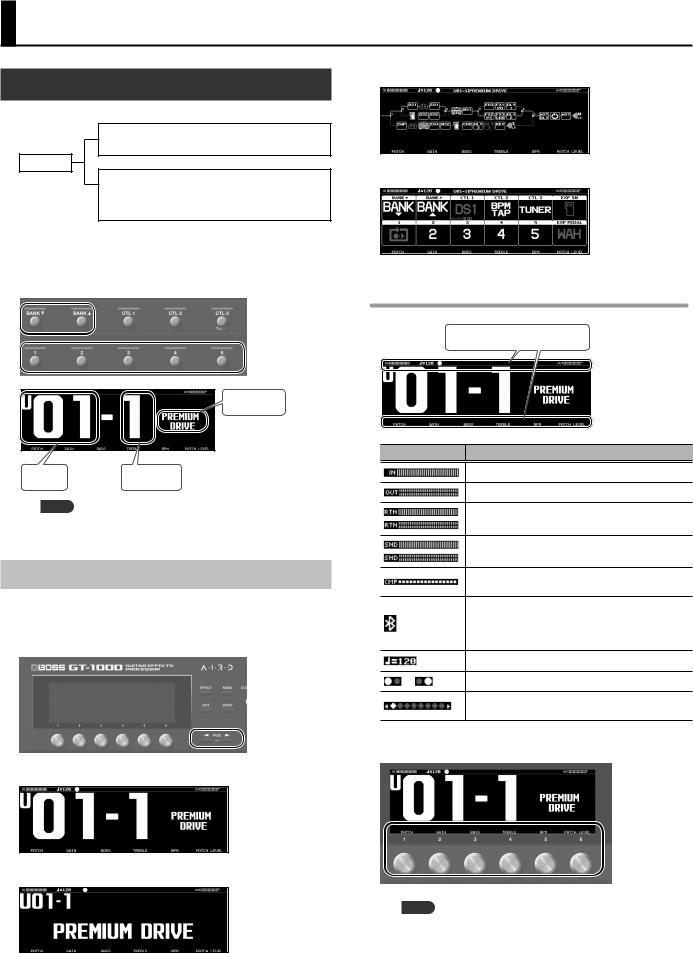
Playing
Selecting a Patch
A combination of effects and their settings is called a “patch.”
User patch (U01-1–U50-5)
Can be overwritten
Patch
Preset patch (P01-1–P50-5)
Cannot be overwritten, however, you can write a Preset patch into the User area, modify the settings to your needs and store your modified version in the User area.
1.Use the [BANKI] and [BANKH] switches to select a bank.
2.Use the [1]–[5] switches to select a patch within the selected bank.
Patch name
MEMO
You can also change patches by turning knob [1] below the display.
About the Play Screen
The screen that appears after you turn on the power is called the “Play screen.”
The following four types of play screen are provided; use the PAGE [K] [J] buttons to switch between the types of display.
Large patch number
Large patch name
Show effect configuration
Show functions assigned to main unit and external switches
Icons shown in the play screen
Areas which icons are displayed
Indication Explanation
Indicates the input level.
Indicates the output level.
Indicates the return level.
Indicates the send level.
Indicates the amount of compression when the compressor is operating.
Indicates that the editor is connected wirelessly.
*Please be aware that depending on the country in which you purchased the unit, Bluetooth functionality might not be included.
Indicates the BPM.
|
, |
Blinks in time with the BPM. |
Indicates the page to which you navigate using the
PAGE [K][J] buttons (edit screen).
When the play screen is shown, you can turn knobs [1]–[6] to adjust the parameters that are shown above each knob.
MEMO
You can change the parameters that are adjusted by knobs [1]– [6] when the play screen is shown.
For details, refer to the “Assigning Favorite Parameters to [1]–[6] Knobs” (p. 7).
4

Editing: Effects
Basic Procedure for Effect Editing
The edit screens show the block configuration (effect chain) of all effects provided by the GT-1000, as well as the output and send/ return. You can edit from this effect chain display by selecting the block that you want to edit.
1. Press the [EFFECT] button.
The edit screen (effect chain) appears.
2. Turn knob [6] to select the block that you want to edit.
The selected block is enclosed by a thick frame.
*By pressing knob [6] you can turn the selected effect on/off. Effects that are off are shown in gray. When the effect is turned on, it is shown in white.
On Off
3.Use knobs [1]–[5] to adjust the parameters that are shown below the screen.
Use the PAGE [K][J] buttons to switch between the parameters that you want to edit. The current page is indicated in the lower center of the screen.
*The number of parameters and pages differs depending on the effect.
Editing while viewing all parameters
From the edit screen, you can long-press knob [6] to see a list of all parameters of the selected block. You can edit the parameters from this list.
1.Turn knobs [1]–[6] to edit the value of the parameters shown in the screen.
Use the PAGE [K][J] buttons to switch between lists of parameters.
Use the PAGE [K][J]
 buttons to switch
Effect Placement
By moving blocks such as effects, output, and send/return, you can freely change the order in which the effects are placed, or arrange them in parallel.
Changing the placement of effects etc.
1.Press the [EFFECT] button.
The effect chain is shown.
2.Use knob [6] to select the block that you want to move.
3.While pressing knob [6], turn it left or right.
The selected block moves left or right.
5
 Loading…
You can only view or download manuals with
Sign Up and get 5 for free
Upload your files to the site. You get 1 for each file you add
Get 1 for every time someone downloads your manual
Buy as many as you need
Download or browse on-line these Parameter Manual for Boss GT-1000CORE Music Pedal.
More Manuals:
In case you failed to obtain relevant information in this document, please, look through related operating manuals and user instructions for Boss GT-1000CORE.
Just click one of the links below to go to the selected manual:

Summary of Contents:
 |
[Page 1] Boss GT-1000CORE Parameter Guide 01 |
 |
[Page 2] Boss GT-1000CORE 2 Basic Operation . . . . . . . . . . . . . . . . . . . . . . . . . . . . . . . . . . . . . . . . . 3 Basic Procedure for Eect Editing . . . . . . . . . . . . . . . . . . . . . . . . . 3 Eect Placement . . . . . . . . . . . . . . . . . . …. |
 |
[Page 3] Boss GT-1000CORE 3 Basic Operation Basic Procedure for Eect Editing The edit screens show the block conguration (eect chain) of all eects provided by the GT-1000CORE, as well as the output and send/return. You can edit from this eect chain display by… |
 |
[Page 4] Boss GT-1000CORE 4 Basic Operation Using STOMPBOX Your preferred settings for each eect can be saved as a “STOMPBOX.” You can select these saved settings and use them to create your sound just as though you were connecting compact pedal eects. The STOMPB… |
 |
[Page 5] Boss GT-1000CORE 5 Basic Operation 5. Press the [4] (WRITE TO STOMPBOX) knob. 6. Turn knob [1] to select the writing-destination STOMPBOX. 7. Use knobs [3]–[5] and [SELECT] knob to name the STOMPBOX. You can turn the [SELECT] knob to move the cursor within the n… |
 |
[Page 6] Boss GT-1000CORE 6 Eect * Company names and product names appearing in this document are registered trademarks or trademarks of their respective owners. * In this manual, company names and product names of the respective owners are used because it is the most … |
 |
[Page 7] Boss GT-1000CORE 7 Eect Type Explanation HM-2 This models the sound of the BOSS HM-2. It produces distinctive cranked-up distortion sound with compression. MTL CORE (METAL CORE) This is the sound of the BOSS ML-2 which is ideal for high speed metal ris. 60S… |
 |
[Page 8] Boss GT-1000CORE 8 Eect AIRD PREAMP TYPE List Category Type Explanation TYPE (ADVANCED AMP) TRNSPRNT (TRANSPARENT) An amp with a broad frequency range and an extremely at response. Good for acoustic guitar. NATURAL An unembellished, clean sound that minimize… |
 |
[Page 9] Boss GT-1000CORE 9 Eect EQUALIZER 1–4 Adjusts the tone. Parameter Value Explanation ON/OFF OFF, ON Turns this eect on/o. TYPE PARAMTRC (PARAMETRIC) You can adjust the tone character in four bands. GRAPHIC You can adjust the tone character in ten bands. PAR… |
 |
[Page 10] Boss GT-1000CORE 10 Eect MASTER DELAY This produces a variety of delay sounds ranging from simple eects to richly idiosyncratic sounds. Parameter Value Explanation ON/OFF OFF, ON Turns this eect on/o. TYPE This selects which type of delay. * If you swit… |
 |
[Page 11] Boss GT-1000CORE 11 Eect TAPE Parameter Value Explanation HEAD 1, 1+2, 1+3, 2+3, 1+2+3 Selects the combination playback heads. Playback heads 2/3 provide delay times that are two times or three times as long as playback head 1. SHIMMER Parameter Value Explanat… |
 |
[Page 12] Boss GT-1000CORE 12 Eect CHORUS In this eect, a slightly detuned sound is added to the original sound to add depth and breadth. COMMON Parameter Value Explanation ON/OFF OFF, ON Turns this eect on/o. TYPE Selection for the chorus mode. MONO This chorus … |
 |
[Page 13] Boss GT-1000CORE 13 Eect FX1–FX3 With FX1, FX2, and FX3, you can select the eect to be used from the following. You can select the same eect for FX1, FX2, and FX3. Parameter Value Explanation ON/OFF OFF, ON Turns this eect on/o. TYPE Refer to FX1/FX… |
 |
[Page 14] Boss GT-1000CORE 14 Eect AUTO WAH This changes the ltering over a periodic cycle, providing an automatic wah eect. Parameter Value Explanation FILTER Selects the wah mode. LPF Low pass lter. Passes only the low-frequency region. HPF High pass lter. P… |
 |
[Page 15] Boss GT-1000CORE 15 Eect Parameter Value Explanation BPM 40–250 Adjusts the BPM value for each patch. * BPM (beats per minute) indicates the number of quarter note beats that occur each minute * When you have an external MIDI device connected, the MASTER BP… |
 |
[Page 16] Boss GT-1000CORE 16 Eect CHO BASS (CHORUS BASS) This is a chorus eect for bass. Parameter Value Explanation ON/OFF OFF, ON Turns this eect on/o. TYPE Selection for the chorus mode. MONO This chorus eect outputs the same sound from both L channel and … |
 |
[Page 17] Boss GT-1000CORE 17 Eect DEFRETR (DEFRETTER) This simulates a fretless guitar. Parameter Value Explanation SENS 0–100 This controls the input sensitivity of the defretter. DEPTH 0–100 This controls the rate of the harmonics. TONE -50–+50 Adjusts the amount … |
 |
[Page 18] Boss GT-1000CORE 18 Eect FEEDBAKR (FEEDBACKER) Generates feedback performance. * Note that the notes you want to apply feedback to must be played singly and cleanly. Parameter Value Explanation MODE NORMAL Analyzes the pitch of the guitar sound being input, and… |
 |
[Page 19] Boss GT-1000CORE 19 Eect HARMONST (HARMONIST) Harmonist is an eect where the amount of shifting is adjusted according to an analysis of the guitar input, allowing you to create harmony based on diatonic scales. * Because of the need to analyze the pitch, cho… |
 |
[Page 20] Boss GT-1000CORE 20 Eect HUMANIZR (HUMANIZER) This can create human vowel-like sounds. Parameter Value Explanation MODE This sets the mode that switches the vowels. PICKING It changes from VOWEL 1 to VOWEL 2 along with the picking. The time spent for the change … |
 |
[Page 21] Boss GT-1000CORE 21 Eect PAN With the volume level of the left and right sides alternately changing, when playing sound in stereo, you can get an eect that makes the guitar sound appear to y back and forth between the speakers. Parameter Value Explanation … |
 |
[Page 22] Boss GT-1000CORE 22 Eect PITCH SFT (PITCH SHIFTER) This eect changes the pitch of the original sound (up or down) within a range of two octaves. Parameter Value Explanation VOICE Selects the number of voices for the pitch shift sound. 1VOICE One-voice pitch-s… |
 |
[Page 23] Boss GT-1000CORE 23 Eect ROTARY This produces an eect like the sound of a rotary speaker. Parameter Value Explanation SPEED SLOW, FAST This parameter changes the simulated speaker’s rotating speed (SLOW or FAST). SLOW 0–100, BPM Œ – ` This parameter … |
 |
[Page 24] Boss GT-1000CORE 24 Eect SND HOLD (SOUND HOLD) You can have sound played on the guitar be held continuously. This eect allows you to perform the melody in the upper registers while holding a note in the lower registers. * This function will not work properly… |
 |
[Page 25] Boss GT-1000CORE 25 Eect VIBRATO This eect creates vibrato by slightly modulating the pitch. Parameter Value Explanation RATE 0–100, BPM Œ – ` Adjusts the rate of the vibrato. * When set to BPM, the value of each parameter will be set according to the… |
 |
[Page 26] Boss GT-1000CORE 26 Eect Parameter Value Explanation DUCK PRE *1 0–100 When the input sound is loud, this automatically reduces the volume that is being input to the reverb and delay. As this setting approaches 100, the input volume reduction is applied more… |
 |
[Page 27] Boss GT-1000CORE 27 Eect WAH Parameter Value Explanation WAH TYPE Selects the type of wah. CRY WAH This models the sound of the CRY BABY wah pedal popular in the ‘70s. VO WAH This models the sound of the VOX V846. FAT WAH This is a wah sound featuring a bold to… |
 |
[Page 28] Boss GT-1000CORE 28 Eect Exchanging the preamp settings between channels Here’s how to exchange the preamp settings between channels A and B. 1. Press the [EFFECT] button. 2. Turn knob [SELECT] to select the DIVIDER that you want to edit. 3. Press the [4] knob… |
 |
[Page 29] Boss GT-1000CORE 29 Eect Parameter Value Explanation ADJUST 0–100 Adjusts the phase between the GT-1000CORE’s internal processing and an external eect unit connected to the SEND/RETURN jacks. You can adjust this if the MODE parameter is set to NORMAL or … |
 |
[Page 30] Boss GT-1000CORE 30 Eect Parameter Value Explanation L:DIR MIX R:DIR MIX *2 0–100 Adjusts the volume of the direct sound. *1 This is shown only if OUTPUT SELECT is set to “RECORDING.” *2 This is shown only if OUTPUT SELECT is set to “LINE/PHONES” or “R… |
 |
[Page 31] Boss GT-1000CORE 31 Eect Parameter Value Explanation BS MODE OFF, ON If this is ON, eects that aect the pitch are optimized for bass. INPUT SYSTEM,1–10 Selects the guitar (input level) that is connected to the INPUT jack. This lets you specify for each p… |
 |
[Page 32] Boss GT-1000CORE 32 MENU CONTROL MODE The control mode setting lets you choose how you want to operate the eects. Parameter Explanation MEMORY (Memory mode) This mode lets you recall and use the patches that are saved in the unit. Use [ I ][ H ] switches to swit… |
 |
[Page 33] Boss GT-1000CORE 33 MENU Value Explanation MDLY TRIG Turns the trigger on/o when the MASTER DELAY’s TYPE is WARP or TWIST. REV Switches the REVERB on and o. PFX Switches the PEDAL FX on and o. DIV1 CH Switches the DIVIDER 1 channel select. DIV2 CH Swit… |
 |
[Page 34] Boss GT-1000CORE 34 MENU ASSIGN SETTING ASSIGN 1–16 For each parameter, you can specify, in detail, which controller will control which parameter. You can create 16 sets of such assignments. Parameter Value Explanation SW OFF, ON Turns the ASSIGN 1–16 on/o. T… |
 |
[Page 35] Boss GT-1000CORE 35 MENU *2 The WAVE PEDAL FORM and WAVE PEDAL RATE parameters are enabled when the Source parameter is set to WAVE PEDAL. *3 The MIDI CH, TARGET MIDI CC# parameters are enabled when the TARGET is set to MIDI CC. *4 The MIDI CH, TARGET MIDI PC# para… |
 |
[Page 36] Boss GT-1000CORE 36 MENU CATEGORY TARGET Value PREAMP 1 (AIRD PREAMP 1) PREAMP 2 (AIRD PREAMP 2) ON/OFF OFF, ON TYPE TRNSPRNT (TRANSPARENT), NATURAL, BOUTIQUE, SUPREME, MAXIMUM, JUGGERNT (JUGGERNAUT), X-CRUNCH, X-HI GAIN, X-MODDED, JC-120, TWIN (TWIN COMBO), … |
 |
[Page 37] Boss GT-1000CORE 37 MENU CATEGORY TARGET Value MDLY:TWIST (MASTER DELAY:TWIST) MODE FALL (RISE->FALL), FADE (RISE->FADE) RISE TIME 0–100 FALL TIME 0–100 FADE TIME 0–100 M-DLY:ECHO (MASTER DELAY ECHO) WOW & FLUTTER 0–100 SPACE HEAD 1, 1+2, 1+3, 2+3… |
 |
[Page 38] Boss GT-1000CORE 38 MENU CATEGORY TARGET Value FX1:CHO (FX1:CHORUS) FX2:CHO (FX2:CHORUS) FX3:CHO (FX3:CHORUS) TYPE MONO, STEREO 1, STEREO 2, DUAL, PRIME, CE-1 CHO, CE-1 VIB RATE 0–100, BPM Œ – ` DEPTH 0–100 PRE-DELAY 0.0ms–40.0ms WAVEFORM TRI, SINE E.L… |
 |
[Page 39] Boss GT-1000CORE 39 MENU CATEGORY TARGET Value FX1:FEEDBK (FX1:FEEDBACKER) FX2:FEEDBK (FX2:FEEDBACKER) FX3:FEEDBK (FX3:FEEDBACKER) MODE NORMAL, OSC TRIGGER OFF, ON DEPTH 0–100 RISE TIME 0–100 OCT RISE (OCTAVE RISE TIME) 0–100 FEEDBAK (FEEDBACK) 0–100 OCT … |
 |
[Page 40] Boss GT-1000CORE 40 MENU CATEGORY TARGET Value FX1:PHASER FX2:PHASER FX3:PHASER TYPE PRIME, SCRIPT STAGE 2 STAGE, 4 STAGE, 8 STAGE, 16 STAGE, 24 STAGE RATE 0–100, BPM Œ – ` DEPTH 0–100 RESO (RESONANCE) 0–100 MANUAL 0–100 LO DAMP 0–100 HI DAMP 0–1… |
 |
[Page 41] Boss GT-1000CORE 41 MENU CATEGORY TARGET Value FX1:VIB (FX1:VIBRATO) FX2:VIB (FX2:VIBRATO) FX3:VIB (FX3:VIBRATO) RATE 0–100, BPM Œ – ` DEPTH 0–100 COLOR 0–100 TRIGGER OFF, ON RISE TIME 0–100 E.LEVEL 0–100 DIR MIX 0–100 REVERB ON/OFF OFF, ON TYPE HA… |
 |
[Page 42] Boss GT-1000CORE 42 MENU Virtual Expression Pedal (Internal Pedal / Wave Pedal) By assigning a desired parameter to the virtual expression pedal, you can produce an eect as though you were operating a physical expression pedal to change the volume or tone quali… |
 |
[Page 43] Boss GT-1000CORE 43 MENU About the Range of a Controller’s Change This sets the operational range within which the value of the setting changes when an expression pedal or other controller that changes the value consecutively is used as the source. If the contro… |
 |
[Page 44] Boss GT-1000CORE 44 MENU IN/OUT SETTING INPUT Adjust the input level according to the output level of the guitar that you’ve connected. Parameter Value Explanation INPUT LEVEL -20–+20dB Adjusts the guitar input level. OUTPUT, SUB OUT Specify the device (amp) tha… |
 |
[Page 45] Boss GT-1000CORE 45 MENU Value Explanation USER1, USER2 You can use a dedicated tool to download settings from the Boss website and add them to USER1 and USER2. Download the dedicated tool from the BOSS website. http://www.boss.info/support/ * Company names and pro… |
 |
[Page 46] Boss GT-1000CORE 46 MENU USB-Related Settings Here you can make USB-related settings for when the GT-1000CORE is connected to a computer via USB. USB audio ow GT-1000CORE provides three USB audio outputs: “OUTPUT”, “SUB OUT“ and “DRY.” OUTPUT outputs… |
 |
[Page 47] Boss GT-1000CORE 47 MENU PLAY OPTION Here you can specify how the pedals will work during performance. Parameter Value Explanation PATCH EXTENT MIN U001–P250, Sets the lower limit for the banks. PATCH EXTENT MAX U001–P250, Sets the upper limit for the banks. PH… |
 |
[Page 48] Boss GT-1000CORE 48 MENU Parameter Value Explanation CLK OUT (CLOCK OUT) Species whether MIDI clock will be output from the GT-1000CORE. OFF MIDI clock is not output. ON MIDI clock is output. MAP SEL (MAP SELECT) Species whether program change messages recei… |
 |
[Page 49] Boss GT-1000CORE 49 MENU HARDWARE SETTING KNOB Here you can assign the desired parameters to knobs [1]–[6] in the Play Screen. * The settings you make here are only for the knobs in the Play Screen. Parameter KNOB 1–KNOB 5 Value (Category) Value (Target) COMP … |
 |
[Page 50] Boss GT-1000CORE 50 MENU Value (Category) Value (Target) M.DL:TWST (MASTER DELAY:TWIST) MODE RISE TIME FALL TIME FADE TIME M.DL:ECHO (MASTER DELAY:ECHO) WOW&FLUT (WOW & FLUTTER) SP HEAD (SPACE HEAD) BIN HEAD (BINDRUM HEAD) SELECTOR CHORUS ON/OFF TYPE RATE DEP… |
 |
[Page 51] Boss GT-1000CORE 51 MENU Value (Category) Value (Target) 1:DEF BS (FX1:DEFRETTER BASS) 2:DEF BS (FX2:DEFRETTER BASS) 3:DEF BS (FX3:DEFRETTER BASS) SENS ATTACK TONE E.LEVEL DIR MIX 1:DIST (FX1:DISTORTION) 2:DIST (FX2:DISTORTION) 3:DIST (FX3:DISTORTION) TYPE DRIVE TONE… |
 |
[Page 52] Boss GT-1000CORE 52 MENU Value (Category) Value (Target) 1:ROTARY (FX1:ROTARY) 2:ROTARY (FX2:ROTARY) 3:ROTARY (FX3:ROTARY) SPEED (SPEED SELECT) SLOW (SLOW RATE) FAST (FAST RATE) RISE TIME FALL TIME MIC DIST (MIC DISTANCE) ROT/HORN (ROTOR/HORN BALANCE) DRIVE E.LEVEL … |
 |
[Page 53] Boss GT-1000CORE 53 MENU Value (Category) Value (Target) PDL BEND (PEDAL BEND) PITCHMIN (PITCH MIN) PITCHMAX (PITCH MAX) PDL POS (PEDAL POSITION) PDL WAH (PEDAL WAH) WAH TYPE PDL POS (PEDAL POSITION) PDL MIN (PEDAL MIN) PDL MAX (PEDAL MAX) FOOT VOL (FOOT VOLUME) VOL … |
 |
[Page 54] Boss GT-1000CORE 54 MENU AMP CONTROL Parameter Value Explanation AMP CTL1 AMP CTL2 Species the operation of the AMP CTL 1, 2 jacks. LATCH Latch operation PULSE Send a pulse when changing patches. Patch change Patch change PULSE Patch change Patch change INVERT INV… |
 |
[Page 55] Boss GT-1000CORE 55 MENU FACTORY RESET Initializes the GT-1000CORE to its factory-set condition. Parameter Value Explanation FROM, TO SYSTEM System parameter settings U001–U250 Settings for Patch Numbers U001–U250 STOMPBOX Settings for STOMPBOX TUNER Here you ca… |
 |
[Page 56] Boss GT-1000CORE 56 Saving a Sound (WRITE) Saving a Patch (PATCH WRITE) When you want to save a patch you have created, save it as a user patch by following the procedure below. If you do not save the patch, the edited settings will be lost when you turn o the p… |
 |
[Page 57] Boss GT-1000CORE 57 Saving a Sound (WRITE) Initializing Patches (PATCH INITIALIZE) You can return (initialize) a User patch to its original factory settings. This is convenient when you want to create a new patch from scratch. NOTE Any tone settings you’ve stored … |
| Document’s Content and Additional Information | Share Manual |
|---|---|
|
Boss GT-1000CORE Owner’s manual
Pages Preview: Document Transcription:
See Details |
|
|
Boss GT-1000CORE Parameter manual
See Details |


