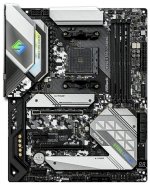
Version 1.0
Published May 2020
Copyright©2020 ASRock INC. All rights reserved.
Copyright Notice:
No part of this documentation may be reproduced, transcribed, transmitted, or translated in any language, in any form or by any means, except duplication of documentation by the purchaser for backup purpose, without written consent of ASRock Inc.
Products and corporate names appearing in this documentation may or may not be registered trademarks or copyrights of their respective companies, and are used only for identification or explanation and to the owners’ benefit, without intent to
infringe.
Disclaimer:
Specifications and information contained in this documentation are furnished for informational use only and subject to change without notice, and should not be constructed as a commitment by ASRock. ASRock assumes no responsibility for any errors or omissions that may appear in this documentation.
With respect to the contents of this documentation, ASRock does not provide warranty of any kind, either expressed or implied, including but not limited to the implied warranties or conditions of merchantability or fitness for a particular purpose.
In no event shall ASRock, its directors, officers, employees, or agents be liable for any indirect, special, incidental, or consequential damages (including damages for loss of profits, loss of business, loss of data, interruption of business and the like), even if ASRock has been advised of the possibility of such damages arising from any defect or error in the documentation or product.
This device complies with Part 15 of the FCC Rules. Operation is subject to the following two conditions:
(1)this device may not cause harmful interference, and
(2)this device must accept any interference received, including interference that may cause undesired operation.
CALIFORNIA, USA ONLY
The Lithium battery adopted on this motherboard contains Perchlorate, a toxic substance controlled in Perchlorate Best Management Practices (BMP) regulations passed by the California Legislature. When you discard the Lithium battery in California, USA, please follow the related regulations in advance.
“Perchlorate Material-special handling may apply, see www.dtsc.ca.gov/hazardouswaste/ perchlorate”
ASRock Website: http://www.asrock.com

AUSTRALIA ONLY
Our goods come with guarantees that cannot be excluded under the Australian Consumer Law. You are entitled to a replacement or refund for a major failure and compensation for any other reasonably foreseeable loss or damage caused by our goods. You are also entitled to have the goods repaired or replaced if the goods fail to be of acceptable quality and the failure does not amount to a major failure. If you require assistance please call ASRock Tel : +886-2-28965588 ext.123 (Standard International call charges apply)
The terms HDMI® and HDMI High-Definition Multimedia Interface, and the HDMI logo are trademarks or registered trademarks of HDMI Licensing LLC in the United States and other countries.
Contents
|
Chapter 1 Introduction |
1 |
|
|
1.1 |
Package Contents |
1 |
|
1.2 |
Specifications |
2 |
|
1.3 |
Motherboard Layout |
8 |
|
1.4 |
I/O Panel |
10 |
|
Chapter 2 Installation |
12 |
|
|
2.1 |
Installing the CPU |
13 |
|
2.2 |
Installing the CPU Fan and Heatsink |
15 |
|
2.3 |
Installing Memory Modules (DIMM) |
23 |
|
2.4 |
Expansion Slots (PCI Express Slots) |
26 |
|
2.5 |
Jumpers Setup |
27 |
|
2.6 |
Onboard Headers and Connectors |
28 |
|
2.7 |
Dr. Debug |
33 |
|
2.8 |
CrossFireXTM and Quad CrossFireXTM Operation Guide |
39 |
|
2.8.1 |
Installing Two CrossFireXTM-Ready Graphics Cards |
39 |
|
2.8.2 |
Driver Installation and Setup |
41 |
|
2.9 |
M.2 WiFi/BT Module Installation Guide (M2_WIFI_1) |
42 |
|
2.10 |
M.2_SSD (NGFF) Module Installation Guide (M2_1) |
44 |
|
2.11 |
M.2_SSD (NGFF) Module Installation Guide (M2_2) |
47 |
|
Chapter 3 Software and Utilities Operation |
50 |
|
|
3.1 |
Installing Drivers |
50 |
|
3.2 |
ASRock Motherboard Utility (A-Tuning) |
51 |
|
3.2.1 |
Installing ASRock Motherboard Utility (A-Tuning) |
51 |
|
3.2.2 |
Using ASRock Motherboard Utility (A-Tuning) |
51 |
|
3.3 |
ASRock Live Update & APP Shop |
54 |
|
3.3.1 |
UI Overview |
54 |
|
3.3.2 |
Apps |
55 |
|
3.3.3 |
BIOS & Drivers |
58 |
|
3.3.4 |
Setting |
59 |
|
3.4 |
Nahimic Audio |
60 |
|
3.5 |
ASRock Polychrome SYNC |
61 |
|
Chapter 4 UEFI SETUP UTILITY |
64 |
|
|
4.1 |
Introduction |
64 |
|
4.1.1 |
UEFI Menu Bar |
64 |
|
4.1.2 |
Navigation Keys |
65 |
|
4.2 |
Main Screen |
66 |
|
4.3 |
OC Tweaker Screen |
67 |
|
4.4 |
Advanced Screen |
71 |
|
4.4.1 |
CPU Configuration |
72 |
|
4.4.2 |
Onboard Devices Configuration |
73 |
|
4.4.3 |
Storage Configuration |
75 |
|
4.4.4 |
ACPI Configuration |
76 |
|
4.4.5 |
Trusted Computing |
77 |
|
4.4.6 |
AMD PBS |
78 |
|
4.4.7 |
AMD Overclocking |
79 |
|
4.4.8 |
AMD CBS |
80 |
|
4.5 |
Tools |
81 |
|
4.6 |
Hardware Health Event Monitoring Screen |
82 |
|
4.7 |
Security Screen |
85 |
|
4.8 |
Boot Screen |
86 |
|
4.9 |
Exit Screen |
89 |
B550 Steel Legend
Chapter 1 Introduction
Thank you for purchasing ASRock B550 Steel Legend motherboard, a reliable motherboard produced under ASRock’s consistently stringent quality control. It delivers excellent performance with robust design conforming to ASRock’s commitment to quality and endurance.
In this documentation, Chapter 1 and 2 contains the introduction of the motherboard and step-by-step installation guides. Chapter 3 contains the operation guide of the software and utilities. Chapter 4 contains the configuration guide of the BIOS setup.
Because the motherboard specifications and the BIOS software might be updated, the content of this documentation will be subject to change without notice. In case any modifications of this documentation occur, the updated version will be available on ASRock’s website without further notice. If you require technical support related to this motherboard, please visit our website for specific information about the model you are using. You may find the latest VGA cards and CPU support list on ASRock’s website as well. ASRock website http://www.asrock.com.
1.1 Package Contents
•ASRock B550 Steel Legend Motherboard (ATX Form Factor)
•ASRock B550 Steel Legend Quick Installation Guide
•ASRock B550 Steel Legend Support CD
•2 x Serial ATA (SATA) Data Cables (Optional)
•3 x Screws for M.2 Sockets (Optional)
•2 x Standoffs for M.2 Sockets (Optional)
English
1

1.2 Specifications
|
Platform |
• |
ATX Form Factor |
|
• |
2oz Copper PCB |
|
|
CPU |
• |
Supports 3rd Gen AMD AM4 RyzenTM / future AMD RyzenTM |
|
Processors (3000 and 4000 Series Processors)* |
||
|
* Not compatible with AMD RyzenTM 5 3400G and RyzenTM 3 |
||
|
3200G. |
||
|
• |
Digi Power design |
|
|
• 14 Power Phase design |
||
|
Chipset |
• |
AMD B550 |
|
Memory |
• |
Dual Channel DDR4 Memory Technology |
• 4 x DDR4 DIMM Slots
• AMD Ryzen series CPUs (Matisse) support DDR4 4733+ (OC)/4666(OC)/4600(OC)/4533(OC)/4466(OC)/4400 (OC)/4333(OC)/4266(OC)/4200(OC)/4133(OC)/4000 (OC)/3866(OC)/3800(OC)/3733(OC)/3600(OC)/3466 (OC)/3200/2933/2667/2400/2133 ECC & non-ECC, unbuffered memory*
• AMD Ryzen series APUs (Renoir) support DDR4 4733+ (OC)/4666(OC)/4600(OC)/4533(OC)/4466(OC)/4400 (OC)/4333(OC)/4266(OC)/4200(OC)/4133(OC)/4000 (OC)/3866(OC)/3800(OC)/3733(OC)/3600(OC)/3466 (OC)/3200/2933/2667/2400/2133 ECC & non-ECC, unbuffered memory*
* Please refer to Memory Support List on ASRock’s website for more information. (http://www.asrock.com/)
* Please refer to page 23 for DDR4 UDIMM maximum frequency support.
• Max. capacity of system memory: 128GB
• Supports Extreme Memory Profile (XMP) memory modules
• 15μ Gold Contact in DIMM Slots
English
2

B550 Steel Legend
|
Expansion |
AMD Ryzen series CPUs (Matisse) |
|
Slot |
• 2 x PCI Express x16 Slots (PCIE1: Gen4x16 mode; PCIE3: |
|
Gen3 x4 mode)* |
|
|
AMD Ryzen series APUs (Renoir) |
|
|
• 2 x PCI Express x16 Slots (PCIE1: Gen3x16 mode; PCIE3: |
|
|
Gen3 x4 mode)* |
|
|
* Supports NVMe SSD as boot disks |
|
|
• 2 x PCI Express 3.0 x1 Slots |
|
|
• Supports AMD Quad CrossFireXTM and CrossFireXTM |
|
|
• 1 x M.2 Socket (Key E), supports type 2230 WiFi/BT module |
|
|
• 15μ Gold Contact in VGA PCIe Slot (PCIE1) |
|
|
Graphics |
• Integrated AMD RadeonTM Vega Series Graphics in Ryzen |
|
Series APU* |
|
|
* Actual support may vary by CPU |
|
|
• DirectX 12, Pixel Shader 5.0 |
|
|
• Shared memory default 2GB. Max Shared memory supports |
|
|
up to 16GB. |
|
|
* The Max shared memory 16GB requires 32GB system memory |
|
|
installed. |
|
|
• Dual graphics output: support HDMI and DisplayPort 1.4 |
|
|
ports by independent display controllers |
|
|
• Supports HDMI 2.1 with max. resolution up to 4K x 2K |
|
|
(4096×2160) @ 60Hz |
|
|
• Supports DisplayPort 1.4 with max. resolution up to 5K |
|
|
(5120×2880)@120Hz |
|
|
• Supports Auto Lip Sync, Deep Color (12bpc), xvYCC and |
|
|
HBR (High Bit Rate Audio) with HDMI 2.1 Port (Compliant |
|
|
HDMI monitor is required) |
|
|
• Supports HDR (High Dynamic Range) with HDMI 2.1 |
|
|
• Supports HDCP 2.3 with HDMI 2.1 and DisplayPort 1.4 |
|
|
Ports |
|
|
• Supports 4K Ultra HD (UHD) playback with HDMI 2.1 and |
|
|
DisplayPort 1.4 Ports |
|
|
• Supports Microsoft PlayReady® |
English
3

English
|
Audio |
• |
7.1 CH HD Audio with Content Protection (Realtek |
|
ALC1220 Audio Codec) |
||
|
• Premium Blu-ray Audio support |
||
|
• |
Supports Surge Protection |
|
|
• 120dB SNR DAC with Differential Amplifier |
||
|
• NE5532 Premium Headset Amplifier for Front Panel Audio |
||
|
Connector (Supports up to 600 Ohm headsets) |
||
|
• Pure Power-In |
||
|
• |
Direct Drive Technology |
|
|
• |
PCB Isolate Shielding |
|
|
• Impedance Sensing on Rear Out port |
||
|
• Individual PCB Layers for R/L Audio Channel |
||
|
• |
Gold Audio Jacks |
|
|
• 15μ Gold Audio Connector |
||
|
• |
Nahimic Audio |
|
|
LAN |
• |
2.5 Gigabit LAN 10/100/1000/2500 Mb/s |
|
• |
Dragon RTL8125BG |
|
|
• Supports Dragon 2.5G LAN Software |
||
|
— Smart Auto Adjust Bandwidth Control |
||
|
— Visual User Friendly UI |
||
|
— Visual Network Usage Statistics |
||
|
— Optimized Default Setting for Game, Browser, and |
||
|
Streaming Modes |
||
|
— User Customized Priority Control |
||
|
• Supports Wake-On-LAN |
||
|
• |
Supports Lightning/ESD Protection |
|
|
• Supports Energy Efficient Ethernet 802.3az |
||
|
• |
Supports PXE |
|
|
Rear Panel |
• |
2 x Antenna Ports (on I/O Panel Shield) |
|
I/O |
• |
1 x PS/2 Mouse/Keyboard Port |
|
• 1 x HDMI Port |
||
|
• 1 x DisplayPort 1.4 |
||
|
• 1 x Optical SPDIF Out Port |
||
|
• 1 x USB 3.2 Gen2 Type-A Port (10 Gb/s) (Supports ESD |
||
|
Protection) |
• 1 x USB 3.2 Gen2 Type-C Port (10 Gb/s) (Supports ESD Protection)
4

B550 Steel Legend
•2 x USB 3.2 Gen1 Ports (Supports ESD Protection)
•4 x USB 2.0 Ports (Supports ESD Protection)
*Ultra USB Power is supported on USB_34 ports.
*ACPI wake-up function is not supported on USB_34 ports.
•1 x RJ-45 LAN Port with LED (ACT/LINK LED and SPEED LED)
•HD Audio Jacks: Rear Speaker / Central / Bass / Line in / Front Speaker / Microphone (Gold Audio Jacks)
|
Storage |
• 6 x SATA3 6.0 Gb/s Connectors, support RAID (RAID 0, |
|
RAID 1 and RAID 10), NCQ, AHCI and Hot Plug* |
*M2_2 and SATA3_5_6 share lanes. If either one of them is in use, the other one will be disabled.
•1 x Hyper M.2 Socket (M2_1), supports M Key type 2230/2242/2260/2280 M.2 PCI Express module up to Gen4x4 (64 Gb/s) (with Matisse) or Gen3x4 (32 Gb/s) (with Renoir)**
•1 x M.2 Socket (M2_2), supports M Key type 2230/2242/2260/2280/22110 M.2 SATA3 6.0 Gb/s module and M.2 PCI Express module up to Gen3 x2 (16 Gb/s)**
**Supports NVMe SSD as boot disks
**Supports ASRock U.2 Kit
Connector • 1 x SPI TPM Header
•1 x Power LED and Speaker Header
•2 x RGB LED Headers
*Support in total up to 12V/3A, 36W LED Strip
•2 x Addressable LED Headers
*Support in total up to 5V/3A, 15W LED Strip
•1 x CPU Fan Connector (4-pin)
*The CPU Fan Connector supports the CPU fan of maximum 1A (12W) fan power.
•1 x CPU/Water Pump Fan Connector (4-pin) (Smart Fan Speed Control)
*CPU_FAN2/WP_3A supports the water cooler fan of maximum 3A (36W) fan power.
•5 x Chassis/Water Pump Fan Connectors (4-pin) (Smart Fan Speed Control)
*The Chassis/Water Pump Fan supports the water cooler fan of maximum 2A (24W) fan power.
English
5

English
* CPU_FAN2/WP_3A, CHA_FAN1/WP, CHA_FAN2/WP, CHA_FAN3/WP, CHA_FAN4/WP and CHA_FAN5/WP can auto detect if 3-pin or 4-pin fan is in use.
•1 x 24 pin ATX Power Connector (Hi-Density Power Connector)
•1 x 8 pin 12V Power Connector (Hi-Density Power Connector)
•1 x 4 pin 12V Power Connector (Hi-Density Power Connector)
•1 x Front Panel Audio Connector (15μ Gold Audio Connector)
•2 x USB 2.0 Headers (Support 4 USB 2.0 ports) (Supports ESD Protection)
•1 x USB 3.2 Gen1 Header (Supports 2 USB 3.2 Gen1 ports) (Supports ESD Protection)
•1 x Front Panel Type C USB 3.2 Gen1 Header (Supports ESD Protection)
•1 x Dr. Debug with LED
|
BIOS |
• |
AMI UEFI Legal BIOS with GUI support |
|
Feature |
• |
Supports “Plug and Play” |
|
• ACPI 5.1 compliance wake up events |
||
|
• |
Supports jumperfree |
|
|
• |
SMBIOS 2.3 support |
|
|
• CPU, CPU VDDCR_SOC, DRAM, VPPM, VTT_DDR Off- |
||
|
set, CPU VDD 1.8 Voltage Multi-adjustment |
||
|
Hardware |
• |
Temperature Sensing: CPU, CPU/Water Pump, Chassis/Wa- |
|
Monitor |
ter Pump Fans |
|
|
• Fan Tachometer: CPU, CPU/Water Pump, Chassis/Water |
||
|
Pump Fans |
• Quiet Fan (Auto adjust chassis fan speed by CPU temperature): CPU, CPU/Water Pump, Chassis/Water Pump Fans
• Fan Multi-Speed Control: CPU, CPU/Water Pump, Chassis/ Water Pump Fans
• Voltage monitoring: +12V, +5V, +3.3V, CPU Vcore, CPU VDDCR_SOC, DRAM, VPPM, CPU VDD 1.8V
6
B550 Steel Legend
|
OS |
• Microsoft® Windows® 10 64-bit |
|
|
Certifica- |
• |
FCC, CE |
|
tions |
• |
ErP/EuP ready (ErP/EuP ready power supply is required) |
* For detailed product information, please visit our website: http://www.asrock.com
Please realize that there is a certain risk involved with overclocking, including adjusting the setting in the BIOS, applying Untied Overclocking Technology, or using third-party overclocking tools. Overclocking may affect your system’s stability, or even cause damage to the components and devices of your system. It should be done at your own risk and expense. We are not responsible for possible damage caused by overclocking.
English
7

No. Description
1ATX 12V Power Connector (ATX12V1)
2ATX 12V Power Connector (ATX12V2)
3CPU Fan Connector (CPU_FAN1)
42 x 288-pin DDR4 DIMM Slots (DDR4_A1, DDR4_B1)
5CPU/Water Pump Fan Connector (CPU_FAN2/WP_3A)
62 x 288-pin DDR4 DIMM Slots (DDR4_A2, DDR4_B2)
7RGB LED Header (RGB_LED2)
8Addressable LED Header (ADDR_LED2)
9Chassis/Water Pump Fan Connector (CHA_FAN5/WP) 10 ATX Power Connector (ATXPWR1)
11 Front Panel Type C USB 3.2 Gen1 Header (USB31_TC_2) 12 USB 3.2 Gen1 Header (USB3_3_4)
13 Chassis/Water Pump Fan Connector (CHA_FAN4/WP)
14 SATA3 Connector (SATA3_2)
15 SATA3 Connector (SATA3_1)
16 SATA3 Connector (SATA3_3)
17 SATA3 Connector (SATA3_5)
18 SATA3 Connector (SATA3_6)
19 SATA3 Connector (SATA3_4)
20 Clear CMOS Jumper (CLRCMOS1)
21 System Panel Header (PANEL1)
22 Power LED and Speaker Header (SPK_PLED1)
23 USB 2.0 Header (USB_7_8)
24 USB 2.0 Header (USB_5_6)
25 Chassis/Water Pump Fan Connector (CHA_FAN2/WP)
26 Chassis/Water Pump Fan Connector (CHA_FAN3/WP)
27 RGB LED Header (RGB_LED1)
28 Addressable LED Header (ADDR_LED1)
29 Front Panel Audio Header (HD_AUDIO1)
30 SPI TPM Header (SPI_TPM_J1)
31 Chassis/Water Pump Fan Connector (CHA_FAN1/WP)
B550 Steel Legend
English
9
English
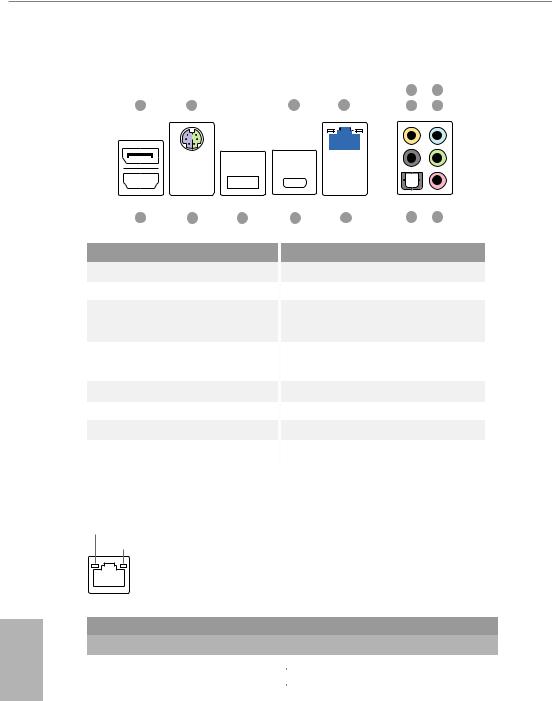
1.4 I/O Panel
|
5 |
7 |
||||||||||||||||||||||||||||||
|
1 |
2 |
3 |
4 |
6 |
8 |
||||||||||||||||||||||||||
|
15 |
14 |
13 |
12 |
11 |
10 |
9 |
|
|
No. |
Description |
No. |
Description |
||||
|
1 |
DisplayPort 1.4 |
9 |
Microphone (Pink) |
||||
|
2 |
PS/2 Mouse/Keyboard Port |
10 |
Optical SPDIF Out Port |
||||
|
3 |
USB 3.2 Gen2 Type-A Port |
11 |
USB 2.0 Ports (USB_34)*** |
||||
|
(USB31_TA_1) |
|||||||
|
4 |
2.5G LAN RJ-45 Port |
12 |
USB 3.2 Gen2 Type-C Port |
||||
|
(Dragon RTL8125BG)* |
(USB31_TC_1) |
||||||
|
5 |
Central / Bass (Orange) |
13 |
USB 2.0 Ports (USB_12) |
||||
|
6 |
Rear Speaker (Black) |
14 |
USB 3.2 Gen1 Ports (USB3_12) |
||||
|
7 |
Line In (Light Blue) |
15 |
HDMI Port |
8Front Speaker (Lime)**
*There are two LEDs on each LAN port. Please refer to the table below for the LAN port LED indications.
ACT/LINK LED
SPEED LED
|
LAN Port |
||||||
|
Activity / Link LED |
Speed LED |
|||||
|
Status |
Description |
Status |
Description |
|||
|
Off |
No Link |
Off |
10Mbps connection |
|||
|
Blinking |
Data Activity |
Orange |
100Mbps/1Gbps connection |
|||
|
On |
Link |
Green |
2.5Gbps connection |
|||
10

B550 Steel Legend
** If you use a 2-channel speaker, please connect the speaker’s plug into “Front Speaker Jack”. See the table below for connection details in accordance with the type of speaker you use.
|
Audio Output |
Front Speaker |
Rear Speaker |
Central / Bass |
Line In |
|
Channels |
(No. |
(No. 6) |
(No. 5) |
(No. 7) |
|
2 |
V |
— |
— |
— |
|
4 |
V |
V |
— |
— |
|
6 |
V |
V |
V |
— |
|
8 |
V |
V |
V |
V |

*** Ultra USB Power is supported on USB_34 ports. ACPI wake-up function is not supported on USB_34 ports.
English
11

Chapter 2 Installation
This is an ATX form factor motherboard. Before you install the motherboard, study the configuration of your chassis to ensure that the motherboard fits into it.
Pre-installation Precautions
Take note of the following precautions before you install motherboard components or change any motherboard settings.
•Make sure to unplug the power cord before installing or removing the motherboard. Failure to do so may cause physical injuries to you and damages to motherboard components.
•In order to avoid damage from static electricity to the motherboard’s components, NEVER place your motherboard directly on a carpet. Also remember to use a grounded wrist strap or touch a safety grounded object before you handle the components.
•Hold components by the edges and do not touch the ICs.
•Whenever you uninstall any components, place them on a grounded anti-static pad or in the bag that comes with the components.
•When placing screws to secure the motherboard to the chassis, please do not overtighten the screws! Doing so may damage the motherboard.
English
12
B550 Steel Legend
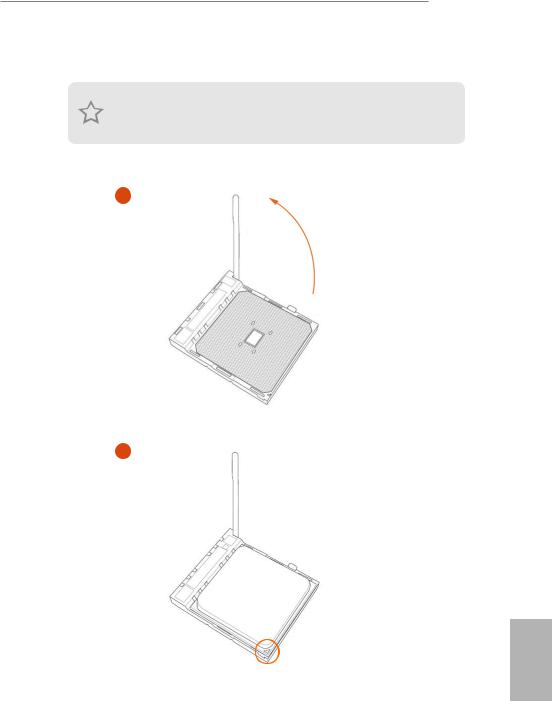
2.1 Installing the CPU
Unplug all power cables before installing the CPU.
1
2
English
13

B550 Steel Legend
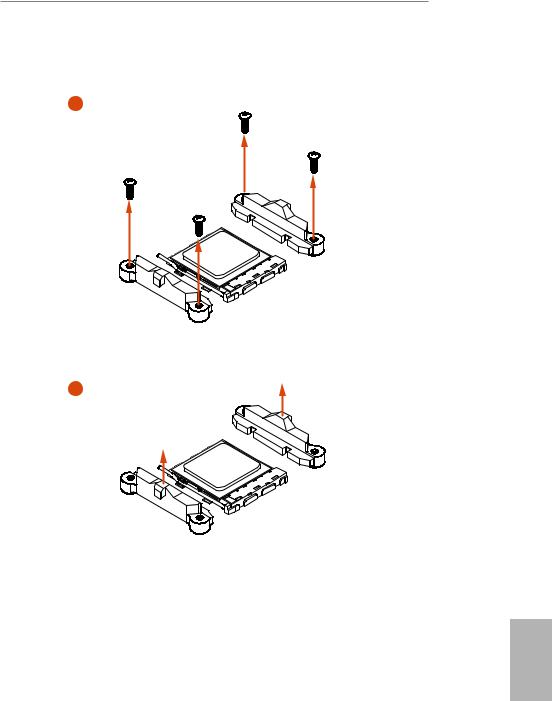
2.2 Installing the CPU Fan and Heatsink
After you install the CPU into this motherboard, it is necessary to install a larger heatsink and cooling fan to dissipate heat. You also need to spray thermal grease between the CPU and the heatsink to improve heat dissipation. Make sure that the CPU and the heatsink are securely fastened and in good contact with each other.
Please turn off the power or remove the power cord before changing a CPU or heatsink.
Installing the CPU Box Cooler SR1
1
2
English
15
B550 Steel Legend
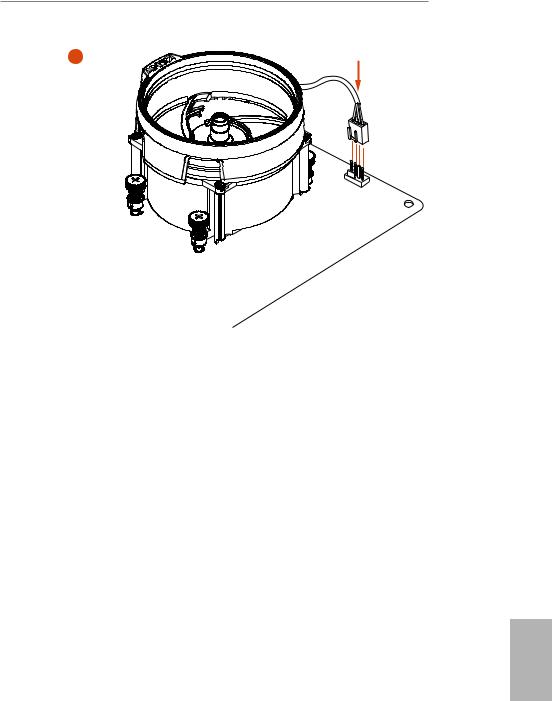
Installing the AM4 Box Cooler SR2
1
2
English
17
B550 Steel Legend
4
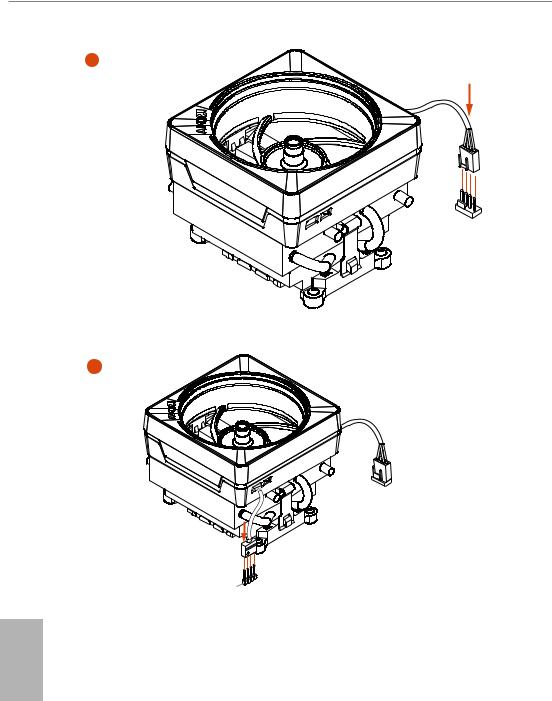
*The diagrams shown here are for reference only. The headers might be in a different position on your motherboard.
English
19
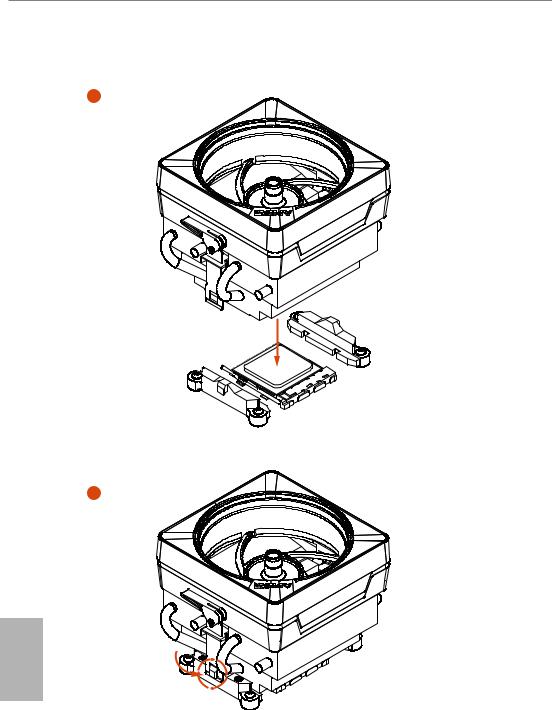
Installing the AM4 Box Cooler SR3
1
2
English
20
English
|
2 |
||
|
+12V |
RG |
ED |
|
L |
||
|
_ |
||
|
B |
*The diagrams shown here are for reference only. The headers might be in a different position on your motherboard.
22

B550 Steel Legend
2.3 Installing Memory Modules (DIMM)
This motherboard provides four 288-pin DDR4 (Double Data Rate 4) DIMM slots, and supports Dual Channel Memory Technology.
1.For dual channel configuration, you always need to install identical (the same brand, speed, size and chip-type) DDR4 DIMM pairs.
2.It is unable to activate Dual Channel Memory Technology with only one or three memory module installed.
3.It is not allowed to install a DDR, DDR2 or DDR3 memory module into a DDR4 slot; otherwise, this motherboard and DIMM may be damaged.
4.We suggest that you install the memory modules on DDR4_A2 and DDR4_B2 first for better DRAM compatibility on 2 DIMMs configuration.
AMD non-XMP Memory Frequency Support
Ryzen Series CPUs (Matisse):
|
UDIMM Memory Slot |
Frequency |
|||
|
A1 |
A2 |
B1 |
B2 |
(Mhz) |
|
— |
SR |
— |
— |
3200 |
|
— |
DR |
— |
— |
3200 |
|
— |
SR |
— |
SR |
3200 |
|
— |
DR |
— |
DR |
3200 |
|
SR |
SR |
SR |
SR |
2933 |
|
SR/DR |
DR |
SR/DR |
DR |
2667 |
|
SR/DR |
SR/DR |
SR/DR |
SR/DR |
2667 |
English
23

Ryzen Series APUs (Renoir):
|
UDIMM Memory Slot |
Frequency |
|||
|
A1 |
A2 |
B1 |
B2 |
(Mhz) |
|
— |
SR |
— |
— |
3200 |
|
— |
DR |
— |
— |
3200 |
|
— |
SR |
— |
SR |
3200 |
|
— |
DR |
— |
DR |
3200 |
|
SR |
SR |
SR |
SR |
2933 |
|
SR/DR |
DR |
SR/DR |
DR |
2667 |
|
SR/DR |
SR/DR |
SR/DR |
SR/DR |
2667 |
SR: Single rank DIMM, 1Rx4 or 1Rx8 on DIMM module label DR: Dual rank DIMM, 2Rx4 or 2Rx8 on DIMM module label
English
24
-
ASROCK B550 STEEL LEGEND English 10 1.4 I/O Panel No. Description No. Description 1 DisplayPort 1.4 9 Microphone (Pink) 2 PS/2 Mouse/Keyboard Port 10 Optical SPDIF Out Port 3 USB 3.2 Gen2 Type-A Port (USB31_TA_1) 11 USB 2.0 Ports (USB_34)*** 4 2.5G LAN RJ-45 Port (Dragon RTL8125BG)* 12 USB 3.2 Gen2 Type-C Port (USB31_TC_1) 5 Central / Bass (Orange) 13 USB 2.0 Ports (USB_12) 6 Rear Speaker (Black) 14 USB 3.2 Gen1 Ports (USB3_12) 7 Line In (Light Blue) 15 HDMI Port 8 Front Speaker (Lime)** ACT/LINK LED SPEED LED LAN Port * ere are two
-
AUSTRALIA ONLY Our goods come with guarantees that cannot be excluded under the Australian Consumer Law. You are entitled to a replacement or refund for a major failure and compensation for any other reasonably foreseeable loss or damage caused by our goods. You are also entitled to have the goods repaired or replaced if the goods fail to be of acceptable quality and the failure does not amount to a major failure. If you require assistance please call ASRock Tel : +886-2-28965588 ext.123 (Standard Interna
-
ASROCK B550 STEEL LEGEND English 77 B550 Steel Legend 4.4.5 Trusted Computing Security Device Support Enable or disable BIOS support for security device.
-
English 73 B550 Steel Legend 4.4.2 Onboard Devices Conguration Turn On Onboard LED in S5 Turn on/o the LED in the ACPI S5 state. SR-IOV Support Enable/disable the SR-IOV (Single Root IO Virtualization Support) if the system has SR-IOV capable PCIe devices. UMA Frame buer Size (Only for processor with integrated graphics) is item allows you to set the size of the UMA frame buer. Gnb Hd Audio Enable/disable onboard HD audio. Set to Auto to enable onboard HD audio and automatically disable it when a sound card is installed. Front P
-
ASROCK B550 STEEL LEGEND English 11 B550 Steel Legend ** If you use a 2-channel speaker, please connect the speaker’s plug into “Front Speaker Jack”. See the table below for connection details in accordance with the type of speaker you use. Audio Output Channels Front Speaker (No.
 Rear Speaker (No. 6) Central / Bass (No. 5) Line In (No. 7) 2 V — — — 4 V V — — 6 V V V — 8 V V V V *** Ultra USB Power is supported on USB_34 ports. ACPI wake-up function is not supported on USB_34 ports.
-
English 59 B550 Steel Legend 3.3.4 Setting In the «Setting» page, you can change the language, select the server location, and determine if you want to automatically run the ASRock Live Update & APP Shop on Windows startup.
-
English 31 B550 Steel Legend CPU Water Pump Fan Connector (4-pin CPU_FAN2/ WP_3A) (see p.8, No. 5) is motherboard provides a 4-Pin water cooling CPU fan connector. If you plan to connect a 3-Pin CPU water cooler fan, please connect it to Pin 1-3. ATX Power Connector (24-pin ATXPWR1) (see p.8, No. 10) is motherboard pro- vides a 24-pin ATX power connector. To use a 20-pin ATX power supply, please plug it along Pin 1 and Pin 13. ATX 12V Power Connector (8-pin A
-
ASROCK B550 STEEL LEGEND English 8 1.3 Motherboard Layout
-
ASROCK B550 STEEL LEGEND English 19 B550 Steel Legend *e diagrams shown here are for reference only. e headers might be in a dierent position on your motherboard. 4 C P U _ FA N 1
-
English 21 B550 Steel Legend 3 4
-
ASROCK B550 STEEL LEGEND English 24 Ryzen Series APUs (Renoir): SR: Single rank DIMM, 1Rx4 or 1Rx8 on DIMM module label DR: Dual rank DIMM, 2Rx4 or 2Rx8 on DIMM module label UDIMM Memory Slot Frequency (Mhz) A1 A2 B1 B2 — SR — — 3200 — DR — — 3200 — SR — SR 3200 — DR — DR 3200 SR SR SR SR 2933 SR/DR DR SR/DR DR 2667 SR/DR SR/DR SR/DR SR/DR 2667
-
ASROCK B550 STEEL LEGEND English 75 B550 Steel Legend 4.4.3 Storage Conguration SATA Mode AHCI: Supports new features that improve performance. RAID: Combine multiple disk drives into a logical unit. SATA Hot Plug Enable/disable the SATA Hot Plug function.
-
ASROCK B550 STEEL LEGEND English 63 B550 Steel Legend ASRock Polychrome SYNC Utility Now you can adjust the RGB LED color through the ASRock Polychrome SYNC Utility. Download this utility from the ASRock Live Update & APP Shop and start coloring your PC style your way! Toggle on/o the RGB LED switch Sync RGB LED eects for all LED regions of the motherboard Select a RGB LED light eect from the drop-down menu. Drag the tab to customize your preference.
-
English 49 B550 Steel Legend M.2_SSD (NGFF) Module Support List For the latest updates of M.2_SSD (NFGG) module support list, please visit our website for details: http://www.asrock.com Vendor Interface P/N SanDisk PCIe SanDisk-SD6PP4M-128G( Gen2 x2) Intel PCIe INTEL 6000P-SSDPEKKF256G7 (nvme) Intel PCIe INTEL 6000P-SSDPEKKF512G7 (nvme) Intel PCIe SSDPEKKF512G7 NVME / 512GB Intel SATA 540S-SSDSCKKW240H6 / 240GB Kingston PCIe Kingston SHPM2280P2 / 240G (Gen2 x4) Samsung PCIe Samsung XP941-MZHPU512HCGL(Gen2x4) Samsung PCIe SM951 (NVME) / 512GB Samsung PCIe SM951 (MZHPV512HDGL) / 512GB ADATA
-
ASROCK B550 STEEL LEGEND English 81 B550 Steel Legend 4.5 Tools Easy RAID Installer Easy RAID Installer helps you to copy the RAID driver from the support CD to your USB storage device. Aer copying the drivers please change the SATA mode to RAID, then you can start installing the operating system in RAID mode. SSD Secure Erase Tool All the SSD’s listed that supports Secure Erase function. NVME Sanitization Tool Aer you Sanitize SSD, all user data will be permanently destroyed on the SSD and cannot be recovered. Instant Flash S
-
ASROCK B550 STEEL LEGEND English 37 B550 Steel Legend 0xE3 PEI_S3_OS_WAKE 0x50 PEI_MEMORY_INVALID_TYPE 0x53 PEI_MEMORY_NOT_DETECTED 0x55 PEI_MEMORY_NOT_INSTALLED 0x57 PEI_CPU_MISMATCH 0x58 PEI_CPU_SELF_TEST_FAILED 0x59 PEI_CPU_NO_MICROCODE 0x5A PEI_CPU_ERROR 0x5B PEI_RESET_NOT_AVAILABLE 0xD0 DXE_CPU_ERROR 0xD1 DXE_NB_ERROR 0xD2 DXE_SB_ERROR 0xD3 DXE_ARCH_PROTOCOL_NOT_AVAILABLE 0xD4 DXE_PCI_BUS_OUT_OF_RESOURCES 0xD5 DXE_LEGACY_OPROM_NO_SPACE 0xD6 DXE_NO_CON_OUT 0xD7 DXE_NO_CON_IN
-
ASROCK B550 STEEL LEGEND English 60 3.4 Nahimic Audio Nahimic audio soware provides an incredible high denition sound technology which boosts the audio and voice performance of your system. Nahimic Audio interface is composed of four tabs : Audio, Microphone, Sound Tracker and Settings. ere are four functions in Nahimic audio : No. Function Description 1 Audio From this tab, you can mute the current audio device, choose between four factory audio proles, turn all audio eects on/o, restores the current prole to its default settings and access Surround Sound and various features. 2 Microphone From this tab, you can mute the current
-
English 32 SPI TPM Header (13-pin SPI_TPM_J1) (see p.8, No. 30) is connector supports SPI Trusted Platform Module (TPM) system, which can securely store keys, digital certicates, pass- words, and data. A TPM system also helps enhance network security, protects digital identities, and ensures platform integrity. RGB LED Headers (4-pin RGB_LED1) (see p.8, No. 27) (4-pin RGB_LED2) (see p.8, No. 7) ese two RGB headers are used to connect RGB LED extension cable which allows users to choose from various LED lighting eects. Caution: Never instal
-
ASROCK B550 STEEL LEGEND English 47 B550 Steel Legend 3 2 4 5 BCDE A 1 2.11 M.2_SSD (NGFF) Module Installation Guide (M2_2) The M.2, also known as the Next Generation Form Factor (NGFF), is a small size and versatile card edge connector that aims to replace mPCIe and mSATA. e M.2 Socket (M2_2) supports M Key type 2230/2242/2260/2280/22110 M.2 SATA3 6.0 Gb/s module and M.2 PCI Express module up to Gen3 x2 (16 Gb/s). * M2_2 and SATA3_5_6 share lanes. If either one of them is in use, the other one will be disabled. Installing the M.2_SSD (NGFF) Module Step 1 Prepare a M.2_SSD (NGFF) modu
-
ASROCK B550 STEEL LEGEND English 66 4.2 Main Screen When you enter the UEFI SETUP UTILITY, the Main screen will appear and display the system overview.
-
ASROCK B550 STEEL LEGEND English 74 WAN Radio Congure the WiFi module’s connectivity. BT On/O Enable/disable the bluetooth. Onboard LAN Enable or disable the onboard network interface controller. PS2 Y-Cable Enable the PS2 Y-Cable or set this option to Auto.
-
ASROCK B550 STEEL LEGEND English 42 2.9 M.2 WiFi/BT Module Installation Guide (M2_WIFI_1) e M.2, also known as the Next Generation Form Factor (NGFF), is a small size and versatile card edge connector that aims to replace mPCIe and mSATA. e M.2 Socket (Key E) supports type 2230 WiFi/BT module. * e M.2 socket does not support SATA M.2 SSDs. Installing the WiFi/BT module Step 1 Prepare a type 2230 WiFi/BT module and the screw. PCB Length: 3cm Module Type: Type2230 A Step 2 Find the nut location to be used.
-
ASROCK B550 STEEL LEGEND English 30 Front Panel Audio Header (9-pin HD_AUDIO1) (see p.8, No. 29) is header is for connecting audio devices to the front audio panel. Chassis Water Pump Fan Connectors (4-pin CHA_FAN1/WP) (see p.8, No. 31) (4-pin CHA_FAN2/WP) (see p.8, No. 25) (4-pin CHA_FAN3/WP) (see p.8, No. 26) (4-pin CHA_FAN4/WP) (see p.8, No. 13) (4-pin CHA_FAN5/WP) (see p.8, No. 9) is motherboard provides ve 4-Pin water cooling chassis fan connectors. If you plan to connect a 3-Pin chassis water cooler fan, please connect it to Pin 1-3.
-
English 79 B550 Steel Legend 4.4.7 AMD Overclocking e AMD Overclocking menu accesses options for conguring CPU frequency and voltage.
-
ASROCK B550 STEEL LEGEND English 70 CPU VDD 1.8 Voltage Congure the voltage for the CPU VDD 1.8 PROM. Save User Default Type a prole name and press enter to save your settings as user default. Load User Default Load previously saved user defaults. Save User UEFI Setup Prole to Disk Save current UEFI settings as an user default prole to disk. Load User UEFI Setup Prole to Disk Load previously saved user defaults from the disk.
-
English 23 B550 Steel Legend 2.3 Installing Memory Modules (DIMM) is motherboard provides four 288-pin DDR4 (Double Data Rate 4) DIMM slots, and supports Dual Channel Memory Technology. AMD non-XMP Memory Frequency Support Ryzen Series CPUs (Matisse): *e diagrams shown here are for reference only. e headers might be in a dierent position on your motherboard. 1. For dual channel conguration, you always need to install identical (the same brand, speed, size and chip-type) DDR4 DIMM pairs. 2. It is unable
-
ASROCK B550 STEEL LEGEND English 83 B550 Steel Legend CPU Fan 2 Temp Source Select a fan temperature source for CPU Fan 2. CHA_FAN1/WP Switch Select CHA_FAN1 or Water Pump mode. Chassis Fan 1 Control Mode Select PWM mode or DC mode for Chassis Fan 1. Chassis Fan 1 Setting Select a fan mode for Chassis Fan 1, or choose Customize to set 5 CPU temperatures and assign a respective fan speed for each temperature. Chassis Fan 1 Temp Source Select a fan temperature source for Chassis Fan 1. CHA_FAN2/WP Switch Select CHA_FAN2 or Water Pump mode. Chassis Fan 2 Control Mode Select PWM mode
-
English 65 B550 Steel Legend 4.1.2 Navigation Keys Use < > key or < > key to choose among the selections on the menu bar, and use < > key or < > key to move the cursor up or down to select items, then press <Enter> to get into the sub screen. You can also use the mouse to click your required item. Please check the following table for the descriptions of each navigation key. Navigation Key(s) Description + / — To change option for the selected items <Tab> Switch to next function <PGUP> Go to the previous page <PGDN&g
-
English 29 B550 Steel Legend Serial ATA3 Connectors (SATA3_1: see p.8, No. 15) (SATA3_2: see p.8, No. 14) (SATA3_3: see p.8, No. 16) (SATA3_4: see p.8, No. 19) (SATA3_5: see p.8, No. 17) (SATA3_6: see p.8, No. 18) ese six SATA3 connectors support SATA data cables for internal storage devices with up to 6.0 Gb/s data transfer rate. *M2_2 and SATA3_5_6 share lanes. If either one of them is in use, the other one will be disabled. USB 2.0 Headers (9-pin USB_5_6) (see p.8, No. 24) (9-pin USB_7_8) (see p.8, No. 23) ere are two headers
-
4.5 Tools 81 4.6 Hardware Health Event Monitoring Screen 82 4.7 Security Screen 85 4.8 Boot Screen 86 4.9 Exit Screen 89
-
English 57 B550 Steel Legend Upgrading an App You can only upgrade the apps you have already installed. When there is an available new version for your app, you will nd the mark of «New Version» appears below the installed app icon. Step 1 Click on the app icon to see more details. Step 2 Click on the yellow icon to start upgrading.
-
ASROCK B550 STEEL LEGEND English 48 Step 3 Before installing a M.2 (NGFF) SSD module, please loosen the screws to remove the M.2 heatsink. *Please remove the protective lms on the bottom side of the M.2 heatsink before you install a M.2 SSD module. Step 4 Prepare the M.2 stando that comes with the package. en hand tighten the stando into the desired nut location on the motherboard. Align and gently insert the M.2 (NGFF) SSD module into the M.2 slot. Please be aware that the M.2 (NGFF) SSD module only ts in one orientation. Step 5 Tighten the screw with a screwdriver to secure the modu
-
English 25 B550 Steel Legend e DIMM only ts in one correct orientation. It will cause permanent damage to the motherboard and the DIMM if you force the DIMM into the slot at incorrect orientation. 1 2 3
-
English 76 4.4.4 ACPI Conguration Suspend to RAM It is recommended to select auto for ACPI S3 power saving. Deep Sleep Congure deep sleep mode for power saving when the computer is shut down. We recommend disabling Deep Sleep for better system compatibility and stability. PS/2 Keyboard S4/S5 Wakeup Support Allow the system to be waked up by a PS/2 Keyboard in S4/S5. PCIE Devices Power On Allow the system to be waked up by a PCIE device and enable wake on LAN. RTC Alarm Power On Allow the system to be waked up by the real time clock alarm. Set it to By OS to let it be
-
ASROCK B550 STEEL LEGEND English 16 3 4 C P U _ FA N 1
-
ASROCK B550 STEEL LEGEND English 53 B550 Steel Legend FAN-Tastic Tuning Congure up to ve dierent fan speeds using the graph. e fans will automatically shi to the next speed level when the assigned temperature is met. Settings Congure ASRock ASRock Motherboard Utility (A-Tuning). Click to select «Auto run at Windows Startup» if you want ASRock Motherboard Utility (A-Tuning) to be launched when you start up the Windows operating system.
-
ASROCK B550 STEEL LEGEND English 1 B550 Steel Legend Chapter 1 Introduction ank you for purchasing ASRock B550 Steel Legend motherboard, a reliable motherboard produced under ASRock’s consistently stringent quality control. It delivers excellent performance with robust design conforming to ASRock’s commitment to quality and endurance. In this documentation, Chapter 1 and 2 contains the introduction of the motherboard and step-by-step installation guides. Chapter 3 contains the operation guide of the soware and utilities. Chapter 4 contains the conguration guide of the BIOS setup. 1.1 Package Contents • ASRock B550 Steel L
-
ASROCK B550 STEEL LEGEND English 38 0xD8 DXE_INVALID_PASSWORD 0xD9 DXE_BOOT_OPTION_LOAD_ERROR 0xDA DXE_BOOT_OPTION_FAILED 0xDB DXE_FLASH_UPDATE_FAILED 0xDC DXE_RESET_NOT_AVAILABLE 0xE8 PEI_MEMORY_S3_RESUME_FAILED 0xE9 PEI_S3_RESUME_PPI_NOT_FOUND 0xEA PEI_S3_BOOT_SCRIPT_ERROR 0xEB PEI_S3_OS_WAKE_ERROR
-
ASROCK B550 STEEL LEGEND English 12 is is an ATX form factor motherboard. Before you install the motherboard, study the conguration of your chassis to ensure that the motherboard ts into it. Pre-installation Precautions Take note of the following precautions before you install motherboard components or change any motherboard settings. • Make sure to unplug the power cord before installing or removing the motherboard. Failure to do so may cause physical injuries to you and damages to motherboard components. • In order to avoid damage from static electricity to the motherboard’s compon
-
ASROCK B550 STEEL LEGEND English 18 3
-
ASROCK B550 STEEL LEGEND English 50 Chapter 3 Software and Utilities Operation 3.1 Installing Drivers e Support CD that comes with the motherboard contains necessary drivers and useful utilities that enhance the motherboard’s features. Running The Support CD To begin using the support CD, insert the CD into your CD-ROM drive. e CD automatically displays the Main Menu if “AUTORUN” is enabled in your computer. If the Main Menu does not appear automatically, locate and double click on the le “ASRSETUP.EXE” in the Support CD to display the menu. Drivers Menu e drivers compatible to your system will be auto-detected and
-
English 7 B550 Steel Legend Please realize that there is a certain risk involved with overclocking, including adjusting the setting in the BIOS, applying Untied Overclocking Technology, or using third-party overclocking tools. Overclocking may aect your system’s stability, or even cause damage to the components and devices of your system. It should be done at your own risk and expense. We are not responsible for possible damage caused by overclocking. OS • Microso® Windows® 10 64-bit Certica- tions • FCC, CE • ErP/EuP ready (ErP/
-
ASROCK B550 STEEL LEGEND English 54 3.3 ASRock Live Update & APP Shop e ASRock Live Update & APP Shop is an online store for purchasing and downloading soware applications for your ASRock computer. You can quickly and easily install various apps and support utilities. With ASRock Live Update & APP Shop, you can optimize your system and keep your motherboard up to date simply with a few clicks. Double-click on your desktop to access ASRock Live Update & APP Shop utility. *You need to be connected to the Internet to download apps from the ASRock Live Up
-
English 14 3
-
English 17 B550 Steel Legend Installing the AM4 Box Cooler SR2 1 2
-
ASROCK B550 STEEL LEGEND English 45 B550 Steel Legend Step 3 Before installing a M.2 (NGFF) SSD module, please loosen the screws to remove the M.2 heatsink. *Please remove the protective lms on the bottom side of the M.2 heatsink before you install a M.2 SSD module. Step 4 Prepare the M.2 stando that comes with the package. en hand tighten the stando into the desired nut location on the motherboard. Align and gently insert the M.2 (NGFF) SSD module into the M.2 slot. Please be aware that the M.2 (NGFF) SSD module only ts in one orientation. Step 5 Tighten the screw with a screwdriver to secure
-
ASROCK B550 STEEL LEGEND English 85 B550 Steel Legend 4.7 Security Screen In this section you may set or change the supervisor/user password for the system. You may also clear the user password. Supervisor Password Set or change the password for the administrator account. Only the administrator has authority to change the settings in the UEFI Setup Utility. Leave it blank and press enter to remove the password. User Password Set or change the password for the user account. Users are unable to change the settings in the UEFI Setup Utility. Leave it blank and
-
ASROCK B550 STEEL LEGEND English 55 B550 Steel Legend 3.3.2 Apps When the «Apps» tab is selected, you will see all the available apps on screen for you to download. Installing an App Step 1 Find the app you want to install. e most recommended app appears on the le side of the screen. e other various apps are shown on the right. Please scroll up and down to see more apps listed. You can check the price of the app and whether you have already intalled it or not. — e red icon displays the price or «Free» if the app is free of char
-
English 80 4.4.8 AMD CBS e AMD CBS menu accesses AMD specic features.
-
English 35 B550 Steel Legend 0x99 DXE_SIO_INIT 0x9A DXE_USB_BEGIN 0x9B DXE_USB_RESET 0x9C DXE_USB_DETECT 0x9D DXE_USB_ENABLE 0xA0 DXE_IDE_BEGIN 0xA1 DXE_IDE_RESET 0xA2 DXE_IDE_DETECT 0xA3 DXE_IDE_ENABLE 0xA4 DXE_SCSI_BEGIN 0xA5 DXE_SCSI_RESET 0xA6 DXE_SCSI_DETECT 0xA7 DXE_SCSI_ENABLE 0xA8 DXE_SETUP_VERIFYING_PASSWORD 0xA9 DXE_SETUP_START 0xAB DXE_SETUP_INPUT_WAIT 0xAD DXE_READY_TO_BOOT 0xAE DXE_LEGACY_BOOT
-
ASROCK B550 STEEL LEGEND Contact Information If you need to contact ASRock or want to know more about ASRock, you’re welcome to visit ASRock’s website at http://www.asrock.com; or you may contact your dealer for further information. For technical questions, please submit a support request form at http://www.asrock.com/support/tsd.asp ASRock Incorporation 2F., No.37, Sec. 2, Jhongyang S. Rd., Beitou District, Taipei City 112, Taiwan (R.O.C.) ASRock EUROPE B.V. Bijsterhuizen 11-11 6546 AR Nijmegen e Netherlands Phone: +31-24-345-44-33
-
ASROCK B550 STEEL LEGEND English 43 B550 Steel Legend A A 20 o Step 3 Gently insert the WiFi/BT module into the M.2 slot. Please be aware that the module only ts in one orientation. A Step 4 Tighten the screw with a screwdriver to secure the module into place. Please do not overtighten the screw as this might damage the module.
-
ASROCK B550 STEEL LEGEND Version 1.0 Published May 2020 Copyright©2020 ASRock INC. All rights reserved. Copyright Notice: No part of this documentation may be reproduced, transcribed, transmitted, or translated in any language, in any form or by any means, except duplication of documentation by the purchaser for backup purpose, without written consent of ASRock Inc. Products and corporate names appearing in this documentation may or may not be registered trademarks or copyrights of their respective companies, and are used only for identication or explanation and to the owners’ benet, without intent to infringe. Disclaimer: Specications and informat
-
English 44 2.10 M.2_SSD (NGFF) Module Installation Guide (M2_1) The M.2, also known as the Next Generation Form Factor (NGFF), is a small size and versatile card edge connector that aims to replace mPCIe and mSATA. e Hyper M.2 Socket (M2_1) supports M Key type 2230/2242/2260/2280 M.2 PCI Express module up to Gen4x4 (64 Gb/s) (with Matisse) or Gen3x4 (32 Gb/s) (with Renoir). Installing the M.2_SSD (NGFF) Module Step 1 Prepare a M.2_SSD (NGFF) module and the screw. Step 2 D
-
ASROCK B550 STEEL LEGEND Contents Chapter 1 Introduction 1 1.1 Package Contents 1 1.2 Specications 2 1.3 Motherboard Layout 8 1.4 I/O Panel 10 Chapter 2 Installation 12 2.1 Installing the CPU 13 2.2 Installing the CPU Fan and Heatsink 15 2.3 Installing Memory Modules (DIMM) 23 2.4 Expansion Slots (PCI Express Slots) 26 2.5 Jumpers Setup 27 2.6 Onboard Headers and Connectors 28 2.7 Dr. Debug 33 2.8 CrossFireX TM and Quad CrossFireX TM Operation Guide 39 2.8.1 Installing Two CrossFireX TM -Ready Graphics Car
-
ASROCK B550 STEEL LEGEND English 64 Chapter 4 UEFI SETUP UTILITY 4.1 Introduction is section explains how to use the UEFI SETUP UTILITY to congure your system. You may run the UEFI SETUP UTILITY by pressing <F2> or <Del> right aer you power on the computer, otherwise, the Power-On-Self-Test (POST) will continue with its test routines. If you wish to enter the UEFI SETUP UTILITY aer POST, restart the system by pressing <Ctl> + <Alt> + <Delete>, or by pressing the reset button on the system chassis. You may also restart by turning the system o and then ba
-
English 89 B550 Steel Legend 4.9 Exit Screen Save Changes and Exit When you select this option the following message, “Save conguration changes and exit setup?” will pop out. Select [OK] to save changes and exit the UEFI SETUP UTILITY. Discard Changes and Exit When you select this option the following message, “Discard changes and exit setup?” will pop out. Select [OK] to exit the UEFI SETUP UTILITY without saving any changes. Discard Changes When you select this option the following message, “Discard changes?” will pop out. Select [OK] to discard all changes. Load UEFI B
-
ASROCK B550 STEEL LEGEND English 2 1.2 Specications Platform • ATX Form Factor • 2oz Copper PCB CPU • Supports 3 rd Gen AMD AM4 Ryzen TM / future AMD Ryzen TM Processors (3000 and 4000 Series Processors)* * Not compatible with AMD Ryzen TM 5 3400G and Ryzen TM 3 3200G. • Digi Power design • 14 Power Phase design Chipset • AMD B550 Memory • Dual Channel DDR4 Memory Technology • 4 x DDR4 DIMM Slots • AMD Ryzen series CPUs (Matisse) support DDR4 4733+ (OC)/4666(OC)/4600(OC)/4533(OC)/4466(OC)/4400 (OC)/4333(OC)/4266(OC)/4200(OC)/4133(OC)/
-
ASROCK B550 STEEL LEGEND DECLARATION OF CONFORMITY Per FCC Part 2 Section 2.1077(a) Responsible Party Name: ASRock Incorporation Address: 13848 Magnolia Ave, Chino, CA91710 +1-909-590-8308/+1-909-590-1026 Phone/Fax No: hereby declares that the product Product Name : Motherboard Model Number : Conforms to the following specications: FCC Part 15, Subpart B, Unintentional Radiators Supplementary Information: is device complies with part 15 of the FCC Rules. Operation is subject to the following two conditions: (1) is de
-
English 41 B550 Steel Legend Step 1 Power on your computer and boot into OS. Step 2 Remove the AMD drivers if you have any VGA drivers installed in your system. Step 3 Install the required drivers and CATALYST Control Center then restart your computer. Please check AMD’s website for details. 2.8.2 Driver Installation and Setup Step 4 Double-click the AMD Catalyst Control Center icon in the Windows ® system tray. Step 5 In the le pane, click Performance and then AMD CrossFireX TM
-
ASROCK B550 STEEL LEGEND English 87 B550 Steel Legend CSM (Compatibility Support Module) CSM Enable to launch the Compatibility Support Module. Please do not disable unless you’re running a WHCK test. Launch PXE OpROM Policy Select UEFI only to run those that support UEFI option ROM only. Select Legacy only to run those that support legacy option ROM only. Select Do not launch to not execute both legacy and UEFI option ROM. Launch Storage OpROM Policy Select UEFI only to run those that support UEFI option ROM only. Select Legacy only to run those that support legacy option ROM only. Select Do not launch to not execu
-
ASROCK B550 STEEL LEGEND English 36 0xAF DXE_EXIT_BOOT_SERVICES 0xB0 RT_SET_VIRTUAL_ADDRESS_MAP_BEGIN 0xB1 RT_SET_VIRTUAL_ADDRESS_MAP_END 0xB2 DXE_LEGACY_OPROM_INIT 0xB3 DXE_RESET_SYSTEM 0xB4 DXE_USB_HOTPLUG 0xB5 DXE_PCI_BUS_HOTPLUG 0xB6 DXE_NVRAM_CLEANUP 0xB7 DXE_CONFIGURATION_RESET 0xF0 PEI_RECOVERY_AUTO 0xF1 PEI_RECOVERY_USER 0xF2 PEI_RECOVERY_STARTED 0xF3 PEI_RECOVERY_CAPSULE_FOUND 0xF4 PEI_RECOVERY_CAPSULE_LOADED 0xE0 PEI_S3_STARTED 0xE1 PEI_S3_BOOT_SCRIPT 0xE2 PEI_S3_VIDEO_REPOST
-
English 15 B550 Steel Legend 2.2 Installing the CPU Fan and Heatsink Aer you install the CPU into this motherboard, it is necessary to install a larger heatsink and cooling fan to dissipate heat. You also need to spray thermal grease between the CPU and the heatsink to improve heat dissipation. Make sure that the CPU and the heatsink are securely fastened and in good contact with each other. Installing the CPU Box Cooler SR1 Please turn o the power or remove the power cord before changing a CPU or heatsink. 1 2
-
ASROCK B550 STEEL LEGEND English 3 B550 Steel Legend Expansion Slot AMD Ryzen series CPUs (Matisse) • 2 x PCI Express x16 Slots (PCIE1: Gen4x16 mode; PCIE3: Gen3 x4 mode)* AMD Ryzen series APUs (Renoir) • 2 x PCI Express x16 Slots (PCIE1: Gen3x16 mode; PCIE3: Gen3 x4 mode)* * Supports NVMe SSD as boot disks • 2 x PCI Express 3.0 x1 Slots • Supports AMD Quad CrossFireX TM and CrossFireX TM • 1 x M.2 Socket (Key E), supports type 2230 WiFi/BT module • 15μ Gold Contact in VGA PCIe Slot (PCIE1) Graphics • Integrated AMD Radeon TM Vega Series Graphics i
-
ASROCK B550 STEEL LEGEND English 78 4.4.6 AMD PBS e AMD PBS menu accesses AMD specic features.
-
ASROCK B550 STEEL LEGEND English 71 B550 Steel Legend 4.4 Advanced Screen In this section, you may set the congurations for the following items: CPU Conguration, Onboard Devices Conguration, Storage Conguration, ACPI Conguration, Trusted Computing , AMD PBS, AMD Overclocking and AMD CBS. UEFI Conguration Active Page on Entry Select the default page when entering the UEFI setup utility. Full HD UEFI When [Auto] is selected, the resolution will be set to 1920 x 1080 if the monitor supports Full HD resolution. If the monitor does not support Full HD resolution,
-
ASROCK B550 STEEL LEGEND English 27 B550 Steel Legend 2.5 Jumpers Setup e illustration shows how jumpers are setup. When the jumper cap is placed on the pins, the jumper is “Short”. If no jumper cap is placed on the pins, the jumper is “Open”. Clear CMOS Jumper (CLRCMOS1) (see p.8, No. 20) Short: Clear CMOS Open: Default CLRCMOS1 allows you to clear the data in CMOS. e data in CMOS includes system setup information such as system password, date, time, and system setup parameters. To clear and reset the system parameters to default setup, please turn o th
-
English 9 B550 Steel Legend No. Description 1 ATX 12V Power Connector (ATX12V1) 2 ATX 12V Power Connector (ATX12V2) 3 CPU Fan Connector (CPU_FAN1) 4 2 x 288-pin DDR4 DIMM Slots (DDR4_A1, DDR4_B1) 5 CPU/Water Pump Fan Connector (CPU_FAN2/WP_3A) 6 2 x 288-pin DDR4 DIMM Slots (DDR4_A2, DDR4_B2) 7 RGB LED Header (RGB_LED2) 8 Addressable LED Header (ADDR_LED2) 9 Chassis/Water Pump Fan Connector (CHA_FAN5/WP) 10 ATX Power Connector (ATXPWR1) 11 Front Panel Type C USB 3.2 Gen1 Header (
-
English 82 4.6 Hardware Health Event Monitoring Screen is section allows you to monitor the status of the hardware on your system, including the parameters of the CPU temperature, motherboard temperature, fan speed and voltage. CPU FAN1 Setting Select a fan mode for CPU Fan 1, or choose Customize to set 5 CPU temperatures and assign a respective fan speed for each temperature. CPU FAN1 Temp Source Select a fan temperature source for CPU Fan 1. FAN Conguration CPU_FAN2/WP Switch Select CPU Water Pump mode. CPU Fan 2 Control Mode Sele
-
ASROCK B550 STEEL LEGEND English 67 B550 Steel Legend 4.3 OC Tweaker Screen In the OC Tweaker screen, you can set up overclocking features. Overclock Mode(Bus Speed) Select the overclock mode. Warning! When overclocking also the PCIe, PCI, SATA and USB busses will be overcloked which may cause instability or failure. Please install an operating system and the drivers required before overclocking, or else your HDD’s may be undetectable. Overclocking is not supported if the monitor is connected via the onboard D-Bus/VGA connector. CPU Frequency and Voltage(VID) Change If this item is set to [Manual], the multiplier and voltage will be set based on user
-
ASROCK B550 STEEL LEGEND English 61 B550 Steel Legend 3.5 ASRock Polychrome SYNC ASRock Polychrome SYNC is a lighting control utility specically designed for unique indi- viduals with sophisticated tastes to build their own stylish colorful lighting system. Simply by connecting the LED strip, you can customize various lighting schemes and patterns, including Static, Breathing, Strobe, Cycling, Music, Wave and more. Connecting the LED Strip Connect your RGB LED strips to the RGB LED Headers ( RGB_LED1, RGB_LED2) on the motherboard. 1 2 V G R B 1 RGB_LED1 RGB_LED2 1. Never install the RGB LED cable in the wrong orientatio
-
English 84 Chassis Fan 3 Temp Source Select a fan temperature source for Chassis Fan 3. CHA_FAN4/WP Switch Select CHA_FAN4 or Water Pump mode. Chassis Fan 4 Control Mode Select PWM mode or DC mode for Chassis Fan 4. Chassis Fan 4 Setting Select a fan mode for Chassis Fan 4, or choose Customize to set 5 CPU temperatures and assign a respective fan speed for each temperature. Chassis Fan 4 Temp Source Select a fan temperature source for Chassis Fan 4. CHA_FAN5/WP Switch Select CHA_FAN5 or Water Pump mode. Chassis Fan 5 Control Mode Select PWM mode or DC mode fo
-
English 69 B550 Steel Legend the appropriate frequency automatically. Setting DRAM Frequency can adjust DRAM Timing. DRAM Voltage Congure the voltage for the DRAM Voltage. Innity Fabric Frequency and Dividers AMD Overclocking Setup Set Innity Fabric frequency (FCLK). Auto: FCLK = MCLK. Manual: FCLK must be less than or equal to MCLK for best performance in most cases. Latency penalties are incurred if FCLK and MCLK are mismatched, but suciently high MCLK can negate or overcome this penalty. DRAM Timing Conguration External Voltage Settings and Load-line Ca
-
English 34 0x63 DXE_CPU_INIT 0x68 DXE_NB_HB_INIT 0x69 DXE_NB_INIT 0x6A DXE_NB_SMM_INIT 0x70 DXE_SB_INIT 0x71 DXE_SB_SMM_INIT 0x72 DXE_SB_DEVICES_INIT 0x78 DXE_ACPI_INIT 0x79 DXE_CSM_INIT 0x90 DXE_BDS_STARTED 0x91 DXE_BDS_CONNECT_DRIVERS 0x92 DXE_PCI_BUS_BEGIN 0x93 DXE_PCI_BUS_HPC_INIT 0x94 DXE_PCI_BUS_ENUM 0x95 DXE_PCI_BUS_REQUEST_RESOURCES 0x96 DXE_PCI_BUS_ASSIGN_RESOURCES 0x97 DXE_CON_OUT_CONNECT 0x98 DXE_CON_IN_CONNECT
-
ASROCK B550 STEEL LEGEND English 88 AddOn ROM Display Enable AddOn ROM Display to see the AddOn ROM messages or congure the AddOn ROM if you’ve enabled Full Screen Logo. Disable for faster boot speed.
-
ASROCK B550 STEEL LEGEND English 26 2.4 Expansion Slots (PCI Express Slots) ere are 4 PCI Express slots on the motherboard. PCIe slots: PCIE1 (PCIe 4.0 x16 slot) is used for PCI Express x16 lane width graphics cards. PCIE2 (PCIe 3.0 x1 slot) is used for PCI Express x1 lane width cards. PCIE3 (PCIe 3.0 x16 slot) is used for PCI Express x4 lane width graphics cards. PCIE4 (PCIe 3.0 x1 slot) is used for PCI Express x1 lane width cards. PCIe Slot Congurations Ryzen series CPUs (Matisse): Ryzen series APUs (Renoir): Before install
-
ASROCK B550 STEEL LEGEND English 28 2.6 Onboard Headers and Connectors System Panel Header (9-pin PANEL1) (see p.8, No. 21) Connect the power button, reset button and system status indicator on the chassis to this header according to the pin assignments below. Note the positive and negative pins before connecting the cables. Power LED and Speaker Header (7-pin SPK_PLED1) (see p.8, No. 22) Please connect the chassis power LED and the chassis speaker to this header. Onboard headers and connectors are NOT jumpers. Do NOT place jumper caps over these headers and connectors. Placing jumper caps over the
-
ASROCK B550 STEEL LEGEND English 52 OC Tweaker Congurations for overclocking the system. System Info View information about the system. *e System Browser tab may not appear for certain models.
-
English 46 M.2_SSD (NGFF) Module Support List For the latest updates of M.2_SSD (NFGG) module support list, please visit our website for details: http://www.asrock.com Vendor Interface P/N SanDisk PCIe SanDisk-SD6PP4M-128G( Gen2 x2) Intel PCIe INTEL 6000P-SSDPEKKF256G7 (nvme) Intel PCIe INTEL 6000P-SSDPEKKF512G7 (nvme) Intel PCIe SSDPEKKF512G7 NVME / 512GB Kingston PCIe Kingston SHPM2280P2 / 240G (Gen2 x4) Samsung PCIe Samsung XP941-MZHPU512HCGL(Gen2x4) Samsung PCIe SM951 (NVME) / 512GB Samsung PCIe SM951 (MZHPV512HDGL) / 512
-
English 56 Step 3 If you want to install the app, click on the red icon to start downloading. Step 4 When installation completes, you can nd the green «Installed» icon appears on the upper right corner. To uninstall it, simply click on the trash can icon . *e trash icon may not appear for certain apps.
-
ASROCK B550 STEEL LEGEND English 33 B550 Steel Legend 2.7 Dr. Debug Dr. Debug is used to provide code information, which makes troubleshooting even easier. Please see the diagrams below for reading the Dr. Debug codes. Code Description 0x10 PEI_CORE_STARTED 0x11 PEI_CAR_CPU_INIT 0x15 PEI_CAR_NB_INIT 0x19 PEI_CAR_SB_INIT 0x31 PEI_MEMORY_INSTALLED 0x32 PEI_CPU_INIT 0x33 PEI_CPU_CACHE_INIT 0x34 PEI_CPU_AP_INIT 0x35 PEI_CPU_BSP_SELECT 0x36 PEI_CPU_SMM_INIT 0x37 PEI_MEM_NB_INIT 0x3B PEI_MEM_SB_INIT 0x4F PEI_DXE_IPL_STARTED 0x60 DXE_CORE_STARTED 0x61 DXE_NVRAM_INIT 0x62 DXE_SBRUN_INIT
-
3.2.1 Installing ASRock Motherboard Utility (A-Tuning) 51 3.2.2 Using ASRock Motherboard Utility (A-Tuning) 51 3.3 ASRock Live Update & APP Shop 54 3.3.1 UI Overview 54 3.3.2 Apps 55 3.3.3 BIOS & Drivers 58 3.3.4 Setting 59 3.4 Nahimic Audio 60 3.5 ASRock Polychrome SYNC 61 Chapter 4 UEFI SETUP UTILITY 64 4.1 Introduction 64 4.1.1 UEFI Menu Bar 64 4.1.2 Navigation Keys 65 4.2 Ma
-
ASROCK B550 STEEL LEGEND English 72 4.4.1 CPU Conguration PSS Support Use this to enable or disable the generation of ACPI_PPC, _PSS, and _PCT objects. NX Mode Use this to enable or disable NX mode. SVM Mode When this is set to [Enabled], a VMM (Virtual Machine Architecture)can utilize the additional hardware capabilities provided by AMD-V. e default value is [Enabled]. Coniguration options: [Enabled] and [Disabled]. SMT Mode is item can be used to disable symmetric multithreading. To re-enable SMT, a power cycle is needed aer selecting [Auto]. Warning: S3 is
-
English 5 B550 Steel Legend • 2 x USB 3.2 Gen1 Ports (Supports ESD Protection) • 4 x USB 2.0 Ports (Supports ESD Protection) * Ultra USB Power is supported on USB_34 ports. * ACPI wake-up function is not supported on USB_34 ports. • 1 x RJ-45 LAN Port with LED (ACT/LINK LED and SPEED LED) • HD Audio Jacks: Rear Speaker / Central / Bass / Line in / Front Speaker / Microphone (Gold Audio Jacks) Storage • 6 x SATA3 6.0 Gb/s Connectors, support RAID (RAID 0, RAID 1 and RAID 10), NCQ, AHCI and Hot Plug* * M2_2 and SATA3_5_6 share lanes. If either one of them i
-
English 62 Connecting the Addressable RGB LED Strip Connect your Addressable RGB LED strips to the Addressable LED Headers (ADDR_LED1, ADDR_LED2) on the motherboard. 1. Never install the RGB LED cable in the wrong orientation; otherwise, the cable may be damaged. 2. Before installing or removing your RGB LED cable, please power o your system and unplug the power cord from the power supply. Failure to do so may cause dam- ages to motherboard components. 1. Please note that the RGB LED st

Manufacturer:ASRock
Category:Computers & Peripherals
Device:ASRock B550 Steel Legend
Name:Quick Installation Guide
Language:Multilingual
Pages:204
Size:4.85 MB

Manufacturer:ASRock
Category:Computers & Peripherals
Device:ASRock B550 Steel Legend
Name:User Manual
Language:日本語
Pages:128
Size:5.16 MB

Manufacturer:ASRock
Category:Computers & Peripherals
Device:ASRock B550 Steel Legend
Name:User Manual
Language:English
Pages:98
Size:5.36 MB

Manufacturer:ASRock
Category:Computers & Peripherals
Device:ASRock B550 Steel Legend
Name:RAID Installation Guide
Language:中文(简体)中文(繁體)
Pages:26
Size:2.07 MB

Manufacturer:ASRock
Category:Computers & Peripherals
Device:ASRock B550 Steel Legend
Name:RAID Installation Guide
Language:中文(简体)
Pages:27
Size:2.04 MB

Manufacturer:ASRock
Category:Computers & Peripherals
Device:ASRock B550 Steel Legend
Name:RAID Installation Guide
Language:English
Pages:27
Size:1.94 MB
|
Код: 124345 Извините, товара сейчас нет в наличии
Бесплатная доставка
Извините, товара сейчас нет в наличии Сравнить Новости интернет-магазина «Лаукар»:28.03.2023 22.02.2023 13.02.2023 Дополнительная информация в категории Материнская плата:Таблица Авторизованных сервисных центров по брендам. Описание Инструкция Отзывы (0) В интернет-магазине бытовой техники «Лаукар» Вы можете скачать инструкцию к товару Материнская плата ASRock B550 Steel Legend совершенно бесплатно. Все инструкции, представленные на сайте интернет-магазина бытовой техники «Лаукар», предоставляются производителем товара. Для того чтобы скачать инструкцию, Вам необходимо нажать на ссылку «скачать инструкцию», расположенную ниже, а в случае, если ссылки нет, Скачать инструкцию Смотреть инструкцию
Фирма-производитель оставляет за собой право на внесение изменений в конструкцию, дизайн и комплектацию товара: Материнская плата ASRock B550 Steel Legend. Пожалуйста, сверяйте информацию о товаре с информацией на |